6 Best Tools to Add Text to a Video in 2026 [Windows/Mac/
Android/iPhone]

Use Movavi Video Editor!

  • NEW: Adjustable video templates for any vibe – made of Blocks

  • NEW: Blocks – pre-edited video segments you can customize

  • Fast and easy editing: cut, crop, adjust colors and speed

  • Auto subtitles, noise removal, hundreds of effects, and more

By clicking the download button, you're downloading a trial version of the program.*

Edited by
Ben Jacklin
13,548

Key takeaways

  • Movavi Video Editor is our pick to add text to a video on a PC or Mac: drag-and-drop titles, auto subtitles, and editable templates in one desktop app.
  • Movavi App adds titles and filters to reels on an iPhone, and YouCut adds text in many fonts to Android videos with no watermark.
  • Clipchamp exports 1080p video without a watermark on its free plan and comes built into Windows 11.
  • Canva offers the widest choice of fonts and text animations, and Filmora suits channels that post often and want layered motion text.

Knowing how to add text to a video comes down to one thing: an editor that lets you drop a title onto the timeline, type your words, and style them in a few clicks. The six tools below all do that, on Windows, Mac, Android, and iPhone. If you film daily vlogs, unboxings, or skincare routines, you'll find the right fit for on-screen captions here. The same goes for anyone who runs a small online shop and needs prices or offers on an Instagram ad.

How we picked

We judged each video-editing tool on what matters when the words on screen carry the video:

  • Text tools: titles with custom fonts and colors, animated text, and auto subtitles that turn speech into captions with AI.
  • Platforms: a strong choice for a PC, for a Mac, Android, and iPhone, plus at least one online editor that runs in a browser.
  • Free version: what you can export for free, and whether the video comes out with or without a watermark.
  • Learning curve: how fast a beginner with no editing experience can get the first title on screen.
  • Price: the starting cost once the free tier isn't enough.

The 6 best tools to add text to a video

Tool

Best for

Platforms

Free version

Starting price

Lifestyle vlogs and beauty tutorials

Windows, macOS

Yes: 60-second cap, watermark

From $19.95/month

Vlogs for a channel that posts often

Windows, macOS

Yes, with watermark

$19.99/month

Quick Instagram promos on Windows 11

Browser, Windows 11 app, iPhone

Yes: 1080p, no watermark

Premium with Microsoft 365 Personal, from $9.99/month

Best for: lifestyle vloggers and beauty creators who edit on a PC or Mac.

Price and platforms: Movavi Video Editor Free lets you test every tool; the full version costs starting from $19.95/month. It's a desktop app for Windows and macOS.

Why we picked it: Movavi Video Editor is an intuitive video editor with customizable video templates, one-click AI tools, and hundreds of drag-and-drop effects. For text, the work is simple and fast by design: hover over a title to preview it on your clip, drop it onto the timeline, and retype the words. Each title arrives pre-styled, so the caption on your first travel vlog looks finished on the first try, and the built-in collection covers every style from a calm skincare routine to a punchy unboxing. If you're stuck on what to film next, Movavi Ideas posts new step-by-step editing ideas every week, free for Movavi users.

Key features:

  • Titles you can style: change the font, color, outline, and background, then save the look as a custom preset for every episode.
  • Auto subtitles with word highlighting: AI turns speech into captions in 100+ languages, and each word lights up in sync with your voice.
  • AI motion tracking: lock a title or sticker to a moving subject, so a product name follows the serum bottle as you lift it.
  • Movavi Video Templates: Movavi Video Templates is a multi-style library of customizable, pro-looking, modular templates for any kind of video. Each one is a ready-made project built from Blocks (short pre-edited segments of the video) with pre-set text you retype, and several come with the full version at no extra charge.
Pros:
  • Titles, transitions, and filters apply by drag and drop, with a hover preview first

  • Imports MP4, MOV, AVI, MKV, and WMV video

  • Runs on Windows 10 and 11 and on macOS 12 or later, including Apple M1 and newer Macs

Cons:
  • Lacks advanced, detailed controls for a professional workflow

  • No flexible interface customization

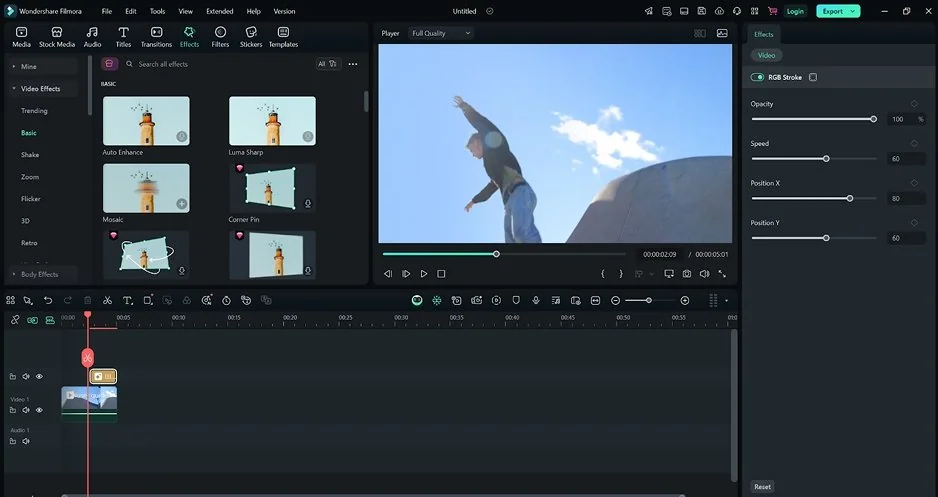
Best for: vloggers whose YouTube channel posts frequently.

Price and platforms: free with a watermark; paid plans start at $19.99/month or $49.99/year. Windows and Mac.

Why we picked it: Filmora is an AI-powered desktop editor for creators with a steady flow of uploads. Its multitrack timeline, keyframe animation, and motion tracking let you build layered text that moves with the subject.

Key features:

  • Titles with keyframes: animate the position and look of text over time
  • Motion tracking: pin a caption to a moving subject
  • AI auto subtitles: translation into other languages and a choice of caption style
  • Templates and Instant Mode: ready-made layouts for different occasions and formats
Pros:
  • Simpler interface than professional editors

  • AI tools for blogger tasks, such as auto reframing and pause removal

  • Runs on a mid-range laptop

Cons:
  • Free exports carry a watermark, and the number of exports is limited

  • AI features use credits on top of the subscription

  • The number of tools and settings can slow a beginner down

Best for: small business owners on Windows 11 who make quick social media promos.

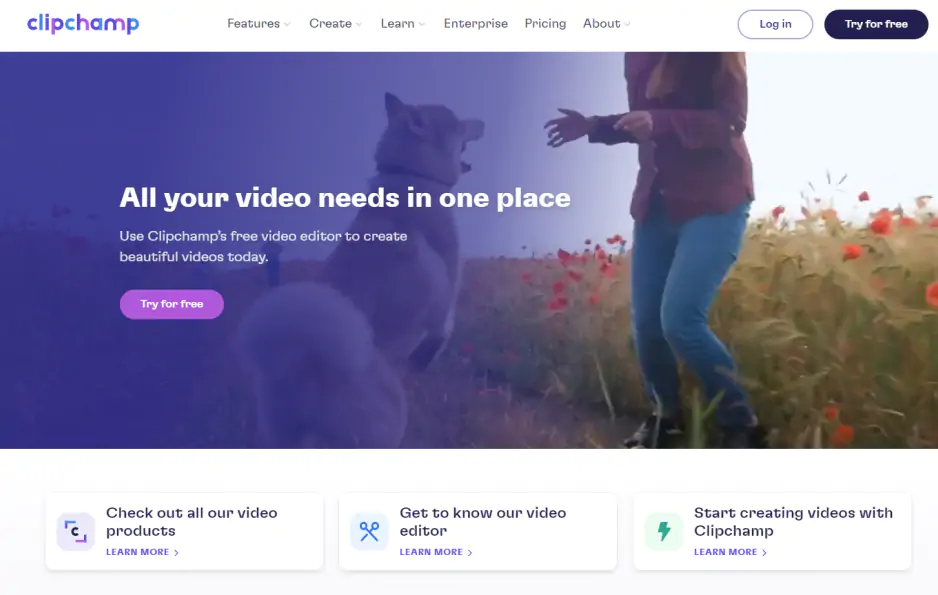
Price and platforms: free; Premium comes with Microsoft 365 Personal, from $9.99/month. Browser, Windows 11 app, and iPhone app.

Why we picked it: Clipchamp is Microsoft's browser-based editor, built into Windows 11 and Microsoft 365. A simple timeline, text tools, and free AI auto subtitles let you put a sale price on a 9:16 promo without installing anything.

Key features:

  • Text and templates: titles plus templates for social media, work, and school
  • AI auto subtitles: free, with a language choice and a downloadable transcript
  • AI voiceover: generate narration from typed text
  • Vertical format: a 9:16 canvas and social media templates
Pros:
  • 1080p export without a watermark on the free plan

  • Every AI feature is free

  • A simple timeline that's clear to beginners

Cons:
  • Can slow down on large files, and export may freeze at the final stage

  • Needs a Microsoft account and a fast internet connection

  • 4K export and paid stock need Premium

Best for: shop owners who make Instagram posts and stories that mix design with short video.

Price and platforms: free; Pro is $18/month or $180/year. Browser, desktop, and mobile apps.

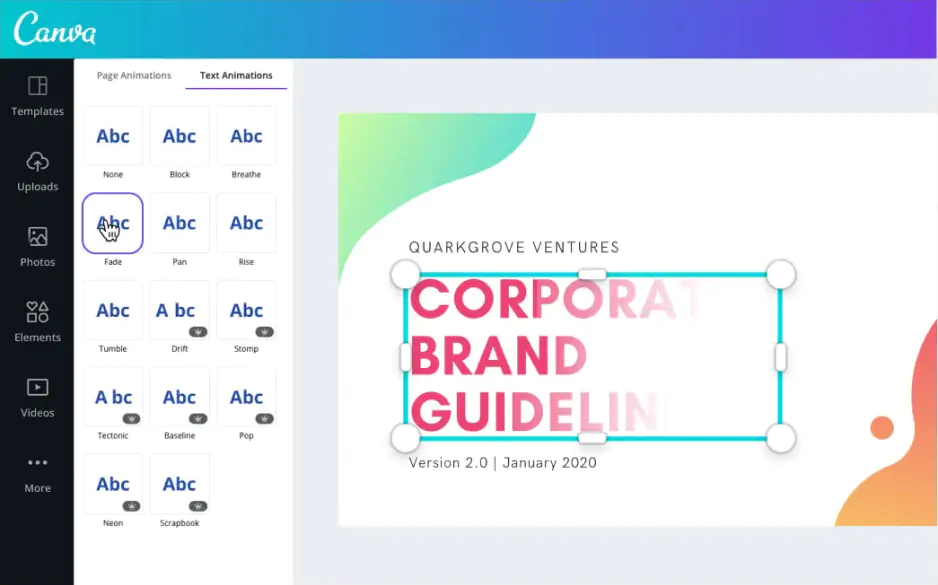
Why we picked it: Canva is a graphic design builder with video as an additional format. It has a huge selection of fonts and text animations, and most of its video templates are sized for Reels, TikTok, and Stories.

Key features:

  • Fonts and text animations: a huge selection for brand-styled captions
  • AI auto subtitles: a choice of caption styles
  • Vertical templates: most are tailored for Reels, TikTok, and Stories
  • Shared editing: several people can work on one video at the same time
Pros:
  • A good-looking video from a template takes little effort

  • Design and video live in one place

  • A familiar drag-and-drop interface

Cons:
  • Little control over the timeline, audio, and color

  • Slows down on long videos and heavy files

  • The best elements and most AI features are Pro only

Best for: lifestyle creators who shoot and caption reels on an iPhone.

Price and platforms: free download for iPhone, with in-app purchases from $1.99.

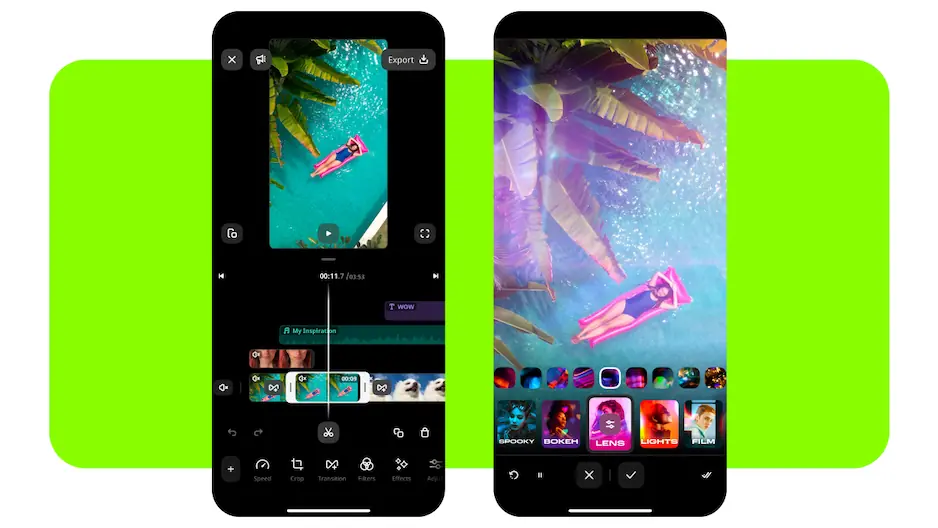
Why we picked it: Movavi App is a mobile video and photo editor for social media reels, with pre-designed templates and trending effects. Titles, filters, and music sit in the same few-tap flow as trimming, so you can caption an unboxing clip on the bus home and share it to Instagram, TikTok, or YouTube from the app.

Key features:

  • Titles and filters: text styles and filters made for vertical reels
  • Templates: pre-designed templates for social media reels
  • AI background swap: replace the backdrop with no green screen
  • Built-in music: tracks to set the mood of a vlog
  • Swipe to cut: remove a scene you don't need with one swipe
Pros:
  • Built around vertical reels shot on a phone

  • Shares straight to Instagram, TikTok, and YouTube

  • Video and photo editing in one app

Cons:

Best for: Android users who want free captions on short vlogs and unboxings.

Price and platforms: free with in-app purchases from $2.99. Android, with a separate iPhone version.

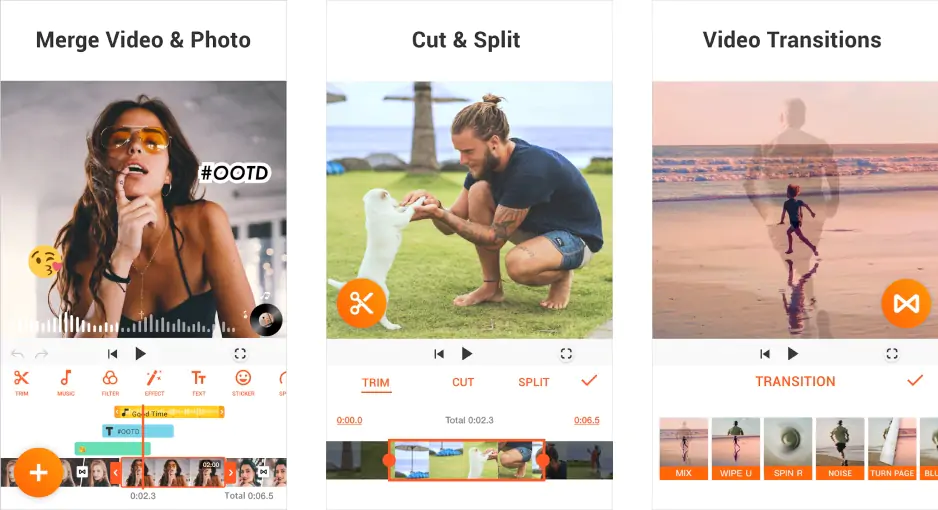
Why we picked it: YouCut is a free video editor from InShot for Android phones, and it never adds a watermark to your video. You can add text in many fonts and styles, layer text and stickers over your clips, and share the result straight to YouTube.

Key features:

  • Text: many fonts and styles for captions and titles
  • Layers: place text and stickers on top of your clips
  • Music: add YouCut's featured tracks or your own, and adjust the original volume
  • AI Templates: ready-made layouts, plus speed control, crop, and a slideshow maker
Pros:
  • No watermark on exports, even in the free version

  • No banner ads on screen while you edit

  • Low phone requirements

Cons:
  • Ad-supported unless you pay for YouCut Pro

  • A basic feature set next to more advanced mobile editors

  • Paid editing materials need a Pro subscription

How to choose

For lifestyle vlogs and beauty tutorials edited on a computer, start with Movavi Video Editor. Its AI tools take over the dull parts of a text-heavy edit: auto subtitles type out a whole get-ready-with-me voiceover, and silence removal trims the pauses before you place a single title. The same project covers the rest of your basic editing, from color grading with presets to audio cleanup, so experienced editors who want a faster workflow get one too. Plenty of creators already rely on it: Movavi software has 70M+ users worldwide. The editor also gets 25+ updates a year, so new text and AI tools keep arriving.

The cost grows only as your needs do. Start with Movavi Video Editor Free, move to the full version when you want exports without a watermark, and add a subscription only for the extras you'll use. Movavi Effects brings 10,000+ more effects that you can preview on your own footage before buying, and Movavi Templates opens the full template library.

Here's how to match a tool to your situation:

  • If you edit lifestyle vlogs or beauty tutorials on a PC or Mac, Movavi Video Editor handles the titles, subtitles, and the rest of the edit in one desktop app.
  • If you shoot and post from an iPhone, Movavi App keeps the whole reel on your phone.
  • If you edit on Android and want a free app, YouCut adds text with no watermark.
  • If you need a quick promo on Windows 11, Clipchamp is already installed and also works online in a browser.
  • If the font design matters as much as the footage, Canva has the widest choice of text animations.
  • If your channel posts often and you want layered motion text, Filmora covers it.

Open your latest vlog, drop one title on the opening shot, and run auto subtitles on the first minute. With a text overlay and captions on the same clip, you'll see what your next episode can look like.

Movavi Video Editor
Create awesome videos easily

*The free version of Movavi Video Editor may have the following restrictions depending on the build: watermark on exported clips, 60-second video or 1/2 audio length limit, and/or some advanced features unavailable when exporting videos.

Frequently asked questions

How do I add text to a video for free?

Movavi Video Editor Free lets you try titles and auto subtitles, with a 60-second cap and a watermark on exports. For longer free video editing, Clipchamp exports 1080p with no watermark, and YouCut adds no watermark on Android.

Can I add text to a video without a watermark?

Yes. The full version of Movavi Video Editor exports with no watermark and no length limits. Movavi Video Editor Lite puts a small watermark in the corner and limits some tools, such as AI noise removal and chroma key.

How do I turn speech into on-screen words?

Use auto subtitles. In Movavi Video Editor, you can translate the generated subtitles into English, fix any line, and either embed them in the video or export them as an SRT file.

Can I make animated text?

Yes. Movavi Video Editor's animation tool has an easy mode with drag-on presets and an advanced mode where you set keyframes for position, size, rotation, and opacity. A separate timer title adds an on-screen countdown, handy for a timed makeup challenge.

Have questions?
If you can’t find the answer to your question, please feel free to contact our Support Team.
Join us for discounts, editing tips, and content ideas

1.5M+ users already subscribed to our newsletter

By signing up, I agree to receive marketing emails from Movavi and agree to Movavi's Privacy Policy.