
Best Free Audio Converters in 2026

Try Movavi Video Converter!

  • Lightning-fast file conversion

  • Powerful video compression

  • AI video upscaling: up to 8X

Edited by
Ben Jacklin
35,356

Key takeaways

  • I moved between installed programs and browser tabs, testing Movavi Video Converter, CloudConvert, Audacity, and FFmpeg on the same stubborn files. Each one showed a different personality, some quick and minimal, others more hands-on and exacting.
  • A reliable audio file converter is not just about format lists. Speed, consistent sound quality, and simple controls matter just as much, while advanced tools dig deeper into bitrate and codec settings.
  • If your goal is basic listening or quick sharing, an audio-to-MP3 converter with a clean interface is often all you need. No complicated setup, just convert audio to MP3 and move on.
  • When handling bigger batches or aiming for better quality, double-check bitrate and sample rate first. I usually test one file before running the full queue.

On my desktop, there is a folder called “audio_misc” that has been quietly collecting files for years. Different formats, random bitrates, voice memos I forgot to label. One evening, I opened it and started running everything through one audio converter after another, just to see which handled the chaos without complaint. Interviews, rough music drafts, oversized recordings that made my laptop fan spin louder than usual. Only after that did I narrow everything down to the strongest options. I paid attention to speed, sound quality, and how much effort each task required. When I did not feel like installing software, I compared results with an online audio converter instead. Some tools felt instantly comfortable, others needed patience. Here is what genuinely stood out.

My top picks

  1. Best overall: Movavi Video Converter
    A rare mix of speed, clarity, and practical audio tools that covers both quick conversions and light editing without friction.
  2. Best for beginners: Movavi Online Converter
    No setup, no clutter, just a clean upload-to-download flow that feels obvious from the first click.
  3. Best online audio converter: CloudConvert
    Broad format support, bitrate control, and cloud imports in one browser tab, ideal for fast format swaps anywhere.
  4. Best free open-source solution: FFmpeg
    Deep codec support and total parameter control give experienced users precision that graphical tools rarely match.
  5. Best for detailed audio editing: Audacity
    Full editing environment with flexible export settings, suited for users who want to adjust sound before converting.

Comparison table of the best desktop and online audio converters

Program

OS

Main advantages

Download

Windows, macOS

Fast conversion; clean, beginner-friendly interface; easy audio extraction

Online (browser)

No installation; simple, intuitive conversion; works on any device

Online (browser)

Wide format support; quality/size controls; cloud storage integration

Top 15 audio converters

1. Movavi Video Converter

Why I picked it: fast and easy to use, with SuperSpeed conversion, broad format support, and reliable performance as an MP3 song converter without overwhelming beginners.
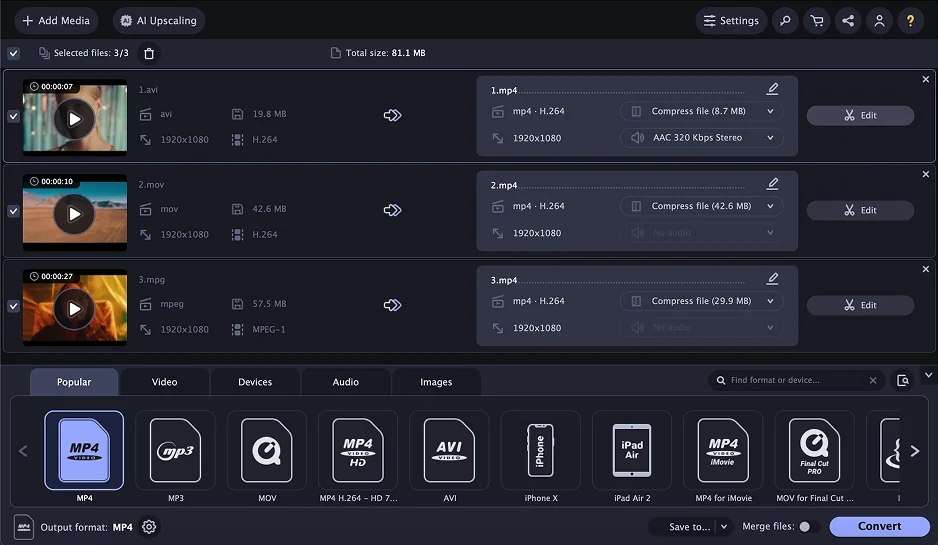
Movavi Video Converter runs on Windows and Mac computers and is often labeled as a video tool, though its audio features hold their own. I dragged a few mixed tracks into the window and converted them to MP3 and FLAC in less time than it took to organize the folder. The layout feels calm. No bright distractions, no buried buttons. Everything important sits where you expect it. Audio can be extracted from video files in a couple of clicks, which is handy for interviews or live recordings. I tweaked volume levels, cut out a clumsy intro, and softened a faint hiss before saving, and the controls felt straightforward. SuperSpeed mode moved especially fast with supported formats, finishing almost instantly since it skips re-encoding.
Ratings

Cons:
  • Free trial adds watermark

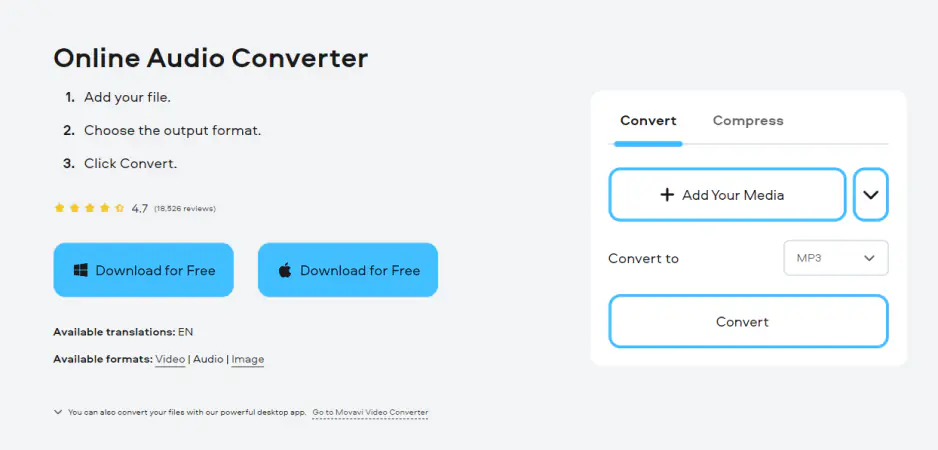
Why I picked it: a quick browser-based solution that keeps audio conversion simple, accessible, and consistent across devices without installing extra software.

Movavi Online Audio Converter lives in the browser, so the whole process feels light and direct. I dropped in a couple of songs, switched one to FLAC and another to MP3, and the steps were obvious from the first screen. It covers the usual formats such as MP3, WAV, FLAC, AAC, M4A, and WMA, and you can fine tune the bitrate if you care about file size. I liked that I did not have to dig through menus to find that setting. It runs the same way on Windows, Mac, or a phone. The converted files kept their clarity, even on a quick test with spoken audio.

Pros:
  • Easy to use interface

  • Supports most common audio formats

  • Works in any browser

Cons:
  • Limited advanced settings

  • Slower with large files

3. CloudConvert

Why I picked it: strong format support with bitrate control and cloud integration, all wrapped in a clear and intuitive online interface.

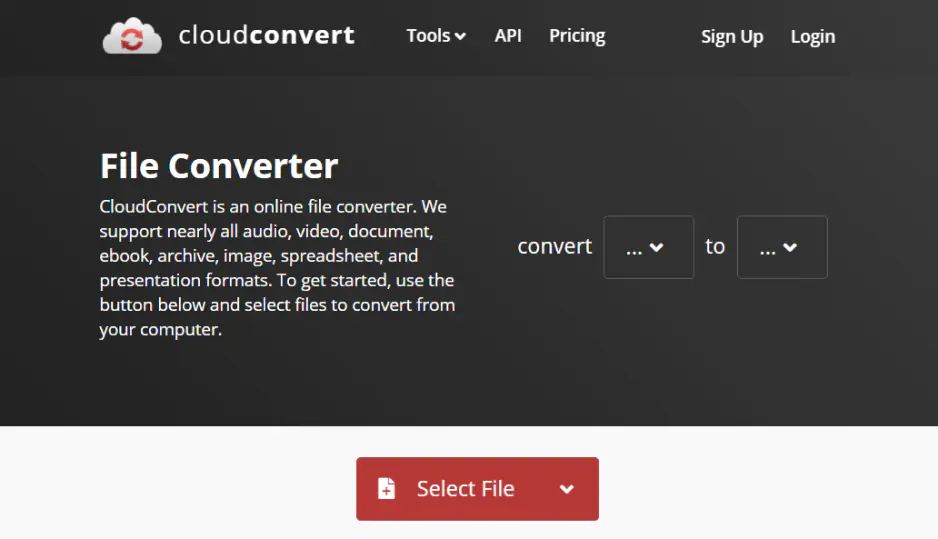
CloudConvert runs in the browser and covers a wide spread of audio formats. It handles the usual suspects such as MP3, WAV, M4A, AAC, FLAC, and WMA, and gives you control over quality and file size before you hit convert. I spent a few minutes adjusting bitrate on a spoken word file, and the changes were simple to apply and easy to understand. Uploading the file and choosing the format felt straightforward, with no extra steps getting in the way. The service states that your files remain private and accessible only to you during processing. It works across desktop and mobile browsers, which makes quick format swaps feel fairly effortless.

Ratings

4. Convertio

Why I picked it: extremely simple workflow with wide format compatibility and smooth cloud imports for everyday browser-based conversions.

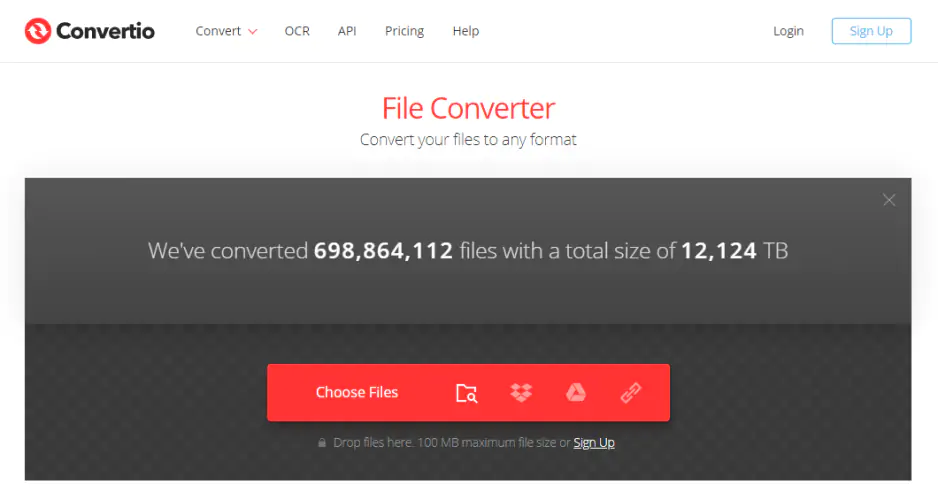
Convertio works straight from the browser and keeps the process fairly direct. You can pull audio from your device, Google Drive, or Dropbox, then pick an output format from a long list that covers MP3, WAV, FLAC, AAC, Ogg, and many others. It supports thousands of format combinations and runs the same way on desktop or mobile. Free users can upload files up to 100 MB. Input files are deleted right after conversion, and output files disappear after 24 hours. I liked how clearly the upload and format options were laid out, since I did not have to second guess the next step. The interface stays minimal, so moving the finished file back to storage feels quick and uncomplicated.

Ratings

Pros:
  • Supports all the popular formats

  • Simple, clear conversion process

  • Works in any browser or device

Cons:

5. VideoProc Converter

Why I picked it: hardware acceleration, batch processing, and built-in editing tools make it powerful yet still manageable for regular use.

VideoProc Converter feels more like a full media workstation than a basic converter, yet audio format changes are easy to find and use. It converts files to MP3, WAV, FLAC, Ogg, and other common formats while keeping the sound steady. You can pull audio from video, adjust bitrate or channels, and queue several files at once. I ran a handful of larger tracks through batch mode and it handled them without slowing down, which honestly surprised me a bit. The layout keeps things organized, so settings are visible without feeling crowded. It also includes tools for trimming, compressing, and preparing files for phones or social platforms. The latest update expanded the downloader module and refreshed format support.

Ratings

4.0

Pros:
Cons:

6. VLC

Why I picked it: completely free and surprisingly capable, with reliable audio extraction and flexible conversion profiles.

VLC has always been that utility I keep installed just in case, yet it also hides a capable audio converter inside the same familiar window. In my tests, it handled every file I tried and let me export tracks as MP3, WAV, FLAC, or Ogg from the Convert or Save menu. Audio can also be extracted from video, with a choice of profile before saving in just a few steps. The option is easy to overlook at first since it sits quietly under the Media tab. After finding it, the routine felt stable and easy to repeat. The interface looks plain, but the tools are grouped logically. Available on Windows, macOS, Linux, and mobile, it works as a steady fallback for quick format changes.

Ratings

Pros:
Cons:
  • Busy interface with hidden advanced options

  • Not beginner friendly for conversion features

7. Zamzar

Why I picked it: straightforward, beginner-friendly online converter that handles common formats without unnecessary complexity.

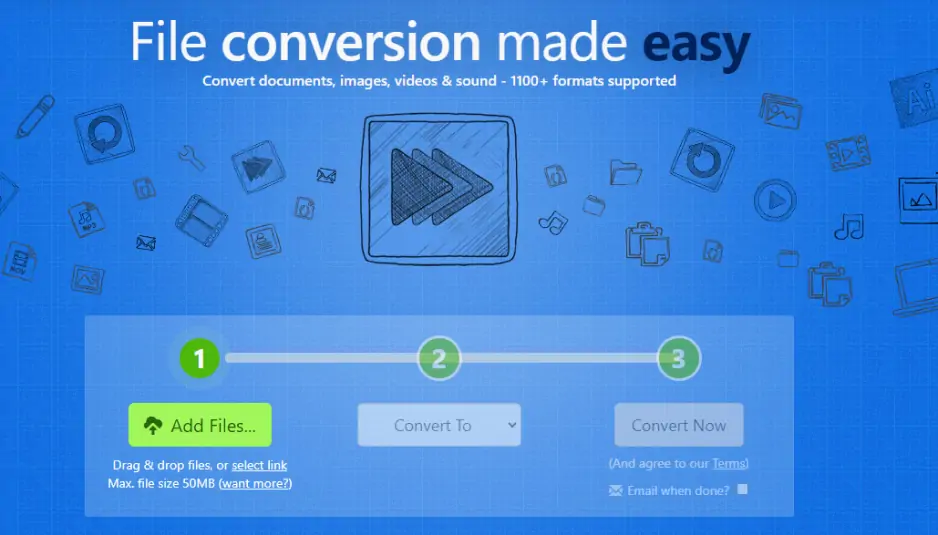
Zamzar works well for quick audio format changes when the goal is to keep things simple. The process moves in a straight line. I uploaded a short podcast clip, picked a new format, and had the converted file ready a few minutes later. You add the file, choose the output type, and download the result once it finishes. You can use this MP3 converter for audio conversions to common formats like MP3, WAV, FLAC, Ogg, M4A, and MIDI, so most everyday needs are handled. Overall, the platform supports more than a thousand file types and has been running since 2006. Free users can convert files up to 50 MB, though daily limits apply. Converted files stay available briefly before removal. Paid plans increase file size limits and processing speed.

Ratings

Pros:
Cons:

8. MediaHuman Audio Converter

Why I picked it: clean desktop design, strong lossless support, and reliable batch conversion with automatic metadata preservation.

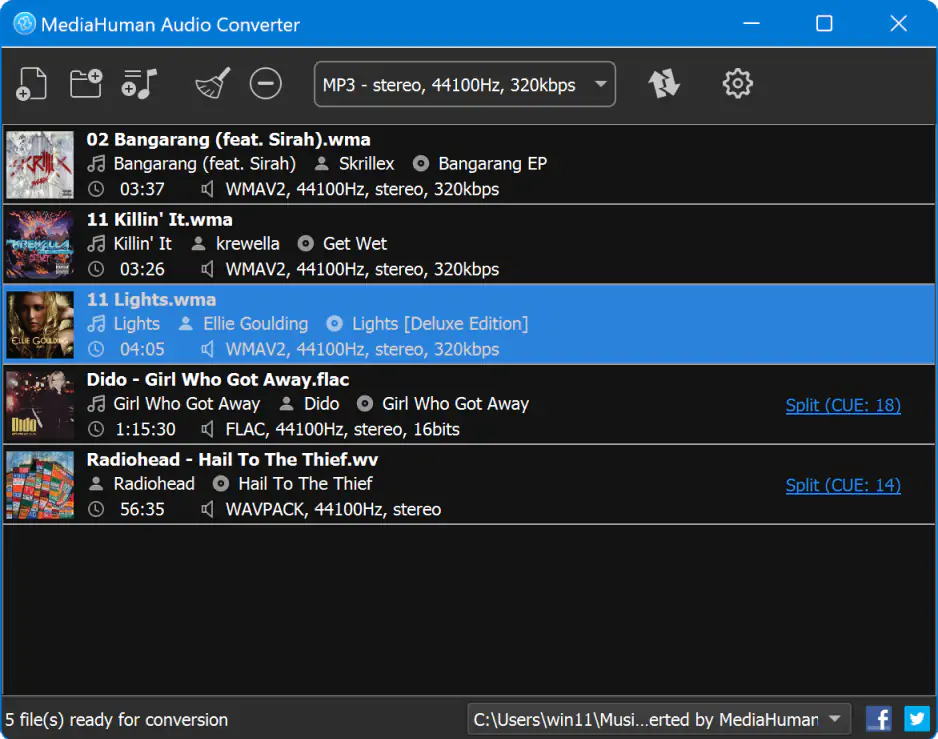
MediaHuman Audio Converter feels calm and focused the moment it opens. It handles common formats such as MP3, AAC, and Ogg, along with lossless options like FLAC, AIFF, and WAV, including 32 bit WAV output for higher quality work. Files can be dragged straight into the window, the format selected, and the process started in seconds. It runs on Windows and macOS and accepts full folders at once. I dropped in two album folders and the tracks came out neatly sorted, with tags preserved. The program reads metadata automatically and keeps it in the converted files. The latest update adds the option to disable automatic tag writing and fixes minor completion message issues.

Ratings

9. FFmpeg

Why I picked it: unmatched precision and codec support for users who want full control over audio conversion settings.

FFmpeg is a free, open-source command line tool built for people who want full control over their media files. It supports a long list of audio formats, including MP3, WAV, AAC, FLAC, and OGG, and converts them through simple text commands. There is no visual interface, just the terminal and the parameters you choose. I ran a few test conversions with custom bitrate settings, and the precision was impressive once the syntax was right. It can extract audio from video and process large batches through scripted commands. The tool runs on Windows, macOS, and Linux. The latest stable release adds a Whisper speech recognition filter and updates several codecs for broader format support and better performance.

Ratings

4.7

Pros:
Cons:

10. Switch Audio File Converter

Why I picked it: fast batch processing with broad format support and simple setup for efficient everyday conversions.

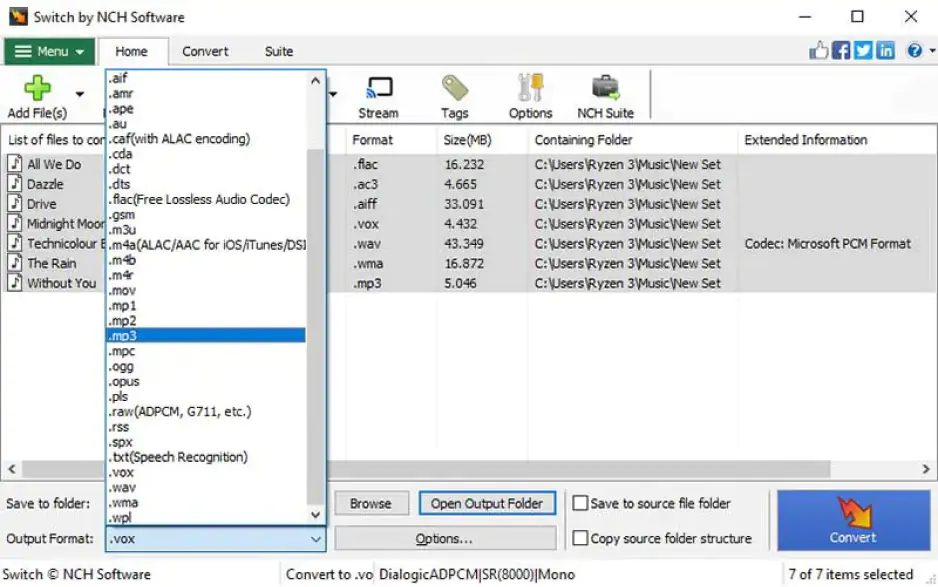
Switch Audio File Converter keeps things focused on speed and format changes. It covers a broad range of types, including MP3, WAV, FLAC, AAC, WMA, Ogg, and AIFF, which helps when older files refuse to play on newer devices. Single tracks or full folders can be added to the queue in seconds. I loaded a mixed batch of songs and voice recordings, and the program moved through them faster than expected. The layout is plain but easy to follow, even for someone new to audio tools. You can normalize volume levels and adjust basic metadata before exporting. It runs on Windows and macOS and maintains steady output quality across larger batches.

Ratings

Pros:
Cons:

11. VSDC Free Audio Converter

Why I picked it: clear interface with essential editing tools and solid format coverage for practical Windows-based conversions.

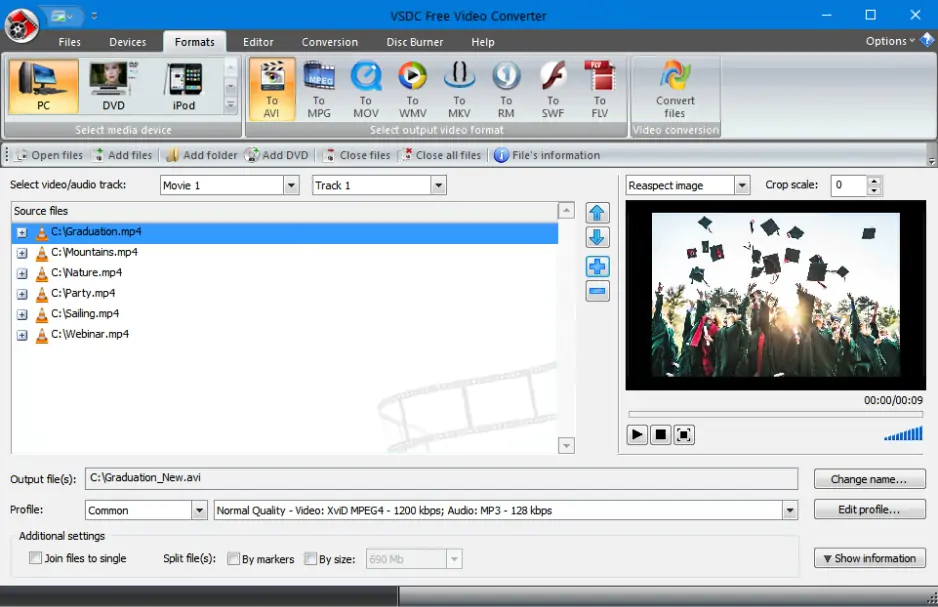
VSDC Free Audio Converter keeps its focus on practical format changes. It supports key audio types such as MP3, WAV, WMA, Ogg, AMR, AU, VOC, and AIFF, which covers most everyday needs. Files or full folders can be added to the list, then converted in a few steps. The interface feels structured and calm. I remember opening it for the first time and not needing a guide to figure out where to click. Bitrate and sample rate can be adjusted before exporting so the output fits your device. A small built-in editor allows trimming unwanted fragments from a track. The program can also download audio from the Internet and convert it on the spot. It runs on Windows and keeps sound quality consistent while preserving metadata for better organization.

Ratings

Pros:
Cons:

12. DVDVideoSoft Free Audio Converter

Why I picked it: offline batch conversion with a straightforward interface that keeps format changes quick and uncomplicated.

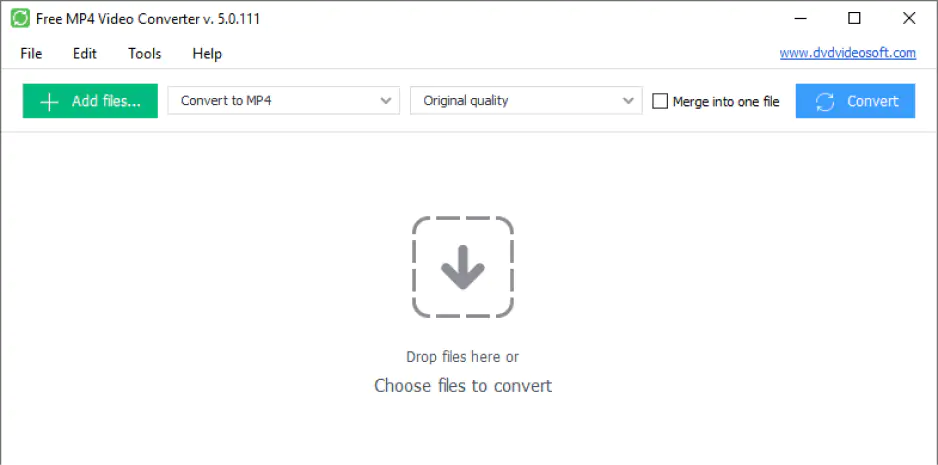
DVDVideoSoft Free Audio Converter is a Windows desktop app built for practical format changes between MP3, WAV, FLAC, AAC, Ogg, and WMA. The interface looks simple and keeps the main options visible from the start. Files or full folders can be added in seconds, then converted after choosing the format and quality level. It also allows several tracks to be merged into one longer file for playlists or project work. I loaded a mixed folder of songs and the process moved along steadily without extra steps. Batch conversion stays efficient, so large collections do not require repeated setup. Everything runs offline, and your audio files remain on your computer.

Pros:
  • Simple and easy interface

  • Supports major audio formats

  • Batch conversion for multiple files

Cons:
  • Windows only

13. FileZigZag

Why I picked it: easy web-based converter suitable for small files and occasional format changes.

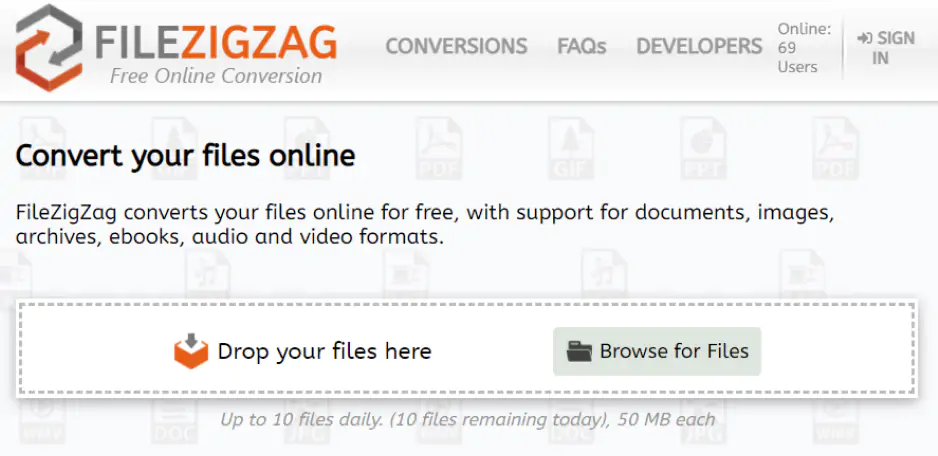
FileZigZag is a web based converter that handles audio formats like MP3, WAV, FLAC, AAC, Ogg, and several others. The process is simple. Upload the file, pick the format, wait a moment, then download the result. I hit the daily limit of 10 files pretty quickly while converting a longer playlist, which slowed things down more than I expected. Each file can be up to 50 MB, which works fine for standard tracks. The service also supports batch conversion and many other file types beyond audio. Files are processed on FileZigZag’s servers and removed automatically after a short time. It runs in any modern browser on desktop or mobile.

Ratings

4.2

Pros:
Cons:

14. Freemake Audio Converter

Why I picked it: wide format support with audio extraction and merging features in an intuitive Windows desktop environment.

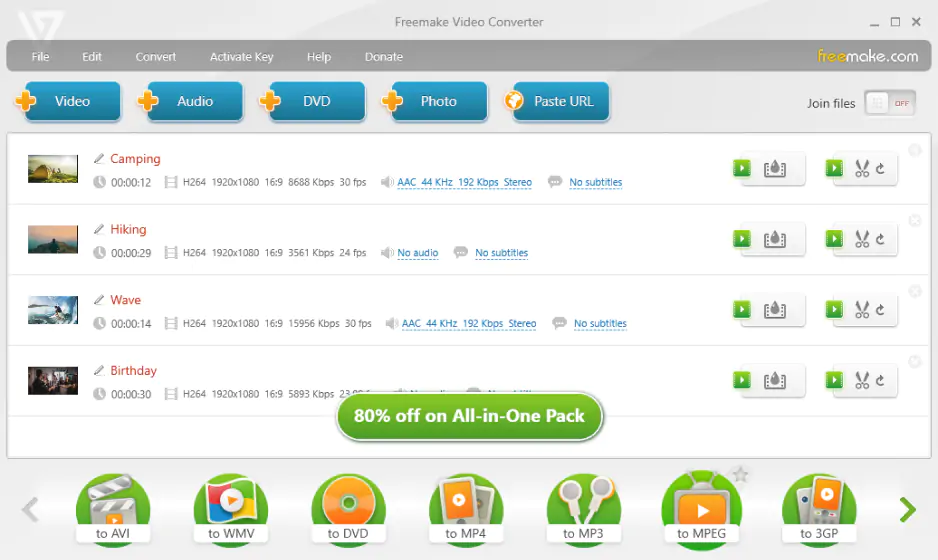
Freemake Audio Converter is a Windows desktop tool made for straightforward audio format swaps across a wide range of file types. Installation is quick, and there is no account wall waiting at launch. Tracks or full folders drop into the workspace easily, then conversion starts once the format is selected. I spent some time adjusting bitrate, channels, and sample rate while testing a few FLAC files, and the controls felt clear enough to experiment with. The program can pull audio from video clips and merge several files into one longer track. It works with more than 50 audio formats in total. Even with a larger batch running, the pace stayed steady and the sound quality held up.

Ratings

Pros:
  • Supports over 50 audio formats

  • Extracts audio from video and joins files

  • Intuitive and simple interface

Cons:
  • Free version may prompt for paid features

  • Occasional performance issues on large files

15. Audacity

Why I picked it: powerful free editor that combines detailed audio editing with flexible export settings and batch conversion support.

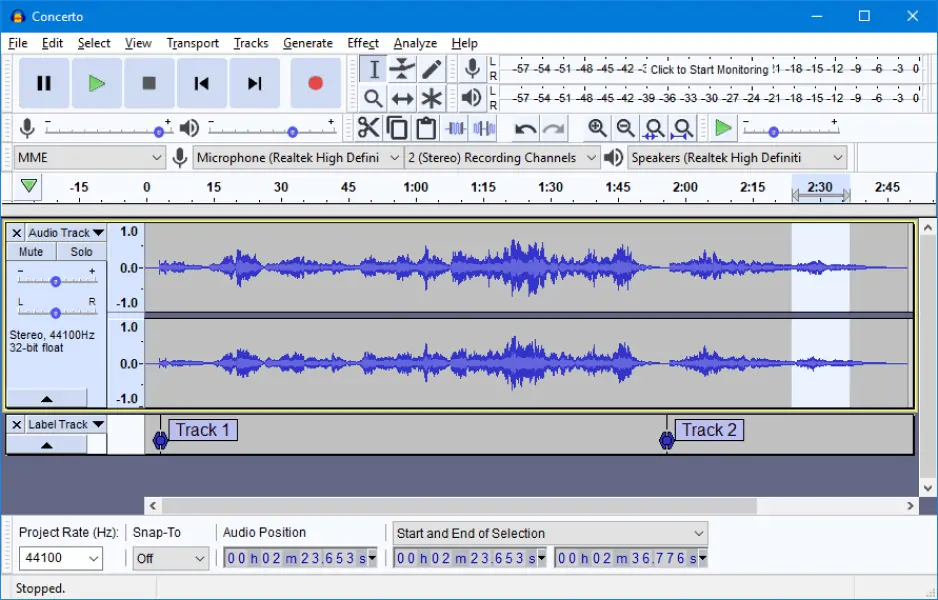
Audacity is a free, open source audio editor that also handles format conversion. It works with WAV, AIFF, MP3, FLAC, Ogg, and other common file types, and lets you export them with custom bitrate and quality settings. At first glance, the screen feels crowded with waveforms and small icons. After a few minutes of clicking around, the layout begins to make sense. It runs on Windows, macOS, and Linux, and batch processing is possible through macros. I set up a basic macro to convert a stack of spoken recordings in one go, which cut down the repetition. The editor also allows you to trim rough parts, reduce background hiss, and adjust volume before saving the final track.

Ratings

Pros:

How to choose the best audio file converter

Choosing an audio converter is less about checking format lists and more about noticing how you like to work. I realized this after converting the same interview in three different programs and reacting very differently each time.

If you deal with folders full of mixed files, Movavi Video Converter feels steady and practical. It handles batch processing, extracts audio from video, and does not bury basic settings. You open it, add files, and move on.

For lighter tasks, especially when you are on a different computer, a browser tool can be enough. Movavi Online Video Converter keeps the flow simple, while CloudConvert adds bitrate control and cloud storage access. I have used both when I did not want another app sitting in my dock.

If you prefer precision over comfort, FFmpeg gives you exact control, down to specific parameters. It takes patience, but the flexibility is hard to match. When editing is part of the plan, Audacity makes more sense. You can trim, clean up noise, and export in one place.

In the end, the right choice depends on your habits. Try converting a real file you care about. The program that feels natural after five minutes is usually the one to keep.

Movavi Video Converter
The ideal way to get your media in the format you need!
Movavi Video Converter

Frequently asked questions

What is the best free MP3 converter?

I would begin with Movavi Video Converter and test it on a few of my own files. The full version trial shows how the program handles real tasks before you decide whether to upgrade. Free tools like Audacity and VLC can export MP3 at no cost, but the workflow often involves extra clicks and less intuitive menus. Movavi keeps the layout clearer, so everyday conversions feel more direct and predictable.

Which is the safest MP3 converter?

Safety starts with the source. Download the Movavi desktop converter from the official website on your PC rather than unknown pages. The same rule applies to any audio converter, regardless of the brand.

If you prefer a browser option, Movavi also offers an online converter. I always check how files are processed and deleted. If that is unclear, I avoid uploading sensitive audio.

Is using an MP3 converter safe?

Yes, in normal use it is. Converting audio is a standard process and does not harm your system. I have processed plenty of recordings without issues. The only time I hesitate is when uploading personal files to unfamiliar websites, which is why desktop tools often feel like the safer choice.

Which audio file converter is best?

There is no single winner, at least not after I tested them side by side. For everyday desktop work, I kept coming back to Movavi Video Converter because batch processing and audio extraction felt steady and uncomplicated.

When I only needed a quick change in a browser, CloudConvert handled it without asking for installation. If I wanted to trim or clean a track before exporting, Audacity made more sense. For deeper control over codecs and parameters, FFmpeg is hard to beat, though it requires patience. And for simple, focused desktop conversions, MediaHuman Audio Converter proved consistently reliable.

Is an MP3 converter or WAV converter better?

The answer shifts with the task. MP3 reduces file size, so it fits daily listening, quick uploads, and sending tracks without thinking about storage. I use it when I just want the audio to play on any device without fuss. WAV keeps the full recording intact. When I edit voice notes or adjust small timing details in a draft, that extra data makes a difference. If you are pulling audio from YouTube for casual playback, MP3 is usually enough. For editing sessions or archiving raw material, WAV gives you more room to work.

What's the most high quality audio format?

WAV and FLAC keep the original audio data without compression loss. I use them for editing or storing files where detail matters. A 320 kbps MP3 is compressed, but it still sounds close to the source in everyday use and takes up less space. Movavi Video Converter supports WAV, FLAC, and MP3, so you can work with different quality levels in one program.

Have questions?
Have questions?
If you can’t find the answer to your question, please feel free to contact our Support Team.
Join us for discounts, editing tips, and content ideas

1.5M+ users already subscribed to our newsletter

By signing up, I agree to receive marketing emails from Movavi and agree to Movavi's Privacy Policy.