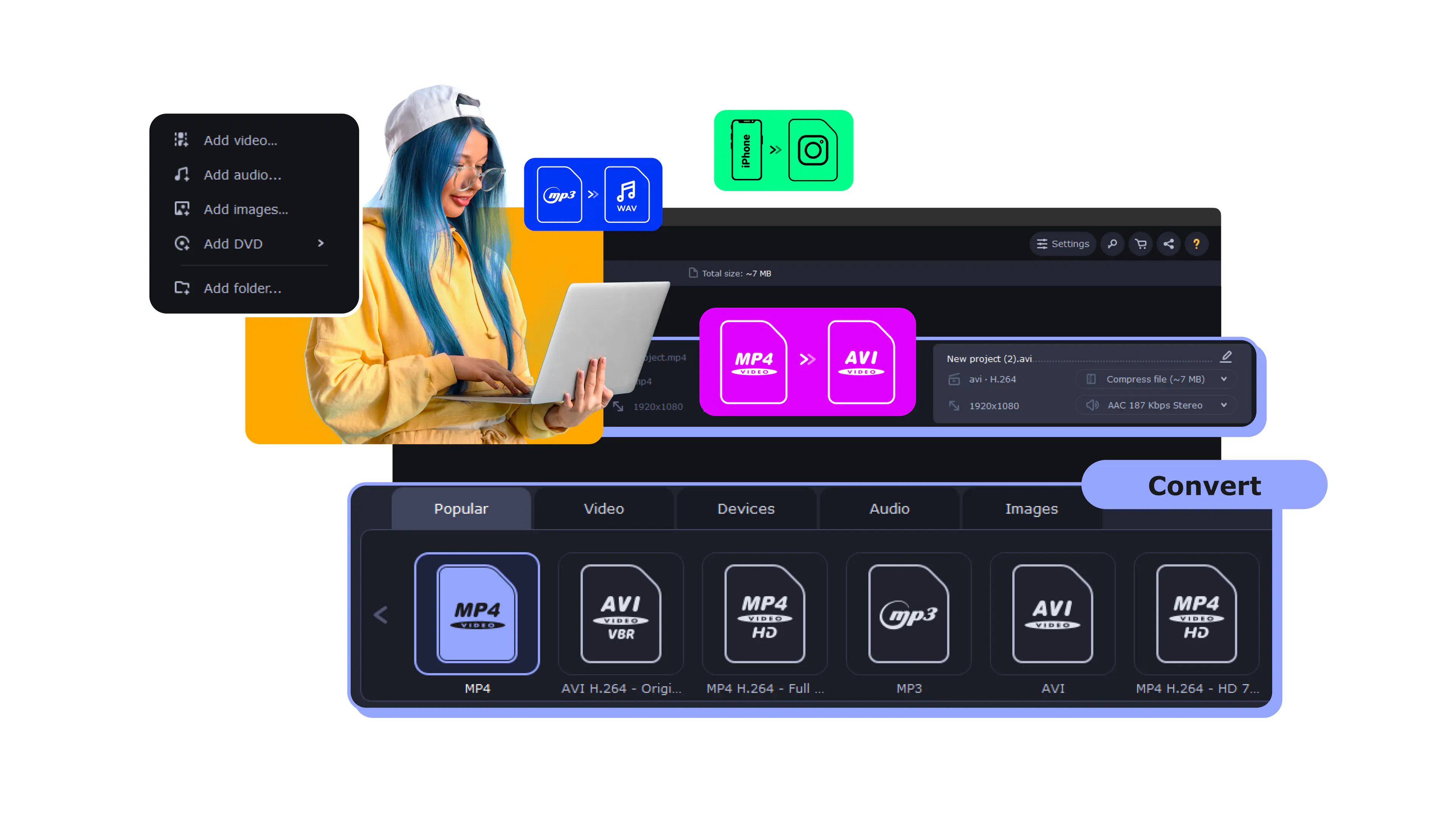

Best Free Video Compressors in 2026

Try Movavi Video Converter!

  • Lightning-fast file conversion

  • Powerful video compression

  • AI video upscaling: up to 8X

Edited by
Ben Jacklin
37,776

Key takeaways

  • Desktop software still wins. Products like Movavi Video Converter, HandBrake, and FFmpeg offer the best speed. I find these programs give you the most control over the final file size and look.
  • Web tools are great for quick fixes. You can use FreeConvert or CloudConvert to reduce video size without a single install. Just keep in mind that slow uploads and file limits can be a real pain.
  • Apps save your phone's memory. If your iPhone or Android fills up, VidCompact and Panda shrink your clips on the fly. These are perfect to use before you share a video on social media.
  • Every tool has a trade-off. A computer program offers deep settings and power. A browser tool saves you time on the setup. A mobile app focuses on simple buttons and fast results.

How to get the best results. Lower the bitrate in small steps and always pick HEVC or H.264 codecs. This is really a smart way to compress videos while you keep the visual details clear.

Shrinking your footage is the only way to dodge those "File too large" errors without losing the visual details you worked so hard to capture. It’s wild to think that the concept of interframe compression actually dates back to 1929, proving that even a century ago, engineers were desperate to save a few bits of data. I’ve personally put dozens of these tools through their paces on my own computer to see which ones actually deliver.

Whether you need to clear space on your iPhone or prep a 4K masterpiece for YouTube, I found that the right video size reducer makes the process feel effortless. I’ve lived the struggle of a stalled upload, so I tested these specifically to find the fastest ways to compress video without a headache. This list reflects my honest experience with the pros and cons of the current top contenders.

My top picks

  1. Best overall: Movavi Video Converter
    This software hits the perfect balance of insane AI speed and crystal-clear results for any computer.
  2. Best for mobile: Panda Video Compressor
    I cannot help but love how this app makes clearing out your Apple phone storage feel like a game instead of a chore.
  3. Best for quick fixes: Zamzar
    This online video compressor is my go-to when I need to reduce video size in a browser without any setup.
  4. Best for power users: FFmpeg
    It is the ultimate beast for anyone who wants total command-line authority over every single pixel.
  5. Best for Apple fans: Video Shrinker
    A cheap and effective way to hunt down those massive 4K files that eat up your iOS device's memory.

Comparison table: Best video compressor free options

Program

OS

Main advantages

Download

Windows, macOS

Insane AI-driven speed and zero quality loss.

Windows, macOS

Level-3 GPU acceleration for massive 4K files.

Best video compression software for a desktop

1. Movavi Video Converter

Why I picked it: pro-level speed and a layout that doesn't require a degree to understand.
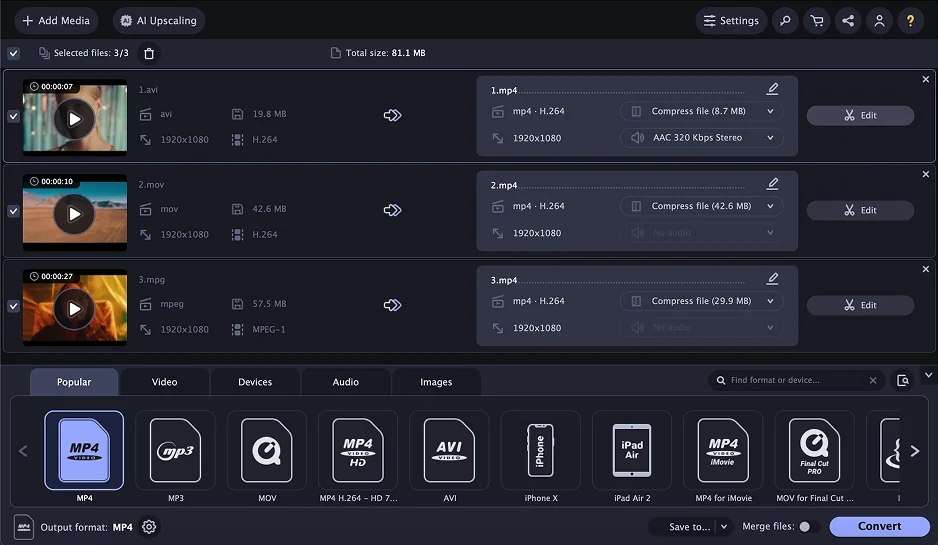
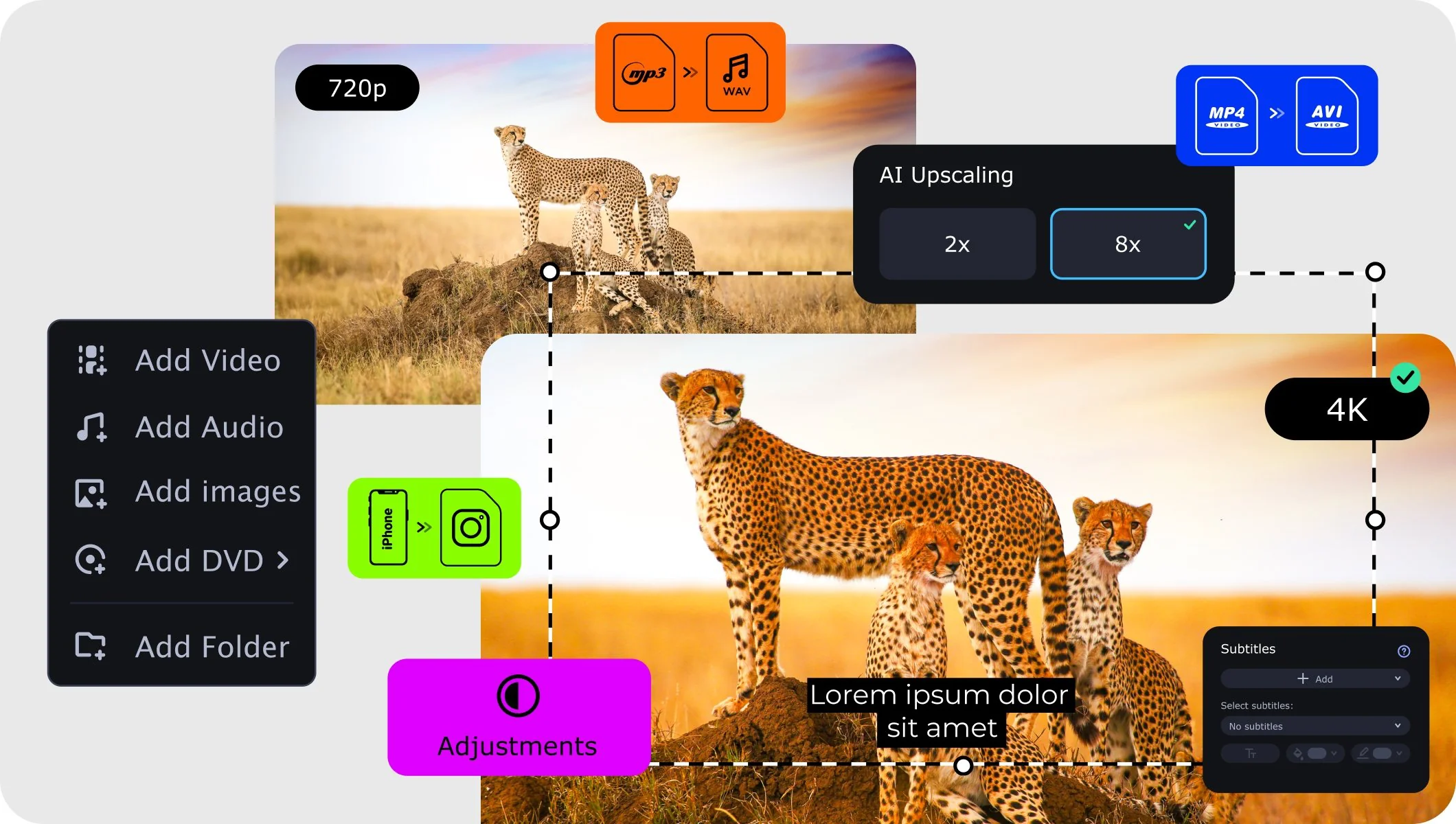
This PC software dominates my list of the best free video compressors because it squeezes every bit of power out of modern NVIDIA and AMD hardware. You can compress video files without the blurry mess that usually comes with high compression ratios.

It stands as the best MP4 compressor for anyone who values time over manual parameter tweaking. You get AI-based stabilization and noise reduction baked right into the conversion pipeline now. This tool remains a top pick for a laptop or desktop when you need to crunch 4K footage fast.

I also seriously appreciate the fact that the developers behind Movavi never sleep and regularly roll out new updates and perks to make their products stay ahead of the competition.
Ratings

Pros:
  • Conversion speeds are literally the fastest in the industry

  • AI upscaling adds detail to old 720p clips

  • Supports over 180 formats for any device

  • Lots of indispensable features like subtitle search

Cons:
  • The trial version puts a watermark on your exports

2. VideoProc Converter

Why I picked it: it can shrink large videos without ruining the picture, easily handling heavy 4K files with the final result always looking clean and sharp.

My search for the best free video compressors leads me to a tool that processes 4K footage just amazingly. This PC software is really impressive because it uses Level-3 GPU acceleration to hit speeds 47 times faster than standard tools. You can compress video files by entering the exact megabyte target you need for a specific upload.

I even checked their news center, and it’s clear they keep rolling out updates: faster AI upscaling, better face restoration, RTX 50 support, and other smart tools that keep the software fresh. It’s fair to say that the tool is actively maintained.

VideoProc Converter AI functions as a precise video quality reducer that uses x265 encoding to save space without creating a blurry mess. Whether you work on a Mac or a Windows laptop, the interface remains clean for any project. You get a full suite of features, including AI vocal removal and a downloader for 1,000+ sites. In my hands, this nifty video compressor turned a bloated 10 GB action cam recording into a 700 MB file in under three minutes.

Ratings

4.5/5

Pros:
  • Specific target size input takes the guesswork out of shrinking files

  • Hardware acceleration ensures your CPU doesn't melt during the process

  • AI enhancement tools can upscale lower-resolution clips during export

  • Supports over 370 input formats for maximum flexibility

Cons:
  • No dedicated app exists for mobile users yet

  • The most advanced AI features require a fairly modern graphics card

Why I picked it: Its interface may not be the most striking in terms of fashion, but converter capacities are among the best in the market.

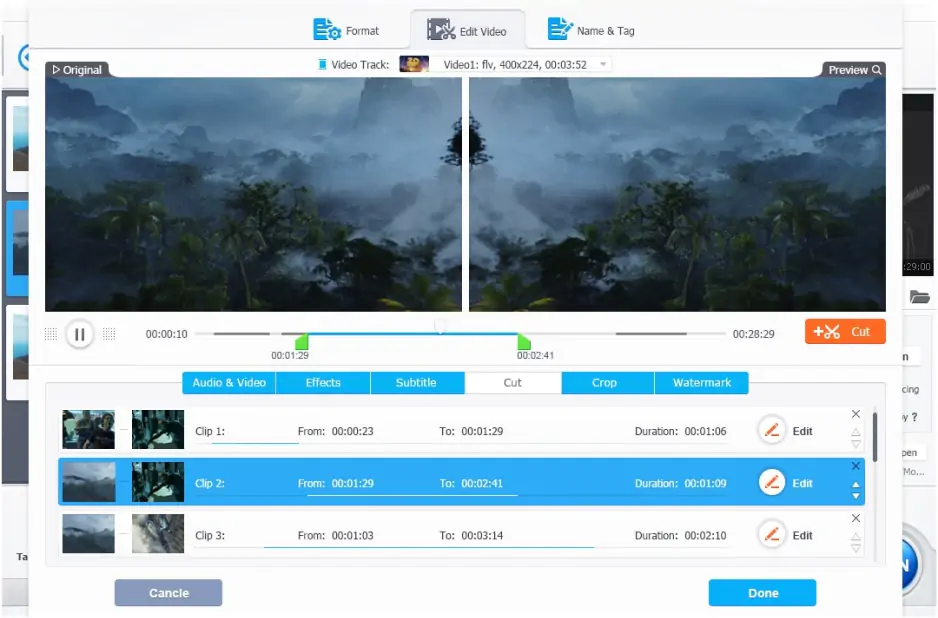
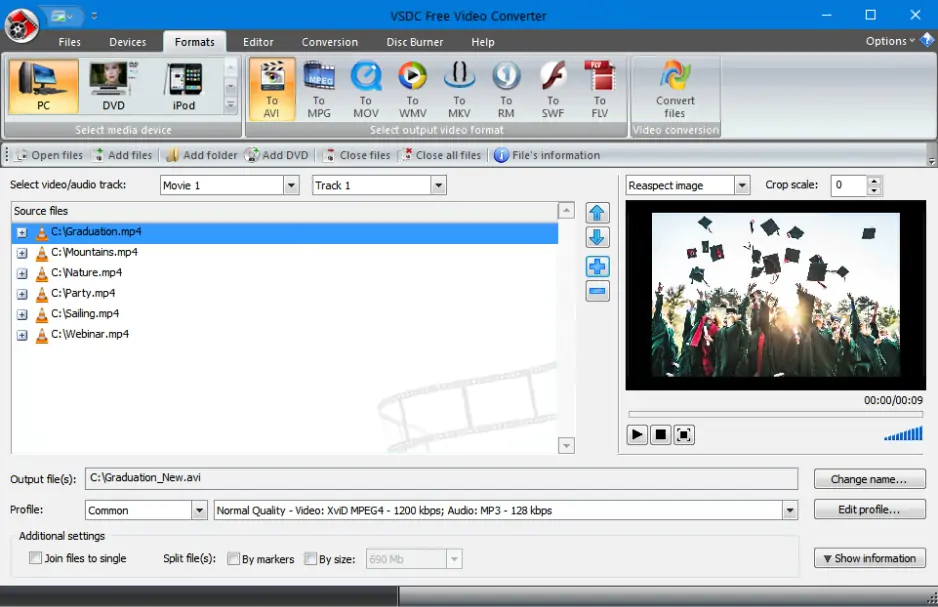
It’s not flashy, but it packs serious power. VSDC Video Converter is a fast, master tool that converts and edits videos without costing you anything. Its main job is to turn files from one format into another. It tackles almost everything you task it with – things like MP4, MOV, AVI, MKV, WMV, FLV, and many HD formats – along with all common codecs like MP3 and H.264.

You can merge clips, trim parts you don’t want, extract audio, or grab single frames and save them separately. The presets make choosing export quality simple, and the whole suite stays quick and smooth even on bigger files.

Visiting the project’s website can make you a bit embarrassed at first - it looks a bit outdated and not flashy, but updates arrive on a regular basis, and the project is really humming.

The latest 10.1 update brings some cool new features that stretch beyond basic conversion. You can now edit footage in HDR with bright, accurate colors and add GPS telemetry overlays like route paths, speed, or altitude from action cameras directly on your clips. There are also fresh effects and a wider set of templates and tools to help with creative projects.

I love how I took a dozen fragmented clips from a family gathering and merged them into one tiny, high-quality MP4 file.

Ratings

4.2/5

Pros:
  • High-speed conversion with practically zero visible quality loss

  • Includes a full editor to delete unwanted fragments before shrinking

  • Compatible with nearly every version of Windows

  • Saves custom presets to reuse your ideal compression settings

Cons:
  • The visual design feels dated compared to modern apps

  • Lack of a MAC version limits its user base

  • No automatic cloud backup for your project files

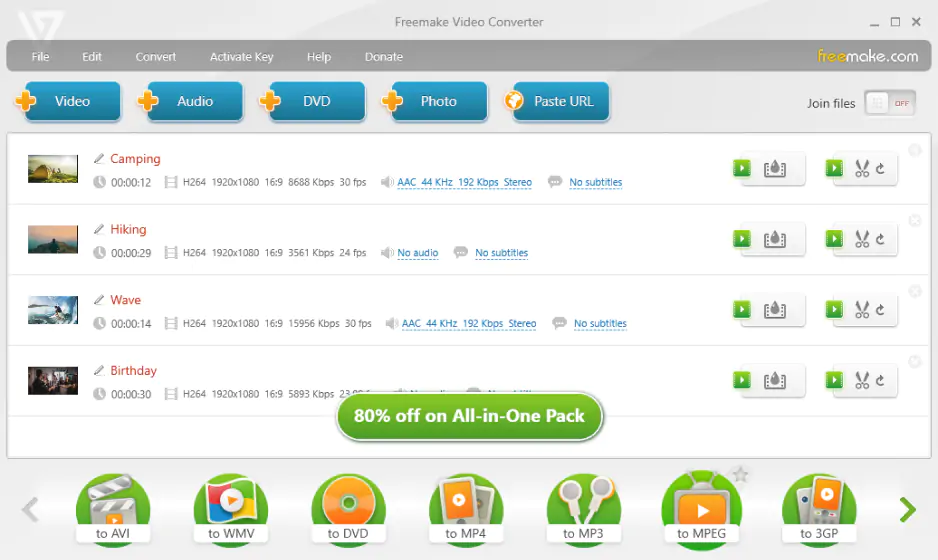
4. Freemake Video Converter

Why I picked it: this tool handles DVD ripping and subtitle embedding, while most other converters just focus on basic files.

The flow of my recommendations continues with a solution that is a veteran in the field of the best free video compressors. This Windows program secures its spot as a reliable video compressor free of charge for anyone dodging complex settings. It accepts over 500 formats, so you can compress video file types like AVI or WMV into a tight MP4 without thinking twice.

The developers keep things fresh with periodic performance patches that ensure compatibility with the latest Windows 11 builds. You can burn your compressed projects directly to Blu-ray or upload them straight to your YouTube channel from the interface. It functions perfectly as a video size reducer when you need to fit a massive clip onto a specific smartphone preset. The layout keeps things clean, though you should watch for extra software offers during the initial setup process.

Of course, I put it through its paces. I tossed in a scratched DVD from my basement to see if it could still extract and shrink the footage. It didn't just rip the data; it cleaned up the artifacts and compressed the whole disc into a single, sharp 2 GB file.

Ratings

Pros:
  • One of the few tools that still handles physical media and subtitles well

  • Zero advertisements cluttering up the workspace

  • Pre-made profiles for every gaming console and tablet imaginable

  • Supports direct 4K video downloads and conversion from web links

Cons:
  • No version exists for users on a Mac or Linux

  • The installation wizard tries to bundle unnecessary extras if you aren't careful

  • Slower encoding speeds compared to hardware-accelerated competitors

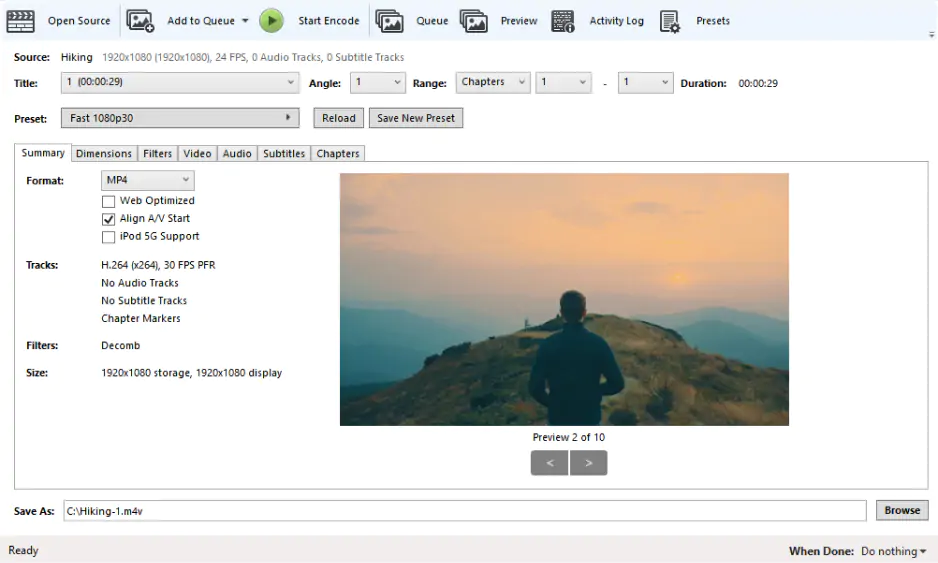
5. HandBrake

Why I picked it: its simple website hides a treasure chest of gems for anyone who wants to compress video without a price tag.

HandBrake stays on top of the game, too, because it offers specialized hardware encoders like NVENC to reduce video size on any PC. You can download this software for a Mac or a Windows laptop to handle complex batch jobs in a single run.

The project’s website may not look its prettiest, but it is obviously alive and buzzing. For example, the latest 1.10.2 update fixed those annoying visual corruption issues and refined the queue system for smoother renders.

It remains a top-tier MP4 compressor because it lets you bake in subtitles and manage variable frame rates with ease. While the advanced tabs look dense, the built-in device presets make it a functional tool for mobile-bound clips.

On my personal rig, I took a massive 5 GB file and crushed it into a 900 MB MP4 that looked identical on my monitor. This program handled the entire queue while I grabbed a sandwich.

Ratings

4.7/5

Pros:
  • Totally free with zero watermarks or hidden costs

  • The queue system lets you stack up dozens of encodes

  • Tons of built-in presets for specific gadgets like an iPhone

  • Massive codec support, including the latest AV1 paths

Cons:
  • The UI is a bit of a maze for a total newbie

  • It won't let you merge multiple clips into one file

  • Heavy-duty encoding will make your fans spin like crazy

6. FFmpeg

Why I picked it: it remains the only tool that gives me total authority over every byte of my media files.

My collection of the best video compressor freeware leans on FFmpeg, a full, cross-platform tool for recording, converting, and streaming audio and video. FFmpeg can be described as a free, open-source command-line program that handles tasks other software can't even touch. You can compress video by typing a few lines of code to target specific bitrates or CRF values.

The massive 8.0 "Huffman" release recently landed with native ProRes RAW decoders and Vulkan-based hardware acceleration. It serves as a legendary video compressor for Mac, Linux, or Windows users who don't mind a text-based interface.

You can record, stream, and reduce video size using the most advanced libraries like x264 and AV1. During my own testing, this tool fixed a broken stream that every other app failed to even open. I love how I can automate the shrinking of an entire folder of raw clips with one single command.

Ratings

4.6/5

4.7/5

Pros:
  • Really huge support for every obscure codec and container

  • A free compressor tool with no hidden fees or watermarks

  • Hardware-accelerated encoding for the latest GPUs

  • Massive community support for troubleshooting complex scripts

Cons:
  • The steep learning curve scares away most casual users

  • No graphical interface means you have to memorize commands

  • Mistyping a single character can ruin an hour-long render

  • Lacks a built-in preview window to check results instantly

7. VLC

Why I picked it: it plays every obscure file format known to man while hiding a conversion engine in its menus.

My journey through these tools shifts toward the absolute quintessential free video compressor that millions of people already keep on their hard drives. This open-source program remains a staple for any computer because it ignores the codec restrictions that stop other players.

You can compress video files by hitting the Convert/Save tab and picking a profile that slashes the bitrate. The project’s team has recently pushed version 3.0.23 to introduce a native dark mode for Windows and ARM64 support. It functions as a versatile tool on a Mac, Windows, or even a Linux machine without a subscription.

While primarily a player, its ability to reduce video size by tweaking the encapsulation and codecs makes it a winner for quick fixes. You get access to x264 and x265 encoding paths that usually require separate software to find.

I checked its compression capability by feeding it a massive, unoptimized high-bitrate recording from a friend's iPhone. I ran it through the H.264 + MP3 preset, and the file shrank by 50% while still looking sharp on my monitor.

Ratings

4.7/5

4.5/5

Pros:
  • Zero cost and no watermarks on any exported files

  • Keyboard shortcuts make skipping through long clips a breeze

  • Handles broken or incomplete file streams better than anything else

  • Includes basic filters to rotate or deinterlace footage during the shrink

Cons:
  • The interface for shrinking files feels clunky and buried within menus

  • Batch processing requires a bit of technical knowledge to set up

  • Occasional crashes occur when transcoding 10-bit HDR files

  • Advanced audio sync issues sometimes crop up after a long render

8. VideoSmaller

Why I picked it: it stripped away every confusing button to focus entirely on shrinking your clips in a single click.

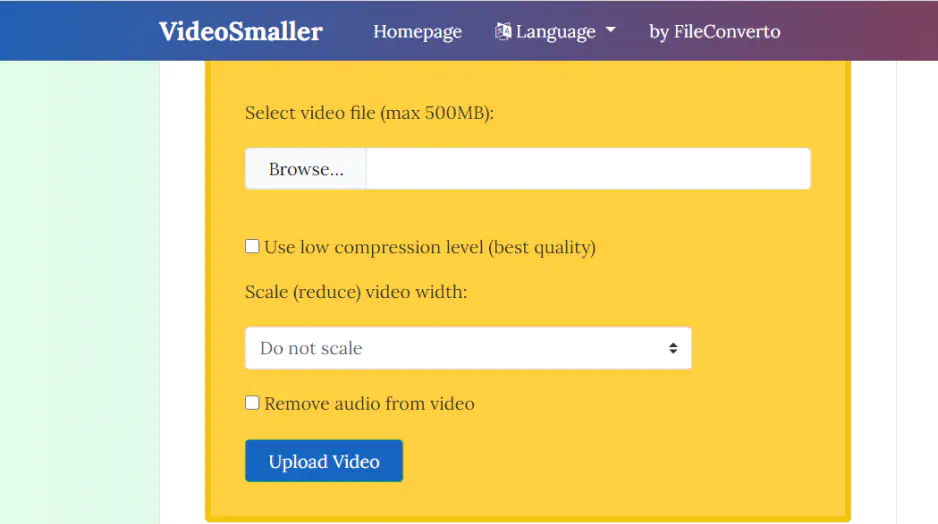
If you need something cheap and cheerful for a ten-second fix without any digital clutter, this web tool is your best bet. VideoSmaller functions as a basic online video compressor that wades through MP4, AVI, and MOV files pretty well, without charging a dime.

You can compress video by selecting a low compression level to keep the visuals sharp or by scaling the width down to 1920 pixels. VideoSmaller perfectly fits the definition of a handy video size reducer for iPhone or Android clips that are just a bit too beefy for a Discord upload. You can even choose to remove the audio track entirely to shave off extra megabytes during the process.

This tool caps your uploads at 500 MB, which covers most social media captures or short screen recordings. Within my digital workspace, I used this to squeeze a 400 MB vlog down to a tiny 30 MB file for an email attachment. The straightforward service finished the job in under a minute, and I didn't have to look at a single annoying ad or registration form.

Pros:
  • Completely free with a very straightforward "upload-and-go" workflow

  • No account or sign-up required to get your finished file

  • SSL encryption ensures your data stays private before auto-deletion

  • Options to scale video width help hit strict file size limits

Cons:
  • The 500 MB upload limit is a dealbreaker for long 4K projects

  • Support for different formats is quite thin compared to desktop apps

  • Zero advanced editing or batch processing features available

9. FreeConvert

Why I picked it: this web-based gem puts high-end codecs into your browser without forcing a single installation.

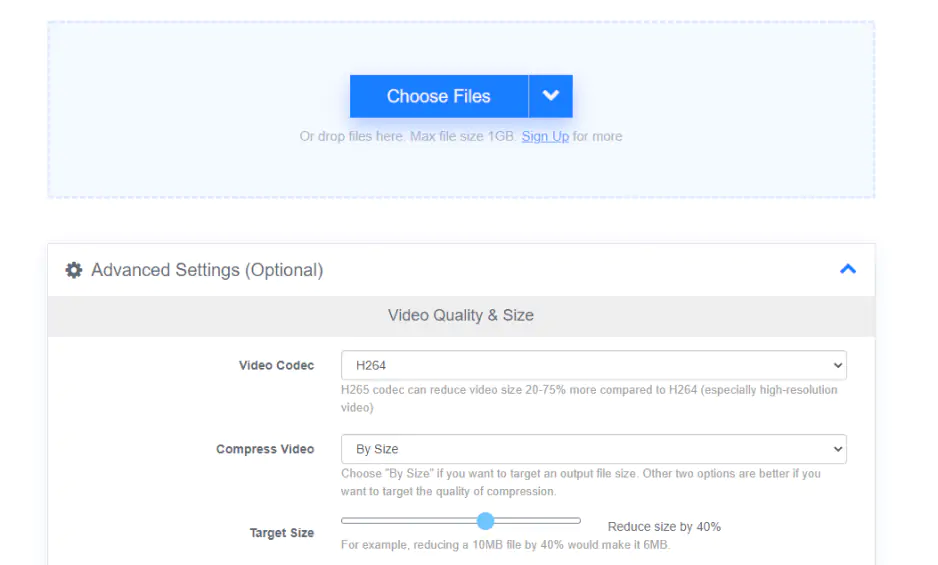
Online tools save my skin when I’m on a locked-down laptop and can't install a single thing. In this category, the first goes FreeConvert because it accommodates over 1,500 different file types while letting you toggle between H.264 and H.265 settings. You can compress video by targeting a specific file size or a percentage of the original weight.

The 2025 year brought lots of improvements to this simple online platform, as seen on their news blog. Like many competitors, FreeConvert’s dev team works tirelessly on adding and enhancing the AI features for even better performance.

It is a fantastic online video compressor for anyone on a Chromebook or a borrowed computer. You get 256-bit SSL encryption, ensuring your uploads stay private before they get wiped from the server. This tool supports files up to 1.5 GB in the free tier – a really massive limit for a cloud service.

In my daily workflow, I used this to shrink a bunch of clips for a quick Slack update while I was away from my main rig. The site handled the batch without a hitch and gave me back optimized files that played perfectly on my mobile device.

Ratings

Pros:
  • Generous 1.5 GB limit for free users beats most cloud rivals

  • Zero software to download or maintain on your drive

  • Advanced options let you tweak bitrate and resolution

  • Batch mode actually works without crashing the tab

Cons:
  • Heavy dependence on your home internet upload speed

  • Free tier hits you with a daily conversion cap

  • Subscription prices feel a bit steep for casual use

10. Zamzar

Why I picked it: it stays true to the "simple is better" mantra by handling over 1,200 formats through a basic browser window.

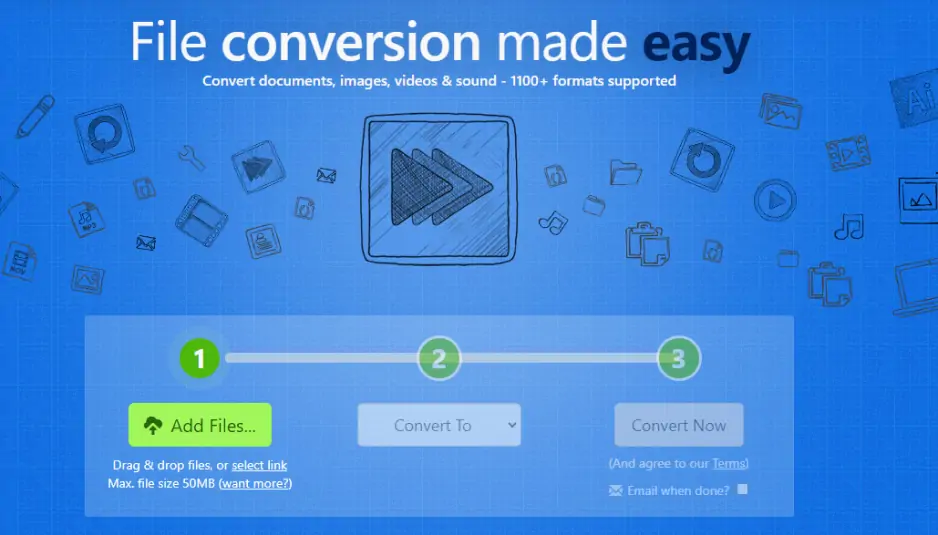
Sometimes you just need a quick fix without the drama of a full installation or an abstruse dashboard. Zamzar functions as a reliable online video compressor for those who only need to reduce video size once or twice a day. You can compress video files by uploading them and selecting your target format, then waiting for a download link.

The developers recently expanded the platform by rolling out new video-splitting and audio-splitting tools to help manage bulky files. It remains a top choice for a quick video quality reducer on a Mac or a Windows laptop when you lack admin rights to install software. The free tier limits you to two tasks per 24 hours, which keeps the servers from getting bogged down by heavy users. If you hit that cap, they offer paid plans starting around £7 to unlock larger file limits and faster processing.

Testing on my home setup, I tossed a weird legacy mobile clip into the portal to see if it could still read the ancient codec. Within seconds, the site spat back a clean, modern MP4 that was roughly 40% smaller than the original mess.

Ratings

4.6/5

Pros:
  • No account or installation required for immediate use

  • Supports a massive library of over 1,200 different file extensions

  • Direct email support if you stumble upon a file type they don't recognize yet

  • Clean, ad-free interface compared to most browser-based rivals

Cons:
  • The two-file daily limit is a major wall for power users

  • You need a paid plan to process anything larger than 400 MB

  • No real-time preview of how the compression affects your visual quality

11. Clipchamp

Why I picked it: it provides a high-end editing suite and compression engine in one tab, so I never have to jump between different apps.

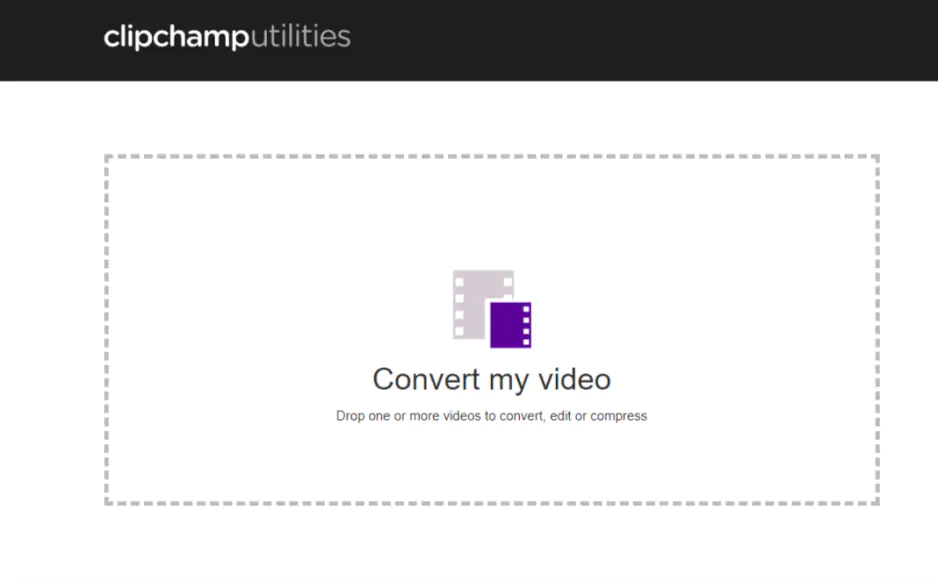
My search for a browser-based video size reducer that packs professional-grade editing led me to a tool that Microsoft liked so much they bought it. So, Clipchamp. This online video compressor can surely perform as a complete studio for anyone who needs to slim down a video while adding titles or trimming clips.

You can reduce video size by exporting your project at a lower resolution or changing the aspect ratio for social media. New perks and improvements arrive in spades. Their blog beams with news about things like AI enhancements, advanced editing, and other tech bells and whistles. The latest improvements also added a full-screen preview mode and a 360-degree rotation tool for all your assets.

Clipchamp functions perfectly as an MP4 compressor for an iPhone or a laptop because it runs entirely in the cloud or through a lightweight Windows app. You get access to a massive content library of stock footage and vector shapes to spice up your compressed files.

I used this software to whip up a quick TikTok from a bunch of bloated 4K files. I dragged the raw footage in, added some AI captions, and exported a perfectly sized 1080p clip that was ready to upload in minutes.

Ratings

Pros:
  • No input file size limits to worry about during upload

  • Includes a smart AI subtitle generator for better accessibility

  • Direct integration with TikTok and YouTube for instant sharing

  • Solid templates take the pain out of starting a project from scratch

Cons:
  • The free tier caps your exports at 1080p resolution

  • You have to pay up to unlock the best stock music and filters

  • Internet lag can make editing high-bitrate files feel a bit sluggish

12. CloudConvert

Why I picked it: it acts as a universal bridge between over 200 formats without forcing you to install a single byte of data.

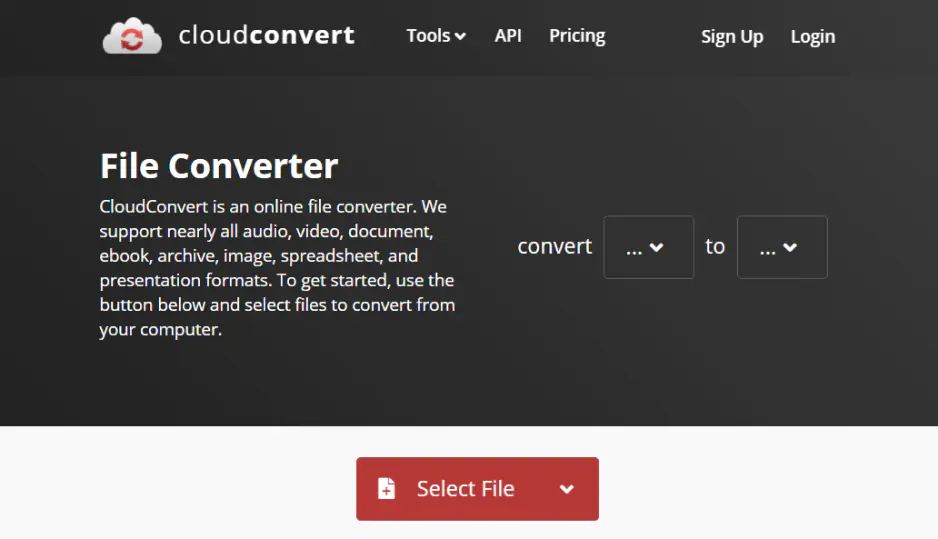
My listicle of the best is moving toward a cloud-based heavyweight that does a great job for my needs when I’m hopping between different machines. CloudConvert thrives on its ISO 27001 certification, which keeps your private uploads behind a wall of serious security. You can compress video by pulling files directly from Google Drive or Dropbox to save local bandwidth.

It functions as a flexible video size reducer that lets you tweak specific codecs, aspect ratios, and bitrates in a clean web menu. With a free plan, you get 256 conversion minutes per day, which usually covers about 10 standard files – pretty enough for a casual user. Beyond that, you can grab a one-time package or a subscription if your encoding demands start to spike.

Testing on my primary workstation, I ran a tricky variable frame rate clip through their engine to see if the audio stayed in sync. The site nailed the timing and handed back a tight, optimized file that was 30% smaller while keeping the movement fluid.

Ratings

4.7/5

4.3/5

Pros:
  • No software installation keeps your computer registry clean

  • Deep integration with cloud storage providers for a faster workflow

  • Massive format support, including niche document and image types

  • Professional API access for those who want to automate their tasks

Cons:
  • The 10-file daily cap can be a hurdle for heavy media projects

  • Processing speed is entirely tied to the server load and your web connection

  • The interface might feel a bit technical for a first-time editor

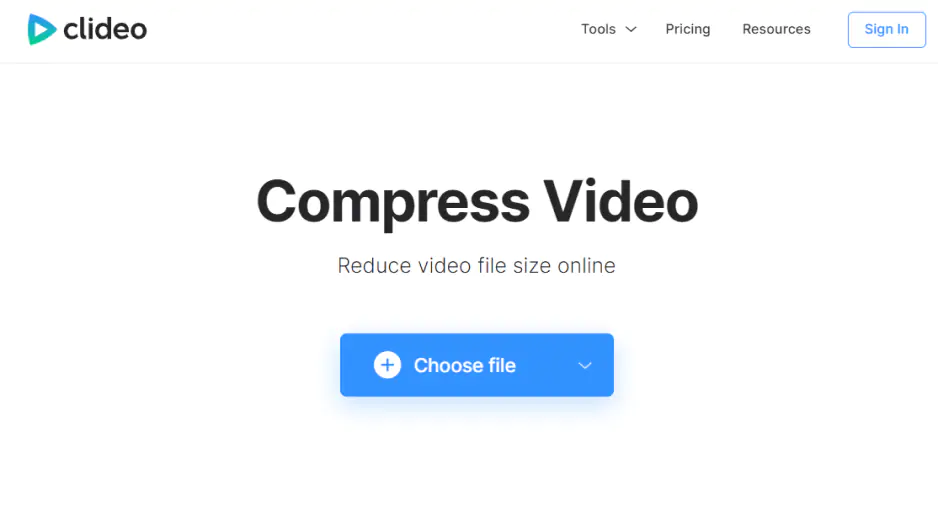
13. Clideo

Why I picked it: this little tool allows you to see the final result before you even hit the download button.

My list of favorites continues with an entry that keeps things simple and saves you from the clutter of complex menus. Clideo, an unsophisticated online video compressor that grabs files directly from Google Drive or Dropbox to save you from tedious uploads. You can compress video by picking a specific compression level, and the site manages the bitrate for you.

The development team is constantly buzzing with activity to keep the web interface snappy across all browsers, as I can tell by their well-rounded blog. It serves as a reliable video size reducer for Mac or Windows users who want to avoid installing heavy software.

The platform supports all major formats like MP4 and MOV alongside more obscure extensions. Your data stays safe behind encrypted channels, and the interface is clean enough for anyone to use immediately.

In my creative den, I sometimes turn to this site when I need to squeeze a clip for Instagram in a hurry. Yesterday, I tossed a 400 MB file into the browser, and it spat back a crisp copy that fit my social media limits perfectly.

Ratings

Pros:
  • The preview feature lets you check the visual quality before saving

  • Works on any laptop or smartphone without a setup wizard

  • Fast processing speeds for files under the free limit

  • Integrates smoothly with multiple cloud storage providers

Cons:
  • Free exports include a noticeable watermark on your footage

  • The 500 MB limit for free users is quite tight for 4K projects

  • Lacks the advanced granular controls found in desktop programs

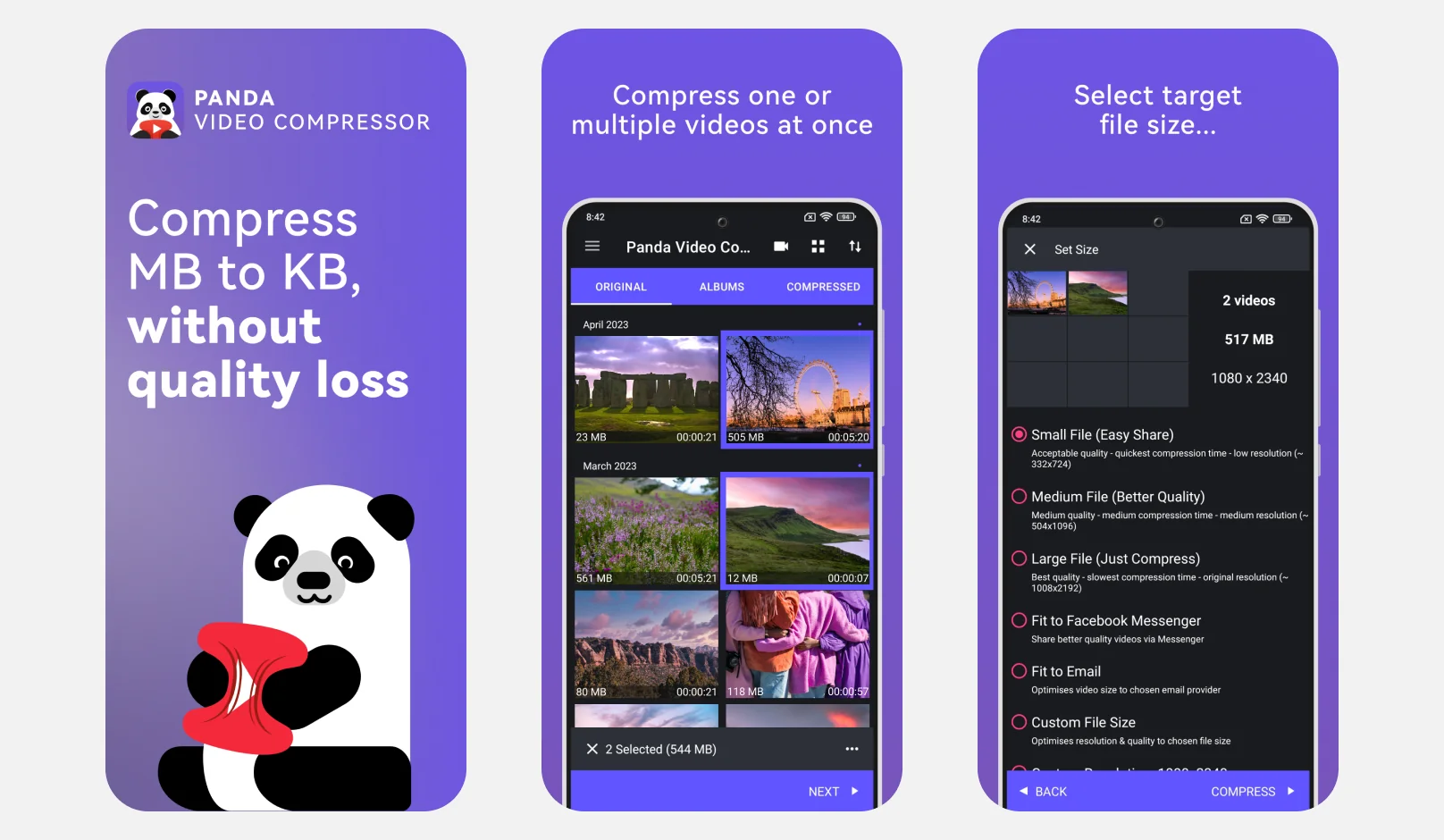
14. Panda Video Compressor & Converter

Why I picked it: it provides a friendly interface that takes the stress out of fitting huge 4K clips into a tight email limit.

To wrap up the mobile category, I found a tool that makes the boring task of shrinking files feel a bit more fun with its cheerful panda-themed design. This app by Farluner lets you resize and compress video files for Discord, TikTok, and YouTube. You can use the "fit to email" option for Gmail or Outlook.

The software lets you swap codecs from H.264 to HEVC with one tap. It acts as an adaptable video size reducer. You can trim the middle or cut out boring intros to save space. The free version processes up to three files at once. This tool is great for a quick gallery cleanup. It even keeps your metadata, so you don't lose the date of your memories.

Since I live for testing the latest tech, I fed a heavy 4K vlog into the program to see its real speed. The file shrank so fast I could send it via text message without any blurry artifacts.

Ratings

Pros:
  • Handy one-tap presets tailor your clips for email

  • Supports a rich arsenal of formats like MKV, AVI, and WebM

  • Keeps your data safe since all the heavy lifting happens right on your phone

  • Batch mode lets you shrink multiple clips at the same time to save your day

Cons:
  • The free version forces you to deal with some pretty annoying ads

  • You have to shell out for the premium plan to batch-compress more than three videos

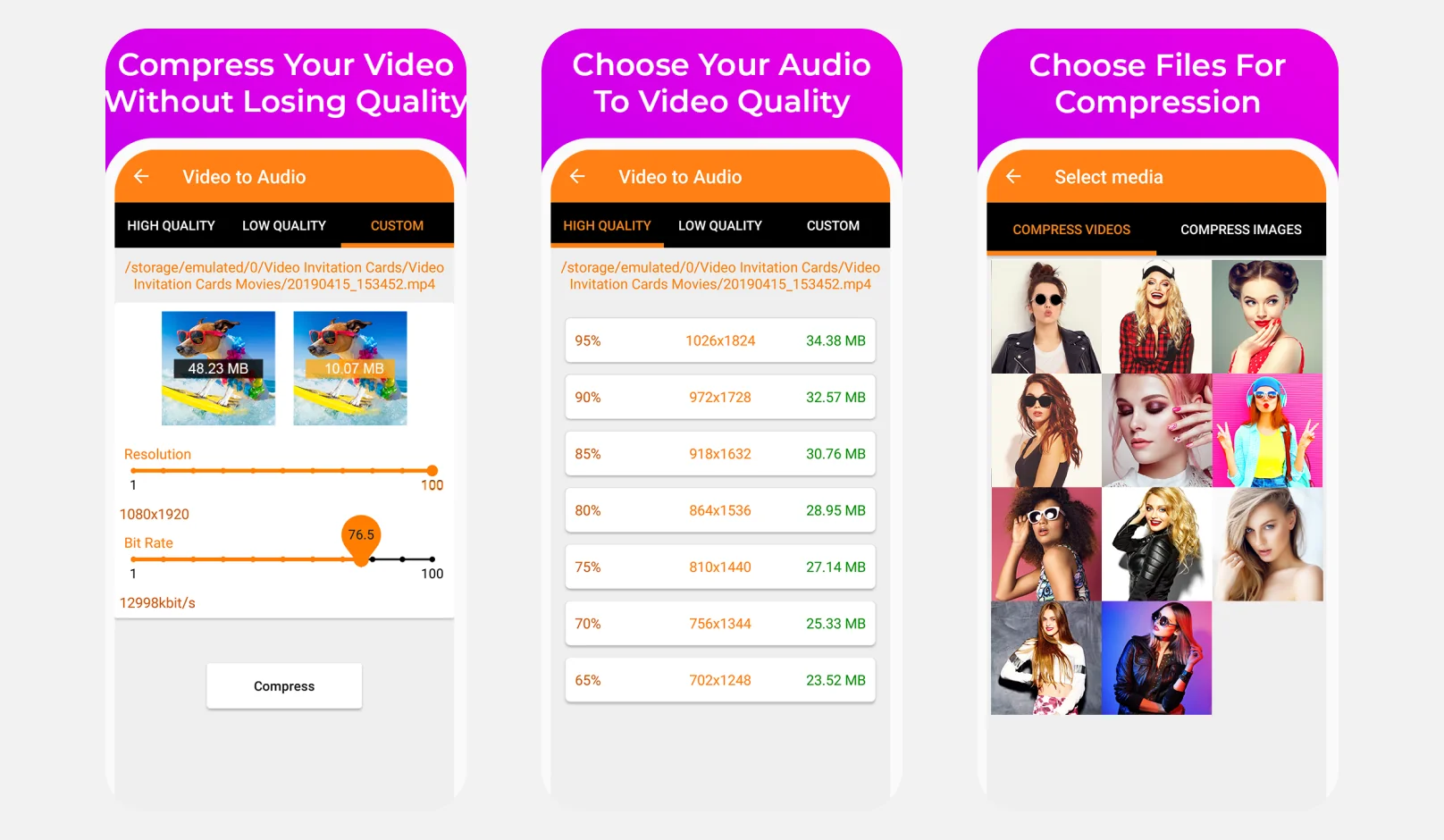
15. Video Compressor – Fast Compre by Biplabs

Why I picked it: it lets you dial in the exact picture and video quality you want before the shrinking process even starts.

To me, this software serves as a handy utility because it treats bloated 4K clips and oversized photo galleries with the same efficiency. You can compress video by choosing high, normal, or low-quality presets, or just punch in custom dimensions. I noticed that the platform’s creators keep the internal guts updated so the tool runs fast on the latest phones.

Fast Compre can be a solid choice for anyone stuck on a slow connection or dealing with strict data caps. I like that you can also fast-forward through your footage or strip out an MP3 track if you only need the sound. This program makes it easy to batch-process vacation photos in one go – a massive time-saver.

I gave it a whirl on my Android phone to see if it could treat a folder of fifty high-res holiday photos. The tool executed the batch and shrank the whole set by 70% in seconds, leaving me with plenty of room for more shots.

Ratings

Pros:
  • Lets you define custom height and width for both videos and images

  • Hardware codec support ensures the compression finishes fast

  • Totally free to use without hidden paywalls for basic features

  • Includes a handy video-to-MP3 converter for quick audio extraction

Cons:
  • Processing extremely large 4K files can occasionally result in errors

  • The interface feels a bit dated compared to premium rivals

  • Lacks the advanced stabilization tools found in more expensive apps

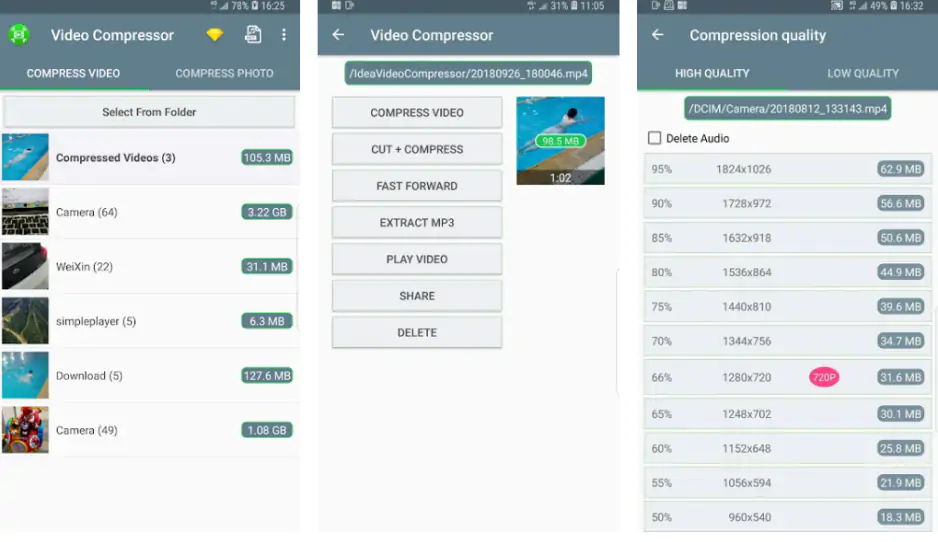
16. Video Compressor by MobileIdea Studio

Why I picked it: it ditches the watermarks and lets you pull audio tracks from any clip for free.

If you need a zero-cost way to clear out your phone's memory, this Android-based utility hits the mark. With it, you can easily compress video, convert to MP4, trim and cut video, as well as extract MP3 audio from video. Notably, all without any watermark. This product by MobileIdea Studio works as a nimble video size reducer that also trims or speeds up your footage. You can compress video by picking between three quality presets or just downscaling the resolution.

The team recently enabled simultaneous trimming and cutting to make it easier to keep only the best parts. It is a great choice for a computer or a phone when you want to skip the learning curve. You get a built-in MP3 extractor and a batch image shrinker to handle your whole gallery in one pass. The layout stays tidy, which makes it a smart pick for a quick storage cleanup.

I used this to rip the audio from a long concert clip I filmed on my Android. The software crunched the file and handed me a clear MP3 while the original video shrank by half.

Ratings

Pros:
  • No ugly watermarks on any of your exported files

  • Batch mode handles several images and videos at once

  • Hardware-aided encoding keeps the processing times low

  • Zero cost for all the main features

Cons:
  • Massive files can occasionally make the process stall

  • Missing the deep bitrate controls found in premium tools

  • The interface looks a bit plain compared to high-end editors

17. Video Compress – Shrink Vids

Why I picked it: it helps you stop paying for extra iCloud space by making your 4K clips much smaller.

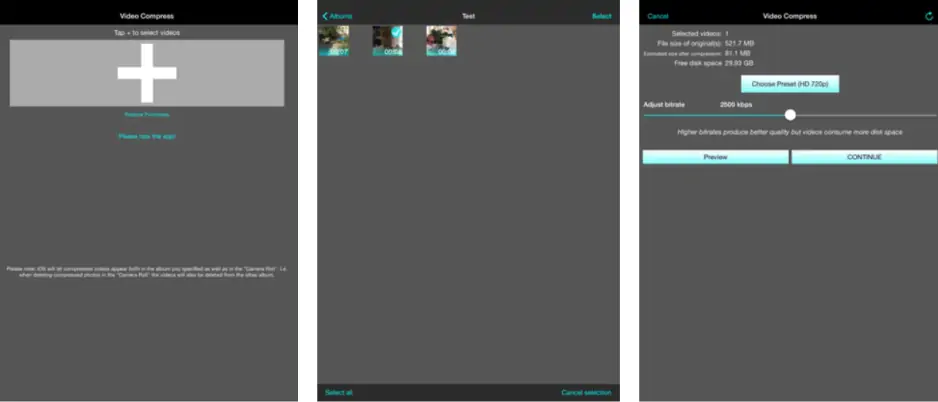
This mobile app lets you process many clips at once to save room on your phone. You can compress video by picking a simple preset or by changing the resolution yourself. Updates are quite regular on the App Store – the tool definitely gets lots of TLC from its team.

You can easily shrink large 4K files to save gigabytes while keeping the quality high for WhatsApp, iMessage, and Instagram. It helps you avoid those "Storage Full" alerts that pop up when you film too much. This software avoids hard tech words and keeps the buttons very easy to find. I like that the preview window lets you check the look of the file before you save it.

Exploring the latest mobile tools is how I spend my mornings, and for this test, I fed the program ten massive vlogs. The tool crunched the data so quickly that I reclaimed my storage space before the battery even dropped a single percent.

Ratings

Pros:
  • The preview window lets you check the video before you save it

  • The program can delete the big original file for you

  • Batch mode handles many files in one single pass

  • Easy presets work well for people who are not tech experts

Cons:
  • It may not work well with files not filmed on an iPhone

  • Some users saw a black screen after finishing a long task

18. Video Converter by Inverse.AI

Why I picked it: it provides a high-speed encoding engine that lets you mess with frame rates and bitrates right from your phone.

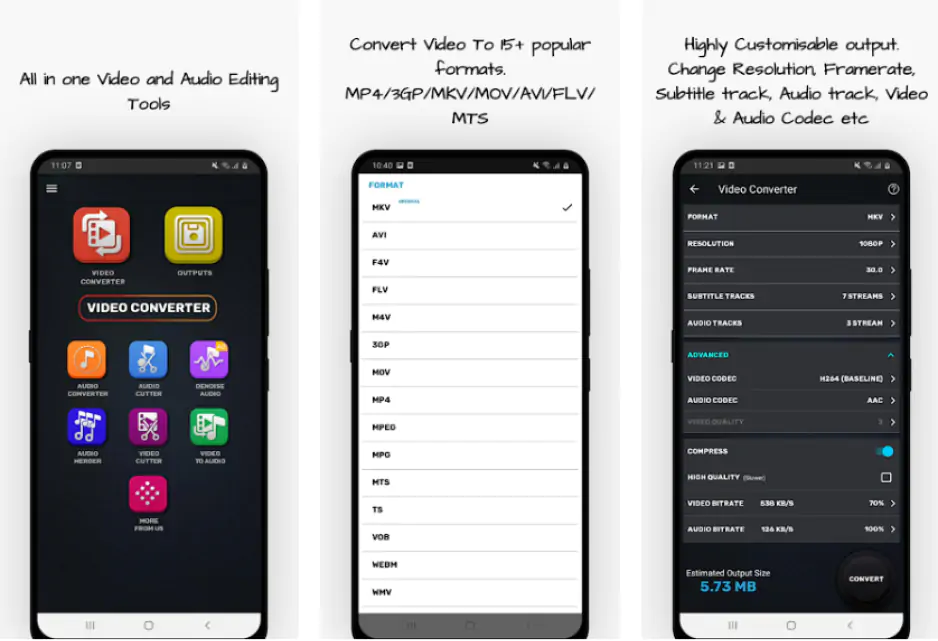
My search for a mobile toolkit that balances raw power with a lovely interface leads me to a robust choice for Android users. This application really is the ultimate video size reducer! Fancy that, it supports nearly every format: from MP4 and MKV to obscure ones like DAV and MXF. You can compress video using the X264 codec to save space. This specific method keeps the visual quality nearly identical to your original file.

The official dashboard packs a versatile 360-degree rotation tool and vertical flipping to fix any orientation mishaps. These features let you pull off 90-degree or 180-degree turns directly on your mobile device, literally effortlessly.

It serves as a reliable MP4 compressor that even tackles batch processing in the background – so you can keep using your device. You can also strip audio into formats like AAC or Ogg if you just need the soundtrack. This software is a real find for anyone who needs to reduce video size for a quick Discord or WhatsApp upload without opening a laptop.

Curious about its capabilities, I queued up five heavy 4K clips on my Android device while I was on a train. The tool chewed through the files in the background and had them ready for me by the time I reached my stop.

Ratings

Pros:
  • Batch processing handles multiple files simultaneously to save your time

  • Supports custom resolution and frame rate settings for precise control

  • Almost no visible quality loss when using the high-quality compression path

  • Built-in media player allows for a quick check before you hit export

Cons:
  • You have to sit through ads to keep the free version running

  • The Pro version is required to unlock some of the less common formats

  • Heavy encoding sessions can drain your battery life quite quickly

  • Only available for people with Apple devices

19. VidCompact

Why I picked it: it turns the headache of mobile file management into a simple two-tap process for any Android user.

It is finally time to cover smartphone compressors, and one of the most prominent brands in this space is VidCompact. This app serves as a specialized video size reducer that lives right in your pocket. You can compress video by choosing between single files or utilizing the batch compression feature to handle a whole gallery at once.

It functions perfectly as an MP4 compressor because it supports nearly every format from AVI to MKV without a hitch. You can also extract specific snippets or convert old clips into modern formats to save precious internal storage. While it occasionally throws a random error, the speed and ease of use make it a reliable tool for quick social media shares.

On my mobile workstation, I threw a dozen bulky 4K recordings into the batch processor to see if it would choke. The software chewed through them all and handed back a neat folder of optimized files, putting a satisfactory smile on my face.

Ratings

4.0/5

4.7/5

Pros:
  • Batch processing handles multiple files in one go to save you time

  • Supports a massive list of formats, including RMVB and 3GP

  • Includes built-in trimming tools to cut out the fluff before you shrink

  • Completely free to use for any basic compression task

Cons:
  • The interface occasionally spits out error messages during heavy renders

  • Output quality can sometimes dip if you push the compression too hard

  • Limited manual control over specific bitrates and frame rates

20. Video Shrinker

Why I picked it: it costs less than a cup of coffee and targets the massive 4K files that eat up your storage.

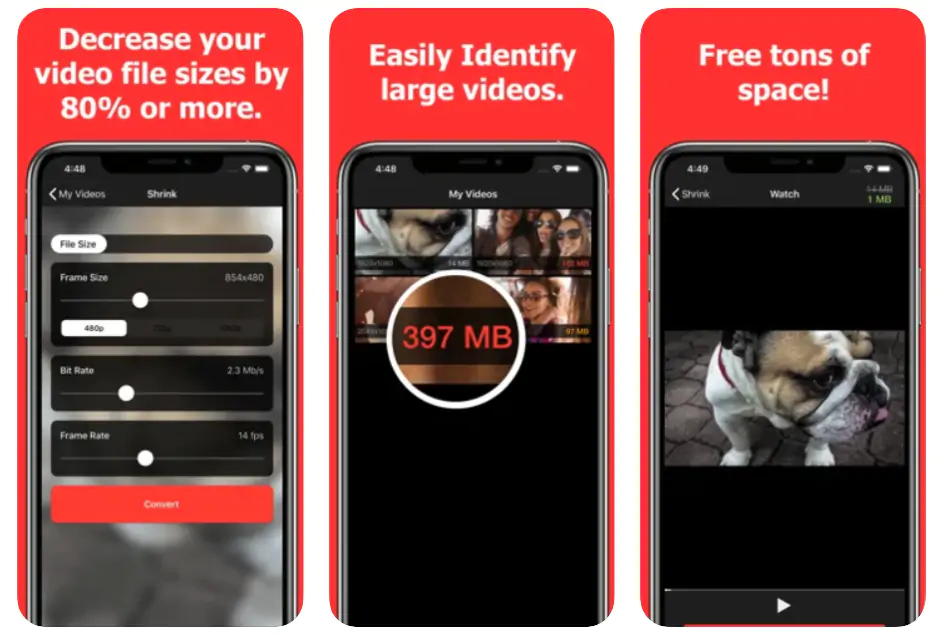
My search for a dedicated iPhone utility led me to a tool that focuses entirely on modern high-efficiency formats. This app by Wander Bit lets you change frame rates and bitrates manually. One minute of 4K video usually eats 375 MB, but this tool helps you fine-tune the export to reclaim that space.

You can compress video by choosing the HEVC format to keep things sharp while slashing the footprint by 80%. The interface helps you identify which specific clips occupy the most room on your device. You get full control over the final dimensions for a specific social media upload.

But I noticed that the platform has not received many updates for quite a while, so it seems the developers are just letting it ride on its own for now. So, I got it on my iPhone to tackle a 2 GB wedding clip from last summer. The program recoded the footage into a 300 MB file that looked identical when I played it back on my TV.

Ratings

Pros:
  • Saves files in HEVC to maximize your storage savings

  • Manual sliders for bitrate provide total control

  • Shows a clear list of the largest files on your device

  • One-time low cost with no annoying subscription fees

Cons:
  • Fails to keep original metadata like GPS or timestamps

  • You cannot delete the original file from inside the interface

  • Only available for iOS users

  • Updates are not very frequent

How to choose the best video size reducer

Here they are – the top 20 contenders, all tested by myself in the battlefield of daily content creation to see which ones actually survive a heavy render. Throw away the idea that one video size reducer fits every project; your choice usually boils down to the specific hardware you have in your hands.

If you want the absolute king of speed on a PC, Movavi Video Converter remains my top recommendation for high-stakes projects where every second counts. For those who need a video compressor free of cost and don't mind a slightly slower pace, Freemake or the classic VLC work great for common formats.

I find that when I'm hopping between different computers, an online solution like CloudConvert is a total lifesaver since it requires zero installation. Mobile users have it easy too; I’d grab Video Shrinker for an iPhone to hunt down 4K storage hogs, or stick with Video Compressor by MobileIdea Studio for a straightforward Android experience.

In my hands, a quick tip from experience often makes all the difference: avoid jumping straight to the strongest compression preset. I find it much better to lower the bitrate step by step and test the result as you go. Often, you can cut a file size by half while the visual details still stay clear.

One more habit helps before you settle on a tool. Before you decide on a given app, check the user reviews linked in this guide. They show how the software behaves in real circumstances, not just on paper. I’m usually curious about comments on speed and stability to avoid a headache. These details show which video compressor actually fits your workflow. It pays to be picky so you don't get a program that crashes right on a deadline.

Movavi Video Converter
The ideal way to get your media in the format you need!
Movavi Video Converter

Frequently asked questions

Which is the best video compressor for free?

Movavi Video Converter remains the top choice for any desktop user. It delivers high speed and keeps your files clear. If you want a browser tool, FreeConvert offers a 1.5 GB limit. This video compressor free of charge helps you save space without a struggle. You can easily prep a file for a specific social media upload. The layout stays focused on the task. It avoids unnecessary buttons.

What is the best free file compressor?

HandBrake works well on a computer and supports many different formats. For a smartphone, Panda Video Compressor is a great pick. It shrinks your clips directly on your mobile device. Your choice just depends on the hardware you have. You can pick a preset or type in custom numbers. It is a smart way to reclaim storage. It handles both bulky clips and giant photo sets.

How can I compress a 10 GB video for free?

You should avoid web tools for a file this large. VideoProc Converter AI is a better option because it uses your hardware to speed up the task. Choose the HEVC (H.265) codec and lower the bitrate in small steps. This way, you reduce video size but keep the file stable. It prevents crashes during a heavy render. You get a tight file that still looks great. It is the most reliable path for massive 4K projects.

What is the best free video file converter?

VLC Media Player is a practical tool that can change almost any file format. If you want an online experience, CloudConvert is a smart pick. It turns your clips into a format for an iPhone or Android very quickly. This converter is easy to use and requires no manual. It supports a huge library of over 200 formats. You can pull files directly from Google Drive. It keeps your data behind a wall of serious security.

Have questions?
Have questions?
If you can’t find the answer to your question, please feel free to contact our Support Team.
Join us for discounts, editing tips, and content ideas

1.5M+ users already subscribed to our newsletter

By signing up, I agree to receive marketing emails from Movavi and agree to Movavi's Privacy Policy.