

12 Best Photo Viewers for Windows 10 [2025]

Try Movavi Photo Editor

  • Enhance images with color correction

  • Change backgrounds

  • Remove unwanted objects

  • Restore old photos

By clicking the download button, you're downloading a trial version of the program.*

Edited by
Ben Jacklin
3218

Key takeaways

  • I ran through twelve photo viewers, including BandiView and ImageGlass, testing speed and file support.
  • Some programs open hundreds of RAW images instantly. Others organize large libraries with AI or tags.
  • Free apps like IrfanView and FastStone work well on older PCs. Paid software adds advanced sorting and batch editing.
  • Picking a viewer depends on what you actually do: quick browsing, editing, or moving files across devices.
  • I noticed that using batch tools and built-in filters cuts time sharply when handling thousands of files.

Chaos ruled my photo folders for months: screenshots, vacation shots, and random downloads all jumbled together. I wanted to turn it into a neat, readable gallery that actually makes sense. Some programs opened everything instantly, others stumbled on RAW files. A few made me smile with clever little tools I hadn’t expected.

I tested all the programs in this list myself. Each one got a serious workout on Windows 10 and 11, and I made my picks based on speed, format support, and how practical they felt in real use.

If you scroll down, you’ll see the differences between these Windows photo viewers and which ones handled large folders, unusual formats, and quick edits best. Some even surprised me with features I didn’t know I needed.

My top picks

  • Best overall – Movavi Photo Editor
    Everything just works, and I never wasted time hunting menus.
  • Best professional format handling – Apowersoft Photo Viewer
    HEIC, PSD, RAW, PDFs – I can see everything at once.
  • Best for legacy and speed – FastStone Image Viewer
    Old-school look, but scrolling hundreds of RAWs feels instant.
  • Best free option – IrfanView
    Tiny, fast, and opens tons of files without slowing down.
  • Best for multi-format support – XnView
    PNG, TIFF, PSD, HEIC, RAW… if it exists, it opens.
  • Best multi-platform – NoMacs
    Windows, Linux, Mac – even OS/2 works. Perfect for juggling systems.
  • Best for mobile and cloud – Google Photos
    Photos follow me everywhere with zero syncing drama.

Comparison table: Best photo viewers

Program

OS

Best for

Download

Windows 10, 11, macOS

Quick browsing and AI editing

Windows

Fast opening of HEIC, RAW, PDFs

Windows

Comparing large photo folders

disclaimer_person
Our goal is to provide you with only verified information. To ensure this, Movavi Content Team does the following:
  • When selecting products to include in our reviews, we research both demand and popularity.

  • The team tests all the products mentioned in this article.

  • When testing, we compare the key characteristics of the products, which include selecting capture area, schedule recording, showing keystrokes and mouse, and other significant features.

  • We study user reviews from popular review platforms and make use of this information when writing our product reviews.

  • We collect feedback from our users and analyze their opinions of Movavi software as well as products from other companies.

Best image viewers for Windows 10

  • Why I picked it:

    solid editing tools, AI adjustments save time on edits

  • OS:

    Windows 10/11 64-bit and macOS 12 or higher

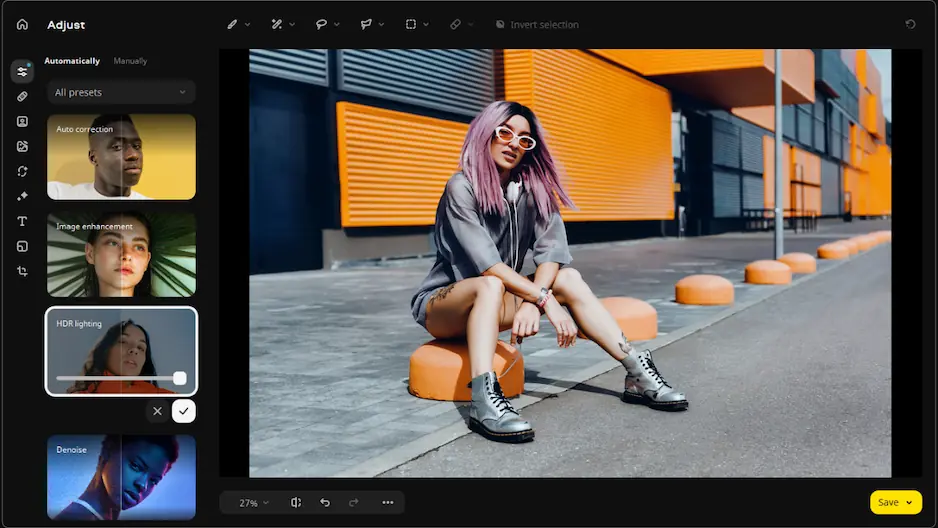
The software offers AI-powered editing, including style enhancements, selective adjustments, and object removal. The program supports PNG, JPEG, TIFF, and RAW formats.

The project’s team works hard, and it’s obvious, given the way too frequent updates and releases of their Movavi Photo Editor. The latest drop brings such cool elements as advanced frame capacities, the option to work with a selected area, and a handful of other much-needed instruments.

I used it to edit a large batch of RAW vacation shots. I applied quick AI-style adjustments to night shots, which improved colors and clarity without manual tweaking. Sharing directly to Google Drive saved a lot of time compared with exporting and uploading manually.
Ratings

Pros:
  • Easy to use

  • Supports multiple formats

  • Powerful editing tools

  • AI-powered features

Cons:
  • Paid software, no full free version

  • Why I picked it:

    handles professional formats like HEIC and RAW. Opens PDFs directly. Loads images fast even on older PCs

  • OS:

    Windows 10

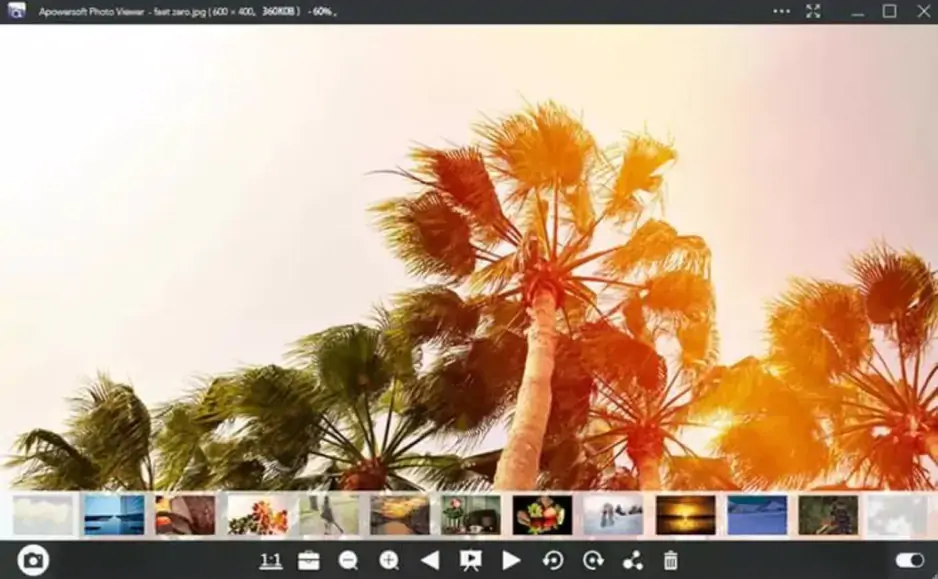
Continuing the exploration of the best photo viewers for Windows 10, I turned my attention to Apowersoft Photo Viewer. This software is well-known in editing software circles where I often dwell. It is a free program for Windows. What can it do? Well, it allows you to view images, videos, and audio files. It is particularly focused on opening Apple's HEIC format, which attests to its popularity.

The app supports standard and professional formats: JPEG, PNG, TIFF, PSD, CDR, HEIC, and RAW. It doubles as a PDF reader, which saves installing extra software. The interface stays simple and responsive. Efficient computing tech lets images open almost instantly.

One evening, I needed to review a set of client files that included PSD layers and RAW shots. Opening them was smooth, and scrolling through long vertical images felt natural. I could read PDFs alongside images without leaving the app. Switching between file types without extra software really simplified my workflow.

Ratings

4.0/5

Pros:
  • Supports multiple formats, including HEIC, PSD, RAW, and PDF

  • Fast load times, low CPU usage

  • Simple scrolling for long images

Cons:
  • Paid software, $69.95

  • Limited format support compared to some professional editors

  • Complex interface to master if you’re totally new to it

  • Why I picked it:

    I wanted something that could jump through big folders without lag. FastStone seemed built for that kind of work

  • OS:

    Windows 10

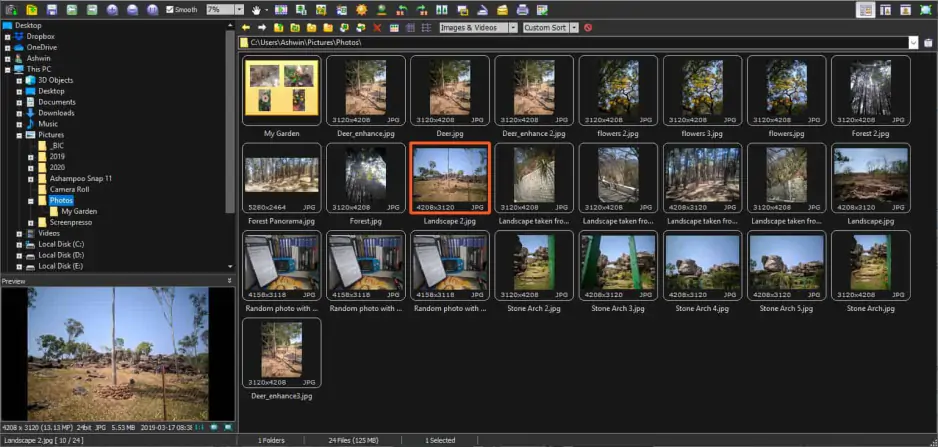
At this point, you may be wondering why I decided to include FastStone on my list of the best photo viewer tools. Yes, it does look a bit charmless. But its capabilities are really on par with those of modern and popular brands. And it’s updated quite often, with new revamps coming up pretty stably.

So, FastStone reads almost every format, including RAW sets from different cameras, and it keeps everything inside a layout that feels familiar to anyone who knows Windows Explorer. At first glance, the interface feels legacy. Then you open a photo, and the hidden tools appear around the frame.

You can crop, tweak color, clean up red-eye, or prepare a batch conversion. The four-image comparison grid helped me more than I expected. I placed similar shots next to each other and checked sharpness by zooming in and out on all four at once. Fullscreen mode stays tidy. Menus slide in only when the cursor touches the edges.

Slideshows come with music support and more than 150 transitions. The program handles everything from BMP and GIF to CR2 and DNG, and it loads folders with hundreds of files quickly. Some users call the design old-fashioned, and I see what they mean, yet updates continue to arrive and keep the tool reliable.

Ratings

4.6/5

Pros:
  • Loads large folders very fast

  • Strong RAW support

  • Handy comparison and full-screen views

Cons:
  • The interface feels old

  • Works only on Windows

  • Why I picked it:

    I liked how tiny the install file is and how quickly it opens huge folders

  • OS:

    Windows XP – 11

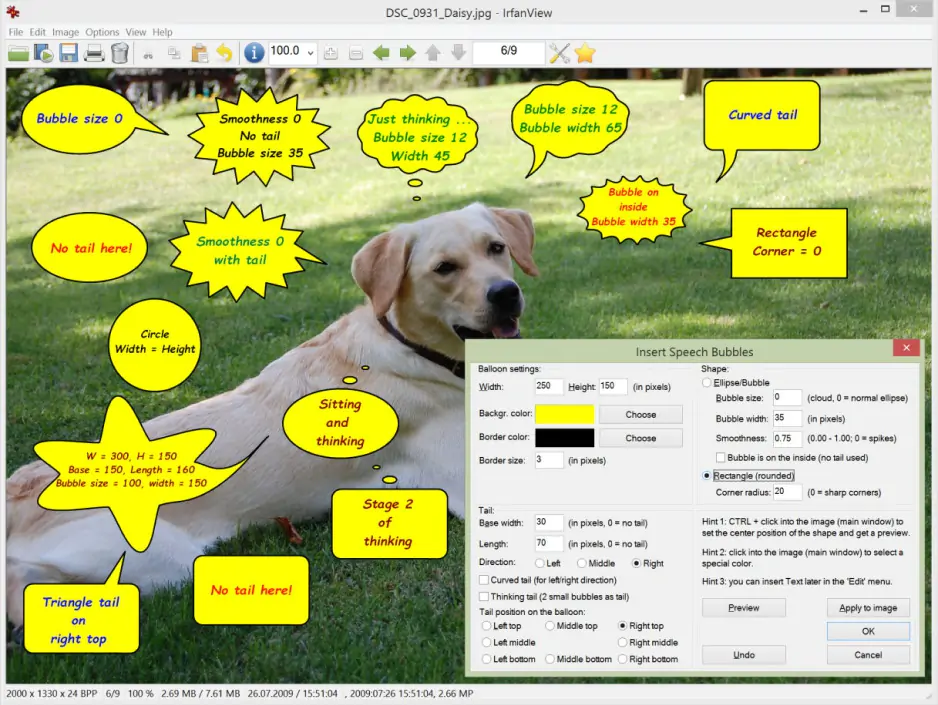
IrfanView has stayed lean for decades, and that still shows in the latest version on the official site. It works on everything from XP to Windows 11 in both 32 and 64-bit. The interface may look old, yet the toolset includes RAW support, multipage TIFF editing, lossless JPEG rotation, a paint panel, dark mode, and several plug-ins. The developer updates it often. Release notes confirm new fixes, codec updates, and UI tweaks added in just November 2025.

It doubles as a very fast Windows picture viewer replacement, with full-screen mode that hides menus until you touch the edges. Batch conversion, multipage editing, file search, icon extraction, and Photoshop filter support make it a flexible photo viewer for Windows 11. Many people like how it runs from a single EXE without changing the registry unless you allow it.

My use case was interesting. One evening, I needed to sort a mixed folder of RAW portraits, a stack of TIFF scans, and some old ICO assets. IrfanView handled everything without slowing the PC. I switched through hundreds of files faster than with most built-in tools. The batch rename and the quick EXIF check helped me tidy the session. Nothing crashed. Nothing felt heavy.

Ratings

4.6/5

Pros:
  • Opens folders with thousands of images very fast

  • Strong support for RAW, TIFF, ICO, and uncommon formats

  • Free for personal use

  • Many plug-ins and frequent updates

Cons:

Quick summary: Best photo viewers for Windows 10

  1. Best for editing and enhancing photos – Movavi Photo Editor

  2. Best for smooth RAW, HEIC, and PDF viewing – Apowersoft Photo Viewer

  3. Best for fast browsing of huge folders – FastStone Image Viewer

  • Why I picked it:

    it has a good reputation as one of the best and popular free image viewers for Windows, macOS, and Linux

  • OS:

    Windows, macOS, Linux

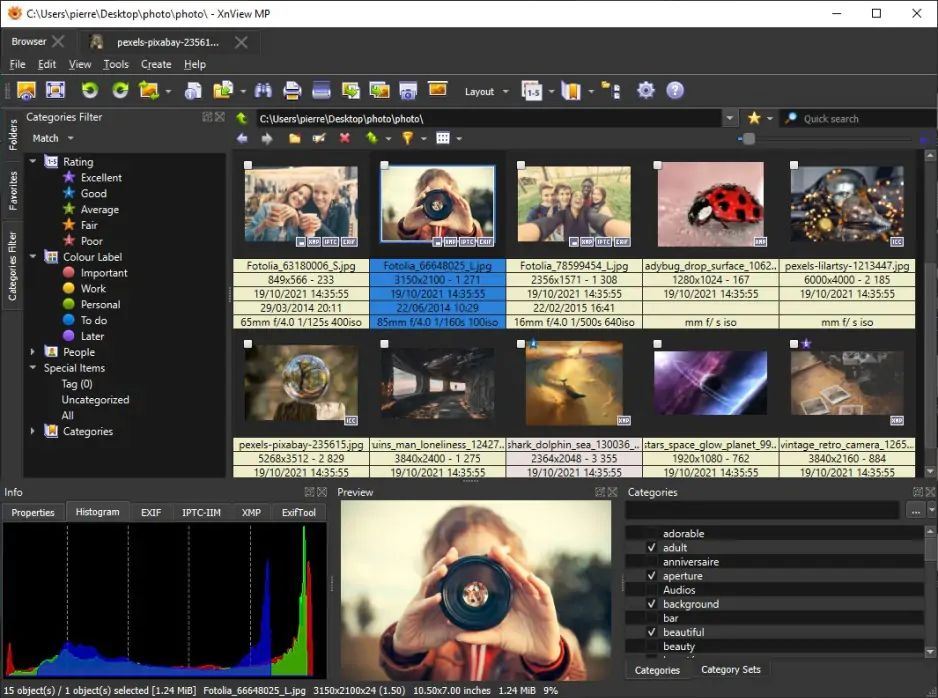
My list of reliable viewers continues with XnView because the program covers nearly every format in one place, and it does enable you to view, manage, resize, and edit your photos. The software actually comes in two versions, MP and Classic, and both focus on one thing: helping you open, review, and organize images quickly on Windows 10.

XnView reads an enormous list of file types, from simple JPG and PNG to RAW, HEIC, PSD, DNG, and many others, so even unusual camera files open without trouble.

What I like most is how flexible the viewing modes feel. I switch between thumbnails, a filmstrip, or full screen depending on the folder I’m sorting, and the interface stays clear even with hundreds of photos loaded.

The built-in editing tools let me crop, rotate, resize, or fix basic colors, which helps when I’m doing a fast pass through a big shoot. Batch processing also works well: renaming whole sets, changing resolutions, or converting formats takes only a few clicks.

For me, the biggest advantage is the format support. More than 500 image types open smoothly, and the program stays stable even when I throw large RAW folders at it. Combined with quick batch tasks and simple navigation tabs, XnView makes long organizing sessions far less painful.

Ratings

Pros:
  • Combines photo viewing with solid file management

  • Handy resizing and comparison features

  • Works on Windows, macOS, and Linux

Cons:
  • Installation options look confusing at first

  • Beginners may need time to uncover all the tools

  • Why I picked it:

    I liked that it opens RAW and PSD files while letting me see multiple images side by side

  • OS:

    Windows, Linux, FreeBSD, Mac, and OS/2

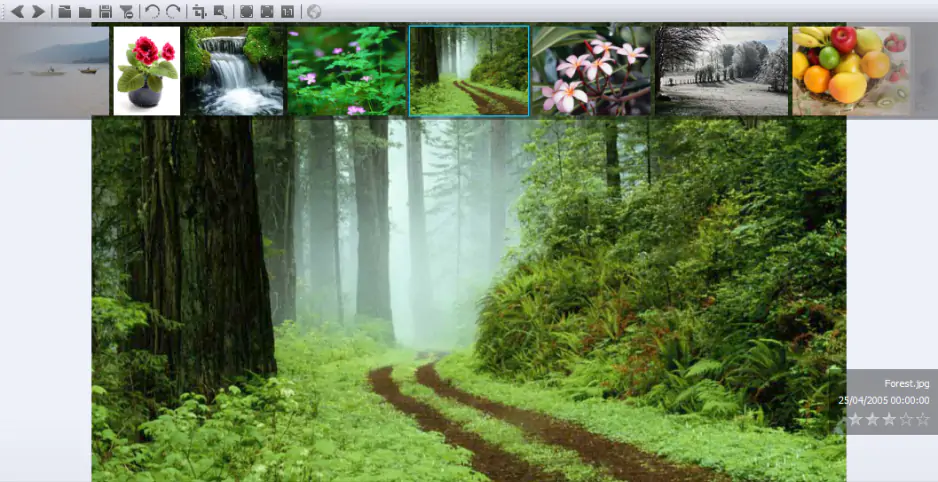
Next on my list is NoMacs. It is a free, open-source photo viewing app that works across Windows, Linux, FreeBSD, Mac, and even OS/2. This little tool supports most standard image formats, plus RAW and layered PSD files.

The interface has gallery views for browsing large libraries and tools for basic editing like cropping, rotating, resizing, and color adjustment. You can even synchronize multiple viewers so zooming or panning in one window mirrors the others. The latest version 3.16 was brought to this world on 2024-12-20; it adds better RAW support and interface tweaks.

So, I put NoMacs through its paces. I was going through a folder of PSD mockups and wanted to spot subtle differences. Opening two windows side by side, I could move through layers and zoom in on details without losing alignment. That saved me a lot of time deciding which assets were ready for export. Later, I batch-rotated and resized several hundred JPEGs for a client preview, which worked faster than I expected.

Ratings

Pros:
  • Multiple OS support beyond Windows

  • RAW and PSD file handling

  • Viewer synchronization for easy comparison

  • Simple editing tools like crop, rotate, and resize

Cons:
  • The menu can feel a bit cluttered

  • Not every rare format is supported

  • Some advanced options require digging through settings

  • Lack of active development, updates are a bit seldom compared to rivals

  • Why I picked it:

    I liked that it syncs photos across all my devices and gives easy access in the browser or phone

  • OS:

    web (including Windows), Android, iOS

So the line of the photo viewer solution continues with the well-liked Google Photos. Google Photos is a service that works as a web-based photo viewing app (and mobile) that runs fine on Windows 10 via browser with no install needed. The 2025 update added a refreshed “Recap” feature: the app builds a highlight reel of your year’s photos and videos. The recap now shows your total photo count, most-photographed people or places, and even a selfie count.

You can hide certain faces or pictures and regenerate the recap if you like more privacy or want a cleaner version. Simple editing tools remain: you can adjust brightness or color, apply presets, and export or share images quickly.

Last week, I used Google Photos to gather all selfies, landscape shots, and scan uploads from my old phone. The new Recap built a quick year-in-photos video I could watch and share with friends. I hid a few private screenshots before sharing. Then I used the built-in editor to adjust contrast and detail in a few JPEGs, and sent them directly to a friend – no need to download or open a heavy editor.

Ratings

Pros:
  • Cross-device sync works well, browser-based or mobile

  • 2025 Recap gives fun stats and a video-style review of your year

  • Basic editing tools and easy sharing

  • Automatic backups

Cons:
  • No native support for RAW or advanced editing workflows

  • Free space is limited unless you pay for extra storage

  • Why I picked it:

    I liked how it mixes a classic Windows photo viewer layout with quick correction tools that actually save me time

  • OS:

    Windows 7-10

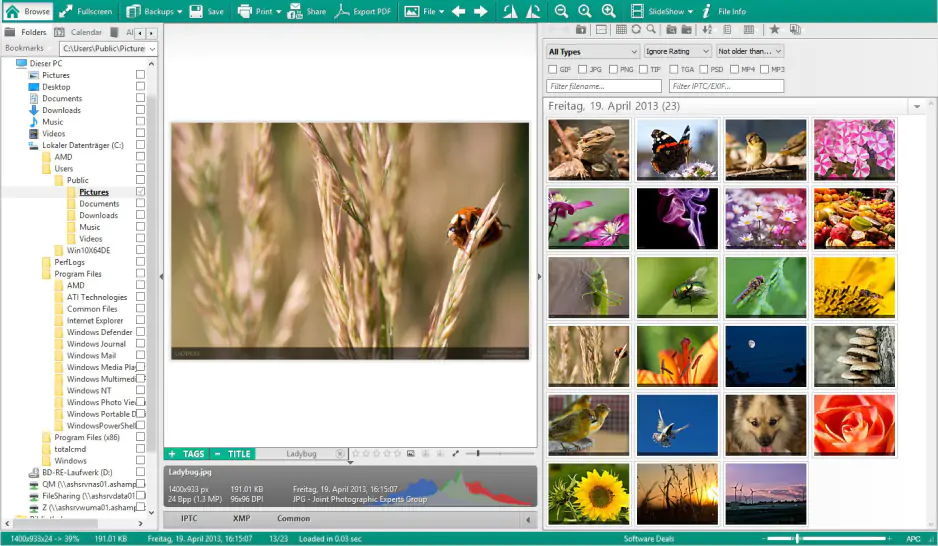
My collection of top-tier Windows 10 photo viewing apps is graced with Ashampoo Photo Commander. A free suite that moves between viewing, sorting, and simple editing without slowing me down…

It runs on Windows 7 through 10. For a user, it offers a familiar layout with side panels, minimaps for large images, and a clean full-screen mode that works well as a replacement for the built-in Windows picture viewer.

Ashampoo opens JPEG, PNG, TIFF, RAW, and many other formats. It has a good reputation as an all-in-one software for managing, editing, and organizing digital images. This little program covers practical tools for browsing and managing large libraries, batch renaming, quick color correction, and a set of effects that stay easy to control.

It also includes small conveniences, like wizards for calendars, greeting cards, and collages. The slideshow mode offers calm transitions and works well when you need a simple display app for a PC.

I also want to speak a little about the latest news from this project. Ashampoo Photo Commander 19 is here. It beefs up your photo security with automatic encryption and lightning-fast organization features like the new "Where?/When?" view. Plus, it’s updated for all your modern files (WebP included). So, managing and editing your memories has become smoother than ever.

Ratings

Pros:
  • Picture repair for noise and scratches

  • Good batch tools for export and renaming

  • Many effects and layout helpers

Cons:
  • Slower than some very fast photo viewing apps

  • The interface can feel cramped for new users

  • No Mac version

  • Why I picked it:

    it lets me find photos by description or face, even in huge archives

  • OS:

    Windows 10/11, macOS

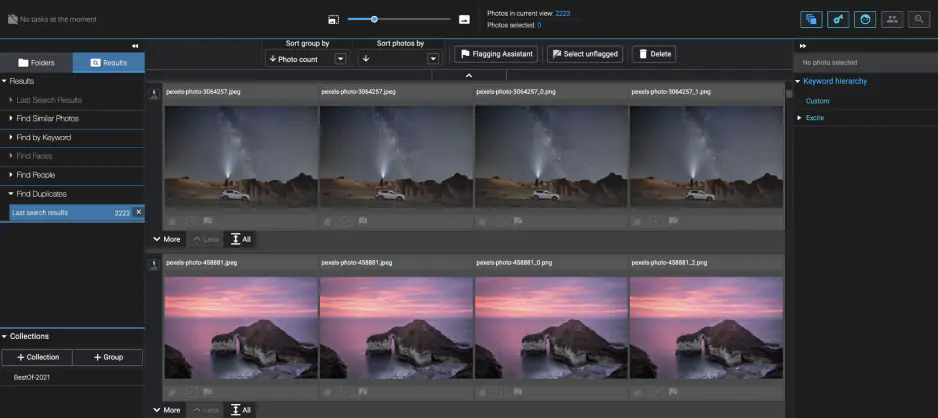
This brand does deserve to be mentioned in my roundup of the best photo viewer programs. Excire Foto. It is an AI-powered photo and video organizer for your computer (Windows or Mac) that helps you quickly sort, find, and manage large collections of media files.

The greatest aspect of this Windows 11 photo viewer is that it saves you from manually tagging every single photo. Instead, the software uses artificial intelligence to automatically analyze and label your images (e.g., with keywords like "beach" or "smiling people"). Thanks to this utility, it becomes easy to find pictures later through simple searches or by asking for "similar photos". It runs entirely offline on your local machine, prioritizing privacy and speed.

I want to let you know about the latest buzz. Excire Foto has just been prominently nominated for the 2025 Photography News Awards! Plus, they're currently running great promotions for the fancy new 2026 plugin.

I wanted to see the true nature of Excire Foto’s AI in action. I tried it last weekend on a mixed batch of 5,000 vacation photos and a few RAW files. I typed “beach sunset” and instantly got 120 matching shots. Then I picked “no blur, people smiling,” and it filtered portraits cleanly. Finally, I exported the top 50 as JPEGs for sharing. The whole process took maybe ten minutes – much faster than manual sorting.

Ratings

Pros:
  • Fast AI‑powered search (face, content, keywords) and deep format support

  • Handles large photo sets without lag, even full‑res RAW and video thumbnails

  • Provides duplicate finder, culling tools, and metadata editing

Cons:
  • Paid license – pricey for a simple viewer

  • Takes time to build an initial catalog and scan, especially for large libraries

Key features list

  • Why I picked it:

    it comes pre-installed and handles both photos and videos without fuss. Quick, reliable, and free

  • OS:

    Windows 10

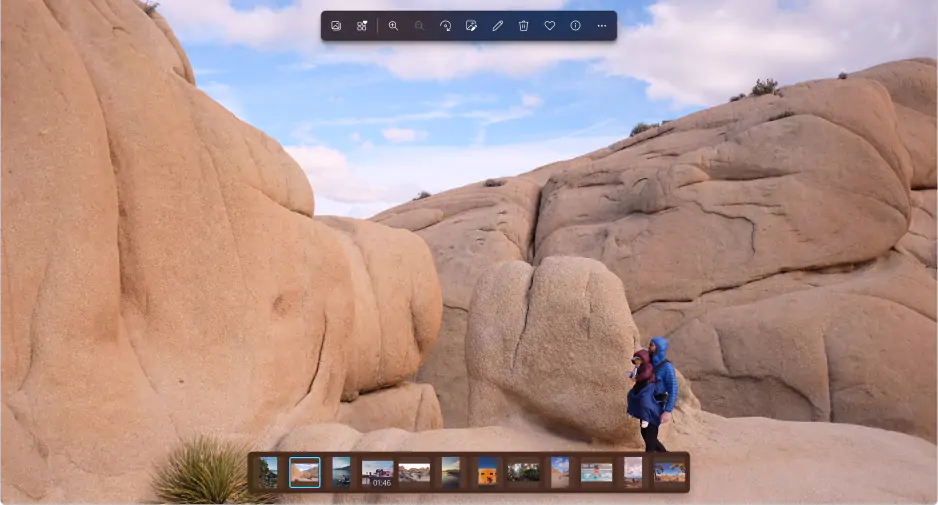
Microsoft Photos pulls together images and videos from your PC, phone, and cloud accounts into a single gallery. You can view them by date, folder, or album. Basic edits are quick: crop, rotate, adjust brightness or contrast, apply filters, and even draw on your photos. OneDrive sync backs everything up automatically. On Windows 11, you can connect iCloud too. The app now reads text from images with OCR, so you can copy it or search online in a snap. Video trimming works right in the app, and for more complex editing, it opens projects straight in Clipchamp.

Recent updates to the Microsoft Photos include AI-powered editing tools like Generative Erase and a text extractor, alongside Copilot integration. These newnesses make it faster to find, edit, and organize photos. Cloud services now tie in more smoothly.

So, not so long ago, I tried organizing a mix of family and travel shots. I grouped images by date and applied quick edits to 30 JPEGs. The AI erase worked surprisingly well on unwanted background objects. I then exported a short slideshow video and shared it across my devices. Everything took under twenty minutes and stayed smooth on my PC.

Ratings

4.3/5

5.0/5

Pros:
  • It’s built right into Windows, working smoothly with OneDrive and iCloud

  • Includes cool, easy AI tools like magic object removal (Generative Erase)

  • Super easy to use for everyday viewing and simple edits

  • It's quick and handles basic editing needs well, even supporting high-quality RAW files

Cons:
  • Lacks pro-level organization features like keyword tags and star ratings

  • No face recognition feature within the app itself

  • Video editing and advanced photo correction tools are pretty limited

  • The search function is basic; you can't easily search by picture content

  • Why I picked it:

    I liked how it opens almost any format without lag

  • OS:

    Windows 10

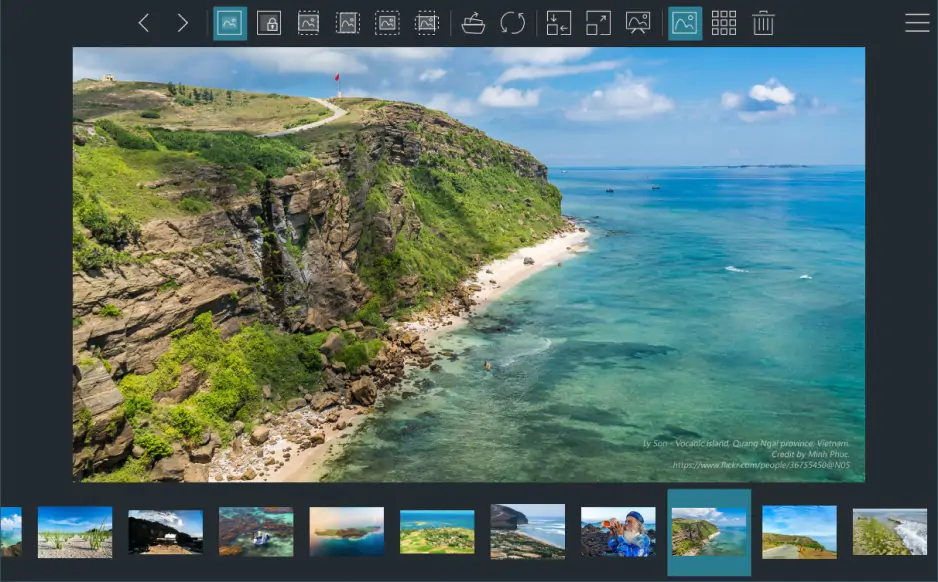
I’m close to the end of my research and want to mention this intriguing software. ImageGlass keeps things simple but covers a lot of ground. It is touted as a lightweight and versatile image viewer software packed with basic functions and a nice, minimal interface.

It covers over 90 formats, reading from JPEG and PNG to HEIC, SVG, and many RAW types. The interface is customizable with themes and language packs. Basic editing tools like crop, flip, rotate, resize, and a color picker are in place, too. You can convert images between formats without leaving the app.

The recent update celebrates the 15th anniversary of the project and brings a handful of interesting features. Namely, it added a new crop tool and a color picker that handles more formats. Also, it improved slideshow mode and startup boost for faster launches. Now, you can also view live photos and work with individual color channels.

I tested ImageGlass by quickly reviewing a batch of vacation photos in JPEG and PNG. The app opened everything instantly. I flipped a few images, cropped a couple, and converted some PNGs to JPEG for sharing. The minimalist interface made these small edits fast and hassle-free.

Ratings

4.5/5

3.5/5

Pros:
  • Opens over 70 image formats, including professional RAW files

  • Lightweight and fast, even with large files

  • Highly customizable with themes and language packs

Cons:
  • No versions for macOS or Linux

  • Does not abound with editing or effects options like other big rivals

  • Why I picked it:

    it’s the successor to Honeyview, keeping the best parts and making them faster

  • OS:

    Windows 10, 11

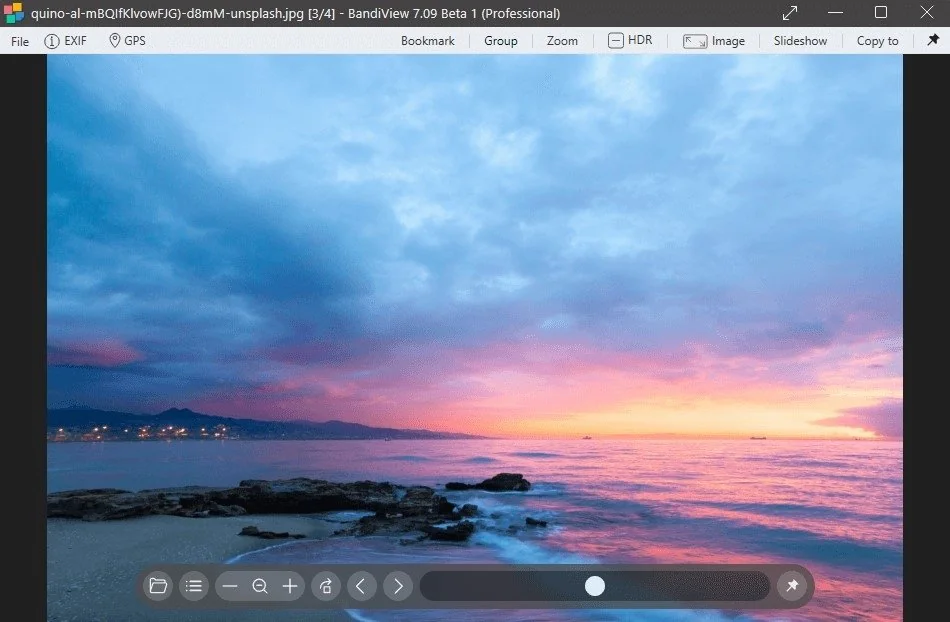
BandiView is the finale of my story devoted to the best photo viewers for Windows 10 and 11. It is the succeeding image viewer to Honeyview: it inherits everything cool of its predecessor and also gets improved even further.

BandiView accommodates a galore of formats, from JPG and PNG to HEIC, RAW, PSD, and even Clip Studio Paint files. HDR support brings a wider range of brightness and color when your system allows it.

The webtoon mode is perfect for scrolling vertically long images – it lets you follow comics or storyboards without extra clicks. You can also convert multiple images at once, 10 times faster than most other converters. Archives like ZIP, RAR, or CBZ open directly without extraction.

I used BandiView to quickly sort through hundreds of vacation photos stored inside a ZIP file without extracting them first. The program loaded every image instantly and the webtoon view mode made scrolling through my vertical panorama shots seamless. It was incredibly fast and much smoother than using the default Windows Photo Viewer.

Ratings

Pros:
  • Wide format support, including RAW, HEIC, PSD, Clip files

  • HDR and webtoon view modes

  • Very fast batch conversion and real-time file updates

Cons:
  • Only for Windows, no macOS or Linux versions

  • Advanced editing features require the Professional Edition

How to choose the best photo viewer

I went through all the apps myself, and each one has its own strong point. Movavi Photo Editor lets you apply AI tweaks quickly. Apowersoft Photo Viewer opens HEIC, PSD, and even PDFs without fuss. FastStone is perfect for large folders and side-by-side comparisons.

IrfanView stays tiny and lightning-fast, great for older PCs. XnView handles almost every format and makes batch work simple. NoMacs lets you compare multiple images or layers at once. Google Photos keeps everything synced and builds fun highlight reels.

Ashampoo Photo Commander mixes a familiar layout with practical correction tools. Excire Foto finds images by face or content in huge collections. Microsoft Photos covers both photos and videos with quick edits. ImageGlass opens almost anything with a minimal interface. BandiView reads unusual formats, scrolls webtoons, and converts batches fast.

When choosing a viewer, think about:

  • File formats you need supported (RAW, HEIC, PSD)
  • How big your folders are and whether batch tools matter
  • Whether speed or minimal interface matters more
  • Syncing across devices or working offline
  • Need for quick edits versus advanced adjustments

Movavi Photo Editor

Easily enhance images and get professional-grade results in a snap.

*The trial version of Movavi Photo Editor has the following restrictions: you can save up to 10 images with added watermark, screenshots are disabled.

<p>Movavi Photo Editor</p>

Frequently asked questions

Is there a better photo viewer for Windows 10?

Yes, some software is better than others both in terms of interface layout, performance speeds, and tools available. The top viewers are:

  • FastStone Image Viewer
  • IrfanView
  • ImageGlass

What is the best photo viewer app for Windows 10?

The best photo viewers for Windows 10 are also cross-platform compatible with Mac, Linux, and other operating systems. Here are the top picks:

  • NoMacs
  • XnView
  • Excire Photo
  • FastStone Image Viewer

Is ImageGlass free?

Yes, ImageGlass is an open-source, free photo viewer software available for Windows 10 and comes ad-free. However, developing and maintenance costs are ongoing for the owners so donations are welcomed.

Does Windows 10 have a photo viewer?

Yes, Windows 10 comes with Photos app – a built-in photo viewer.

What is the easiest way to view photos on a PC?

You can use Photos app that comes with Windows. Otherwise, you can try out Movavi Photo Editor. It’s a Windows and Mac compatible program with a wide range of features that suits beginners and professionals alike.

What is the best software to view JPEG images?

To view JPEG images, try out XnView or – a user-friendly app for viewing and editing photos in one program.

What has happened to Windows Photo Viewer?

Windows Photo Viewer hasn’t disappeared – it’s just hidden on newer systems. Microsoft replaced it with the Photos app, but you can still bring it back with a tweak or registry fix. It works fine once re-enabled.

How do I see all photos in Windows 11?

Open the Photos app or File Explorer and head to your Pictures folder. Everything stored there, including synced OneDrive images, shows up. You can sort or search to find exactly what you want.

What has replaced Windows Photo Gallery?

Microsoft Photos has taken its place, managing both photos and videos in one app. It is the default photo application in Windows 10 and 11 that sorts by date, folder, or album and also offers some basic quick edits. OneDrive sync keeps everything accessible across devices. For those who prefer the older version, the Photos Legacy app is available as a free download from the Microsoft Store.

Have questions?
Have questions?
If you can’t find the answer to your question, please feel free to contact our Support Team.
Join us for discounts, editing tips, and content ideas

1.5M+ users already subscribed to our newsletter

By signing up, I agree to receive marketing emails from Movavi and agree to Movavi's Privacy Policy.