
10 Best Video Editors for YouTube in 2026: Easy Picks for Beginners

Use Movavi Video Editor!

  • NEW: Adjustable video templates for any vibe – made of Blocks

  • NEW: Blocks – pre-edited video segments you can customize

  • Fast and easy editing: cut, crop, adjust colors and speed

  • Auto subtitles, noise removal, hundreds of effects, and more

By clicking the download button, you're downloading a trial version of the program.*

Edited by
Ben Jacklin
8,891

The best video editor for YouTube is the one that takes you from recording to upload without a detour through a course. Movavi Video Editor with Movavi Screen Recorder fits tutorial authors who record and edit in one workflow. Clipchamp suits Windows users on a free plan, iMovie is free on a Mac, CapCut and Kapwing lean toward Shorts, and Descript is built for talking to a camera.

This guide is for people starting a channel with lifestyle vlogs and unboxings, for tutorial authors who record software on screen, and for tech bloggers who review apps. Each pick below is a realistic video editor for YouTube for beginners, and each entry says how that YouTube video editor records, handles subtitles and Shorts, and what it costs.

How we picked

We compared editors on the things a first channel needs: learning curve, built-in screen and webcam recording, intro and outro templates, subtitles, export for YouTube and Shorts, a free version, and price. A recorder inside the editor saves an export-and-import round trip, templates save the blank-timeline moment, and subtitles keep a video readable for viewers who watch without sound.

Best paid and free video editors for YouTube

Editor

Platforms

Screen recording built in

Free version

Best for

Starting price

Windows, macOS

Yes, with Movavi Screen Recorder; the editor also records from a connected camera

Yes: watermark, 60-second export cap

First video, tutorials, vlogs with subtitles

$19.95/month

Browser, Windows app

Yes: screen, camera, voice

Yes: 1080p, no watermark

Windows users, quick tutorials

Free; Premium features come with Microsoft 365 Personal or Family

Desktop, mobile, web

Yes: record screen in the desktop editor, screen and webcam together

Free plan: free templates, basic editing

Shorts, vertical edits

$19.99 per month

Best for: a first channel video, screen-recorded tutorials, and lifestyle vlogs that need subtitles and a vertical Shorts cut.

Price and platforms: Windows and macOS. Movavi Video Editor from $19.95 for a one-month subscription. The free version of the editor adds a watermark and has a 60-second export cap.

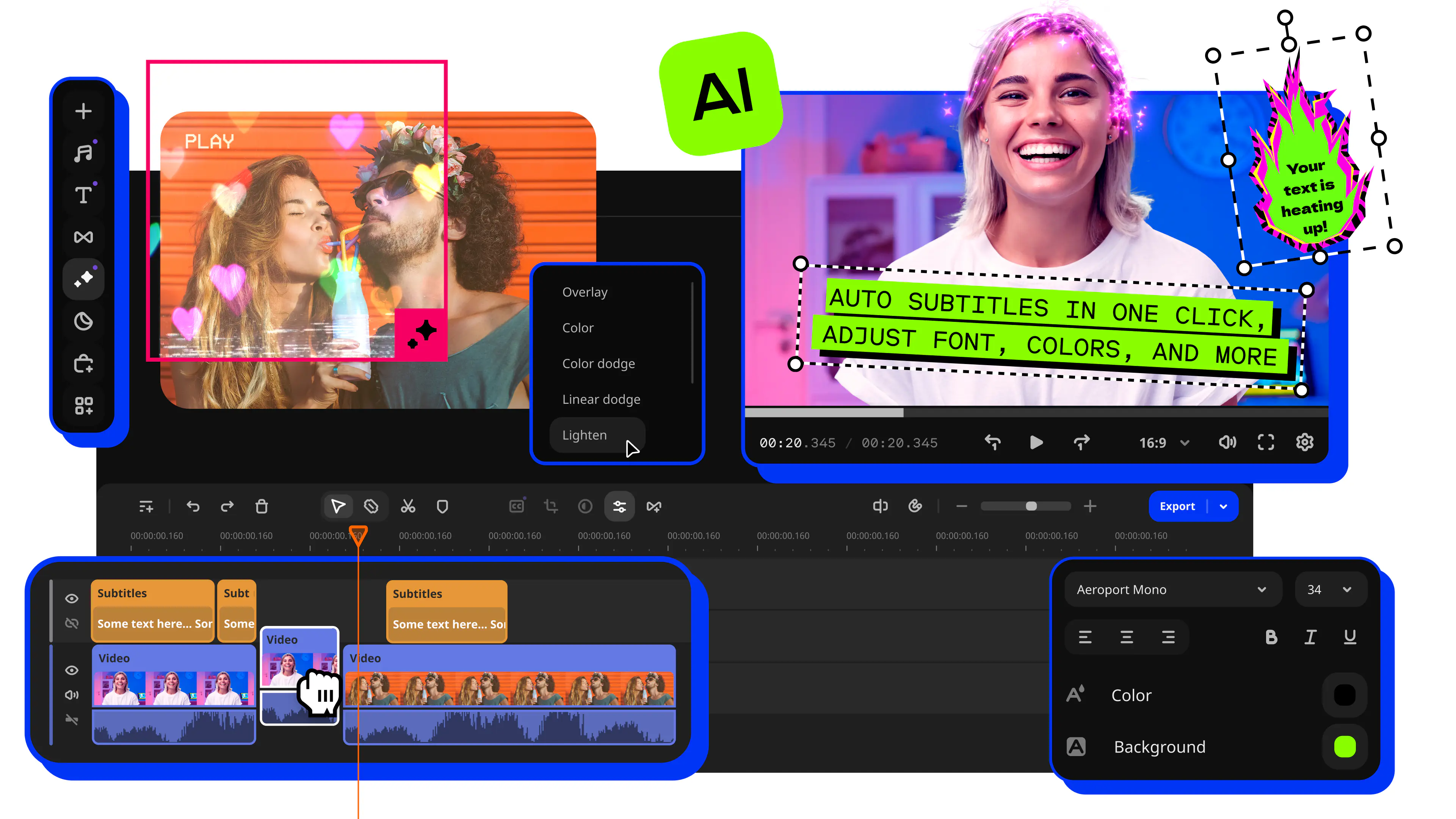
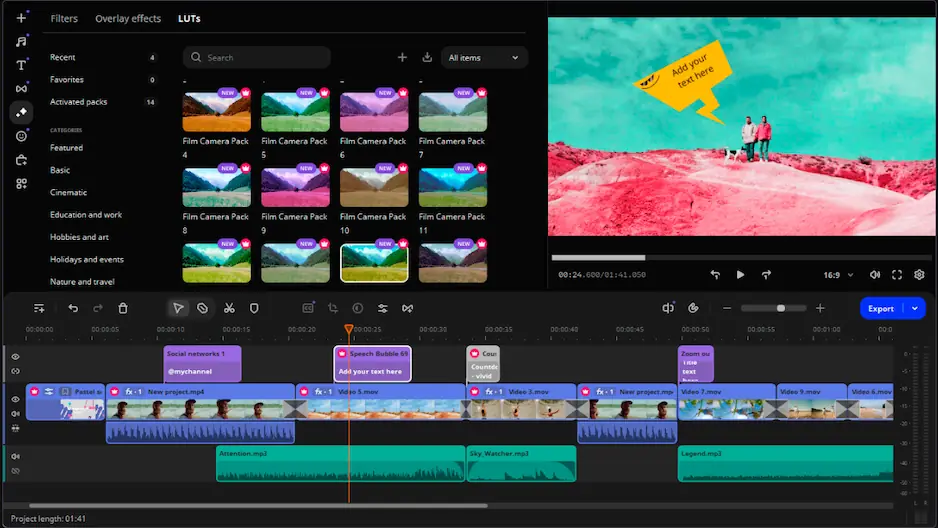
Why we picked it: Movavi Video Editor is an intuitive video editor with customizable video templates, one-click AI tools, and hundreds of drag-and-drop effects.

Record with Movavi Screen Recorder, drop the file on the timeline, and the one-click tools do the cleanup: silence removal cuts the dead air, noise removal clears traffic and wind, and auto subtitles caption what is left. That makes it a practical YouTube tutorial video editor.

Then give your channel a look. Movavi Video Templates is a multi-style library of customizable, pro-looking, modular templates for any kind of video. Each template is built from short segments called Blocks: you drop in your own clips, photos and text, reorder or remove Blocks, and keep or replace the pre-set music.

Key features:

  • Auto subtitles: speech to text in 100+ languages, with word-by-word highlighting synced to the audio.
  • Auto-tracked cropping: turns horizontal footage into vertical and keeps the speaker centered.
  • Export to YouTube: upload straight from the editor with title, description, privacy and tag settings.
  • Movavi Screen Recorder: full screen or a custom area, system audio and microphone, a webcam overlay, and cursor clicks and keystrokes on screen, with 4K screencasts.
  • Movavi Ideas: a free tutorial hub with a new step-by-step lesson every week.
Pros:
  • Windows and macOS versions are fully equivalent, and the editor runs on low-end PCs

  • Every AI tool is part of the full version, with no credit system

  • Easy to use, suitable for beginners

Cons:
  • Lacks the advanced, detailed controls of a professional workflow

  • No web version or cloud integration

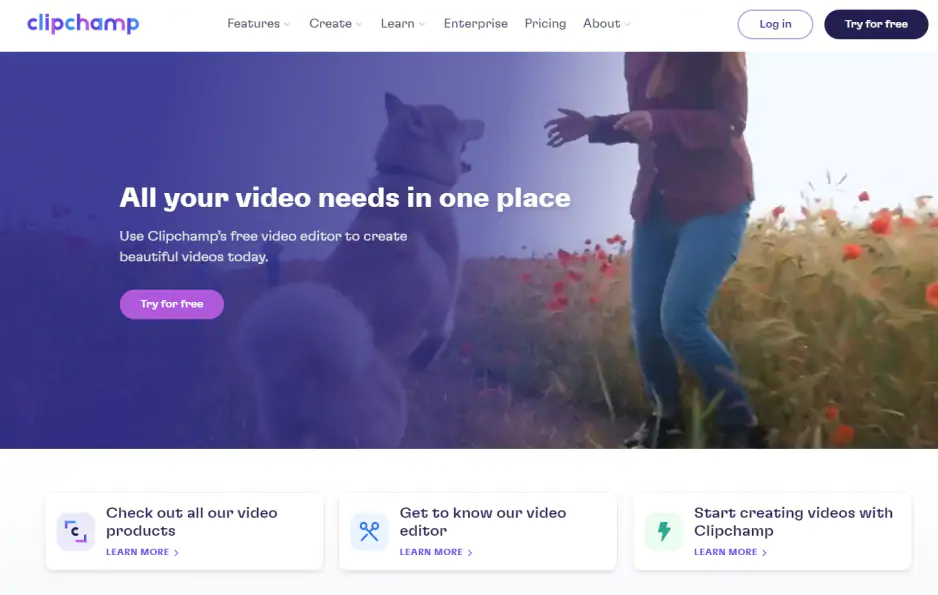
Best for: Windows users who want a free editor with a recorder built in.

Price and platforms: free. Premium features, including 4K export, Premium stock assets and the brand kit, come with a Microsoft 365 Personal or Family subscription. Browser (Edge, Chrome) and Windows app.

Why we picked it: the free plan exports up to 1080p with no watermark, and it already includes AI subtitles, voiceovers and silence removal, according to Clipchamp’s pricing page. A recording made inside the editor can go straight through silence removal. It is available in the browser and as a Windows app.

Key features:

  • Screen, camera and voice recorder inside the editor, on the free plan
  • AI subtitle generator for captions in 80+ languages
  • AI audio tools that remove background noise, pauses and filler words
  • YouTube templates and a YouTube Shorts maker in the Create menu
Pros:
  • Free, no watermark, and already built into Windows 11

  • Simple timeline for quick videos

Cons:
  • Large files can slow the editor, and export can freeze at the final stage

  • 4K and Premium stock assets need a Premium plan; advanced editing and audio are limited

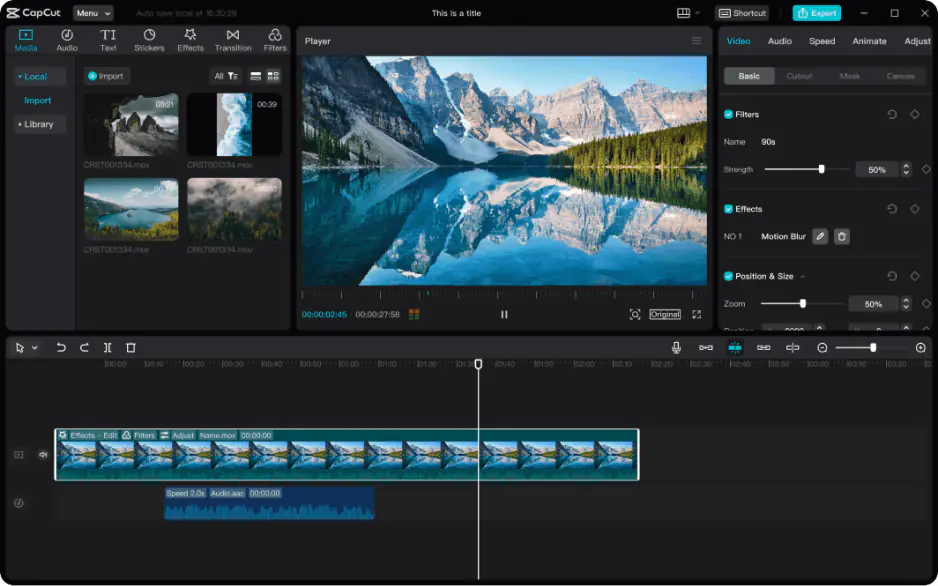
Best for: a YouTube Shorts editor for fast vertical cuts.

Price and platforms: free plan; Pro costs $19.99 per month. Desktop, mobile, and web platforms.

Why we picked it: CapCut offers a Long video to shorts tool that turns long videos into shareable shorts in one click, plus auto captions and a transcript-based editor. On desktop the tools resemble the mobile version, so phone-first creators feel at home.

Key features:

  • Long video to shorts, one click
  • Auto captions with caption templates
  • Background noise remover and video background remover
  • Desktop editor captures screen and webcam together
  • Free templates on the free plan; the full template set on Pro
Pros:
  • Huge library of trending templates and effects

  • Full AI toolkit, on desktop, mobile and web

Cons:
  • Best assets are marked Pro and the list changes often

  • AI features run on monthly credits, and some features differ between desktop and mobile

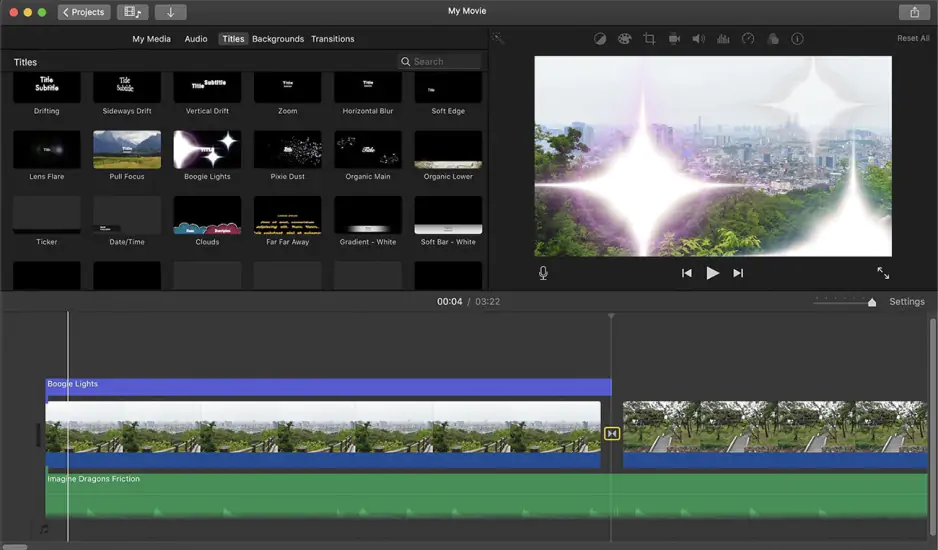
Best for: a first video on Apple devices.

Price and platforms: completely free. Mac, iPhone and iPad.

Why we picked it: Apple’s editor is free, with no watermark or limits, and comes preinstalled on Apple devices, with ready-made trailer templates.

Key features:

  • Basic editing with a simple timeline
  • Ready-made trailer templates
  • Simple color correction
  • Camera recording on a Mac: record from the built-in FaceTime HD camera through the Import window. Apple’s guide does not list screen recording.
Pros:
  • Completely free

  • Preinstalled on Apple devices

Cons:
  • Apple devices only

  • Modest library of effects and music, almost no AI features, and limited export control

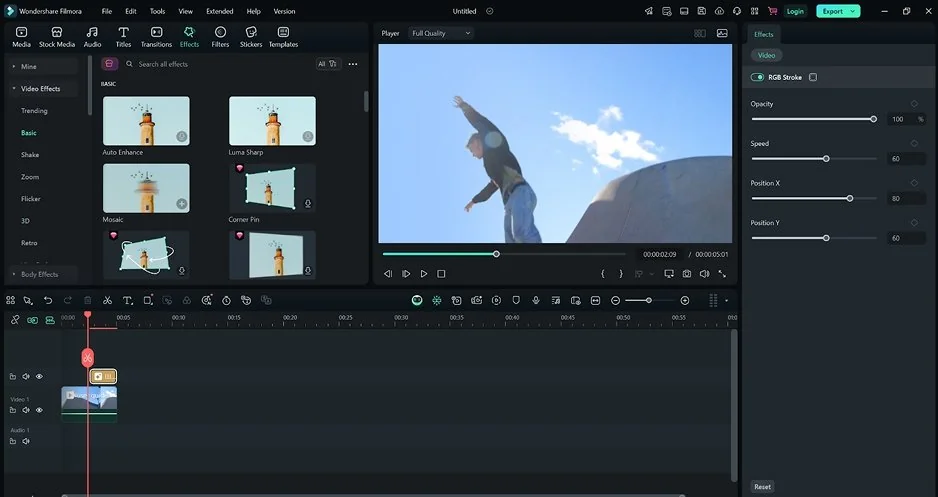
Best for: creators who want a deeper timeline and AI tools on Windows or Mac.

Price and platforms: the Advanced plan costs $59.99 per year and includes monthly AI credits. A one-time Perpetual plan covers updates within Filmora 16 only. Windows, macOS, iOS, and Android.

Why we picked it: the built-in recorder captures screen, camera, microphones and system audio at the same time and keeps each source separate for editing. Filmora also has a YouTube Upload mode that compresses video to YouTube’s recommended settings, and a free version lets you try the tools before picking a plan.

Key features:

  • Multitrack timeline with keyframe animation and motion tracking
  • AI text-based editing and silence detection
  • Auto Caption with dynamic caption styles
  • YouTube Shorts maker and Smart Short Clips
Pros:
  • AI tools such as auto subtitles and subject-tracked cropping

  • Simpler than professional software

Cons:
  • Most AI tools run on AI credits, which come with the Advanced plan

  • Free exports carry a watermark

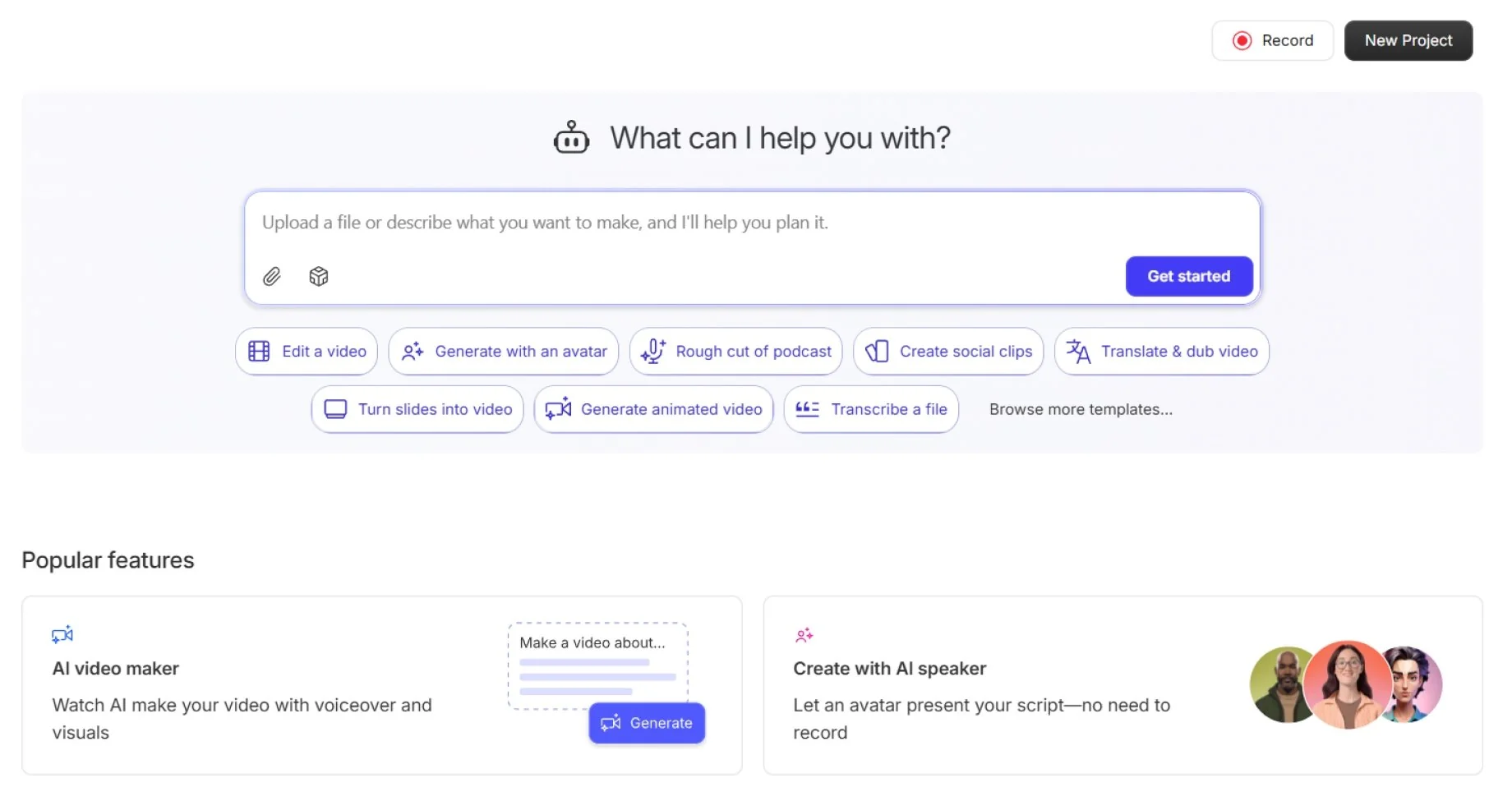
Best for: talking-head videos and software tutorials, edited by editing text.

Price and platforms: the free plan gives 1 hour of transcription a month and one watermark-free export a month. Hobbyist costs $16 per month billed annually, or $24 billed monthly. Windows 10 or newer and macOS.

Why we picked it: you edit video by editing the transcript, and the desktop recorder keeps screen, microphone and camera as separate tracks. Use cases range from podcasts and interviews to screencast tutorials.

Key features:

  • Transcript-based editing
  • Screen recorder with a four-hour recording limit
  • Studio Sound, which removes background and ambient noise
  • Filler-word removal
Pros:
  • Free screen recordings have no time limit

  • Built for speech, so a talking-head cut moves quickly

Cons:
  • Minimal visual effects, transitions and color correction

  • Windows does not support 4K screen recordings

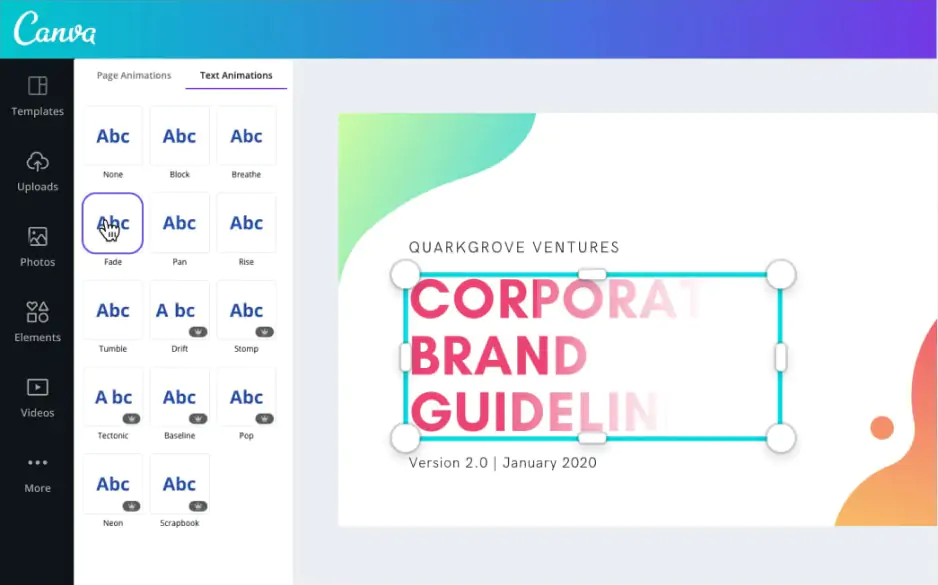
Best for: channel intros and covers built from templates.

Price and platforms: a free plan; Pro costs $18 per month. Browser, desktop, and mobile apps.

Why we picked it: a huge library of templates, fonts and elements makes a good-looking video easy to assemble, and Canva records from the camera and, in its desktop app, the screen. A thumbnail and an intro can come from the same template library.

Key features:

  • Template library for video and graphics
  • A webcam recorder in the browser and a screen recorder in the desktop app
  • Basic video timeline on top of design layouts
Pros:
  • Designing a thumbnail and an intro in one place

  • Browser, desktop and mobile apps

Cons:
  • Little control over timeline, audio and color; long videos slow it down

  • Best elements and AI features are Pro only

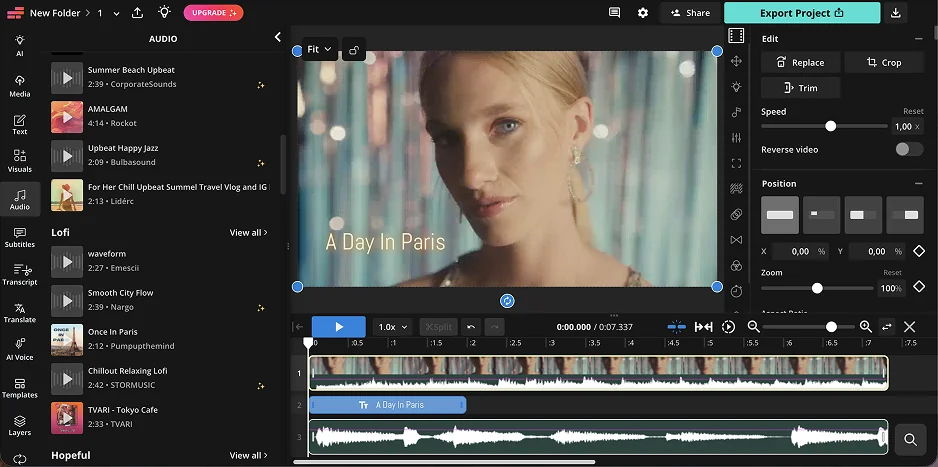
Best for: editing in the browser with recording, subtitles and Shorts.

Price and platforms: the free plan includes 10 credits. Pro costs $16 per month billed annually, or $24 billed monthly. Browser.

Why we picked it: Smart Cut removes pauses automatically, and social media templates and auto subtitles sit in the same workspace, so a short vertical clip with captions needs one browser tab and no install. Kapwing’s use cases lean toward collaborative social videos, subtitles for multilingual audiences and short marketing clips, which suits a channel that posts Shorts next to long videos.

The trade-off is the audience. Kapwing is aimed at teams, so shared workspaces matter less if you edit alone, and the subtitle and AI tools draw on a monthly credit allowance.

Key features:

  • Smart Cut for automatic pause removal
  • Auto subtitles and an AI Clip Maker, both on a credit allowance
  • Social media templates for vertical clips
  • Collaborative editing in a shared workspace
Pros:
  • Works online, nothing to install

  • Team collaboration

Cons:
  • AI features run on a monthly credit allowance

  • Stock and some templates are on paid plans

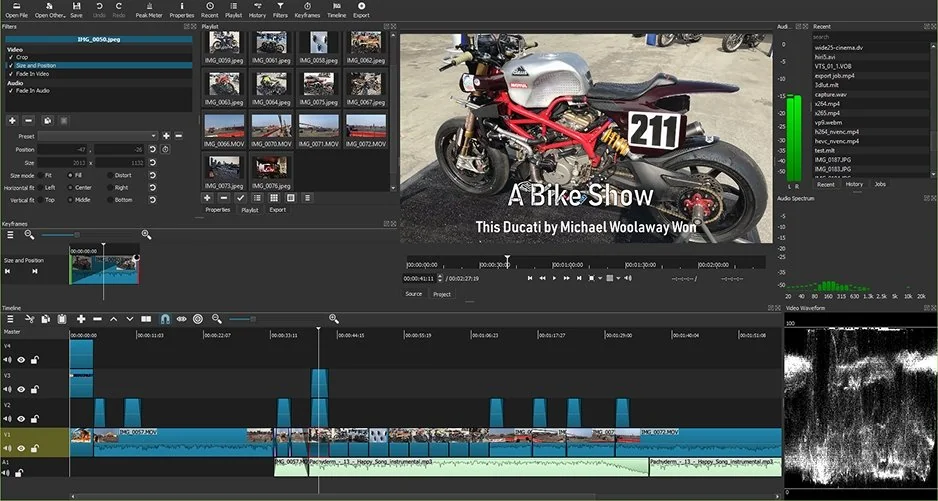
Best for: zero budget projects.

Price and platforms: free. Windows, Mac, and Linux.

Why we picked it: an open-source editor that captures screen, webcam and audio, so a tutorial can be recorded and cut in one program. It edits hundreds of formats natively through FFmpeg, with no import step, and one project can mix resolutions and frame rates, which helps when a screen recording and a phone clip share a timeline.

Keyboard shortcuts for playback, in and out points, and frame-by-frame stepping make cutting quick once you learn them. Expect to do the routine work by hand: Shotcut has no AI features, so subtitles, noise cleanup and vertical cropping for Shorts are manual jobs. New versions arrive every two months, and you can keep several installed.

Key features:

  • Screen, webcam, and audio capture
  • Native editing of hundreds of formats through FFmpeg, with mixed resolutions and frame rates in one project
  • Keyboard-driven cutting
  • Resolutions up to 4K
  • Dockable panels
Pros:
  • Free and cross-platform

  • Wide format support

Cons:
  • Most settings are manual, with no AI features

  • Old-school interface

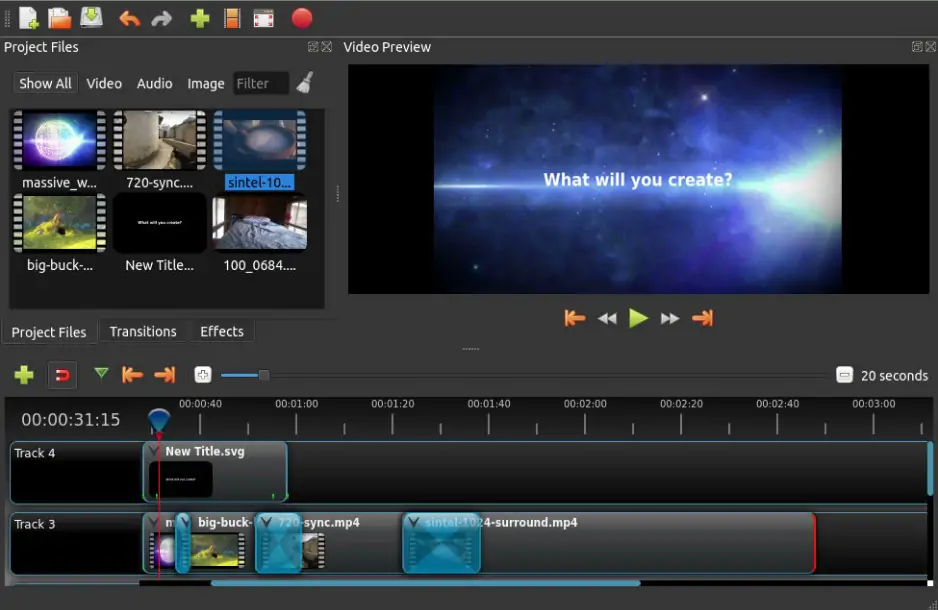
Best for: simple projects at zero cost.

Price and platforms: free. Linux, Mac and Windows.

Why we picked it: it is free and open source, with no subscriptions, watermarks or project limits. Its Recording View feature captures microphone, screen, and webcam into the project and saves each source as a separate file, so you can move a corner webcam, trim the screen footage and re-record narration without touching the other tracks. When screen and webcam are both enabled, the camera lands in the bottom-right corner by default.

Version 4.1 added direct text editing on the video and automatic optimization of heavy 4K footage for smoother editing. Color grading with wheels, curves and LUTs, plus chroma key, cover the polish step. With practically no AI features, captions are a manual job.

Key features:

  • Unlimited tracks with snapping and waveforms
  • Keyframe animation
  • Color grading with scopes
  • Chroma key and other effects
  • Recording View: microphone, screen, and webcam go straight into the project, each saved as its own file
Pros:
  • Free on Linux, Mac, and Windows

  • Keyframes and effects at no cost

Cons:
  • Sparse built-in library of effects and music

  • No AI features

Your first YouTube video in 5 steps

Step 1. Install Movavi Video Editor

Download the installation file for your PC or Mac and install the program following onscreen instructions.

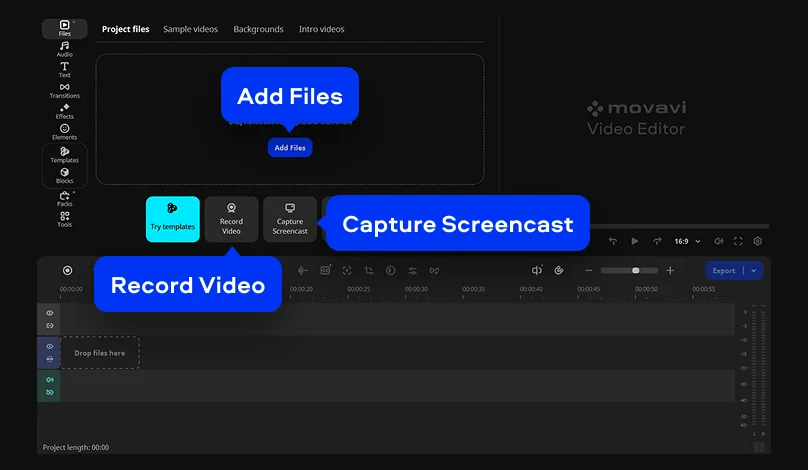
Step 2. Add or record your footage

Click Add Files, select your recording, and drop it onto the timeline.

To record your webcam, hit Record Video, specify the capture settings, and click Start Capture.

If you want to record your screen activity, first, download and install Movavi Screen Recorder. Then, click Capture Screencast in Movavi Video Editor Movavi Screen Recorder will open automatically). Select the area you want to record, then start the recording. When you are done, click Stop.

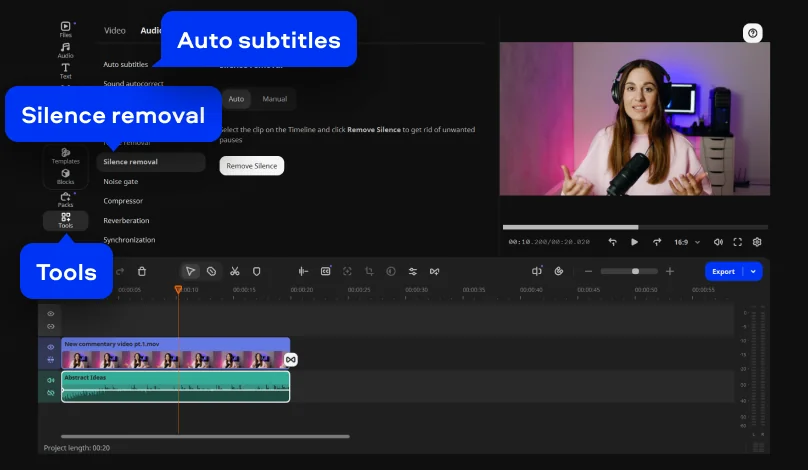
Step 3. Cut the dead air and add subtitles

Click Tools > Audio > Silence removal, and in Auto mode click Remove Silence to cut the pauses. Next, click Auto subtitles to caption what is left.

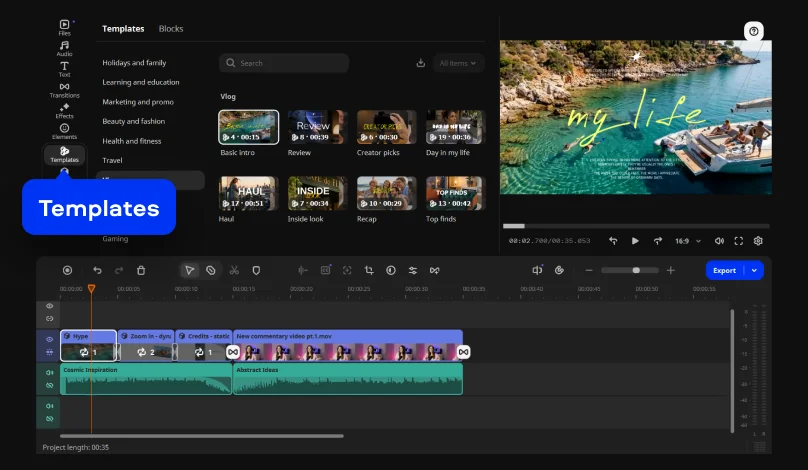
Step 4. Add an intro and outro template

Open the Templates tab and choose a suitable intro template and outro template. Drop the intro template onto the timeline, then do the same with the outro template. Double-click a Block on the timeline to open it. Replace the placeholder with your own clip or photo, and retype the Block text so it says what your video needs.

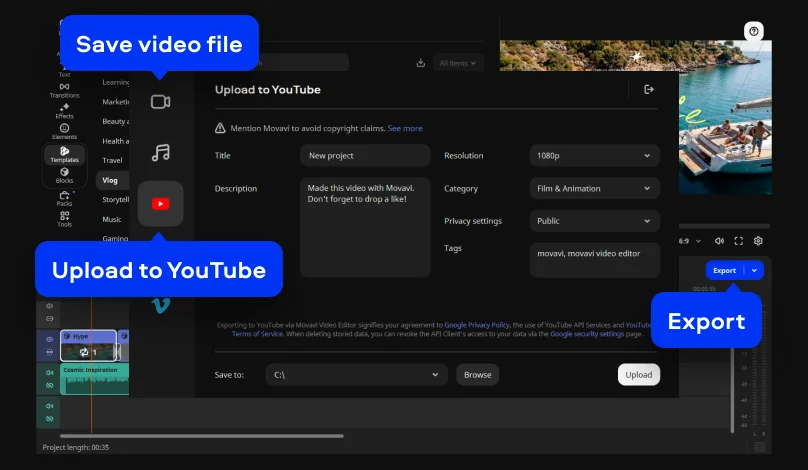
Step 5. Export for YouTube

Click Export. To upload your video from the program and straight to YouTube, open the Upload to YouTube tab in the Export window.

If you want to save your video on your computer, open the Save video file tab. Set the resolution and frame rate to match your recording. Finish by clicking Start.

YouTube asks for an MP4 container, H.264 video and AAC-LC audio, and it wants the video uploaded at the frame rate it was recorded in. For 1080p at a standard frame rate, it lists 8 Mbps as the recommended video bitrate. Standard videos use a 16:9 frame.

For Shorts, export a vertical or square video. YouTube treats uploads from October 15, 2024 onward as Shorts when they are vertical or square and up to three minutes long.

How to choose a video editor for YouTube

Start with your computer, then the kind of video, then the budget.

  • First video on Windows: Clipchamp if you want a free option, Movavi Video Editor if you want auto subtitles and templates in one app.
  • First video on a Mac: iMovie for free, Movavi Video Editor for subtitles and Shorts cropping.
  • Tutorials with screen recording: Movavi Screen Recorder with Movavi Video Editor, Descript, or Filmora.
  • Talking head: Descript for editing by transcript, Movavi Video Editor for noise removal and subtitles.
  • Shorts: CapCut for its one-click shorts tool, Movavi Video Editor for tracked vertical cropping.
  • Zero budget: iMovie, Shotcut or OpenShot; Clipchamp if you are on Windows.

Free versions differ in what they take back. iMovie, Shotcut and OpenShot ask for nothing, Clipchamp’s free plan stops at 1080p, and the free versions of Movavi Video Editor, Filmora, and Kapwing add a watermark, which suits a test export while you compare.

Pick one, record two minutes of anything, and run it through cut, subtitles and export. When a step sticks, Movavi Ideas has a tutorial for it.

Movavi Video Editor
Create awesome videos easily

*The free version of Movavi Video Editor may have the following restrictions depending on the build: watermark on exported clips, 60-second video or 1/2 audio length limit, and/or some advanced features unavailable when exporting videos.

Frequently asked questions

Which video editor is best for a beginner YouTuber?

Match the editor to your computer and your first video, then run a short test export. Free versions set different limits: Movavi’s caps exports and adds a watermark, while Kapwing’s free exports carry a watermark too.

Can I record my screen and edit in one program?

Yes. If you want a screen recorder with a video editor, use Clipchamp, CapCut, Filmora, or Descript. Canva’s desktop app also has a built-inscreen recorder. iMovie records only from the Mac’s camera. Movavi Video Editor has a built-in webcam recorder, or if you want to record your screen activity, install Movavi Screen Recorder as well.

Is there a free video editor for YouTube without a watermark?

Yes. iMovie, Shotcut and OpenShot are free without a watermark, and Clipchamp exports up to 1080p free without one. Descript’s free plan includes one watermark-free export a month.

How do I make Shorts from a long video?

Use an auto-crop tool that tracks the speaker. In Movavi Video Editor, the crop tool has an Auto mode where AI tracks and crops the subject.

What computer do I need to edit YouTube videos?

To edit YouTube videos on a PC with Movavi Video Editor, you need 64-bit Windows 10 or 11 and 4 GB of RAM. On a Mac, it needs macOS 12.0 or higher, with native support for Apple M1 and newer chips.

Have questions?
If you can’t find the answer to your question, please feel free to contact our Support Team.
Join us for discounts, editing tips, and content ideas

1.5M+ users already subscribed to our newsletter

By signing up, I agree to receive marketing emails from Movavi and agree to Movavi's Privacy Policy.