How to Use VLC Trim Videos

Try Movavi Video Editor:

  • Fast and easy editing: cut, crop, adjust colors and speed

  • One-click AI tools: auto subtitles, noise removal, and more

  • Hundreds of filters, transitions, titles, overlays

By clicking the download button, you're downloading a free version of the program.*

Also available on App Store and Play Store:

Edited by
Ben Jacklin
32728

Key takeaways

  • How to cut videos in VLC
    VLC trims videos by recording the selected segment during playback, not by using a traditional editing timeline. You start recording at the desired point and stop it at the endpoint to create a new file.
  • Pros and limitations of VLC
    VLC is free, reliable software that supports nearly all video formats, but trimming requires precise timing since there’s no visual cut interface.
  • Tip for better results
    Pause carefully at the exact start frame before recording in VLC, and always preview your final clip, whether using VLC or an online tool, to ensure clean and accurate cuts.

If you’ve ever needed a reliable video player, VLC is probably already on your computer. As a free, open-source program, it became popular because it can open nearly any format without extra codec packs, and fun fact: its icon was inspired by real traffic cones collected by the original team.

For most people, it’s simply a dependable way to watch MP4, AVI, MOV, WMV, and other files. Still, some users explore how to use VLC to edit videos, even though it isn’t a full-featured editor. In this guide, you’ll learn how to trim videos in VLC on Windows and Mac, and you’ll also see how Movavi’s online tool can serve as a more convenient alternative for trimming clips.

How to trim videos in VLC on a Windows PC

Before you begin, it helps to know that VLC media player trims videos by recording the section you want during playback. You simply start recording at the desired point and stop at the endpoint, and VLC saves that segment as a new file while leaving the original unchanged. Follow the steps below to learn how to use VLC to cut videos.

Step 1. Download, install, and launch VLC

If VLC isn’t installed on your PC, visit the official VideoLAN website and download the latest Windows version. Run the installer and follow the setup steps.

If it’s already installed, just open it from the Start menu or desktop shortcut. Once the program is running, click Media in the upper-left corner of the window and select Open File.
Alternatively, press Ctrl + O to open the file browser instantly. Browse your computer to locate the video you want to trim. Select the file and click Open to load it into the player.

Step 2. Turn on Advanced Controls

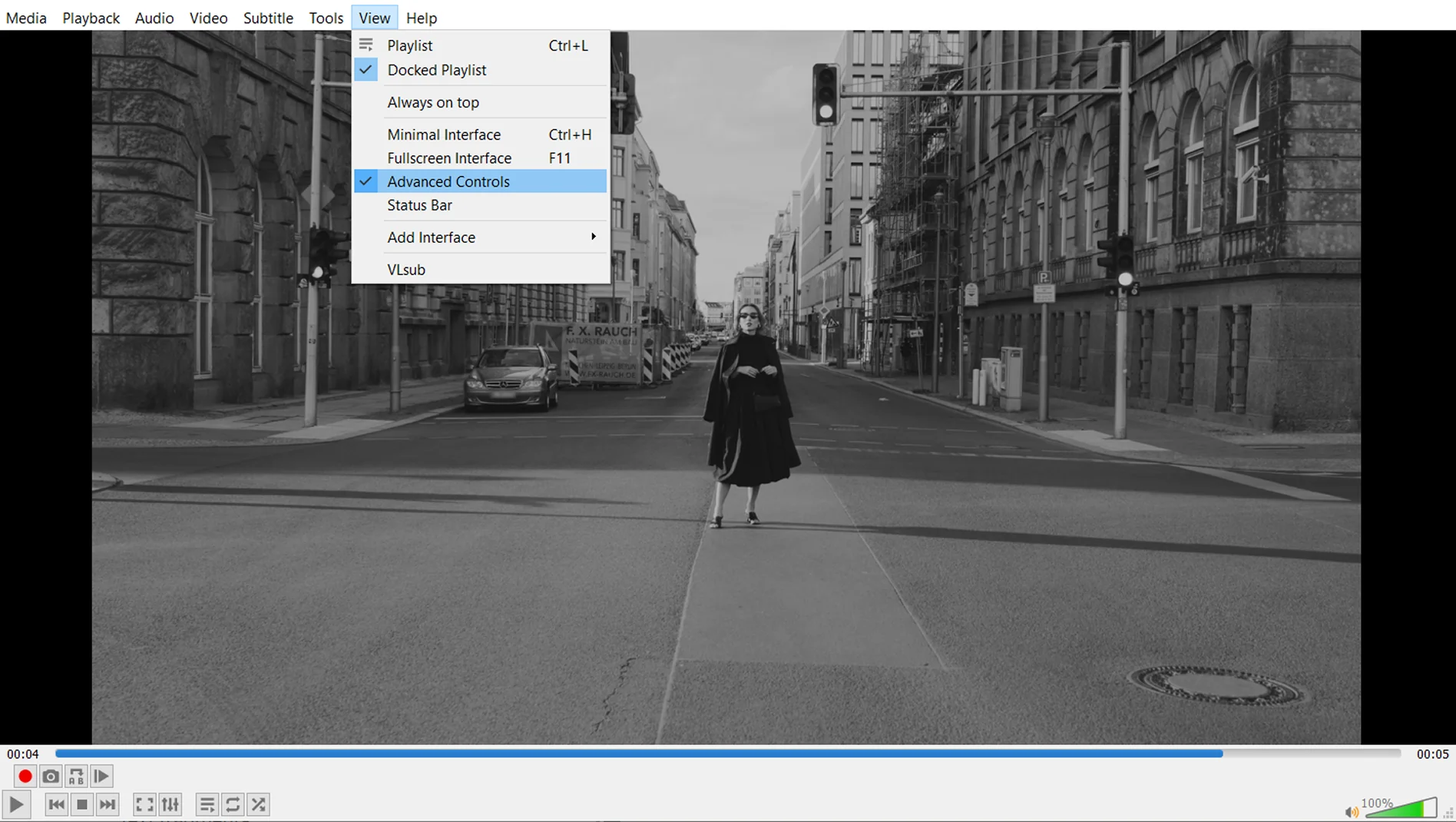
By default, the recording option is hidden. You’ll need to enable it. Click View in the top menu bar. Choose Advanced Controls from the dropdown list.

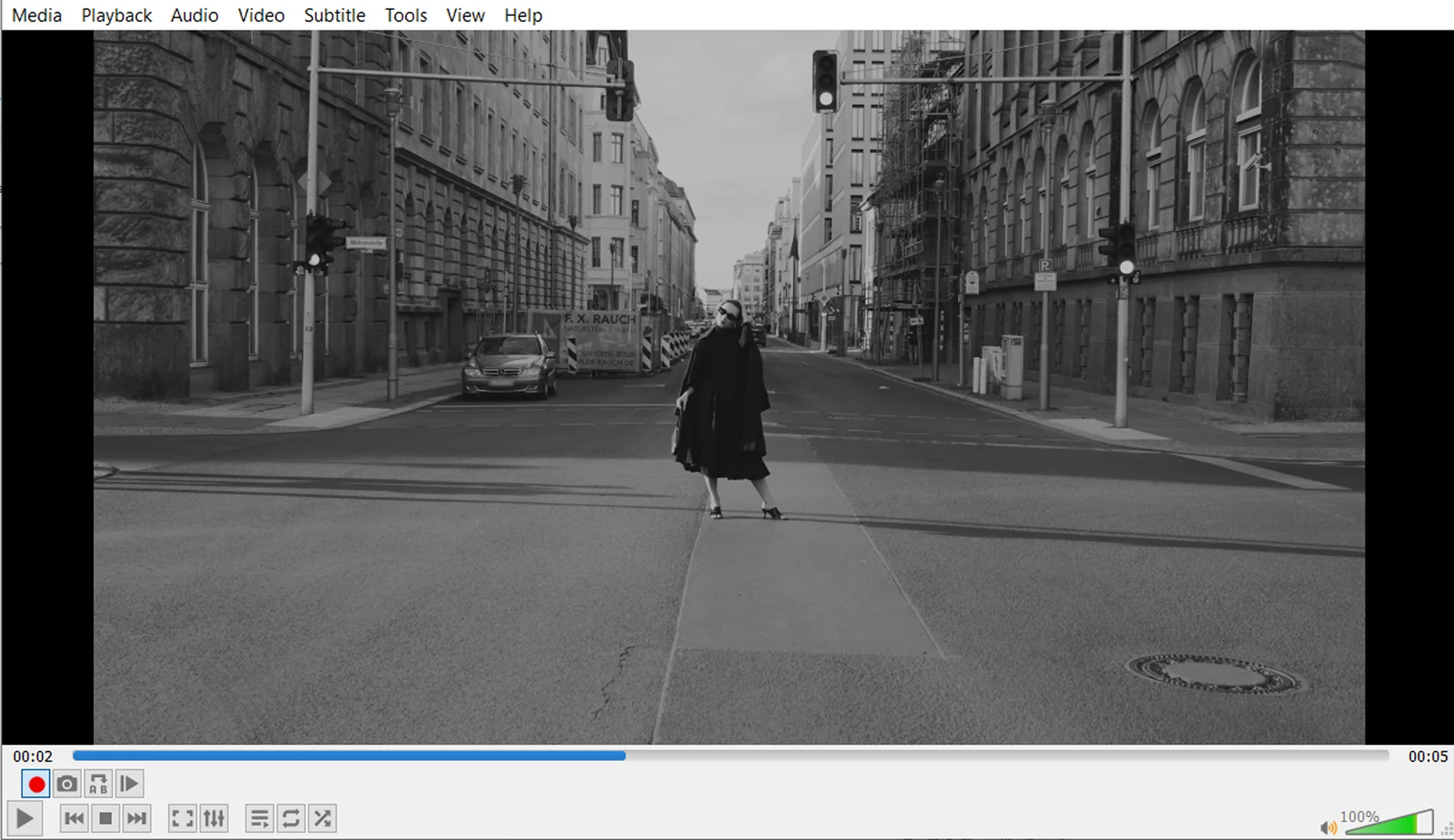
You’ll now see additional buttons appear above the standard playback controls. Among them is a red Record button, which is essential for trimming.

Step 3. Navigate to the desired starting point

Play your video and watch carefully to find the moment where you want your trimmed clip to begin.

Use the progress bar at the bottom of the window to move quickly through the video. When you get close to the desired starting point, click Pause.

For greater precision, use the Frame by frame button to move forward one frame at a time until you reach the exact frame where you want the clip to start.

Step 4. Start recording the segment

Once you’re positioned at the correct starting frame, click the red Record button. You can also use the default hotkey Shift + R to start recording.

Press Play to resume playback, or press the Spacebar to start the video using a keyboard shortcut.

From this moment on, VLC begins recording everything that plays. It captures the selected portion in real time and will save it as a separate file once you stop recording.

Step 5. Stop recording at the endpoint

Watch the playback closely as it approaches the end of the segment you want to keep.

When you reach the desired endpoint, click the Record button again or press Shift + R to stop the recording. Pause the video immediately afterward to avoid recording extra footage.

VLC will automatically finalize and save the recorded portion as a new video file.

Step 6. Find your trimmed file

On Windows, VLC saves recorded clips in your Videos folder by default. You can usually find it here:

C:\Users\YourUsername\Videos

If you previously changed the save directory in VLC’s settings, check the custom folder you selected.

How to trim videos in VLC on a Mac

On macOS, the steps are essentially the same as on Windows. The main difference lies in the menu layout and keyboard shortcuts rather than in the trimming logic itself. Follow the instructions below to learn how to use VLC to clip videos.

Step 1. Download, install, and open VLC

If VLC isn’t installed on your Mac, go to the official VideoLAN website, select the Mac version, and download the installer. Open the downloaded file, drag VLC to your Applications folder if prompted, and launch it like any other app. You may need to confirm opening it if macOS displays a security message.

Once the program is running, load your video. You have a few reliable ways to do that.

Drag and drop the video into VLC’s playlist area. The video often starts playing automatically, and if it doesn’t, you can double-click it to start playback. Or use the menu: click File > Open File.

Or you can use the shortcut: press Command + O to open the file browser, select your video, and click Open.

If VLC opens a separate playlist window, don’t worry, that’s normal on macOS. The file is still loaded in VLC, and you can start playback from there.


Step 2. Find the exact start point for your clip

Press Play (or use the Spacebar) and watch until you’re near the moment where the clip should begin. Use the progress bar (the scrubber) under the video to jump close to the right spot. Pause on (or just before) the exact frame you want as the start of the trimmed segment.

Step 3. Start recording

In the top menu bar, click Playback. Choose Record to begin recording the segment. Press Play (or Spacebar) and let the video run from your chosen start point.

You can rely on Playback > Record if you want the most consistent method, but you may also see shortcuts like Option + Command + R or Shift + Command + R.

Step 4. Stop recording at the endpoint

Keep watching playback until you reach the moment where the segment should end. Open Playback again and select Record one more time to stop recording. Pause the video right after stopping, so you don’t accidentally record beyond your intended endpoint.

Step 5. Find your trimmed clip

VLC doesn’t pop up a “saved successfully” message, so the final step is simply locating the new file.

Open Finder. Go to your Movies folder. VLC typically saves recordings there on Mac. Look for a file name that starts with something like vlc-record… followed by the date/time. Rename it to something memorable once you find it.

How to trim videos online

While VLC allows you to save selected parts of a video by recording them in real time, Movavi’s online video cutter offers a more straightforward approach. You can visually select the segment on a timeline, make precise cuts, and remove unwanted parts in just a few clicks. There’s no need to adjust hidden settings or search for saved files afterward. Because everything happens directly in your browser, the process is faster, clearer, and easier to control.

Follow the steps below to cut videos online with Movavi quickly and easily.

Step 1. Add the video

Open Movavi’s online video cutter page in your browser and click the Add Media button. Select the video file from your device and wait for it to upload. The upload time depends on the file size and your internet connection. Once the upload is complete, the editing workspace will open automatically.

Open to the online video cutter

Step 2. Set the trim points

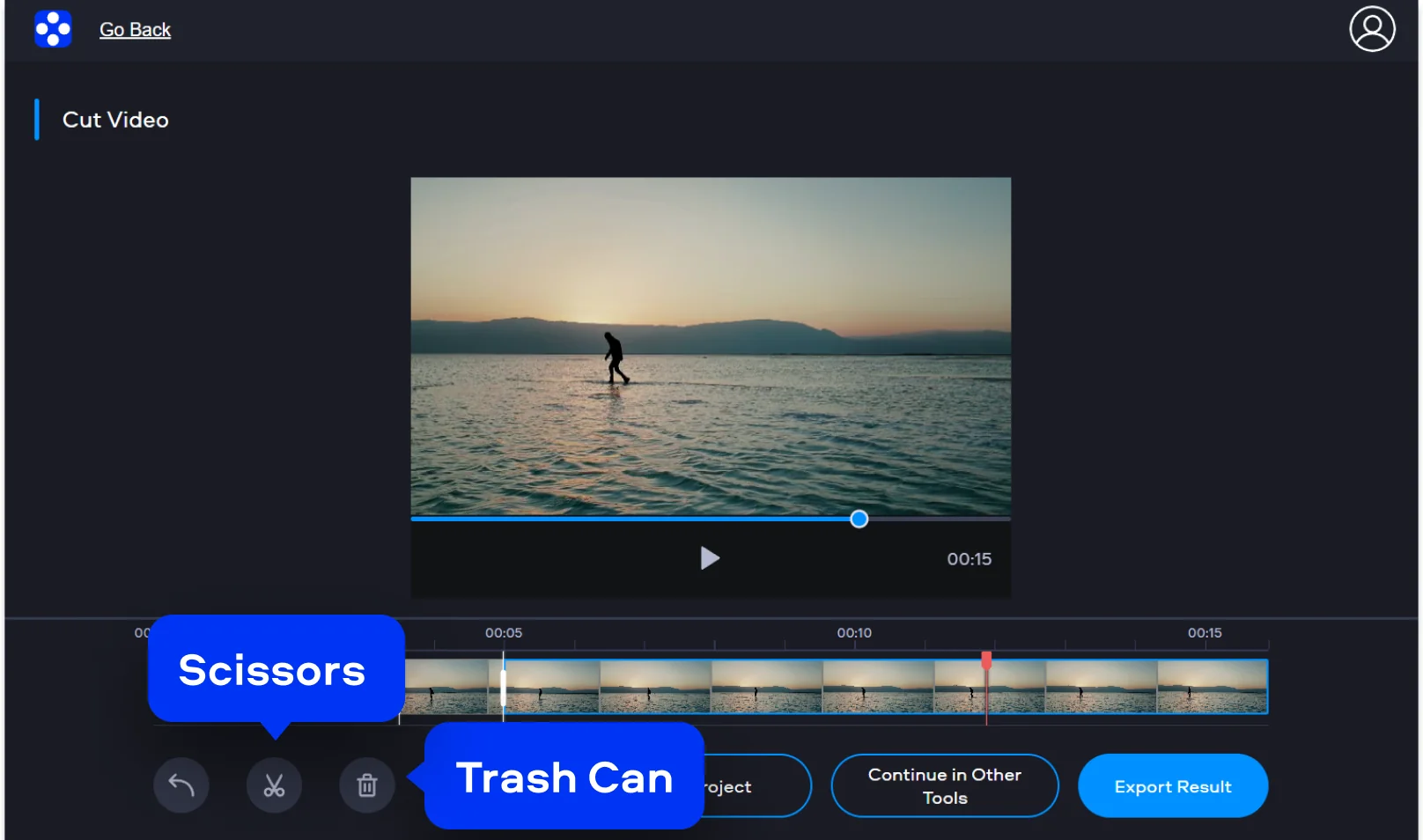
Use the timeline to scroll through your video and find the point where you want to make the cut. Position the playhead at the correct moment and click the Scissors icon to create a split. Then select the unwanted section of the video and click the Trash Can icon to remove it. Preview the edited clip to make sure the remaining footage starts and ends exactly where you want.

Step 3. Save the result

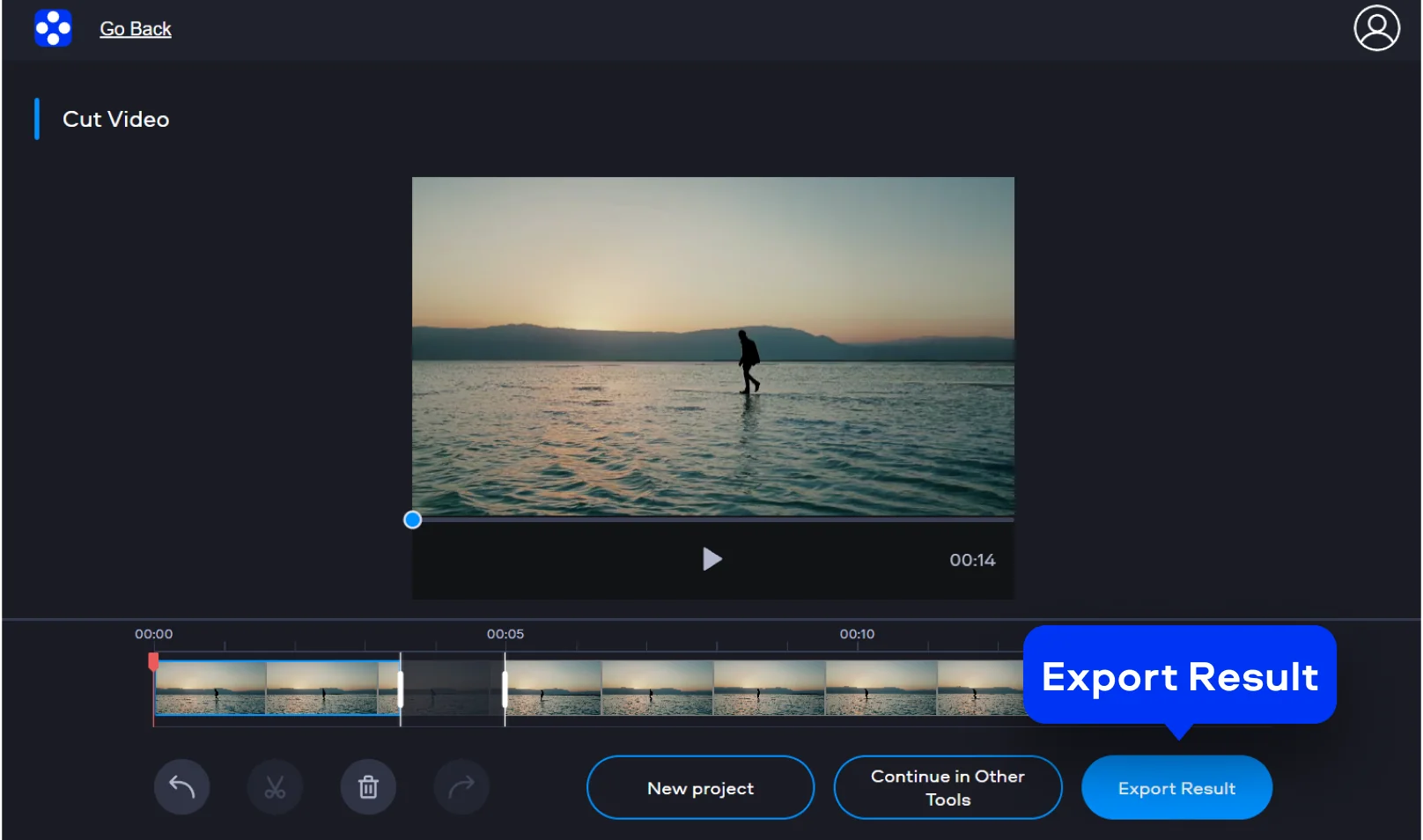
When you’re satisfied with the edit, watch the preview once more to confirm everything looks right. Click Export result and wait while the tool processes your video. After processing is complete, download the final file to your device.

How to use VLC to cut videos

If you’re expecting a traditional timeline with drag handles, VLC works differently. There’s no visual trim bar. Instead, you play the video, press Record where you want the clip to start, and press it again to stop. VLC then creates a new file with only what played in between.

The method is the same on Windows and Mac computers, and your original file stays untouched. Timing is important, though. If you start recording a bit late, you may need to try again. It feels more like capturing a moment live than editing afterward.

If you prefer visible cut points, Movavi’s online tool offers a clearer workflow. You place markers on a timeline, trim the excess, preview, and export. It’s a smoother option when you want more control without extra complexity.

Movavi Video Editor
Create awesome videos easily

*The free version of Movavi Video Editor may have the following restrictions depending on the build: watermark on exported clips, 60-second video or 1/2 audio length limit, and/or some advanced features unavailable when exporting videos.

Movavi Video Editor

Frequently asked questions

Is it possible to crop a video in VLC?

VLC does let you crop the picture using the Video Effects panel, but it’s more of a viewing tweak than a real edit. You can adjust the frame and see the result instantly during playback, which is handy if you just need to hide edges or black bars for a quick watch. The catch is that VLC won’t permanently save that cropped version. If you actually need a new exported file with the frame adjusted, something like Movavi makes the process feel much more straightforward and final.

How do I trim part of a video?

There isn’t a one-click split button in VLC, so the way around it is to record each section separately. It gets the job done, especially for short clips, but you’ll probably notice how careful you have to be with timing. With Movavi, you can simply drop cut markers on a timeline and separate clips in seconds, which feels calmer and more controlled.

How do I split a video into parts in VLC?

Trimming in VLC works a little differently than most editors. Instead of dragging handles on a timeline, you enable Advanced Controls, pause where you want the clip to begin, hit Record, and let it play until you reach the endpoint.

When you stop recording, VLC saves a new file with a shorter length, while the original stays exactly as it was. It works, but you do need decent timing. If you’d rather see your cut points clearly laid out, Movavi’s timeline makes it easier to fine-tune without redoing the clip.

What’s the quickest way to trim a video?

If VLC is already installed on your laptop, the fastest option is usually turning on Advanced Controls and using the Record shortcut. For quick, simple cuts, that’s often enough, especially when you don’t want to install anything new. Still, if speed and precision both matter, Movavi tends to be quicker overall since you can drag trim markers, preview instantly, and export without waiting through real-time playback.

Have questions?
Have questions?
If you can’t find the answer to your question, please feel free to contact our Support Team.
Join us for discounts, editing tips, and content ideas

1.5M+ users already subscribed to our newsletter

By signing up, I agree to receive marketing emails from Movavi and agree to Movavi's Privacy Policy.