

Movavi vs DaVinci Resolve for Beginners: Which Is Easier to Learn?

Short answer: if you want to edit your first vlog without studying the software first, Movavi Video Editor is the easier one to learn.

DaVinci Resolve is the stronger pick once your goal is professional editing or film-grade color work, and that goal justifies the extra hours of learning.

Edited by
Ben Jacklin
11,254

This comparison is for you if you film daily vlogs, unboxings, or travel videos for your channel. It also covers two neighbors: teachers and students who record explainer videos for YouTube, and tech bloggers who share app recommendations and performance tips.

We compared the two editors on what a beginner runs into during the first week: installation and first launch, how clear the interface is, how many steps typical tasks take, learning materials, PC requirements, and screen recording. We also looked at ready-made templates, since that's where an intro and outro come from on a weekly upload schedule. Movavi Video Templates is a multi-style library of customizable, pro-looking, modular templates for any kind of video. DaVinci Resolve takes a different route, as the table shows.

Movavi vs DaVinci Resolve: side-by-side comparison

Criterion

Movavi Video Editor

DaVinci Resolve

Platforms

Windows, macOS

Windows, macOS, Linux

Installation

Free version downloads from the official Movavi website

Free version downloads from the Blackmagic Design website after a short registration form; the installer is about 2–3 GB

Interface

Drag-and-drop timeline, hover previews, built-in tooltips

Separate pages for editing, color, audio, and visual effects

Typical tasks

One-click AI tools: auto subtitles, noise removal, silence removal, auto-crop

Tools need manual fine-tuning; auto subtitles need a third-party plugin

Ready-made templates

Movavi Video Templates built from editable Blocks

None; you build reusable presets (Power Bins) yourself

Built-in music

Copyright-free music and sounds

No built-in licensed music library

Learning materials

Movavi Ideas: free tutorials, new ones weekly

Community tutorials, third-party courses, paid Blackmagic Design training

PC requirements

Light; runs even on low-end PCs

Resource-intensive; powerful hardware recommended

Screen recording

Movavi Screen Recorder, part of Movavi Video Suite

None built in; record in a separate app and import

Free version

Watermark and 60-second limit on exports

Free, no watermark; exports up to UHD (3840×2160) at 60 fps

Paid version

$19.95/month or $69.95/year

DaVinci Resolve Studio: $295, one-time purchase

Interface and first launch: which is easier for beginners?

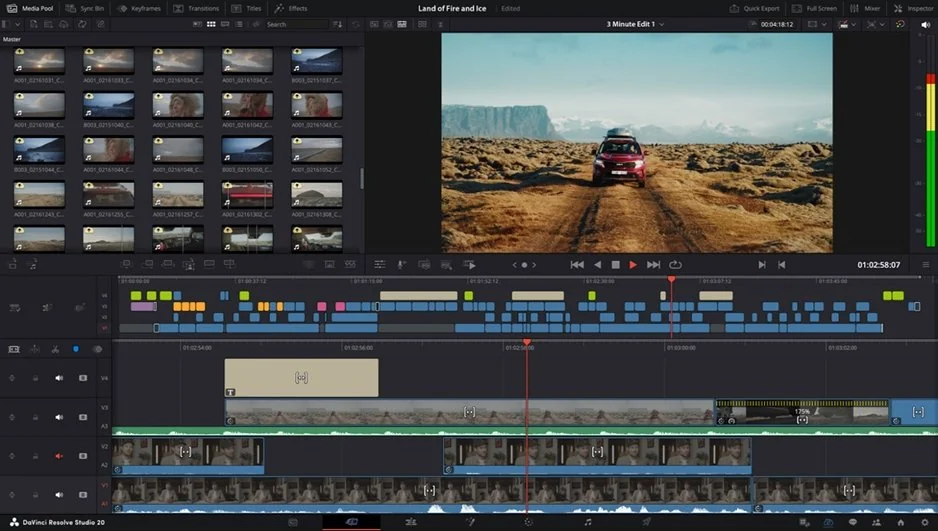
DaVinci Resolve splits the work into task-specific pages: Cut and Edit for assembling clips, Fusion for visual effects and motion graphics, Color for color grading, and Fairlight for audio post-production. Color grading means shaping the look and mood of a shot. Several of these tools, from color correction to background isolation, work through nodes: small connected boxes, each handling one adjustment. For a professional, this layout is a gift. Every stage of non-linear editing (arranging clips on a timeline in any order without touching the original files) gets its own workspace with deep control.

That's the main thing to know about DaVinci Resolve for beginners: the same structure is the first hurdle. You learn where each tool lives before you get a result, and the tools ask for manual settings rather than a single click. In return, Resolve's frame-accurate trimming is the industry standard, and multicam editing and precise timecode are there when you need them.

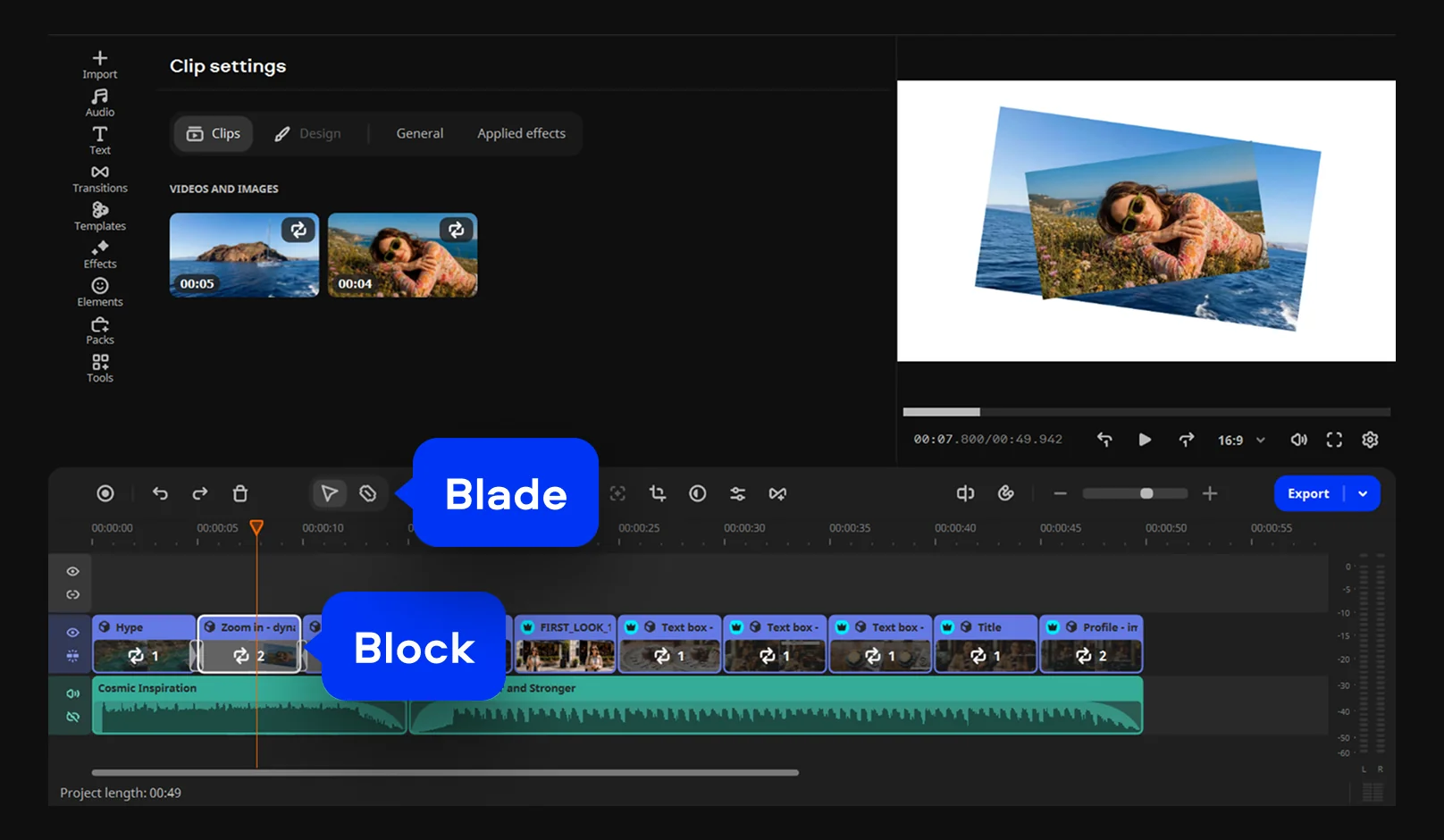
Movavi Video Editor keeps everything in one drag-and-drop workflow. You drag titles, transitions, and filters straight onto the timeline, and hovering over a clip or effect shows a preview before you apply it. Tooltips and a how-to center explain tools as you go, so your evening goes into the video, and the software stays out of the way. Frame-accurate cuts are covered by the Blade tool, plus a pre-timeline trim that pulls a short segment out of a long recording before it even reaches your project.

Better for a first launch: Movavi Video Editor.

Learning resources: Movavi Ideas vs DaVinci Resolve courses

DaVinci Resolve has no official ideas hub. You learn it through community tutorials, third-party courses, and paid training from Blackmagic Design, the company that develops Resolve. The material is thorough, because it teaches a professional toolkit from the ground up.

Movavi Ideas works the other way round. It's a free hub of editing ideas for Movavi Video Editor users, with new ones published every week. Each idea comes with a step-by-step tutorial that takes less than a minute to follow, and themes run from vlogs and short vertical clips to holidays and memes. For a lifestyle vlogger, that means a new idea for this week's travel video, ready to try on today's footage. Separate how-tos for individual tools fill in the rest.

Better for learning while you edit: Movavi Video Editor.
Better for structured, in-depth study: DaVinci Resolve, if you're ready to commit to a course.

Making your first vlog: step by step in each editor

Say you've filmed a day of your trip and want it on your channel: an intro, the day itself with captions, an outro, and an upload to YouTube. If you've wondered how to make a YouTube intro without designing one from scratch, this is where the two editors differ most.

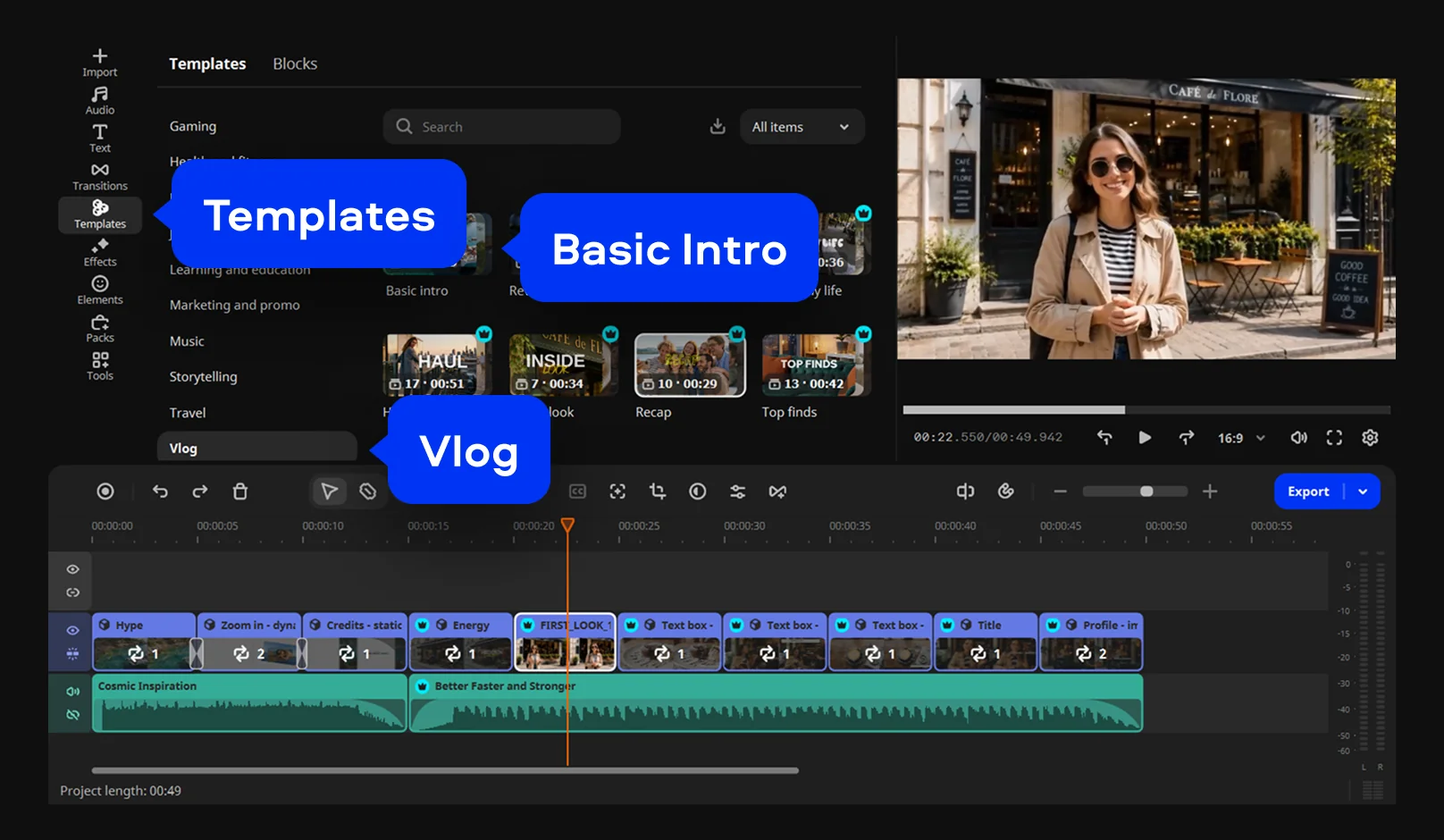
In Movavi, templates do the assembly work. A template is a ready-made project made of Blocks: short pre-edited segments of a video, for example an intro, a quick cut, or an animated collage. Each Block arrives with text, transitions, and effects in place, and the template comes with pre-set music that you can keep or replace. You fill the Blocks with your own clips, and every pre-set item stays editable. This vlog uses three: the Intro video template, a template from the Vlog category, and the YouTube outro video template.

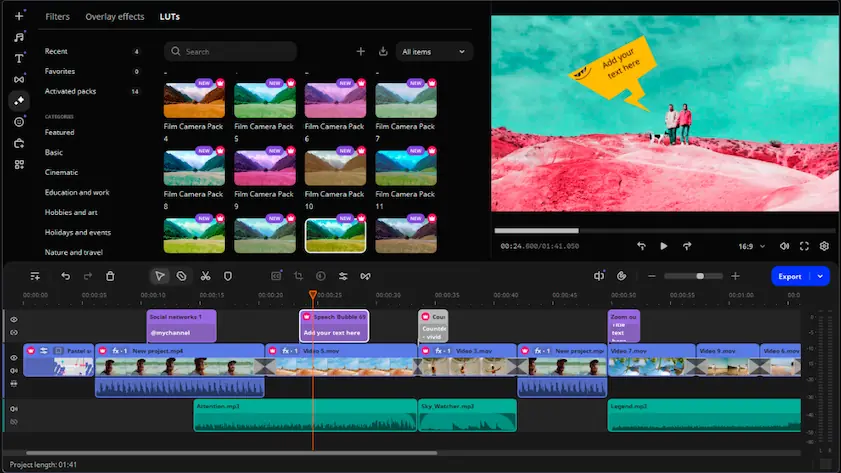
Beyond templates, hundreds of built-in drag-and-drop effects and copyright-free tracks are ready to use. An optional Movavi Effects subscription adds 10,000+ effects and 1,500+ music tracks, and you can preview any of them on your own footage before buying.

How to make your first vlog in Movavi Video Editor

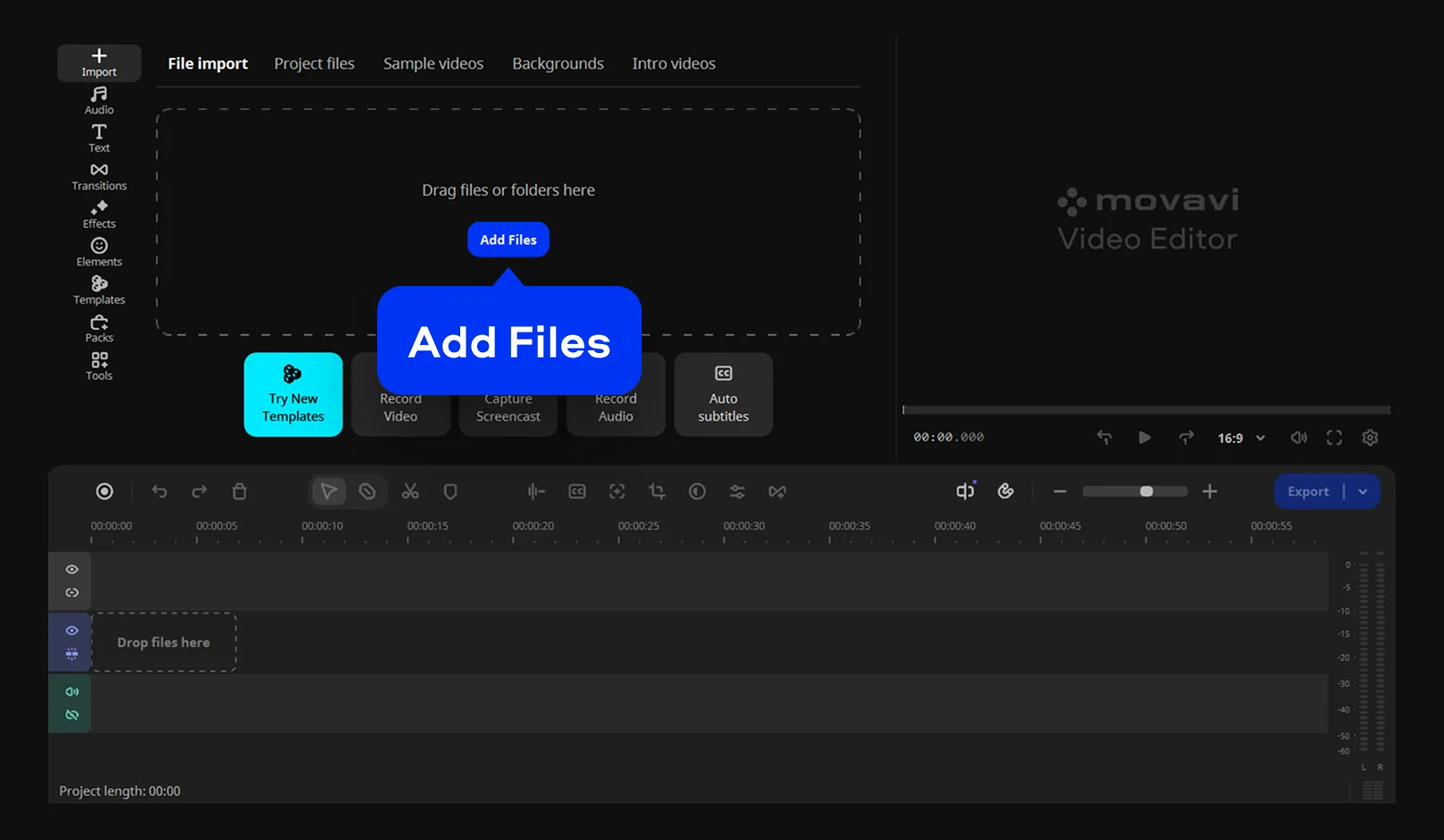
Step 1. Import your clips

Click Add Files and select your shaky clip. Drag it onto the TImeline, then click the clip there to select it.

Step 2. Add Templates

Go to the Templates tab and pick your templates. For example, choose the Basic Intro, add any Vlog template you like, and finish with an outro. Drop them onto the timeline.

Step 3. Customize the Blocks:

Double-click a Block on the timeline and replace its placeholder with one of your clips. Reorder the Blocks to follow your day. Delete the Blocks you don't need. Double-click a Block and retype its default text. Cut the moments you don't need with the Blade tool.

Step 4. Add auto subtitles to your talking clips

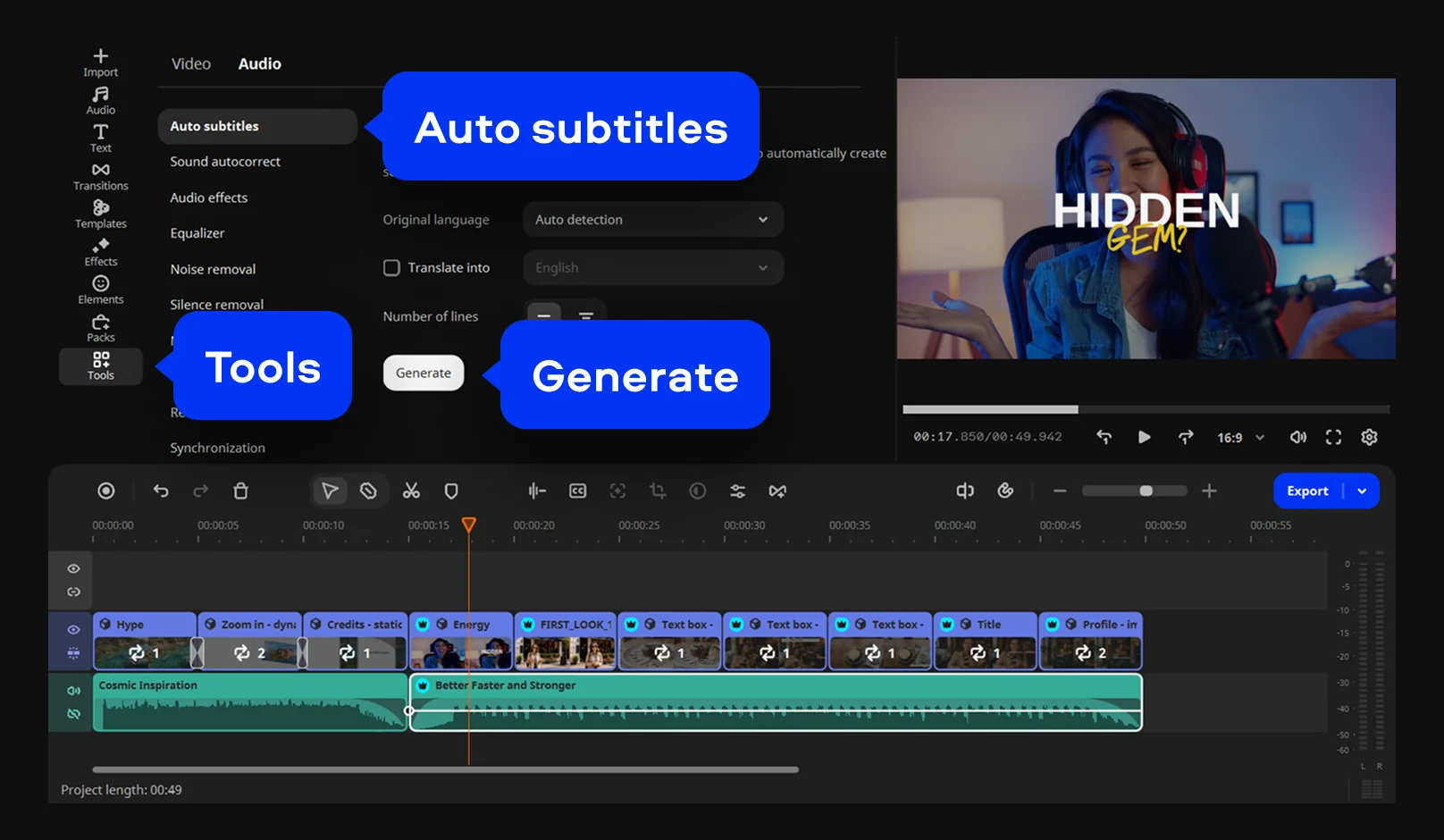
Go to Tools > Audio > Auto subtitles, select your language, click Generate, and then review and correct the generated text in the Phrases tab.

Step 4. Export your video

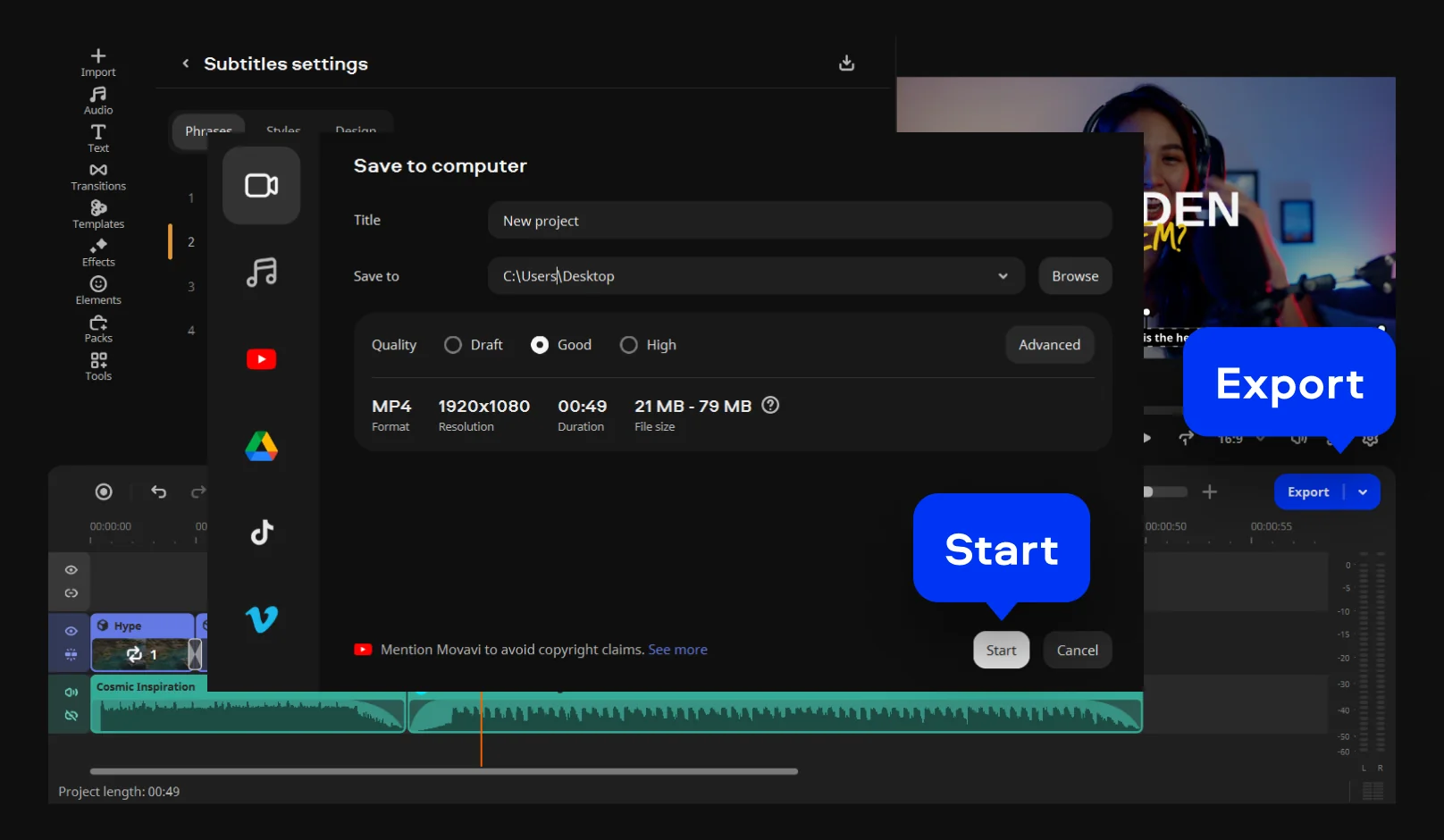
Click Export and choose MP4 for broad compatibility. Then click Start to save your finished video.

The template's music already plays under the vlog, and your intro and outro carry your own text, so the first export has a finished opening and ending.

In DaVinci Resolve

Resolve has no ready-made intros or outros, so you build the opening and ending of the vlog by hand. Titles come from Text+, which takes more setup than a ready-made title, and animated elements go through Fusion, which takes skill. You also bring your own music or connect an external stock library. Cutting is where Resolve shines, since every trim is frame-accurate, but there's no automatic pause removal in the base version, so talking clips get tightened by hand.

Better for your first vlog: Movavi Video Editor.
Better for a look you design frame by frame: DaVinci Resolve.

Hardware: which one runs on your PC?

If you need a simple video editor for PC that won't send you shopping for a new graphics card, this gap is the easiest to see. Movavi Video Editor runs on Windows 10 and 11 (64-bit) and macOS 12.0 or higher, with native support for Apple M1 and newer chips. It's light on hardware and runs even on low-end PCs, and Fast Track HD acceleration speeds up processing.

DaVinci Resolve runs on Windows, macOS, and Linux, but it's resource-intensive. Users report that Resolve, and especially Fusion, runs poorly on low-end PCs, and some describe crashes during long renders. On strong hardware the story changes: one user setup with an i7 processor, 32 GB of RAM, and 16 GB of video memory handles 4K 10-bit HDR footage without issues.

Better for an everyday laptop: Movavi Video Editor.
Better for a powerful workstation: DaVinci Resolve.

Screen recording for tutorials

A tutorial needs two tools: one to capture the screen and one to edit the result. Movavi Video Suite bundles both in a 3-in-1 package of Movavi Video Editor, Movavi Video Converter, and Movavi Screen Recorder. Movavi Screen Recorder captures the full screen or a custom area, adds your webcam, highlights the mouse cursor and keystrokes, and lets you draw on the recording in real time. You can remove unwanted segments right after recording.

Then the recording goes into the editor. If you're a teacher recording a lesson for YouTube, auto subtitles turn your narration into captions with 99% transcription accuracy across 100+ languages, and real-time word highlighting syncs each word with your voice. A tech blogger walking viewers through app settings gets the same captions, plus a cursor highlight that shows exactly where to click.

DaVinci Resolve has no built-in screen recorder. You capture the screen in a separate app, such as OBS Studio, and then import the file into Resolve to edit it. Resolve does record voiceover directly, so you can add narration inside the editor.

Better for screen-recorded tutorials: Movavi Video Suite.

Movavi Video Editor and DaVinci Resolve: features, pros, and cons

1. Movavi Video Editor

Best for: first vlogs, weekly vlogs with a recurring intro and outro, and screen-recorded tutorials.

Why we picked it:

Movavi Video Editor is an intuitive video editor with customizable video templates, one-click AI tools, and hundreds of drag-and-drop effects. It's a desktop app for Windows and macOS. You can start editing without a tutorial, and your first export can already look finished, because the template you start from arrives with music, titles, and transitions in place. The AI tools take the tedious parts off your hands in one click, and each one was shaped by user feedback.

Key features:

  • Movavi Video Templates: several templates come with the full version; a separate Movavi Templates subscription opens the whole library of templates and Blocks.
  • AI Audio Noise Removal: clears traffic, wind, and steady hums with 95% noise reduction while keeping your voice sharp.
  • Auto-Silence Removal: finds pauses automatically, with adjustable pause length and volume thresholds.
  • Auto-Tracked Cropping: keeps the speaker centered when you turn a horizontal vlog into a vertical clip.
  • AI Subtitles: 60+ customizable subtitle designs, from minimal to bold.

Pros:
  • Every AI tool is included in the full version, with no AI credit system.

  • Built-in intros, outros, stickers, backgrounds, and subscribe buttons for YouTube.

  • Speed control up to 100x for time-lapses and quick recaps.

  • 25+ updates per year.

Cons:
  • Lacks advanced, detailed controls for a professional workflow.

  • No flexible UI customization.

  • No web version or cloud integration.

  • Although hundreds of effects and several templates are available in the full version, additional sets require separate subscriptions.

Price and platforms: Movavi Video Editor is a desktop app for Windows and macOS. A free version is available (60-second export cap, watermark); the full version removes both. Plans start at $9.95/month. The full version starts at $69.95

DaVinci Resolve

Best for: aspiring professional editors, colorists, and indie filmmakers.

Why we picked it:

Why we picked it: DaVinci Resolve is built for colorists and professional editors, and its free version already includes nearly all of its editing, color, audio, and visual effects tools. The Color page gives you node-based grading with HSL and LUTs, and Fairlight turns the same project into a full audio studio. It’s the strongest choice in this comparison if you want a professional workflow and are ready to invest time in learning it.


Key features:

  • Color page: advanced color correction with nodes, secondary correction, HSL, HDR grading, and LUTs.
  • Fairlight: a full audio studio with professional mixing and built-in EQ, dynamics, reverb, and delay.
  • Fusion: visual effects and motion graphics built with nodes.
  • Speed Ramps: frame-by-frame speed control through manual settings.
  • DaVinci Neural Engine (Studio): Magic Mask subject selection, Super Scale AI upscaling, and auto-stabilization.
Pros:
  • A professional-grade toolkit is available in the free version.

  • Multicam editing, precise timecode, and support for any format and frame rate.

  • Users say it's fast and reliable once the shortcuts and workflow become familiar.

Cons:
  • The multi-part interface takes time to learn before you get results.

  • Very few ready-made effects, titles, or music tracks, and the ones included need fine-tuning.

  • The full AI toolkit requires the paid DaVinci Resolve Studio.

  • Users report bugs, including render crashes.

Price and platforms: Windows, macOS, and Linux. Free version; DaVinci Resolve Studio costs $295 as a one-time purchase.

Which editor fits your goal?

Your first video for a new channel. Movavi Video Editor. Start from a Vlog-category template, and your video has a structure before you've learned a single menu.

A weekly vlog with the same intro and outro. Movavi Video Editor. The Intro video template and the YouTube outro video template become your channel's recurring bookends: each week, you retype the text and drop in new clips.

A tutorial with screen recording. Movavi Video Suite, so capture and editing live in one package.

Becoming a professional editor. DaVinci Resolve. Film-grade color, Fairlight audio, and node-based effects are what a professional workflow demands, so the hours spent learning its pages pay off directly.

What beginners say about the DaVinci Resolve learning curve

People like both tools. According to RFP.wiki, both hold a 4.7 rating on G2 (414 reviews for Movavi Video Editor, 200 for DaVinci Resolve) and a 4.8 on Capterra (1,131 and 268 reviews). The difference is in what reviewers praise. RFP.wiki's summary of DaVinci Resolve feedback notes:

"a steep learning curve and dense interface compared with simpler tools"

– RFP.wiki, review summary for DaVinci Resolve

Feedback on Reddit and review sites follows the same line. Resolve users call it powerful but rarely intuitive, and say it's no pick-up-and-go tool next to other editors. Once the shortcuts click, though, they describe it as fast and reliable. Movavi users mention an interface they could start using without tutorials. Their complaints are about money rather than learning: the free version's export limits and add-on subscriptions for extra effects and music.

The verdict

Choose by goal first, then by experience. If you're starting out and want to publish vlogs or tutorials on a schedule, Movavi Video Editor is the easiest video editor for beginners in this pair, because you learn it while you edit. If you already edit and want film-grade color, pro audio, and node-based effects, DaVinci Resolve is worth its learning curve.

Ready to try? Download Movavi Video Editor Free, open the Templates tab, and build tonight's vlog from the Vlog category. Once it's live, Movavi Ideas will have next week's idea waiting.

Frequently asked questions

Is DaVinci Resolve hard to learn?

For a beginner, yes. Each part of the workflow lives on its own page, and most tools rely on manual settings. The free version is a good place to practice, since it includes nearly all the editing, color, audio, and visual effects tools.

How long does it take to learn DaVinci Resolve?

There's no fixed number of hours, because each page is its own skill. Basic cuts come first; node-based grading, Fairlight mixing, and Fusion effects each take separate study. A weekly vlog rarely needs Fusion or node grading, so set the finish line by your goal.

What's the best video editor for YouTube beginners?

Of these two, Movavi Video Editor. It also uploads straight to YouTube from the export step, where you set the video's title, description, privacy, and tags before it goes live.

Is there a DaVinci Resolve alternative for beginners?

Movavi Video Editor is built for beginners and everyday creators, including people who know editing but prefer a simpler, faster workflow over complex professional software. In the free version, you can test every tool inside the app before buying.

Can I remove a background without a green screen?

In Movavi Video Editor, yes: AI Background Removal detects a person and removes the background behind them in one click. For green-screen footage, there's also chroma key, which removes one selected color from the frame. In DaVinci Resolve, background removal is manual, with specialized tools and the node workflow.

Have questions?
If you can’t find the answer to your question, please feel free to contact our Support Team.
Join us for discounts, editing tips, and content ideas

1.5M+ users already subscribed to our newsletter

By signing up, I agree to receive marketing emails from Movavi and agree to Movavi's Privacy Policy.
