How to Stabilize Shaky Videos – 5 Best Methods in 2026

Edited by
Ben Jacklin
14,962

If you need to know how to stabilize a video, the short answer is to run it through video stabilization software or video editing software with a built-in stabilizer. Movavi Video Editor is our pick for beginners and vloggers who want simple controls on Windows or Mac. CapCut fits creators who edit short vertical clips across phone and desktop. DaVinci Resolve suits filmmakers ready for an advanced, free workflow, and Filmora suits creators who post on a constant schedule. Adobe Premiere Pro is the choice if you edit video for a living. Shaky footage that's also dark or grainy gets its own method at #6.

This guide is for you if you film travel vlogs or daily routines on a phone, or keep family road trip videos you'd like steady enough to watch twice. If you're working out how to fix a shaky video from a walking shot, each method below shows what the fix involves and what it costs.

Method

Best for

Platforms

Free version

Starting price

1. Movavi Video Editor

Travel vlogs and daily routine vlogs, no editing experience needed

Windows, macOS

60-second cap, watermark

From $19.95/month

2. CapCut

Short vertical clips for TikTok, Reels, Shorts

Mobile, web, desktop

1080p, watermark when Pro effects or AI clips are used

From $9.99/month

3. DaVinci Resolve

Indie filmmakers and color-focused editing

Windows, macOS, Linux

No watermark or time limit

Studio: one-time purchase, about $300

4. Filmora

YouTube channels that post often

Windows, macOS

Free: watermark on every export, limited number of exports

From $19.99/month

5. Adobe Premiere Pro

Professional editors, multicam and commercial projects

Windows, macOS

7-day trial when you sign up for a subscription

From $12/month

How we picked these video stabilizers

Every tool here has a built-in video stabilizer among its video editing tools, so no separate plugin is needed. We then looked at how fast a beginner gets a usable result, platforms (PC, Mac, browser, phone), how pricing works (one-time, subscription, AI credits), and hardware needs. We didn't run speed or quality benchmarks, so there are no scores here.

A quick note on terms. Optical image stabilization (OIS) happens inside your phone or camera while you shoot. Software stabilization, sometimes called AI stabilization, works afterward. It analyzes the motion in your recorded clip and shifts each frame to cancel the shake. Because the frame moves, its edges move too, so most tools crop the picture slightly.

1. Movavi Video Editor

Best for: lifestyle vloggers fixing handheld travel clips and daily routine vlogs.

Why we picked it:

Built to rescue shaky footage effortlessly, the stabilizer in Movavi Video Editor sits in a clean interface with hover previews that let you see the clip before you commit. The tools you need to stabilize videos are just a click away from the moment you open the program. At its core, Movavi is an intuitive video editor with customizable video templates, one-click AI tools, and hundreds of drag-and-drop effects. It's a desktop app for Windows and macOS, and both versions are fully equivalent.

Key features:

  • Stabilization with five settings: Accuracy, Shaking, Radius, Smoothing, and Edge cropping (None, Fixed, or Adaptive)
  • Imports MP4, MOV, AVI, MKV, and WMV video
  • Light on hardware: runs even on low-end PCs, with native support for Apple M1 and newer Macs
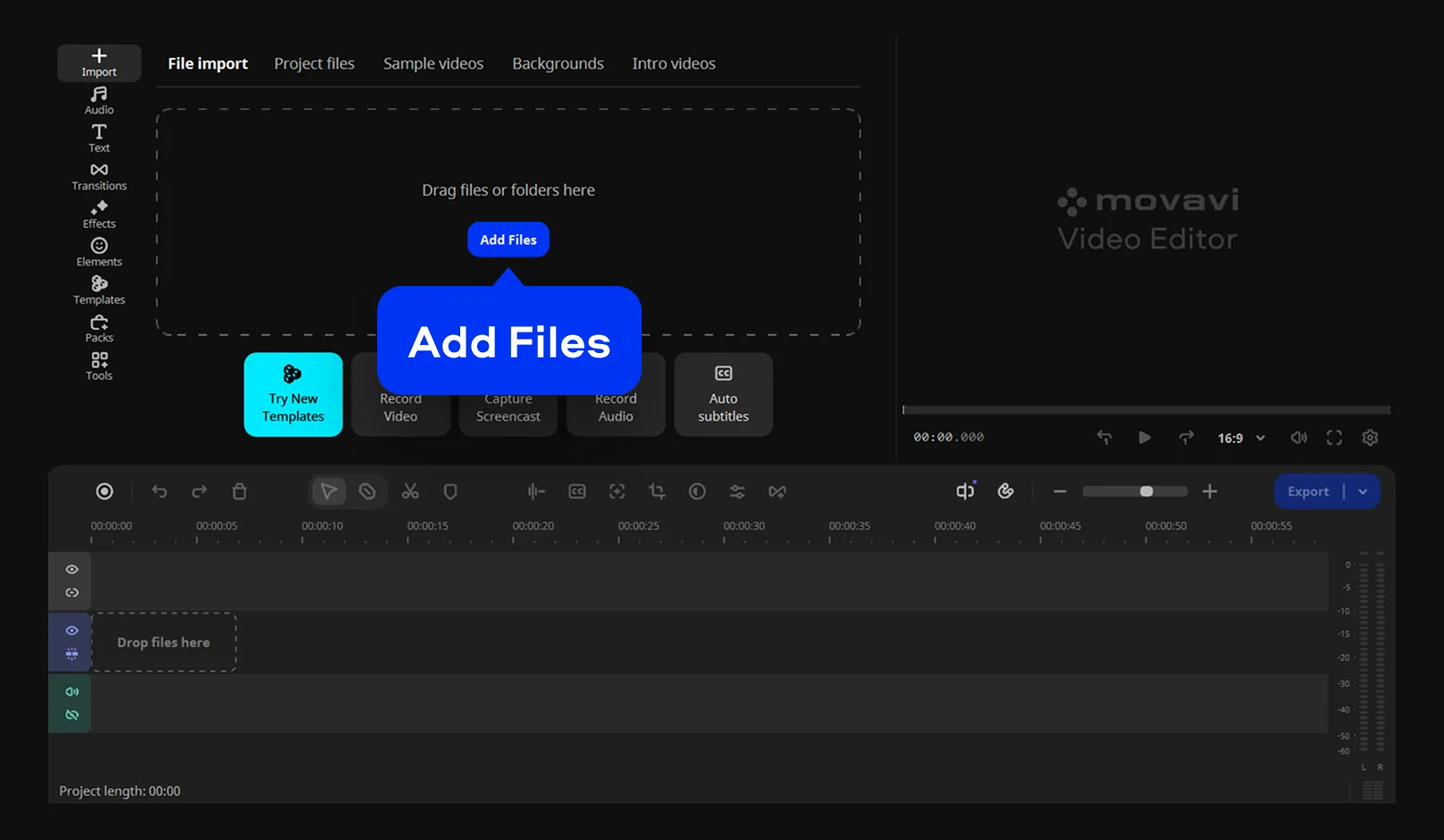
How to stabilize a video in Movavi Video Editor

Step 1. Import your clips

Click Add Files and select your shaky clip. Drag it onto the TImeline, then click the clip there to select it.

Step 2. Stabilize the clip

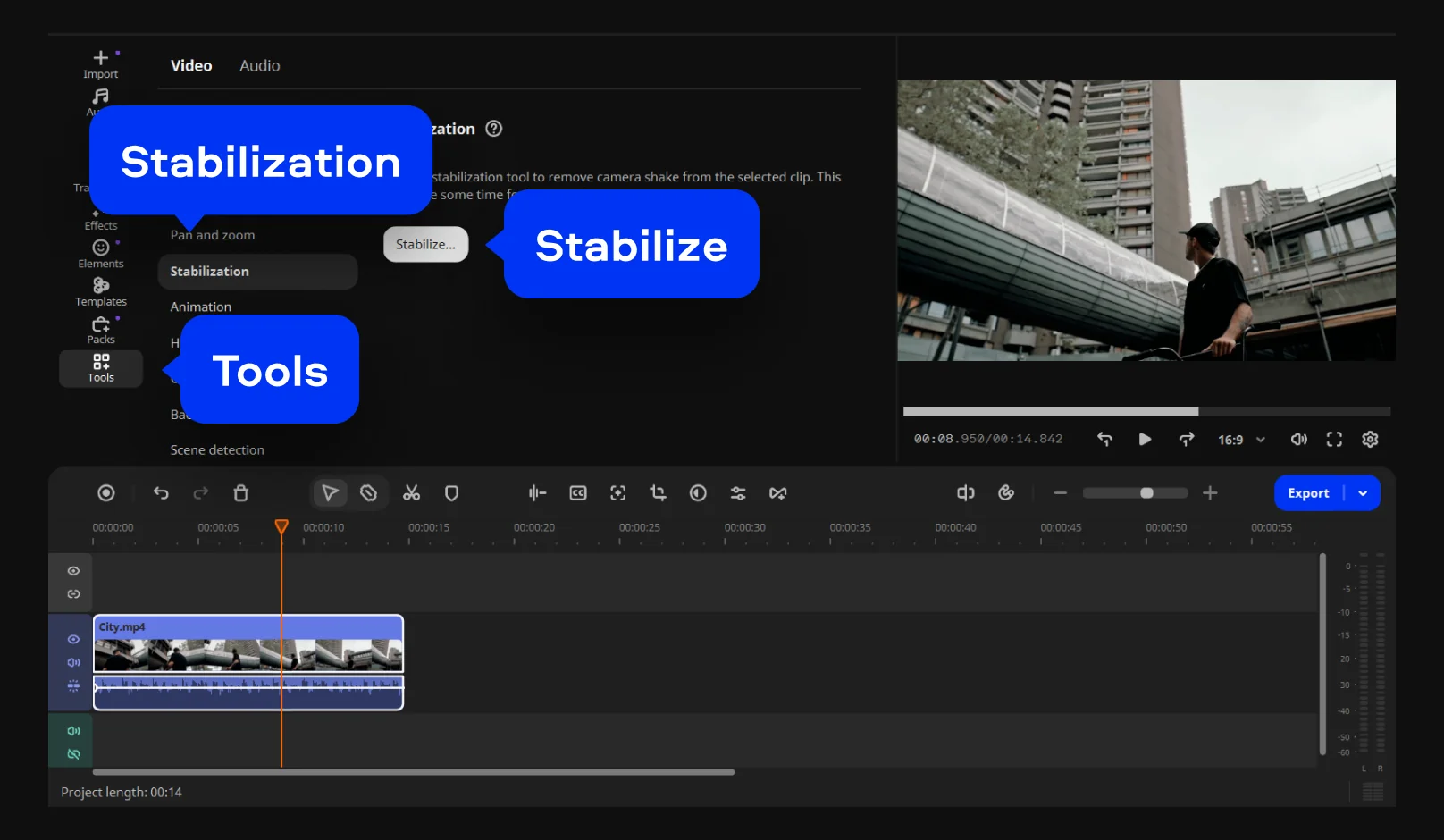
Open the Tools tab, go to the Video section, click Stabilization, and then click Stabilize.

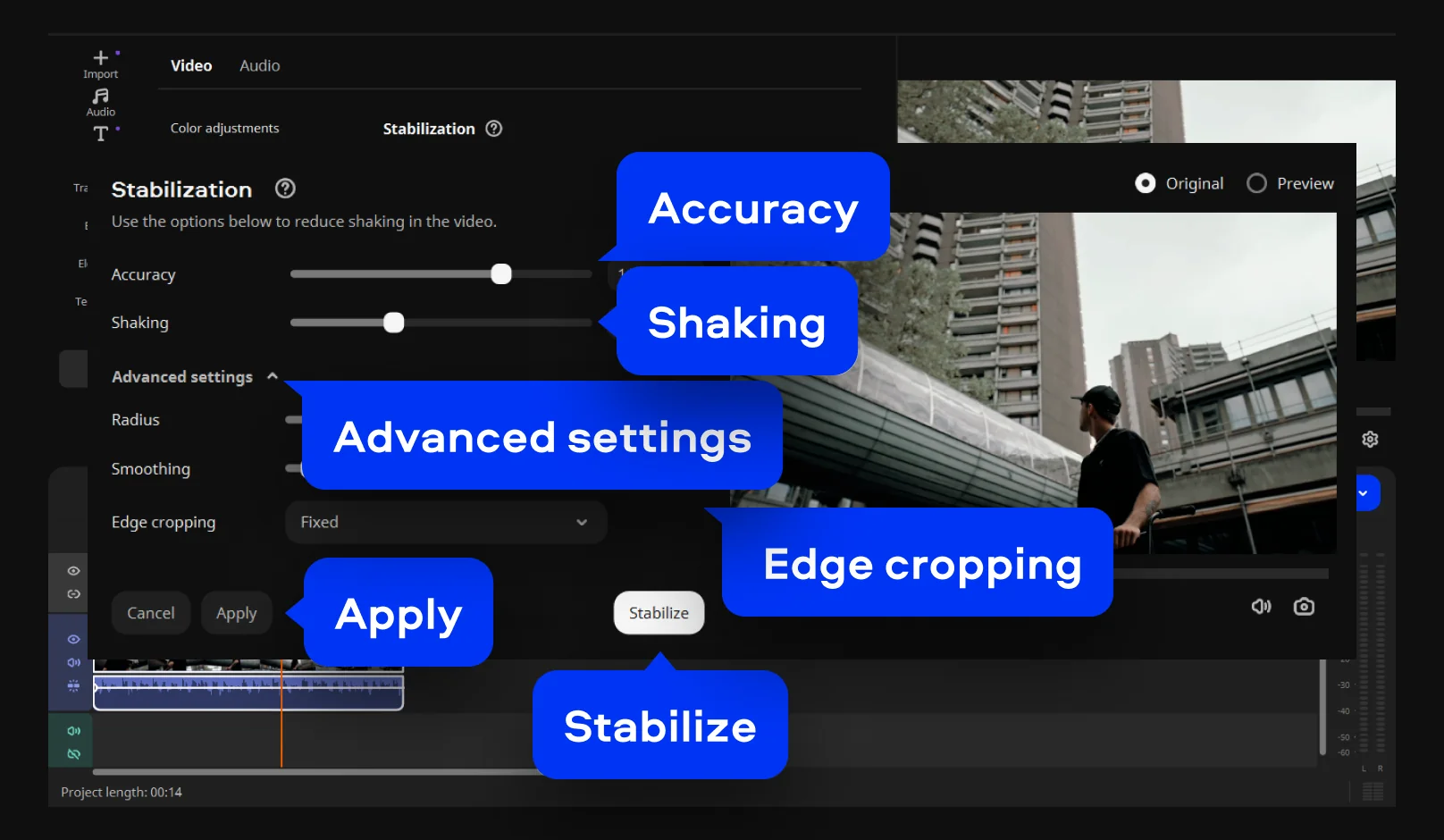
In the pop-up window drag the Shaking slider to match how strong the shake is, and use the Accuracy slider to set how closely the tool analyzes the motion. Then, open Advanced settings and pick an Edge cropping mode – None, Fixed, or Adaptive – to decide how the frame edges are handled once the picture shifts.

Click Stabilize and watch the steadied clip in the preview. If the walk still bounces, nudge the sliders and stabilize again. When the shot looks smooth, click Apply.

Step 4. Export your video

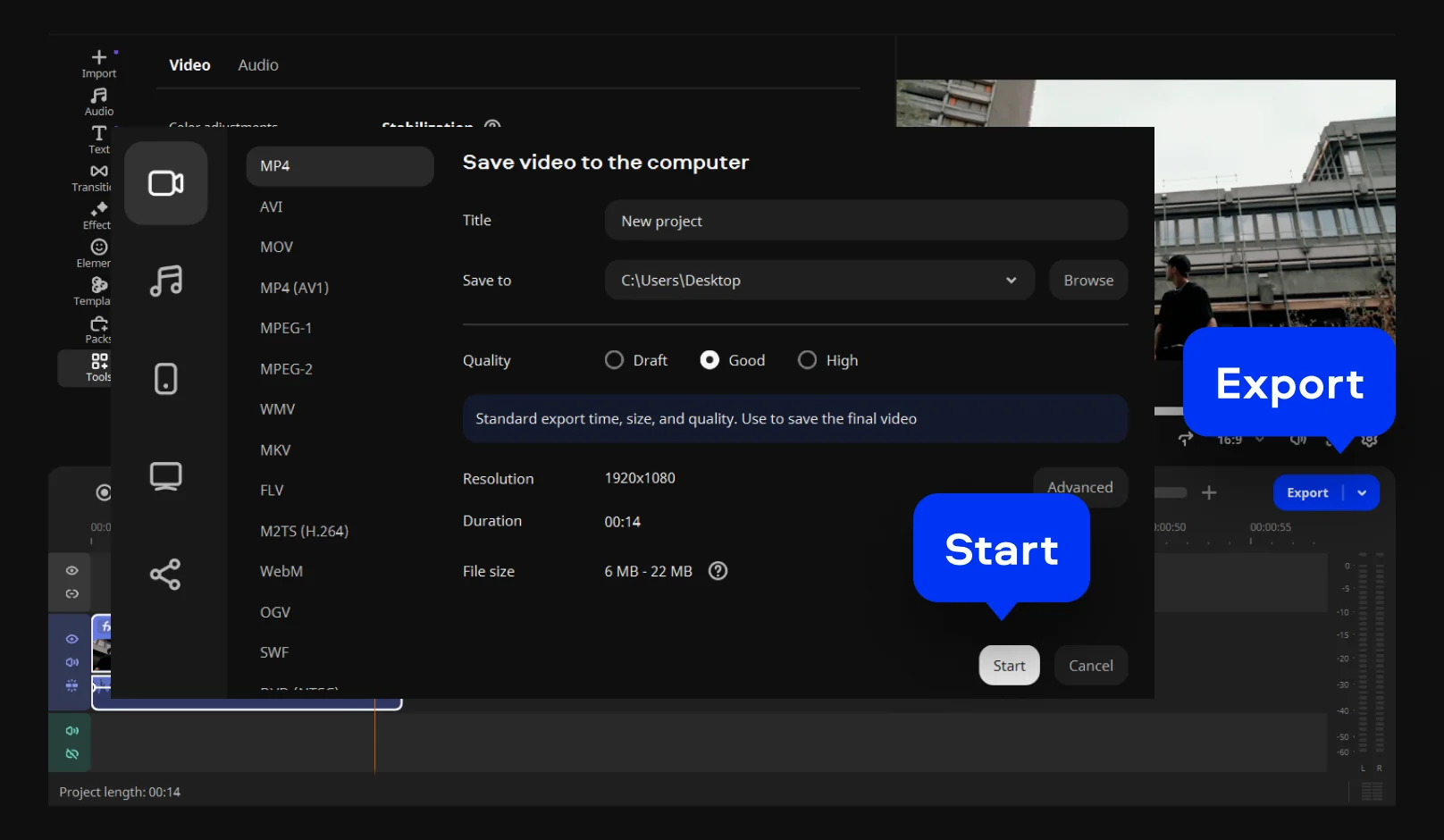
Click Export and choose MP4 for broad compatibility. Then click Start to save your finished video.

Pros:
  • Stabilization settings stay in one panel, with no separate module to learn

  • AI tools are included in the full version, with no credit system

Cons:
  • Lacks advanced, detailed controls for a professional workflow

  • No web version or cloud integration

Price and platforms: Movavi Video Editor is a desktop app for Windows and macOS. A free version is available (60-second export cap, watermark); the full version removes both. Plans start at $9.95/month

2. CapCut

Best for: social media creators editing short vertical clips.

Why we picked it:

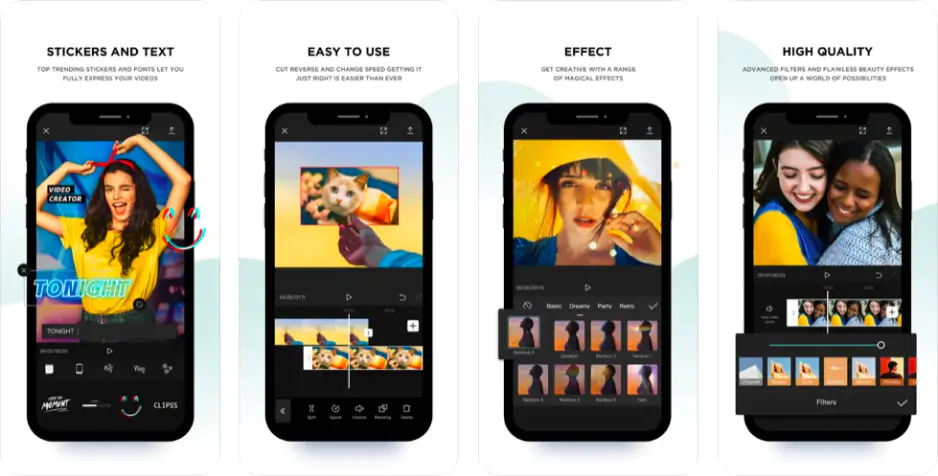
CapCut started as a mobile-first editor in the TikTok ecosystem and now runs on mobile, web, and desktop, with stabilization built in. If you film and post from a phone, you can fix a clip without moving it to a computer.Key features:

  • Stabilization tool included in the editor
  • AI toolkit with camera tracking, background replacement, and speech recognition for subtitles
  • Large library of trending templates and effects for TikTok, Reels, and Shorts

How stabilization works here the desktop tools mirror the mobile app, so if you already edit on your phone, the stabilizer will feel familiar. Some features need an internet connection and an account. These steps are for the desktop app:

1. Click Import and drag your clip onto the timeline.

2. Select the clip and open Video > Basic in the right panel.

3. Check Stabilize and pick a level: Recommended, Minimal crop, or Most stable.

4. Click Export, choose MP4, and confirm with Export.

Pros:
  • Fast, simple editing for short vertical videos

  • Pro plan exports in 4K

Cons:
  • AI features run on credits

  • Some effects and templates move behind the Pro plan, and that list changes

  • Not every feature carries over between mobile and desktop

Price and platforms: Windows, Mac, mobile, and browser. Free tier available (watermark only on Pro content or AI clips); paid tiers unlock 4K and the full AI toolkit. Paid plans start at $9.99/month*

3. DaVinci Resolve

Best for: indie filmmakers and editors who want film-grade color along with stabilization.

Why we picked it:

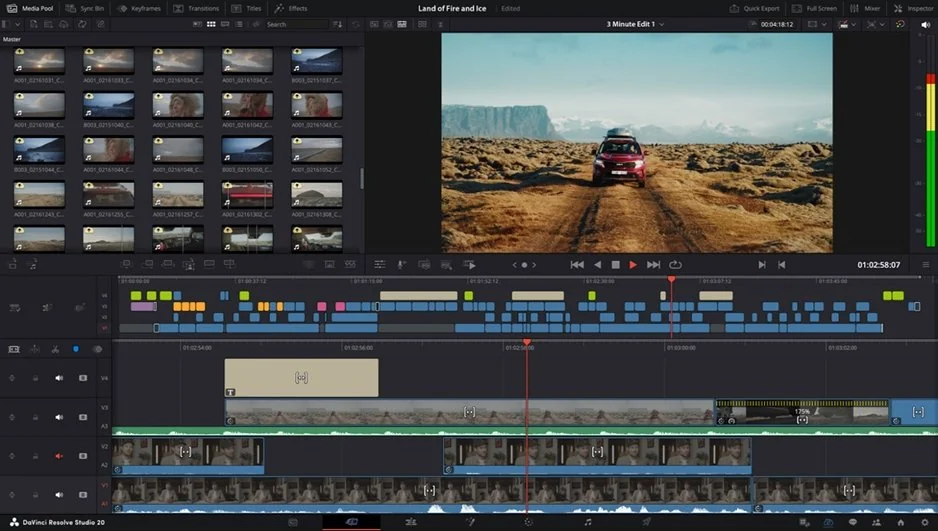
DaVinci Resolve gives you professional editing, color, audio, and VFX in one program, and the base version is free with no watermark or time limit. Its DaVinci Neural Engine includes auto-stabilization among its AI tools in the paid Studio version.

Key features:

  • Separate modules for each task: Edit, Color, Fairlight (audio), and Fusion (VFX)
  • Neural Engine AI: auto-stabilization, Magic Mask, AI upscaling (Studio)
  • Runs on Windows, macOS, and Linux

How to stabilize a video in DaVinci Resolve: expect to fine-tune settings rather than click once. Resolve's tools assume you understand what each control does, and the program is resource-intensive, so a high-end computer helps. These steps use the Edit page.

  1. Drag your clip into the Media Pool, then onto the Edit page timeline.
  2. Select the clip and open Inspector > Stabilization.
  3. Pick a Mode (Perspective, Similarity, or Translation) and click Stabilize.
  4. On the Deliver page, choose a preset, click Add to Render Queue, then Render All.
Pros:
  • Free version covers nearly all editing, color, audio, and VFX

  • Fast and reliable once you learn the shortcuts and workflow

Cons:
  • Hard to learn: the interface takes time before you get results

  • Demanding on hardware

  • AI tools, including auto-stabilization, need Studio

Price and platforms: free base version; Studio about $300, one-time. Windows, macOS, Linux.

4. Filmora

Best for: YouTube channels that post often and creators editing for clients.

Why we picked it:

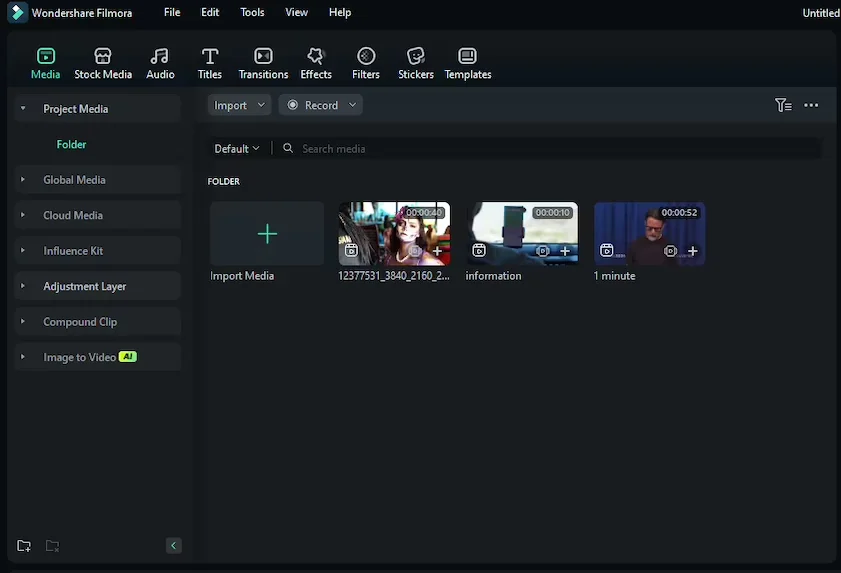
Filmora is a desktop editor for steady production schedules, with stabilization, motion tracking, and a large AI toolkit. Its stabilizer sits among the AI tools: you switch it on, Filmora analyzes the clip by itself, and a single Smooth Level slider sets how strongly the shot is steadied. That makes it a quick fix for a bouncy walking shot in a weekly vlog. It runs on a mid-range laptop.

Key features:

  • Stabilization tool included
  • Multitrack timeline with keyframe animation and motion tracking
  • AI tools for auto pause removal, auto-reframing, and vertical highlights from long videos
  • Ready-made templates and Instant Mode for various occasions

How to stabilize a video in Filmora: the stabilizer sits on a multitrack timeline among many single-task tools, so expect to spend some time finding your way around.

  1. Click Import and drag your clip onto the timeline.
  2. Select the clip and open Video > AI Tools in the right panel.
  3. Turn on Stabilization and adjust Smooth Level.
  4. Click Export, choose MP4, and confirm with Export.
Pros:
  • Simpler than professional editors

  • Large library of templates and effects

Cons:
  • Free exports are always watermarked

  • AI features use credits on top of the subscription

Price and platforms: Windows and macOS. Free version available (watermarked); paid tiers add AI tools and remove the watermark. Paid plans start at $19.99/month*

5. Adobe® Premiere® Pro

Best for: professional editors and studios working on multicam projects, film and TV, and commercials made with a team.

Why we picked it:

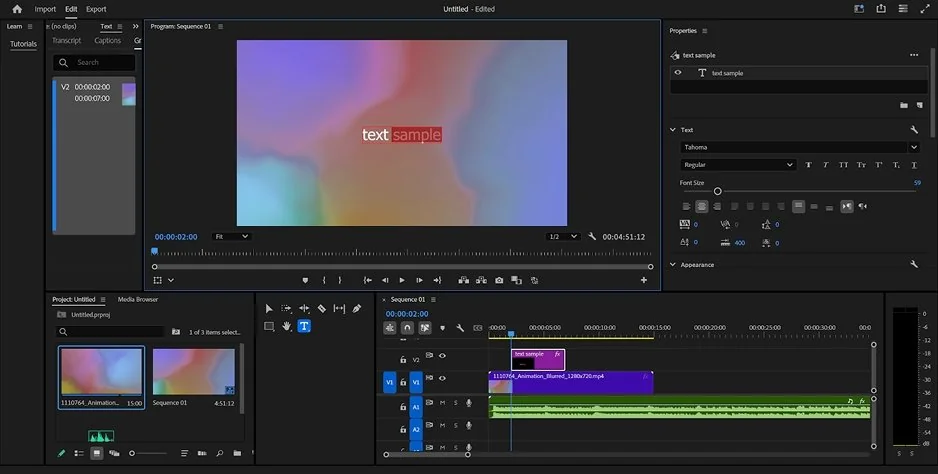
Premiere® Pro is the industry standard for professional video editing. If you plan to edit for a living, its stabilization sits right next to the multicam editing and advanced color correction you'll use on paid projects. Stabilization comes from the Warp Stabilizer effect.

Key features:

  • Warp Stabilizer effect with Smooth Motion and No Motion results
  • Multicam editing and advanced color correction
  • VFX plugin integration
  • AI features from Adobe Sensei and Firefly

How to stabilize a video in Premiere Pro: stabilization runs through the Warp Stabilizer effect. Premiere's tools assume you already know the interface, so plan time to learn the editor before you fix your first clip.

  1. Choose File > Import and drag your clip onto the timeline.
  2. Find Warp Stabilizer in the Effects panel and drag it onto the clip.
  3. In Effect Controls, set Result to Smooth Motion and adjust Smoothness.
  4. Open the Export tab, choose a format, and click Export.
Pros:
  • A full professional toolkit for multicam and color work

  • Extends with third-party plugins

Cons:
  • Complex: the tools require knowing the interface

  • Minimal built-in effects of its own; effects and stock come from Adobe Stock, paid separately, or from plugins

Price and platforms: Browser, with a mobile app. Free tier available (watermark, 10-minute/720p cap); paid plans add AI credits and remove the watermark. Paid plans start at $12/month*

How to choose

For a beginner with a handheld travel vlog, our pick is Movavi Video Editor: one desktop program steadies the shake, cleans the grain, and gives the video a structure with templates. It also has the gentlest learning curve of the tools here and runs even on low-end PCs, so you can fix a clip on the laptop you already travel with.

Match your situation to a tool:

  • Windows PC or Mac, travel vlogs, no editing experience: Movavi Video Editor. Stabilization and templates sit in one interface, and both versions of the app are fully equivalent.
  • Short vertical clips: CapCut. It runs on phone, web, and desktop, with trending templates for TikTok, Reels, and Shorts.
  • Regular uploads and motion tracking: Filmora. Stabilization, motion tracking, and AI tools for vertical highlights run on a mid-range laptop.
  • Film-grade color and VFX: DaVinci Resolve. The free version covers editing, color, audio, and VFX with no watermark, if you're ready for a steep learning curve.
  • Complex multicam projects: Adobe Premiere Pro. It's the industry standard for multicam editing and advanced color correction, on a monthly or annual subscription.
Have questions?
If you can’t find the answer to your question, please feel free to contact our Support Team.

Frequently asked questions

Can I stabilize a video for free?

Yes. DaVinci Resolve's free version has no watermark or time limit, though its AI auto-stabilization needs Studio. CapCut and Filmora have free plans with watermark conditions. Movavi Video Editor lets you test every tool; export of stabilized clips.

What is the best video stabilization software for beginners?

For beginners with no editing experience, Movavi Video Editor has the gentlest learning curve of the tools here, with stabilization and editing in one interface on Windows and Mac.

Does stabilizing a video crop it?

Usually a little. The tool shifts each frame to cancel the motion, so the edges need handling. Most tools let you control this: Movavi's Edge cropping offers None, Fixed, or Adaptive, and CapCut's Minimal crop level trims less of the frame than Most stable.

Which file formats can I stabilize?

Movavi Video Editor opens MP4, MOV, AVI, MKV, and WMV, and exports in MP4 for broad compatibility. CapCut and Filmora handle a similar range of standard formats, whereas DaVinci Resolve and Premiere Pro extend support to advanced professional camera codecs and broadcast formats.

Can I fix the wind noise in a handheld clip, too?

Yes, in most of these tools. Movavi's AI Audio Noise Removal clears wind, traffic, and steady hums in one click, cutting about 95% of background noise while keeping your voice clear. CapCut and Filmora also include audio noise removal. In DaVinci Resolve, noise reduction runs through FairlightFX and needs plugins, while Studio adds its own noise reduction. Pair any of these with stabilization and the clip is less shaky and easier to listen to.

Join us for discounts, editing tips, and content ideas

1.5M+ users already subscribed to our newsletter

By signing up, I agree to receive marketing emails from Movavi and agree to Movavi's Privacy Policy.