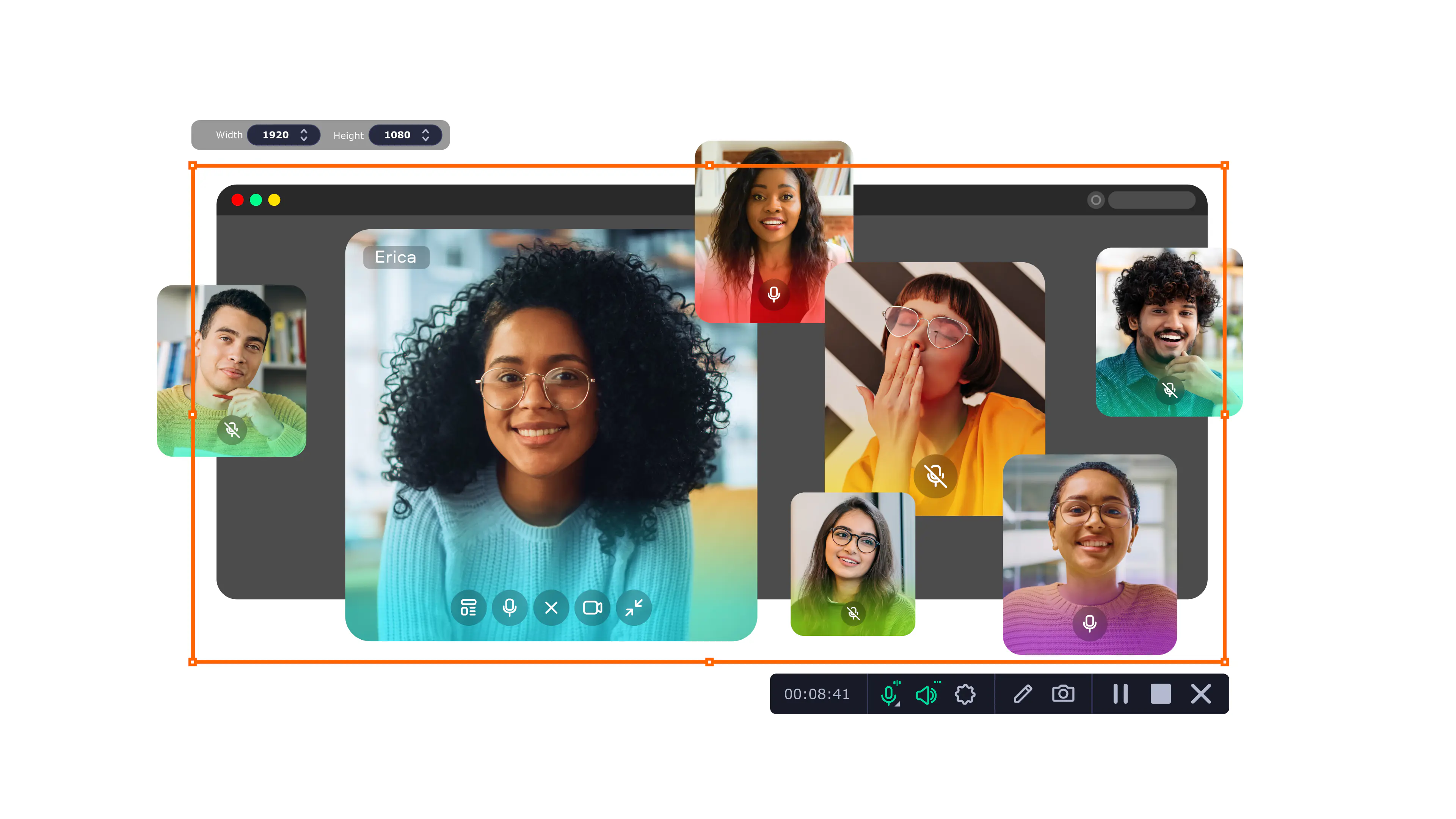

XRecorder for a PC in 2026

Try Movavi Screen Recorder!

  1. Full-screen or custom area recording

  2. Webcam capture and drawing on recordings in real time

  3. Highlighting mouse cursor and keystrokes

Edited by
Ben Jacklin
35,371

Key takeaways

  • Getting an XRecorder download onto a computer requires a third-party emulator to act as a bridge. BlueStacks, MEmu, and NoxPlayer solve this problem effectively — they just mirror the Android environment directly on your monitor. BlueStacks, MEmu, and NoxPlayer are reliable solutions to get that job done.
  • Most emulators cost nothing, but usually require a quick trip into the BIOS to toggle Virtualization Technology.
  • The choice fell on these specific tools because they offer a clean interface without choking your CPU.
  • If you want to skip the emulator layer entirely, a native program like Movavi Screen Recorder handles desktop recording much more reliably.
  • Always check the frame rate settings in the engine tab before hitting record to get the crispest video possible.

XRecorder serves as a famous mobile capture tool, yet no official version exists for a desktop. Getting this software onto a computer requires a third-party emulator to translate Android code for a standard monitor. Interestingly, the first emulators ever created actually saved old arcade games from disappearing forever before helping people run modern apps. Running an XRecorder download through BlueStacks or MEmu turns a basic laptop into a professional recording station. This guide breaks down the best ways to bridge that gap between phone apps and a big screen.

My top picks

  • Best overall: Movavi Screen Recorder
    Skip the middleman with this native computer app that grabs 4K video without needing extra tools.
  • Best for performance: BlueStacks
    This is the gold standard for a stable XRecorder for a PC experience on high-end rigs.
  • Best for old laptops: MEmu
    A lean program that keeps things snappy even if your hardware has seen better days.

Alternative to XRecorder on a PC or Mac: Movavi Screen Recorder

Comparison parameter

XRecorder

Movavi Screen Recorder

Platform

Android

Windows, macOS

Native desktop support

No, requires emulator

Yes, direct install

Installation method

Google Play app

Official website download

Top ways to run XRecorder on your desktop

1. BlueStacks

Why I picked it: your desktop becomes a massive, high-powered Android smartphone instantly.

BlueStacks provides the necessary bridge to run an XRecorder download on a traditional workstation. This tool builds a secure sandbox where mobile code functions exactly like a native Windows application. It excels at resource allocation, so your background tasks never choke the recording quality. You get full access to the Google Play Store to keep your mobile tools synced.

The project’s team is devoted and caring. Updates are popping up frequently to enhance your overall experience. For example, the engineers recently pushed version 5.21 to kill off memory leaks during long captures.

As for my experience, I put this rig to work last Friday while capturing a high-stakes competitive match. The XRecorder PC setup stayed locked at a crisp 60fps even when the action got chaotic.
Here’s how to use BlueStacks:

  1. Visit the official BlueStacks website. Grab the installer by clicking on the green Download button.
  2. Open the downloaded file. Follow the on-screen prompts to complete the installation process on your drive.
  3. Launch the software and fulfill the initial setup steps to sign in with your Google Play account credentials.
  4. Use the internal search bar to find the XRecorder app and click the Install button to add it to your library.
  5. Open the newly installed app from your dashboard and start recording your computer screen immediately.

Ratings

Pros:

  • Video stays smooth even during fast motion

  • Use your keyboard to start and stop recordings

  • Works on both Windows and Apple computers

Cons:

  • You have to go into the computer's deep settings to turn on virtualization

  • The initial setup takes a long time

2. MEmu

Why I picked it: lightweight performance for mid-range computer setups.

Next, my search for a lighter alternative led me to a specialized tool called MEmu. MEmu basically opens a window that acts like a standalone Android phone right on your laptop screen. It specializes in customization for different hardware types by letting you choose exactly how much CPU power to use.

This program basically tricks the X Recorder for a PC into thinking it is running on a high-end smartphone. The interface stays clean so you can focus on your capture rather than messy menus. This software manages memory well to prevent crashes during long recording sessions. The product gets a lot of TLC from its team, which is evident from their release archive. They constantly push out new versions to refine the engine and fix small bugs.

My own test involved capturing three straight hours of footage while I was away for the weekend. The software kept the frame rate steady and didn't stutter once despite my limited hardware.

To get MEmu running for your next project, follow these simple steps:

  1. Visit the official MEmuplay website and grab the specific installer that matches your current Windows version.
  2. Launch that setup file and follow the clear on-screen instructions to finish the installation on your drive.
  3. Open the program once it loads and click on the Google Play icon to quickly access the app store.
  4. Search for XRecorder within the store interface and click the download button to grab the latest APK file.
  5. Find the app icon on your new virtual home screen and click it to start recording your display immediately.

Ratings

Pros:

  • Starts up very quickly compared to other tools

  • Can run multiple windows at the same time

  • Works well even on older versions of Windows

Cons:

  • The installer sometimes suggests extra apps you don't need

  • Only available for Windows users

3. NoxPlayer

Why I picked it: everything just works without touching a single setting.

Lastly, I rounded off my tests with a slick piece of software called NoxPlayer. NoxPlayer creates a virtual Android tablet that sits on your Mac or Windows desktop for easy access. It specializes in high-resolution output, which helps when you want your XRecorder for Windows captures to look professional. The interface stays out of your way so you can focus on the recording itself. This tool maps your mouse and keyboard to touch points automatically.

The development crew remains highly active, pushing out fresh builds to refine the engine and squash bugs. You can track their progress through the official update log, where they document every technical tweak. I fired this up to grab a quick Instagram story while sitting at my desk. The resolution stayed perfect, and the file was saved to my computer in seconds.

Follow these simple steps to get NoxPlayer running on your machine:

  1. Visit the official NoxPlayer site to get the installer. Then, run the file on your machine to start the installation process.
  2. Launch the program. You should wait a few minutes while it finishes the initial setup for your specific system.
  3. Click the Google Play Store icon. Sign in securely with your usual account details so you can access your favorite apps.
  4. Find XRecorder in the store and hit the install button. This adds the recording tool to your virtual home screen for quick access.
  5. Open the app from the dashboard. Now, start capturing your screen with just a few clicks of your mouse to save your first video.

Ratings

3.8/5

4.4/5

Pros:

  • The interface looks clean and modern

  • Handles vertical video better than most other competitors

  • Can record your screen with very little setup time

Cons:

  • Sometimes shows advertisements in the sidebar

  • Some antivirus programs might flag the installer by mistake

How to choose an alternative to XRecorder for a PC or Mac

Finding a native desktop version of XRecorder is a lost cause since the developers built it strictly for Android. You must recruit a third-party emulator to act as a digital translator if you want those mobile menus on a big monitor. Movavi Screen Recorder performs as the go-to native software for anyone wanting to dodge the technical setup and capture 4K footage immediately. It comes with pro-level tools like webcam overlays and live drawing that streamers and educators find indispensable.

If you own a high-powered computer and want a stable mobile mirror, BlueStacks deserves the first consideration. Users rocking a dusty old laptop will find MEmu much more forgiving on the processor during long sessions. NoxPlayer also delivers if your main goal is grabbing vertical clips for social media feeds.

When deciding on the best gear for you, consider your editing needs before you commit to any specific download. Professional results typically come from a dedicated desktop program that just saves you from messing with emulators and complex settings.

Movavi Screen Recorder
The perfect way to record anything from your screen
Movavi Screen Recorder

Frequently asked questions

Does XRecorder work on a PC?

A native version of this app does not exist for Windows or Mac systems. You must use an emulator to bridge the gap between mobile code and your computer monitor. This tool mimics an Android phone, so the XRecorder download can actually run. It works well if you already know the mobile menus and want that exact same look on a bigger screen.

Is AZ Screen Recorder available for a PC?

Just like other mobile tools, this one stays strictly on smartphones. You can only get it onto a laptop if you install a virtualization program first. Once that middleman is ready, the recorder functions inside a window on your desktop. It remains a popular workaround for fans of the original Android interface.

Is it possible to screen-record on a PC?

Yes, and the process is actually very simple on any modern computer. Most systems even have basic recorders built right into the OS. If you want professional results, a native tool like Movavi Screen Recorder is a better bet than a mobile port. It records your display directly without any extra layers to slow things down.

What is better than XRecorder?

If you want to skip the emulator setup, a native desktop program is usually a superior choice. These tools offer 4K support and better editing features that a mobile app simply cannot match. They use your hardware more efficiently, so you won't see the lag that often ruins an XRecorder for PC session. You get a much cleaner file in less time.

Have questions?
Have questions?
If you can’t find the answer to your question, please feel free to contact our Support Team.
Join us for discounts, editing tips, and content ideas

1.5M+ users already subscribed to our newsletter

By signing up, I agree to receive marketing emails from Movavi and agree to Movavi's Privacy Policy.

