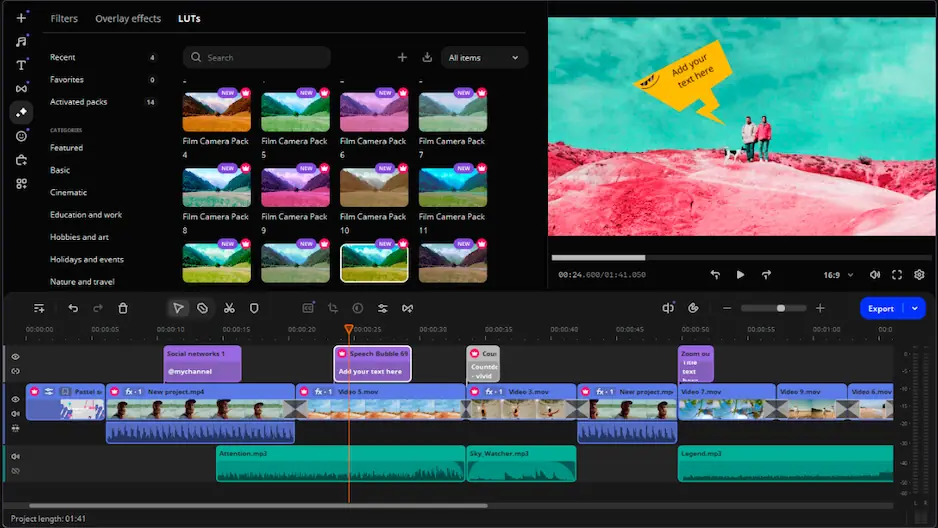
Movavi Video Editor

Add a catchy soundtrack, voiceover, or atmospheric background music to a video file in the browser. Transform silent clips into engaging stories that your audience will love to watch.

By clicking the download button, you're downloading a free version of the program.*

Add Audio to Video Online for Free 

How to add audio to video online

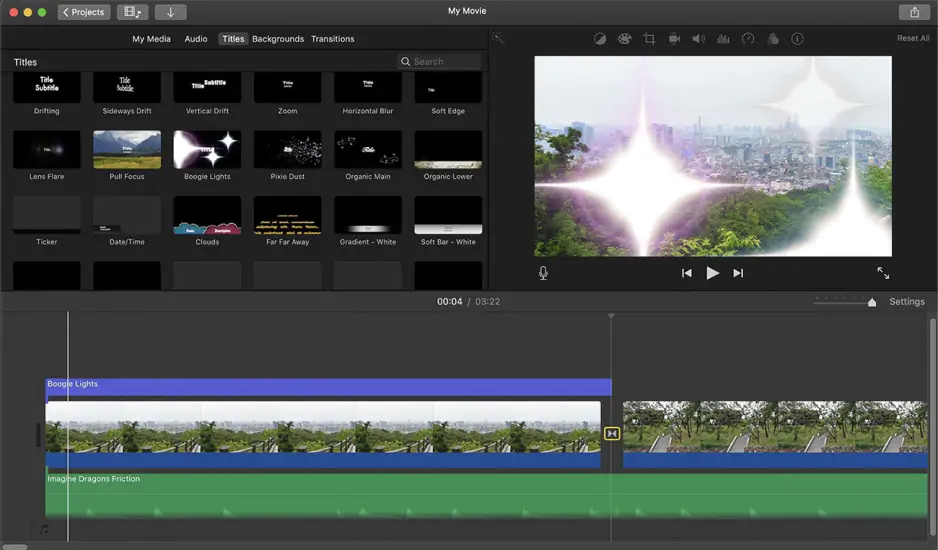
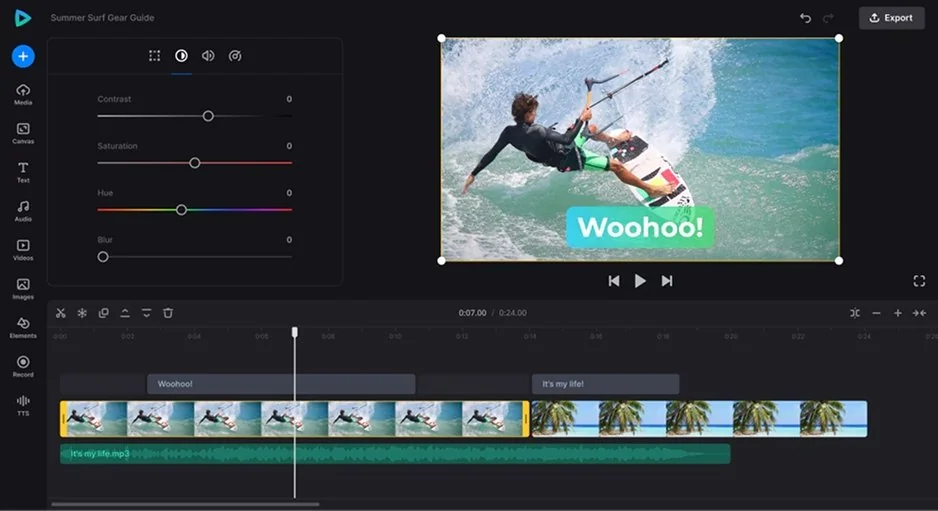
An audio to video editor in the browser can add music to video clips, voice tracks, and other audio layers without desktop software. MP4 and other common video formats are supported. Audio can be placed over video and adjusted before export.

Follow these three simple steps:

Step 1. Upload your video and audio

Click Add file and select the video file. Then add an MP3 track or another audio file. Both files appear in the workspace and are ready for editing.

Step 2. Sync your sound

Place the audio over video and line it up with the needed part of the clip. Change the volume and trim audio fragmets if the track is longer than the video.

Step 3. Save your creation

Sounds just right? Export the video without watermark. The finished file can be downloaded for free.

Movavi Video Editor
Create awesome videos easily

*The free version of Movavi Video Editor may have the following restrictions depending on the build: watermark on exported clips, 60-second video or 1/2 audio length limit, and/or some advanced features unavailable when exporting videos.

Movavi Video Editor

Why choose Movavi

We’re the #1 choice for millions of people from all around the world. Join our thriving community and create stunning content with incredible ease.

70M+

users

190+

countries

15+

updates per year

10,000+

effects to choose from

Frequently asked questions

How can I add audio to video online for free?

To add audio to video, upload the file, add an MP3 track or any other audio samples, and export the result. The video can be saved for free.

Will my final video have a watermark?

If you use the online tool to add music to video, the final result is saved without watermark, ready for sharing on your YouTube channel or social media.

What file formats can I use?

Common video formats are accepted, including MP4 for video and MP3 for audio. That makes it possible to add background music or voice tracks from different sources.

Is it safe to upload my personal videos here?

Yes, it’s safe to add audio to video online. Each file is transferred through a secure connection and removed from the servers after 24 hours.

Can I do this on my phone?

Definitely! Online tools work perfectly in browsers on iPhone and Android. You can add music to video on a phone and save the finished file to the device.

Can I use Movavi Online Video Editor on Android and iPhone?

Yes – it works on both Android and iPhone, and it’s free to use.

Is Movavi Online Video Editor completely free?

Yes. All features are available for free – no payment required.

Does Movavi Online Video Editor add a watermark when exporting videos?

No. You can export videos without a watermark.

Movavi Video Editor
Create awesome videos easily

*The free version of Movavi Video Editor may have the following restrictions depending on the build: watermark on exported clips, 60-second video or 1/2 audio length limit, and/or some advanced features unavailable when exporting videos.

Movavi Video Editor
Join us for discounts, editing tips, and content ideas

1.5M+ users already subscribed to our newsletter

By signing up, I agree to receive marketing emails from Movavi and agree to Movavi's Privacy Policy.