10 Best Tools to Add Audio to Video for PC and Mac in 2026

Movavi Video Editor
  • Trim, cut, crop, and rotate videos
  • Add titles, stickers, and transitions
  • Apply visual effects

By clicking the download button, you're downloading a trial version of the program.*

Edited by
Ben Jacklin
4,165

Key takeaways

  • Movavi Video Editor, our own desktop editor, lets you add music and a voiceover on PC or Mac, with one-click AI noise and silence removal in a simple drag-and-drop timeline.
  • CapCut, VEED, Clipchamp, and Canva can generate an AI voiceover from text. CapCut, Filmora, VEED, and Canva meter their AI tools with credits or usage limits, while Clipchamp’s AI features are free.
  • Clipchamp, VEED, and Canva work entirely in a browser – nothing to install on PC or Mac.
  • iMovie and DaVinci Resolve are both free: iMovie for simple Mac-only editing, DaVinci Resolve for professional-grade sound design.

Here are 10 tools to add audio to video on PC or Mac. If you run a travel vlog, you can lay a soundtrack under your clips. If you sell a product, you can record a voiceover for your demo. If you teach, you can narrate your class tutorial.

What to look for in a tool to add music to video

We judged each tool against what matters most for adding audio to video for beginners:

  • Core audio tools – background music, voiceover recording or generation, fades and volume control.
  • Platforms – Windows, macOS, or a browser that works on both.
  • Learning curve – a usable result without reading a manual first.
  • Free version – some way to try it before paying.

Every tool below handles the basics; they differ in AI shortcuts, built-in music, and how much a beginner has to learn first.

Quick comparison: best software to add audio to video

Tool

Best for

Platforms

Free version

Starting price

Simple audio and video editing in one app

Windows, macOS

Yes (watermark, 60-sec. cap)

$19.95/month

Short, trending vertical clips

Desktop and mobile

Yes (watermark on Pro content)

$9.99/month

Frequent YouTube uploaders

Desktop

Yes (watermarked)

$19.99/month

10 best tools to add audio to video

Best for: Beginners who want one simple desktop tool to add music, record a voiceover, and clean up the sound without extra plugins.

Why we picked it: Movavi Video Editor is an intuitive video editor with one-click AI tools. One-click AI Audio Noise Removal and Auto-Silence Removal handle the fiddly part automatically – clearing background hums from a voiceover and cutting dead air between sentences.

Movavi Video Editor is built for beginners, with a dedicated audio track running alongside the video timeline for background music and a recorded voiceover. It's designed so a first-time editor can get both sounding clean without manually tuning every setting, since the one-click AI tools handle common problems like background noise and dead air automatically. That makes it a fit for adding a soundtrack to a vlog or narration to a tutorial, not for detailed, manual sound engineering.

Key features:

  • A drag-and-drop audiotrack plus a free, copyright-free music library for background music.
  • One-click AI Audio Noise Removal, with up to 95% noise reduction across high, mid, and low frequencies while keeping the voice clear.
  • Record a voiceover straight onto the Timeline, then trim pauses with Auto-Silence Removal. In our tests, it’s nearly 5 times faster than manual timeline cutting.
  • Fade-in/fade-out controls, volume curves, and an equalizer for fine-tuning music and voiceover tracks.
Pros:
  • One-click AI audio cleanup is included in the full version, with no credit system.

  • Hundreds of effects, transitions, and a free music library ship with the program.

  • Movavi Ideas, our free tutorial hub, adds new editing ideas every week, and each step-by-step tutorial takes less than a minute.

Cons:
  • Lacks the deep, granular controls a professional sound-mixing workflow needs.

  • No flexible UI customization, and no web version – it's a desktop download only.

  • Although hundreds of effects and several templates are available in the full version, additional sets require separate subscriptions.

Price and platforms: Desktop app for Windows and macOS. Free version (60-second export cap, limited codecs, watermark). Lite adds a small watermark, and some tools are limited, including AI noise removal and audio effects. The full version unlocks every feature, including one-click AI tools, with no watermark or export limits. The paid version starts with $19.95/month.

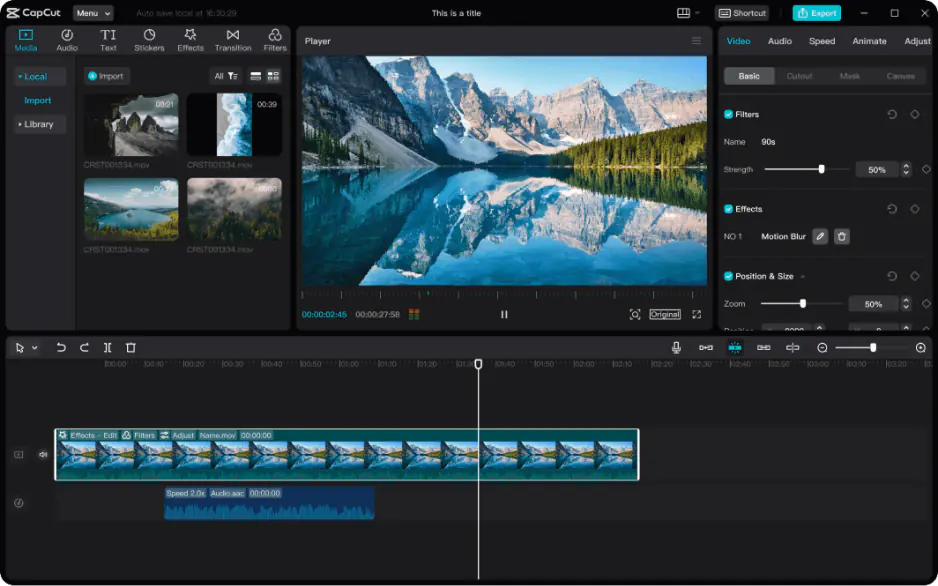
Best for: Creators making short, vertical clips for TikTok, Reels, or Shorts who want an AI voiceover option.

Why we picked it: CapCut pairs a licensed music library with fade-in/fade-out and volume controls, plus a voiceover recorder and an AI voiceover option – though the deeper AI tools run on a separate credit system.

CapCut is built around short, trending vertical content, and its audio side reflects that: a licensed music library for quick background tracks, voiceover recording, and an AI voiceover option for narration you'd rather not record yourself. Because the AI tools are metered through a credit system, heavy use of AI voiceover or deeper audio cleanup can add up faster than on a flat-rate competitor. It suits adding music or a quick voiceover to a TikTok- or Reels-style clip more than a long-form video with a detailed soundtrack.

Key features:

  • A licensed music library across genres, with fade and volume controls on every track.
  • Voiceover recording plus an AI voiceover option, with AI use metered through credits.
  • A deep AI toolkit (camera tracking, auto-captions, background replacement) for short, vertical content.
Pros:
  • Free tier alongside a huge, trend-focused effects library.

  • Strong AI toolkit built specifically for social clips.

Cons:
  • AI features run on a credit system that can run out mid-project.

  • The best effects and 4K export need a Pro subscription.

Price and platforms: Desktop and mobile. Free tier (1080p, watermark on Pro content); Standard and Pro subscriptions add 4K and the full AI toolkit. The subscription starts with $9.99/month.

Best for: Frequent YouTube uploaders who want music matched to a video's mood automatically.

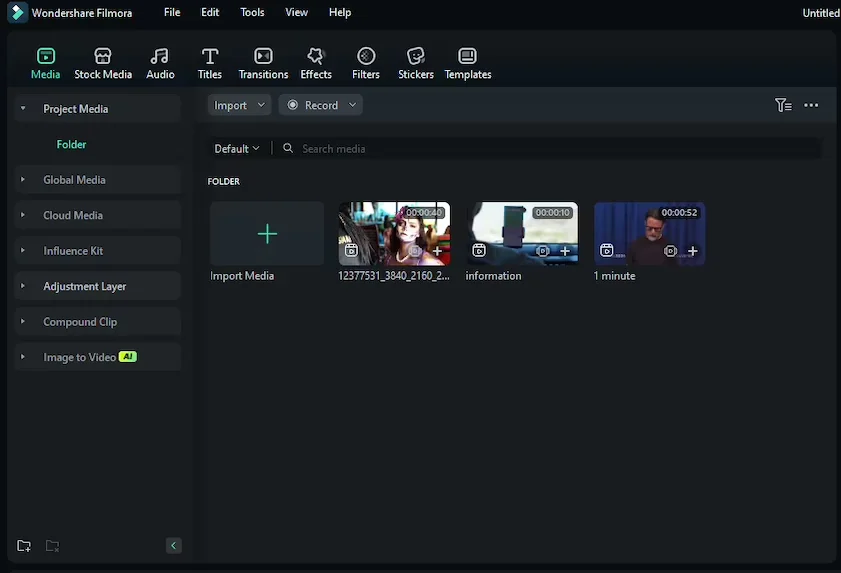
Why we picked it: Filmora's AI Music Matching picks a soundtrack based on your footage's mood, and voiceover recording comes with full fade and volume controls – handy for a channel that posts often.

Filmora's audio tools are built around speed for a frequent posting schedule: AI Music Matching picks a track based on a video's mood instead of making you browse a library, and voiceover recording comes with the same fade and volume controls as the rest of the timeline. One-click noise removal and voice enhancement handle basic cleanup, though the deeper AI audio tools sit behind a separate credit-based subscription. That combination suits a YouTuber who needs a soundtrack picked and cleaned up quickly, more than someone doing detailed manual sound work.

Key features:

  • A music and sound library with AI Music Matching based on your video's mood.
  • Voiceover recording with fade-in/fade-out and volume controls.
  • One-click audio noise removal and voice enhancement.
Pros:
  • AI Music Matching speeds up picking a soundtrack.

  • Full voiceover and fade controls without extra plugins.

Cons:
  • The full AI toolkit needs a separate subscription and credits.

  • The free plan is always watermarked.

Price and platforms: Desktop app. Free (always watermarked); Basic and Advanced tiers, with AI gated behind Advanced, starts with $19.99/month.

Best for: Anyone who wants professional-grade audio tools – EQ, compression, reverb – without a subscription.

Why we picked it: DaVinci Resolve's Fairlight module gives you a real sound-design toolkit for free, though you'll bring your own music since there's no built-in library, and noise removal needs separate plugins rather than a single button.

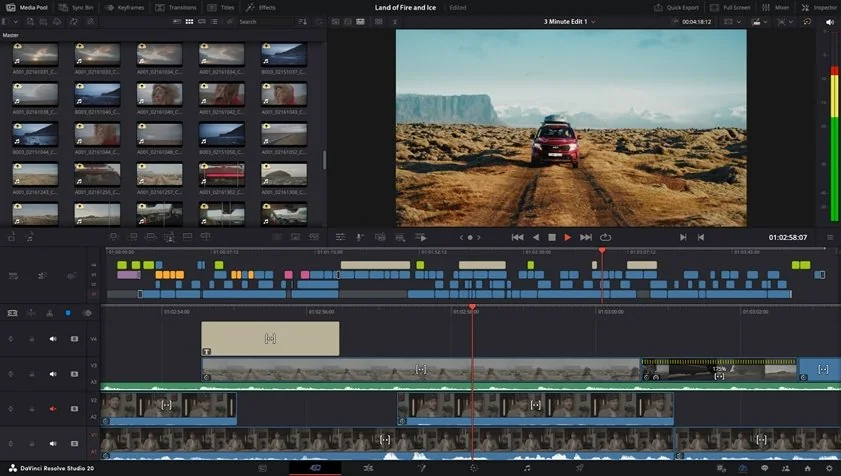
DaVinci Resolve's audio side centers on the Fairlight module, a genuine sound-design workspace with EQ, Dynamics, Reverb, and Delay rather than one-click presets. Voiceover recording and fade controls are built in, but there's no bundled music library, so you bring your own tracks or connect a stock service. That depth suits someone who wants real manual control over a video's sound, not a fast, automated way to add background music.

Key features:

  • A full Fairlight audio module with built-in EQ, Dynamics, Reverb, and Delay.
  • Voiceover recording and fade-in/fade-out controls on every clip.
  • Noise removal via FairlightFX, which requires separate plugins rather than a single click.
Pros:
  • Free base version with no watermark.

  • Fairlight gives deep, manual control over every part of the mix.

Cons:
  • No built-in music library – you supply your own tracks.

  • A complex, multi-module interface with a real learning curve.

Price and platforms: Desktop app. Free base version (no watermark, limited features); DaVinci Resolve Studio is a one-time purchase of $295.

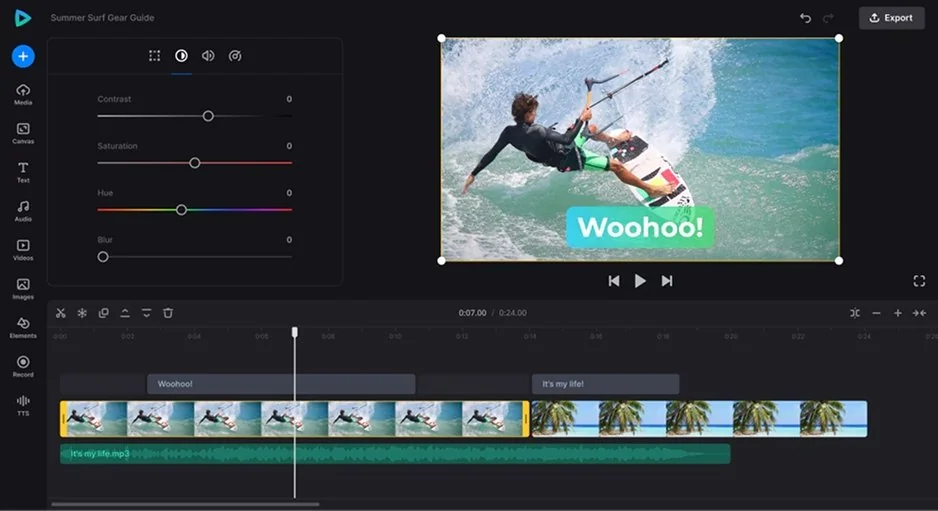
Best for: Windows 11 and Microsoft 365 users who want a free way to add music and an AI voiceover to a training or presentation video.

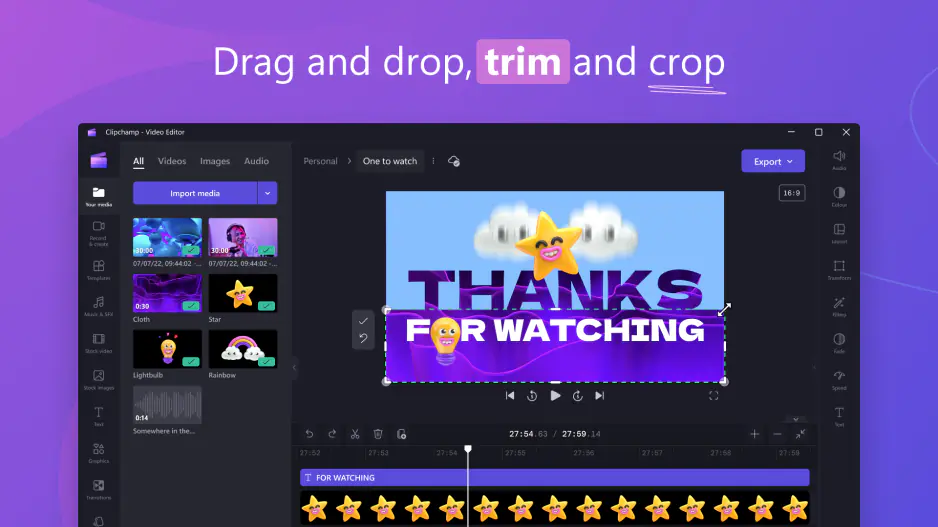
Why we picked it: Clipchamp is built into Windows 11 and Microsoft 365, with a free royalty-free music library, free AI voiceover from text, and a free toggle-based AI noise reducer.

Because Clipchamp lives inside Windows 11 and Microsoft 365, its audio tools are aimed at a quick, no-cost result: a free royalty-free music library, an AI voiceover generated straight from text, and a free toggle-based noise reducer. Fade controls and basic volume adjustment round out the rest. It's a fit for a presentation or training video that needs to sound clean fast, without installing anything or paying for the audio tools specifically.

Key features:

  • Free royalty-free music, with premium tracks requiring a Premium subscription.
  • AI voiceover generated from text, alongside standard voiceover recording.
  • Free, toggle-based AI noise reduction.
Pros:
  • Free tier exports in 1080p with no watermark.

  • AI voiceover and noise reduction are free, not paywalled.

Cons:
  • No ready-made voice effects beyond the AI voiceover.

  • 4K export and premium assets need a Premium subscription.

Price and platforms: Browser-based; built into Windows 11 and Microsoft 365. Free tier (1080p, no watermark); Premium adds 4K and premium assets, starts with $11.99/month.

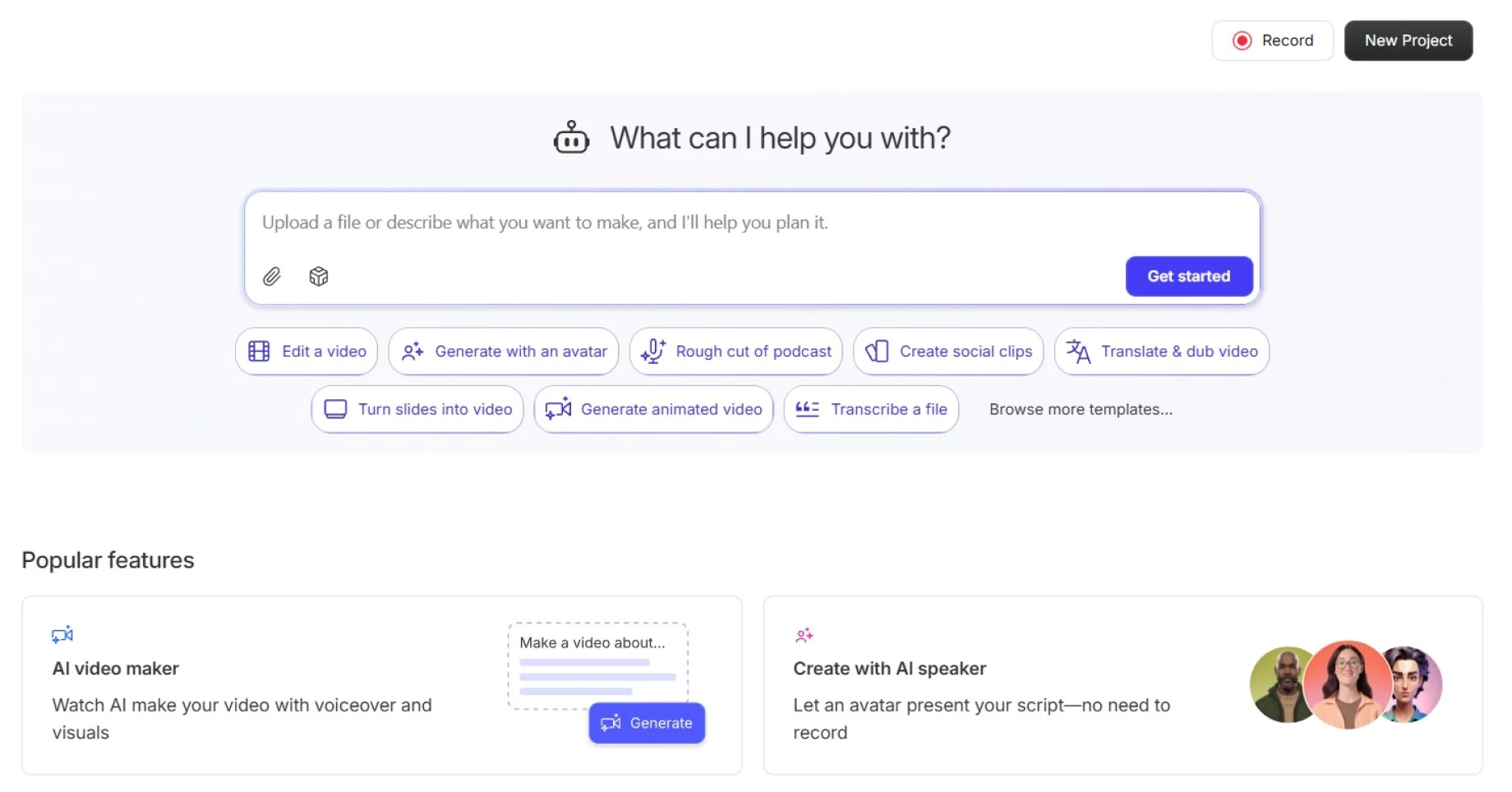
6. VEED

Best for: Teams who want to generate an AI voiceover or clean up audio entirely in the browser, with nothing to install.

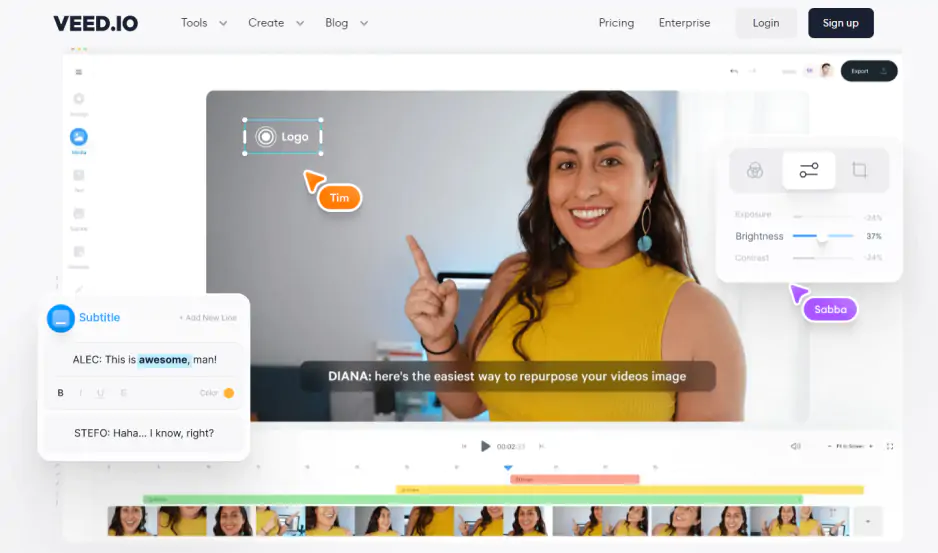
Why we picked it: VEED runs in a browser on PC or Mac, with a stock music library, AI voiceover and voice cloning, and a one-click Clean Audio tool for noise removal.

VEED's audio tools are built for business-facing video made in a browser: a stock music library, AI voiceover and voice cloning for generating narration from text, and a one-click Clean Audio tool for background noise. Because the deeper AI features draw from a monthly credit allowance, heavy voiceover generation can run through that limit before a project is done. It suits adding a quick AI voiceover or music bed to a branded video more than long-form audio work.

Key features:

  • A browser-based editor that works on PC or Mac with nothing to install.
  • AI voiceover and voice cloning, generating narration from text.
  • One-click Clean Audio noise removal, on Pro plans and above.
Pros:
  • Works from any browser – no software to download.

  • AI voiceover and dubbing are built in for business-style videos.

Cons:
  • AI features run on a monthly credit allowance that can run out.

  • The free plan caps exports at 10 minutes and 720p.

Price and platforms: Browser-based (Windows and Mac). Free plan (watermark, limited AI minutes); monthly and annual plans add more AI credits. Monthly plan starts with $10/month.

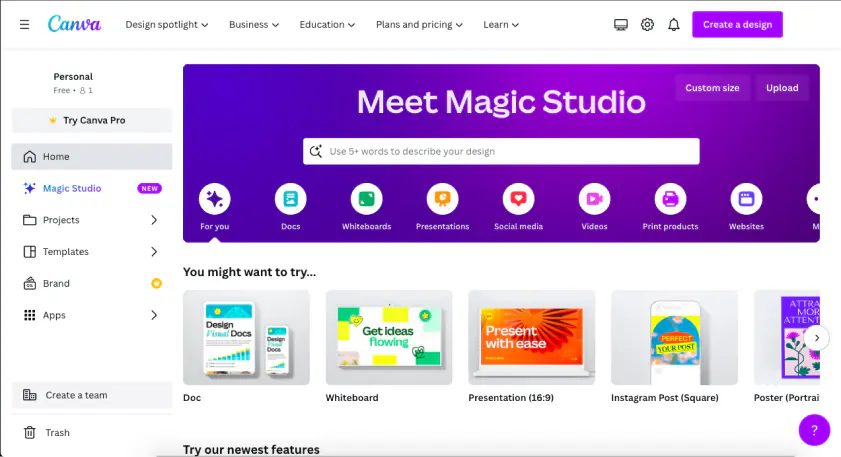
Best for: Social media marketers who already design posts in Canva and want to add an AI voiceover and music without switching apps.

Why we picked it: Canva's music library includes Beat Sync, matching cuts to a track's rhythm, and its AI voiceover and Enhance Voice tools handle narration from the same app used for designing posts.

Canva's audio tools sit inside its design-first video editor: a music library with Beat Sync to match cuts to a track's rhythm, an AI voiceover generated from text, and Enhance Voice for one-click background-noise removal. Because video editing is layered on top of a design canvas rather than a dedicated timeline, these tools fit a short, templated promo video better than a longer, precisely timed edit. Most of them also require a Pro subscription to use.

Key features:

  • A music library with Beat Sync, matching cuts to the beat of a track (Pro).
  • AI voiceover generated from text, plus standard voiceover recording.
  • Enhance Voice, a one-click Pro feature that removes background noise.
Pros:
  • A familiar drag-and-drop interface if you already use Canva.

  • AI voiceover and Beat Sync built in.

Cons:
  • Video editing is an add-on to a design-first layout, so precise timeline work is less convenient.

  • Most AI audio tools are Pro-only.

Price and platforms: Browser and app-based. Free plan (limited premium content); paid plans add AI credits and cloud storage. Paid version starts with $15/month.

Best for: Podcasters and talking-head creators who'd rather clean up a voiceover by editing text than scrubbing a timeline.

Why we picked it: Descript edits audio and video by editing the transcript, with filler-word removal and AI voice cloning built for narration-heavy content like podcasts and screen-recorded tutorials.

Descript's whole approach to audio is built around the transcript: instead of scrubbing a waveform, you edit a voiceover by editing its written text, and filler-word removal strips out stray "um"s and dead air automatically. AI voice cloning can also regenerate or fix individual lines of narration without a re-record. That makes it suited to cleaning up a long voiceover for a podcast or tutorial, rather than adding background music to a visual-first video.

Key features:

  • Edits audio and video by editing the transcript text, not a waveform.
  • Filler-word removal that strips "um"s and dead pauses automatically.
  • AI voice cloning for regenerating or fixing lines of narration.
Pros:
  • Transcript-based editing is a fast way to trim a long voiceover.

  • Filler-word removal and voice cloning handle narration cleanup automatically.

Cons:
  • Minimal visual effects, transitions, and color correction compared to a full video editor.

  • The free plan is capped by transcription hours and watermarked.

Price and platforms: Desktop and web app. Free plan (limited transcription hours, watermark); monthly and annual plans add hours and AI credits. Monthly plan starts with $16/month.

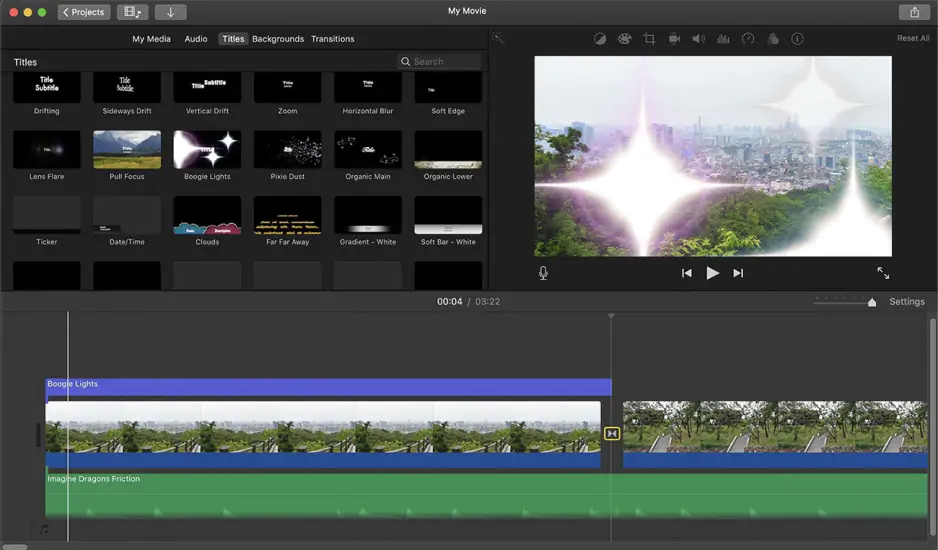
Best for: Mac and iPhone users who want a completely free, no-watermark way to add background music to a family video or school project.

Why we picked it: iMovie comes preinstalled on Apple devices, is completely free with no watermark or export limits, and includes a modest built-in music and effects library – enough for a first attempt at editing.

iMovie keeps its audio tools simple: a modest built-in library of music and effects for a background track, plus ready-made trailer templates that already have music and transitions set. There's no AI voiceover generation or automated noise cleanup here, so recording and balancing sound stays a manual job. It suits adding a simple soundtrack to a family video or school project on a Mac, at zero cost.

Key features:

  • Completely free, with no watermark or export limits.
  • A modest built-in library of music and effects.
  • Ready-made trailer templates with music and transitions pre-set.
Pros:
  • Completely free with no watermark or limits.

  • Pre-installed on Apple devices, so there's nothing to download.

Cons:
  • Available only on Mac and iPhone – there's no Windows version.

  • Almost no AI tools, including no AI voiceover or automated noise removal.

Price and platforms: Free. Mac and iPhone only (no Windows version).

10. Clideo

Best for: A single one-off task – like adding one audio file to one video clip – without installing anything.

Why we picked it: Clideo is a set of 30+ separate web tools (trim, merge, compress, convert), each its own page with no software to install. It's built for a quick, single task rather than a full editing session.

Clideo is built around single-task web tools rather than a full editor, which is what would make it relevant for a quick, one-off job like putting one audio file under one video clip. Each tool opens as its own page with no shared timeline, so there's no way to layer in fades, a second track, or ongoing audio editing the way a dedicated video editor allows. It fits someone who wants a fast, no-install fix for a single file, not repeated audio work.

Key features:

  • 30+ single-task web tools, including trim, merge, compress, and convert, with nothing to install.
  • No unified timeline – each task opens as its own separate tool page.
  • Entry-level AI tools (AI Video Enhancer, Script-to-Video) rather than a full toolkit.
Pros:
  • Nothing to install – works for a single task and you're done.

  • A free tier is available.

Cons:
  • Free exports are watermarked and capped at 500MB and 720p.

  • No unified timeline for anything beyond a single, simple task.

Price and platforms: Browser-based. Free (watermark, 500MB/720p cap, 10 AI credits); Pro removes the limits, starts with $9/month.

How to choose the right tool for your video

Match your situation to the tool, not the other way around:

  • Simplest all-in-one desktop editor with automatic audio cleanup → Movavi Video Editor.
  • Short, vertical clips for TikTok or Reels → CapCut.
  • Frequent YouTube uploads, music matched automatically → Filmora.
  • Professional-grade sound design, no subscription → DaVinci Resolve.
  • Already on Windows 11 or Microsoft 365 → Clipchamp.
  • Browser-based AI voiceover, nothing to install → VEED.
  • Already designing posts in Canva → Canva.
  • Editing a podcast or talking-head video → Descript.
  • On a Mac, want something completely free → iMovie.
  • One quick, one-off task in a browser → Clideo.

If you only try one of these, make it Movavi Video Editor – it's built for exactly the kind of beginner-friendly editing this list is about: drop a background music track under a travel vlog, or a recorded voiceover onto a tutorial, and let the one-click AI tools handle the cleanup. Once your audio is in place, Movavi's auto-tracked cropping is worth trying next. It reframes the same clip as a vertical Reel and keeps the speaker centered.

Movavi Video Templates is a multi-style library of customizable, pro-looking, modular templates for any kind of video. Several templates come with the full version at no extra charge, each with editing, music, transitions, and text already set up, so you just add your own clips. The Movavi Templates subscription unlocks the whole library.

Movavi Video Editor
Create awesome videos easily

*The free version of Movavi Video Editor may have the following restrictions depending on the build: watermark on exported clips, 60-second video or 1/2 audio length limit, and/or some advanced features unavailable when exporting videos.

Frequently asked questions

How to add audio to video?

Drag your audio file onto a separate audio track below your video clip, then adjust its volume, trim it to length, and add a fade in or fade out where it starts and ends. Movavi Video Editor, for example, works with common video formats like MP4, MOV, MKV, and AVI and audio formats like MP3, WAV, and FLAC.

Can I add audio to a video for free?

Yes. Every tool on this list has a free version. Most free versions add a watermark or limit export length or resolution, and paid plans remove those limits. iMovie is the only one here that's completely free with no watermark or limits, though it only runs on Mac and iPhone.

How do I record a voiceover on PC or Mac?

Most desktop and browser-based video editing software let you record directly from a connected microphone onto the timeline. Movavi Video Editor records a voiceover straight onto the Timeline, and several browser tools – VEED, Clipchamp, and Canva among them – can also generate an AI voiceover from text if you'd rather not record one yourself.

Can I merge audio and video without installing software?

Yes – browser-based tools like VEED, Clipchamp, Canva, and Clideo let you merge audio and video without downloading anything, since everything runs in the browser on Windows or Mac.

What's the best free tool to add background music to a video?

For a simple desktop editor with a built-in music library, Movavi Video Editor’s free version lets you try every tool, including the built-in music library. Free exports run up to 60 seconds and carry a watermark, and the full version removes both. If you're on a Mac and want music added with zero cost or limits, iMovie is the more straightforward choice.

Have questions?
If you can’t find the answer to your question, please feel free to contact our Support Team.
Join us for discounts, editing tips, and content ideas

1.5M+ users already subscribed to our newsletter

By signing up, I agree to receive marketing emails from Movavi and agree to Movavi's Privacy Policy.