
10 Best AI Noise Removal Tools to Remove Background Noise From Video

Movavi Video Editor
  • Trim, cut, crop, and rotate videos
  • Add titles, stickers, and transitions
  • Apply visual effects

By clicking the download button, you're downloading a free version of the program.*

Edited by
Ben Jacklin
13,742

To remove background noise from video, pick the tool by when the noise gets handled. Krisp cleans your voice live while you talk. For a clip you’ve already recorded, Movavi Video Editor runs one-click AI noise removal right on the timeline, Adobe® Podcast® Enhance Speech® fixes a thin, echoey track in your browser, and Audacity gives you free, hands-on control.

This list is for vloggers, for teachers and students making tutorials, and for gamers recording commentary. We compared ten tools that work as a background noise remover for those jobs, from live call filters to a full video editor.

Quick comparison of the best AI noise removal tools

Tool

Best for

Real time or after recording

Video or audio only

Platforms

Free version

Starting price

Lifestyle vlogs, tutorials and gameplay with commentary

After recording

Video files directly

Windows, macOS

Yes: 60-second cap, watermark, no 4K export

$19.95/month

Tutorial and explainer voice tracks for YouTube

After recording

Audio and video files

Browser

Yes: files up to 30 minutes and 500 MB, 1 hour of processing a day

$9.99/month

Teams, call centers, and developers

Real time

Live audio in calls and apps

Windows, macOS

7-day free trial, no permanent free plan

$8/month

Why do screen recordings, tutorials and voiceovers sound rougher than the picture

Because the microphone hears everything your camera ignores. A laptop mic sits a few inches from your keyboard and your cooling fan. A bare room adds echo. The sounds around you while you record are called ambient noise, and some of it comes from the gear itself.

Two kinds of tools deal with this. Classic noise reduction is the process of taking noise out of a signal. AI speech enhancement works differently. It recognizes a human voice, keeps it, and treats the rest as noise. Some tools, such as Descript’s Studio Sound, go a step further and regenerate the voice instead of cleaning what was captured.

That difference decides what you can fix. Steady sounds like a hum or fan are the easy case. Echo and sudden clicks need a tool that says it handles them, and the entries below say which ones do.

How we picked the AI noise removal tools

We chose tools by what they do for a vlog, a tutorial or a gameplay clip:

  • Voice quality after processing. Does the voice stay natural, or turn thin or robotic?
  • Echo handling. Does the tool name room echo as something it fixes?
  • Real time or post-processing. Does it clean audio as you speak, or after you record?
  • Free option. Is there a version you can try before you pay?
  • Video files. Can you drop in the video itself, or only the audio?

We judged each tool on its published features and limits. Nothing here is a listening benchmark.

10 tools to remove background noise from audio

Movavi Video Editor (+ Movavi Screen Recorder)
  • Best for

    Lifestyle vlogs, tutorial videos for YouTube, and gameplay videos with commentary

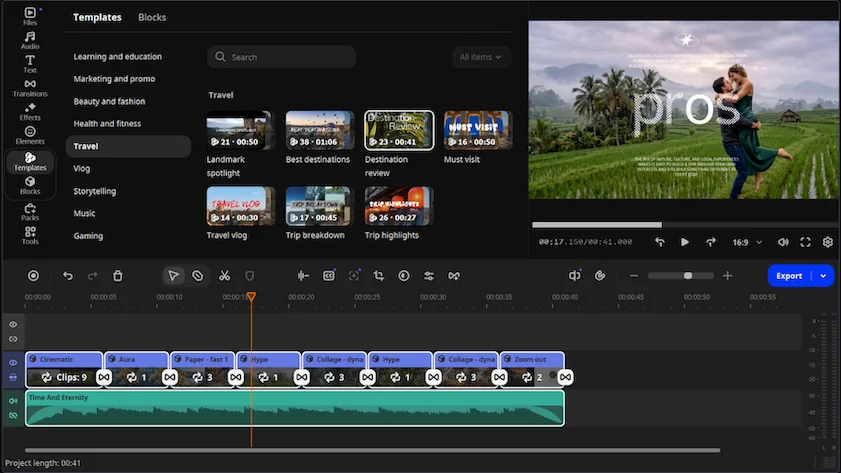
Why we picked it: You shot a travel vlog on a busy street, or recorded a tutorial with the laptop fan running, and now your voice has company. Movavi Video Editor is an intuitive video editor with customizable video templates, one-click AI tools, and hundreds of drag-and-drop effects. It’s a desktop app for Windows and macOS, so you can remove background noise from video without sending the file to another program. Movavi Screen Recorder, a desktop capture program for recording screens and audio, is part of Movavi Video Suite alongside the editor.

The AI audio noise removal tool clears traffic, wind and steady hums in one click and keeps your voice sharp, so the first export already sounds clean. Hover previews and drag-and-drop keep the rest of the edit quick, and Movavi Ideas, a free tutorial hub with a new editing idea every week, has step-by-step guides for your next one.

Screen recordings and gameplay clips need an opening too. Movavi Video Templates is a multi-style library of customizable, pro-looking, modular templates for any kind of video. A template is a ready-made project built from Blocks, short segments of the video where you drop in your own clips, photos and text. The Learning and education category gives tutorials an intro and on-screen styling, and the Gaming category does the same for gameplay. Fill the Blocks with your recording first, then run noise removal on the finished timeline.

Key features:

  • AI audio noise removal: clears traffic, wind and steady hums across high, middle and low pitches, with 95% noise reduction.
  • Sound autocorrect: one-click presets named Enhanced voice recording, Noisy place and Recording studio.
  • Manual controls: slider-driven noise removal plus a noise gate with Threshold, Range, Attack and Release settings.
  • Auto-silence removal: finds pauses and cuts them, with adjustable pause length and volume threshold.
  • AI Video Denoise: a separate tool that removes grain and low-light artifacts from the picture, not the sound.
Pros:
  • Noise removal runs on the video clip itself, so there’s no export to a second app.

  • Manual noise gate and compressor settings are there when one click isn’t enough.

  • Every AI tool in the full version comes without a credit system.

Cons:
  • Lacks advanced, detailed controls for a professional workflow.

  • No flexible UI customization.

  • No web version or cloud integration.

  • Although hundreds of effects and several templates are available in the full version, additional sets require separate subscriptions.

Price and platforms: Windows and macOS. Price: from $19.95/month. AI noise removal is part of the full version; Movavi Video Editor Free adds a watermark and a length cap.

  • Best for

    Voice tracks for tutorials and explainer videos on YouTube

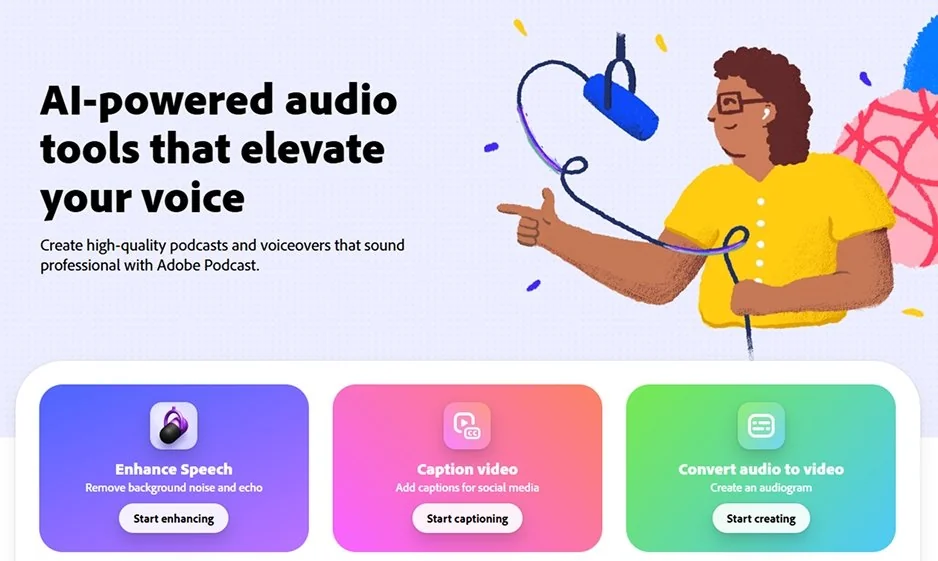
Why we picked it: Enhance Speech is an AI voice enhancer that works on the file itself. Upload a recording, or an MP4 or MOV, and it strips background noise and room echo in your browser. That makes it the fastest fix for a tutorial voiceover that sounds thin and hollow, and the v2 controls for speech, music and ambience let you decide how much of the room stays.

Key features:

  • Enhance Speech v2 controls: separate adjustments for speech, music and ambience instead of one aggressive setting.
  • Echo removal: targets room echo along with noise.
  • File upload: accepts MP4 and MOV files.
  • No download: runs in the browser, with no plugin to install.
Pros:
  • Fixes noise and echo in one pass.

  • Needs no audio engineering knowledge.

  • The v2 sliders let you dial back how hard it works.

Cons:
  • On loud-then-quiet recordings it can make voices sound slightly robotic and muffle clip starts and ends.

  • The sliders are a paid feature, so the free version gives less control.

Price and platforms: Browser. Price and free-tier limits: $9.99/month.

  • Best for

    Teams, call centers, and developers

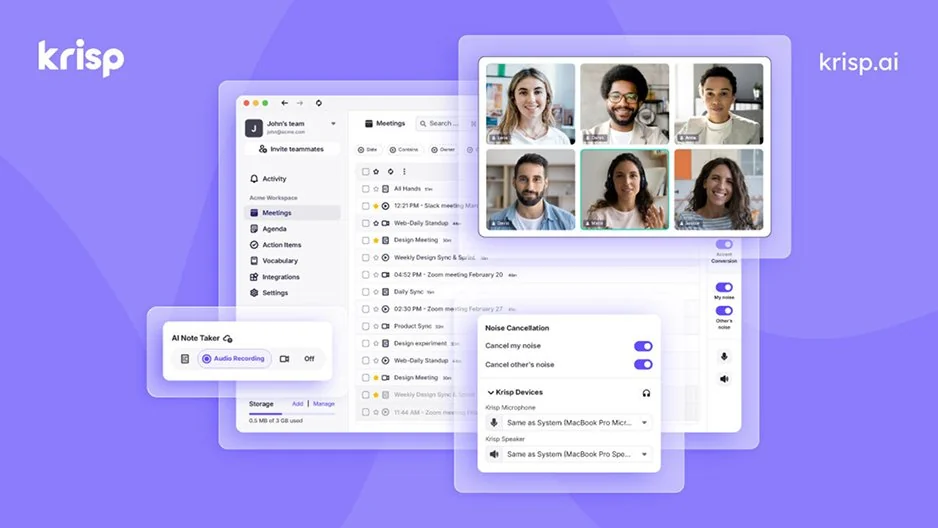
Why we picked it: Krisp prevents the problem instead of repairing it. This noise cancelling software sits between your microphone and the app you’re using, so a fan or a barking dog is filtered live and your gameplay commentary is clean before you hit record. It’s the only tool on this list that works in real time.

Key features:

  • Virtual microphone and speaker: filters audio before it reaches Zoom, Meet, Discord or Slack.
  • Two-way cleaning: removes noise from your outgoing audio and from other people’s.
  • Bundled AI note-taker: paid plans include transcription plus audio and video recording.
Pros:
  • Noise never makes it into the take, so there’s nothing to fix later.

  • Works in any app that accepts a microphone.

  • Cleans up a co-player’s noisy setup, too.

Cons:
  • Real-time filtering can leave voices thinner or slightly flat in heavy noise.

  • Built for calls, not for cleaning finished video files.

  • The old generous free plan has been replaced by a short trial.

Price and platforms: Windows and macOS. Price and trial terms: $8/month.

  • Best for

    Tutorials and explainer videos edited by text

Why we picked it: Descript removes noise in the place where you already edit. Studio Sound reduces noise, echo and hiss on the timeline, and because you cut by deleting words in a transcript, a tutorial voice track gets cleaned and trimmed in one app. It regenerates the voice rather than keeping what’s left after the noise is gone.

Key features:

  • Studio Sound: a regenerative effect that rebuilds the voice instead of keeping what’s left after noise is removed.
  • Transcript editing: delete a word in the text and the audio is cut.
  • Filler-word removal: clears “um” and “uh” in the same editor.
  • Apps and browser: runs on Mac and Windows, in an app or in your browser.
Pros:
  • Noise removal and editing happen in one app.

  • Studio Sound is available on the free tier, where it uses AI credits.

Cons:
  • Credit-based plans mean heavy users reach limits quickly.

Price and platforms: Windows, macOS and browser. Price: $16/month.

  • Best for

    Lessons and lectures recorded in a difficult room

Why we picked it: When a lecture recorded in an echoing classroom is beyond a one-click fix, iZotope RX is the repair bench. Dialogue Isolate pulls speech out of heavy reverb and layered noise, and modules like De-hum and De-wind go after one problem at a time.

Key features:

  • Spectral De-noise and Voice De-noise: targeted noise modules instead of one button.
  • Dialogue Isolate: pulls speech out of heavy reverb and layered noise.
  • Specialist repair: De-click, De-hum, De-rustle and De-wind.
  • Spectral editor: shows the sound as a picture so you can remove a single artifact.
Pros:
  • Surgical control over exactly which artifacts get removed.

  • One-time purchase model rather than a subscription.

Cons:
  • A learning curve: the spectral interface assumes you know what you’re looking at.

  • Far more tool than a quick vlog fix needs.

Price and platforms: Runs as a plugin in a digital audio workstation or as a standalone editor. Operating systems: Windows, macOS. Price: $99.

  • Best for

    Lecture and course voiceover that you want to tune by hand

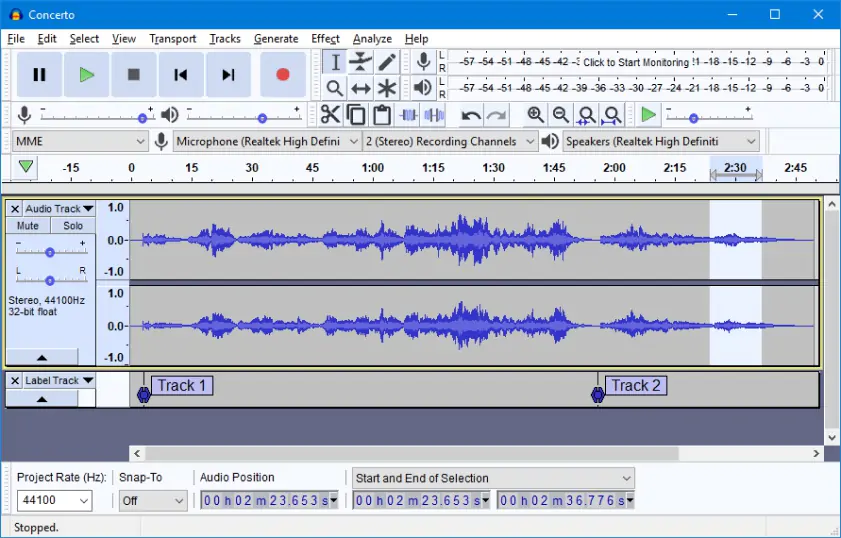
Why we picked it: Audacity removes noise from a sample: you mark a few seconds of room hum, and the effect uses that noise profile to clear the rest of the track. It’s free, so it earns its place for noise reduction for voiceover when you want control over every setting and don’t mind exporting the audio from your video first.

Key features:

  • Noise reduction: based on sampling the noise you want to minimize, known as a noise profile.
  • Noise Gate: added in version 2.4.
  • Real-time effects: added in version 3.2.
  • Plugin support: loads LADSPA, LV2, VST, VST3 and Audio Units effects.
Pros:
  • Free, with no paid tier to outgrow.

  • Runs on Windows, macOS and Linux.

  • Full manual control over cleanup.

Cons:
  • Audio only, so you export the voice track from your video editor first.

  • Some reviewers find the interface dated and the UX inconvenient.

  • It can’t run on mobile platforms.

Price and platforms: Free. Windows, macOS and Linux.

  • Best for

    Lifestyle vlogs where the voice track needs more than noise removal

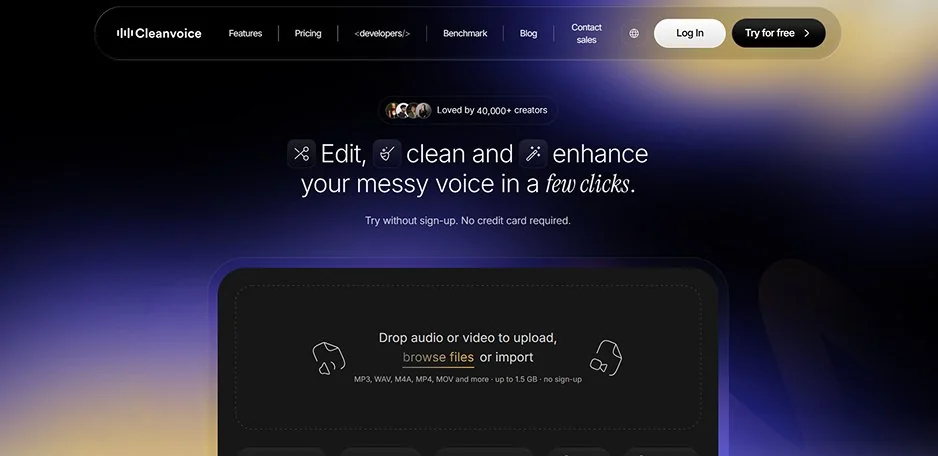
Why we picked it: Noise is rarely the only thing a vlog voice track needs fixed. One upload to Cleanvoice removes background noise, filler words, mouth sounds and dead air, and it accepts video files such as MP4 and MOV, so a talkative daily-routine clip gets a full cleanup in a single pass.

Key features:

  • One-pass cleanup: noise, filler words, mouth sounds, breaths and dead air together.
  • Browser workflow: upload, process, download.
  • Video uploads: accepts MP4, MOV, WebM, AVI and MKV.
Pros:
  • Replaces separate noise, filler-word and silence tools.

  • No install.

Cons:
  • Filler-word removal isn’t perfect, so you still review the timeline.

  • Pay-as-you-go costs add up on long files.

Price and platforms: Browser. Price and free trial: $11/month.

  • Best for

    Simplifying post-production and elevating your content

Why we picked it: Voice Isolator suits the clips where the noise is loudest. It extracts the speech and drops music, hum, traffic and crowd noise while keeping your tone and pitch, and it takes video files such as MP4 and MOV. That’s a good match for a travel vlog shot beside a road.

Key features:

  • Voice isolation: separates speech from background noise in audio and video files.
  • Upload limit: files up to 500 MB or one hour.
  • Video formats: MP4, MOV, AVI, MKV, WMV and more.
  • In-browser recording: record a take directly instead of uploading.
Pros:
  • Handles speech buried in music or chaos.

  • Keeps natural tone, pitch and a little reverb.

Cons:
  • Strips ambience too, so a street interview can sound oddly sterile.

  • Heavy use draws on monthly credits.

Price and platforms: Browser. Price and credits: $6/month.

  • Best for

    Complete courses and lecture series published on a schedule

Why we picked it: For a course with many lessons, one clean file isn’t the goal. Consistent files are. Auphonic removes noise and reverb, then levels the speakers and normalizes loudness, and watch folders process each new lecture automatically.

Key features:

  • Intelligent Leveler: balances a loud speaker and a quiet one automatically.
  • Loudness normalization: targets streaming loudness standards measured in LUFS.
  • Automation: watch folders and an API process each new file.
  • File types: processes audio or video files through a web service.
Pros:
  • Set a preset once and every episode gets the same treatment.

  • Handles levels, which most noise tools skip.

Cons:
  • You configure and trust the pipeline instead of hearing each change instantly.

  • More setup than a one-off file needs.

Price and platforms: Web service. Price and free hours: $11/month.

  • Best for

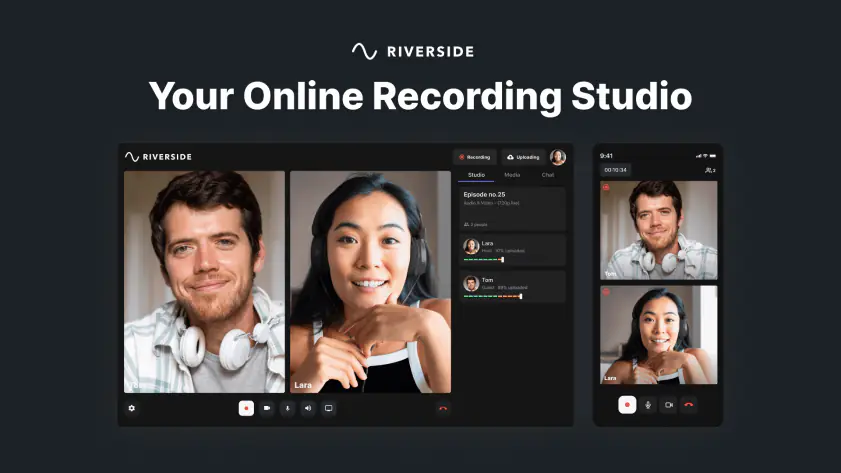
    Tech tips and game reviews recorded with a remote co-host

Why we picked it: Riverside cleans noise where the recording happens. Magic Audio removes background noise, fixes echo and balances levels on the tracks you recorded in the studio, so a co-host’s noisy room gets handled in the same place as the interview.

Key features:

  • Magic Audio presets: tuned for solo videos, podcast recordings and music.
  • Echo fix: handles echo along with noise and uneven levels.
  • Remote recording: guests join from a browser link.
Pros:
  • Recording and cleanup happen on one platform.

  • Works across web, macOS, Windows, iOS and Android.

Cons:
  • Needs a stable internet connection for live sessions.

  • Longer recordings and pro features need a paid plan.

Price and platforms: Web, macOS, Windows, iOS and Android. Price, free plan and trial: $29/month.

Which tool should you choose

For streams and calls (real time). Krisp. It cleans your voice before it reaches the app, so there’s no cleanup afterward.

For finished recordings. Movavi Video Editor if the noise sits in a video you’re already editing. Adobe® Podcast® Enhance Speech® if you only need one quick pass on a voice track. Audacity if you’d rather tune it yourself.

For podcasts. Auphonic for scheduled, consistent episodes, Cleanvoice AI if filler words bother you as much as noise, and Riverside if you record guests.

For free online options. Adobe® Podcast® Enhance Speech® and ElevenLabs Voice Isolator both run in the browser, and Audacity is a free download.

For a voiceover that echoes. Adobe® Podcast® Enhance Speech®, Descript Studio Sound, Riverside Magic Audio and Auphonic all name echo or reverb. Pair any of them with a closer microphone.

Your next move is small. Take the noisiest clip you have, run it through the option that fits your setup, and listen on headphones. If it’s a video, open it in Movavi Video Editor and browse Movavi Ideas for your next edit.

Movavi Video Editor
Create awesome videos easily

*The free version of Movavi Video Editor may have the following restrictions depending on the build: watermark on exported clips, 60-second video or 1/2 audio length limit, and/or some advanced features unavailable when exporting videos.

Frequently asked questions

How do I remove keyboard noise from a recording?

Sudden clicks are harder than a steady hum. Tools that isolate the voice, such as ElevenLabs Voice Isolator and Adobe® Podcast® Enhance Speech®, discard everything that isn’t speech, so they’re worth a try first. Movavi’s documentation covers traffic, wind and steady hums and doesn’t mention keyboards, so test it on a short clip before cleaning a long one. If you record gameplay commentary, a live filter like Krisp keeps keystrokes out of the take.

How do I remove echo from audio?

Choose a tool that names echo. Adobe® Podcast® Enhance Speech® removes room echo, Descript’s Studio Sound reduces echo and hiss, Riverside’s Magic Audio fixes echo, and Auphonic removes reverb. Movavi Video Editor’s documentation lists a Reverberation effect that adds echo, not one that removes it. Recording closer to the microphone helps any of these.

Is it better to remove noise during recording or afterward?

Live filtering means the noise never reaches your file. The trade-off is that real-time suppression can leave voices thinner. Cleaning afterward lets you listen and adjust. Many creators record with a quiet setup and polish later.

Are there free ways to clean up a voice recording?

Yes. Audacity is a free, open-source editor. Adobe® Podcast® Enhance Speech® and ElevenLabs Voice Isolator offer free browser access, with limits. Movavi Video Editor Free lets you try the editor, with a watermark and a length cap on exports.

Have questions?
If you can’t find the answer to your question, please feel free to contact our Support Team.
Join us for discounts, editing tips, and content ideas

1.5M+ users already subscribed to our newsletter

By signing up, I agree to receive marketing emails from Movavi and agree to Movavi's Privacy Policy.