
Best Free Clipping Software for a PC and Mac [2026]

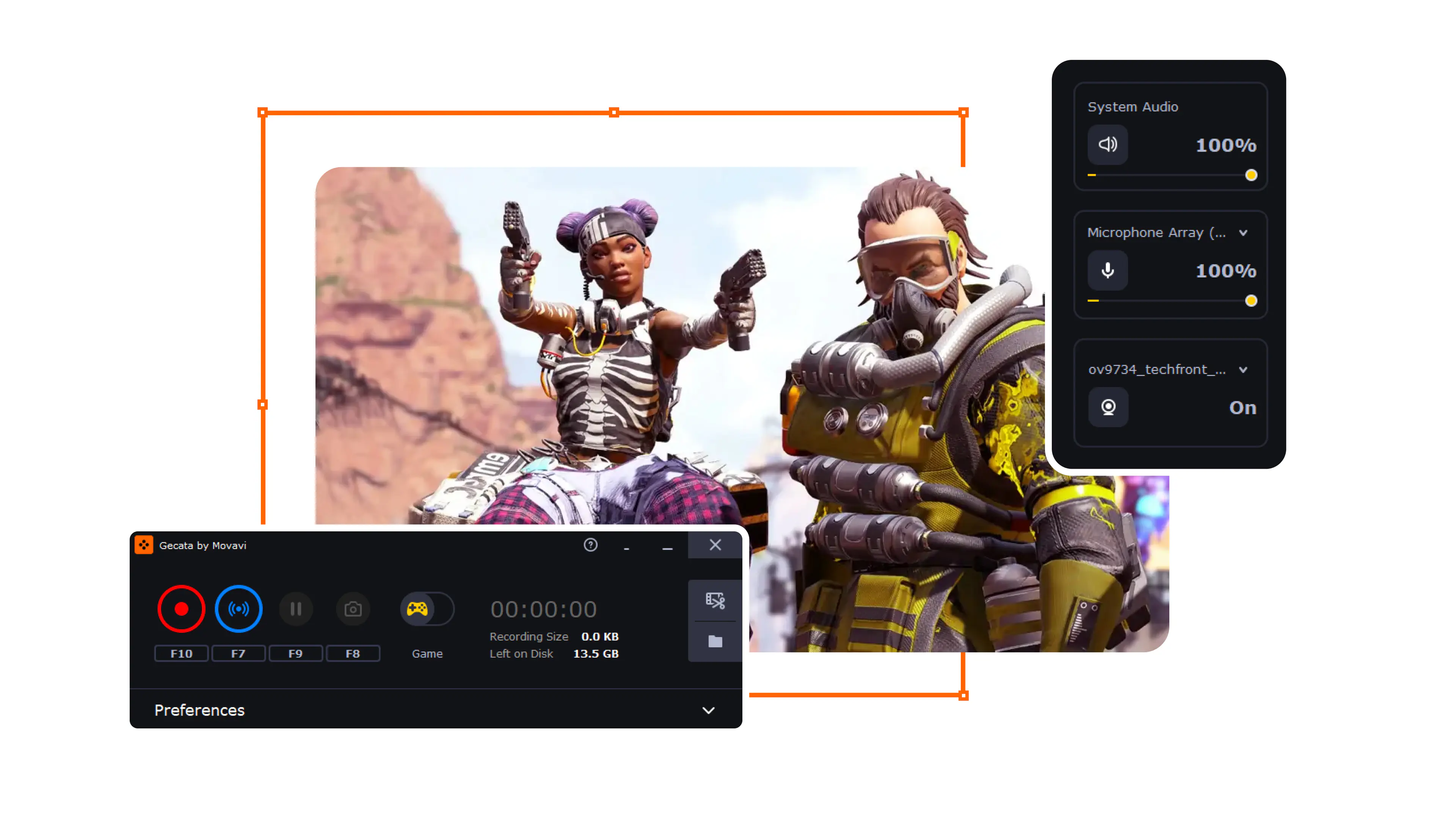
Gecata by Movavi
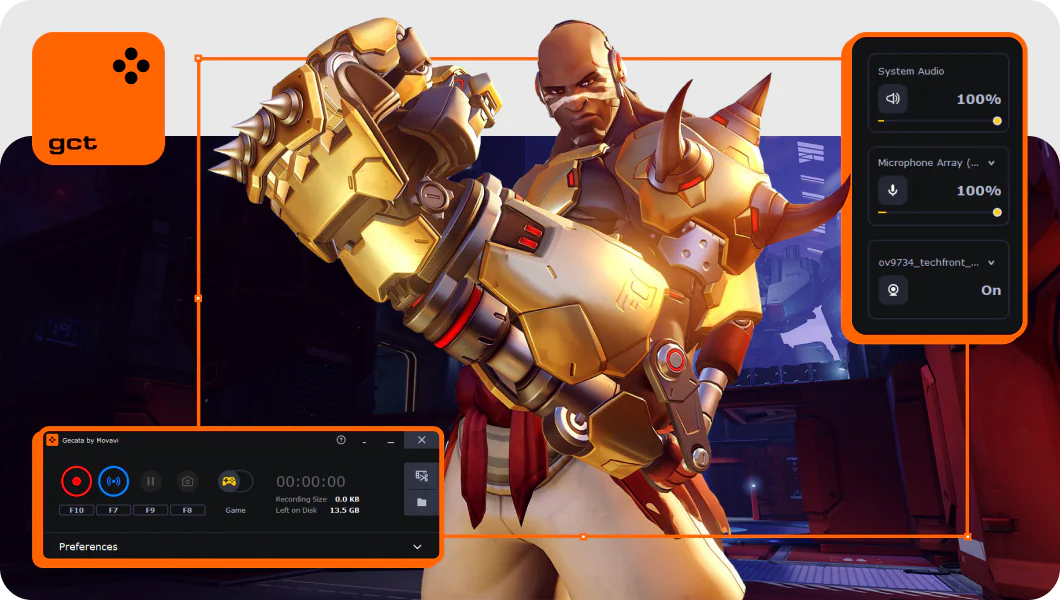
  • Record HD game videos at up to 120 FPS
  • Stream on any platform
  • Grab sound from speakers and microphone
  • Add webcam video to gameplay footage
Edited by
Ben Jacklin
5738

Key takeaways

  • If you want the best clipping software that stays simple, start with Gecata by Movavi or Medal.tv – fast hotkeys, easy libraries, minimal fuss.
  • For full control and a “build-your-own-studio” vibe, OBS Studio (Replay Buffer) is the most flexible option.
  • Hardware tools like NVIDIA ShadowPlay and AMD ReLive are the low-overhead picks when you want clean clips without babysitting settings.
  • Automatic highlight tools (Medal, Outplayed, Eklipse) are great when you always remember to clip after the moment already happened.
  • Tip: set one “panic hotkey” for instant replays, and one “calm hotkey” for manual start/stop – it keeps you from turning every match into a 40GB regret file.

I’ve tested these tools the way people actually use them: mid-match, half-distracted, and absolutely convinced I’ll remember to clip later (I won’t). If you’re hunting for the best clipping software for a PC, the truth is simple: the right pick depends on how you play, what hardware you have, and how much you enjoy tweaking settings. I’ve used everything here on a regular computer, and the winners all share one trait – they help you capture the moment without breaking your flow. Whether you want a one-click download and go, or a full creator cockpit, there’s a tool on this list that fits. And yes, I still forget to press record sometimes – that’s why auto-clippers exist.

My top picks

  • Best overall: Gecata by Movavi – quick hotkeys, lightweight feel, and a “start recording in minutes” mindset.
  • Best for highlight sharing: Medal.tv – clipping plus a social-first library that actually makes you post your plays.
  • Best for maximum control: OBS Studio – Replay Buffer plus scenes/plugins when you want the steering wheel and the dashboard.
  • Best for NVIDIA rigs: NVIDIA ShadowPlay – instant replay with low performance hit, built for “clip it now” energy.
  • Best AI helper: Eklipse.gg – hands-off highlight generation for streamers who’d rather play than scrub timelines.

Comparison table of game clipping software

Program

OS

Main advantages

Download

Windows

Lightweight recording, quick hotkeys, beginner-friendly workflow

Windows, mobile

Background clipping, fast trim/sharing, organized library

Windows, macOS, Linux

Replay Buffer, deep customization, plugin ecosystem

Best clipping software for gaming

Why I picked it: super-accessible gamer clipping, streaming, and recording with minimal fuss – easy to start and consistent in real use.

Gecata by Movavi feels like the recorder program I actually use when I want fast, reliable clips without a dozen menus. On first launch, the interface sits out of your way; with a hotkey you’re capturing gameplay or your desktop at up to 4K and high framerate. I’ve tried it across Minecraft, Fortnite, and round-the-world RPG sessions, and it just works without grief. What I like most is how little setup it demands – you can start recording in minutes, then tweak quality or audio sources later if you want.

You can overlay a webcam, record system and mic audio simultaneously, and adjust capture settings on the fly without interrupting gameplay. The one-click workflow makes it approachable for creators of all experience levels, not just seasoned streamers. Recent updates have focused on performance and stability for Windows environments, and Gecata continues to maintain a loyal community of users.
Ratings

4.5

Pros:
  • Lightweight, low-impact recording with hotkeys and overlays supported

  • Simultaneous audio and webcam capture for rich clips

  • Intuitive, no-delay capture setup (good for beginners)

Cons:
  • Less advanced editing compared to full editors (need separate editor)

Why I picked it: auto-clipping meets quick edit tools – perfect for users who want highlight reels without major editing fuss.

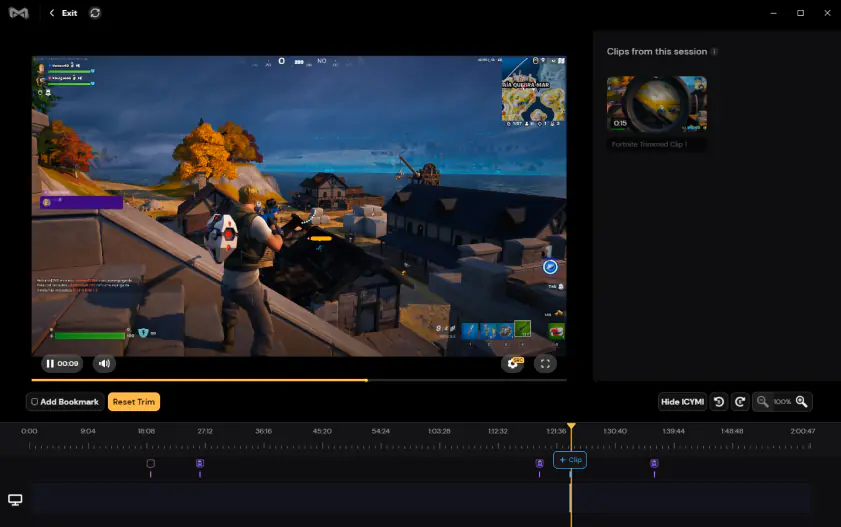
Medal.tv is the app I reach for when I want to capture and share the good bits fast. Running quietly in the background, it watches my gameplay and lets me choose how much to save – the last 15 seconds, a full 10-minute rush, whatever fits the moment. I’ve used it for Fortnite and Valorant clips, grabbing the best play and trimming it down instantly before sharing a link.

What makes Medal feel different is that it’s built around highlights first. The library is organized by game, and clips don’t get lost in random folders. It’s the kind of tool that makes you more likely to actually post your moments instead of leaving them buried on a hard drive. Users often mention that it runs fairly light on PC hardware, and the cloud-sharing setup makes it easy to send clips to friends or upload them quickly. It’s clipping made social, without demanding full editing skills. Recent updates expanded Medal’s built-in editor with more advanced trimming and creative tools, making it easier to polish clips before sharing.

Ratings

Cons:
  • Mixed review sentiment about stability

  • Some users note resource usage and bugs occasionally

Why I picked it: most customizable free clipping and streaming setup – the go-to for creators who want control.

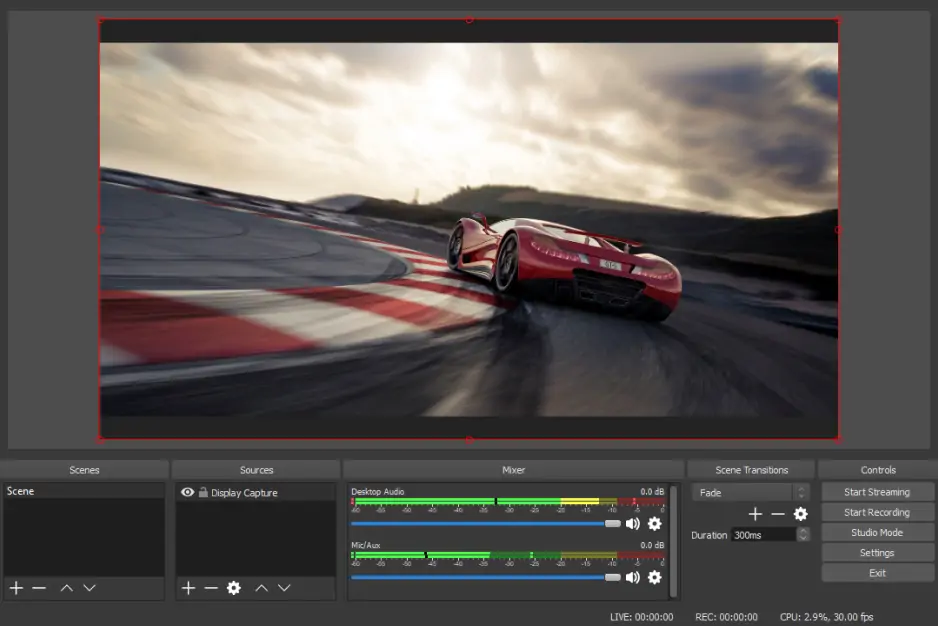
I gravitate toward this clipping software for gaming when I want flexibility. It isn’t just clipping software – it’s a full mixer, recorder, and streamer that happens to clip too. Using the Replay Buffer feature, you can save the last N seconds of gameplay with a hotkey, which is a lifesaver for last-minute highlights.

In practice, I’ll set up a couple of scenes, tweak audio sources, and add webcam layers before recording. Once it’s running, it feels like a control room for everything happening on screen. Because it’s open-source, the plugin ecosystem is huge, and you can customize almost every part of capture and output if you’re willing to learn.

OBS works on Windows, macOS, and Linux, and it’s one of those tools where the community support is half the product – guides, presets, and troubleshooting are everywhere. It takes more effort than one-click clippers, but the payoff is real control.

Ratings

Pros:
Cons:

Why I picked it: zero-hassle hardware-accelerated clipping/Instant Replay for NVIDIA users with minimal performance hit.

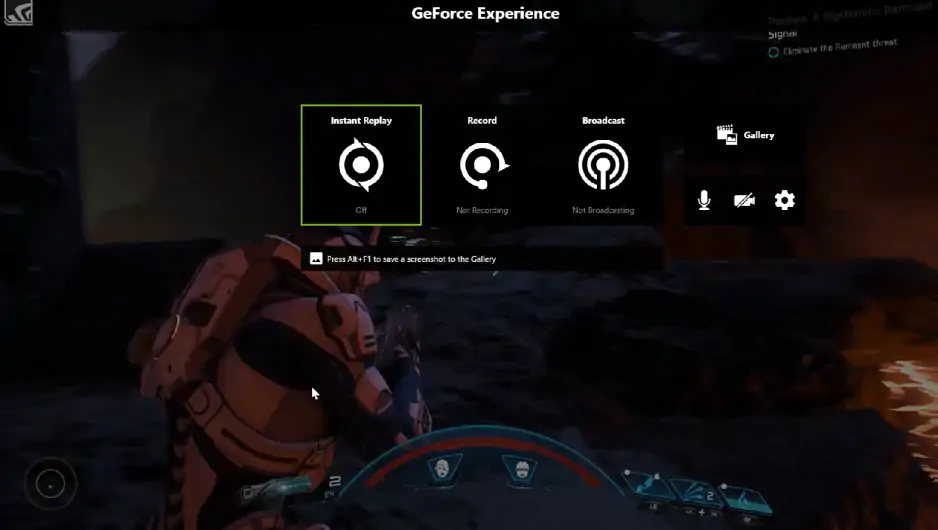
NVIDIA App is my go-to when I want effortless highlights, especially on an NVIDIA GPU rig. Launching a game, I can just press Alt+F10 and save the last few minutes of action – no menus, no fiddling, no second-guessing settings. It feels almost invisible, which is exactly what you want mid-match.

Because it leverages the GPU’s hardware encoder, the performance impact is tiny compared to software encoding. That means smooth gameplay even while clipping, which matters a lot in fast competitive titles. Instant Replay is the real star here – it makes sure nothing epic slips through, even if you weren’t recording actively.

It integrates neatly with GeForce Experience, so setup is quick, and you don’t need to build a complicated workflow. ShadowPlay isn’t for heavy customization, but for simple, high-quality highlight capture, it’s hard to beat if you’re already in the NVIDIA ecosystem. Recent updates tied ShadowPlay more closely into the new NVIDIA App, with an updated overlay and smoother high-FPS capture support.

Ratings

4.5

Pros:

Why I picked it: built-in AMD clip capture with low overhead – a simple clip-and-share tool for Radeon users.

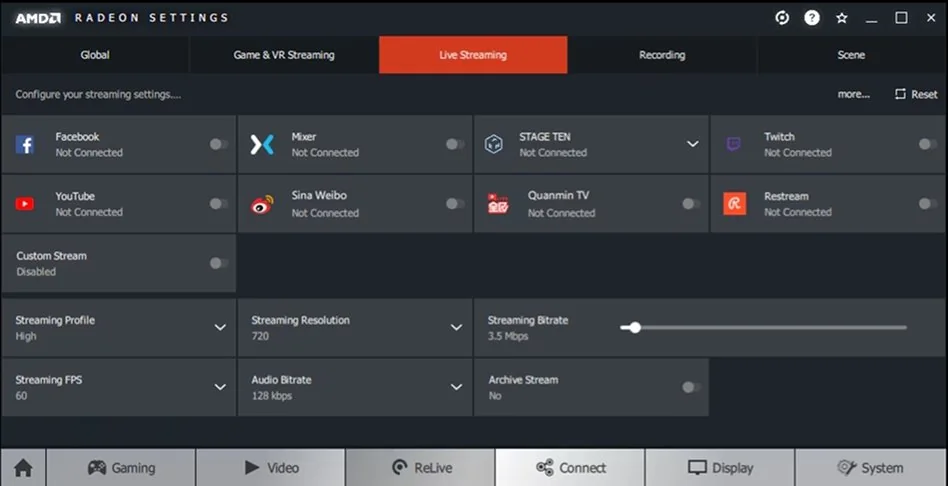
AMD Adrenalin’s ReLive, now part of Radeon Software, is the go-to for Radeon GPU owners who want quick clipping and recording without third-party installs. With it enabled, you can hit a hotkey and save gameplay highlights or broadcast live without noticing much performance impact.

In my tests, setting up hotkeys for recording and instant replay took minutes, and once it’s on, you almost forget it’s there. It quietly captures last-minute action, which makes it great for spontaneous highlights rather than planned recording sessions. The overlay is straightforward, and the built-in nature of the tool means it feels stable for everyday use.

ReLive isn’t as deep in features as OBS, and it doesn’t come with a full creative toolkit, but that’s not really the point. For clean, quick clipping on AMD hardware, it’s solid, dependable, and refreshingly simple – the kind of utility you enable once and keep running.

Ratings

4.5

Pros:
  • Integrated directly into AMD software stack

  • Low performance impact with hardware acceleration

  • Simple to configure clipping hotkeys

Cons:
  • Limited to AMD GPUs

  • Fewer advanced features than full recording suites

Why I picked it: built into Windows, instantly available, and surprisingly capable for quick clipping.

Xbox Game Bar is the tool I forget about until I need it – and then I’m glad it’s there. Built directly into Windows, it lets you press Win+Alt+G and save the last few moments of gameplay without installing anything extra. I’ve used it for quick Apex Legends highlights and even for recording parts of webinars, and it’s refreshingly simple. No accounts, no overlays fighting for attention, no complex dashboards.

It won’t replace a full recording suite, but that’s not its job. You can capture gameplay, record system audio and mic input, and tweak basic settings like frame rate and quality. For casual clipping or beginners who just want to save a good moment without downloading extra software, it works reliably. Recent updates have refined Game Bar’s performance and background recording stability, keeping it aligned with the broader Windows gaming ecosystem. It’s low commitment – already on your PC and ready when you are.

Ratings

Pros:
Cons:

Why I picked it: streamer-focused recording and clipping with built-in tools for live content.

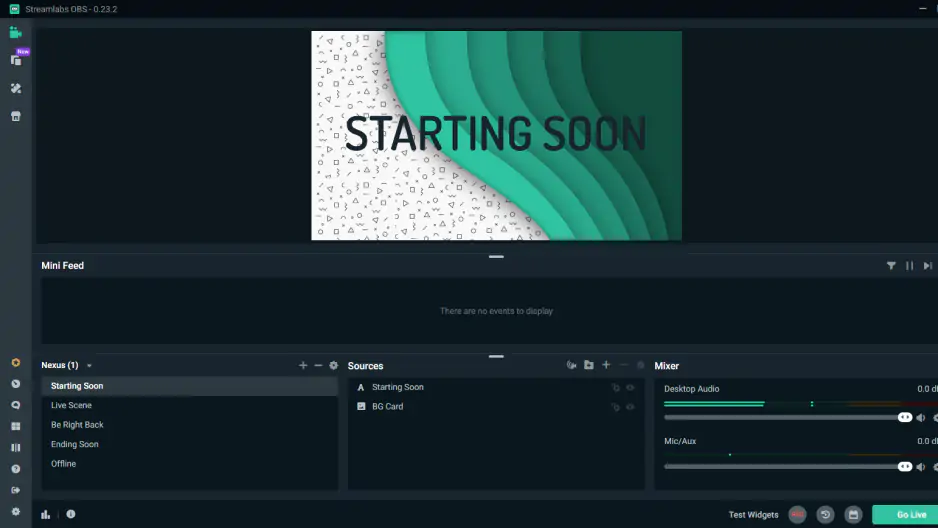
Streamlabs Desktop feels like OBS with a more guided setup. When I first opened it, the layout walked me through scenes, alerts, and recording options in a way that didn’t feel intimidating. For clipping, the Replay Buffer feature works similarly to OBS – you can save the last chunk of gameplay with a hotkey, which is perfect for unexpected highlights.

Where it stands out is the ecosystem around streaming. If you’re already broadcasting to Twitch or YouTube, it makes sense to keep recording and clipping inside the same tool. I’ve used it during live sessions and appreciated how easy it was to organize scenes and overlays without digging through endless settings. It’s heavier than simple clippers, and you’ll notice the system load on lower-end machines.

Ratings

Cons:

Why I picked it: automatic highlight detection built specifically for gamers.

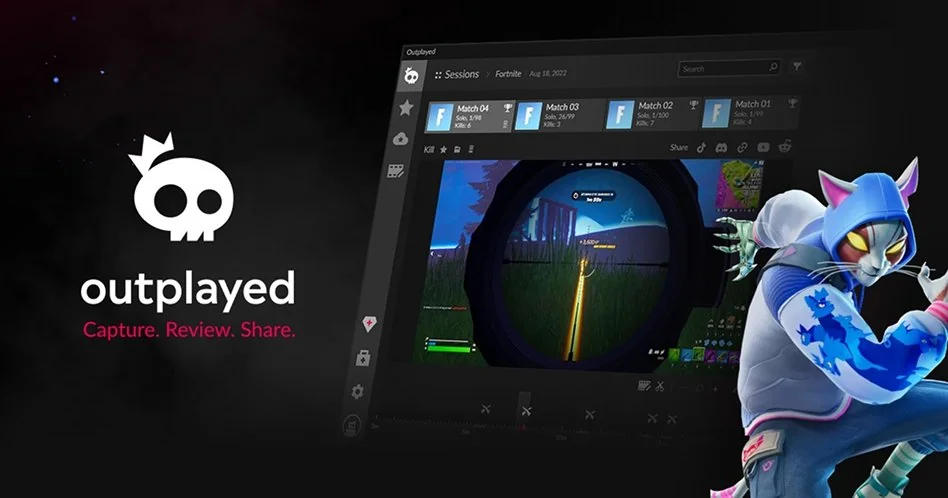
Outplayed.tv is designed around one idea: you shouldn’t have to remember to press record. Once installed through Overwolf, it automatically tracks supported games and captures key moments like kills or match wins. I tested it in competitive titles, and it quietly logged clips without interrupting gameplay. Later, I could browse everything in a tidy library sorted by session.

It’s not trying to be a full editor. Instead, it focuses on automatic clipping and quick trimming before export. The interface feels gaming-first, with minimal distraction and fast access to your latest highlights. For players who don’t want to manage scenes or recording parameters manually, that automation makes sense. Recent updates have expanded game support and refined clip detection accuracy, keeping the platform aligned with new competitive titles. It’s especially useful if you tend to remember to record only after something amazing already happened.

Ratings

Pros:
Cons:
  • Requires installing the Overwolf platform

  • Ads are included unless Premium is enabled

  • Some features depend on account plans and subscriptions

Why I picked it: high-quality recording with strong performance and flexible settings.

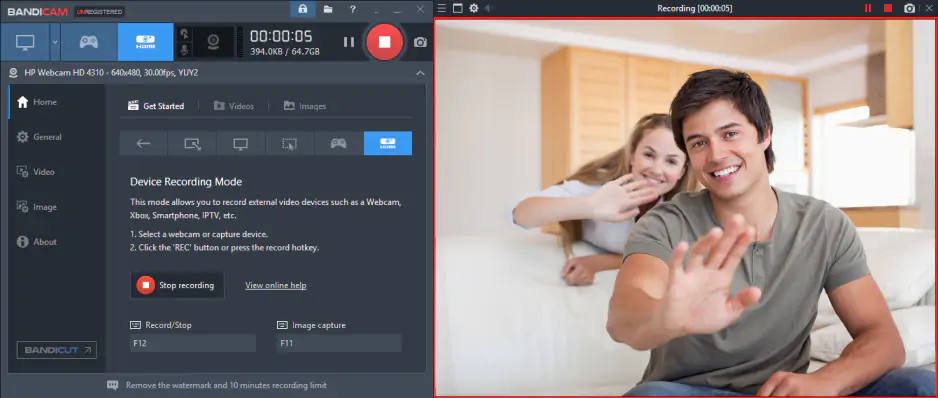
Bandicam has been around long enough that most gamers recognize the name. I’ve used it for capturing gameplay in 1080p and 4K, and what stands out is the balance between control and performance. You can fine-tune bitrate, codec, and frame rate, which makes it appealing if you care about output quality rather than pure automation.

For clipping, it doesn’t rely on highlight detection. Instead, it gives you solid recording tools and lets you trim footage afterward. The interface feels a bit more technical than one-click apps, but once you understand the layout, it’s straightforward. Hardware acceleration support helps keep performance steady during longer sessions. Recent updates improved codec compatibility and recording stability on newer Windows builds, keeping it relevant for modern systems. If you want reliable video capture with detailed control over settings, Bandicam still holds its ground.

Ratings

Cons:
  • Free version adds watermark and limits recording time

  • Minimal built-in editing compared to full video suites

  • Only available for Windows

Why I picked it: easy screen recording with built-in trimming for fast clip creation.

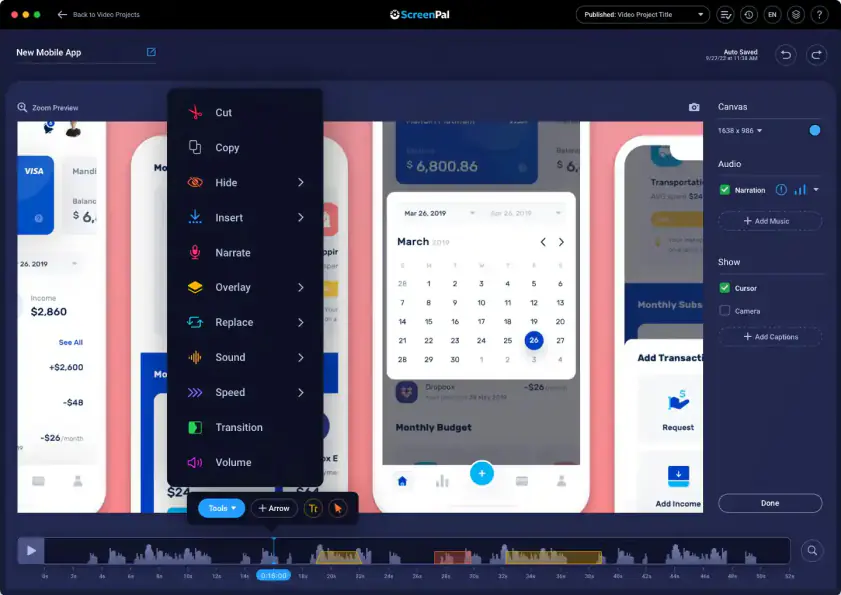
ScreenPal feels more general-purpose than gaming-specific, and that’s actually its strength. I’ve used it to capture tutorial clips, short gameplay snippets, and quick software demos. You record your screen, trim the start and end inside the same interface, and export in a few clicks. The workflow is simple enough that you don’t need a manual or prior editing experience.

It supports webcam overlays and basic editing tools, which makes it useful beyond gaming. For clipping, it’s more manual – you record first, then cut the parts you want. But for creators who mix gameplay with instructional or commentary content, that flexibility helps. The platform continues to roll out UI refinements and collaboration-focused improvements under the ScreenPal brand, reflecting its shift toward a broader content creation ecosystem. It’s practical, clean, and approachable.

Ratings

Cons:

Why I picked it: lightweight gameplay recording with customizable overlays and detailed performance monitoring.

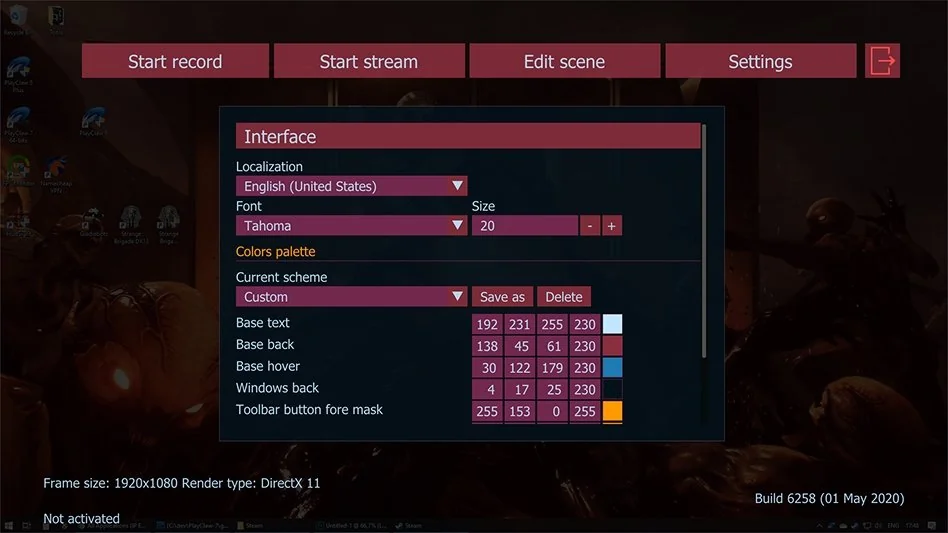
PlayClaw feels like a throwback in the best way – focused, direct, and built specifically for gamers who like control. The first time I launched it, I noticed how much emphasis it puts on in-game overlays. You can monitor FPS, CPU, GPU, and other stats while recording, which makes it especially appealing if you like tweaking performance while you capture. I’ve used it in fast shooters and competitive matches, and it stays fairly lean compared to bulkier streaming suites.

Recording quality is flexible, with hardware acceleration support and detailed configuration options for codecs and bitrate. It’s not trying to be an all-in-one streaming ecosystem; instead, it sticks to solid capture tools and customizable overlays. Recent versions continue refining compatibility with modern GPUs and Windows builds, keeping it relevant for current systems. If you enjoy seeing your performance metrics live while clipping gameplay, PlayClaw delivers that niche surprisingly well.

Ratings

3.0

Why I picked it: ultra-fast, no-recompression video trimming for creators who value speed and quality retention.

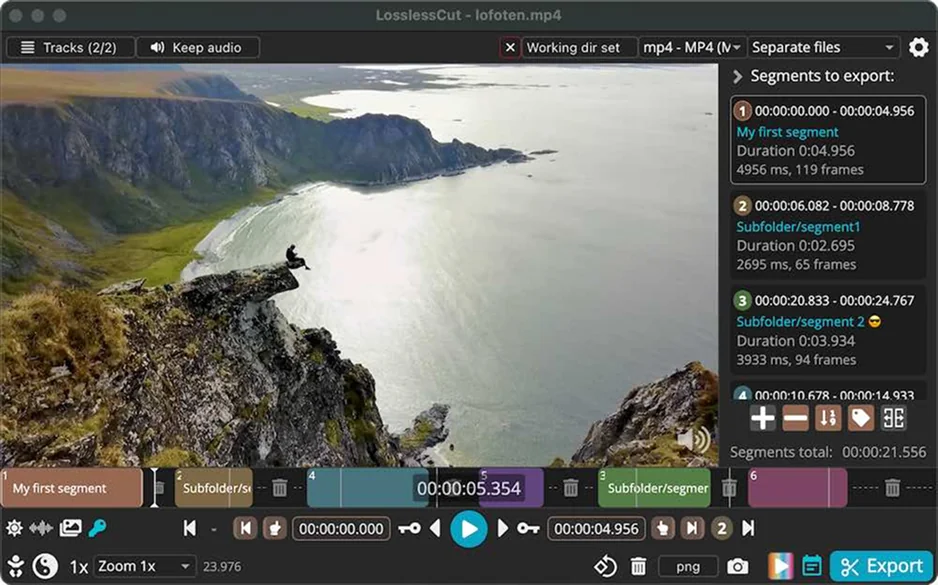
LosslessCut is the tool I reach for when I already have footage and just need it trimmed – fast. It doesn’t re-encode your video by default, which means you can cut large gameplay files in seconds without sacrificing quality. The interface is minimal, almost stark, but that’s part of the charm. You load a file, set in and out points, and export. Done.

I’ve used it after long OBS recording sessions where I only needed the best 30 seconds. Instead of waiting for another render, LosslessCut slices the clip directly from the source. It supports a wide range of formats via FFmpeg and works across platforms, which makes it handy beyond gaming. Recent updates have improved format support and stability, with changelogs documenting frequent refinements and bug fixes. It’s not an editor in the creative sense – it’s a precision knife. And sometimes that’s exactly what you need.

Ratings

Pros:
  • Lossless trimming/cutting (no full re-encode by default)

  • Great for huge files – fast “slice out the good parts” workflow

  • Free and open-source with frequent updates

Cons:
  • Not a full editor (minimal creative tools)

  • Precision cuts can be tricky due to keyframes (depends on codec/file)

  • UI/workflow can feel technical for beginners

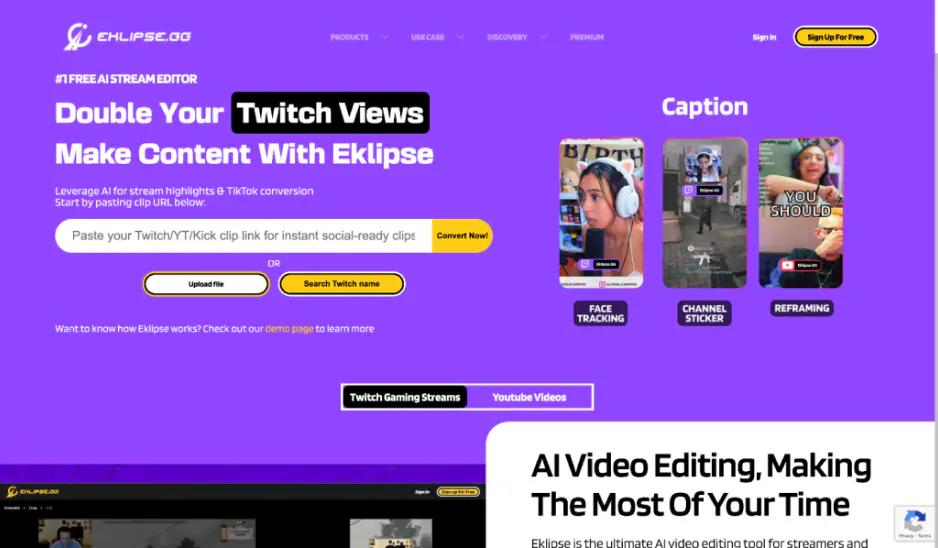
Why I picked it: AI-powered automatic highlight generation for streamers who don’t want to edit manually.

Eklipse feels like outsourcing your highlight reel to a robot assistant. After connecting your Twitch or YouTube account, it scans your streams and automatically extracts what it thinks are the best moments. I’ve tested it with long VODs, and it’s impressive how quickly it generates shareable clips without me touching a timeline.

It’s cloud-based, so there’s nothing heavy to install, and the dashboard keeps everything organized by stream session. You can tweak clips and resize them for TikTok or Shorts, which makes it clearly built for modern content workflows. Over the past two years, Eklipse has rolled out improvements to AI detection and expanded short-form export tools, reflecting the broader shift toward vertical video content. It’s not perfect – AI can miss context – but for creators who don’t want to scrub through hours of footage, it’s a serious time-saver.

Ratings

Pros:
  • AI automatically turns streams into highlights

  • Built for Shorts/Reels/TikTok-style exports

  • Clear free vs Premium plan breakdown (limits, quality, watermark removal)

Cons:
  • AI isn’t perfect – can miss context or pick “meh” moments

  • Free plan limits push you toward Premium (quality/limits/watermark)

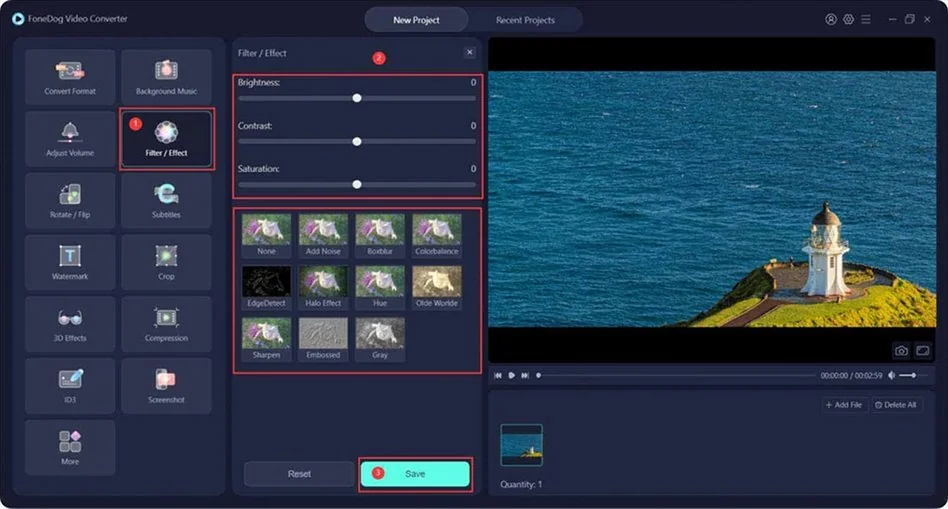
Why I picked it: clean, beginner-friendly screen recording with flexible capture modes.

FoneDog Screen Recorder feels approachable from the first click. The interface guides you through screen, webcam, or audio-only recording without overwhelming you with pro-level jargon. I’ve used it for capturing gameplay segments as well as tutorials, and it handles both comfortably. You can define recording regions, schedule sessions, and adjust output quality without digging through complicated panels.

It supports system and microphone audio capture, along with basic annotation tools, which is useful if you’re creating instructional content alongside gameplay. Hardware acceleration options help keep recordings smooth. In 2024 and 2025, updates focused on performance optimization and compatibility with newer macOS and Windows versions, according to official release notes. It’s not aimed at hardcore streamers – it’s more for creators who want clarity and ease without friction.

Pros:

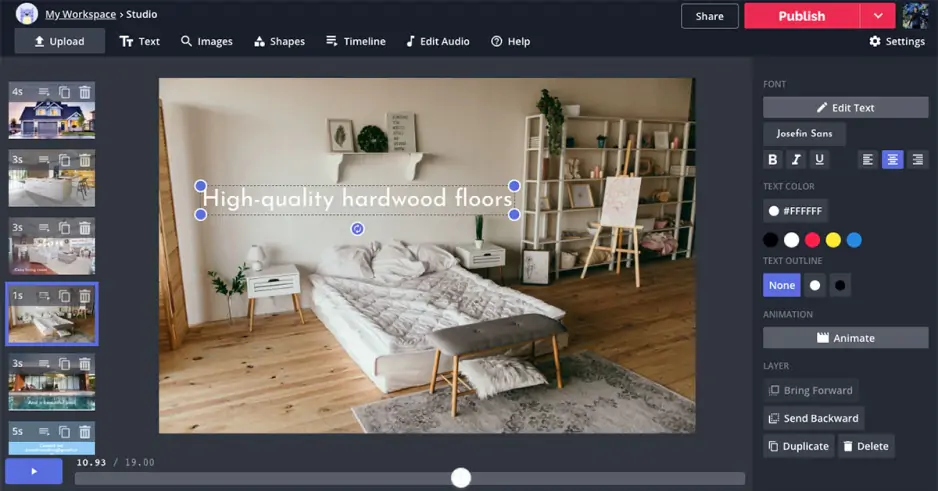
Why I picked it: browser-based video editing and clipping with built-in tools for social media formats.

Kapwing is the kind of tool I open in a browser tab and forget I’m not using desktop software. It’s fully cloud-based, which means I can upload a gameplay clip, trim it, add subtitles, and resize it for Shorts or TikTok without installing anything. The interface feels modern and collaborative – more like a shared workspace than a traditional editor.

I’ve used it to turn raw gameplay highlights into captioned social clips in minutes. Automatic subtitle generation and smart resizing tools make it particularly strong for creators focused on social platforms. Over the recent years, Kapwing has continued expanding AI-driven editing features and collaboration tools, as outlined in their product updates. It’s not built for heavy 4K timeline work, but for fast, web-based clipping and publishing, it’s impressively efficient.

Ratings

Pros:

How to choose the best clipping software for a PC

Here’s the easy matchmaker version of clipping software for a PC:

  • I want instant replay with almost zero setup.

Pick Xbox Game Bar if you’re on Windows and want “it’s already there” convenience. If you have the right GPU, go with NVIDIA App or ReLive (AMD) – they’re built for low-overhead capture.

  • I want something simple that still feels polished and creator-friendly.

That’s where Gecata by Movavi really shines. It gives you quick hotkeys, smooth recording, and an interface that doesn’t demand a tech degree before you start clipping.

  • I want a clip library that nudges me to actually share my highlights.

Medal.tv is the most “post-friendly” option – record, trim, and get it out of your folders and into the world. Outplayed is great if you love automation and want your matches organized by session.

  • I stream (or want to), and I like tools that grow with me.

OBS Studio is the deep end – but it rewards you with control. Streamlabs Desktop is the guided version, with a streaming ecosystem baked in.

  • I care about clean cuts after the fact.

LosslessCut is the “surgical scissors” choice when you already have footage and want fast trimming without quality loss. Bandicam is better when you want detailed capture settings upfront, then trim later.

  • I’m on a laptop and I need simple, reliable, not-too-heavy tools.

Start with Gecata or Game Bar, then upgrade to Medal.tv if you want a nicer library.

One more practical tip: if your goal is game clipping software that supports gameplay with overlays, go OBS (scenes), Streamlabs (guided overlays), or PlayClaw (performance stats overlay vibe).

Gecata by Movavi
Simple and solid game recorder and streaming program
Gecata by Movavi

Frequently asked questions

What is the best clipping program?

If you want the best “set it and forget it” experience, Gecata by Movavi is the balanced pick – easy hotkeys, straightforward setup, and a workflow that doesn’t feel like a cockpit. If you’re more of a tinkerer, OBS Studio can become whatever you need (instant replay, overlays, audio control), but you’ll spend a little time learning it.

What is the best AI clipping software?

Eklipse.gg is the clearest AI-first choice here: it’s designed to generate highlights from longer content with a browser workflow that doesn’t require installation. It’s especially handy if you’re streaming and want shorts without manually digging through VODs.

What is better than Medal clipping software?

“Better” depends on what you want to beat. If Medal feels too social or you want more control, OBS Studio is the upgrade – more setup, more power. If your priority is minimal performance impact and instant replay, ShadowPlay or ReLive can feel smoother because they’re built into your GPU ecosystem.

Which app is best for clipping?

For Windows, Xbox Game Bar is the quickest app choice because it’s already part of the OS and works instantly for simple clips. If you want an app that builds highlight habits, Medal.tv is the friendliest. And if your clipping is tied to streaming content, Eklipse is a strong AI companion.

Have questions?
Have questions?
If you can’t find the answer to your question, please feel free to contact our Support Team.
Join us for discounts, editing tips, and content ideas

1.5M+ users already subscribed to our newsletter

By signing up, I agree to receive marketing emails from Movavi and agree to Movavi's Privacy Policy.