

12 Best Free RAW Photo Editors in 2026

Try Movavi Photo Editor

  • Image restoration with neural networks
  • Effective object and background removal
  • Automatic photo enhancement in one click
  • User-friendly interface with tips

By clicking the download button, you're downloading a trial version of the program.*

Edited by
Ben Jacklin
4231

Key takeaways

  • I put together this list because RAW photos need proper care, and not every software processes them nicely. Picking the right RAW photo editor can save time, keep detail, and actually make editing enjoyable, instead of frustrating.
  • Movavi Photo Editor, Darktable, Raw Therapee, Adobe® Lightroom®, Darkroom, Snapseed, VSCO, Affinity Photo 2, Photopea, PhotoKit, Fylm.ai, and Polarr all tackle raw photo editing differently. Some rely on manual control, others nudge you with AI suggestions.
  • Free RAW editor tools like Darktable, Raw Therapee, and Photopea run on a PC without cost, while mobile apps such as Lightroom®, Darkroom, and Snapseed make quick edits easy on the go.
  • Each tool has quirks. Export options, retouching depth, and interface design can make a huge difference in your workflow. Check before you dive in.
  • Simple moves often matter more than heavy adjustments. Playing with exposure, sharpness, and color balance gave me the best results across almost all programs.
  • Devices change the experience. Big RAW files felt smoother on a PC, while iPad and mobile apps let me experiment faster, but sometimes lost fine detail.

RAW photos don’t lie – they capture everything, even the tiniest flaw in lighting or color. That’s why a solid RAW photo editor isn’t optional. It’s indispensable. I’ve spent hours running tests on every program here, from tweaking shadows in Darktable to nudging highlights in Snapseed, and sometimes I even made the same photo look completely different just for fun.

These editors are a must-have because they turn a flat, untouched shot into something precise and alive, letting you control every detail without losing quality. After hands-on testing, I’ve rounded up the top apps that deliver the best results for free. Whether you’re stepping into RAW photography for the first time or want to sharpen your editing workflow, this guide shows which free RAW photo editor really earns its spot.

My top picks

Best overall – Movavi Photo Editor
Smooth, fast, playful editing that never feels complicated.

Best free RAW editor – Darktable
Powerful RAW tools, fully free, works solid on PC.

Best quick mobile edits – Snapseed
Tiny app, huge control, excellent for fast color tweaks.

Best iPad precision – Affinity Photo 2
Pro tools, layers, and gestures designed for tablet mastery.

Best browser editing – Photopea
No install needed, RAW files handled surprisingly well online.

Best AI-assisted – Fylm.ai
AI nudges photos in creative directions you didn’t expect.

Comparison table: Best RAW photo editors

App

Platform

Key strength

Notes

Download

Windows, macOS

Smooth workflow, versatile tools

Best overall, intuitive interface

Windows, macOS, Linux

Full RAW support, advanced adjustments

Best free RAW editor, highly detailed controls

disclaimer_person
Our goal is to provide you with only verified information. To ensure this, Movavi Content Team does the following:
  • When selecting products to include in our reviews, we research both demand and popularity.

  • The team tests all the products mentioned in this article.

  • When testing, we compare the key characteristics of the products, which include selecting capture area, schedule recording, showing keystrokes and mouse, and other significant features.

  • We study user reviews from popular review platforms and make use of this information when writing our product reviews.

  • We collect feedback from our users and analyze their opinions of Movavi software as well as products from other companies.

Best free RAW editors for Windows and macOS

  • Why I picked it

    I wanted a RAW editor that lets me tweak images fast without hunting through menus

Widely known for packing many tools into a clean layout, Movavi Photo Editor now feels noticeably stronger thanks to its 6.0 upgrades, but I’ll discuss them a bit later. First things first – the definition of this capable RAW photo editing software. Movavi Photo Editor handles RAW files without effort.

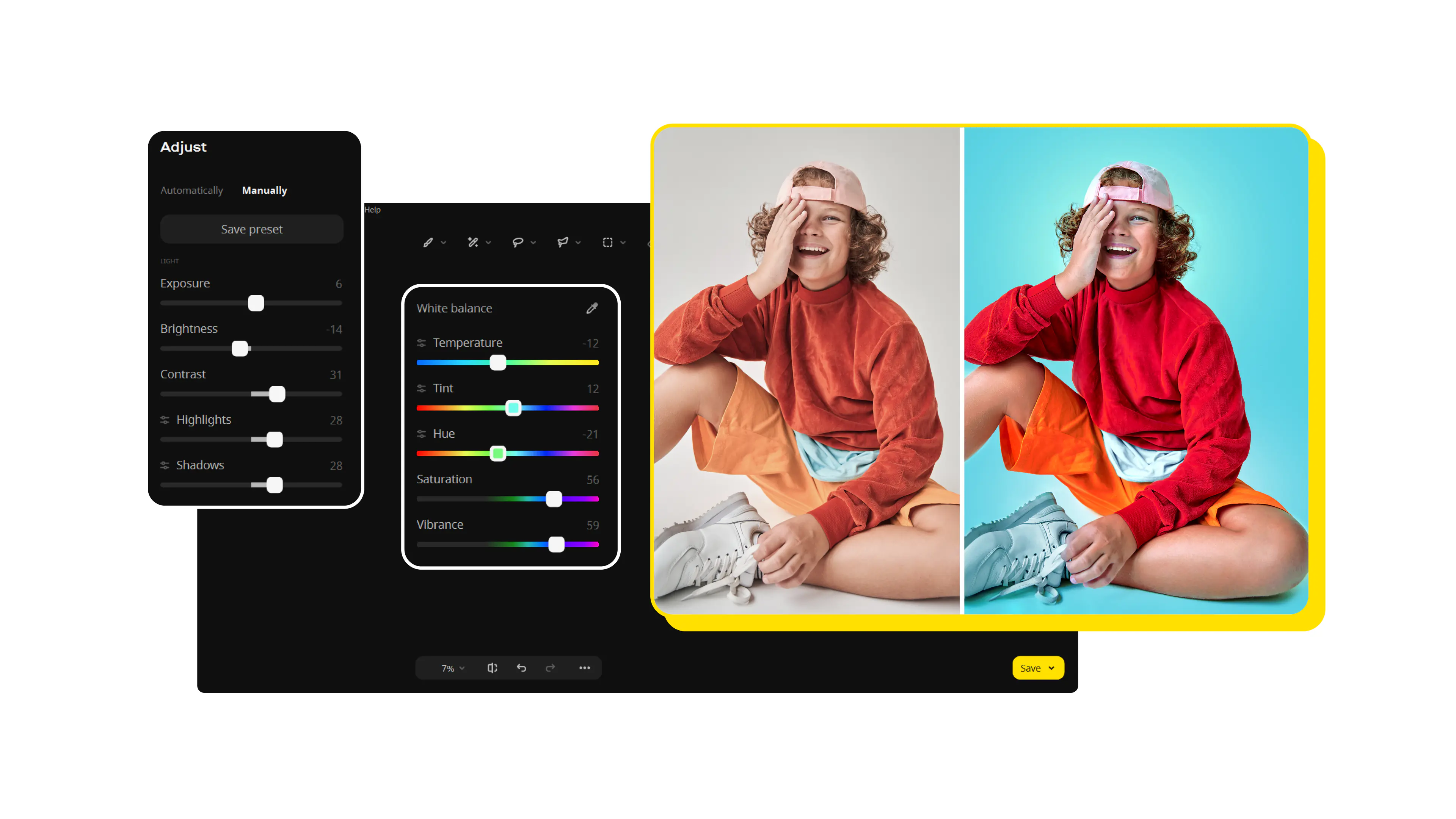
The full version costs money, yet the trial lets you explore almost everything. You cannot export RAW in the free mode, but you can open the file, test each panel, and see how the program behaves. Beginners get clear controls for color and retouching, so the learning curve stays light. More advanced users get fast access to object removal, background swap, portrait tools, and a solid library of effects.

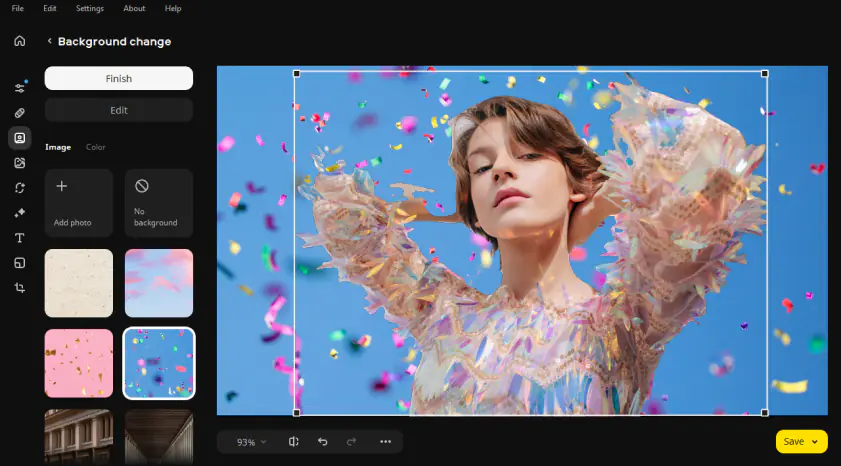
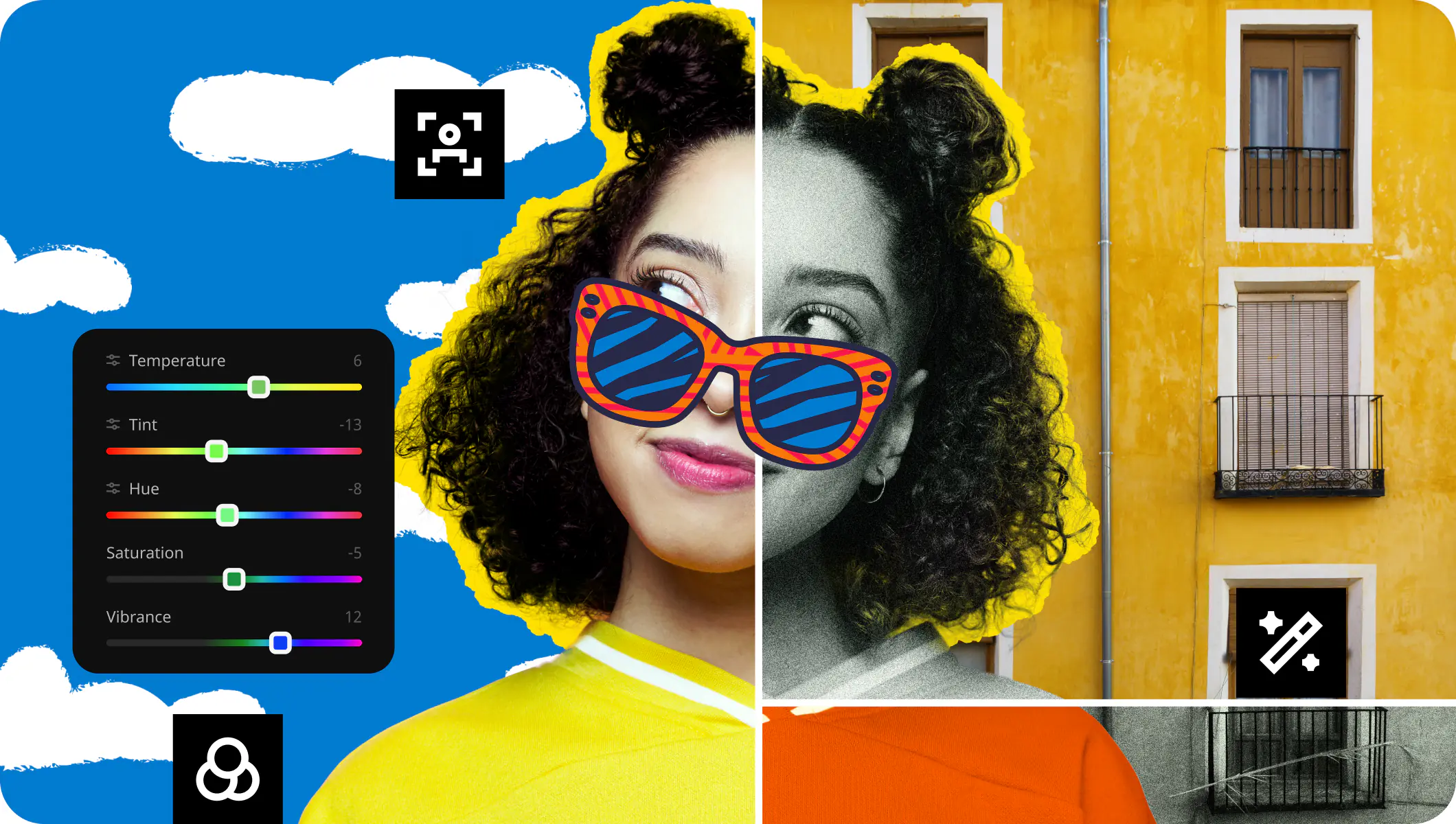
Now, the new stuff. The latest 6.0 update brings three practical additions: a stronger neural-network enhancement tool for cleaner one-click color fixes, a selective-area editing module for adjusting only part of the image, and a fresh frames/collage feature that lets you build simple layouts without using another app. These upgrades make the editor more flexible and noticeably faster for everyday corrections.

To see Movavi in action, I opened a set of landscape RAW photos from a morning hike. The selective-area tool brightened a dark foreground without touching the sky. AI enhancement boosted colors naturally, and I added a quick frame for social sharing. The images looked ready in minutes.
Ratings

Pros:
  • Clear layout for new users

  • AI engine improves color in one click

  • Selective-area edits add useful control

  • Handles many RAW types and standard formats

Cons:
  • Trial blocks RAW export

  • Heavy filters slow down older machines a bit

How to edit RAW photos with Movavi Photo Editor

Wondering how to edit RAW photos? With Movavi Photo Editor, one of the best free RAW editors available, the process is simple. Follow these steps to learn how to edit RAW images:

Step 1. Download and install Movavi Photo Editor

Download the installation file and install Movavi Photo Editor on your computer. The program will automatically launch once it has finished installing.

Step 2. Choose the image you want to edit

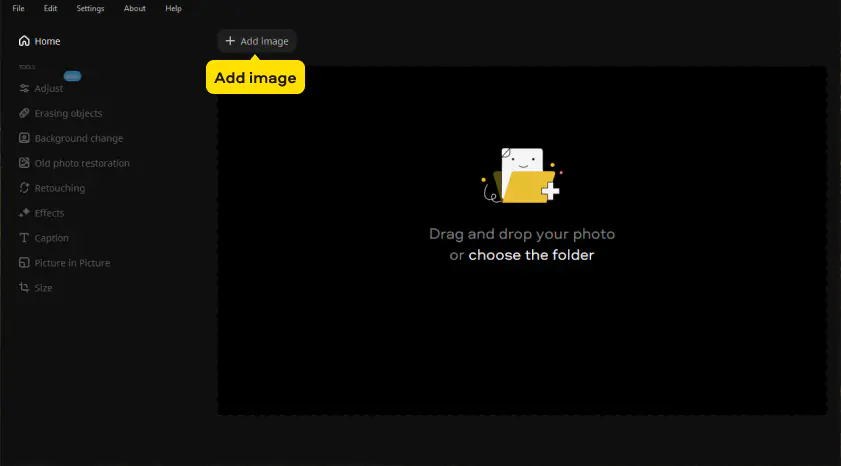
Hopefully, you’ve already selected a photo for editing. If you haven’t, go take one! Once you have, click the Add image button to select the image you want to edit. Make sure it’s in the correct format.

Step 3. Start editing

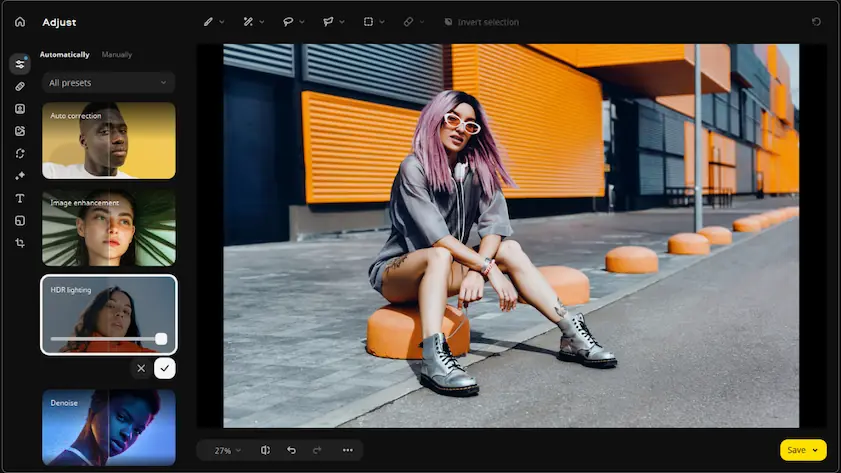
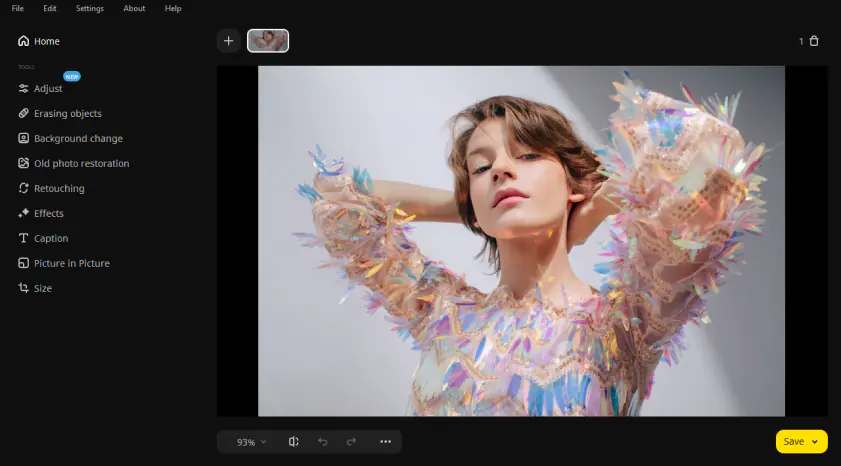
With your RAW image successfully loaded into Movavi Photo Editor, you can get to work. The program has a variety of tools for you to explore.

You can enhance your photos, retouch individual faces, remove unwanted objects (including the entire background!), and much more. Explore what’s possible yourself or take a look at one of the many tutorials available online to see what’s possible.

Step 4. Save your photo

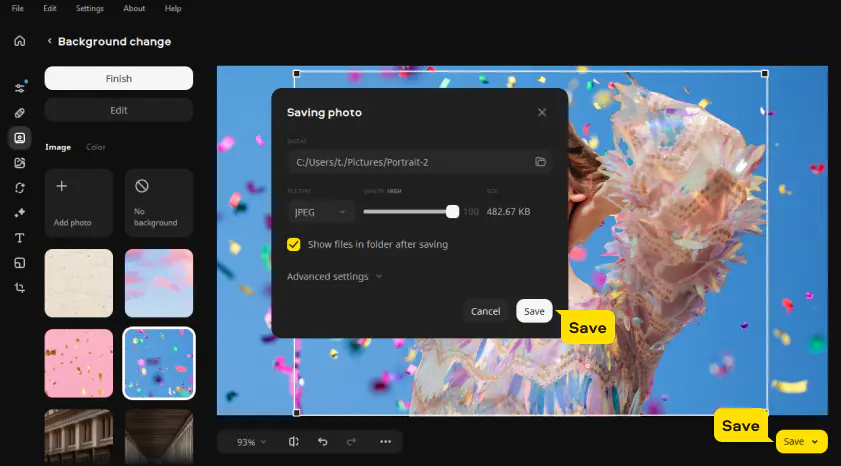
When you finish editing, click the Save button in the lower-right corner of the program window. Specify the saving settings and then click the Save button.

  • Why I picked it

    I wanted a free RAW photo editor that could handle serious color control without paying a cent

Next in line of the best free RAW image editor software is Darktable. It’s an open-source platform for photographers who want control over RAW files without modifying the original shots.

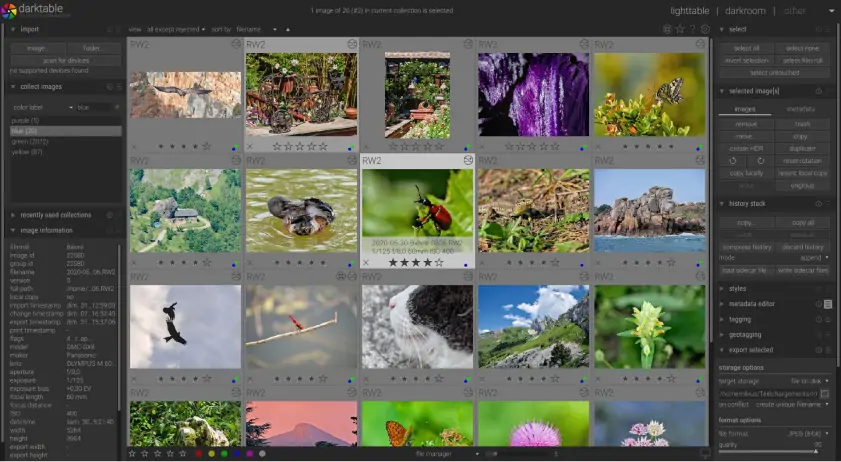
Once installed, it sorts your RAW footage into a searchable library with tags, ratings, and color labels. You can jump between thousands of images without slowing down. The interface separates library and development modules. You can adjust exposure, color, and tones with precision. Sliders, masks, and panels manage local edits. GPU acceleration and caching keep large files responsive.

It supports a host of RAW formats, from CR2 and NEF to RAF and HDR. Edits stay non-destructive, color is managed through ICC profiles, and exports cover JPEG, TIFF, PFM, and EXR. Tethered camera support and Lua scripting make batch work and live shoots faster.

Darktable keeps evolving – version 5.2.1 (mid-2025) added new camera profiles, refined noise handling, and small UI tweaks. It runs on Windows, macOS, and Linux, and translations cover more than 20 languages.

I worked on a set of morning hike CR2 shots. Local masks brightened the shadows while leaving the sky untouched. A subtle contrast tweak followed, and I exported JPEG previews for sharing. Even with multiple large RAW files open, everything stayed responsive, and all edits left the originals intact.

Ratings

Pros:
  • Non-destructive workflow protects originals

  • Efficient with large RAW libraries

  • Precise color control via ICC profiles

  • GPU acceleration and caching keep edits smooth

  • Free, open-source, and expandable with scripts

Cons:
  • Steep learning curve for newcomers

  • Dense interface takes time to adjust

  • Some tethering works only with certain cameras

  • Why I picked it

    it feels too good to be free, yet it really is

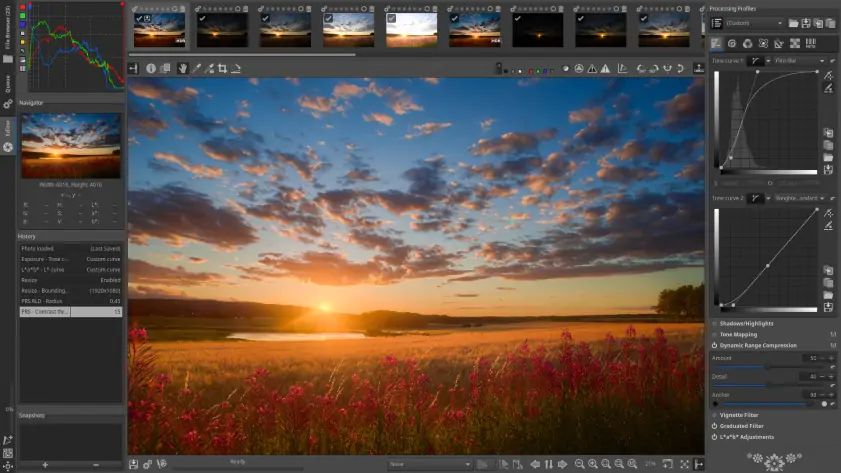
Raw Therapee is also an open‑source, free RAW photo editor. The program works on Windows, macOS, and Linux; supports the most popular cameras and file types. The platform offers HDR tone mapping, exposure correction, bar graph matching, noise reduction, and a variety of enhancement tools. You can adjust curves, manage white balance, and handle multiple images at once. The interface takes some time to get used to, but every panel has a purpose.

The 5.12 update emerged on May 28, 2025. It added a handful of nice extras, such as a Dehaze feature for black-point correction, a de-fisheye tool for wide-angle lenses, and ACES-based Gamut Compression for saturated colors. It also supports demosaiced floating-point DNGs, which helps with HDR workflows

I brought Raw Therapee into play on a series of outdoor portraits shot with a Nikon Z6 in late afternoon sunlight. The HDR tone mapping helped balance shadows and highlights across tricky lighting. I used the noise reduction tools to clean up subtle grain without softening skin textures. The Gamut Compression kept colors vivid yet controlled, and I could fine-tune each image with precision. Exporting multiple files at once saved me time when preparing a portfolio set.

Ratings

Pros:
  • Free under GPLv3

  • Supports multiple RAW formats

  • Advanced color and exposure tools

  • Works on Windows, macOS, Linux

  • Precise control over image details

Cons:
  • A bit harder learning curve compared to other popular tools

  • Can lag with large files

  • Limited beginner tutorials

Best mobile RAW image editors

4. Adobe® Lightroom® (iOS & Android)

  • Why I picked it

    I needed a mobile RAW photo editor that handles exposure and color with accuracy

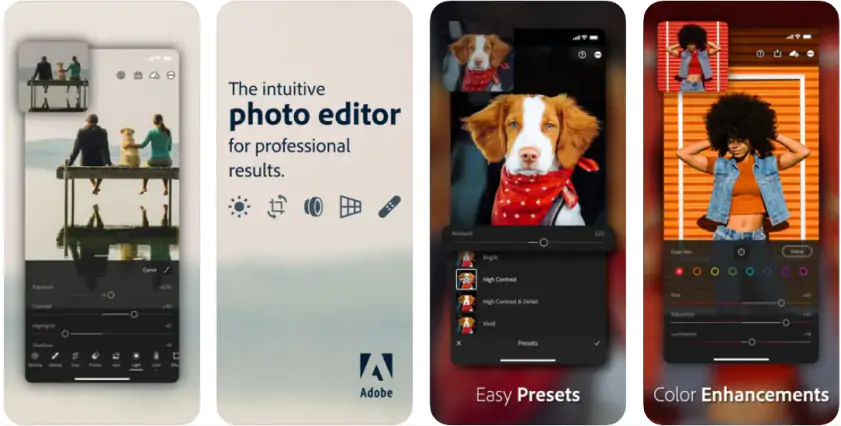
Now, it’s time to touch on the best mobile RAW image editor programs because more photographers shoot on the go, and Adobe. Lightroom® puts powerful RAW editing tools right on your iOS or Android device. I can define it as a modern mobile program for capturing, editing, and sharing photos and videos.

It’s available for free with basic tools and one-tap presets, but it offers premium features like advanced AI editing (Generative Remove, Lens Blur), RAW photo support, and seamless sync across devices with a paid Creative Cloud subscription.

It brings professional editing tools to your phone or tablet, simplifying complex tasks with intelligent one-tap Quick Actions and allowing for precise adjustments to light, color, and backgrounds anywhere.

While Adobe does allow you to edit RAW photos online, downloading Lightroom® gives you the full experience. The app works on all major operating systems, including Mac and Windows 10, and the mobile version runs on both iOS and Android.

Technically, there are three versions of Lightroom®. The mobile version and two desktop versions: Lightroom® CC stores files on the cloud, while Lightroom® Classic CC keeps them locally.

Classic CC offers more features, but all versions let you import, organize, process, and edit RAW images. Presets simplify styles, and the app provides a solid RAW file editor along with a library for organizing images.

The team behind the project regularly gives out updates and fixes. The most recent one took place in October 2025, introducing features like Assisted Culling, Dust Spot Removal, Color Variance, and more.

I used Lightroom® on an afternoon landscape session with my iPad. RAW files from my Canon camera were easily adjusted for highlights and shadows. I experimented with color tones and clarity, and exporting images to share online was fast and smooth.

Ratings

Pros:
  • Works with other Adobe products

  • Powerful tools for editing

  • Large library of filters

  • Neat, modern interface

Cons:
  • Tougher learning curve than simpler apps

  • The free version has limitations

  • Premium services are quite expensive compared to others

Quick summary: Best RAW photo editors

  1. Movavi Photo Editor

    Best for fast, versatile all-in-one RAW editing

  2. Darktable

    Best for full RAW control at zero cost

  3. Raw Therapee

    Best for precise color and exposure adjustments

  • Why I picked it

    easy to use, flexible filters, powerful RAW tools

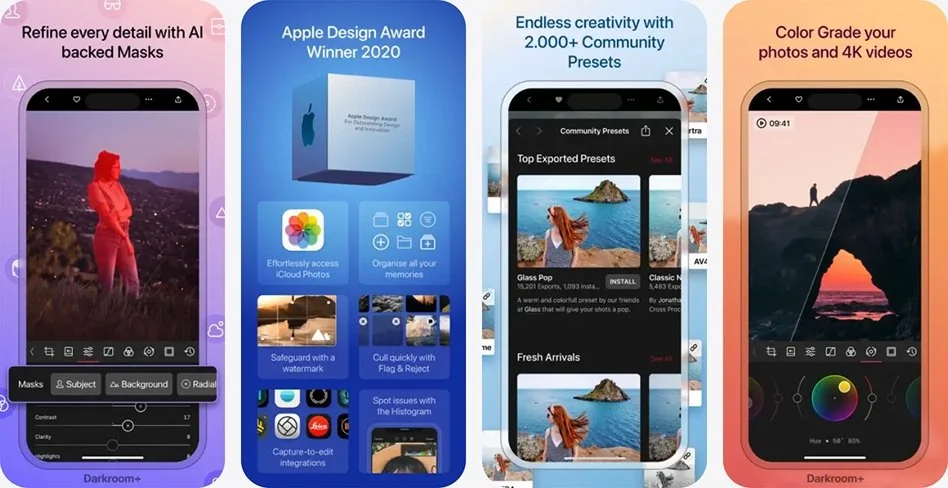
Modern Smartphone cameras are really powerful, but you probably still notice shots that could benefit from a little editing touch, so this is where Darkroom comes in handy. It is a mobile RAW photo editor built for iPhone, iPad, and Mac users.

Darkroom packs the essential tools for mobile RAW editing: Curves, Selective Color, masks, batch processing, and 4K video. You can adjust tones, colors, and perspective across devices, while edits remain nondestructive and presets are fully customizable.

The app keeps control simple on smaller screens. Pre-made effects and filters are adjustable, and you can create your own. Siri shortcuts let you handle basic edits hands-free. Darkroom chiefly caters to photographers who want strong RAW editing on the go, especially those who rely on iOS devices and prefer a hands-on, intuitive workflow. Updates and fixes are really frequent, showing up nearly every month.

I tried Darkroom on a set of RAW photos from a rainy afternoon in the city. I lifted the midtones to bring out building textures and slightly cooled the overall color. Using masks, I isolated reflections in puddles without changing the rest of the scene. The edits were accurate, and batch processing let me apply the same adjustments to several images in seconds.

Ratings

Pros:
  • Free download

  • Works directly with Apple Photos

  • Automate edits with Siri shortcuts

  • Advanced RAW editing tools

Cons:
  • Subscription needed for full features

  • Smaller feature set than desktop editors

  • Can lag with very large RAW files

6. Snapseed (iOS & Android)

  • Why I picked it

    totally free RAW editing without compromising essential tools

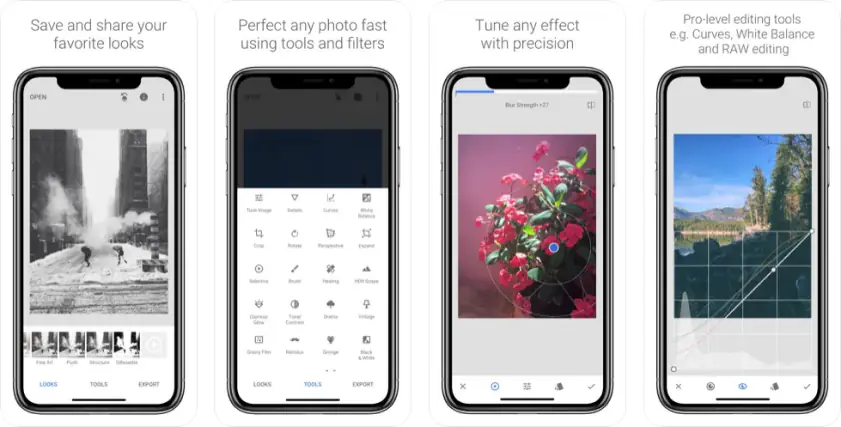
Let’s be honest: not every photographer wants to spend money before even knowing if RAW editing is for them. Snapseed is perfect in that case. It’s completely free, and that doesn’t mean it’s basic. The app gives you full control over your RAW images without asking for a single cent.

Snapseed covers all the essentials: cropping, rotating, and tuning exposure. But, it also throws in tools you may not expect for freeware, like healing, perspective correction, and selective adjustments. You can apply filters with one tap or tweak precise areas of a photo.

It runs smoothly on iPhone, Android handheld devices. But we all know that most of the higher-end image and video editing is done on computers, so it does have a dedicated downloadable version for Windows and macOS.

The team was not releasing any major drops for several years. But surprisingly, Snapseed got a big 3.0 update in mid‑2025. Its interface changed to a grid layout with a floating “plus” button, a new toolbar layout, and a set of film‑inspired filters.

As an enthusiastic photographer, I love testing new tools to polish my RAW footage with. So I tested Snapseed on a set of RAW landscape shots from a cloudy afternoon. I corrected the horizon lines using the perspective tool and brightened just the sky without touching the foreground.

The healing tool helped remove unwanted power lines, and selective adjustments let me enhance tree colors subtly. Working with Snapseed felt surprisingly responsive, and I could move quickly between images without losing quality.

Ratings

Pros:
  • Completely free with all features included

  • Simple and intuitive interface

  • Runs on iOS, Android, and desktop computers

  • Essential and advanced tools, including healing and perspective

Cons:
  • Color grading is less precise than paid RAW editors

  • Fewer advanced features than premium apps

  • Limited batch processing capabilities

7. VSCO (iOS & Android)

  • Why I picked it

    versatile mobile RAW editing with a strong creative community and film-inspired filters

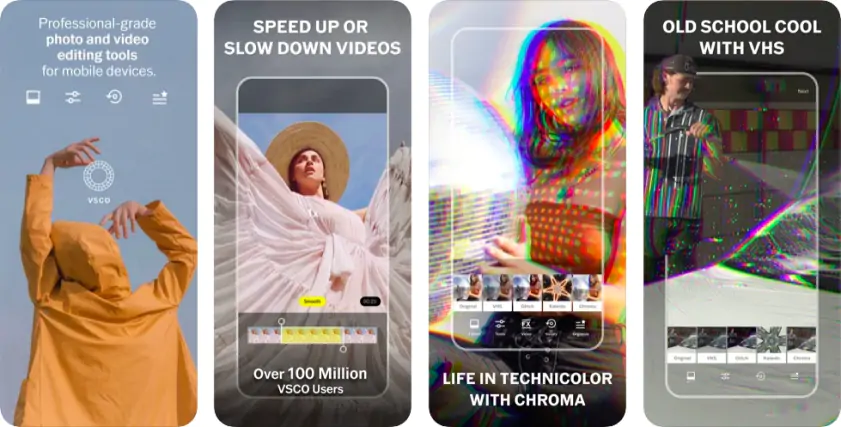
VSCO is a well-known photography app available on iPhone, iPad, Apple TV, visionOS, Android, and through a web/desktop app, but here I’m focusing on the mobile experience. It combines RAW photo and video editing tools with hundreds of professional-grade filters.

You can adjust contrast, saturation, grain, fade, HSL, and more – while keeping edits nondestructive. The app also lets you save favorite edits as “Recipes.” That’s really useful because it makes applying a consistent look to multiple images quick and easy.

Beyond editing, VSCO acts as a social platform. You can share your work, follow creators, and explore curated content through weekly challenges. It’s like a more arty alternative to Instagram, where photographers can connect while refining their skills. The design is self-explanatory – you can focus on your images rather than fighting the interface.

I spent a quiet evening experimenting with VSCO in a city park. The light under the trees was tricky, so I nudged the shadows to reveal hidden details and used a custom preset to give the series a consistent look.

Sharing the shots in the community feed was interesting – seeing how other creators captured similar scenes added a whole new layer to the process. The app handled RAW edits without reproach. It literally let me focus on color and mood rather than technical frustrations.

I can say that VSCO shows that mobile editing can be precise, creative, and social all at once. It helps you preserve your memories beautifully while connecting with other photographers. Also, VSCO keeps both mobile and desktop products fresh with frequent updates, adding new perks for users.

Ratings

Pros:
  • Tons of high-quality, film-inspired presets

  • Powerful RAW editing tools for mobile

  • Recipes feature for batch edits

  • Integrated social platform for sharing and discovering work

  • Clean, lovely interface

Cons:
  • Many advanced presets require a paid subscription

  • Some AI and video tools are locked behind membership

  • Social features are more limited than full social networks

  • Occasional issues with finished edits not saving

  • Why I picked it

    I wanted a RAW editor on the iPad that didn’t feel like a compromise – something that could actually stand in for a desktop app

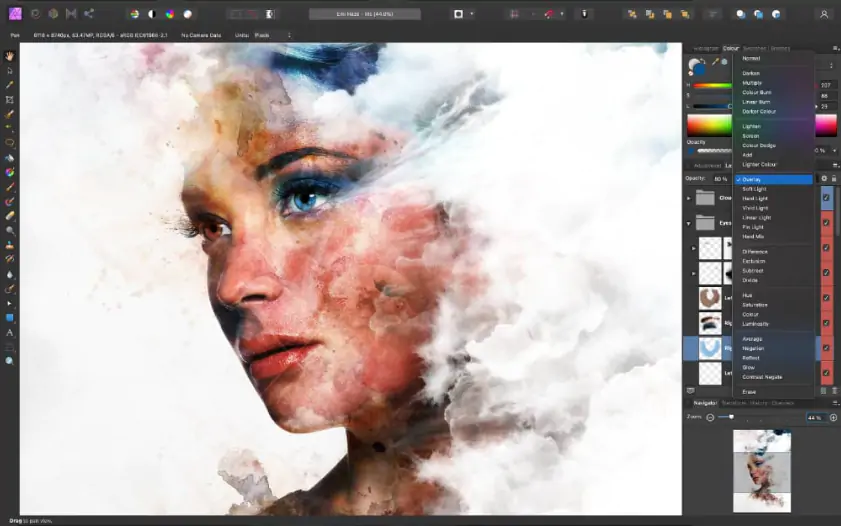
Affinity Photo 2 on the iPad feels like you've squeezed a powerful, professional design studio onto a tablet. It's packed with high-end tools for photo editing and design. At the same time, it’s totally optimized for touch and the Apple Pencil, giving you that full desktop experience right in your hands. It opens up tons of creative doors without being tied to your desk.

That free RAW photo editor for iPad loads your RAW shots into a clean 16-bit workspace where you can tune exposure, color, white balance, shadows, highlights, and noise. Moreover, it supports advanced color spaces (RGB, LAB, CMYK, etc.) and preserves EXIF data. Even hefty RAW files don’t make it flinch – it stays fast and stable with high-megapixel images.

I’ve thrown plenty of oversized RAW files at it, and it barely flinched. Tweaking colors with the Apple Pencil feels almost like painting light onto the image. And when everything stays smooth even after several edits stacked up, you start trusting it as much as a desktop tool.

Ratings

4.5/5

Pros:
  • Specially designed for the iPad

  • Can handle large files, which are common when processing RAW images

  • Compatibility with other Affinity programs

  • Full Apple Pencil support for precise masking and retouching

  • Desktop-level toolset with layers, blend modes, and 16-bit RAW editing

  • Fine performance even with high-megapixel photos

  • No subscription pressure thanks to the one-time license model

Cons:
  • One-off payment required for a full version

  • No iPhone app

  • Tougher learning curve than most mobile editors

  • Interface can feel dense on smaller iPad models

  • Exporting large RAW edits may take longer on older hardware

Best online apps for RAW photo editing

  • Why I picked it

    a free RAW photo editor that’s easy to open in a browser and still strong enough for serious edits

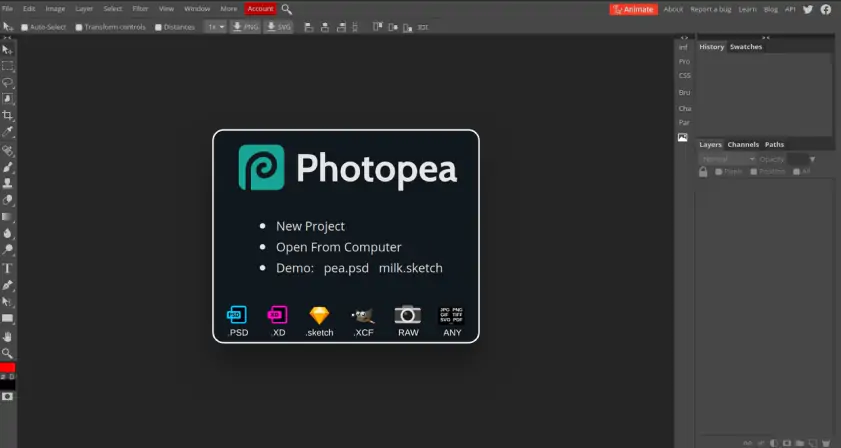
Because not everyone wants to install heavy programs, it’s worth checking out the best online apps for RAW photo editing that you can access right from your crawler. So, Photopea. If that name sounds familiar, that’s because it was built as a free alternative to Photoshop®.

Photopea mimics many Photoshop® features – if you’ve used Adobe before, you’ll settle in fast. While it isn’t purely a RAW photo editor, it supports DNG, CR2, NEF, ARW, and other RAW formats. I really love the possibility to tweak exposure, shadows, highlights, and color balance right in the browser. The program runs entirely locally; your files never leave your device.

You can crop, resize, mask, blend, and use layers, adjustment layers, and smart objects. Vector graphics, liquify, and AI background removal expand what you can do. PSD support is complete, making it easy to continue projects across platforms.

I played around with Photopea on some midday park shots in CR2. Bright skies got toned down, shadows got their details back. Added a few texture layers and saved as PSD for later tweaks. The browser stayed snappy, even with several big RAW files open.

Ratings

Pros:
  • One of the best RAW photo editors that’s free

  • No download required

  • Familiar layout for Photoshop® users

  • Full PSD support

  • Works locally, keeping files private

Cons:
  • Generalist app, so RAW-specific controls are limited

  • No dedicated mobile app

  • The Internet is required to start

  • Performance depends on your hardware and stable access to the internet

  • Why I picked it

    it’s an online photo editor that contains tons of great features, including AI, to help me perfect my photos

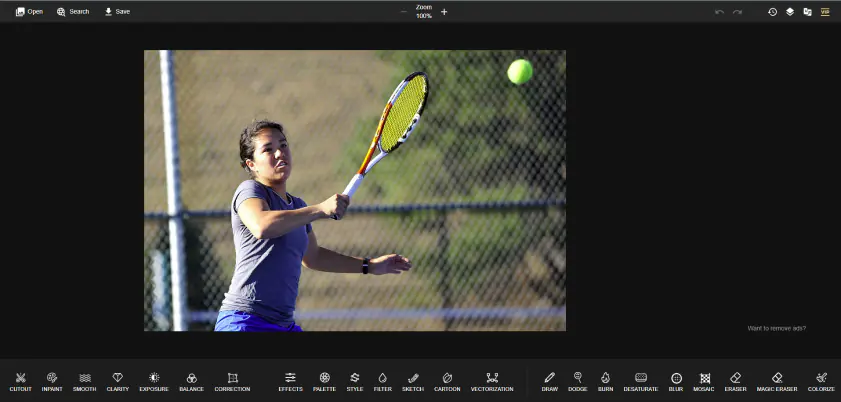
PhotoKit isn’t as widely known as some other titles on my list, but it packs a lot for a web editor. You can run basic adjustments or let the AI handle enhancements automatically. This little online application opens RAW files and lets you tweak exposure, color, and contrast. Backgrounds can be removed in seconds, and unwanted objects vanish with a single click.

One random afternoon, I grabbed screenshots from a travel vlog and tossed them into PhotoKit. The AI fixed color balance, erased annoying text overlays, and I batch-exported everything in seconds.

The interface is far from being blunt, but lovely and intuitive. It gives access to inpaint, cutout, exposure repair, and clarity tools. You can batch edit, resize, compress, or rename images in one go. Filters and effects are easy to apply, and the browser handles multiple images smoothly.

Ratings

4.3/5

Pros:
  • Extensive features for an online program

  • Can edit RAW photos directly

  • AI tools speed up editing for beginners or busy users

  • Batch processing makes multiple files easy to handle

  • Background removal works quickly and accurately

Cons:
  • Full feature set requires a subscription

  • Some tools are less precise than desktop alternatives

  • No offline mode

  • Limited customization in AI enhancements

  • Why I picked it

    I was curious about turning RAW shots into cinematic images without leaving the browser

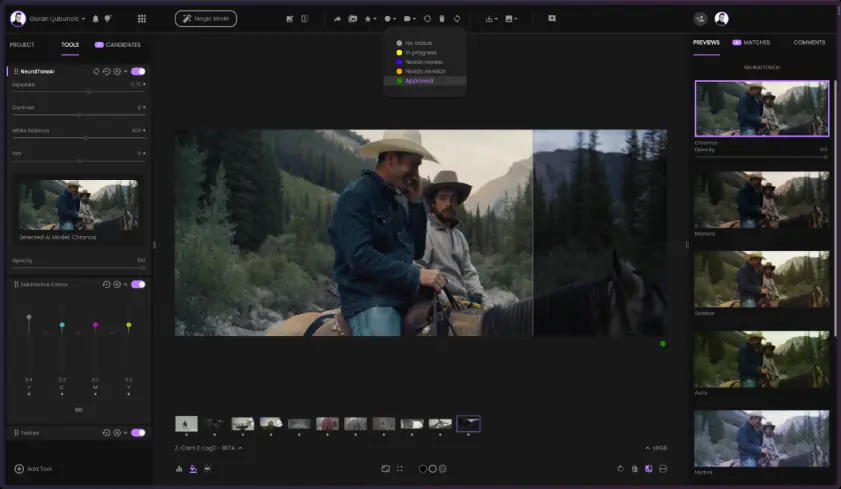
Fylm.ai started as a video grading tool but has branched into RAW photo editing, and it’s almost entirely about color. It can work with RAW files from DSLRs, mirrorless cameras, smartphones, or digital backs. 

The standout features – NeuralToneAI and NeuralFilmAI – let you generate film-inspired grades almost instantly, while the subtractive CMY color model gives shadows depth and keeps colors rich without flattening the highlights. You can export your grades as LUTs, XMP profiles, or Capture One styles, so your looks travel to other software effortlessly.

When exploring Fylm.ai, I pulled a moody, overcast street photo and tried matching it to a reference film scan. Within moments, the AI reproduced the tone, midtones, and subtle grain across multiple shots. Playing with different film simulations like Kodak Vision 3 or Cinestill 800T revealed how shadows, halation, and highlights could be adjusted for that “shot-on-film” feel. Batch export worked fast, and the generated LUTs fit right into my Lightroom® workflow.

Ratings

Pros:
  • AI-driven color grading designed for cinematic results

  • Works with virtually any RAW format

  • Instant film-style grades with NeuralToneAI and NeuralFilmAI

  • Subtractive CMY color keeps shadows and midtones rich

  • No installation; fully browser-based

Cons:
  • Focused only on color grading – other editing features are minimal

  • The free plan has limitations

  • Retouching or compositing still requires another program

12. Polarr

  • Why I picked it

    Polarr offers versatile, AI-powered RAW editing directly in my browser, matching my mobile workflow

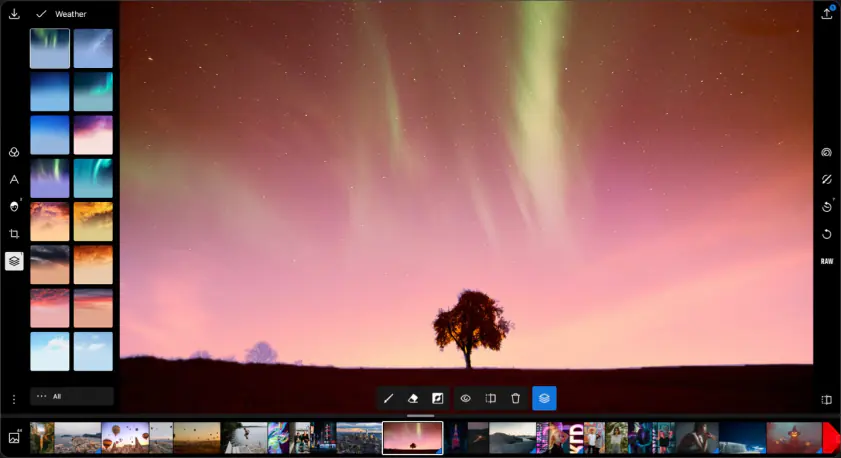
After exploring all the contenders, Polarr feels like the last piece snapping perfectly into place. I picked it because I wanted a powerful, browser-based editor that could still give my RAW shots a professional finish. It’s available on various platforms, including web browsers, iOS, macOS, and Windows.

In particular, its web app, known as Polarr Next, works right in your browser – no uploads required – and can even remember your edit history or run offline if needed. Polarr’s AI tools are surprisingly sharp: you can train them to match your style and apply consistent edits across entire galleries.

From global adjustments like exposure, HSL, curves, and vignettes, to object-specific tweaks using AI masks, it offers a level of control usually reserved for desktop-heavy apps. The one free professional export per day gives hobbyists a taste of its full power, while a subscription unlocks the entire arsenal, including millions of filters and batch AI editing.

After using it for a while, I can say that Polarr is the perfect capstone for anyone hunting for free RAW editing power, giving you advanced controls, AI magic, and platform flexibility – all in a package that feels surprisingly light.

Ratings

4.4/5

Pros:
  • Extensive professional-level editing tools rivaling Lightroom®

  • Browser-based, works offline, and remembers edit history

  • AI tools can learn your style for consistent batch editing

  • Supports many RAW formats and multiple platforms

Cons:
  • The unique interface may take some getting used to

  • Free tier limits professional exports to one per day

  • Some RAW formats are still rolling out

How to choose the best RAW photo editors

Top RAW editors share a few essentials: exact color and exposure control, reliable retouching, flexible workflow, and some include AI tools for tricky fixes. These elements set the best programs apart.

For an all-around solution, Movavi Photo Editor does almost everything without slowing you down. If you prefer free options, Darktable and Raw Therapee give deep control over details without costing a cent.

On mobile, Adobe® Lightroom®, Snapseed, and Darkroom keep your edits consistent across devices. VSCO and Polarr bring strong color tools and creative flexibility.

For advanced retouching or AI assistance, Affinity Photo 2 and Fylm.ai shine. Beginners may prefer Photopea or PhotoKit to get hands-on without feeling overwhelmed.

Pick software that fits your workflow, device, and the type of edits you actually want to make. Often, combining a couple of these tools covers every need.

Movavi Photo Editor
Easily enhance images and get professional-grade results in a snap.

*The trial version of Movavi Photo Editor has the following restrictions: you can save up to 10 images with added watermark, screenshots are disabled.

Movavi Photo Editor

Frequently asked questions

What is the best free RAW editing software?

Here is our list of the top 5 apps to choose from:

  • Movavi Photo Editor – best for beginners to learn RAW image editing
  • Darktable – best for professional color management
  • Raw Therapee – best for HDR tone mapping
  • Photivo – best for bad pixel detection and correction
  • Raw Photo Processor – best for underexposed images processing

How can I edit RAW photos for free?

Editing RAW photos is simple:

  1. Download and install Movavi Photo Editor.
    Download Movavi Photo Editor Windows
    Download Movavi Photo Editor for macOS
  2. Select the image you wish to edit and load it into the program.
  3. Then start editing: enhance and retouch your photos, remove unwanted objects or a background, and more.
  4. Click the Save button to save your edited photo.

What programs can edit RAW files?

If you’re looking for the app to edit RAW files, read our detailed reviews of the best photo editors above. Here are some options from our list:

  • Movavi Photo Editor – quick and simple RAW image editing
  • Darktable – fast RAW image processing
  • Raw Therapee – a variety of enhancement tools
  • Photivo – correction of chromatic aberration
  • Raw Photo Processor – 4-channel white balance adjustment

What is the best free photo editor for beginners?

If you need a beginner-friendly photo editor, we recommend you check out our reviews of the best free photo editors for Windows and Mac. Follow the links below to learn more.

Best free photo editors for Windows 10
Best free photo-editing software for Mac

What is the best way to edit RAW photos?

Here are some of the best options:

  • Movavi Photo Editor – user-friendly interface that’s perfect for beginners
  • Adobe® Lightroom® – lots of editing features
  • VSCO – integrated social network
  • Affinity Photo 2 for iPad – specifically made for iPad users
  • Photopea – mimics Photoshop® for free
  • Color.io – most powerful color correction
  • fylm.ai – easily create cinematic color grades

What app can edit RAW photos?

You can use these apps for editing your RAW photos:

  • Movavi Photo Editor – editor’s choice for overall best RAW image editor
  • VSCO – best for sharing your photos with a passionate community
  • Photopea – best for learning how to use Photoshop without paying
  • Color.io – best for color grading
  • Affinity Photo 2 for iPad – best for iPad users
  • Snapseed – best for mobile users
  • Adobe® Lightroom® – best for Adobe users

Is there a free photo editor for Windows RAW?

We recommend you try Movavi Photo Editor – a feature-rich program for editing photos on Windows.

Is it worth it to edit RAW over JPEG?

Editing RAW instead of JPEG can bring challenges, but it is worth it if you want more control over your images. While JPEGs are compressed, RAW files are more like undeveloped film. That means all the data captured by your camera is saved. This gives you far more options when editing and processing your pictures.

Can you directly edit a RAW image?

Yes, you can directly edit a RAW image in an image editor that has the capacity to handle RAW image files.

Is it harder to edit RAW photos?

It may be harder to edit if you’re a beginner, however, there are lots of tutorials from professional photographers online that you can easily follow.

Can any phone take RAW photos?

No. While technology has developed so that casual photographers can enjoy the challenge of shooting RAW photos without specialized camera equipment, older models of mobile phones likely won’t be able to take RAW photos. However, unless you have a phone that is older than an iPhone 6S or Android Lollipop, you’ll likely be able to shoot RAW.

What is the No. 1 free editing app?

On mobile, Snapseed often comes out on top for photographers editing on the move. It’s free, quick, and impressively precise with RAW files. VSCO and Darkroom follow close behind, giving clean control over color and exposure without overwhelming the interface. For solid edits away from your desktop, these apps get most jobs done without touching your budget.

Have questions?
Have questions?
If you can’t find the answer to your question, please feel free to contact our Support Team.
Join us for discounts, editing tips, and content ideas

1.5M+ users already subscribed to our newsletter

By signing up, I agree to receive marketing emails from Movavi and agree to Movavi's Privacy Policy.