

Top 10 Video-Conferencing Software for a PC or Mac

Try Movavi Screen Recorder for capturing your video calls!

  • Easy capture
  • High-quality footage
  • Advanced video editing
Edited by
Ben Jacklin
18842

Key takeaways

  • Big and small. I tested nearly a dozen popular video conference tools: Google Meet, Cisco Webex, and Microsoft Teams. And they handle large teams pretty well! Jitsi Meet, CrankWheel, and Zoho Meeting worked better for quick, smaller calls.
  • All-in-one. Most apps now combine chat, file sharing, and video. That keeps everything in one place.
  • Fast and private. Browser-based tools opened instantly on my laptop. Open-source options let me control my own data.
  • Laptop load. Heavy apps can eat a lot of RAM. Lighter tools run fine on older PCs.
  • Free vs. paid. Free versions have limits on time or participants. Paid plans gave me webinars, AI tools, and bigger rooms.
  • Fit your needs. Try to choose based on group size, purpose, and features like offline mode or AI transcription.
  • Never miss a call. “Call me” or phone-bridge features can save your conversation when Wi-Fi goes out.

Thought your video-conferencing software options only revolved around the classic Zoom? Think again! I’ve tested a mix of browser-based tools, AI-powered platforms, and full-featured hubs that go way beyond the usual. From instant one-click calls to webinars that actually earn you money, these virtual-meeting platforms bring fresh ways to meet, chat, and collaborate online. I tried them all on my laptop, Mac, and mobile, and I’m here to show which ones really deliver and why you might never go back to Zoom alone.

My top picks

Best free overall: Google Meet

It serves as the quintessential way to start meeting online on any laptop without a single second of lag.

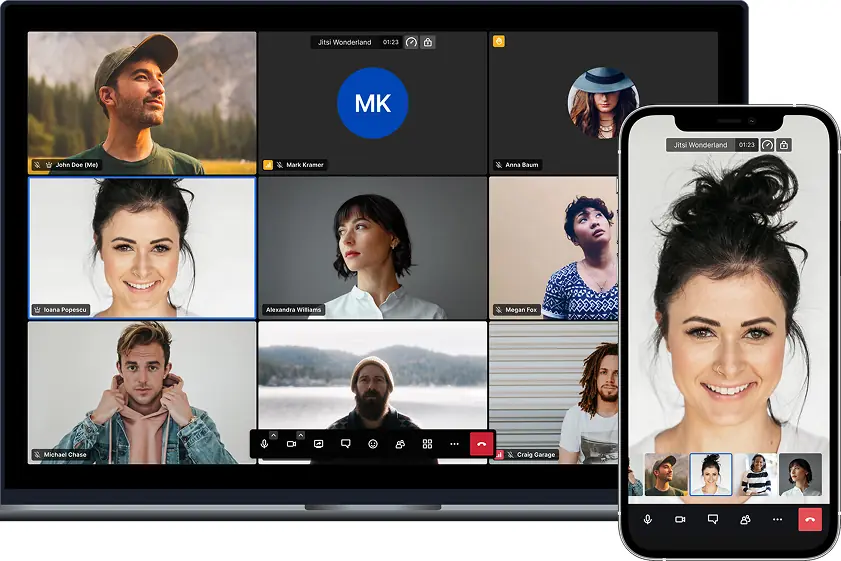
Best for privacy: Jitsi Meet

This open-source program secures your voice with default encryption while letting you invite unlimited guests for free.

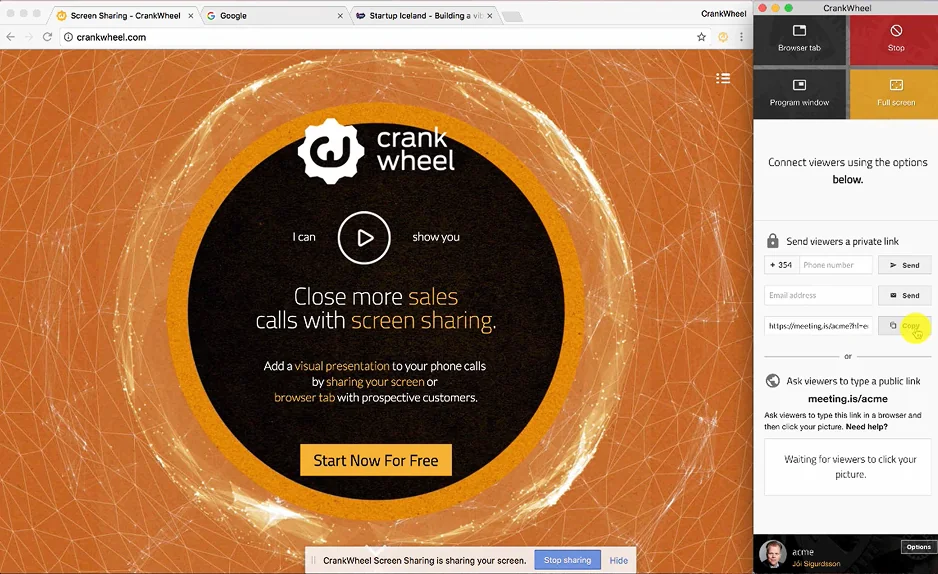
Best lightweight: CrankWheel

This video conference service works on ancient 3G signals and requires zero download from your clients.

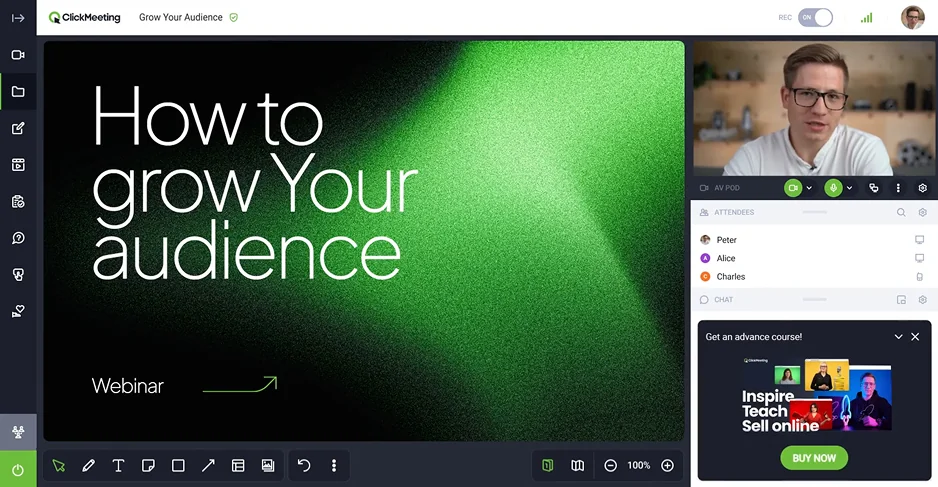
Best for webinars: ClickMeeting

It scales from intimate sessions to 1,000 viewers with built-in tools for paid events on your computer.

Best for ecosystems: Zoho Meeting

This tool unifies polls and high-definition screen sharing for a perfectly organized video-conferencing software experience.

Comparison table of the best video conference services

Program

OS

Main advantages

Read more

Browser, Android, iOS

Runs in browser, no setup needed, supports up to 100 participants, good voice/video quality

Windows, macOS, Linux, browser

Enterprise-grade security, AI noise cancellation, flexible meeting access

Browser, Windows, macOS, Linux

No accounts required, unlimited participants, privacy-first, open-source

Best video-conferencing software

  • Why I picked it:

    it runs entirely inside your preferred web browser.

Who has it preinstalled on their Android handy? Google Meet is exactly that, since it comes as a factory standard on most mobile devices. Surely, this program tops my rankings because it is the first solution coming to mind when it’s necessary to carry out a large video call. Truly, it represents the gold standard for zero-latency communication on a laptop. It functions without a bloated download, since you just click a link and start meeting online instantly.

This app syncs with your workspace, supporting up to 100 callers with active noise suppression for crisp audio. Updates are coming in frequently, every time adding new features and perks to make modern video conferences even more comfortable.

I use Google Meet really frequently. One of the latest experiences was running a quick project check‑in on my laptop, where I shared a spreadsheet and everyone annotated live. Later the same day, I joined a client call on my Mac, and the voice stayed clear even over a spotty Wi‑Fi. It handled both sessions without any dropped frames or lost chat messages.
Ratings

Pros:
  • Browser operation with no installation on many devices

  • Excellent live captioning accuracy

Cons:
  • Free group calls capped at 60 minutes

  • Limited host controls compared to dedicated enterprise suites

  • Why I picked it:

    it provides the most secure encryption for sensitive data.

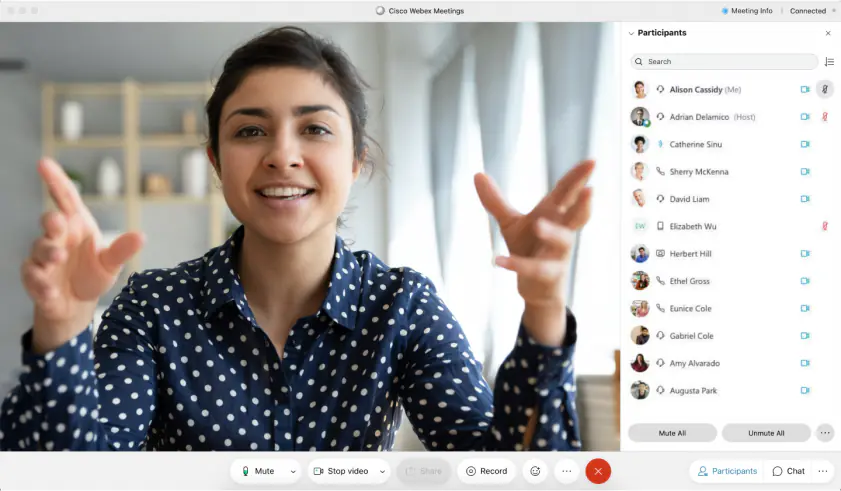
Next in line is a program that defines what a true enterprise solution looks like in the modern hybrid era. This video conference service provides military-grade security while utilizing AI to eliminate distracting background noises from your audio feed. You can jump into a meeting online via any computer or specialized hardware, making it a flexible choice for global teams. The development team rolls out updates frequently and diligently. Apparently, they’re constantly working to improve your experience using Cisco Webex.

I deployed this app during a massive multi-national strategy session on my PC to test the real-time translation features. The gesture recognition picked up my thumbs-up instantly, which kept the flow natural without me having to fumble for the mute button.

Ratings

4.4/5

4.5/5

Pros:
  • Unrivaled security protocols for corporate environments

  • Top-tier noise cancellation and background filtering

Cons:
  • Free tier limits sessions to 40 minutes

  • Requires a more significant download compared to browser-only rivals

  • Why I picked it:

    it requires no accounts or registration to start calls.

My exploration of top-tier virtual-meeting platforms shifts toward a favorite in the open-source community. Jitsi Meet is a privacy-first program that keeps your data away from corporate giants. This tool runs entirely in your browser – you avoid a heavy download while inviting unlimited participants to your session.

It secures every voice with default encryption and permits hosting on your own hardware for total control. GitHub shows that updates arrive at a lightning pace as contributors refine the source code to stay ahead of security threats.

I use Jitsi Meet from time to time for spontaneous troubleshooting marathons on my PC. One of the latest experiences involved a fast-paced debug session where we used the live streaming feature to broadcast a fix directly to our community testers without a single dropped frame.

Ratings

Pros:
  • Zero cost for unlimited participants and no time restrictions

  • Extreme data privacy since it collects no personal info

Cons:
  • Heavy groups can strain the connection

  • Advanced management features for a huge enterprise are sparse

  • Why I picked it:

    it connects with viewers in under ten seconds.

My search for the fastest-launching virtual-meeting platforms lands on a specialist that ditches every traditional barrier. This CrankWheel program stands apart because it functions on even the most ancient 3G networks without requiring a single download from your participants.

It serves as a high-speed video conference service specifically tailored for sales demos where losing a prospect to a technical glitch is not an option. You can grab a free version for personal use or scale up to the enterprise tier for advanced team analytics. I checked their blog page, and it is replete with an abundance of news, release notes, and activity from the devoted team, I love such well-cared-for projects!

To put it through its paces, I utilized this tool on my laptop to pitch a complex UI redesign to a client who was stuck in a transit zone with a terrible signal. The stream stayed active despite the poor connection, letting us finalize the contract without rescheduling.

Ratings

4.9/5

Pros:
  • Zero friction since clients never need to install an app

  • Unrivaled performance on weak mobile data

Cons:
  • Lacks the full suite of collaborative meeting apps like group whiteboards

  • The free tier is limited to 15 sessions per month

  • Why I picked it:

    it launches professional calls directly from your browser tabs.

My search for a browser-centric workflow leads me to a video conference service that eliminates the friction of switching between separate office apps. This Zoho Meeting appeals to me because it focuses on a clutter-free meeting online for teams who want to avoid a massive download on their system.

It provides a secure environment for everything from quick polls to detailed webinar analytics, keeping all your collaboration tools within a single window. You can run sessions via your laptop or mobile, utilizing a clean interface that keeps essential controls like screen sharing and recording within reach.

Updates and improvements are released periodically, like 2-3 times per year, as I can judge from the project’s official blog. It’s quite refreshing to see a dev team that prioritizes quality over flooding the app with useless weekly patches.

To see it in action, I fired up this tool on my PC to host a live training workshop for a dozen new hires. My voice remained crystal clear while I walked them through our internal dashboard via high-definition screen sharing on my laptop.

Ratings

4.5/5

4.5/5

Pros:
  • One-click entry for participants makes joining a breeze on any computer

  • Comprehensive webinar tools are included even in the entry-level tiers

Cons:
  • Lacks the advanced gameplay with overlays found in gaming-centric software

  • Large-scale enterprise sessions can feel resource-heavy on older hardware

  • Why I picked it:

    it turns webinars into reliable revenue engines.

My search for a browser-native broadcasting specialist leads me to a solution that bridges the gap between simple calls and massive digital events. ClickMeeting strikes me as a virtual meeting platform built for people who sell knowledge, not just host a quick meeting on the Internet. And I really value that it runs in the browser without straining my laptop.

It scales from tight 25-person workshops to broadcast sessions with up to 1,000 viewers – that can really change the tone from discussion circle to live event in seconds. What I like most is that paid access, automated replays, and on-demand viewing sit inside the same app, so I keep revenue, registration, and delivery in one place. The team keeps refining the desktop program. They frequently add all sorts of perks, like better integration with socials, improved screen sharing, and all the jazz.

I ran this video-conferencing software on my Mac for a paid technical class with 200 participants across three time zones. The recording started instantly, as it is supposed to. I managed Q&A from my computer without juggling extra tools, and later I studied attendance peaks on my laptop to shape the next event.

Ratings

4.2/5

Pros:
  • Strong automation for recurring and evergreen webinars

  • Built-in monetization tools reduce external integrations

Cons:
  • Interactive meetings capped at 25 active speakers

  • Costs climb fast for large enterprise-level broadcasts

  • Why I picked it:

    it merges professional phone lines with instant video calls.

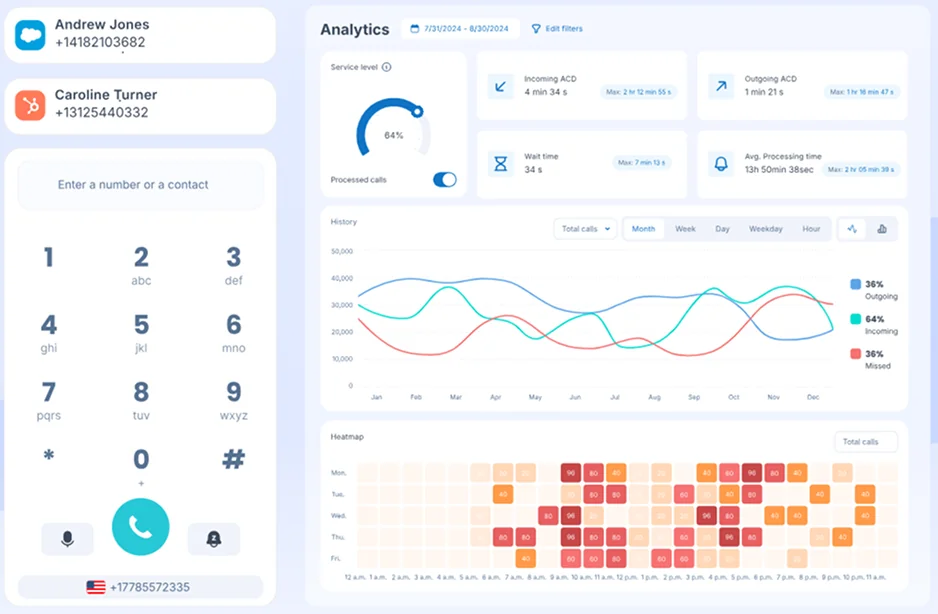
I continue my research on the best meeting apps with Ringover. It is prominent because it allows you to transition from a standard call to a full video conference service with a single click inside your dashboard. It serves as a unified tool for teams that need to sync their client records directly with their meeting activity, ensuring no detail slips through the cracks.

The browser-based interface means your guests never struggle with a heavy download – and that allows them to join your meeting online from any device. While built for the enterprise sector, its simplicity makes it viable for personal use if you need robust telephony and video in one place. The platform features an abundance of activity and frequently released updates, with the team continually expanding the capabilities of its AI assistant, Empower.

To put it to use, I deployed this app on my PC to conduct a series of back-to-back recruitment interviews. I love how the integrated CRM notes kept my workflow organized while the voice quality stayed consistent. I found it slightly inconvenient that some coaching tools are only available on the highest tiers, but ultimately, the performance on my laptop was nice.

Ratings

Pros:
  • Well-done integration with over 80 business tools like Salesforce and Zendesk

  • Advanced supervision and coaching features for training remote teams

Cons:
  • Sophisticated AI analytics are locked behind premium subscription levels

  • Why I picked it:

    it starts video calls through a single link.

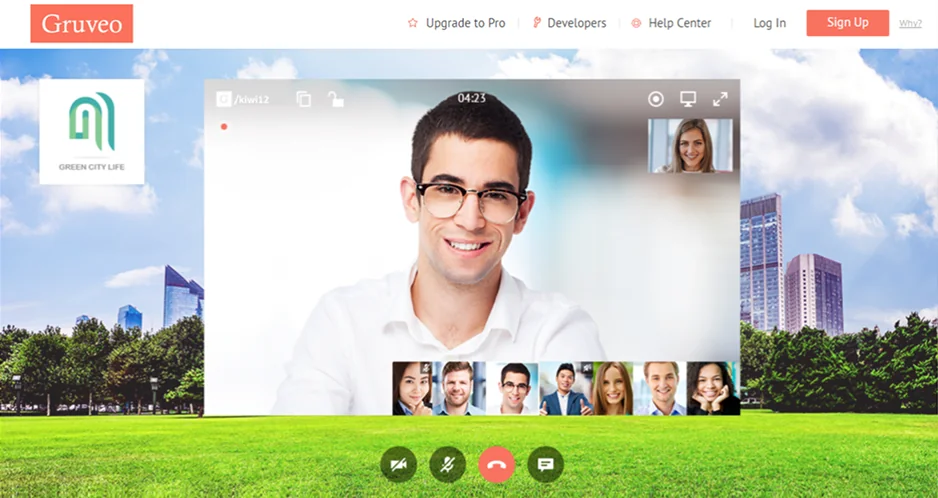
My search for the most frictionless way to connect with clients brings me to a tool that strips away every barrier to entry. Gruveo provides a magic URL that lets anyone reach you face-to-face without a single download. It functions as a lightweight video conference service where your customers just tap a button in their browser to initiate a high-quality session. You can manage these incoming requests on your laptop or mobile, maintaining a professional presence without forcing guests to create accounts.

I checked their blog, and it contains lots of news, release notes, and activity. The team works tirelessly to roll out fresh capabilities frequently and diligently. From here, I also discovered that it has native apps for Android and iOS!

I used this conference software on my PC to handle a quick virtual walk-through of a studio space for a potential renter. I love how they joined via a simple text link without fumbling for a password. Slightly disappointing is that I cannot record sessions natively on the basic tier, but the visual clarity on my computer was top-notch.

Ratings

4.4/5

Pros:
  • No-login requirement ensures your clients never face technical hurdles

  • Instant call branding helps small businesses look like a major enterprise

  • Native mobile apps for Mac or Android bring reliable call alerts

Cons:
  • Lacks a comprehensive list of file-sharing integrations

  • Disconnects automatically if the main host leaves the virtual meeting platform session

  • Why I picked it:

    it makes every call smarter with AI.

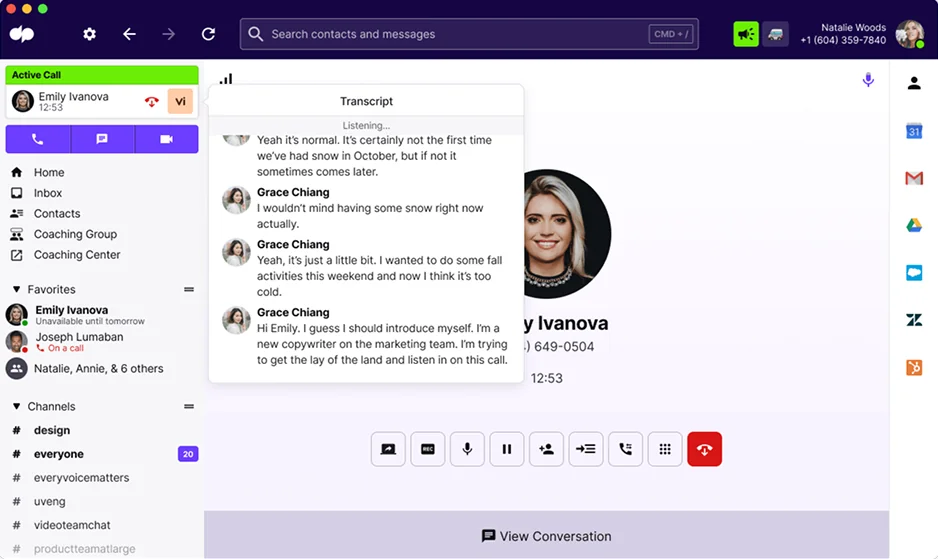
My search for an intelligent communication hub lands on a platform that puts a brain behind every conversation. Dialpad is an AI-powered communication tool for calls, messages, and voicemails – all in one app. It even keeps work and personal numbers separate on your phone. The platform can boast of real-time AI features: things like transcription, sentiment tracking, and call insights. This stuff can really help keep your conversations clear and organized.

Dialpad is quite capable for small business teams, and flexible enough for a big family call. You can easily set up a group chat or call, share voicemails, and make sure everyone’s voice is heard.

Updates arrive regularly. They mainly focus on improving connection stability, AI accuracy, and spam detection, all the vital measures to keep calls smoother over time. I used Dialpad to set up a weekend family call with relatives in three states. The transcription made it easy to follow who said what, and juggling my work and personal numbers wasn’t a hassle. The call sounded clear, and I could join from my laptop with all the same features as my phone.

Ratings

4.4/5

4.5/5

Pros:
  • AI transcription and sentiment analysis add clarity

  • Personal and work lines stay separate on one device

  • Simple for both business and personal use

Cons:
  • Can be pricier than some other options

  • Occasional spam calls can slip through

  • Switching between work and personal calls takes attention

  • Why I picked it:

    it brought my team and chats into one place.

To wrap things up, the final entry on my list is a platform that effectively retired the old Skype era I once knew. I got used to Skype for years, but Teams pushed me to try something bigger. It combines video conference service, chat, file sharing, and collaboration apps in a single program. You can run small meetings or large team calls, share screens, record sessions, and edit Office files in real time.

Today, this program has grown into the primary nervous system for any modern enterprise. It unites persistent chat with a high-definition video conference service. You often find it preinstalled on new Windows machines or available for a quick download from the official store. It functions as a complete digital workspace where you co-author documents while meeting online.

The engineering team ships fresh features often and thoroughly. They recently launched 3D immersive spaces and better noise suppression, as noted in their official release notes. I migrated to this tool on my PC after years of casual Skype use. I love how the background blur hides my messy room during a virtual meeting time. But I wish the software did not consume significant RAM on my laptop.

Ratings

Pros:
  • Unrivaled integration with the Microsoft 365 ecosystem

  • Syncs notifications perfectly across Mac and mobile devices

Cons:
  • Heavy resource usage can lag an older computer

  • Large team calls occasionally experience slight audio delays

How to choose the best virtual-meeting platforms

I used to stick with whatever link landed in my inbox, but my obsession with clean systems changed my perspective. For quick syncs on a laptop, I always reach for Google Meet because it demands zero setup and stays out of your way. If you are handling a massive enterprise rollout, Microsoft Teams or Cisco Webex offer the deep security you actually need for professional data.

Those chasing total privacy should fire up Jitsi Meet, as it keeps your voice encrypted without tracking a single byte of personal data. If you need to sell your expertise, ClickMeeting stands alone by turning a standard video conference service into a paid webinar studio.

Choose your conference tool based on your specific crowd: whether it's a 1,000-person broadcast or a simple chat with the besties on a PC. Picking the right tool keeps your workflow moving without the technical headaches of the past.

Movavi Screen Recorder
The perfect way to record anything from your screen

Disclaimer: Please be aware that Movavi Screen Recorder does not allow capture of copy-protected video and audio streams.

Movavi Screen Recorder

Frequently asked questions

What is the best free video-calling app?

Google Meet wins because it functions natively in your browser on any laptop. This tool delivers high-definition video and noise suppression without requiring a single download. It remains the most direct path to start meeting online right now.

Is there a free alternative to Zoom with no time limit?

Jitsi Meet is attractive as an open-source program that never imposes artificial session durations. You can host unlimited guests for a video conference service without even setting up an account. It remains the top app for private, marathon discussions.

Is Zoom no longer free?

Zoom maintains a free tier, but it carries heavy restrictions for any enterprise or group activity. You face a hard 40-minute cutoff before the program terminates the session. To bypass this, you must buy a license or switch to a different video-conferencing software.

How can I make a live video call for free?

The quickest way is to use a browser-based app like CrankWheel to share an instant access link. Your guests jump in from their computer or phone without registering or installing hardware drivers. Just verify your PC camera is live to begin the call.

Have questions?
Have questions?
If you can’t find the answer to your question, please feel free to contact our Support Team.
Join us for discounts, editing tips, and content ideas

1.5M+ users already subscribed to our newsletter

By signing up, I agree to receive marketing emails from Movavi and agree to Movavi's Privacy Policy.