
9 Best iMovie Alternatives in 2026: Free and Paid Video Editors

Movavi Video Editor
  • NEW: Adjustable video templates for any vibe – made of Blocks

  • NEW: Blocks – pre-edited video segments you can customize

  • Fast and easy editing: cut, crop, adjust colors and speed

  • Auto subtitles, noise removal, hundreds of effects, and more

By clicking the download button, you're downloading a trial version of the program.*

Edited by
Ben Jacklin
5,610

Key takeaways: which iMovie alternative fits you

Pick by your computer and your task. Here is the short version:

  • Lifestyle vlogs and family videos on Windows or Mac: Movavi Video Editor, the easiest start on the list.
  • Short vertical clips for social media: CapCut, a mobile-first editor for short, trending videos.
  • A frequent YouTube schedule with a big AI toolkit: Filmora, a desktop editor for semi-professional creators.
  • Color grading or professional editing: DaVinci Resolve (free, steep learning curve) or Adobe® Premiere® Pro (subscription only).
  • Quick edits in a browser: Clipchamp on Windows 11, or VEED, Canva and Adobe® Express® for template-based posts.

Why do people look for iMovie alternatives

The best iMovie alternatives depend on your computer and your goal. Movavi Video Editor suits beginners on Windows or Mac who want an easy start, CapCut suits short vertical clips, and DaVinci Resolve suits color work. The list also covers Filmora, Adobe® Premiere® Pro, VEED, Canva, Clipchamp and Adobe® Express®, so you can find an alternative to iMovie that fits your skill level and budget.

This guide is for lifestyle creators, families and students who have outgrown iMovie, or who never could use it because they work on Windows. Maybe you film daily routines and unboxings, cut a family road trip, or build a school project.

iMovie is Apple’s free, simple editor, preinstalled on Apple devices, so Windows users are left out.

iMovie alternatives at a glance

Product

Best for

Platforms

Free version

Starting price

Beginners and everyday creators, YouTubers

Windows, macOS

Yes

$19.95/month

Travel vlogs with multicam and advanced color grading

Windows, macOS

No (trial only)

$22.99/month

Short vertical lifestyle clips for social media

Mobile, web, desktop

Yes

$9.99/month

Travel videos with film-grade color grading

Windows, macOS, Linux

Yes

$295

YouTube lifestyle vlogs posted on a steady schedule

Windows, macOS

Yes

$4.17/month

Subtitled vlog clips for social media, edited in a browser

Browser, mobile app

Yes

$12/month

Lifestyle posts and stories with short video inserts

Browser, desktop and mobile apps

Yes

$12/month

School projects and simple social videos on Windows

Browser, Windows 11 app, iOS app

Yes

$9.99/month

Quick social posts with a short video insert

Browser, mobile app

Yes

$9.99/month

How we picked the best iMovie alternatives

  • Platform: Windows, Mac, browser or mobile.
  • Ease for beginners: how much you need to learn before your first video.
  • Free version: what the free plan holds back.
  • Price: subscription or one-time purchase.
  • Export: watermark and resolution limits.
  • AI tools: which tasks the AI handles, and whether it runs on credits.
  • Effects and templates: what comes ready to use for vlogs and social media videos.

Best iMovie alternatives

  • Best for

    Lifestyle vlogs, family road trips and school projects on a Windows or Mac desktop

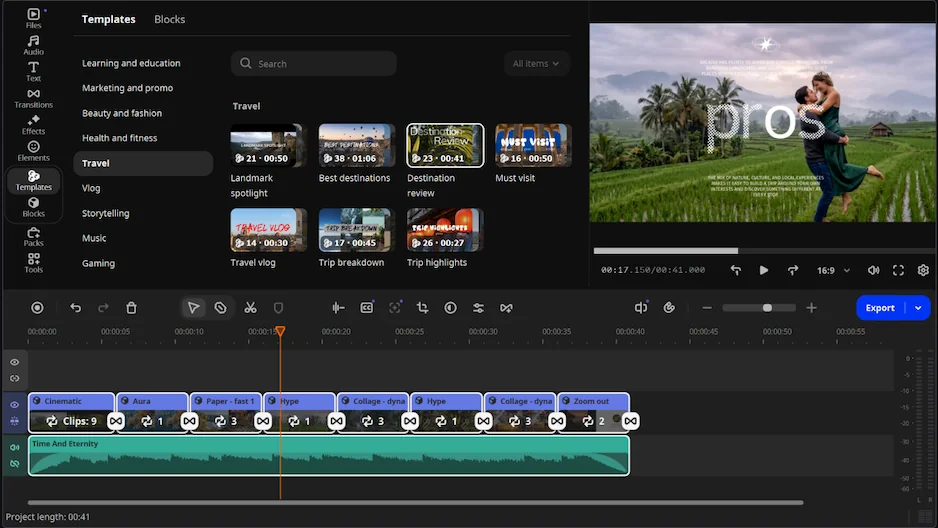
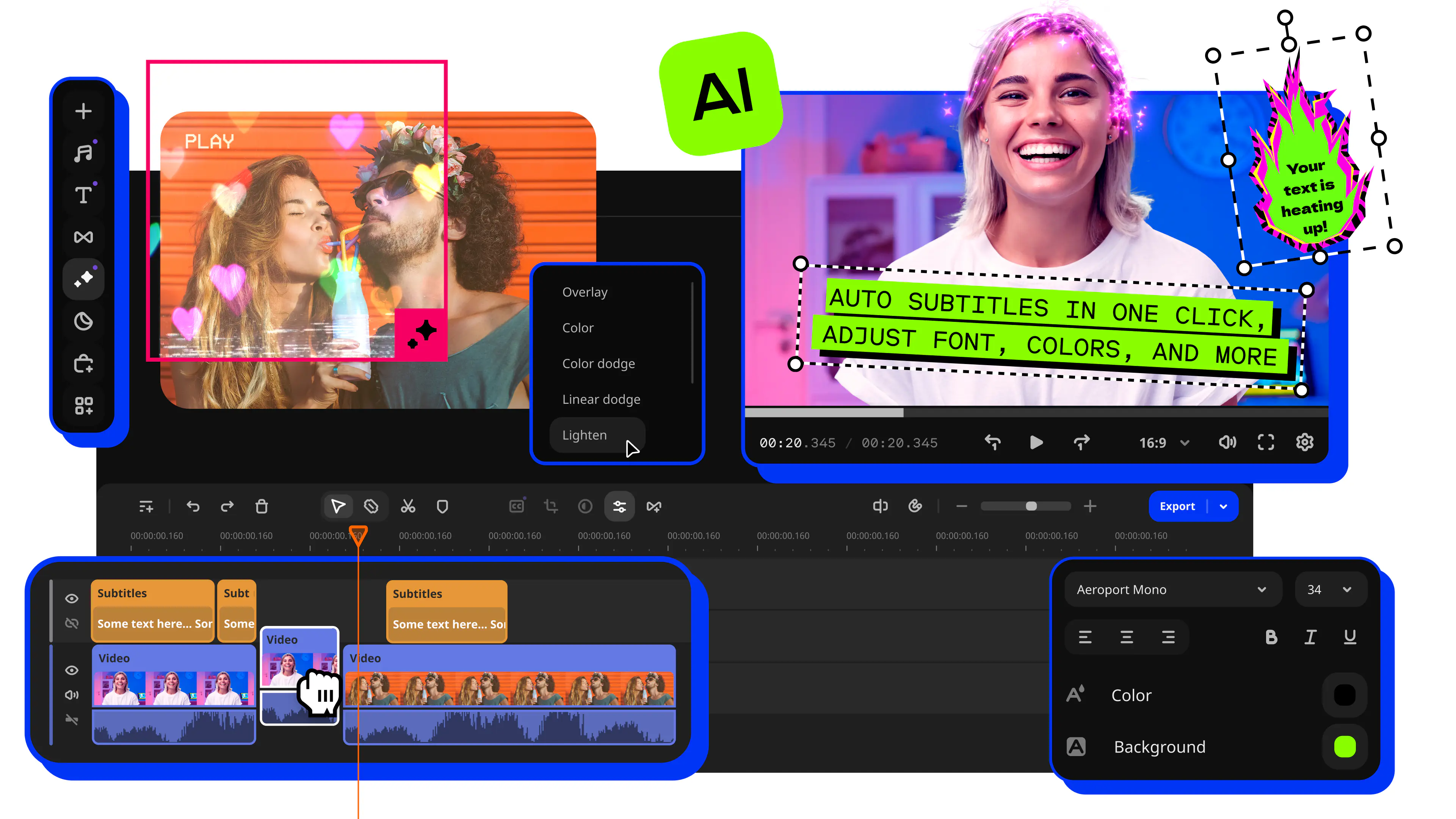
Why we picked it: You want a vlog that looks finished without learning a professional tool. Movavi Video Editor is an intuitive video editor with customizable video templates, one-click AI tools, and hundreds of drag-and-drop effects. It is a desktop app for Windows and macOS, so it covers the gap iMovie leaves for anyone outside the Apple world.

Key features:

  • Templates: Movavi Video Templates is a multi-style library of customizable, pro-looking, modular templates for any kind of video. For a family road trip recap, drop your own clips, photos and text into the Blocks, the short pre-edited segments of a template, such as an intro or a quick cut. The template arrives with pre-set editing, music, transitions and text, and you can keep, change or remove any of it. Several templates come with the full version at no extra charge.
  • Drag-and-drop workflow: Hover previews show a clip, an effect or an exact frame before you apply it, and titles and transitions land on the timeline when you drop them there.
  • One-click AI tools: Auto subtitles recognize 100+ languages, which suits a school project video. AI audio noise removal clears traffic, wind and steady hums from your vlog audio. Every AI tool is included in the full version, so you never count credits.
  • Effects and music: Built-in transitions, titles, filters and stickers come with copyright-free music. The optional Movavi Effects subscription adds 10,000+ effects and 1,500+ music tracks, and you can preview them on your own video before buying.
  • Movavi Ideas: A free tutorial hub that adds a new editing trick every week, each with a step-by-step guide you can follow in under a minute.
Pros:
  • Runs on Windows 10 and 11 and on macOS 12.0 or higher, including Apple M1 and newer.

  • Works offline, with no account or cloud required.

  • Handles long videos on a flexible timeline and runs on low-end PCs.

  • Color correction presets come with manual fine-tuning for color grading.

Cons:
  • Lacks advanced, detailed controls for a professional workflow.

  • No flexible interface customization.

  • No web version or cloud integration.

  • Although hundreds of effects and several templates are available in the full version, additional sets require separate subscriptions.

Price and platforms: Windows and macOS. Start with Movavi Video Editor Free, then move to the full version when you need more, which is a monthly or yearly subscription. Price: $19.95/month.

  • Best for

    Travel vlogs with multicam angles and advanced color grading

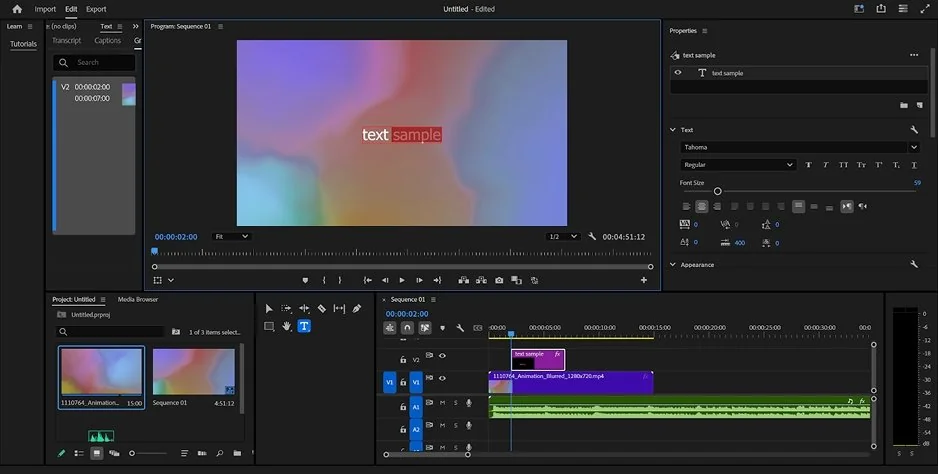
Why we picked it: Adobe® Premiere® Pro is the standard for people who edit video for a living. Its Lumetri color tools and frame-accurate cutting give a travel vlog a full professional finish, if you are ready to learn the interface.

Key features:

  • Multicam editing: Cut between several camera angles, with precise timecode.
  • Lumetri color: Curves, color wheels and HSL controls, plus Auto Color for a quick start.
  • Auto Reframe: Keeps the main subject in frame when you change the format for vertical video.
  • Speech to Text: Creates auto subtitles and translates them into 27 languages; you style them by hand.
  • Templates: No built-in ready-made video templates; Motion Graphics templates mostly come through Adobe® Stock® for an extra fee.
Pros:
  • Integrates with After Effects®, Photoshop® and Audition®.

  • Flexible editing at any level of complexity.

  • Regular AI updates, such as Object Mask and Generative Extend.

Cons:
  • Subscription only, with no one-time purchase.

  • To download the trial, you start it first and enter payment details.

  • Many panels and manual settings make the first weeks slower for beginners.

  • Users report crashes and high hardware requirements.

Price and platforms: Windows and macOS. A monthly or annual subscription, standalone or inside Creative Cloud® Pro; $22.99 a month on the annual plan billed monthly, according to Adobe®'s plans page. A 7-day free trial is available.

  • Best for

    Short vertical lifestyle clips for TikTok, Reels and Shorts

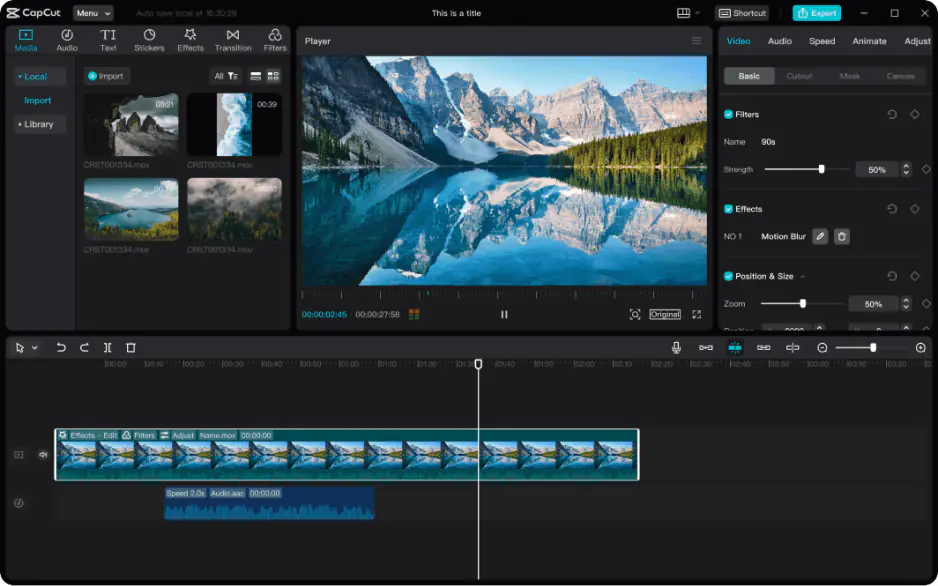
Why we picked it: CapCut is a mobile-first editor for short, trending videos, and it belongs to the TikTok ecosystem. Its trending templates and subject-tracked cropping keep a vertical lifestyle clip quick to put together.

Key features:

  • Trending templates: A large library focused on vertical content, applied as a whole to your clips with little customization.
  • Auto-tracked cropping: Keeps the main subject in frame when you change the format.
  • Speed ramping and keyframes: Speed ramping presets, keyframe animation and chroma key for short-form edits.
  • AI toolkit: Camera tracking, relighting, speech recognition for subtitles, retouching, AI voiceover and background replacement.
Pros:
  • Quick, simple editing for short vertical videos, with a low barrier to entry.

  • A wide set of AI tools, including subtitles and pause removal.

  • Its mobile roots make the desktop tools familiar to phone editors.

Cons:
  • The best templates and effects are marked Pro and need a subscription, and the list of Pro items changes often.

  • AI features run on credits.

  • Some features exist on mobile but not on desktop.

  • Some users ask how face and voice data are used.

Price and platforms: Mobile, web and desktop; some features and content need an internet connection and an account. Price: from $9.99/month.

  • Best for

    Travel videos with film-grade color grading

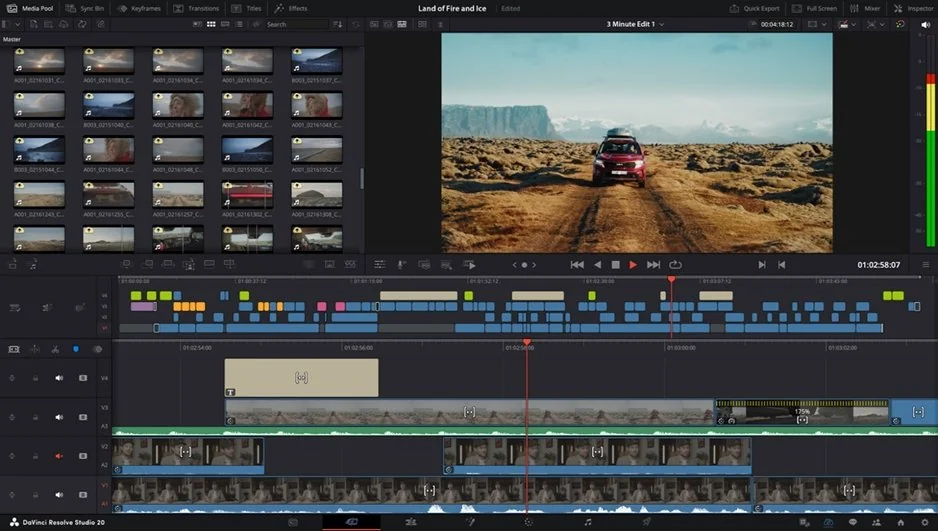
Why we picked it: DaVinci Resolve is built for colorists and professional editors, and it splits editing, color, audio and effects into separate modules. For a travel video, its Color module handles full advanced color correction.

Key features:

  • Color grading: Node-based color correction with secondary correction, HSL, HDR grading and LUTs.
  • Fairlight audio: A sound studio with built-in EQ, dynamics, reverb and delay.
  • Fusion: A separate module for visual effects, which takes some skill to use.
  • Templates: No ready-made video templates; Power Bins let you save and reuse presets you build yourself.
  • AI tools: Magic Mask, AI upscaling (Super Scale) and auto-stabilization sit in the paid edition.
Pros:
  • Many users call the free version professional-grade.

  • Fast and reliable once you know the shortcuts and workflow.

  • Handles 4K 10-bit HDR footage on strong hardware.

Cons:
  • Separate modules for editing, color, audio and effects mean beginners need time before the first result.

  • Resource-intensive; powerful hardware is recommended.

  • No built-in licensed music library, and auto subtitles come from a third-party plugin.

  • Users report bugs and crashes.

Price and platforms: Windows, macOS and Linux. A free base version, plus a paid edition sold as a one-time purchase with no subscription at $295.

  • Best for

    YouTube lifestyle vlogs posted on a steady schedule

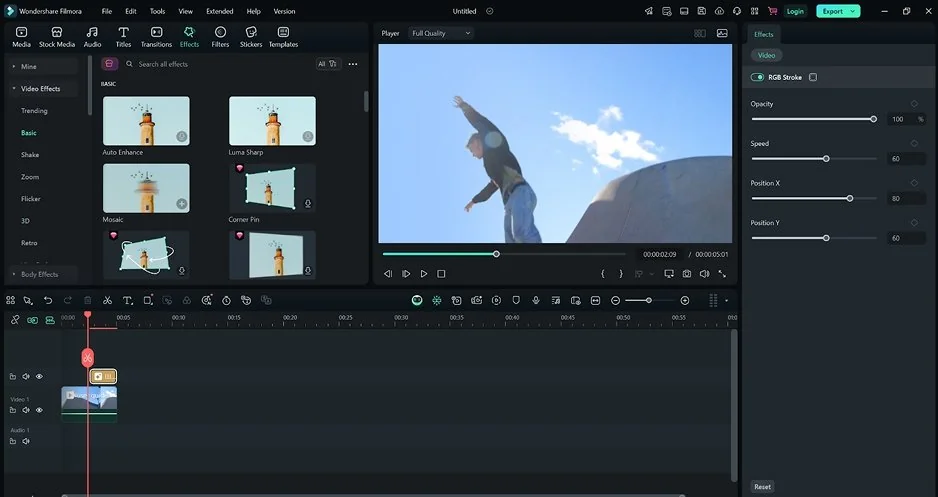
Why we picked it: Filmora is an AI-powered desktop editor positioned for serious content production. Its AI auto reframe and pause removal take over the repetitive cuts that a weekly vlog schedule creates.

Key features:

  • Multitrack timeline: Keyframe animation and motion tracking for layered projects.
  • Smart Cutout: AI removes pauses and silence automatically.
  • Smart Short Clips: AI auto reframe with subject tracking, which pulls vertical highlights from long videos.
  • AI extras: AI music matching based on the video's mood, AI Portrait Cutout for background removal without a green screen, and AI lighting correction.
  • Templates: Ready-made templates and Instant Mode for different occasions, applied as a whole to your content.
Pros:
  • A simpler interface than professional editors, with many templates and AI automation.

  • Runs on a mid-range laptop.

  • AI tools that save time on pauses, reframing and lighting.

Cons:
  • AI features use credits and need a separate subscription.

  • Extra assets sit in a separate Effects Store, promoted inside the interface.

  • The number of single-task AI tools can confuse beginners.

  • Users report that support and refund requests go through a chatbot.

Price and platforms: Windows and macOS. Paid plan starts from $4.17/month.

6. VEED

  • Best for

    Subtitled vlog clips for social media, edited in a browser

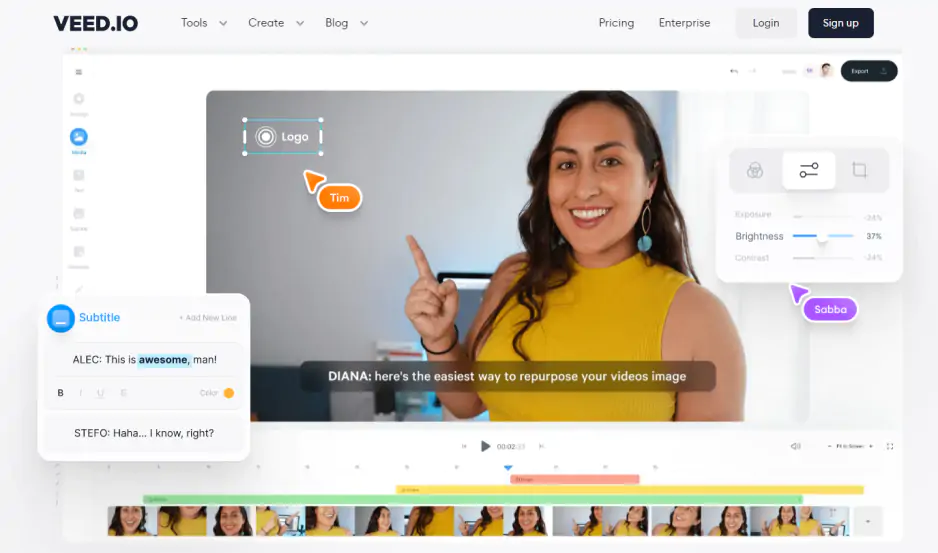
Why we picked it: VEED is a browser-based AI editor for team collaboration and business content. Its AI subtitles come with styles and translation into other languages, and nothing needs installing.

Key features:

  • AI subtitles: Transcription, styles and translation; translation spends AI credits, and auto subtitle hours depend on your plan.
  • Remove Silences and Clean Audio: Cut pauses and filler words, and clean up speech audio in one click.
  • Background removal: AI removes the background behind a person without a green screen.
  • Templates: A large library for business and social media (promos, webinars, onboarding, stories). Each template works as a prompt blueprint from which AI generates a video, so every change spends credits.
  • Collaboration: Real-time editing with your team, plus a brand kit.
Pros:
  • A simple browser interface, with nothing to install.

  • Accurate auto subtitles with styles and translation.

  • Clean Audio and Remove Silences save time on talking-head videos.

Cons:
  • Credits are spent on every AI action and can run out mid-project.

  • Long, heavy projects can lag, and speed depends on your internet connection.

  • The effects library is small, and many transitions rely on AI.

  • Users report unexpected annual charges and hard-to-cancel subscriptions.

Price and platforms: Browser, plus a mobile app; a stable internet connection and an account are required. Paid monthly and annual subscriptions are billed per member; prices: from $12/month.

  • Best for

    Lifestyle posts and stories with short video inserts

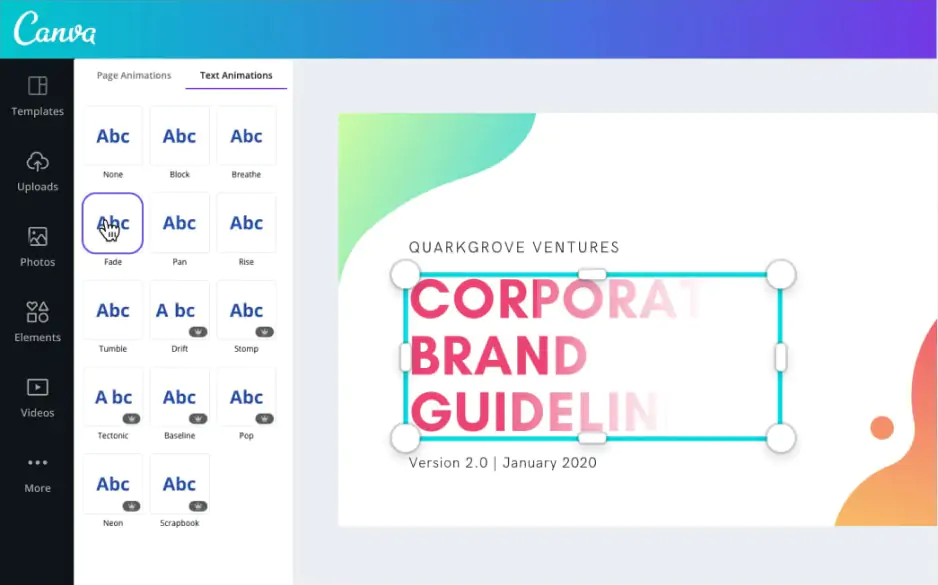
Why we picked it: Canva is a graphic design builder where video is a secondary format. Its giant template library lets you build a lifestyle post or story around a short clip without a designer.

Key features:

  • Design templates: A library for posts, stories and promos, edited as a layout; you can only hover-preview a template, not try it on your own clip first.
  • Multilayer timeline: A basic timeline where several people can work on one video at the same time.
  • Auto-trim and Beat Sync: Auto-trim cuts clips automatically, and Beat Sync matches clips to the rhythm of the music (Pro).
  • Text and fonts: A huge selection of fonts and text animations.
  • Enhance Voice: Removes background noise from speech (Pro).
Pros:
  • A video that looks good comes together quickly from a template.

  • Templates, fonts and elements sit in one place next to your designs.

  • Convenient for social media managers and teams.

Cons:
  • Little control over the timeline, audio and color.

  • Slows down on long videos and heavy files.

  • Video effects are modest, with nine basic transitions.

  • The best elements and AI features are Pro only.

Price and platforms: Browser, plus desktop and mobile apps; an account and an internet connection are required. Paid plans are monthly or annual per-user subscriptions: starts from $12/month.

  • Best for

    School projects and simple social videos on Windows

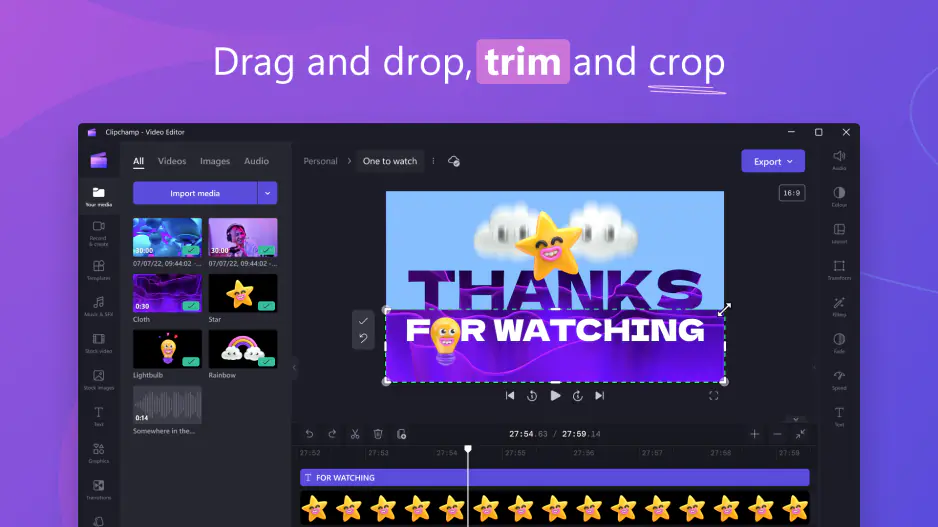
Why we picked it: Clipchamp is Microsoft's browser-based editor, built into Windows 11 and Microsoft 365. Its simple timeline, screen and webcam recording and AI subtitles cover a school project in one place.

Key features:

  • Screen and webcam recording: Record straight into the editor for tutorials and presentations.
  • AI auto subtitles: Choose the language, pick a subtitle style and download the transcript.
  • Silence removal and noise reduction: AI cuts pauses and cleans audio, and a toggle turns noise reduction on.
  • Templates: Ready-made templates for social media, work and school (intros, promos, slideshows), applied as a whole to your clips.
Pros:
  • A simple timeline that beginners can read right away.

  • Already built into Windows 11 and Microsoft 365.

  • AI voiceover from text, plus subtitles, silence removal and noise reduction for simple tasks.

Cons:
  • The toolset is limited, so anything beyond basic tasks hits a ceiling.

  • No auto-reframing with subject tracking, no AI video noise reduction, and no background removal behind a person in video.

  • Large files can slow it down, and export can freeze at the final stage.

  • It needs a Microsoft account and a fast internet connection.

Price and platforms: Browser (Edge and Chrome), a Windows 11 app and an iOS app. The paid tier, also included in Microsoft 365, starts from $9.99/month.

  • Best for

    Quick social posts with a short video insert

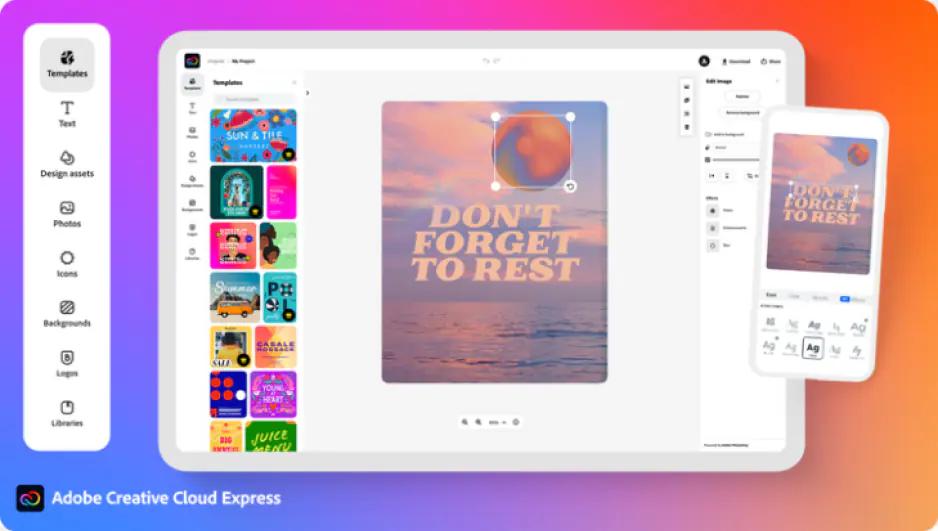
Why we picked it: Adobe® Express® is a lightweight web builder for social media and marketing materials. Its post and short-video templates put a lifestyle clip into a ready layout.

Key features:

  • Templates: A large base of design templates for posts, stories and short videos, plus Adobe® Stock® integration, with full access to Stock® paid.
  • Basic video editor: Cutting, layers and animation on top of the templates; no automatic pause removal.
  • AI subtitles and Enhance Speech: Auto subtitles, plus AI that cleans noise from a voice recording.
  • Firefly generative AI: Generative background fill and text styles, with usage limits that depend on your plan.
Pros:
  • A post or short video comes together fast from a template.

  • Integrates with the Adobe® ecosystem and Adobe® Stock®.

  • Firefly generative AI is described by reviewers as commercially safe.

Cons:
  • Video editing is very limited, and full-fledged editing is hard to do.

  • The best templates and features are in Premium, and credits run out quickly.

  • The browser can slow down on large projects.

  • Its own video effects library is modest, with about 10 transitions.

Price and platforms: Browser, plus a mobile app; an Adobe® account, sign-in and internet connection are required. Paid plan, including Premium, starts from $9.99/month.

Our choice and how to choose an alternative to iMovie

Our choice: For lifestyle vlogs, family videos and school projects, we pick Movavi Video Editor. It keeps the beginner-friendly start and adds what iMovie lacks: Windows support, more effects and AI tools.

By platform

  • Windows or Mac desktop, offline: Movavi Video Editor, Filmora, DaVinci Resolve or Adobe® Premiere® Pro.
  • Windows 11 with nothing to install: Clipchamp.
  • Any computer with a browser: VEED, Canva or Adobe® Express®.

By skill level

  • First video: Movavi Video Editor, Clipchamp or Canva keep the interface light.
  • A few videos in: CapCut and Filmora add more AI and more settings.
  • Ready for a steep climb: Adobe® Premiere® Pro and DaVinci Resolve reward the time you put in.

By budget

  • Pay once: DaVinci Resolve has a paid edition sold as a one-time purchase; Adobe® Premiere® Pro is subscription only.
  • No AI credits: Movavi Video Editor includes every AI tool in the full version. CapCut, Filmora and VEED run their AI on credits.
  • Pay only for extras you use: Movavi Effects and Movavi Video Templates are optional subscriptions you add when a project calls for them.

By task

  • Short vertical clips: CapCut.
  • Color grading: DaVinci Resolve or Adobe® Premiere® Pro.
  • Template-based posts and stories: Canva or Adobe® Express®.
  • Subtitled clips in a browser: VEED.

Download Movavi Video Editor Free, drop in a recent vlog or road trip clip, and follow one Movavi Ideas tutorial for your first edit. If it ever feels too light, DaVinci Resolve is the next step up.

Movavi Video Editor
Create awesome videos easily

*The free version of Movavi Video Editor may have the following restrictions depending on the build: watermark on exported clips, 60-second video or 1/2 audio length limit, and/or some advanced features unavailable when exporting videos.

Frequently asked questions

Is iMovie available on Windows?

No. iMovie is available only to Apple device owners, and the Mac App Store lists it for Mac only. On Windows, Movavi Video Editor, Filmora, DaVinci Resolve and Adobe® Premiere® Pro run as desktop apps, and Clipchamp comes built into Windows 11.

What is the best free iMovie alternative?

DaVinci Resolve has a free base version, and Clipchamp is free and built into Windows 11. They trade differently: Resolve asks you to learn separate modules for editing, color, audio and effects, while Clipchamp stops at basic editing. Movavi Video Editor Free lets you test the editing tools and AI features before you buy.

What is the best alternative to iMovie for social media?

CapCut is the pick for short vertical clips. Movavi Video Editor's auto-tracked cropping keeps the speaker or product centered while it converts horizontal footage for YouTube Shorts, Instagram Reels or TikTok. VEED suits subtitled clips edited in a browser.

Which iMovie alternative is easiest for beginners?

Movavi Video Editor adds interface tooltips and a how-to center to its Movavi Ideas tutorials. Clipchamp has a simple timeline, but anything beyond basic tasks soon hits its ceiling. DaVinci Resolve and Adobe® Premiere® Pro sit at the other end, where tools need fine-tuning before they give results.

Which iMovie alternatives handle audio well?

DaVinci Resolve includes Fairlight, a full sound studio. Adobe® Premiere® Pro offers Essential Sound with auto-ducking, which lowers music under speech. For everyday vlog audio, Movavi Video Editor pairs AI noise removal with manual tools: an equalizer, noise gate, compressor and reverberation.

Have questions?
If you can’t find the answer to your question, please feel free to contact our Support Team.
Join us for discounts, editing tips, and content ideas

1.5M+ users already subscribed to our newsletter

By signing up, I agree to receive marketing emails from Movavi and agree to Movavi's Privacy Policy.