

Best MOV Players for Seamless Playback

Movavi Video Converter
  • Smooth MOV playback with high-quality rendering

  • Lightning-fast conversions between formats

  • Wide range of supported formats and codecs

  • User-friendly, intuitive interface for beginners and pros alike

By clicking the download button, you're downloading a trial version of the program.*

Edited by
Ben Jacklin
3896

If there is one thing that can ruin a perfectly good movie moment, it is a stubborn MOV file. You click play, expecting magic, and instead your screen starts lagging or you see “This format is not supported.” At that point, even the calmest person starts reconsidering their life choices.

MOV files are great, high quality, crisp visuals, and clean compression. They have excellent video quality, but only when paired with a player that can keep up. And unless you have a media player that can handle them properly, you are in for an amazing frustration, not entertainment.

That is where choosing the right MOV player becomes more of a survival skill than a tech preference. The right one loads instantly, plays smoothly, understands your system, and does not crash when the resolution is too high. The wrong one… well, let us just say you will be pressing “Force Quit” more times than you would like to admit.

If you watch movies on your laptop, edit videos for work, or do not want your file formats arguing with your software, finding a reliable MOV player is essential. And the good news? You do not need to try all the players on the internet to figure it out.

In this guide, we will break down the best MOV players that actually deliver seamless playback and definitely no “codec issues.”

disclaimer_person
Here’s what Movavi’s team does to provide you with verified information:
  • When selecting products to include in our reviews, we research both demand and popularity.

  • All the products covered in this article have been tested by our team.

  • When testing, we compare key characteristics, including supported input and output formats, quality loss when converting, and other significant features.

  • We study user reviews from popular review platforms and make use of this information when writing our product reviews.

  • We collect feedback from our users and analyze their opinions of Movavi software as well as products from other companies.

What is a MOV file?

Developed by Apple for its QuickTime framework, MOV is a multimedia container format that can store video, audio, subtitles, and even effects all in one neat package. What makes MOV files stand out is their high-quality playback. Unlike some formats that compress content to the point of pixelated sadness, MOV files keep your videos clear and cinematic.

However, this flexibility comes with a small catch… not every media player plays “MOV.” Try opening one on an incompatible player, and you might end up staring at an unhelpful error message instead of watching the video. That is why knowing how to handle MOV files, and having the right tools ready, is key to keeping your video library happy and healthy. Some common video codecs used within MOV include:

  • H.264 (AVC): Widely compatible lossy compression, often used for HD video
  • H.265 (HEVC): More efficient than H.264, enabling 4K & HDR, but less widely supported
  • Apple ProRes: Professional-grade lossy codec, often used for video editing
  • Audio is usually stored in AAC or LPCM formats within MOV.

Here is a quick showdown between MOV and the ever-popular MP4:

Feature

MOV

MP4

Developer

Apple

Moving Pictures Experts Group (MPEG)

Compatibility

Plays best on Apple devices; others need extra software

Universally compatible across almost all devices and platforms

Best MOV players for 2025

1. Movavi Video Converter
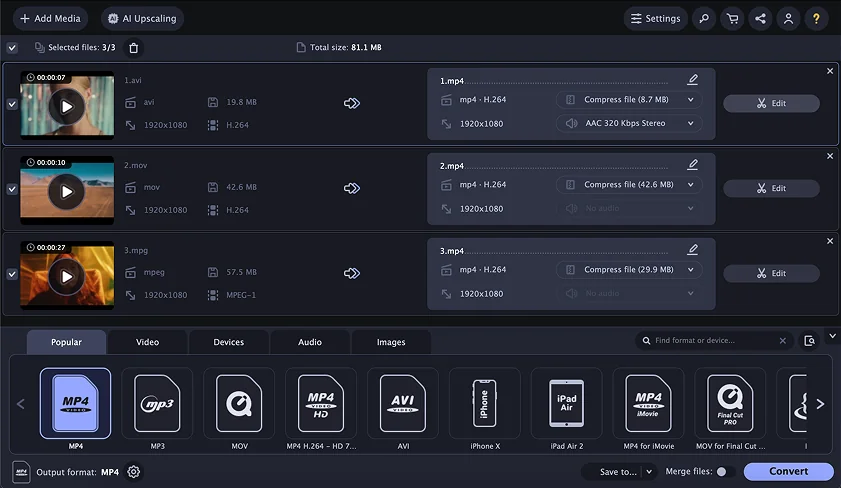
Why I picked it: When it comes to MOV files, no tool handles them as effortlessly and reliably as Movavi. It is a player, converter, and format wrangler all rolled into one.

MOV files are versatile, high-quality, and very picky. You need more than a basic player to unlock their full potential, and that is exactly where Movavi Video Converter shines. This tool does not just play MOV files, it ensures your videos play smoothly and are ready for any device or platform you choose.

What sets Movavi apart is its speed and versatility. Need to convert a MOV file to MP4 for streaming on YouTube? Done in minutes. Want to reduce the file size without sacrificing quality? Easy. Its conversion engine is fast, reliable, and intuitive for newcomers, yet powerful enough for professionals who want precision. Unlike some software that requires complicated codecs or settings, Movavi keeps things simple while delivering high-end results.

The interface deserves a mention, too. It is clean, clutter-free, and designed for stress-free navigation, so even if you are new to video editing or file conversion, the learning curve is minimal. Drag-and-drop your files, pick the format, hit convert, and watch the magic happen. Behind the scenes, Movavi optimizes your MOV files for playback across devices, whether on Mac, Windows, or mobile.

Movavi is also continually updated to support the latest codecs and formats to ensure your files remain compatible with modern devices and platforms. And while it is a powerhouse under the hood, it never compromises on user experience. It is this combination of reliability, performance, and accessibility that makes Movavi a top choice for anyone working with MOV files.

Ratings

Pros:
  • Smooth MOV playback with high-quality rendering

  • Lightning-fast conversions between formats

  • Wide range of supported formats and codecs

  • User-friendly, intuitive interface for beginners and pros alike

Cons:
  • Some premium features require purchase

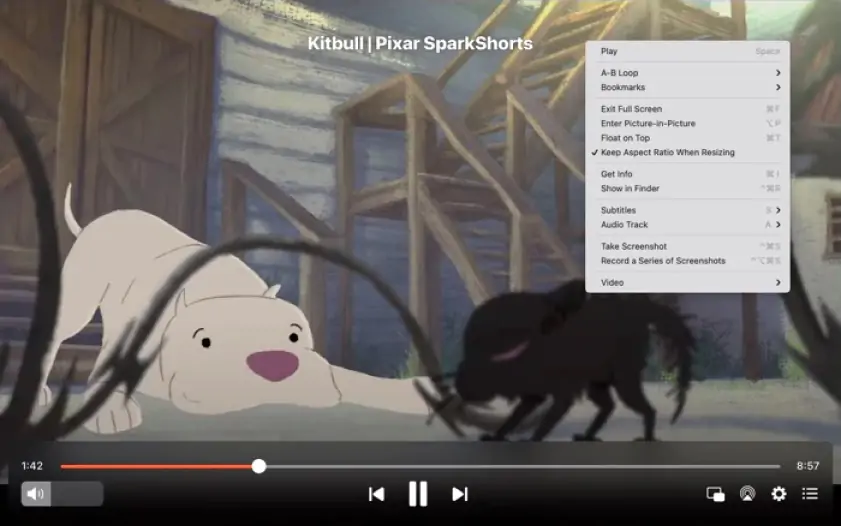
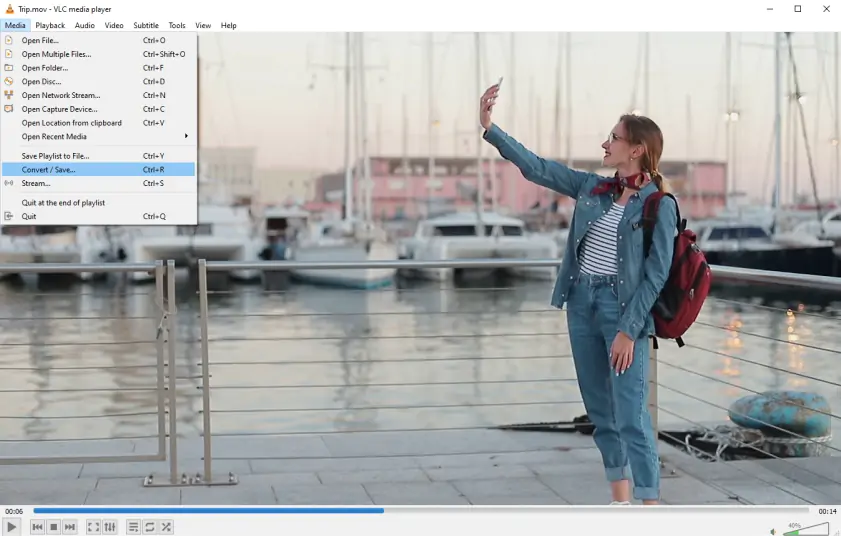
2. VLC Media Player

Why I picked it: VLC Media Player is the classic powerhouse that plays nearly anything you throw at it.

VLC has earned its reputation as one of the most versatile and free media players available today. It is open-source, lightweight, and available across all major platforms. So, it is a go-to choice for casual viewers and professionals alike.

One of VLC’s strongest suits is its unmatched compatibility. MOV files that refuse to play on other software are rarely a problem here. Thanks to a high codec library built directly into the player, it can handle almost any video and audio format without requiring additional downloads. Your MOV files play smoothly, your subtitles sync properly, and your high-resolution videos retain their crisp detail.

But VLC is not just about playback. It also has features for those who like a little extra control. Users can adjust playback speed, tweak video and audio effects, or even convert files to different formats if needed. Advanced users can explore options like streaming, screen recording, or extracting audio from video. These features turn VLC from a simple player into a versatile multimedia hub.

Despite its vast capabilities, VLC keeps things user-friendly. The interface is clean and intuitive, meaning you spend less time figuring out buttons and more time enjoying your videos. For those who value customizability, VLC also supports extensions, skins, and a variety of tweaks that let you tailor the experience to your liking.

Ratings

Pros:
  • Free and open-source

  • Plays almost every video format, including MOV

  • Lightweight with fast performance

  • Supports advanced features like streaming, recording, and conversion

Cons:
  • Interface can feel a bit outdated compared to modern players

  • Advanced features may be overwhelming for beginners

3. 5KPlayer

Why I picked it: 5KPlayer is a sleek, modern player that handles high-resolution MOV files effortlessly while adding extra features for streaming and media management.

MOV files are known for their high-quality visuals, but sometimes that quality comes at the cost of smooth playback. So, use 5KPlayer to handle everything from standard MOV files to ultra-HD 4K and 5K videos with grace. If you like your video playback crisp, lag-free, and visually stunning, this is a tool that delivers.

One of the standout features of 5KPlayer is its support for high-resolution formats. The player also supports hardware acceleration, which ensures smoother performance even on older machines… no more waiting for your computer to catch up while your video skips and buffers.

Beyond playback, 5KPlayer doubles as a media management hub. It allows users to stream videos via AirPlay and DLNA, download videos from popular online platforms, and even organize their media library. For MOV lovers who also want a bit of extra versatility, 5KPlayer provides conversion options for turning files into more universally compatible formats without compromising quality.

The interface is modern and minimalistic. This makes it easy to navigate for everyone. The player’s performance is fast and reliable, ensuring that even larger MOV files do not slow things down or crash unexpectedly.

Ratings

Pros:
  • Handles high-resolution MOV files (HD, 4K, 5K) smoothly

  • Hardware acceleration for better performance

  • Supports streaming via AirPlay and DLNA

  • Includes video download and conversion features

Cons:
  • Some advanced features require a learning curve

  • Free version includes occasional prompts to upgrade

  • Fewer updates compared to more mainstream players

4. QuickTime MOV Player

Why I picked it: QuickTime is the original homegrown MOV champion, built by Apple to handle MOV files flawlessly and deliver smooth, reliable playback on Mac devices.

When it comes to MOV files, QuickTime Player is the OG. Developed by Apple specifically for their ecosystem, it is designed to handle MOV files with precision, delivering crisp video and seamless audio every time. For Mac users in particular, QuickTime remains the default go-to for viewing, editing, and exporting MOV videos without fuss.

One of QuickTime’s biggest advantages is its native support for MOV files. Unlike third-party players that rely on external codecs or updates, QuickTime speaks MOV fluently. This ensures that your files play smoothly, preserving the high-quality visuals and audio without glitches or errors. The player also supports other formats like MP4, M4V, and more, making it versatile enough to handle a wide range of video content.

Beyond basic playback, QuickTime includes a range of lightweight editing features. Users can trim clips, rotate videos, merge files, and even perform simple screen recordings… all within the same interface. This makes it more than just a player; it’s a convenient mini-studio for MOV lovers who do not need heavy-duty editing software.

The interface is clean and intuitive. Even first-time users can navigate QuickTime without struggling with complicated menus. Combined with low system resource usage, it ensures your Mac runs smoothly even while handling large MOV files.

Ratings

Pros:
  • Native support for MOV files ensures flawless playback

  • Lightweight and efficient, with minimal system impact

  • Basic editing tools included (trim, merge, rotate, record)

  • Clean and intuitive interface suitable for all users

Cons:
  • Limited advanced features compared to dedicated video editors

  • Best experience mainly on Apple devices; Windows version lacks some features

  • Fewer options for codec management or format conversion

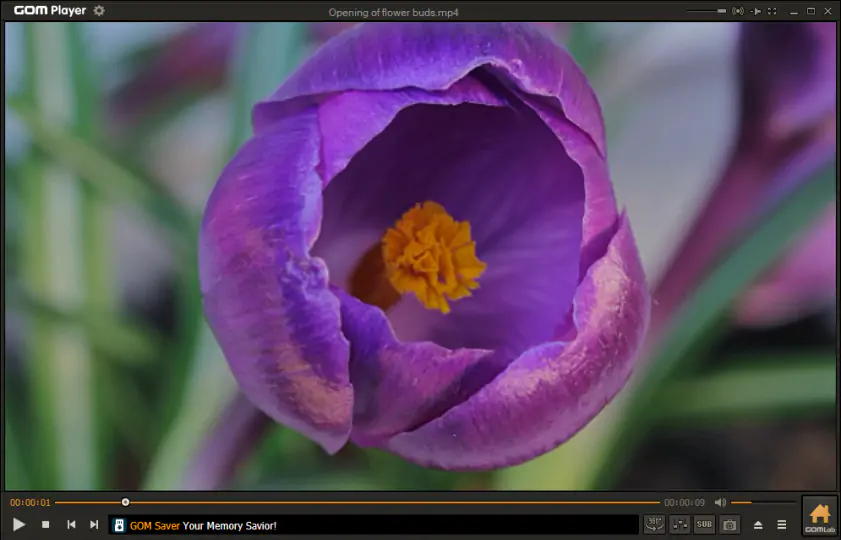
5. GOM Player

Why I picked it: GOM Player is a feature-rich MOV player that has versatility, customization, and strong codec support. Ideal for users who want more control over their video experience.

GOM Player prides itself on compatibility, flexibility, and a suite of features to enhance playback. Originally developed in South Korea, GOM Player has grown into a globally recognized option for users who want a reliable, customizable, and free MOV player.

One of GOM Player’s key strengths is its built-in codec library. Many MOV files require specific codecs to play correctly, and GOM Player comes ready to tackle most of them without extra downloads. For the occasional unsupported file, it even directs users to the correct codec, helping you avoid the frustration of mysterious playback errors.

Apart from playing MOV files, GOM Player offers several advanced features. You can adjust video speed, apply filters, and even sync subtitles with precision, which is a blessing for movie buffs and content creators alike. It also supports 360-degree videos, allowing you to explore immersive MOV content without needing extra software.

The player is highly customizable, with skins, themes, and layout options that let you tailor the viewing experience to your liking. Whether you prefer a clean, minimal interface or one loaded with advanced controls, GOM Player adapts to your workflow. Its lightweight design ensures smooth performance, even on older systems, making it accessible to a wide range of users.

Ratings

Pros:
  • Wide codec support for seamless MOV playback

  • Advanced features like subtitle sync, filters, and 360-degree video

  • Highly customizable interface and user experience

  • Lightweight and compatible with older systems

Cons:
  • Free version includes occasional ads and prompts to upgrade

  • Interface can feel cluttered for beginners

  • Some features may require a learning curve

6. MPV Player

Why I picked it: Because there are no unnecessary buttons. It is open-source and good at handling high-quality files without breaking a sweat.

MPV Player takes a different approach from most video players: it focuses on performance and codec flexibility rather than decorative menus. It supports virtually all major formats, thanks to its built-in ffmpeg foundation.

The interface is clean because MPV lets your keyboard and mouse do the talking. Advanced users can customize everything from video scaling algorithms to color management and filters. Even better, MPV runs smoothly on low-resource systems, making it a perfect pick for anyone who just wants reliable playback without eating up system power.

What makes MPV even more lovable is its incredible scripting ecosystem. Want to add thumbnail previews? Auto-load subtitles? Integrate YouTube playback? MPV says, "Absolutely… just install a script."

Ratings

Pros:
  • Extremely lightweight and fast

  • Plays MOV files flawlessly with built-in codecs

  • Highly customizable using scripts

  • Open-source and completely free

  • Great for advanced users who love tweaking settings

Cons:
  • Minimal interface may confuse beginners

  • Many features require manual configuration

  • No built-in library or media management

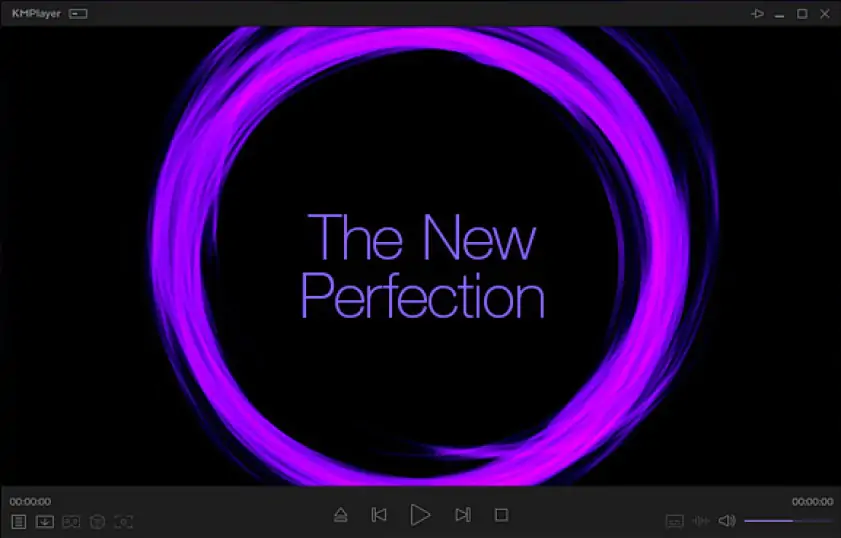
7. KMPlayer

Why I picked it: KMPlayer is the player you go for when you want total control over your MOV playback. It handles almost any codec you throw at it and supports high-resolution videos.

KMPlayer has been around for years, and it has earned its reputation as one of the most feature-rich media players available. It supports MOV files straight out of the box and can play everything from low-resolution clips to full-blown 4K (and even 8K) videos without stress.

One huge advantage is its built-in codec support. You do not need to hunt for external codec packs, KMPlayer ships with nearly everything you need. The interface is sleek and customizable, letting you tweak everything from playback speed to subtitle rendering. It also includes advanced features like screen capture, VR playback, audio normalization, and detailed video filters.

Another big plus is that KMPlayer supports hardware acceleration (DXVA, CUDA, Intel QuickSync), which ensures smooth playback even on older systems. If you want a player that gives you both power and polish, KMPlayer checks all the boxes.

Ratings

Pros:
  • Excellent built-in codec support

  • Highly customizable interface

  • Handles 4K/8K and high-bitrate MOV files smoothly

  • Hardware acceleration boosts performance on weak hardware

Cons:
  • Interface is overwhelming for beginners

  • Occasional ads in the free version

  • Some advanced settings require a learning curve

8. PotPlayer

Why I picked it: PotPlayer is ultra-customizable, fast, and packed with advanced playback tools. If you like tweaking settings until your videos look just right, this one is basically your playground.

PotPlayer is known for being one of the most powerful free video players on Windows. It supports a massive list of formats, MOV included. This player also offers hardware acceleration for smooth playback, and gives users control over everything from video filters to subtitle rendering. It is lightweight, fast, and flexible enough to handle high-resolution footage without stutter.

Its interface leans toward a more technical crowd, but once you understand the app, PotPlayer becomes a performance machine. Whether you are watching everyday clips, working with large MOV files, or experimenting with playback tweaks, this app delivers a smooth experience.

Ratings

Pros:
  • Excellent performance with large or high-resolution MOV files

  • Extremely customizable playback and interface settings

  • Strong support for filters, subtitles, and codecs

  • Free to use

Cons:
  • Only available on Windows

  • The interface can feel overwhelming for beginners

  • Occasional bundled extras during installation

9. Elmedia Player

Why I picked it: Elmedia Player offers a polished, macOS-focused experience with smooth MOV playback, wide format support, and handy streaming features.

Elmedia Player is a macOS-native media player designed to provide a seamless experience for high-quality video playback. It supports MOV, MP4, AVI, MKV, FLV, and many more, ensuring that most videos will play without the need for additional codecs. Its clean interface and intuitive controls make it a favorite for both casual viewers and more tech-savvy users.

One standout feature of Elmedia Player is its advanced streaming capabilities. Users can wirelessly stream content from their Mac to smart TVs or AirPlay-enabled devices. It also supports subtitle synchronization, audio equalizer adjustments, and customizable playback speed, enhancing the overall viewing experience.

The player comes in two versions: a free version with basic playback and essential features, and a PRO version that unlocks advanced options like streaming, downloading online videos, and full playlist management.

Ratings

4.5

Pros:
  • Wide format support, including MOV and high-resolution videos

  • Streaming to smart TVs and AirPlay devices

  • Subtitle synchronization and audio customization

  • Clean, intuitive macOS interface

Cons:
  • Some advanced features require the PRO version

  • Windows version is not available

  • Minor issues with very large files on older Macs

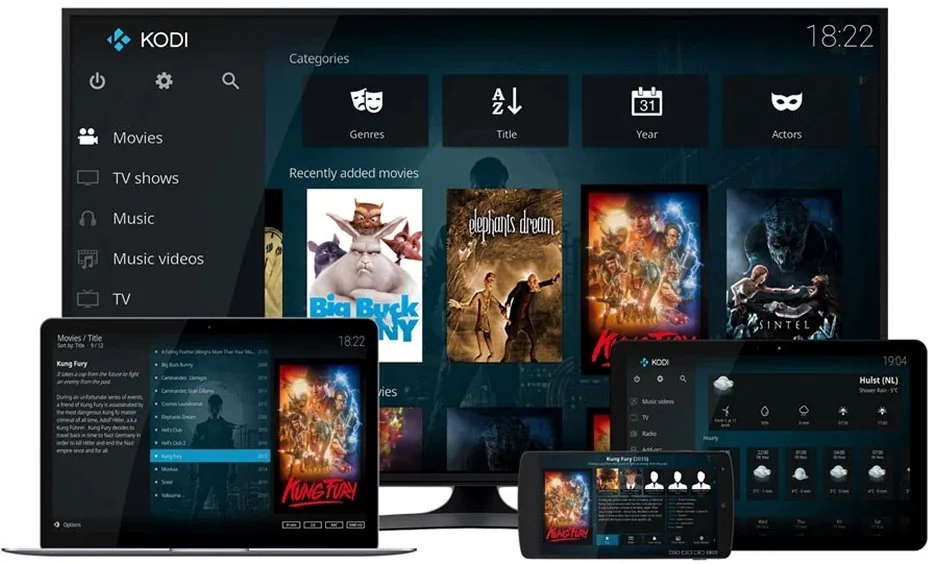
10. Kodi

Why I picked it: Kodi is a versatile, open-source media center that not only plays MOV files but also organizes and streams your entire media library. So, it is perfect for users who want more than just a video player.

Kodi is a free, open-source media player and entertainment hub that runs on Windows, macOS, Linux, Android, and other platforms. Beyond just playing MOV files, Kodi excels at organizing videos, music, and photos, turning your device into a fully-featured media center.

One of Kodi’s standout features is its add-on ecosystem, which allows users to extend functionality with plugins for streaming services, subtitle downloads, and even live TV. MOV playback is seamless, with support for a wide range of codecs and high-resolution formats. Its customizable interface lets users tailor the experience with skins, layouts, and navigation shortcuts.

Kodi is ideal for those who want all-in-one media management, including playback, library organization, and streaming, rather than a simple video player. While it can require a bit of setup for newcomers, the effort is rewarded with a highly versatile and powerful media solution.

Ratings

Pros:
  • Plays MOV and almost any other video/audio format

  • Organizes media libraries and supports streaming

  • Highly customizable with skins and add-ons

  • Cross-platform support

Cons:
  • Initial setup can be complex for beginners

  • May feel overwhelming due to its wide range of features

  • Some add-ons may not be officially supported

MOV vs. MP4: which one should you use?

Although both MOV and MP4 are video container formats, each has strengths that make it better suited for specific tasks. Knowing these differences can save you headaches when choosing the right format for your project.

When it comes to video quality, MOV takes the lead for professional applications. Its compatibility with high-end codecs, such as ProRes, preserves more detail during editing and processing. This makes it a favorite among video editors and content creators who prefer fidelity. The trade-off is larger file sizes, which can be cumbersome to store, transfer, or share.

MP4, on the other hand, is all about efficiency. It compresses files effectively while maintaining decent visual quality. This makes it ideal for sharing, streaming, or uploading online. The catch? Some data loss is inevitable, which may be noticeable if you are working with lower-quality sources or performing multiple edits.

Compatibility is where MP4 really shines. Nearly every device, operating system, and platform supports it, so you are rarely left scrambling for a player. MOV files, while excellent within the Apple ecosystem, can encounter playback issues on non-Apple devices, sometimes requiring additional software or codecs.

Here’s a quick side-by-side look:

Feature

MOV

MP4

Quality

Supports high-end, lossless codecs

Uses lossy compression, good visual quality

File size

Larger, especially with high-quality codecs

Smaller, efficiently compressed

So, which should you choose? If you are a professional editor working with top-tier footage, MOV’s superior quality and editing flexibility make it the better option, provided you can handle the larger files.

For everyone else, MP4 is the safer and more practical choice. Its small file sizes and broad compatibility make sharing and streaming painless. A common approach is to edit in MOV for quality and then convert the final product to MP4 for distribution. This gets the best of both worlds.

Comparison table: Best MOV players for 2025

To help you compare your options at a glance, we've put together this table to compare the best MOV players for 2025.

Player

OS compatibility

Key feature

Best for

Price

Windows, macOS

Seamless MOV playback + conversion to many formats

Users who want playback and format conversion in one tool

Paid (with free‑trial option)

Windows, macOS, Linux, mobile platforms

Built‑in extensive codec support; plays nearly any format incl. MOV

Free, cross‑platform playback for any user

Free (open source)

Windows, macOS

High-resolution (HD/4K/5K) video playback + streaming support

Users who want high-res playback and streaming/DLNA functionality

Freemium (free core, with optional premium features)

How to play MOV files on different devices

How to play MOV files on Windows

Windows does not always natively support MOV files, but there are several ways to get your videos running smoothly

1. Use a dedicated media player

  • VLC Media Player or GOM Player can handle MOV files without needing extra codecs.
  • Simply download, install, open the player, and drag your MOV file into the window.

2. Convert the MOV file

  • If your preferred player struggles, convert the MOV to MP4 using tools like Movavi Video Converter or 5KPlayer.
  • MP4 is universally supported on Windows and keeps good quality while reducing file size.

3. QuickTime for Windows

  • Apple’s QuickTime Player is available for Windows, though it is limited and not actively updated.
  • It can open MOV files directly but may require codec support for some files.

Tip: for smooth playback, make sure your system has updated media codecs or use a player with built-in codec support.

How to play MOV files on Mac

Macs are better when it comes to MOV files since the format was developed by Apple. You have several seamless options

1. QuickTime Player

  • The default player for MOV on macOS.
  • Simply double-click your MOV file and QuickTime handles the rest.

2. Other media players

  • VLC Media Player and 5KPlayer also work on Mac and offer additional features like subtitle syncing, streaming, and high-resolution playback.

3. Convert for compatibility

  • If you plan to share MOV files with non-Apple users, converting them to MP4 ensures that friends and colleagues can play the videos on any device.

Pro tip: macOS users can also use built-in Preview or iMovie for basic playback and quick edits without needing extra software.

Best settings for smooth MOV playback

MOV files are high-quality, but even the best videos can stutter if your player or device is not properly configured. Adjusting a few key settings can make a huge difference. Here’s how to go about it:

1. Movavi Video Converter

  • Playback settings: use default MOV playback settings; ensure hardware acceleration is enabled for smoother playback of high-resolution files.
  • Conversion tips: convert very large MOV files to MP4 or adjust resolution for devices with limited processing power.
  • Extra tip: enable High-Speed Conversion mode when converting multiple MOV files to reduce lag during playback.

2. VLC Media Player

  • Playback settings: go to Tools, Preferences, Input/Codecs and set Hardware-accelerated decoding to Automatic.
  • Advanced options: enable Skip H.264 in-loop deblocking filter for very high-resolution MOV files to reduce stuttering.
  • Extra tip: adjust caching values in Input/Codecs, Advanced for smoother playback of large files.

3. 5KPlayer

  • Playback settings: ensure Enable Hardware Acceleration is turned on in the settings to handle 4K or 5K MOV files.
  • Video output: use DirectX or OpenGL mode for Windows, and Metal for Mac to improve performance.
  • Extra tip: close unnecessary background apps when playing large MOV files to avoid lag.

4. QuickTime Player

  • Playback settings: QuickTime automatically optimizes playback for MOV files.
  • Tips for smooth playback: For very large files, consider trimming unused sections or reducing resolution in export settings.
  • Extra tip: keep macOS and QuickTime updated to leverage performance improvements.

5. GOM Player

  • Playback settings: go to Preferences, Video, Video Renderer and select Enhanced Video Renderer (EVR) for Windows.
  • Hardware acceleration: enable DXVA for Windows systems to smooth high-res MOV playback.
  • Extra tip: adjust subtitle rendering settings to avoid lag when using heavy subtitle files.

6. MPV Player

  • Playback settings: use default settings; MPV is highly optimized for minimal lag.
  • Customization tips: adjust video-sync and hwdec (hardware decoding) options in the configuration file for smooth playback of high-resolution MOV files.
  • Extra tip: minimalist interface ensures fewer background processes, improving performance on older systems.

7. KMPlayer

  • Playback settings: enable DXVA (Hardware Acceleration) under Preferences, Video to reduce lag with high-res MOV files.
  • Advanced options: adjust caching and buffer settings for smoother streaming or large files.
  • Extra tip: use 32-bit or 64-bit version matching your system for optimal performance.

8. PotPlayer

  • Playback settings: enable Hardware Acceleration (DXVA, NVIDIA CUVID, or Intel QuickSync) for high-resolution MOV playback.
  • Video Renderer: Select Enhanced Video Renderer (EVR) for Windows to reduce stutter.
  • Extra tip: close unnecessary background apps to maximize CPU/GPU resources.

9. Elmedia Player

  • Playback settings: enable Hardware Acceleration in Preferences, Playback for smooth HD MOV playback.
  • Streaming tip: turn off unnecessary network streaming features when focusing on local MOV files to reduce lag.
  • Extra tip: adjust subtitle rendering and audio equalizer settings for optimal synchronized playback.

10. Kodi

  • Playback settings: ensure Hardware Acceleration (DXVA/VA-API) is enabled in Settings, Player, Videos.
  • Advanced options: adjust video cache size for high-resolution or network-streamed MOV files.
  • Extra tip: use compatible skins and add-ons optimized for performance to avoid unnecessary CPU load.

Troubleshooting MOV playback issues

You’ve downloaded the perfect MOV file, settled in to watch, and… nothing. The file won’t open, there’s no sound, or the video is choppy and unwatchable. It is frustrating, but don’t worry, we’ve got you covered. Here’s how to solve the most common MOV playback issues and how to fix them.

1. MOV file not opening

If your player refuses to open the file, the most likely issue is a missing codec. MOV files can contain various video and audio codecs, and if your player does not have the right ones, it cannot decode the file.

Solution

  • Download and install a codec pack like K-Lite Codec Pack.
  • If using a player like VLC or 5KPlayer, check the settings to ensure the new codecs are recognized.
  • Try opening the MOV file again, it should now play smoothly.

2. No audio in MOV file

You may see the video but hear nothing. This often happens when your player does not support the audio codec used in the MOV file, most commonly AAC.

Solution

  • Check your player’s audio settings to ensure AAC is enabled.
  • Use a player like VLC, which has built-in support for a wide range of audio codecs.
  • If the issue persists, convert the MOV file to another format with a more compatible audio codec using a tool like Movavi Video Converter.

3. Choppy MOV playback

Stuttering, freezing, or laggy playback can ruin the viewing experience. This usually occurs when your computer struggles to decode high-resolution video in real-time.

Solution

  • Open your player’s settings and enable Hardware Acceleration.
  • Choose your computer’s graphics card if prompted.
  • Restart the player and try playing the file again—playback should now be smoother.

4. Other tips and tricks

  • Update your media player to the latest version to improve compatibility.
  • Close background applications that may be using CPU or memory resources.
  • Try alternative players like Movavi or 5KPlayer if your default player continues to have issues.
  • If a MOV file is potentially corrupted, try re-downloading it or using a file repair tool.

With these steps, most MOV playback problems can be resolved quickly. Remember, there is almost always a solution, it just takes a bit of patience and the right tools.

Conclusion & final recommendation

MOV files are a staple for high-quality video with crisp visuals and rich audio, but they can sometimes be tricky to play or share. The good news is that with the right media player, these issues are easily overcome, and you can enjoy your videos exactly as intended.

Among the top MOV players in 2025, Movavi Video Converter excels as an all-in-one solution, with smooth playback, fast conversion, and basic editing. VLC Media Player is another free option, capable of playing nearly any MOV file across multiple platforms. 5KPlayer shines with high-resolution content and streaming capabilities, while QuickTime Player remains the go-to for Mac users seeking native support and simplicity. GOM Player is perfect for those who value customization, subtitles, and broad codec compatibility.

Our final recommendation: For users who want a seamless, hassle-free experience with professional-grade features, Movavi Video Converter is the standout choice. It not only ensures smooth MOV playback but also allows you to convert, optimize, and even do light editing, all in one platform. For those on a budget or needing cross-platform flexibility, VLC it is.

Movavi Video Converter
The ideal way to get your media in the format you need!
Movavi Video Converter

Frequently asked questions

Can I play MOV files on Windows?

Yes! While Windows does not natively support all MOV files, you can use players like VLC Media Player or GOM Player. Alternatively, you can convert MOV files to MP4 for universal compatibility using Movavi Video Converter.

Which MOV player is best for high-resolution videos?

For HD, 4K, or even 5K MOV files, 5KPlayer and Movavi Video Converter offer smooth playback and hardware acceleration. VLC also handles high-resolution files well, though performance may vary depending on your system.

How can I convert MOV files to other formats?

Tools like Movavi Video Converter allow you to convert MOV files to formats such as MP4, AVI, or MKV without losing quality. This is useful for sharing videos with users who may not have compatible players.

Can I edit MOV files directly?

Yes. QuickTime Player allows basic editing such as trimming, rotating, and merging clips. For more advanced editing or format conversion, Movavi Video Converter can handle MOV files without compromising quality.

What is the best MOV player for iPhone?

For iPhone users, QuickTime Player and Apple’s default TV app provide the smoothest experience. For more features, apps like VLC for Mobile can handle MOV playback, subtitles, and streaming on iOS devices.

Have questions?
Have questions?
If you can’t find the answer to your question, please feel free to contact our Support Team.
Join us for discounts, editing tips, and content ideas

1.5M+ users already subscribed to our newsletter

By signing up, I agree to receive marketing emails from Movavi and agree to Movavi's Privacy Policy.