
8 Best MP4 Video Editors

Try Movavi Video Editor!

  • Trim, cut, crop, and rotate videos
  • Add titles, stickers, and transitions
  • Apply visual effects

By clicking the download button, you're downloading a free version of the program.*

Edited by
Ben Jacklin
9,442

Key takeaways

  • MP4 is a container, so the codec inside it is a separate choice.
  • Browser-based editors are best suited for quick trims.
  • Long vlogs fit a desktop timeline, because browser editors can lag on long, heavy projects.
  • Every tool has different free version limitations. Check the watermark and export caps before you start.

The best MP4 video editor really depends on how and where you like to work. Movavi Video Editor and Filmora are solid all-round desktop options. CapCut is a great fit for short vertical clips. If you just need a quick fix, Clipchamp, VEED, and Adobe® Express® run right in your browser. And if you’re ready to invest time in learning a professional toolset, DaVinci Resolve and Adobe® Premiere® are worth a look.

MP4 is the most popular container for storing video and audio, and it can carry subtitles and still images too. Whatever you’re working on, editing an MP4 usually comes down to the same handful of tasks: trim and cut, join clips, crop the frame, add effects or audio, and export. This guide is for anyone making lifestyle vlogs or travel videos, game highlights or gadget reviews, or tutorials for class or YouTube. Good MP4 video editing software lets beginners get all of that done without having to read a manual first.

Compare the best MP4 editors at a glance

Editor

Best for

Platforms

Free version/price

MP4 support

4K export

Movavi Video Editor

Lifestyle vlogs, unboxings, and travel videos

Windows, macOS

Free with a watermark and some limitations. Full version: $19.95/month.

Yes

Yes, in the full version

Filmora

Pro bloggers on a steady posting schedule who want AI helpers

Windows, macOS

Free with watermark on export videos and some limitations. Paid plans from $49.99/year.

Yes

Yes

CapCut

Short vertical vlogs and quick travel clips

Mobile, web, desktop

Free version with basic editing tools. Pro version for $19.99/month.

Yes

Yes

Clipchamp

Student tutorials and class projects

Browser, Windows 11 app, iOS app

Free. Premium is available as a separate subscription or inside Microsoft 365 Personal ($99.99/year) and Family ($129.99/year).

Yes

Yes, with a Premium subscription

VEED

Bloggers who create business content and need team collaboration

Browser, mobile app

Free with a watermark on output videos and limited AI use. Paid plans from $10/month billed yearly.

Yes

Yes, with a subscription

Adobe® Express®

Template-based unboxing teasers

Browser, mobile app

Free with limits on features, content, and AI credits. Premium subscription: $9.99/month.

Yes

Yes, with paid plans

DaVinci Resolve

Video edits with film-grade color

Windows, macOS, Linux

Free version. Studio: $295 (one-time payment).

Yes

Yes

Adobe® Premiere®

Multicam projects, commercials with a team

Windows, macOS

No free version; 7-day trial. Subscription for $22.99/month.

Yes

Yes

How we chose the best MP4 video editors

Each editor was judged on six criteria:

  • MP4 import and export
  • Learning curve for beginners, from one-click tools to panel-heavy interfaces
  • Core tools: trim, cut, crop, audio, effects, transitions, and subtitles on a timeline
  • Price and free-version limits, such as a watermark or an export cap
  • Platform: Windows, Mac, Linux, or online
  • 4K export

How to edit an MP4 video in 3 steps

Most MP4 edits follow the same three steps:

Step 1: Add your footage.

Import your MP4 file, along with any other media you’d like to use.

Step 2: Trim, cut, and polish.

Remove the parts you don’t need, connect clips with smooth transitions, and layer in music, audio, and effects. Crop the frame if you want a tighter shot.

Step 3: Export.

Choose MP4 as the output format, then set a resolution that suits the platform where you’ll post, whether that’s YouTube or somewhere else.

The 8 best MP4 video editors

  • Best for

    Lifestyle vlogs, unboxings, and travel videos, edited start to finish on a desktop.

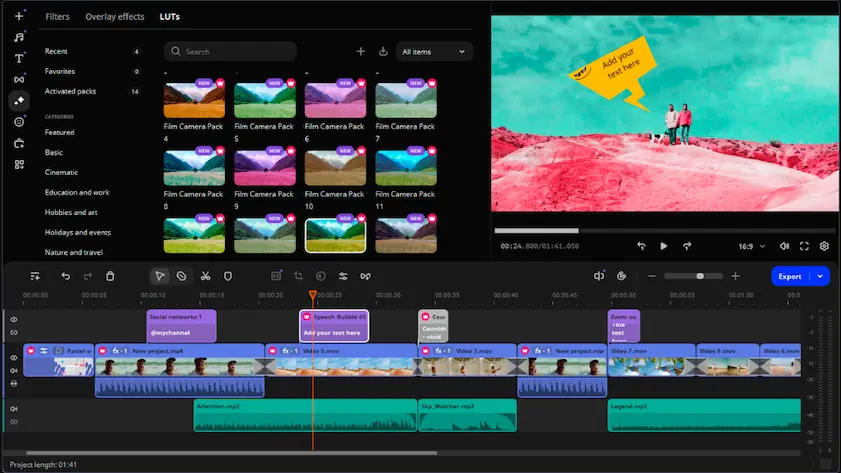
Why we picked it: Movavi Video Editor is an intuitive video editor with customizable video templates, one-click AI tools, and hundreds of drag-and-drop effects. Hover previews show a clip, effect, or exact frame before you commit, and an effect lands on the timeline with one drop, so you can focus on creating rather than hunting through menus. Templates follow the same logic: Movavi Video Templates is a multi-style library of customizable, pro-looking, modular templates for any kind of video. A template is a ready-made project built from Blocks, short pre-edited segments where you drop your own clips, photos, and text. It arrives with pre-set editing, music, transitions, and text that you can keep, change, or remove, so your first export already has pacing, a soundtrack, and titles. Movavi Ideas, a free tutorial hub, adds new editing ideas every week, each with a step-by-step guide.

Key features:

  • Frame-precise cutting: the Blade tool makes instant cuts, and pre-timeline trimming pulls a short segment out of a long MP4 before it joins the project.
  • AI subtitles: speech to text in 100+ languages, with word-by-word highlighting that follows the audio.
  • Formats: MP4, MOV, AVI, MKV, and WMV video, with 4K export in the full version and direct upload to YouTube, Vimeo, Google Drive, or TikTok.
  • Polish tools: color correction presets, stabilization, and auto-tracked cropping that turns horizontal footage vertical.
  • Templates: several come with the full version at no extra charge; the whole collection comes with the separate Movavi Templates subscription.
Pros:
  • Simple and intuitive interface designed for beginners and everyday creators.

  • AI tools are included in the full version, with no credit system.

  • Hundreds of built-in effects and copyright-free music tracks ship in the box.

  • Desktop editing works offline on long videos, with no account or cloud required.

Cons:
  • Lacks advanced, detailed controls for a professional workflow.

  • No flexible UI customization.

  • No web version.

Price and platforms: Desktop app for Windows and macOS. Free version adds a watermark and caps videos at 60 seconds. The full version is available at $19.95/month.

Filmora

  • Best for

    Pro bloggers on a steady posting schedule who want AI helpers.

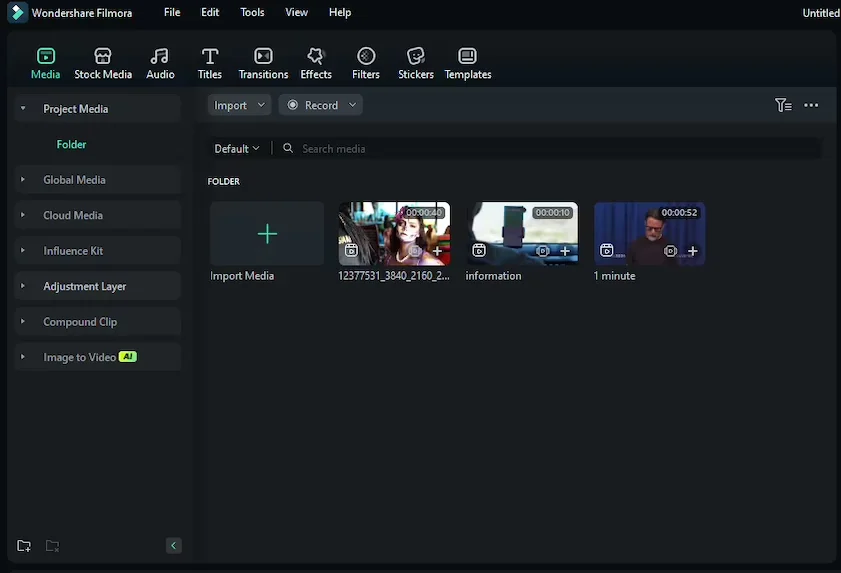
Why we picked it: Filmora is an AI-powered video editor from Wondershare, positioned as a desktop tool for serious video production. Its AI Smart Cutout removes pauses and silence automatically, so a beauty vlogger can tighten a talking-to-camera MP4 and then reframe it for Reels. It does not require high-end hardware and runs on a mid-range laptop.

Key features:

  • Multitrack timeline with keyframe animation and motion tracking
  • AI auto reframe (Smart Short Clips) that follows the subject when you change the format
  • AI Portrait Cutout, which removes a background without a green screen
  • Templates and Instant Mode for different occasions, applied to your clips as a whole
Pros:
  • The interface is simpler than pro editors’, with many templates and AI shortcuts.

  • Stabilization and AI lighting correction cover shaky or flat footage.

Cons:
  • AI features run on separate credits and need a higher-tier subscription.

  • Many single-task AI features can confuse beginners at first.

Price and platforms: Windows and macOS. Free: exports are watermarked and the number of exports is limited. Paid plans from $49.99/year.

CapCut

  • Best for

    Short vertical vlogs and quick travel clips for Reels, TikTok, and Shorts.

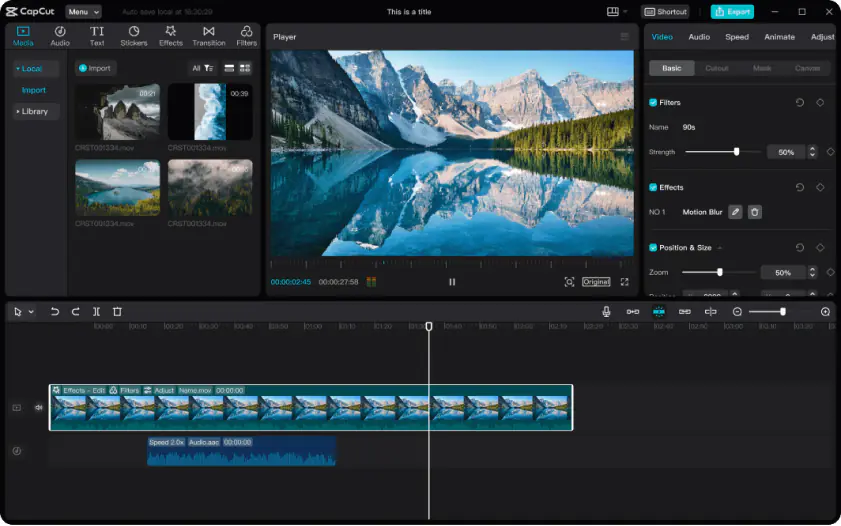
Why we picked it: CapCut began as a mobile-first editor for short, trending videos and is part of TikTok. Its AI auto-tracked cropping keeps the subject in frame, so a travel vlogger can turn a horizontal clip vertical in one pass. Some features and assets need an internet connection and an account.

Key features:

  • Keyframe animation, chroma key, and speed ramping
  • AI auto subtitles with translation and a choice of styles
  • AI background removal without a green screen
  • Ready-made trending templates focused on vertical content, with little customization
Pros:
  • A large library of trending templates and effects.

  • AI subtitles, subject-tracked cropping, and pause removal in one editor.

Cons:
  • The best templates are marked Pro and need a subscription.

  • AI features run on credits.

Price and platforms: Mobile, web, and desktop. Free version with basic editing tools. Pro version for $19.99/month.

Clipchamp

  • Best for

    Student tutorials and class projects recorded and trimmed on a Windows PC.

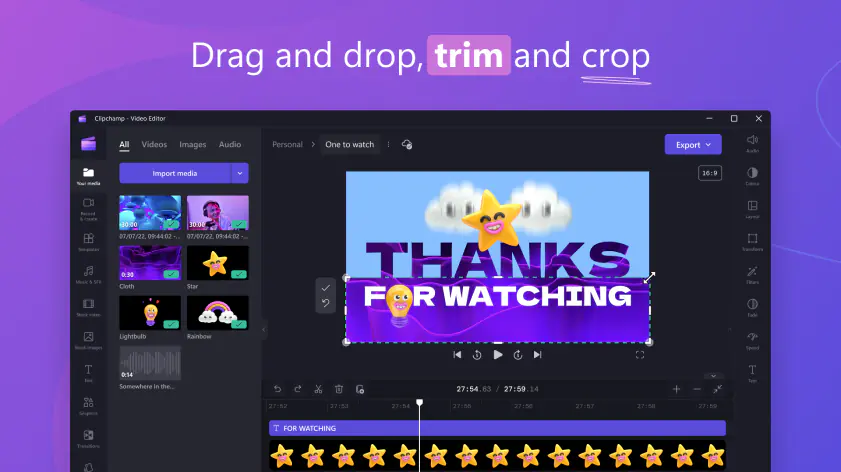
Why we picked it: Clipchamp is Microsoft’s browser-based editor, built into Windows 11 and Microsoft 365. Screen and webcam recording sit next to a simple timeline, so a tutorial can go from recording to trimmed clip in one place. Basic effects and transitions come with the timeline.

Key features:

  • Free AI auto subtitles with a choice of language and a downloadable transcript
  • Free AI silence removal and automatic clip cutting
  • AI noise reduction with a toggle
  • Templates for social media, work, and school: intros, promos, and slideshows
Pros:
  • A simple timeline that is clear to beginners.

  • The AI features are free.

Cons:
  • The toolset is limited, so anything beyond basic tasks hits a ceiling.

  • Large files can cause lag and export freezes, and 4K needs Premium.

Price and platforms: Browser (Edge or Chrome), Windows 11 app, and iOS app, with a Microsoft account. Free version. Premium adds 4K, premium stock, and a brand kit, as a separate subscription or inside Microsoft 365 Personal ($99.99/year) and Family ($129.99/year).

VEED

  • Best for

    Bloggers who create business content and need team collaboration.

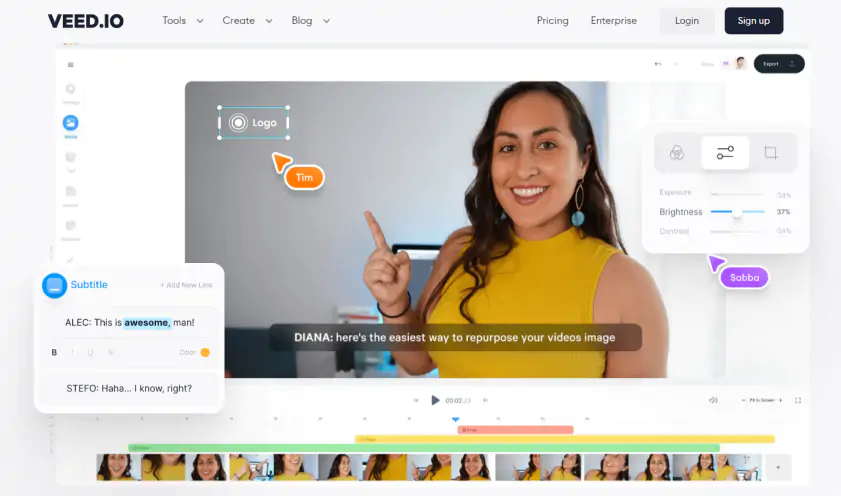
Why we picked it: VEED is a browser-based AI editor, so there is nothing to install. Its Remove Silences feature cuts pauses and filler words automatically, so a vlogger talking to camera gets a tighter cut before the captions go on. A brand kit and real-time team collaboration come along for business use.

Key features:

  • Collaborative editing and business templates
  • AI subtitles with translation into other languages
  • Clean Audio, a one-click voice cleanup
  • AI background removal without a green screen
  • Basic multitrack editing with text and stickers
Pros:
  • Accurate auto subtitles with styles and translation.

  • Remove Silences and Clean Audio save time on talking-head videos.

Cons:
  • Long, heavy projects can lag, buffer, or fail at export.

  • AI credits run out quickly, and translation costs credits.

Price and platforms: Browser and a mobile app, with an account and a stable internet connection. The free version is available with a watermark on output videos and limited AI use. Paid plans from $10/month billed yearly.

Adobe® Express®

  • Best for

    Template-based unboxing teasers and short social videos.

Why we picked it: Adobe® Express® is a lightweight web builder for social media and marketing material. It focuses on quick, template-based visuals, with a basic video editor on top. An unboxing teaser starts from a template and picks up AI subtitles.

Key features:

  • Templates for posts, stories, and short videos
  • AI auto subtitles
  • One-click resizing for social media formats
  • AI background removal in video
Pros:
  • Templates are easy to edit right on the canvas.

  • A drag-and-drop interface that beginners pick up quickly.

Cons:
  • Full-fledged video editing is hard to do, and long videos strain the browser.

  • The transitions library is small, at about 10 in total.

  • The best templates and features sit in Premium.

Price and platforms: Browser and a mobile app, with an Adobe account. Free with limits on features, content, and AI credits. Premium subscription: $9.99/month.

DaVinci Resolve

  • Best for

    Video edits where film-grade color matters.

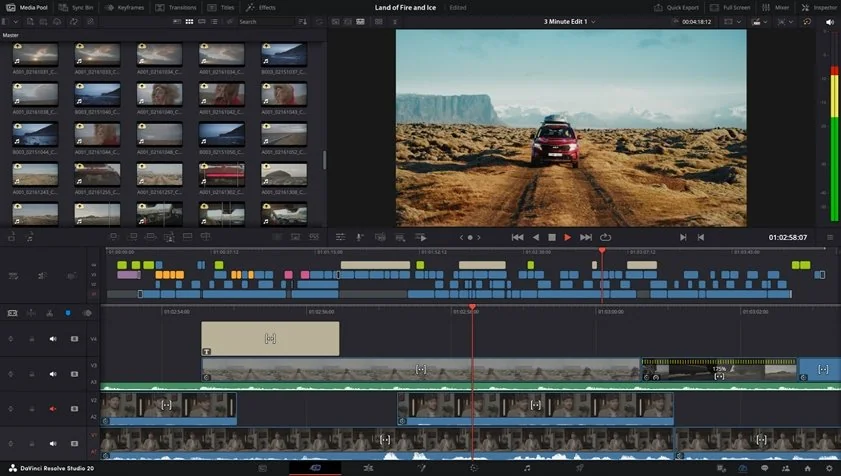
Why we picked it: DaVinci Resolve is made for colorists and professional editors, with separate modules for Edit, Color, Fairlight audio, and Fusion effects. Color correction runs through Nodes, with HSL and LUTs, so a gaming creator can grade a highlight reel in the dedicated Color module. The paid Studio version adds support for higher resolutions and frame rates.

Key features:

  • Frame-accurate cutting
  • Manual crop, rotate, and mirror
  • AI tools such as Magic Mask in the paid Studio version
  • AI upscaling (Super Scale) to increase sharpness/resolution
Pros:
  • The free version has no watermark or time limit.

  • Stabilization and professional audio mixing are built in.

Cons:
  • Few tools work in one click, so beginners need time to learn it.

  • It is demanding on hardware and has no ready-made video templates.

Price and platforms: Windows, macOS, and Linux. Free version. Studio adds AI tools, noise reduction, HDR grading, and more for $295.

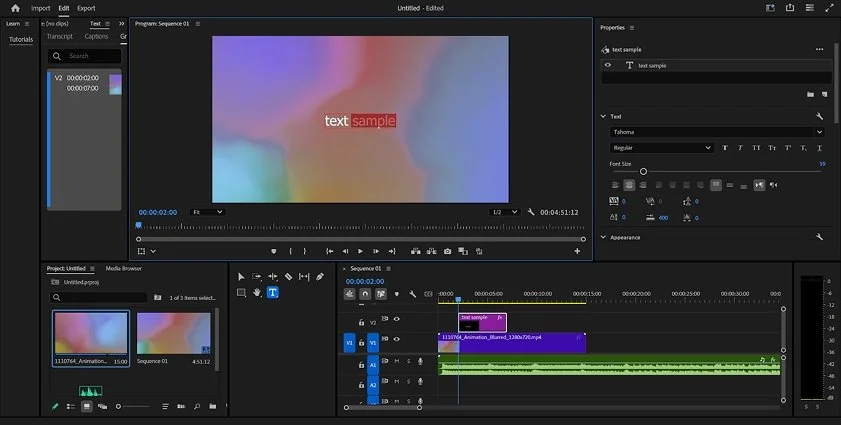
Adobe® Premiere®

  • Best for

    Multicam projects, commercials made with a team.

Why we picked it: Adobe® Premiere® is the industry standard for people who edit video for a living. It connects with After Effects® and Photoshop®. A creator cutting gameplay from two cameras can switch angles with multicam editing.

Key features:

  • Multicam editing and precise timecode
  • Lumetri color correction with curves, color wheels, and HSL, plus Auto Color
  • Speech to Text subtitles with translation into 27 languages
  • Warp Stabilizer and AI Auto Reframe
Pros:
  • Flexible editing at any level of complexity.

  • Regular AI updates, such as Object Mask and Generative Extend.

Cons:
  • Beginners face a steep learning curve and a panel-heavy interface.

  • It is subscription only, and the trial download needs a started trial and payment details.

  • There are no built-in ready-made video templates.

Price and platforms: Windows and macOS. 7-day free trial; standalone subscription for $22.99/month or as part of Creative Cloud Pro.

How to choose an MP4 video editor

For a quick online trim, open Clipchamp, VEED, or Adobe® Express® in your browser and skip the install. For short vertical clips, CapCut is the shortcut. For a long vlog with a real timeline, pick Movavi Video Editor, and for color grading or multicam, go to DaVinci Resolve or Adobe® Premiere®.

Your system narrows the field too. Only DaVinci Resolve here lists Linux, and Mac users have at least four desktop options: Movavi Video Editor, Filmora, DaVinci Resolve, and Adobe® Premiere®. Browser MP4 editors need a stable internet connection.

Movavi Video Editor covers the middle ground for the creators this list is written for. A tech blogger cutting game highlights uses the Blade tool and pre-timeline trimming to pull the best moments out of a long recording. A student recording a YouTube tutorial runs auto subtitles, then exports. A lifestyle vlogger starts from a template and swaps in their own clips.

Templates differ across this list. CapCut and Filmora apply a template to your clips as a whole, while Movavi Video Templates break into Blocks you can reorder, add, or remove.

Pick one MP4, open Movavi Ideas, and try the next tutorial on your own footage. Each tutorial there takes less than a minute to follow, which is quicker than picking a thumbnail.

Movavi Video Editor
Create awesome videos easily

*The free version of Movavi Video Editor may have the following restrictions depending on the build: watermark on exported clips, 60-second video or 1/2 audio length limit, and/or some advanced features unavailable when exporting videos.

Frequently asked questions

How do I edit an MP4 for free?

Start with a free MP4 editor from this list: Movavi Video Editor’s free version, Clipchamp, VEED, CapCut, or the free version of DaVinci Resolve. Another option is to use open-source MP4 editors, like Shotcut or OpenShot.

What is the best MP4 editor for beginners?

Movavi Video Editor is a solid choice for beginners. The app features an intuitive interface and one-click AI tools, like auto subtitles and silence removal. And templates let you create a pro-looking video by simply swapping clips with your own footage and customizing titles.

How do I edit large MP4 files?

Browser editors can lag on long, heavy files, so it’s better to use desktop video editing software. Movavi Video Editor has Fast Track HD, which edits temporary lower-size copies of HD footage and swaps the full-quality originals back in on export. Hardware acceleration for Intel, NVIDIA, and AMD is optional.

Does editing an MP4 re-encode it and lose quality?

Yes, editing and exporting an MP4 file typically re-encodes the video. To avoid quality loss, match your export settings to the source file keeping the same resolution, frame rate, and bitrate.

How do I export an MP4 for YouTube?

In Movavi Video Editor, export as MP4 for broad compatibility, or upload straight to YouTube from the program, with title, description, privacy, and tag settings on the way out. Vimeo, Google Drive, and TikTok are on the same upload list. Pick the resolution that matches your footage; 4K export comes with the full version.

Which MP4 editors work on Windows and Mac?

Movavi Video Editor, Filmora, DaVinci Resolve, and Adobe® Premiere® run on both Windows and Mac. Online editors, like VEED and Adobe® Express® run in a browser, so you can use them on both operating systems.

Have questions?
If you can’t find the answer to your question, please feel free to contact our Support Team.
Join us for discounts, editing tips, and content ideas

1.5M+ users already subscribed to our newsletter

By signing up, I agree to receive marketing emails from Movavi and agree to Movavi's Privacy Policy.