
7 Best CapCut Alternatives for Screen Recording, Tutorials, and YouTube

Movavi Video Editor
  • Trim, cut, crop, and rotate videos
  • Add titles, stickers, and transitions
  • Apply visual effects

By clicking the download button, you're downloading a free version of the program.*

Edited by
Ben Jacklin
13,847

CapCut is a mobile-first editor for short, trending videos, so these CapCut alternatives start from a different brief: tools that record and edit video for lifestyle vlogs, YouTube tutorials, and gameplay. Movavi Video Editor with Movavi Screen Recorder covers recording and desktop editing in one bundle for vloggers, tutorial makers, and gamers. Clipchamp records your screen and webcam in the browser, and Descript edits a tutorial by editing its transcript.

This list is for lifestyle vloggers, course and tutorial creators, and gamers who upload long horizontal videos to YouTube. Kapwing, Filmora, Canva, and VEED each fit a narrower job, covered below.

Video editor with screen recorder: how the 7 tools compare

Program

Best for

Screen recording

Tutorial tools

Platforms

Free version

Starting price

Lifestyle vlogs, YouTube tutorials, gameplay highlights

Movavi Screen Recorder, plus webcam and voice recording in the editor

Pan and Zoom, callouts, auto subtitles

Desktop app for Windows and macOS

Movavi Video Editor Free: watermark, 60-second cap

$19.95/month

Lifestyle videos edited with a teammate in the browser

Browser recorder for screen, tab, or window, plus camera and audio

Smart Cut pause removal, auto subtitles

Browser

Watermark, 1–4 minute exports, 720p

$16/month

How we picked

Every tool had to cover the work behind a tutorial, a vlog, or a gameplay upload. These were the criteria:

  • Screen and webcam recording: can you capture the video you are about to edit, or do you need a second app?
  • Tutorial tools: zoom, callouts, and subtitles, the things that make a screen recording easy to follow.
  • Long recordings: does the editor hold up when the source file runs long?
  • Export for YouTube: horizontal video, without a short-form detour.
  • Price: what the free version allows and how the paid plans are structured.

The 7 best CapCut alternatives

Movavi Video Editor + Movavi Screen Recorder
  • Best for

    lifestyle vlogs, YouTube tutorials, and gameplay highlights, handled by a screen recorder and video editor in one bundle.

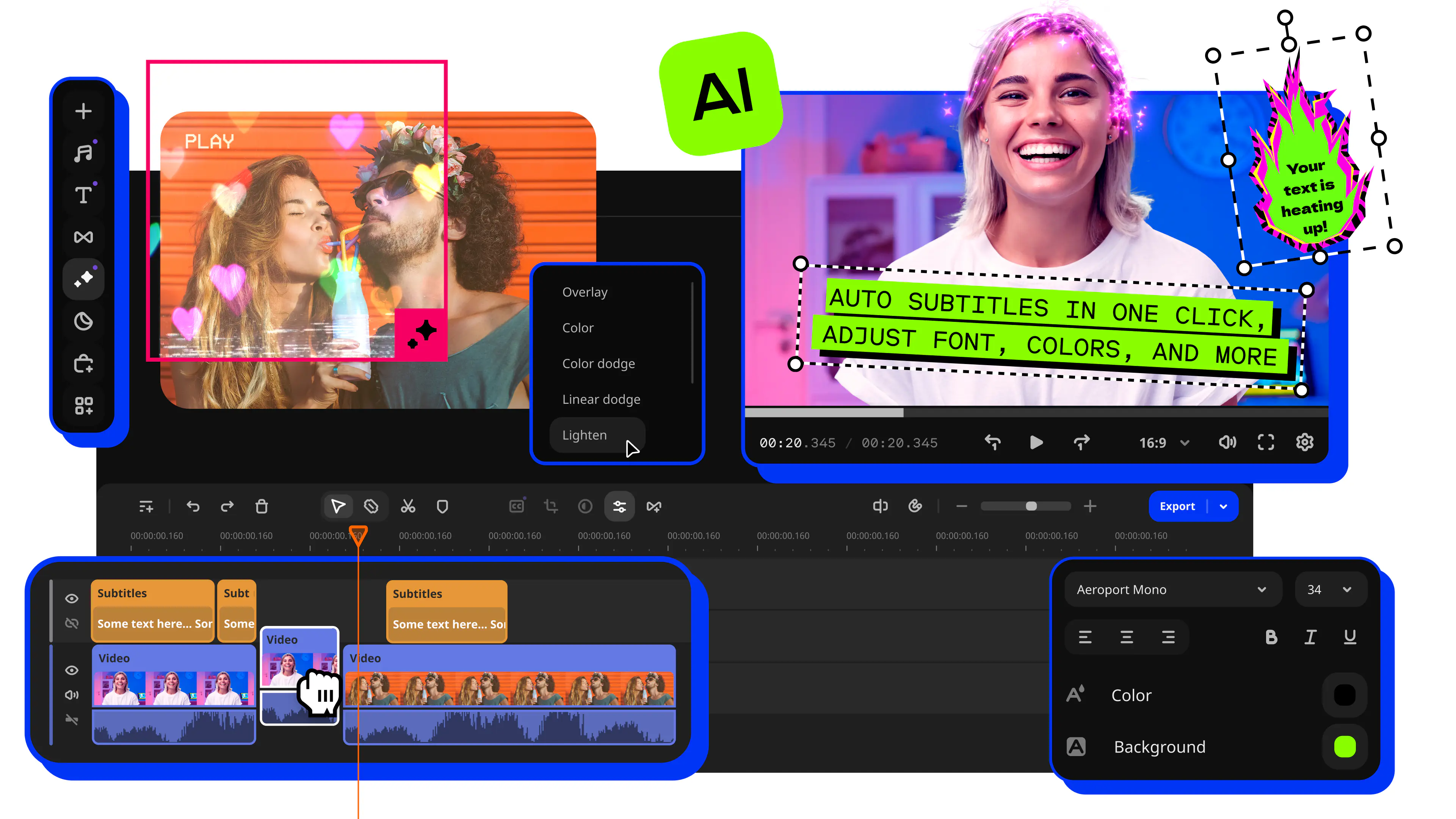
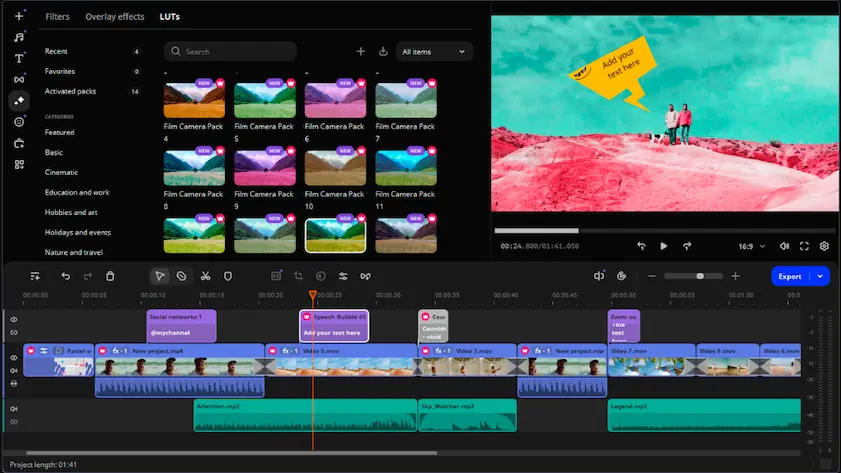
Why we picked it: Recording your screen is half of a tutorial; the other half is making it easy to watch. Movavi Video Editor is an intuitive video editor with customizable video templates, one-click AI tools, and hundreds of drag-and-drop effects. Auto subtitles caption your narration in one click and silence removal trims the pauses, so a lesson or a travel vlog comes out clean on the first try. Every one-click AI tool is included in the full version with no AI credit system to count, hover previews show an effect before you use it, and the free Movavi Ideas hub adds new step-by-step tricks every week.

Movavi Screen Recorder, a desktop capture program for recording screens and audio, comes with the editor in Movavi Video Suite, so a lifestyle vlogger, a course author, or a gamer cutting highlights keeps recording and editing in one bundle. Movavi Video Templates is a multi-style library of customizable, pro-looking, modular templates for any kind of video. Each template is built from Blocks, short segments of the video where you drop in your own videos, photos, and text, and it arrives with pre-set editing, music, transitions, and text that you can keep, change, or remove.

Key features:

  • Screen, webcam, and voice recording: Movavi Screen Recorder captures your screen and audio, and the editor records from a connected camera or microphone straight into the project.
  • Auto subtitles: recognize 100+ languages, restyle in 60+ designs, edit line by line in the Phrases panel, and export a standalone .SRT file.
  • Silence removal and AI audio noise removal: cut pauses with adjustable length and volume thresholds, then clear traffic, wind, or a steady hum from the recording.
  • Pan and Zoom with callouts: keyframed zooms glide toward a menu or button, and callouts from Elements point at it.
  • Templates by category: Learning and education and Gaming, plus an Intro video template. For a tutorial series or a gameplay channel, your recordings go into the template’s Blocks, and the template itself brings pre-set editing, music, transitions, and text.
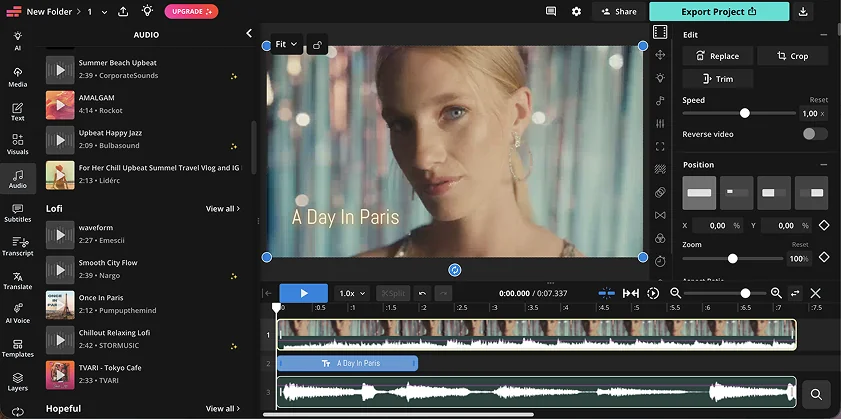
Pros:
  • Records and edits in one bundle, then exports straight to YouTube, Vimeo, Google Drive, or TikTok.

  • Pre-timeline trim pulls short segments out of long source files before they reach the project, and Fast Track HD edits lighter copies of HD footage.

  • Runs offline, with no account or cloud required.

Cons:
  • Lacks advanced, detailed controls for a professional workflow.

  • No flexible UI customization.

  • No web version or cloud integration.

  • Although hundreds of effects and several templates are available in the full version, additional sets require separate subscriptions.

Price and platforms: a desktop app for Windows and macOS. Movavi Video Editor Free exports with a watermark, a 60-second cap, and no 4K; the full version is a monthly or yearly subscription with no watermark and up to 4K export from $19.95/month.

  • Best for

    lifestyle videos and short social clips that you edit together with a teammate, in the browser.

Why we picked it: Kapwing answers a question most tutorial tools skip: who else is in the project. It is a browser-based editor with real-time collaboration, so a co-host or an editor can work on your lesson while you record the next one. Smart Cut removes pauses automatically, which shortens a talking-head recording before you open the timeline.

Key features:

  • Real-time collaboration: several people edit one project at the same time.
  • Smart Cut: automatic pause removal.
  • AI Clip Maker and auto subtitles: both run on a credit system with a monthly allowance.
  • Social media templates: plus a template gallery and a blog with guides.
Pros:
  • Collaboration is built into the editor, not bolted on.

  • Subtitles for multilingual audiences sit among its listed use cases.

  • Nothing to install.

Cons:
  • AI features draw on a monthly credit allowance.

  • Premium stock and some templates are available only on paid plans.

  • No weekly ideas hub inside the editor.

Price and platforms: browser-based. The free plan adds a watermark, caps exports at 1–4 minutes and 720p, and limits AI features; the Pro monthly subscription removes the watermark and widens AI and cloud storage limits, and a Business subscription adds more of both. Starting price – $16/month.

  • Best for

    YouTube channels that post often and edit multi-layer projects with motion graphics.

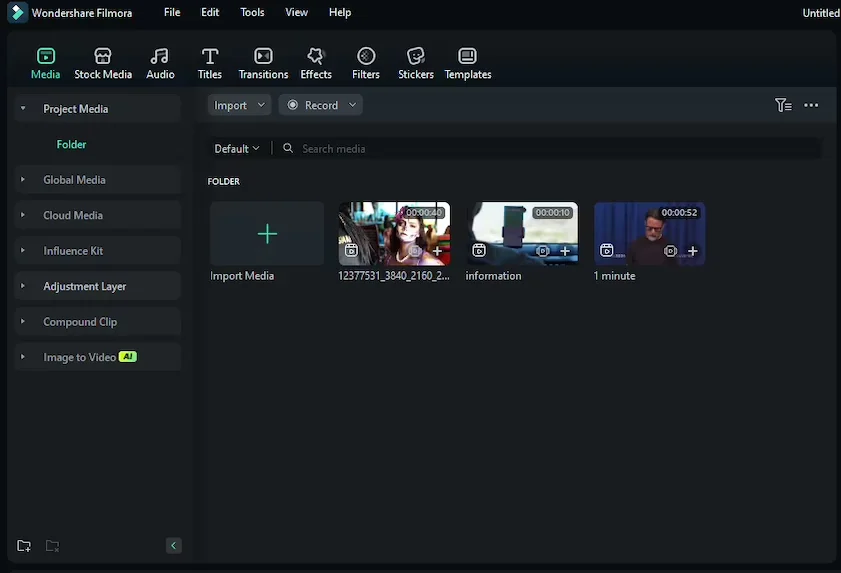
Why we picked it: Filmora earns its place on long YouTube videos with layers, callouts, and overlays. The multitrack timeline stacks footage and titles, keyframe animation moves a callout across the screen, and motion tracking pins it to a moving object. It is a desktop editor for Windows and macOS that runs on a mid-range laptop, so a long recording does not call for high-end hardware.

Key features:

  • Multitrack timeline: stack footage, titles, and overlays on separate tracks.
  • Keyframe animation and motion tracking: animate a callout, then pin it to a moving object.
  • AI auto subtitles: translate them into other languages and choose a subtitle style.
  • AI toolkit: auto pause removal, auto-reframing, vertical highlights from long videos, and AI music matching.
Pros:
  • A wide set of micro-tools for niche editing tasks.

  • Stabilization is included.

  • Works on Windows and macOS without demanding powerful hardware.

Cons:
  • AI features run on separate AI credits.

  • Additional assets come through a separate Effects Store subscription.

  • The number of single-task AI features can confuse beginners.

Price and platforms: Windows and macOS. The free version always adds a watermark; the Basic plan removes it but excludes AI tools and the Effects Store, and the Advanced plan adds AI, both billed monthly or annually. Starting price – $4.17/month.

  • Best for

    lifestyle posts, stories, and simple promo videos built around video inserts.

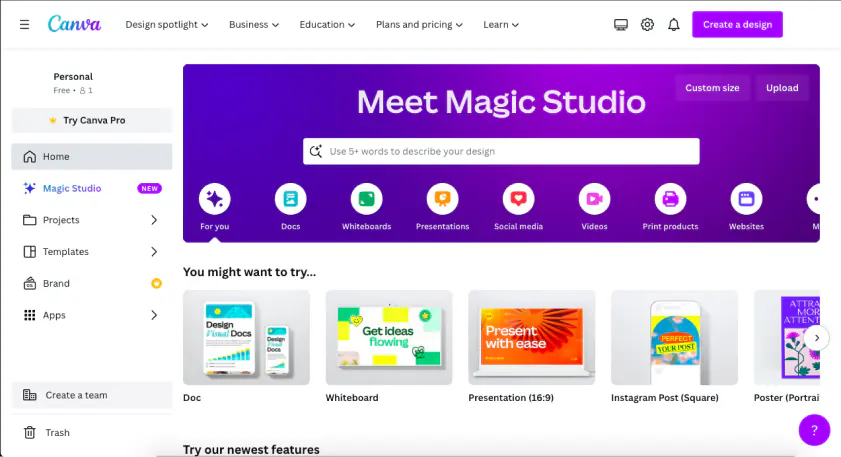
Why we picked it: Canva fits the tutorial that lives inside a design: a story, a post, or a slide with a video clip dropped in. A very large library of design templates sits under a basic video timeline, and AI auto subtitles come with a choice of styles, so a short how-to clip gets readable captions on the same canvas. Pick it for short, designed videos, because it is not built for long recordings and large files.

Key features:

  • Design templates: a very large library for posts, stories, and promos.
  • Video timeline: a basic layer on top of the design canvas.
  • AI auto subtitles: a choice of subtitle styles.
  • AI background removal in video: available on the Pro plan.
Pros:
  • A familiar drag-and-drop interface, with most work done through templates.

  • Browser, desktop, and mobile apps.

  • Canva Design School offers training courses.

Cons:
  • Video effects are modest, with nine basic transitions.

  • Not designed for long videos and large files.

  • Premium elements require a Pro subscription.

Price and platforms: browser, plus desktop and mobile apps; an account is required. The free plan limits premium content; Pro and Teams are monthly or annual per-user subscriptions that differ mainly in AI credits and cloud storage. Starting price – $12/month.

  • Best for

    tutorials and screencasts where you talk on camera and want to edit by reading.

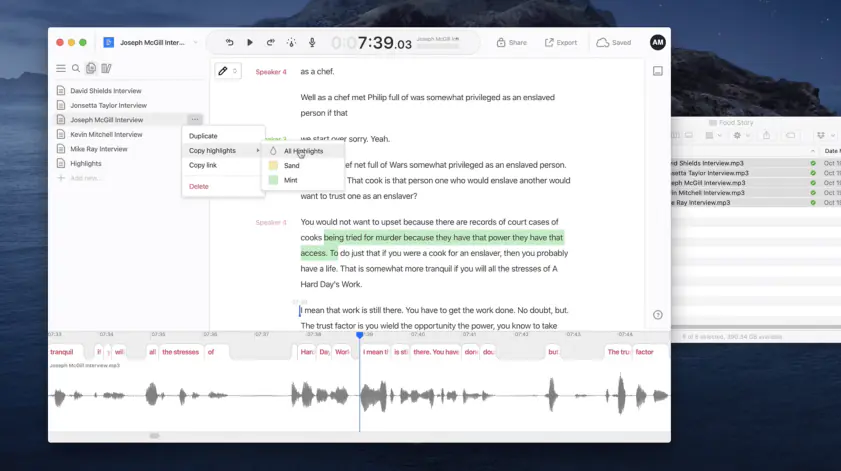
Why we picked it: For a talking-head tutorial or a screencast, Descript changes the editing job: you work on the transcript instead of the timeline, and editing the text edits the video. Filler-word removal cleans spoken tics out of the recording, and screencasts with screen recording are among its listed use cases.

Key features:

  • Transcript editing: delete a sentence in the text and it disappears from the video.
  • Filler-word removal: cleans spoken tics out of a recording.
  • AI voice features: voice cloning and filler-word removal, built for speech rather than visual editing.
  • Screen recording: listed for screencasts and tutorial videos.
Pros:
  • Editing by text suits long talking-head recordings.

  • Speech cleanup is the core of the tool, not an add-on.

  • A community and a blog with podcasting guides.

Cons:
  • Visual effects, transitions, and color correction are minimal.

  • No weekly ideas hub for creative video.

  • Its audience is narrow: podcasters, interview creators, and talking heads.

Price and platforms: Windows and macOS. The free plan is limited by transcription hours and adds a watermark; monthly and annual subscriptions remove the watermark, add transcription hours, and include more AI credits. Starting price – $16/month.

  • Best for

    quick screen-recorded tutorials and training videos on a Windows PC.

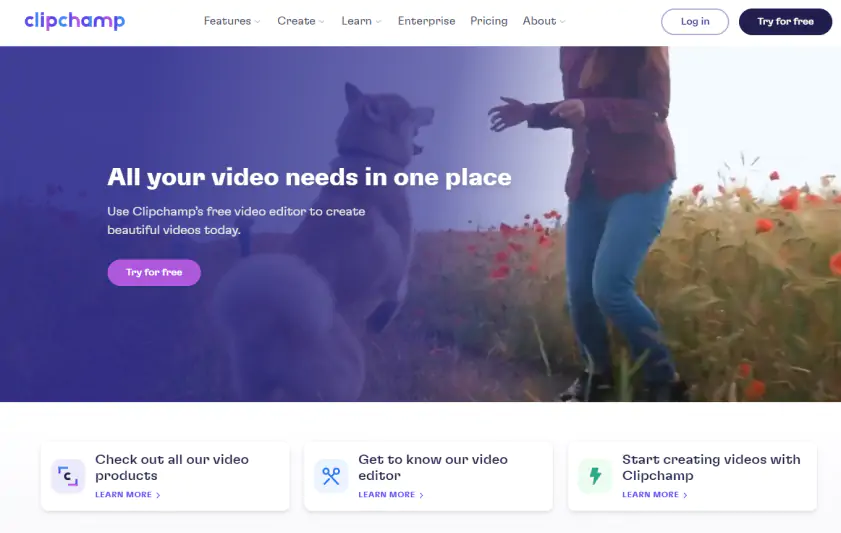
Why we picked it: Clipchamp is the shortest route from recording to a finished walkthrough. It records your screen and webcam inside the editor, and AI auto subtitles, silence removal, and noise reduction are free. It is Microsoft's browser-based editor, built into Windows 11 and Microsoft 365, so a Windows PC may already have it.

Key features:

  • Screen and webcam recording: capture straight into the project.
  • AI auto subtitles: free, with a choice of language, and you can download the transcript.
  • AI noise reduction and silence removal: both free.
  • AI voiceover from text: a voiceover generated from your text.
Pros:
  • Free export at 1080p with no watermark.

  • A simple timeline that is clear to beginners.

  • Browser, a Windows 11 app, and an iOS app.

Cons:
  • Large files can cause lag and export freezes.

  • Built-in media library is limited.

  • No AI video noise reduction and no auto-reframing with subject tracking.

Price and platforms: browser (Edge or Chrome) and a Windows 11 app, plus an iOS app; a Microsoft account is required. Free exports at 1080p with no watermark; 4K, premium assets, and brand tools need a Premium subscription or come with Microsoft 365. Starting price – $9.99/month.

  • Best for

    captioned lifestyle videos for Instagram, edited quickly in the browser.

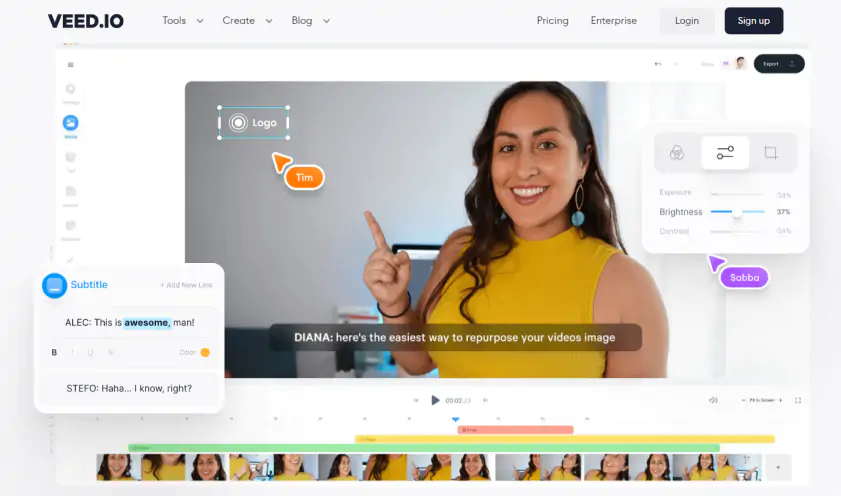
Why we picked it: VEED suits tutorials and vlogs that go out with captions. AI subtitles come with styles and translation, Remove Silences cuts pauses and filler words, and Clean Audio handles noise in one click on the Pro plan and above. Everything runs in the browser, so there is nothing to install.

Key features:

  • Subtitles: AI-generated, with translation into other languages.
  • Remove Silences: cuts out pauses and filler words automatically.
  • Clean Audio: one-click noise cleanup on the Pro plan and above.
  • Brand kit and real-time collaboration: shared styles and shared editing.
Pros:
  • Nothing to install, plus a mobile app.

  • Auto subtitles with styles and translation.

  • A blog with product guides.

Cons:
  • AI credits are spent on every action, not per finished video, and can run out mid-project.

  • Long, heavy files cause lag, and speed depends on your internet connection.

  • Templates lean toward marketing and business, with fewer vlog and hobby themes.

Price and platforms: browser only, plus a mobile app; an account and a stable connection are required. The free plan adds a watermark, exports up to 10 minutes at 720p, and limits AI to about 30 minutes of source footage a month; monthly and annual subscriptions come with different AI credit amounts, billed per user. Starting price – $12/month.

Which CapCut alternative should you pick

What is the best video editor for YouTube tutorials

It depends on where you record. On a Windows PC, Clipchamp is the quickest start, because screen and webcam recording live inside the editor. For a lesson series, Movavi Screen Recorder with Movavi Video Editor gives you Pan and Zoom to guide the eye, auto subtitles to carry the narration, and the Learning and education template category as a starting structure for each episode. Descript fits when you would rather edit by reading the transcript.

Which gameplay video editor fits

Record with Movavi Screen Recorder, then cut highlights in the editor: the Blade tool makes frame-accurate cuts, and speed control runs up to 100x to squeeze a long session into a short clip. The Gaming template category is there for the channel opener. Filmora is the step up if you want multi-layer edits with keyframes and motion tracking.

What handles long horizontal YouTube videos

For long horizontal recordings, Movavi Video Editor works offline on the desktop and trims segments out of long files before they reach the project, while the browser tools depend on your connection: VEED lags on long, heavy files, Clipchamp can freeze on export, and Canva is not designed for long videos.

What suits a talking head with a transcript

Descript is built for it, and VEED's Remove Silences cuts pauses and filler words. Movavi covers the same ground with silence removal you can tune by length and volume, plus AI background removal that swaps the backdrop behind a person without a green screen.

Pick the one that matches the video on your list this week, record a short test clip, and cut it from start to finish. If you land in Movavi, open Movavi Ideas next and borrow one of the weekly tricks for your next upload.

Movavi Video Editor
Create awesome videos easily

*The free version of Movavi Video Editor may have the following restrictions depending on the build: watermark on exported clips, 60-second video or 1/2 audio length limit, and/or some advanced features unavailable when exporting videos.

Frequently asked questions

Can CapCut record your screen?

Yes, in the desktop editor. CapCut's own guides point to a Record screen button on the home screen and a Record button next to Import inside a new project. It can capture your screen and webcam together when your PC has a built-in camera. CapCut is a mobile-first editor for short, trending videos, so the recorder is an extra on the desktop version, not the center of the app.

Which tutorial video editor works in a browser?

Kapwing and VEED run in the browser, Clipchamp runs there and as a Windows 11 app, and Canva adds desktop and mobile apps. VEED, Clipchamp, and Canva all require an account.

What can replace CapCut for long videos?

Check export limits before you commit. Kapwing's free plan caps exports at 1–4 minutes and VEED's at 10 minutes. Movavi Video Editor Free is capped too, so long uploads call for the full version.

Can I record and edit video in one program?

Yes. Clipchamp records your screen and webcam inside the editor itself. In Movavi Video Suite, Movavi Screen Recorder is a separate desktop program that sits beside Movavi Video Editor, and Descript lists screencasts among its use cases.

Have questions?
If you can’t find the answer to your question, please feel free to contact our Support Team.
Join us for discounts, editing tips, and content ideas

1.5M+ users already subscribed to our newsletter

By signing up, I agree to receive marketing emails from Movavi and agree to Movavi's Privacy Policy.