Best Video Trimmers – Free & Online Video Cutters in 2026

Try Movavi Video Editor!

  • Trim, cut, crop, and rotate videos
  • Add titles, stickers, and transitions
  • Apply visual effects

By clicking the download button, you're downloading a trial version of the program.*

Edited by
Ben Jacklin
16252

Key takeaways

  • A few tools stood out during testing. Movavi Video Editor felt the most balanced, DaVinci Resolve handled precise cuts, Bandicut worked well as a quick MP4 trimmer, and Kapwing was the easiest when I just wanted to start editing in a browser tab.
  • Desktop editors usually offer more control and stability. Browser tools make it easy to trim videos online without installing anything, though they can slow down with larger files.
  • The right option mostly depends on how you edit. If you’re working on a laptop and just need to cut a clip quickly, lightweight cutters or browser tools usually do the job. For bigger projects with multiple scenes, a full editor saves time in the long run.

Video editing often looks easy on paper. In reality it turns into a small quest the moment you need to cut video clips quickly. While preparing tutorials and short posts, I went through a long list of programs to see how they behave in practice. A solid video cutter should remove unwanted fragments in seconds while preserving the original quality. In many situations a lightweight video trimmer is perfectly enough, though sometimes a full editor offers more control. There are also moments when installing software feels unnecessary and an online video cutter in a browser handles the job faster. The tools below proved to be the most practical options for trimming clips without unnecessary steps.

My top picks

Best overall: Movavi Video Editor
Cutting and rearranging clips feels quick and natural, while built-in effects and tools add flexibility beyond simple trimming.

Best for professionals: DaVinci Resolve
Frame-accurate trimming and advanced post-production tools suit demanding editing work.

Best for mobile and social media creators: CapCut
Fast splitting, quick effects, and a workflow suited to short social videos.

Best MP4 cutter: Bandicut
Cuts MP4 clips instantly without re-encoding, keeping the original quality.

Best online video trimmer: Kapwing
Runs in the browser and trims clips directly on a simple timeline.

Comparison table: Best tools to trim videos online and on desktop

Program

OS

Main advantages

Download

Windows, macOS

Intuitive timeline editing, wide format support, many built-in effects and AI tools

Windows, macOS, Linux

Professional editing suite with precise frame-level cutting and advanced grading tools

Web, Windows, macOS, iOS, Android

Fast editing workflow with strong AI tools and social media features

Top 20 video cutters

  • Why I picked it:

    the interface is clean and trimming clips feels quick and intuitive.

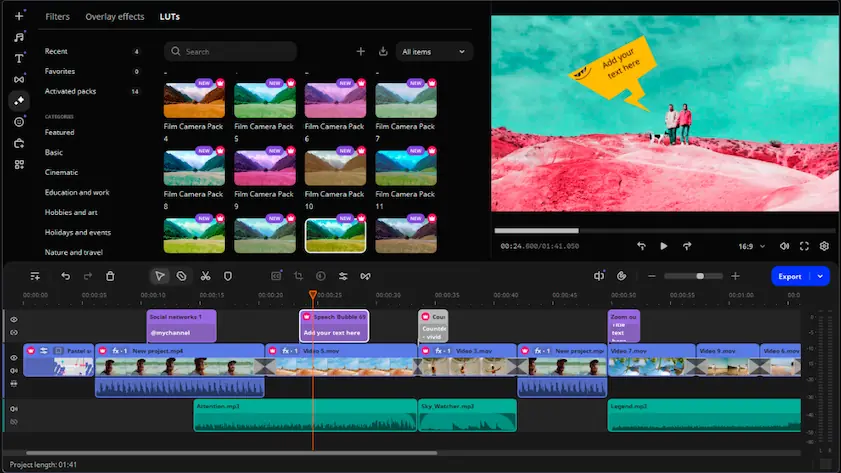
Movavi Video Editor feels easy to settle into right away. The layout is clean, and even after dropping several clips onto the timeline it still stays readable. Cutting is simple. You drag clip edges to shorten scenes or split footage directly on the timeline, then shuffle pieces around until the pacing feels right. While testing it, I noticed how quickly I could tighten longer moments and nudge shots around without losing the flow of the video. It handles formats like MP4, MOV, and AVI along with many other common file types. Motion tracking, AI background noise removal, automatic subtitles, and a wide library of filters and titles add plenty of creative options.

The newest update introduces auto-tracked cropping. The frame now follows moving subjects and keeps them centered when you reframe vertical or cropped footage.
Ratings

Cons:
  • Free trial adds watermark to exports

  • Why I picked it:

    it offers extremely precise cutting tools and professional editing control.

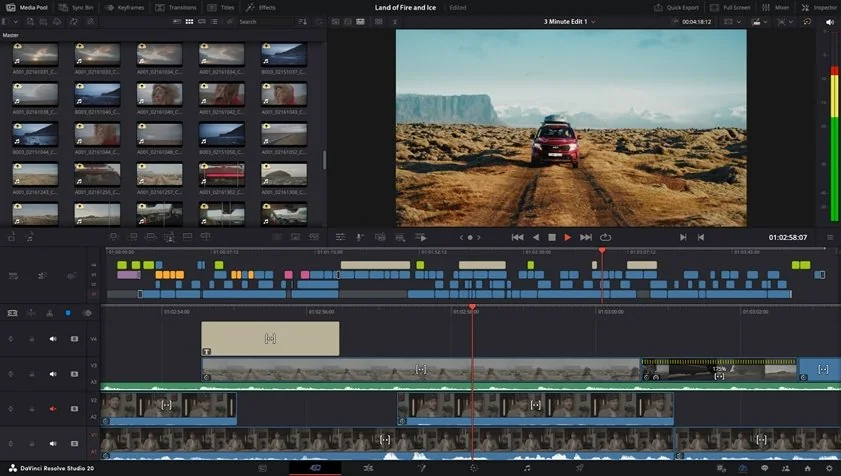
DaVinci Resolve feels extremely precise once editing begins. A razor style cut tool slices footage exactly where the cursor lands, and trimming becomes very accurate when zooming into individual frames. What impressed me most was how confidently I could fine tune edits at the frame level. The editor reads formats such as MP4, MOV, ProRes, and MXF, among many others. It also combines advanced color grading, Fairlight audio production, and a full visual effects environment in the same program.

The newest version, DaVinci Resolve 20, introduces AI IntelliScript that can generate timelines from a written script, along with a dedicated keyframe editor for more accurate adjustments.

Ratings

Pros:
Cons:
  • Why I picked it:

    editing stays fast and responsive even when multiple clips are stacked.

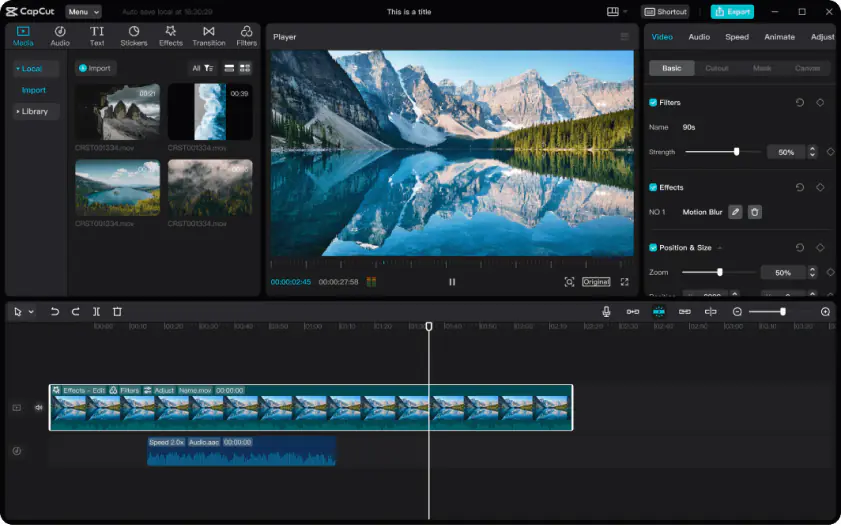
CapCut keeps editing quick and responsive during everyday cutting work. Clips divide instantly with a split command, and their length adjusts simply by sliding the clip borders along the timeline. Quick edits stayed responsive even after stacking several clips together. CapCut reads formats including MP4, MOV, AVI, MKV, and many other popular video types. It also includes AI captions, background removal, motion tracking, and a wide range of creative effects.

The latest update improves timeline responsiveness and enhances high-resolution export options, helping finished clips retain more detail after multiple edits.

Ratings

Pros:
Cons:
  • Some features require Pro subscription

  • Limited for advanced editing

  • Why I picked it:

    editing video through a transcript makes cutting dialogue incredibly fast.

Descript handles video cutting differently from most editors. Instead of focusing only on the timeline, you can trim and remove sections by editing the transcript that represents the video. I found it oddly satisfying to remove pauses simply by deleting a few words from the script. Descript reads formats such as MP4, MOV, AVI, and MKV. It also includes AI transcription, collaboration tools, automatic captions, and the Studio Sound feature that improves spoken audio.

Recent updates introduced automatic silence detection and improved filler word removal, helping editors shorten long recordings much faster.

Ratings

Pros:
Cons:
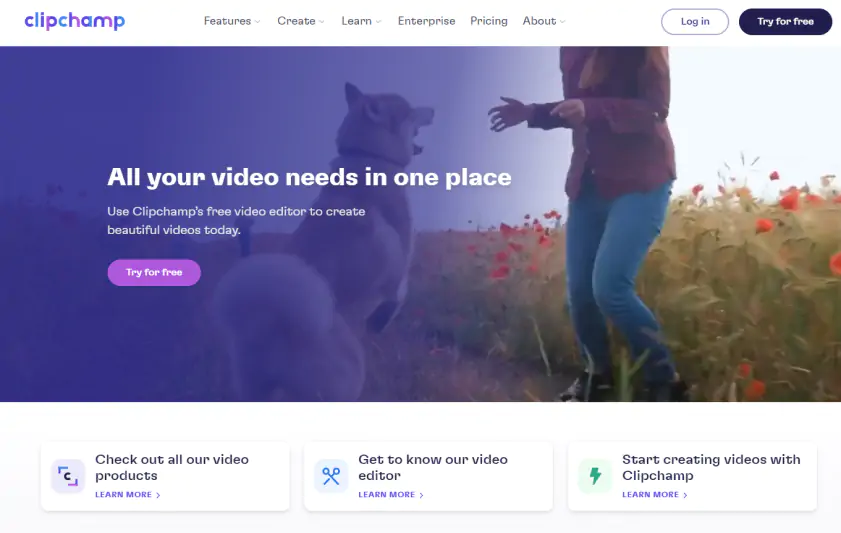
  • Why I picked it:

    the workspace is simple and perfect for quick social media edits.

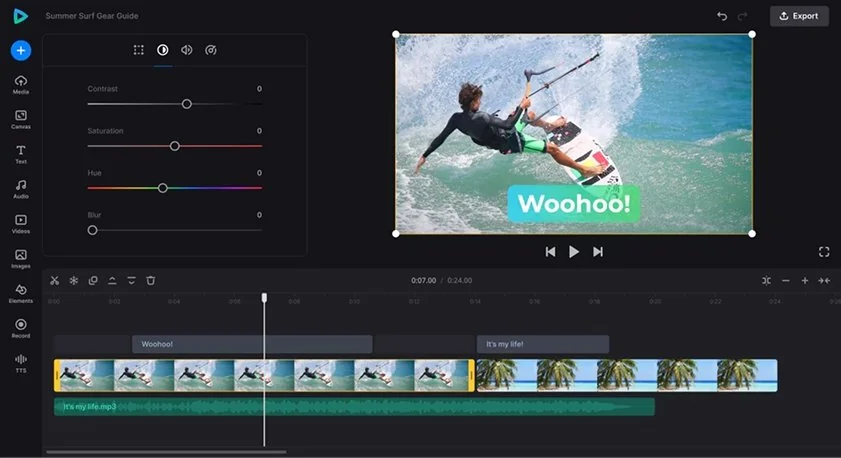
Clipchamp keeps the editing space tidy and easy to navigate. A scissors tool cuts footage instantly, and clip duration adjusts by shortening or extending the clip edges on the timeline. The timeline stayed readable even after several quick edits. Clipchamp reads formats including MP4, MOV, AVI, and MKV, along with other common video files. It also provides automatic captions, stock footage, and simple effects useful for social media videos.

Recent updates added AI noise suppression that reduces background hum during dialogue editing. Another improvement introduced MP3 audio only export for extracting voice or music from edited clips.

Ratings

Cons:
  • Limited advanced editing tools

  • Some features require subscription

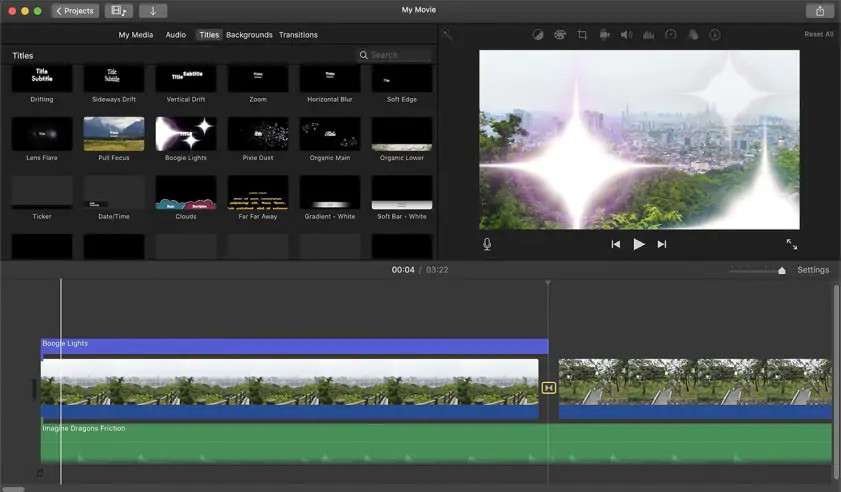
  • Why I picked it:

    the magnetic timeline makes arranging and trimming clips very easy.

iMovie is Apple’s own editor for a Mac, iPhone, and iPad, aimed at quick everyday video work. The interface stays calm and uncluttered, which helps when focusing on trimming clips and arranging scenes. A split command cuts footage wherever the playhead sits, and the magnetic timeline automatically pulls nearby clips into place. I found the magnetic timeline particularly useful when tightening several short cuts in a row. iMovie handles formats like MP4, MOV, and some other common video files. It also includes stabilization, color tweaks, and a compact set of titles and transitions.

Ratings

Cons:
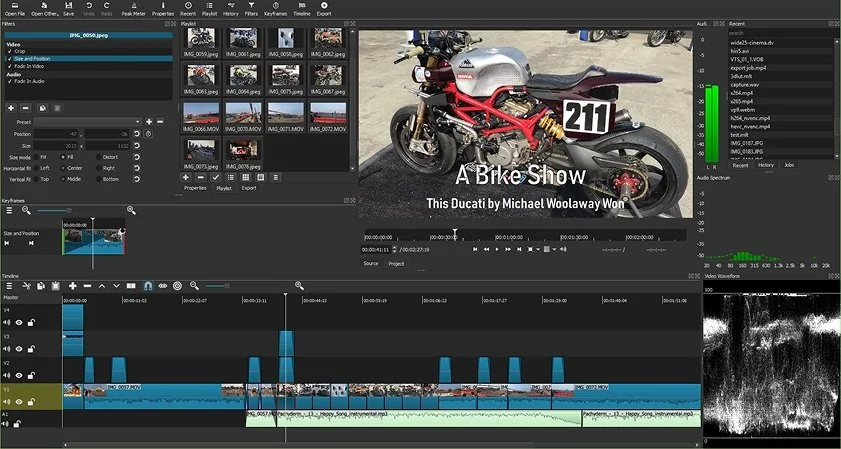
  • Why I picked it:

    it provides precise editing tools while remaining completely free and flexible.

Shotcut has a straightforward editing layout that favors precision. A simple cut command divides footage instantly, and in and out points can be adjusted directly on the timeline. The preview stayed fluid even after several rapid edits. Shotcut handles formats including MP4, MOV, MKV, and many other files through FFmpeg. It also offers detailed color grading filters and hardware accelerated effects.

The latest version improves timeline and keyframe waveform rendering, so audio changes and clip edits react faster during editing.

Ratings

Pros:
Cons:
  • Limited effects and transitions

  • Preview can lag with large files

  • Why I picked it:

    the lightweight interface makes assembling quick cuts feel effortless.

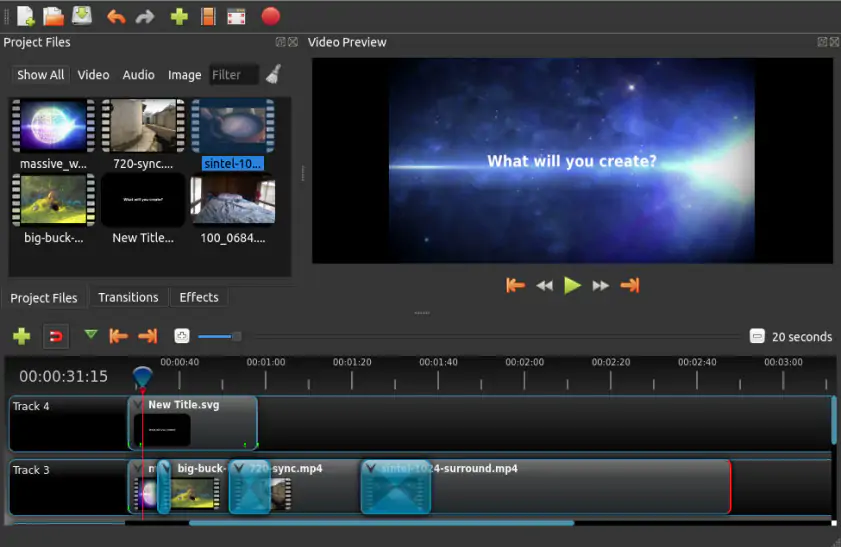
OpenShot feels lightweight and friendly when assembling quick cuts. Clips break into sections with a cut command, and each piece can be moved across layered tracks to reshape the sequence. Adjusting the timing of cuts felt surprisingly intuitive during testing. OpenShot supports formats such as MP4, MOV, AVI, and many additional video types through FFmpeg. It also offers keyframe animation and a growing library of visual effects.

Version 3.4 improves overall performance by roughly 32 percent, helping the timeline react faster when trimming or rearranging footage.

Ratings

Cons:
  • Occasional crash on large projects

  • Why I picked it:

    frame level trimming tools give it a very professional editing feel.

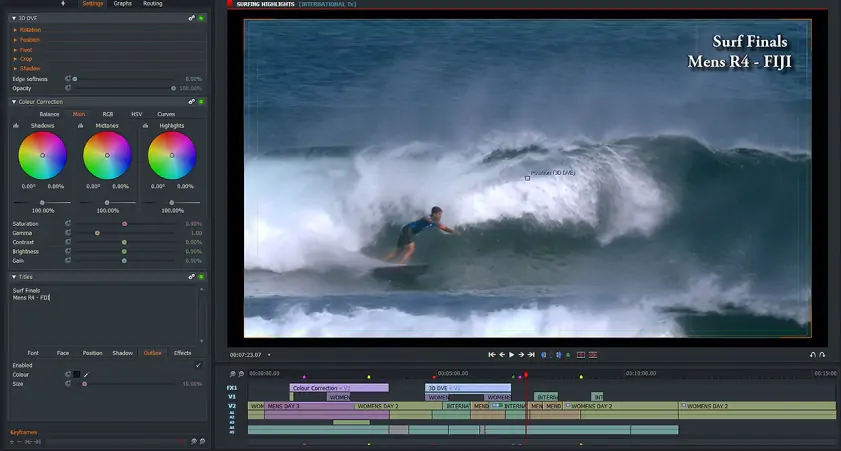
Lightworks carries the atmosphere of a professional editing suite. Footage can be divided with precise cut commands, and trimming adjustments become very accurate when stepping through frames. Frame level trimming felt unusually precise during testing. Lightworks supports formats such as MP4, MOV, AVI, and MXF along with many professional codecs. It also includes multicam editing and advanced trimming tools used in film and broadcast production.

A recent update introduced a new playback and transcoding engine with GPU acceleration, helping the timeline stay smoother when working with high resolution footage.

Ratings

Pros:
Cons:
  • Steeper learning curve

  • Limited export options in free version

  • Why I picked it:

    the free version includes surprisingly advanced editing and color tools.

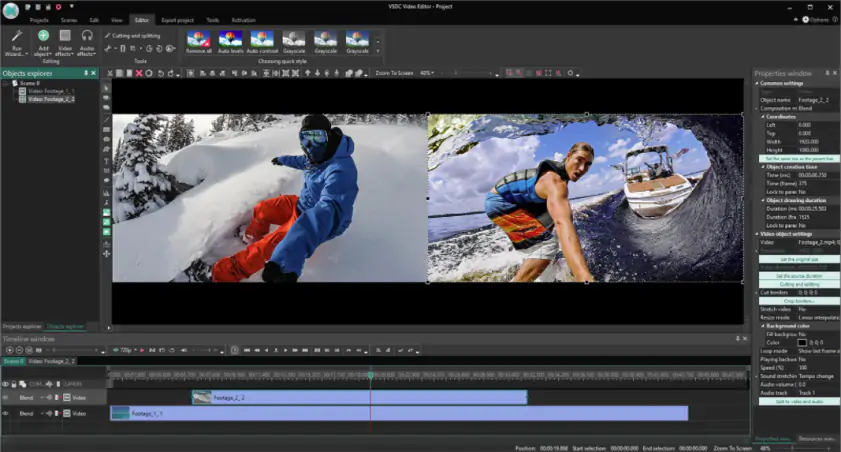
VSDC Free Video Editor can look dense at first, but the cutting workflow becomes clear after a few minutes. Footage divides into segments with quick split commands, and clips or effects can be layered across the timeline to reshape the sequence. I was genuinely surprised by how many advanced controls appear in the free version. VSDC reads formats such as MP4, MOV, AVI, and several other common types. Motion tracking, color grading tools, and a wide collection of visual effects are also included.

Version 9.4 improves the color grading system for more precise visual adjustments. And with a new Quick Access toolbar you can keep frequently used resources easy to reach in the template window.

Ratings

4.2

Cons:
  • Complex interface

  • Some paid features

  • Why I picked it:

    trimming and adjusting clips feels smooth and responsive.

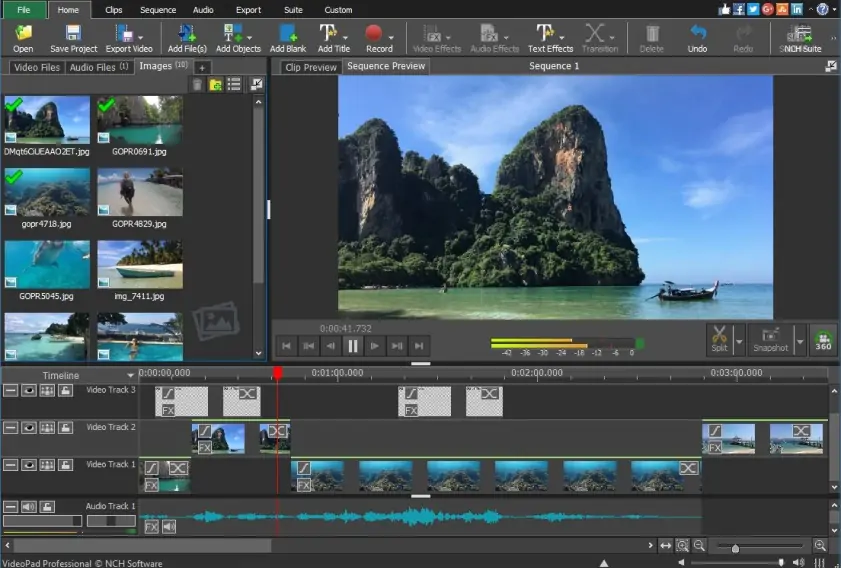
VideoPad Video Editor gives a responsive editing space that works well for everyday cutting tasks. Clips split instantly with a scissors command, and trim points can be refined either by dragging clip edges or using preview brackets. The timeline stays organized even as multiple cuts appear. In the latest version I noticed trimming felt quicker and playback remained smoother while adjusting edits. The program handles formats like MP4, AVI, and WMV among many other media files. It also includes 360 video editing along with a broad collection of visual effects.

Recent updates refine subtitle and transcript tools, helping shorten dialogue heavy recordings more efficiently.

Ratings

Pros:
Cons:
  • Why I picked it:

    high speed mode cuts videos quickly without reducing quality.

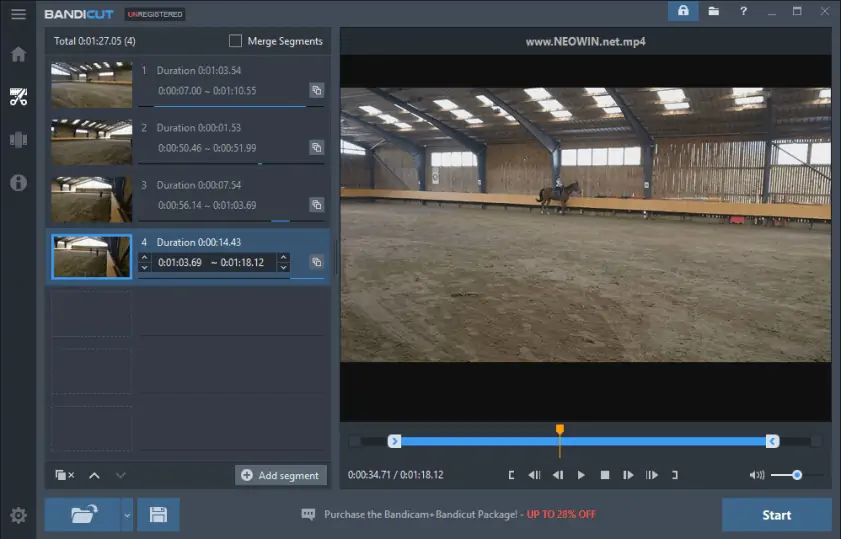
Bandicut feels built for fast clip extraction. You mark the section you want to keep, remove the rest, and export the result almost immediately. The interface stays simple, which helps when selecting multiple segments from a longer recording. I genuinely appreciated high speed mode during testing since it cuts footage without re-encoding and preserves the original quality. The program works with formats such as MP4, AVI, and MKV along with many other video types.

The latest version introduces multi-video editing, allowing several clips to be trimmed and merged inside the same project. Recent updates also add rotation, flipping, and expanded playback speed controls for refining clips before export.

Ratings

Cons:
  • Why I picked it:

    the browser editor and transcript tools make trimming recordings faster.

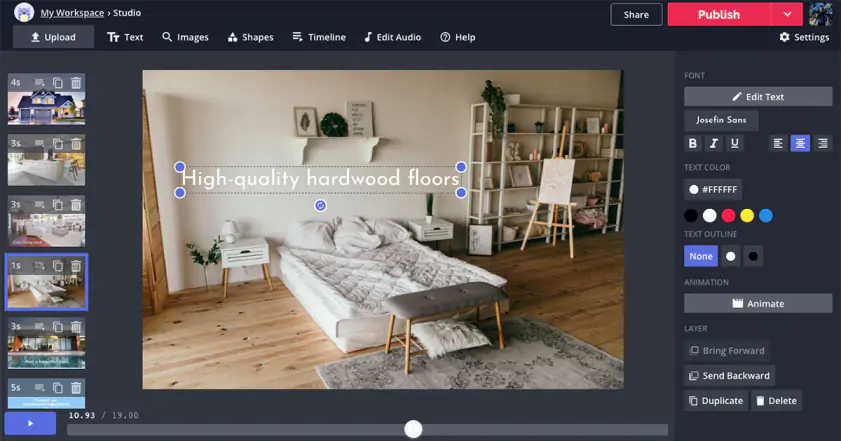
Kapwing runs entirely in the browser and begins working as soon as the file loads. Clips can be shortened by dragging edges on the timeline or divided into sections while the preview updates instantly. While editing a longer recording, I ended up relying on the transcript panel to remove pauses much faster than scanning the timeline. Kapwing works with formats like MP4, MOV, and WEBM along with many other common media files. Smart Cut automatically detects and removes silent sections from recordings.

The January 2026 update improves the project workspace so returning to unfinished edits feels quicker and more organized.

Ratings

Pros:
Cons:

14. Clideo

  • Why I picked it:

    the online interface makes precise trimming quick and straightforward.

Clideo opens in a browser window and begins trimming soon after the video uploads. You define the section to keep using timeline sliders or by entering exact timestamps, then preview the result before exporting the clip. While testing shorter clips, I liked how easy it was to adjust the cut range precisely with the timeline controls. The tool processes formats such as MP4, MOV, and AVI along with several other common video files. Clideo also offers quick preset crop ratios that help prepare trimmed clips for platforms like YouTube, Instagram, or TikTok.

Ratings

Pros:
Cons:
  • Why I picked it:

    AI subtitle tools make it easy to locate and trim spoken sections.

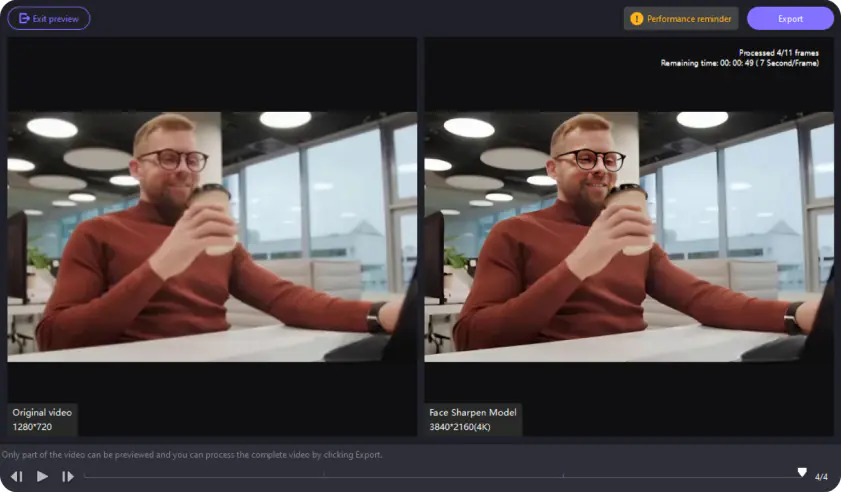
HitPaw Edimakor offers a modern workspace that works well when trimming longer recordings. Clips split directly on the timeline, and adjusting cut points only takes a quick drag while the preview keeps playing. After a few edits I began relying on the subtitle panel to jump straight to spoken lines that needed trimming. The editor handles formats like MP4, MOV, and AVI along with many other video types. Built-in AI tools include automatic subtitles, text-to-speech voiceovers, and background removal.

The newest update improves speech-to-text accuracy and adds automatic keyword highlighting in subtitles. This helps locate dialogue sections faster when shortening interviews, lectures, or tutorial recordings.

Pros:
  • AI subtitles and automation

  • Beginner-friendly interface

  • All-in-one editing tools

Cons:
  • Some advanced tools require paid plan

  • Performance may slow with large projects

  • Why I picked it:

    the timeline layout keeps cuts clearly visible while editing.

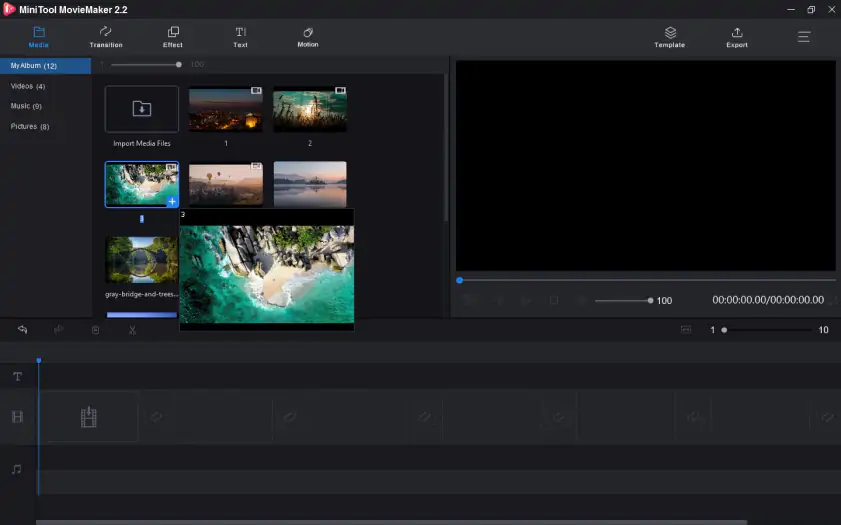
MiniTool MovieMaker opens with a layout that keeps the timeline front and center during editing. Clips divide with a scissors tool placed at the playhead, and unwanted fragments can be removed before rearranging the remaining segments. When several clips were stacked together, I appreciated how clearly every cut point appeared on the timeline. The editor handles formats like MP4, AVI, and MOV plus many other common video files. Another useful capability is multi track editing with up to nine video tracks and two audio tracks for picture in picture projects.

The latest update improves export speed when projects use GPU filters, effects, or motion adjustments like zoom and rotation, so trimmed videos render faster after editing.

Ratings

Pros:
Cons:
  • Free version export limits

  • Why I picked it:

    it focuses on simple, fast trimming without unnecessary features.

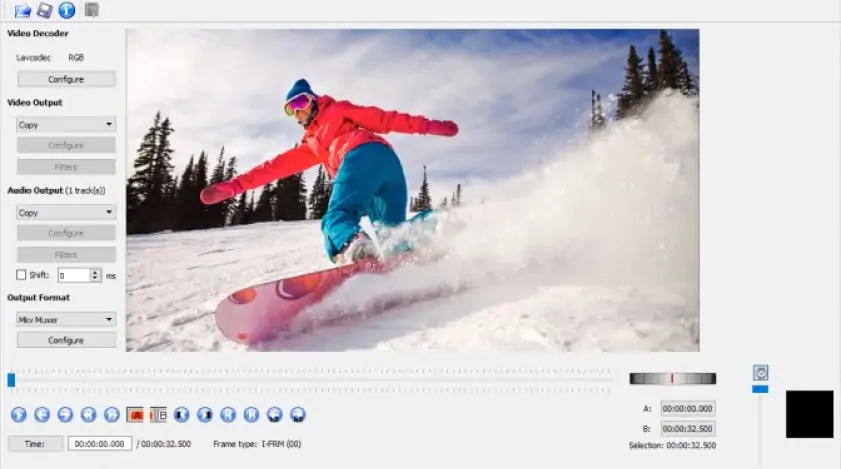
Avidemux takes a straightforward approach to video cutting. The interface revolves around a preview panel and timeline so trimming remains focused and uncomplicated. You mark the segment boundaries with the A and B buttons and remove the unwanted portion. During testing I noticed trimming adjustments responded instantly when isolating short pieces of footage. Avidemux handles formats like AVI, MP4, and MPEG along with several other common video formats. The program also includes a job queue system that can process multiple edited clips one after another.

Ratings

Pros:
Cons:
  • Why I picked it:

    it trims videos while preserving the original quality.

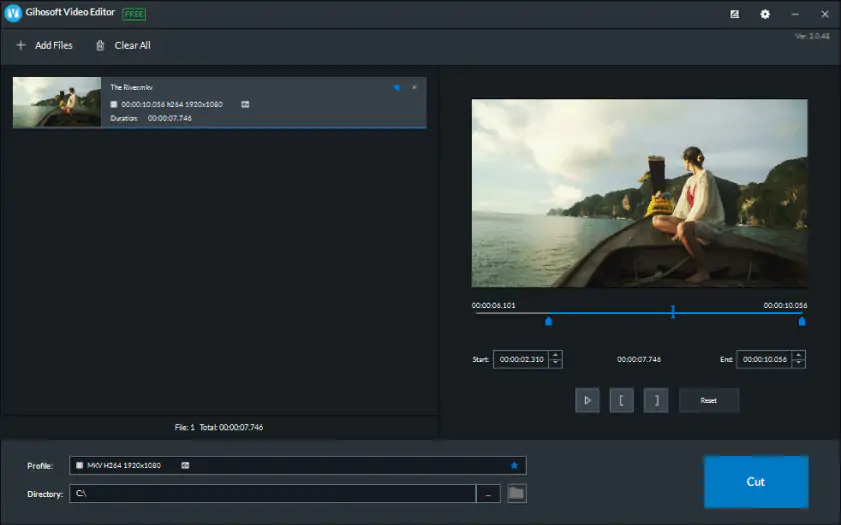
Gihosoft Free Video Cutter keeps the workflow simple. Import a video, preview the clip, and define the exact section you want to keep using the timeline or precise timestamps. The remaining footage can be removed and exported as a new file. I liked that the program preserves the original video quality because the cut happens without re-encoding. It works with formats such as MP4, AVI, MOV, and MPEG as well as other video and audio file types. A preview panel helps confirm the exact frame before saving the final clip.

Ratings

Pros:
  • Very easy to use

  • Lossless cutting without quality loss

  • Supports common video formats

Cons:
  • Why I picked it:

    the minimal interface makes extracting clips extremely quick.

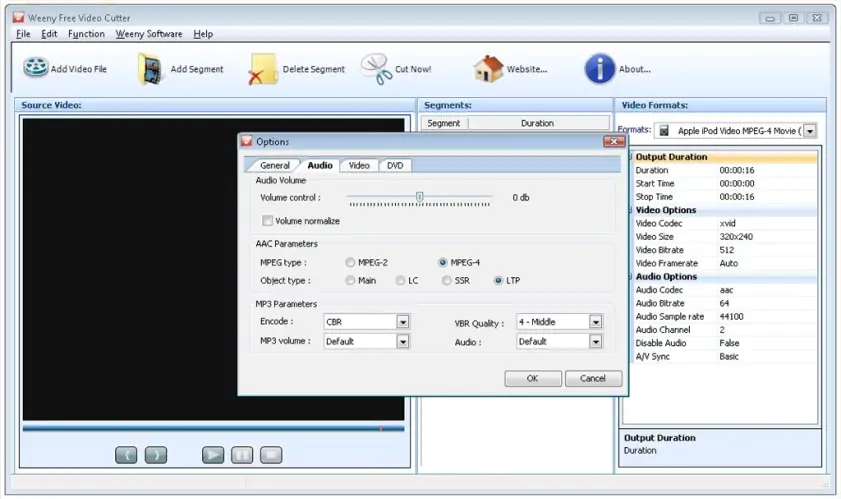
Weeny Free Video Cutter feels very minimal, almost old-school, but that actually helps when you just need to trim a clip quickly. After loading a video, you mark the part you want and save that section as a new file. While testing it, I tried pulling several short clips from one longer recording and the cuts appeared almost instantly. The program handles formats such as MP4, AVI, FLV, and WMV along with other common media files. It can also export selected clips to different formats or process several segments from the same video.

Pros:
Cons:
  • Limited interface and tools

  • Why I picked it:

    it lets you quickly cut precise segments directly in the browser.

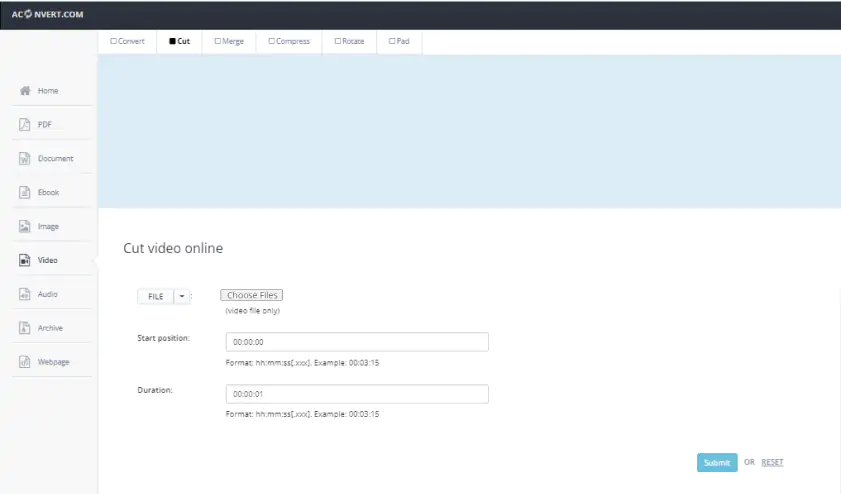
AConvert Video Cutter is an online tool where trimming begins right after uploading a video. You enter the start position and duration for the section you want, process the cut, and download the extracted clip. While testing longer videos, I liked how quickly small segments could be pulled out by entering exact time values. The tool supports formats such as MP4, AVI, and MOV along with many other common video types. If another format is needed, AConvert also provides a separate converter tool that can process the exported clip.

Pros:
  • Works directly in the browser

  • Supports many video formats

  • Quick trimming without complex setup

Cons:
  • File size limit (about 200 MB)

  • Limited editing tools (only trimming)

Practical tips for working with video cutters

The first time you open a video cutter it may look technical, but the idea is simple. Most editors show the video as a strip on a timeline that you can cut into pieces and rearrange.

How to cut a video

Import the video and place it on the timeline. Move the playhead to the moment where you want the cut and use the split or scissors tool to divide the clip. Delete the unwanted part and export the remaining footage.

Online tools work differently since you upload the file, trim it with sliders or time markers, then download the edited clip.

Types of video cutters

Video cutters come in a few different forms. Desktop programs run on your computer and usually give the most control over edits and formats. Online tools open in a browser and are convenient when you just need a quick trim without installing anything. Mobile apps sit somewhere in the middle and are built for fast edits on short clips.

Benefits of using a video cutter

Even a simple cut can make a big difference. You can remove long pauses, small mistakes, or the few seconds at the start where nothing really happens. The final clip ends up tighter and easier to watch. It also becomes easier to upload or share once the unnecessary parts are gone.

How to choose the best video cutter

Choosing a video cutter mostly depends on how you work with footage. Sometimes the task is simple: remove a few seconds and save the clip. In other cases trimming is only part of the process and the project may include several scenes, titles, or visual effects.

Movavi Video Editor fits projects that need both quick trimming and regular editing tools. It works as a straightforward clipper, yet the timeline stays clear even after adding several clips. While testing it, shortening a scene and sliding the remaining footage into place felt smooth and immediate.

DaVinci Resolve belongs to a more technical class of editors. Many creators install it on a PC when precise frame edits or color grading become part of the workflow. The interface takes some time to understand, though it allows very detailed adjustments once you become familiar with it.

If installing software is not convenient, Kapwing runs directly in a browser. Upload the file, mark the section you want, and download the trimmed clip. It works best for short edits rather than longer projects.

Movavi Video Editor
Create awesome videos easily

*The free version of Movavi Video Editor may have the following restrictions depending on the build: watermark on exported clips, 60-second video or 1/2 audio length limit, and/or some advanced features unavailable when exporting videos.

Movavi Video Editor

Frequently asked questions

Which free video editor is actually good on a PC?

After testing quite a few editors, I kept coming back to Movavi Video Editor. It is simple in a good way. Drop the clip on the timeline, split the awkward pause or mistake, and continue editing. The interface stays clear, which helps when you just want to finish quickly.

There are more advanced tools like DaVinci Resolve, but the first time I opened it I spent a while figuring out the layout. For basic cutting, Movavi usually feels faster to start using.

What is the easiest way to cut a video on a computer?

The workflow becomes obvious after one try. In Movavi Video Editor you load the video, place it on the timeline, move the playhead to the cut point, and press the split tool.

The clip turns into two parts. Remove the section you do not need and export the rest. After a few edits it becomes routine.

Can you trim videos with VLC?

Yes, although it feels more like a workaround. VLC allows you to record a fragment while the video plays, so if you start and stop recording at the right moment you get a trimmed clip. For a much easier and more precise method, it is better to trim clips directly on the timeline in Movavi Video Editor.

What free software works best for cutting videos?

For quick trimming, Movavi Video Editor was one of the most comfortable tools I tried. The timeline keeps every cut visible, which helps when several edits appear in the same clip.

Simple cutters like Bandicut or Avidemux also work for fast slicing. They just focus mainly on trimming, while Movavi allows a bit more flexibility.

How can you cut a video without paying?

One option is using the trial version of Movavi Video Editor. Import the clip, split the unwanted section, and export the remaining footage. Once you know where the split tool is, the process takes only a few minutes.

Online cutters also work. Upload the file, set the start and end points, then download the trimmed video. Large files may take longer to process.

How can you cut videos on a laptop for free?

Most laptops handle basic editing easily. I tested the Movavi Video Editor on a mid-range laptop and trimming stayed smooth even after several cuts on the timeline.

Browser tools can also work if you do not want to install software. Still, after a few edits I usually return to Movavi because the timeline control makes cutting easier.

Have questions?
Have questions?
If you can’t find the answer to your question, please feel free to contact our Support Team.
Join us for discounts, editing tips, and content ideas

1.5M+ users already subscribed to our newsletter

By signing up, I agree to receive marketing emails from Movavi and agree to Movavi's Privacy Policy.