Movavi Video Converter
The ideal way to get your media in the format you need!

Sometimes you download a movie and realize there are no subtitles. Or maybe you want to watch foreign films with your family but not everyone speaks the language. Adding subtitles permanently to your movie files solves both problems – you get captions that work on any device without juggling separate files.
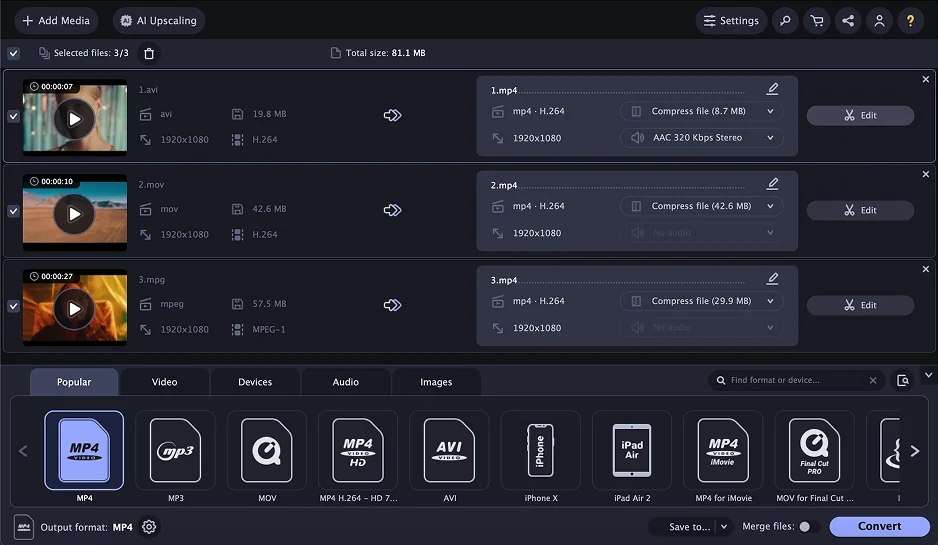
Movavi Video Converter handles subtitle embedding alongside format conversion. The process is straightforward – you load your movie, attach the SRT file, and export everything as one package.
Install the software
Download and install Movavi Video Converter on your Windows or Mac computer. The setup takes about 3-4 minutes on most systems.
Add your movie file
Click Add Media and select Add Video. Browse to your movie file and add it to the program. The interface shows a thumbnail preview once the file loads.
Attach subtitles
Click the Edit button next to your video file. Switch to the Subtitles tab, then click Add and choose Choose file. Navigate to your SRT file and select it.
The synchronization controls let you adjust timing if subtitles appear early or late. You can also modify font, size, and position – useful if default settings look cramped on your screen.
Export the final video
Choose your output format (MP4 works on most devices) and click Convert. The program embeds subtitles directly into the video stream.
Built-in subtitle search finds SRT files automatically
Batch processing for multiple movies
Preview function shows subtitle timing
Supports 180+ output formats
Full version requires purchase after trial
Basic text styling options only
No subtitle editing capabilities
Larger file sizes after conversion
What users say:
Users praise Movavi Video Converter for its clean and intuitive interface that ensures easy navigation and quick learning, making it particularly beneficial for content creators focused on vlogs and social media videos. Reddit users frequently note the seamless setup process supported by comprehensive online tutorials and resources that help new users quickly master the software's capabilities. Users describe it as a legitimate and affordable paid option with everything needed for file conversion, including batch conversion and plenty of format options.
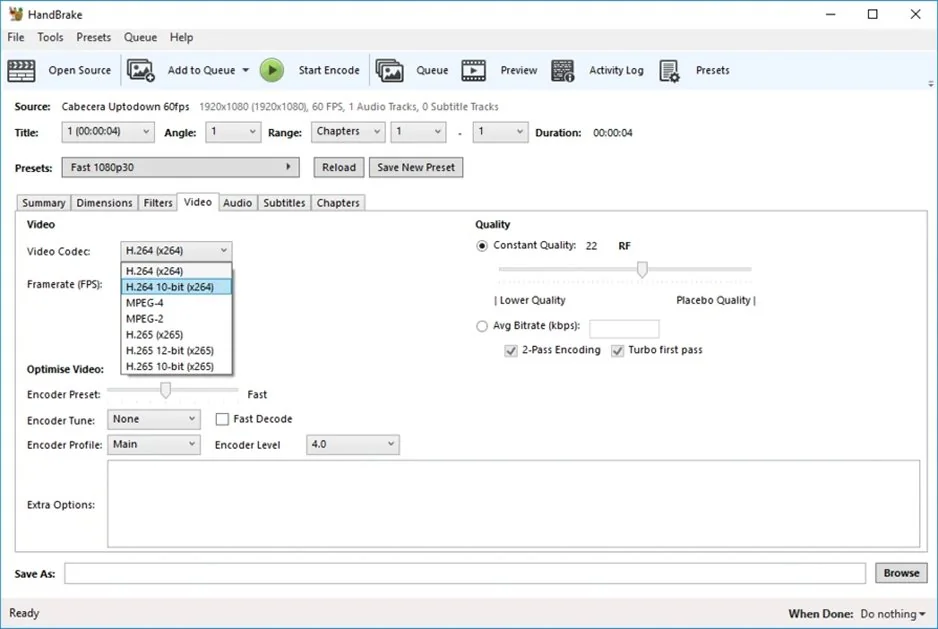
HandBrake is an open-source video converter that handles subtitle embedding without cost. It's popular among users who process large movie collections.
Download HandBrake from handbrake.fr and install it. Open your movie file through the Source button. Navigate to the Subtitles tab and click Add to import your SRT file.
The Burned In checkbox permanently embeds subtitles into the video. Without this option, subtitles remain as a separate track that some players might ignore.
Configure your output settings under the Summary tab. MP4 format provides broad compatibility across devices. Start the encoding process with the Start Encode button.
Completely free software
Handles large files efficiently
Multiple subtitle track support
Active community support
Steeper learning curve than paid alternatives
No built-in subtitle search
Time-consuming encoding process
Interface can feel overwhelming initially
What users say:
Users consistently recommend HandBrake as a solid freeware option that provides great control over output settings and includes good presets for less experienced users. Reddit users frequently mention it alongside other professional tools, noting its reliability for video conversion tasks. However, users point out a significant limitation compared to other free alternatives - HandBrake does not allow rewrapping, remuxing, or stream copying of video and audio tracks from one container to another without re-encoding the video.
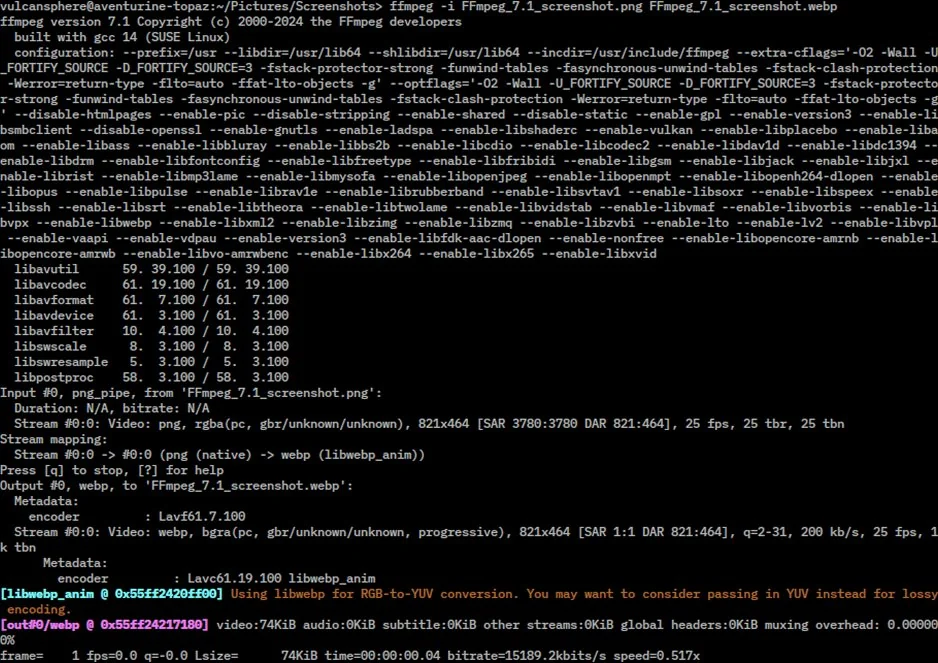
FFmpeg appeals to users comfortable with command-line tools. It processes videos quickly and offers precise control over subtitle embedding.
First, install FFmpeg from ffmpeg.org. The installation varies by operating system – Windows users typically download pre-compiled binaries.
Open your command prompt or terminal. Navigate to the folder containing your movie and SRT files. Use this basic command structure:
```
ffmpeg -i movie.mp4 -vf subtitles=subtitles.srt output.mp4
```
Replace movie.mp4 and subtitles.srt with your actual filenames. The -vf subtitles= parameter burns subtitles directly into the video.
For more control over appearance, add formatting options:
```
ffmpeg -i movie.mp4 -vf "subtitles=subtitles.srt:force_style='FontSize=20,PrimaryColour=&Hffffff'" output.mp4
```
Lightning-fast processing
Precise control over every parameter
Excellent for batch processing scripts
No file size limits
Requires command-line knowledge
No visual preview during processing
Error messages can be cryptic
Manual installation process on some systems
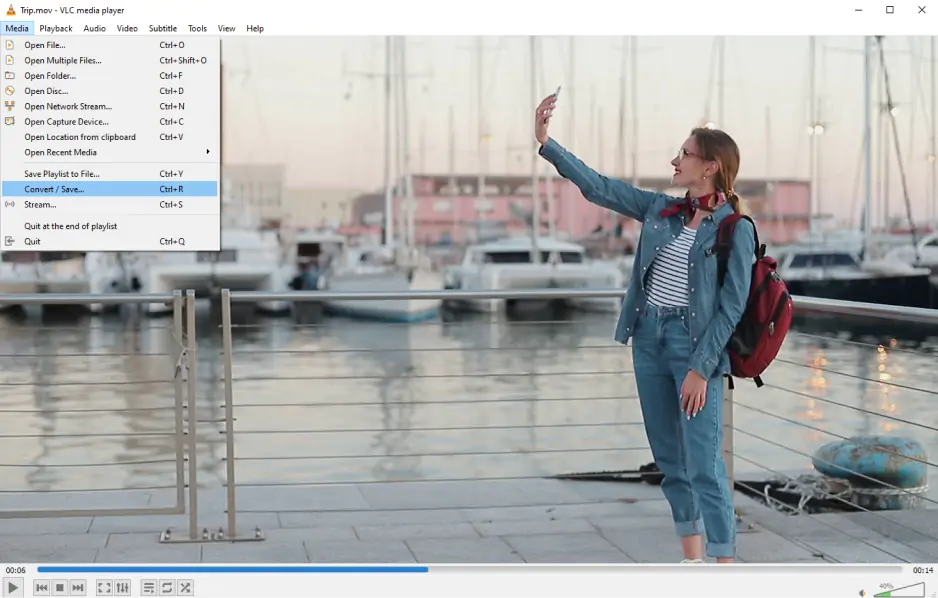
VLC offers a hidden feature for converting videos with embedded subtitles. Most people use VLC only for playback, but it includes conversion tools.
Open VLC and go to Media > Convert/Save. Add your movie file using the Add button. Click Convert/Save to open the conversion window.
In the conversion dialog, click the Edit button next to the profile dropdown. Switch to the Subtitles tab and check Subtitles. Load your SRT file using the file browser.
Choose MP4 as your output format and select a destination folder. Click Start to begin the conversion process.
One quirk I noticed: VLC sometimes struggles with subtitle timing if the SRT file uses different frame rates than expected. Preview a small section first to check alignment.
Free and widely available
Familiar interface for most users
Supports numerous subtitle formats
No additional software installation needed
Conversion features are somewhat hidden
Limited subtitle customization
Slower processing than dedicated converters
Occasional sync issues with certain files
Different approaches work better for specific scenarios:
Quick one-time conversion: VLC handles single movies efficiently if you already have it installed.
Regular movie processing: Movavi Video Converter or HandBrake provide better workflows for frequent subtitle embedding.
Bulk operations: FFmpeg excels when processing entire movie collections through scripts.
Professional requirements: Movavi offers the most user-friendly experience with customer support.
The choice often comes down to how often you'll add subtitles to movies. Casual users might prefer VLC's convenience, while movie enthusiasts benefit from dedicated conversion software.
SRT (SubRip Text) files contain timestamped text that displays over your video. They're simple text files with this structure:
```
1
00:00:10,000 --> 00:00:15,000
This is the first subtitle line.
2
00:00:16,000 --> 00:00:20,000
This is the second subtitle line.
```
Each subtitle entry includes a sequence number, timing information, and the actual text. Most subtitle websites provide SRT downloads for popular movies and TV shows.
Hard-coding vs. soft subtitles: Hard-coded subtitles become part of the video image and work everywhere. Soft subtitles remain as separate data streams that compatible players can toggle on or off. Hard-coding ensures universal compatibility but removes viewer choice.
Yes, but only with soft subtitle embedding. Tools like HandBrake and FFmpeg can include multiple SRT files as separate tracks. Hard-coded subtitles only support one language at a time.
Timing issues usually stem from frame rate differences between the original video and subtitle file. Most tools offer synchronization adjustments to shift subtitles forward or backward by specific time intervals.
Hard-coded subtitles don't affect the original video quality, but the conversion process might introduce minimal compression. Choose high-quality output settings to maintain visual fidelity.
Hard-coded subtitles cannot be removed since they're burned into the video image. Always keep backup copies of your original files before embedding subtitles permanently.
SRT files offer the widest compatibility across different embedding tools. They contain basic timing and text information without complex formatting that might cause compatibility issues.
Hard-coded subtitles work on any device that can play the video file, since they're part of the visual stream. This universal compatibility is the main advantage of permanent subtitle embedding.



1.5M+ users already subscribed to our newsletter