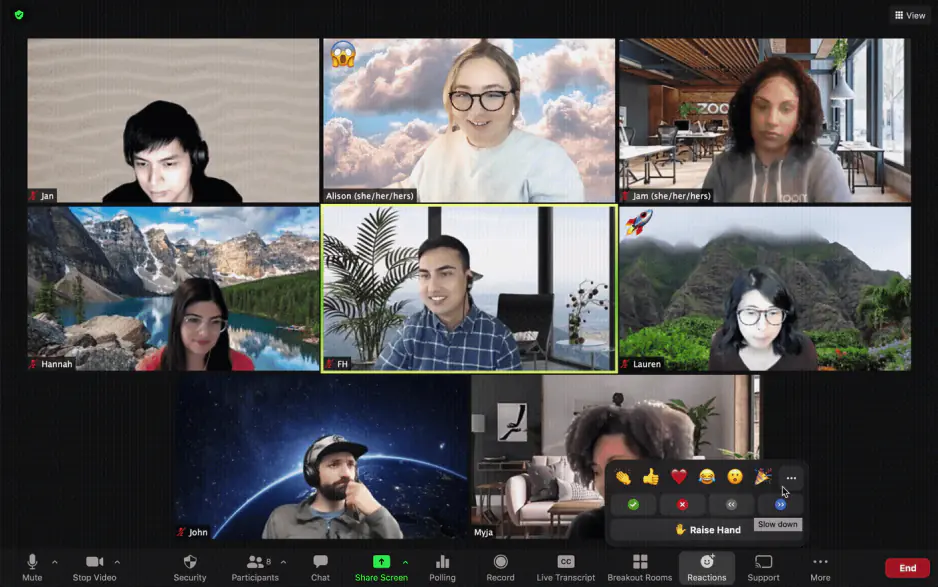
how to record a video on zoom

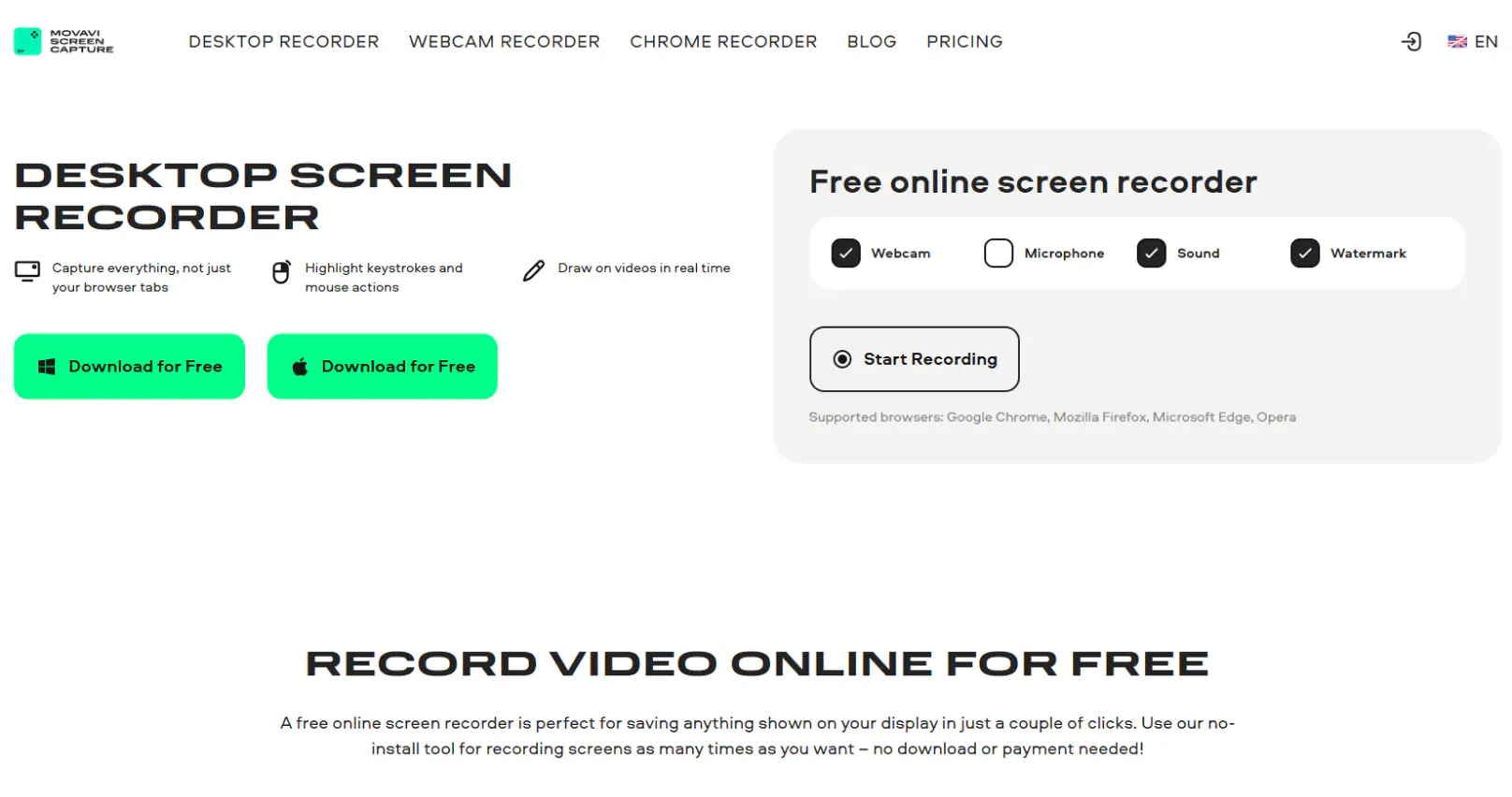
  • Capture everything, not just your browser tabs
  • Highlight keystrokes and mouse actions
  • Draw on videos in real time

Free online screen recorder

  • Webcam
  • Microphone
  • Sound
  • Watermark

Supported browsers: Google Chrome, Mozilla Firefox, Microsoft Edge, Opera

Edited by
Ben Jacklin
9335

How to Record a Video on Zoom With or Without Permission

Key takeaways

  • The top tools for recording Zoom calls are Zoom’s built-in recorder, Screencapture.com for fast browser captures, and Movavi Screen Recorder when you need pro-level results.
  • Each option has different strengths: Zoom keeps things simple, Screencapture.com works anywhere without installation, and Movavi offers the most control and the cleanest output.
  • Your best choice depends on your workflow – quick and casual recordings favor browser tools; longer meetings and polished exports benefit from dedicated software.
  • For great results, always check audio sources before hitting record and test a quick 5-second clip first (this habit has saved me more times than I can count).
  • Don’t rely on memory – schedule recordings when possible, especially for interviews or webinars.
disclaimer_person
Our goal is to provide you with only verified information. To ensure this, Movavi Content Team does the following:
  • When selecting products to include in our reviews, we research both demand and popularity.

  • The team tests all the products mentioned in this article.

  • When testing, we compare the key characteristics of the products, which include selecting capture area, schedule recording, showing keystrokes and mouse, and other significant features.

  • We study user reviews from popular review platforms and make use of this information when writing our product reviews.

  • We collect feedback from our users and analyze their opinions of Movavi software as well as products from other companies.

You know that moment when someone says the smartest thing in the whole meeting… right after you realize you forgot to hit Record? I’ve been there more times than I’d like to admit. This is exactly why I spent a week testing different ways to record Zoom calls – and figuring out how to record in Zoom without missing anything important – from built-in tools to browser tricks to full-blown screen-recording apps.

Fun fact: Zoom’s earliest desktop recorder produced files in a format so obscure that even VLC hesitated. Thankfully, times have changed. After trying everything again in 2025, I narrowed the field to a handful of tools that genuinely work every time, even when your Wi-Fi is feeling dramatic. Below is my list of top picks based on actual hands-on testing and a whole folder of video samples I’ll probably never rewatch.

My top picks

  1. Best overall: Movavi Screen Recorder

    Movavi consistently gives me the best balance of quality, control, and speed. The scheduler alone is worth it – I’ve captured full meetings automatically while making coffee in the other room. If you want high-quality video with smooth performance, this is the safest pick – especially if you're trying to master how to record a video on Zoom for classes, interviews, or tutorials.

  2. Best free option: Zoom’s built-in recorder

    No downloads, no surprises. If you just need a clean recording of a meeting without fancy editing, Zoom’s native recorder does the job perfectly. Great for quick calls, interviews, or the “I need this recorded right now” moment.

  3. Best browser-based tool: Screencapture.com

    Sometimes you’re on a borrowed laptop or a device you don’t fully trust, and you quickly start wondering, can you record Zoom meetings without installing anything? Screencapture.com saves the day – it works straight in the browser and delivers a neat MP4 file with almost no setup. Ideal for lightweight use or emergency situations.

Comparison table: How can you record on Zoom?

Tool

Best for

Key features

Download

High-quality, professional work

Scheduler, separate audio tracks, noise reduction

Simple, no-setup recordings

Local & cloud recording, automatic file conversion

Browser-based, instant use

MP4 export, screen + audio capture directly in the browser

How to record Zoom calls using Zoom’s built-In recording feature

Zoom

  • Why I picked it:

    it’s already there. Zero downloads, zero fuss – and it just works.

I’ve used Zoom’s built-in recorder for years, mostly because it’s the easiest option when I’m running late to a meeting (which is… often). The tool has two modes: local recording and cloud recording. Cloud recording recently got a stability update and improved file indexing – you can see this in Zoom’s official release notes. What I appreciate most is that the file comes out cleanly separated into audio, video, and shared-screen tracks – super helpful when you're learning how to record a video on Zoom in a way that’s easy to review later. If you handle interviews or webinars, this feels like a small gift – especially when you already know how to record a Zoom meeting as a host and want everything neatly organized.

How to record a Zoom call:

  1. Open Zoom and start or join a meeting.
  2. At the bottom of the window, click Record.
  3. Choose Record on this Computer or Record to the Cloud (if available).
  4. Zoom will show a small recording indicator in the top corner.
  5. To stop, click Stop Recording or simply end the meeting.
  6. If you recorded locally: Zoom will automatically convert the file and open the folder when it's ready.

If you used cloud recording: go to zoom.us > Recordings to download.
ratings

4.4/5

How to record Zoom calls using Movavi Screen Recorder

  • Why I picked it:

    it’s my go-to when I need higher quality, scheduling, or separate audio tracks.

Movavi Screen Recorder has been in my rotation for years – mostly because it gives you far more control than Zoom’s built-in recorder ever will. What keeps me loyal is how predictable the app feels: it starts quickly, it never randomly crashes mid-call, and the recording panel doesn’t try to hide behind your windows like some other screen recorders.

I especially rely on the scheduler. If you’ve ever had a 7 a.m. meeting that your future self definitely won’t wake up for, the scheduler feels like having a responsible assistant who presses “record” on your behalf. You pick the time, select the capture area, and the app just… does it. I’ve recorded full meetings while standing in line for coffee, and Movavi still kept the calls recorded clean and perfectly synced.

Movavi has been rolling out steady updates to keep everything running smoothly. They’ve improved hardware acceleration on Windows, which helps a lot when recording full-screen 1080p or 4K calls. They also redesigned the noise-reduction module so the app filters out background hum more aggressively (perfect if your laptop fan turns into a jet engine during long calls).

The UI feels cleaner than ever, and exporting is quick with a bunch of optimized MP4/MOV presets. You don't need to be a video editor to get a nice-looking file.

How to record Zoom calls with Movavi Screen Recorder

Step 1. Install Movavi Screen Recorder

Start by downloading and installing Movavi Screen Recorder on your PC or Mac.

Step 2. Select your capture area

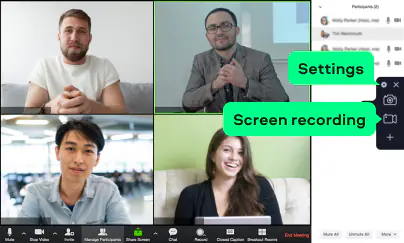
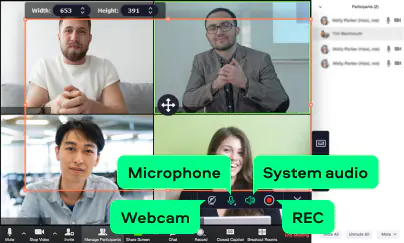
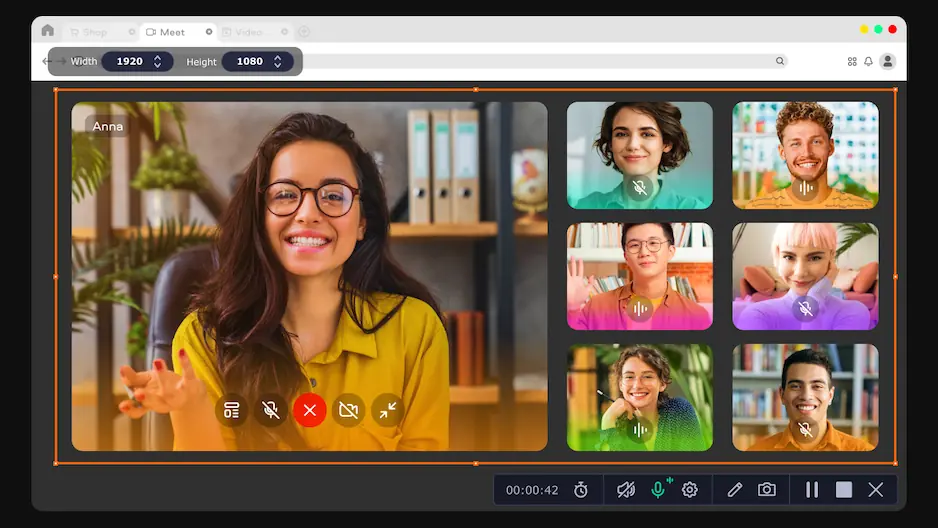
Click Screen Recording, and a movable frame will appear. Drag it over the Zoom window for a clean, focused capture, or stretch it across the whole screen if you plan to switch between apps or share a presentation during the call.

Step 3. Set up your audio

Before recording, make sure System Audio is enabled so all meeting participants are captured. Turn on your Microphone if you want your own voice included.

Step 4. Adjust optional tools

If needed, activate extras like the webcam overlay or keystroke display, or noise reduction. These small features come in handy for tutorials, interviews, and cleaner audio in noisy rooms.

Step 5. Start recording

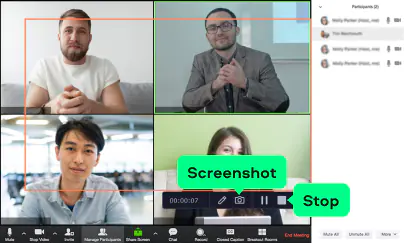
Hit REC. A slim control bar appears at the edge of your screen, letting you pause, take screenshots, or add annotations without interrupting the call.

Step 6. Finish and export

When the meeting ends, click Stop. Movavi automatically opens a simple trimming window, perfect for cutting out the “Can everyone hear me?” intro or long silences. Choose your format – MP4, MOV, MKV, or even GIF – and save.

ratings

Cons:
  • Free version adds a watermark

How to record Zoom calls using Screencapture.com

  • Why I picked it:

    it’s perfect when I’m on a new laptop or someone else’s device – works inside the browser in seconds.

Screencapture.com is one of those tools I discovered on a day when Windows decided to update itself mid-meeting (classic). The service runs directly in the browser – no plugins, no installers – and records your screen or active window. Their last interface update made the start/stop controls more visible and added a clearer privacy notice about tab-level permissions. The output quality surprised me: the MP4 file is crisp, and audio sync stays tight even in longer recordings, which makes recording a Zoom meeting feel much less stressful.

How to record a Zoom call with Screencapture.com

  1. Open the website.
    Go to Screencapture.com
  2. Enable Microphone and System Audio if you want full meeting sound.
  3. Click Start Recording and choose Your Entire Screen / Window / Tab.
  4. Select the Zoom meeting window.
  5. Record as usual; click Stop in the control bar to finish.
  6. Download the MP4 file directly.
Pros:
  • Works instantly in any browser

  • No installation required

  • Good for quick recordings on borrowed computers

Cons:
  • Watermark in the free version

  • Requires stable internet

How to record Zoom calls on mobile devices

Recording Zoom calls on mobile is a little different because the app doesn’t allow local recordings on phones. Instead, you’ll be using cloud recording, which means you’ll need a Pro, Business, or Education account. But once you set it up, it works smoothly – I’ve used it during commutes, at airports, and once during a suspiciously long supermarket line.

How to record Zoom calls on an iPhone or Android

  1. Open the Zoom app and sign in.
  2. Start or join your meeting, and make sure you’re ready to capture everything with audio if you need the full conversation later.
  3. Tap More (the three dots) in the lower-right corner.
  4. Select Record to the Cloud.
  5. Zoom will show a small Recording indicator at the top of your screen.
  6. To pause or stop, tap More again and choose Pause Recording or Stop Recording.
  7. When the meeting ends, the recording will upload automatically.
  8. Go to zoom.us > Recordings to access, download, or share the file.

Tip: mobile cloud recordings often process a little slower, so don’t panic if it doesn’t appear instantly – I once waited 20 minutes and thought I broke something. It eventually showed up just fine.

How to choose Zoom recording software

Picking Zoom recording software is a lot like choosing a coffee order: some people just want it fast, others want something fancy, and a few need industrial-strength caffeine because they’re hosting a 3-hour webinar. I’ve tested all the tools in this guide during real meetings, late-night interviews, and one accidental “camera-on” moment I’m still trying to forget. Here’s the easiest way to decide what fits your style.

  • Go with Zoom’s built-in recorder if you want something predictable. It’s like the default camera app on your phone – not flashy, but it gets the job done without making you think. Perfect for everyday team meetings and anything you don’t plan to edit later.
  • Pick Screencapture.com when you’re in a hurry or on a borrowed device. I’ve used it on a friend’s laptop that still ran Windows updates from 2018, and it worked without complaint. Great for quick captures, student projects, or “my computer is not cooperating today” moments.
  • Choose Movavi Screen Recorder if you want polished results or plan to edit. The software feels like the grown-up option: separate audio tracks, scheduling, noise reduction – all the stuff that makes recordings look intentional rather than accidental. If you’re creating tutorials or saving interviews, this is the one.
  • On mobile, stick with Zoom’s cloud recording. There’s no real competition here. It works surprisingly well, and it’s the only mobile method that won’t make you juggle weird workarounds.
Movavi Screen Recorder
The perfect way to record anything from your screen

Disclaimer: Please be aware that Movavi Screen Recorder does not allow capture of copy-protected video and audio streams.

Movavi Screen Recorder

frequently asked questions

How do you record a Zoom meeting?

Inside Zoom, hit the Record button at the bottom of the window. Choose Record on this Computer for local files or Record to the Cloud if your plan supports it. When the meeting ends, Zoom processes the files automatically – usually faster than it takes to find your headphones again.

Can I record on Zoom by myself?

Yes, but only if you’re the host or the host gives you permission. This is Zoom’s way of preventing accidental or… overly enthusiastic recording behavior. If you don’t see the option, ask the host to enable it in Participants > More > Allow Recording.

Can I record on Zoom if I'm not the host?

Not with Zoom’s built-in tools – the host has full control, so as a participant you’ll need the host’s permission or a third-party recorder. But you can use third-party software like Movavi Screen Recorder or Screencapture.com. These apps work independently and don’t care about your host privileges (or lack thereof). Just make sure you follow your local meeting and privacy rules, especially if you’re recording work calls.

How do I record a Zoom meeting for later?

If you're the organized type, Zoom lets you schedule meetings with automatic recording. When you set up a meeting, just turn on Auto-record. The call will start recording even if you're still making coffee when everyone else joins.

Another option is using Movavi Screen Recorder’s scheduler, which starts capturing your screen at a specific time. I’ve used it for early-morning meetings I fully intended to attend but definitely slept through.

Have questions?
Have questions?
If you can’t find the answer to your question, please feel free to contact our Support Team.
Join us for discounts, editing tips, and content ideas

1.5M+ users already subscribed to our newsletter

By signing up, I agree to receive marketing emails from Movavi and agree to Movavi's Privacy Policy.