Step 1. Install the sound remover app
Wait until the download is complete and open the setup file. Follow the on-screen guidelines to install the program.

Easy Ways to Remove Audio from a Video
Try Movavi Video Editor!
Edit and enhance videos easily
Add stylish transitions, titles, and filters
Stabilize and reverse video, equalize sound, and more
By clicking the download button, you're downloading a trial version of the program.*

I have experimented with different tools across Windows, Mac, iPhone, Android, and online platforms that can remove audio from video. I discovered some simple tricks to remove background noise, music, or a voice track, without messing with the video itself. Some methods are faster, some give more control, but all of them helped me get a clean, sound-free clip without lowering the quality. So, here are the best tools to remove audio from video.

When selecting products to include in our reviews, we research both demand and popularity.
All products mentioned in this article have been tested by Movavi Content Team.
When testing, we compare key parameters, including video and audio trimming, visual effects, stabilization, video quality adjustments, saving and sharing videos, and other significant features.
We study user reviews from popular review platforms and make use of this information when writing our product reviews.
We collect feedback from our users and analyze their opinions of Movavi software as well as products from other companies.
How to remove audio from a video: Best ways
How to remove audio from a video on Windows
Without exaggerating, Movavi Video Editor is one of the best apps to remove audio from a a video. I prefer this amazing tool because of the ease in usability. The interface is clean and intuitive, showing both video and audio tracks clearly. I could delete, mute, or adjust sound in just a few clicks, even on longer videos with multiple audio layers.
Movavi handled formats like MP4, AVI, and MOV smoothly. I didn’t encounter glitches or delays, and the video quality stayed intact. The real-time preview helped me see the changes immediately, which saved a lot of trial and error. So, if you want to remove background noise, music, or a voice track, the process is precise and satisfying. Here’s how to use Movavi Video Editor.
Step 1. Install the sound remover app
Wait until the download is complete and open the setup file. Follow the on-screen guidelines to install the program.
Step 2. Add your video
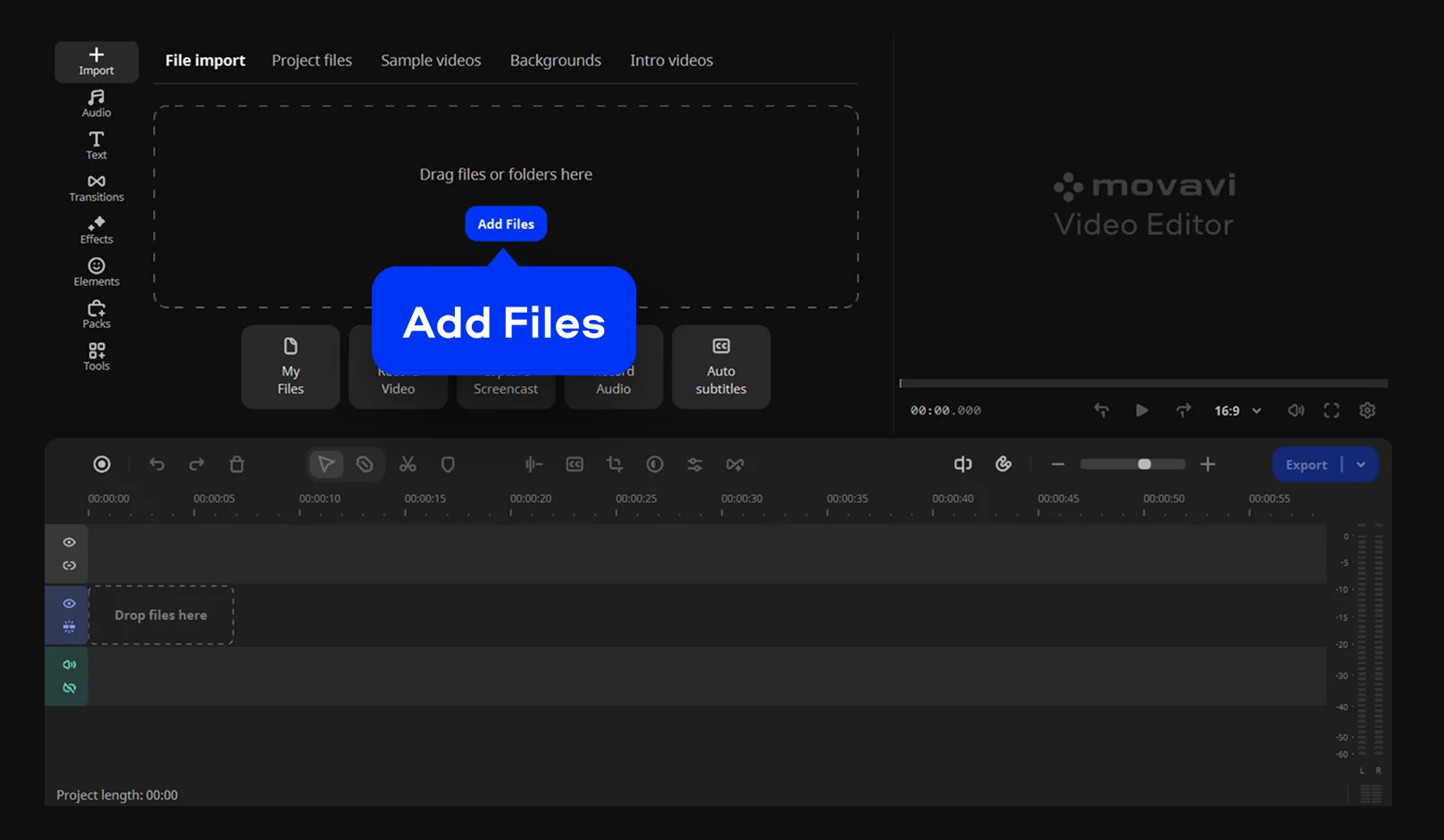
Click Add Files and select the video you want to edit. Then drag and drop your file into the Timeline.
Step 3. Remove audio
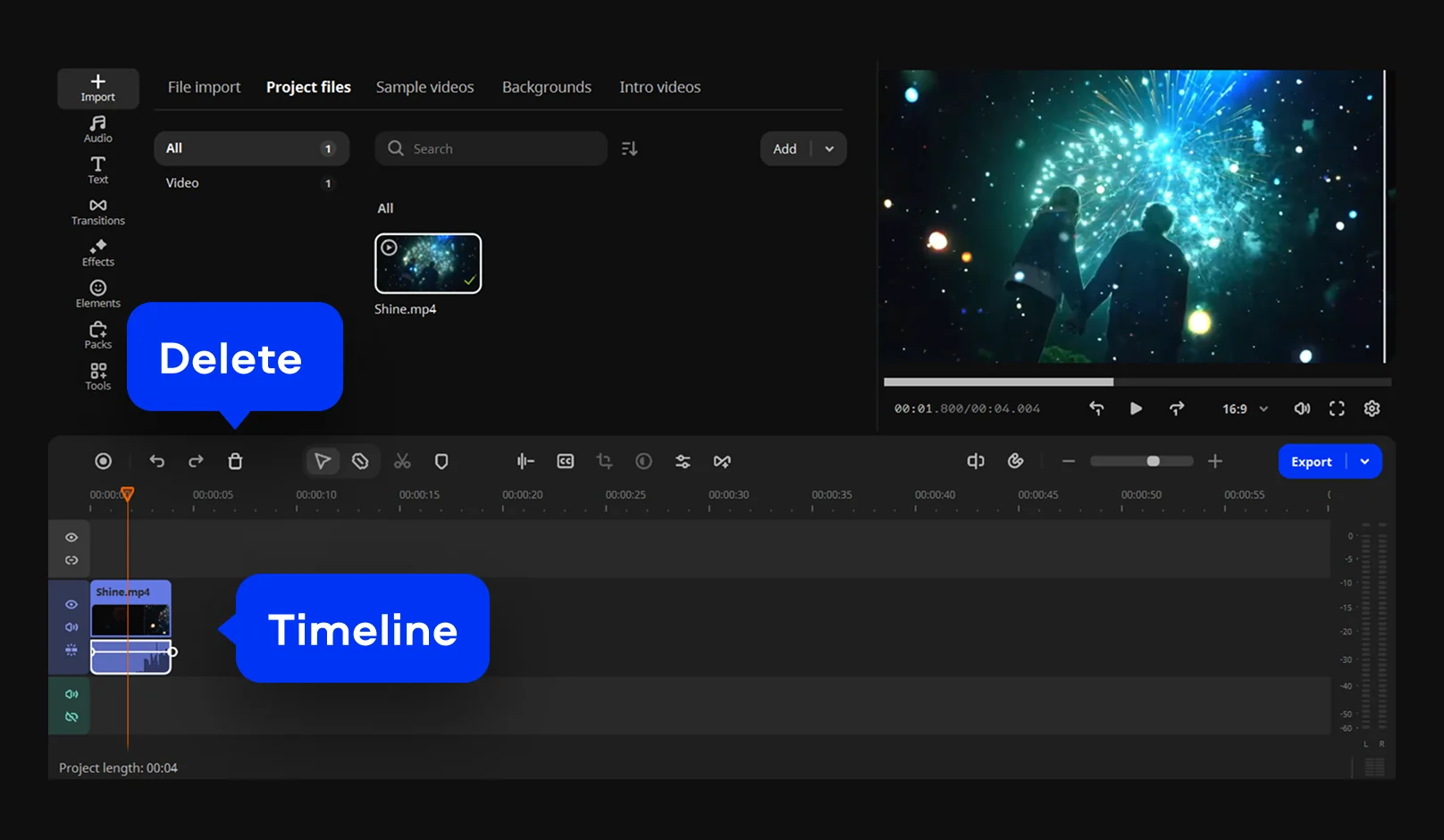
To delete the sound from your video, just click the original audio track on the Timeline and press the Delete button as shown in the screen image.
Step 4. Add music (optional)
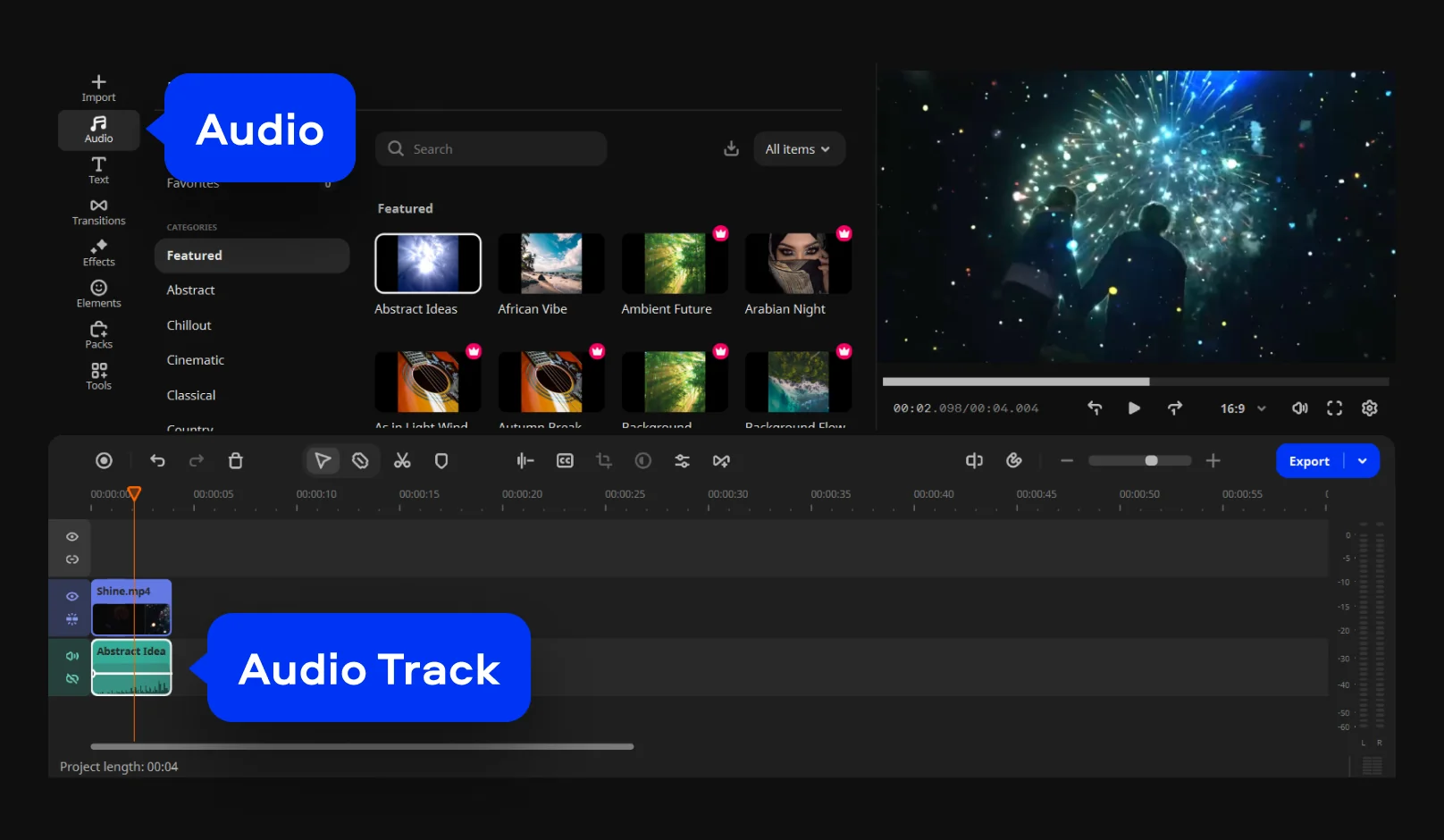
Click Add Files and select the audio file you want to use and drag and drop it into the Audio Track. You can also choose a track from the built-in music collection – just open the Audio tab and drag your selected track to the Timeline.
If your video appears to be longer than the music you’ve added, you can just duplicate the audio file and place both on the same track. Alternatively, you can upload another audio file to fill the space. If the music is longer than the video, you can drag the right edge of the audio to the left along the timeline until it lines up with the end of your clip.
Step 5. Save your video
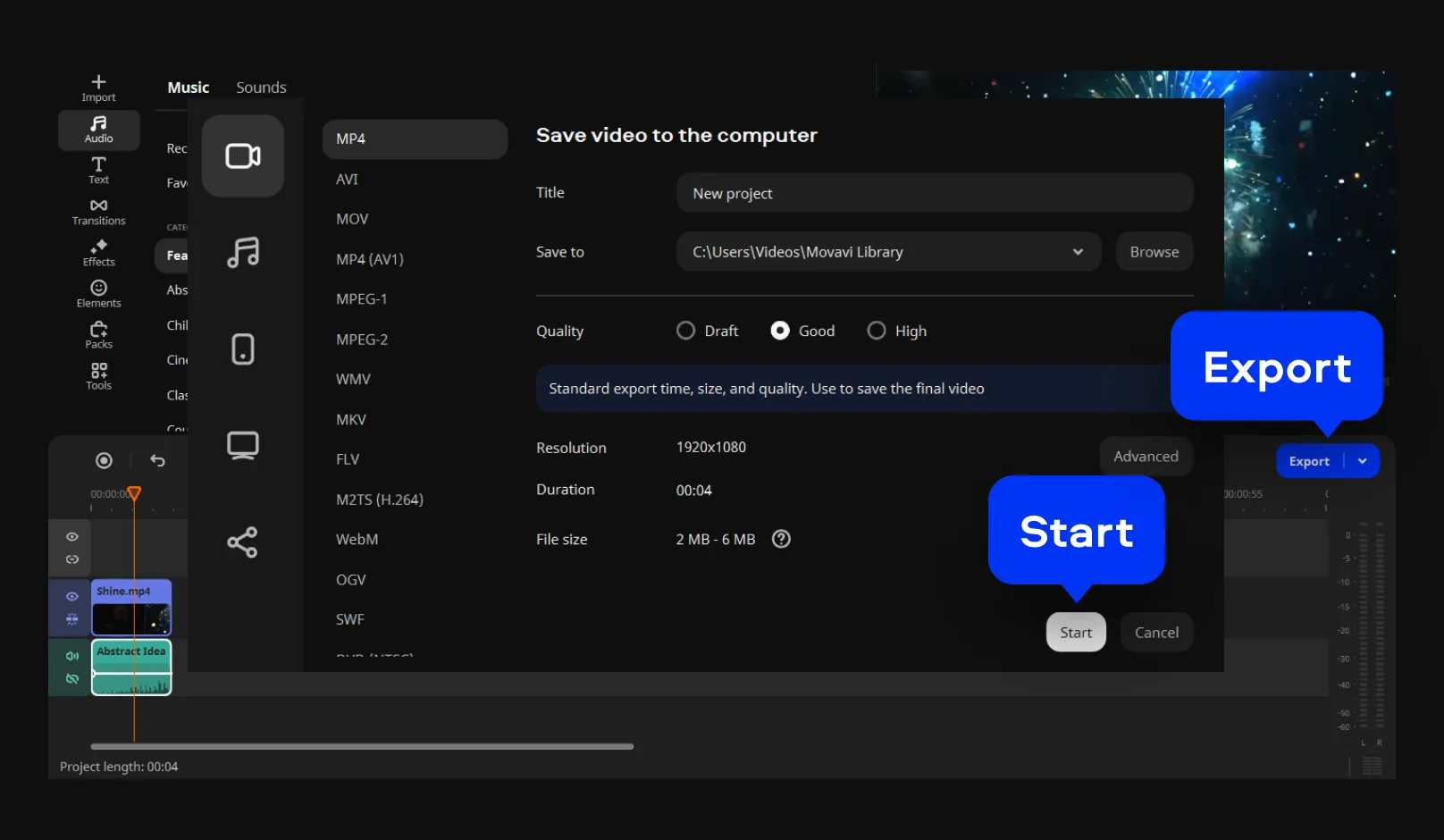
Click Export and choose the tab that fits your needs best. You can save your video file to store on your hard drive, export it for viewing on a mobile device, or prepare it for uploading to the internet. Once you’ve chosen the appropriate option, click Start to save the file in the optimum format.
How to remove audio from a video on a Mac
On a Mac, I found Movavi Video Editor to be an easy way to remove audio from videos. The interface is clean and user-friendly, so it’s easy to see video and audio tracks separately. It handles various formats like MP4 and MOV without any lag or glitches, and changes can be previewed instantly. Removing background noise, music, or a voice track is simple and precise, and the video quality remains intact throughout the process. Here’s how to remove audio from a video on a Mac using Movavi Video Editor.
Step 1. Install Movavi Video Editor
Download the installation file and install the program by following the guidelines.
Step 2. Upload your video
You can add your video using 2 ways. Firstly, you can click Add Files and select the video you want to edit. Alternatively, you drag and drop your file into the program window.
Step 3. Remove audio
To delete the sound from your video, just click the original audio track on the Timeline. Now, press the Delete button.
Step 4. Add music
This is optional. You may choose to add more sounds to the video. So, click Add Files and select the audio file you want to use. Drag and drop it into the Audio Track. If you don’t have a preferred audio, you can also choose a track from the built-in music collection. Just click Audio and select the track you want.
If your video is longer than the music you’ve added, drag the right edge of the audio to the left along the timeline until it lines up with the end of your clip.
Step 5. Save your video
Click Export to save your video in your preferred format. Once you’ve chosen the format, click Start to save the file.
How to remove audio from a video for free with VLC
If you do not want to install paid software, VLC is a reliable free option to remove audio from videos. It is lightweight, works on Windows, Mac, and Linux, and supports almost all common video formats, like MP4, AVI, and MOV. While it is not visually intuitive, it gets the job done without compromising video quality. Removing unwanted music, voice, or background noise can be done quickly once the steps are followed carefully. Here’s how to remove music from a video using VLC:
Instructions for a PC (Windows 10)
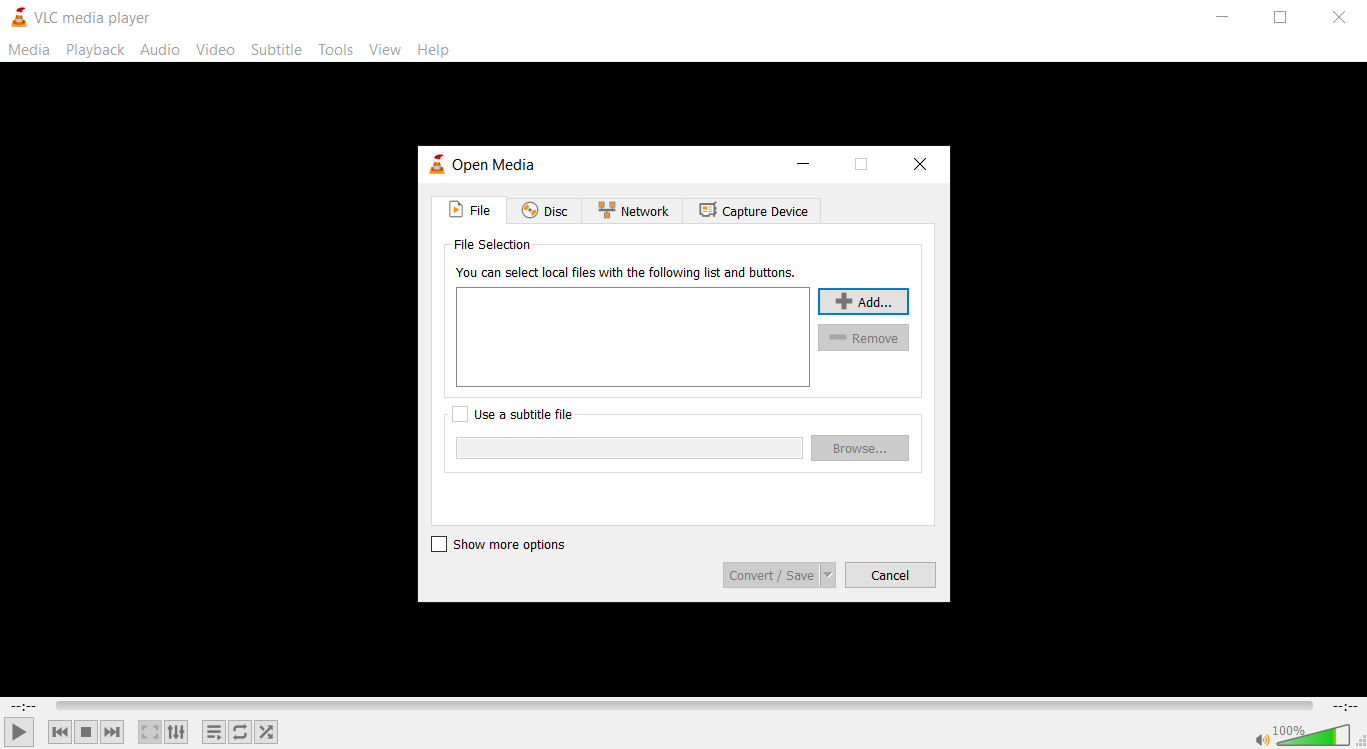
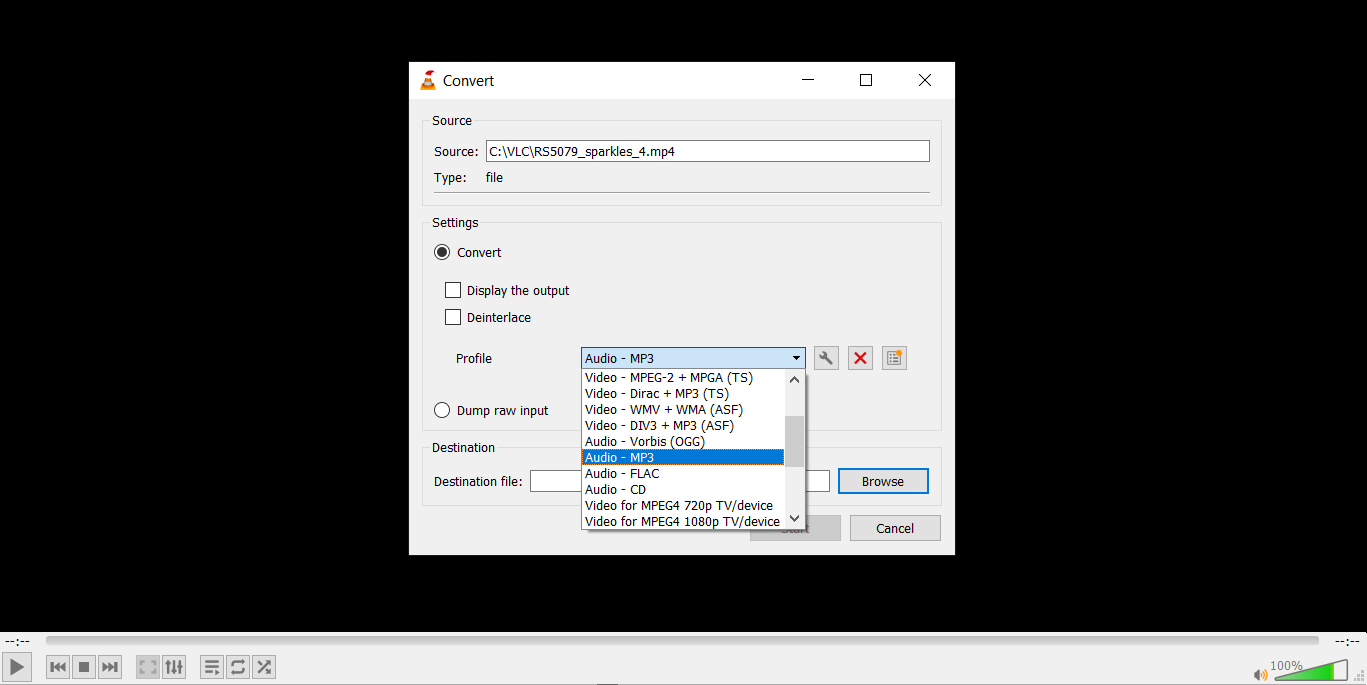
3. With the Open Media window open, click Add and then select the video file you wish to remove audio from and click Open. The file will appear in the selection box and then you can click Convert / Save. The Convert window will appear and within the popup, click the wrench icon to the right of the text that reads Profile. Another window titled Profile edition will pop up.
4. In this window, select the Audio codec tab, uncheck the box next to Audio, and click Save. When the Convert window reappears, select a destination for the new audioless video file.
5. Last, click Start to begin the audio removal process.
Instructions for a Mac
Removing audio from a video with VLC for Mac is just as easy, but the interface is a little different.
How to remove audio from a video on an iPhone
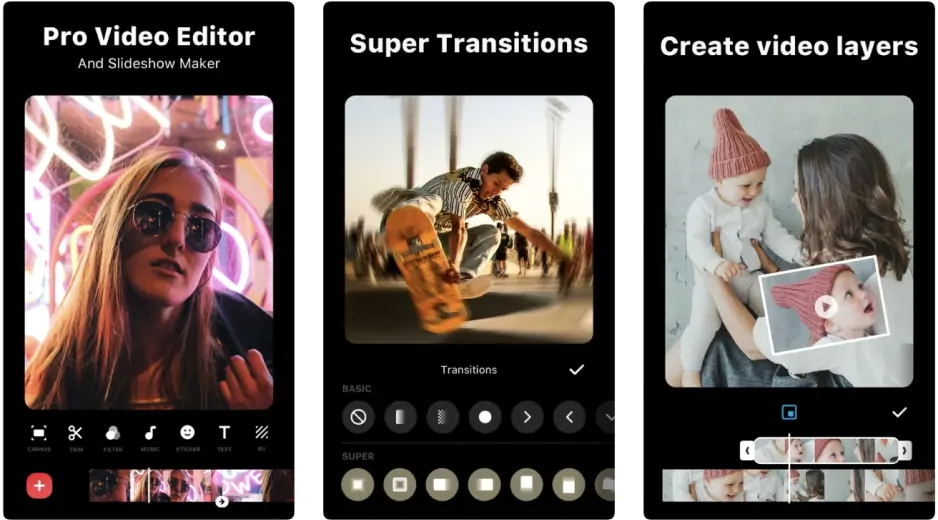
On an iPhone, InShot is a simple and effective app for removing audio from videos. The interface is easy to navigate, letting users see both video and audio elements clearly. It works well with most iPhone-supported formats and allows instant preview of changes. Whether it is background noise, music, or a voice track, InShot provides a quick way to mute or remove unwanted sound without affecting video quality.
Here’s how to take out audio from a video using InShot:
How to remove audio from a video on Android
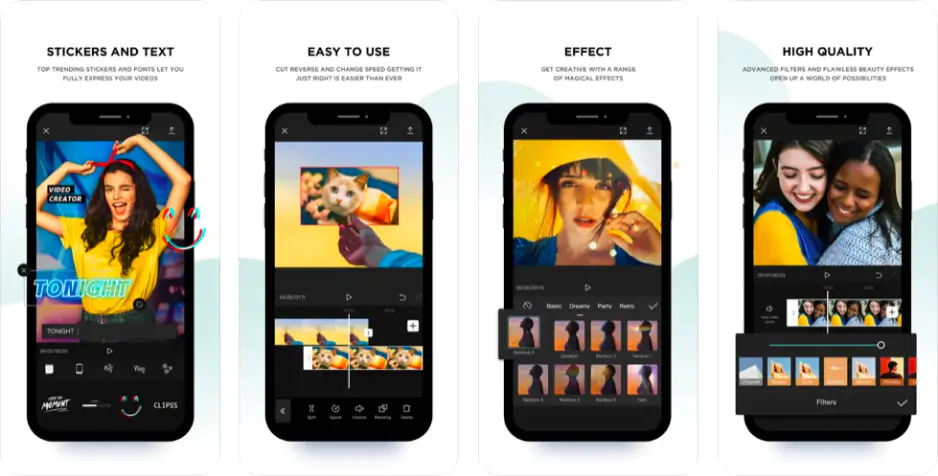
On Android, CapCut is a great app for removing audio from videos. It has a clean, user-friendly interface and works with most common video formats, including MP4 and MOV. The app allows users to see and manage both video and audio tracks, making it easy to delete background noise, music, or voice tracks while keeping the video quality intact.
Here’s how to remove audio from a video using CapCut:
How to remove audio from a video using online tools
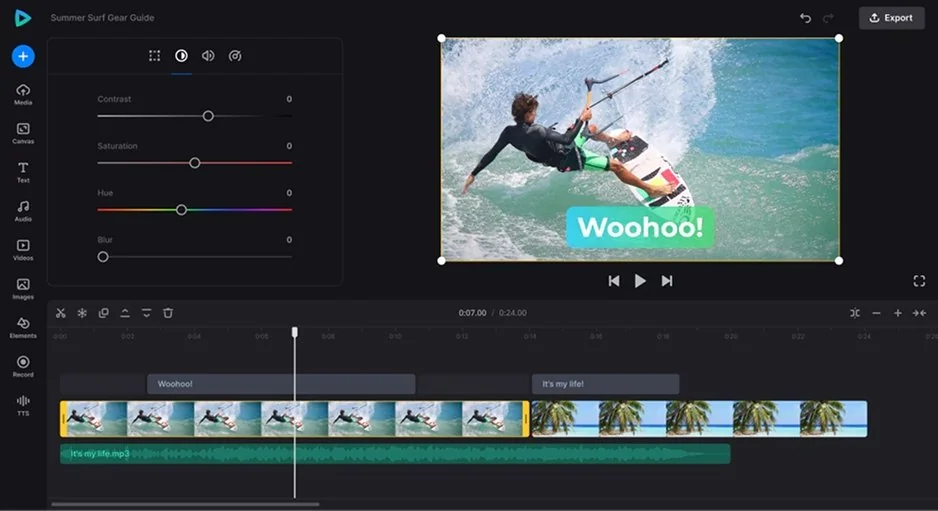
If installing software is not an option, online tools are a convenient way to remove audio from videos quickly. I tried Clideo, and it worked surprisingly well. The interface is simple… just upload the video, remove the audio, and download the finished file. It supports common formats like MP4, MOV, and AVI, and the process does not affect the video quality. This is useful when needing to edit a video on the go or from a device that cannot install apps.
Here’s how to remove audio from an MP4 video using Clideo:
Summary
Removing audio from a video does not have to be complicated, and I found several tools that make the process simple and reliable. Each method I tried allowed me to remove background noise, music, or voice tracks without affecting the video quality. After experimenting with all of them, I now have a set of go-to options for creating clean, sound-free videos whenever I need.
On Windows and macOS, Movavi Video Editor is a great choice. Free options like VLC and online tools such as Clideo provided quick solutions without installing software. Mobile apps like InShot and CapCut made it easy on the go.
Frequently asked questions
To remove audio from a video file, it's best to use Movavi Video Editor. It provides efficient tools to separate audio from video, with intuitive interface and advanced features that allow you to seamlessly edit video and audio independently. This makes it ideal for content creators and anyone looking to remove sound from video files.
The best way to remove audio from a video is by using a reliable video editing program, like Movavi Video Editor. Its straightforward interface and powerful tools allow you to easily remove, extract, and edit audio tracks without sacrificing video quality. It's suitable for users of all skill levels, from beginners to experienced video editors.
Movavi Video Editor is the best solution to remove background music from a video. Its advanced features let you extract individual audio tracks, making it easy to separate and remove unwanted background music. This is especially useful for video creators looking to replace background music with their own soundtracks.
On Windows, Movavi Video Editor makes it quick and precise. Mac users can use iMovie, while free options like VLC work across platforms. For mobile devices, InShot works well on iPhone, and CapCut is ideal for Android.
Once the audio has been removed using any of the above tools, save or export the video in your preferred format. The resulting file can be shared like any other video without including the original sound.
*The free version of Movavi Video Editor may have the following restrictions depending on the build: watermark on exported clips, 60-second video or 1/2 audio length limit, and/or some advanced features unavailable when exporting videos.




1.5M+ users already subscribed to our newsletter