
Best MKV-to-MP4 converters in 2026 [Windows/Mac/Online]

Movavi Video Converter
  • Lightning-fast conversion
  • Batch processing of files – any number, any size
  • No quality loss, even with 4K videos
  • Easy editing and compression
Edited by
Ben Jacklin
5379

Key takeaways

  • I tested everything from heavyweights like Movavi Video Converter, HandBrake, and Wondershare UniConverter to browser-based options like CloudConvert, Convertio, and Kapwing – and yes, each of them is an MKV-to MP4-converter, but they do their job very differently.
  • Desktop offline tools (FFmpeg, VideoProc Converter, MacX Video Converter Pro) usually win in speed, control, and batch processing, while online converters (Zamzar, FreeConvert.com, OnlineConvert.com) shine when I just need a quick fix without installing anything.
  • The real difference comes down to three things: how much control you want over codecs and bitrate, how big your MKV files are, and whether you value speed over simplicity. Power users gravitate toward FFmpeg and MediaCoder; beginners feel safer with VLC or Freemake.
  • My rule of thumb? If quality matters, don’t just hit Convert. Check the output codec (H.264 is still the safest bet for MP4) and keep an eye on bitrate settings, that’s where your video either keeps its punch or loses it.
  • And finally: for big 4K MKV files, I always prefer tools with GPU acceleration. It’s the difference between grabbing coffee and finishing lunch while waiting for your MP4 to export.

I’ve lost count of how many times I downloaded a video in MKV, only to discover my TV, phone, or editing app stubbornly prefers MP4. We live in the age of 4K streaming and cloud everything, yet file formats still know how to ruin a perfectly good evening. So instead of relying on specs and marketing promises, I rolled up my sleeves and tested the most popular MKV-to-MP4 converters myself. I converted large 4K clips, small TV episodes, even a few messy screen recordings just to see who handles pressure well. Some tools were impressively fast, others demanded patience, and a few genuinely caught me off guard in a good way. What you’ll find below is my carefully tested shortlist of apps that actually deliver clean, reliable MKV-to-MP4 conversion.

My top picks

Best overall: Movavi Video Converter

If I had to recommend one tool to most people, this would be it. In my tests, it balanced speed, quality, and ease of use better than anything else on the list. Large MKV files converted to MP4 quickly, GPU acceleration actually made a difference, and I didn’t have to wrestle with settings to get clean output.

Best free option: HandBrake

For a free tool, HandBrake is almost ridiculously capable. I liked how much control it gave me over bitrate, codecs, and presets while still producing sharp MP4 files from MKV sources. It’s not flashy, and beginners may need a minute to orient themselves, but once you get it, it’s powerful and reliable.

Best for professionals: FFmpeg

This is where things get serious. FFmpeg isn’t about pretty buttons, it’s about raw encoding power. I used command-line presets to convert an MKV file to MP4 with precise codec control, and the flexibility is unmatched. If you’re comfortable with technical workflows, nothing else on this list gives you this level of precision.

Best for quick online jobs: CloudConvert

When I didn’t feel like installing anything, CloudConvert saved the day. Upload, choose MP4, tweak a couple of options, download – done. For smaller MKV files and cross-device work, it’s incredibly convenient. It’s not built for massive batches, but for fast conversions, it’s hard to beat.

Best all-in-one toolkit: Wondershare UniConverter

UniConverter impressed me because it’s more than just a converter. I could trim, compress, and tweak files before exporting to MP4, all inside one interface. During testing, it handled MKV files smoothly and felt stable even with larger videos. If you want conversion plus extra media tools in one place, this one makes a strong case.

Comparison table: Best software to convert MKV to MP4 for free

Program

OS

Main advantages

Download

Windows, macOS

Fast conversions, GPU acceleration, clean interface, wide format support

Windows, macOS, Linux

Free, widely available, handles many formats including MKV-to-MP4

Windows, macOS, Linux

Open-source, detailed encoding control, batch conversions

Top 20 MKV-to-MP4 converters

Why I picked it: it converted my MKV files to MP4 faster than I expected. I liked how clean and frictionless the whole process felt.

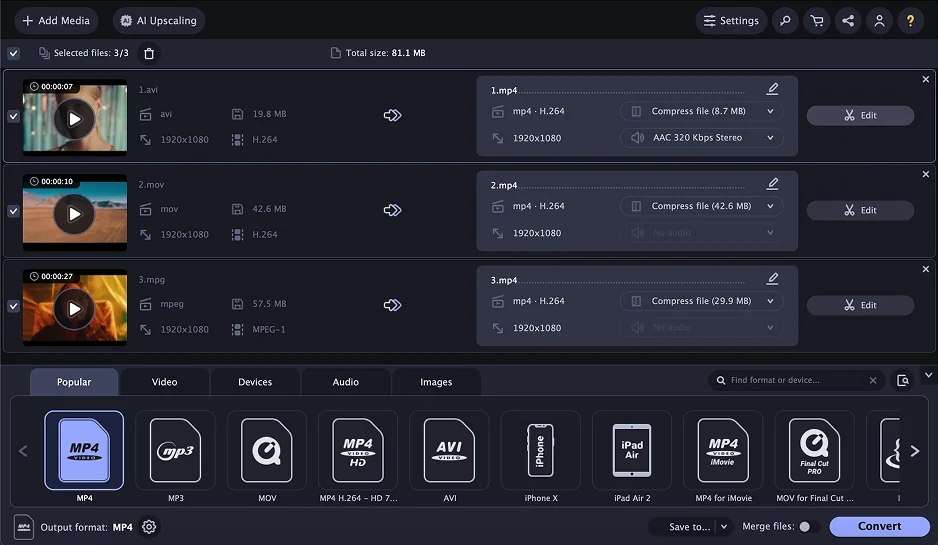
When I needed to turn bulky MKV files into clean, widely compatible MP4s, Movavi Video Converter was hands-down one of the smoothest experiences I’ve ever had. I threw several large 1080p and even 4K MKVs at it, including some messy downloads with multiple audio tracks, and the software handled them effortlessly. Conversion speed genuinely impressed me, files that usually feel like they take forever were done in minutes. What I loved most is how effortless the workflow feels: drag, drop, select MP4, and start. No hunting through menus or confusing codec options unless I want to.

The presets for devices are a real time-saver, especially when I’m in a hurry or don’t feel like diving into advanced codec tweaks. Batch processing multiple files worked flawlessly, and even subtitles carried over correctly. Audio sync stayed perfect, and the quality was sharp with no compression artifacts. I also noticed that the interface gives subtle tips when tweaking settings, which made the tool feel smart without being intrusive. Overall, it’s polished, reliable, and practically stress-free – the kind of tool that makes you wonder why any MKV file would ever scare you.
Ratings

Pros:
Cons:
  • Limited free trial

2. VLC

Why I picked it: it’s already on my computer, and it quietly handles MKV-to-MP4 conversion for free. I appreciate tools that do more than they advertise.

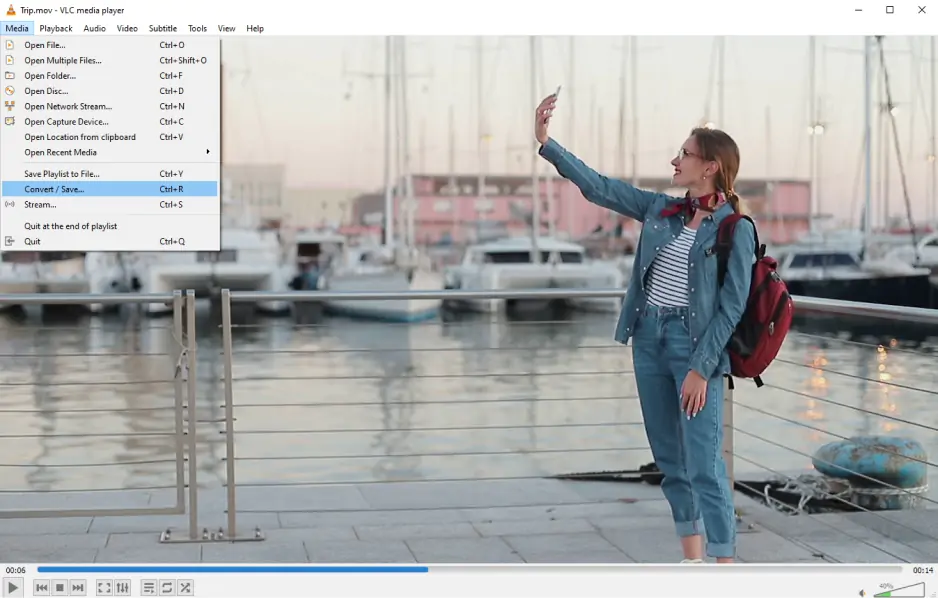
Most people think of VLC as just a video player. I thought the same, until I discovered its hidden MKV-to-MP4 conversion feature. It’s tucked away in the menus, not exactly screaming “convert me,” but once you find it, it works surprisingly well. I tested a mix of short clips, full-length TV episodes, and even a few weirdly encoded MKVs, and VLC converted them without installing any extra codecs or software. It’s a nice surprise, especially for those who just want a quick solution on a PC that already has VLC installed.

The interface isn’t flashy, and conversion speed is decent but not record-breaking, especially with large 4K files. It doesn’t offer fancy presets or detailed bitrate controls like dedicated converters, but it’s incredibly dependable for what it does. I found myself appreciating its simplicity: no pop-ups, no unnecessary prompts, just a basic conversion that actually works. For a free tool you probably already have on your computer, VLC is surprisingly capable, and I even used it when I was traveling and didn’t want to install another program.

Ratings

Pros:
Cons:
  • Conversion feature hidden and not as intuitive as dedicated converters

  • Interface feels outdated and basic for conversion tasks

Why I picked it: it gives me real control over compression and output settings. I like knowing I can fine-tune every detail of my MP4 files.

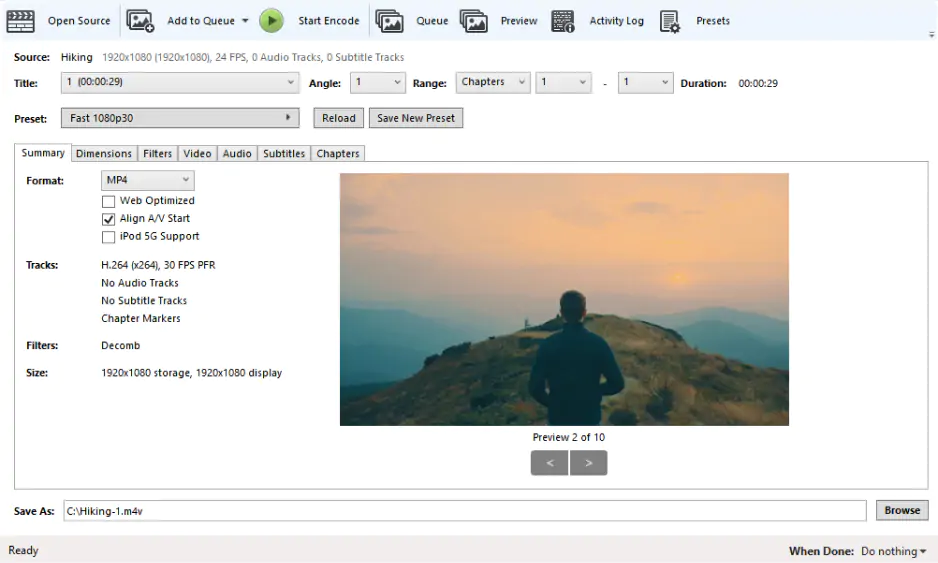
I’ve been using HandBrake for years, and when it comes to converting MKV to MP4, it’s one of my go-to choices, especially since you can get this MKV to MP4 converter for free. The software gives me almost endless control over video quality, codecs, and compression settings, which is perfect when file size or playback compatibility matters. I love that I can decide on exact bitrates, tweak frame rates, and even select specific audio tracks or subtitles. At the same time, the presets let me get a perfectly optimized MP4 quickly if I don’t feel like tweaking every setting.

Conversion times were solid, especially when I enabled hardware acceleration, and the results were consistently high-quality. I also tested batch conversions, and HandBrake handled multiple files without slowing down. While it’s not flashy, and the interface might feel a little intimidating at first, it rewards users who are willing to explore its features. For anyone who wants precise control over MKV-to-MP4 conversions, HandBrake delivers reliability, performance, and quality all in one package.

Ratings

Pros:
Cons:
  • Interface can feel intimidating for beginners

  • Limited to MP4, MKV, and WebM as default outputs

Why I picked it: it’s brutally powerful and converts MKV to MP4 with surgical precision. Once I set up my commands, it feels unstoppable.

Testing FFmpeg is like stepping into the engine room of video conversion: no graphics, just raw power. This tool is all command-line commands, which can be intimidating if you’re used to drag-and-drop software, but once you understand the syntax, it’s almost magical. I was able to remux MKV files to MP4 almost instantly without re-encoding, saving both time and file quality. It handled everything I threw at it (multi-audio tracks, subtitles, 4K video) without complaining. It’s a great MKV-to-MP4 converter to download and use, if you want control over your workflow.

The beauty of FFmpeg is its precision and efficiency. I could set frame rates, codecs, compression levels, and audio options with a level of control that no GUI tool can match. Sure, there’s a learning curve, but once you master it, FFmpeg becomes a powerhouse capable of automating large batch conversions or custom workflows. For advanced users and professionals, it’s not just a converter, it’s a complete toolkit.

Ratings

Pros:
  • Extremely powerful and versatile for MKV-to-MP4 conversion and more

  • Free and open-source, no hidden limitations

Cons:
  • Command-line tool with steep learning curve for non-technical users

  • No graphical interface by default

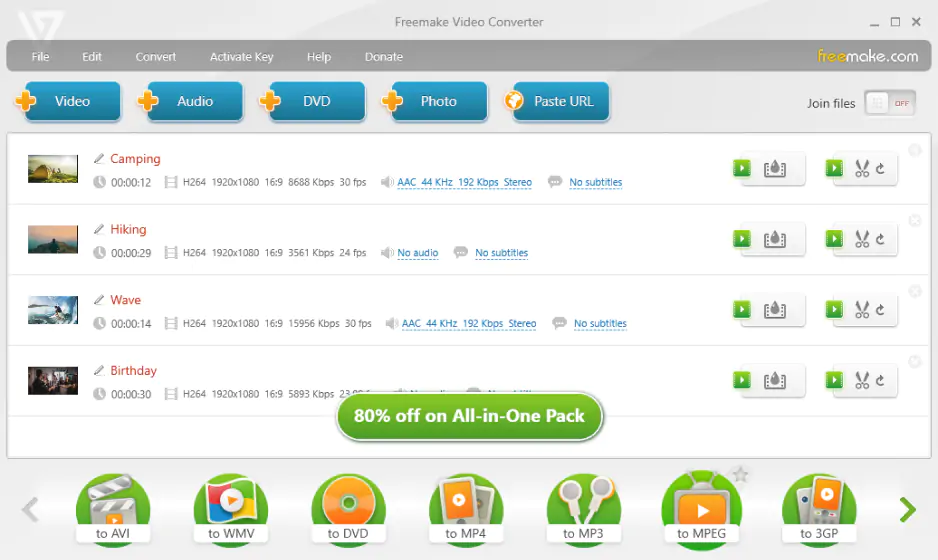
Why I picked it: it’s simple, visual, and doesn’t make me think too much. For quick MKV-to-MP4 jobs, it just works.

With Freemake Video Converter, I focused on simplicity and accessibility. I loaded a handful of MKV files and converted them to MP4 in just a few clicks, which felt pleasantly effortless. The interface is clean and beginner-friendly, with clear buttons guiding me through the process. There’s no intimidating technical jargon, the tool seems designed for people who just want their video converted without spending hours learning the software.

Conversion speed was reasonable, especially for standard HD files, and the output quality was solid – no weird glitches, dropped frames, or audio sync problems. While it lacks advanced controls like custom bitrate tweaking or hardware acceleration, that’s the trade-off for its ease of use. For casual users or anyone who doesn’t want to overthink settings, Freemake Video Converter is approachable, reliable, and perfectly adequate for most MKV-to-MP4 tasks.

Ratings

Pros:
  • Free version supports many formats and device profiles

  • Beginner-friendly drag-and-drop UI

Cons:
  • Ads and bundled software in installer

  • Limited advanced features and older UI

Why I picked it: GPU acceleration made my large MKV files convert noticeably faster. I liked that it handled 4K footage without sweating.

I tested VideoProc Converter with some seriously heavy MKV files, including 4K home recordings, and it handled them like a pro. GPU acceleration made conversions noticeably faster, especially for larger files, which is a huge time-saver. I also liked that I could adjust compression settings without sacrificing quality. A feature I often need when preparing videos for sharing online or storing on limited drives.

What sets it apart is the integrated editing tools. I could trim, crop, stabilize, or even apply simple filters before exporting to MP4, which saved me the hassle of opening a separate editing program. The interface is modern, responsive, and intuitive, making the whole conversion workflow feel effortless. For anyone working with high-resolution or large MKV files, VideoProc Converter is one of the few tools that combine speed, quality, and extra functionality in a single package.

Ratings

Pros:
  • Fast conversions with GPU acceleration

  • User-friendly and supports many formats

  • Includes AI features for enhancements

Cons:
  • Free version limited

Why I picked it: it supports almost every format I throw at it. When compatibility matters, this one rarely says no.

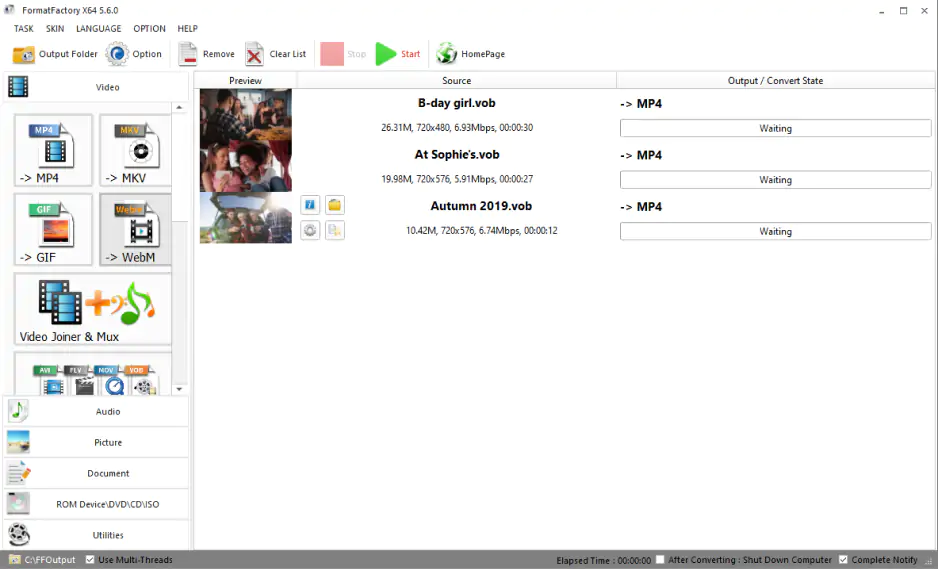
FormatFactory is a little old-school in terms of design, but it’s a surprisingly capable MKV-to-MP4 multitool. I converted multiple files without crashes or odd errors, which is impressive given how many formats it supports. The interface is simple, even if not stylish, and navigating between options doesn’t take much effort. Batch conversion works smoothly, which is a big plus if you need to convert an entire folder of MKVs.

Speed was solid for standard HD files, though it’s not as fast as some of the more modern converters I tested. What I liked is that FormatFactory doesn’t overcomplicate things: it’s practical, dependable, and supports a wide variety of formats beyond MKV and MP4. For users who prioritize compatibility and reliability over flashiness, it’s a solid choice.

Ratings

Pros:
  • Free and supports converting many multimedia file types including MKV

  • Batch conversion support

Cons:
  • Windows-only and installer may include bundled software

  • UI feels outdated for modern workflows

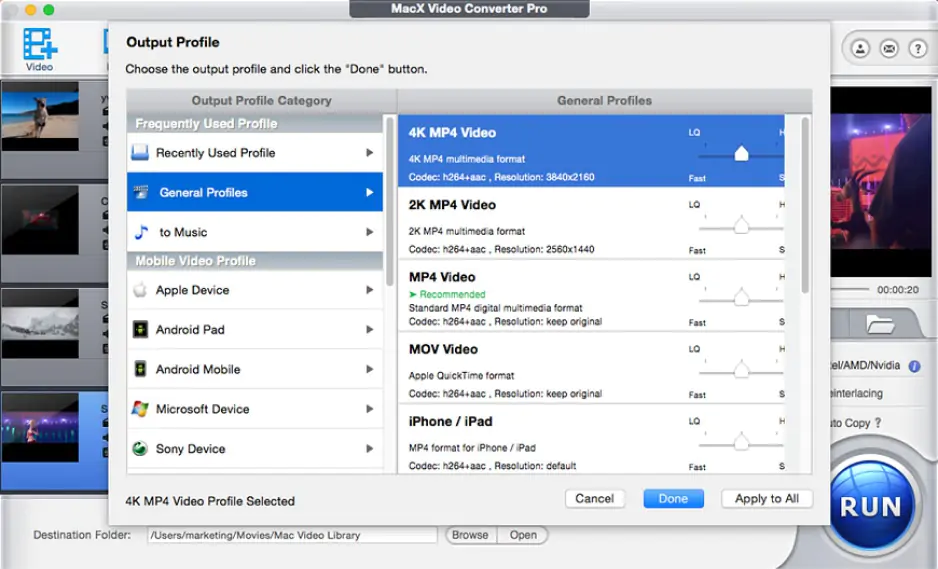
Why I picked it: on a Mac, it feels optimized and fast. My MKV files came out as sharp MP4s with minimal tweaking.

MacX Video Converter Pro proved to be a reliable solution for MKV-to-MP4 conversions on a Mac. I tested HD and 4K MKVs, and the output stayed crisp, with excellent detail retention. Hardware acceleration made a noticeable difference, especially when converting multiple large files, which is a huge time-saver for Mac users like me who often work with media-heavy projects.

I also appreciated the device-specific MP4 presets, which made it easy to export files ready for iPhone, iPad, or Apple TV. The interface is polished and feels right at home on macOS, making the tool comfortable for regular use. If you spend a lot of time converting MKV files on a Mac, this is one of the most seamless and efficient options I’ve tested.

Ratings

Cons:
  • macOS-only

  • Limited advanced editing features

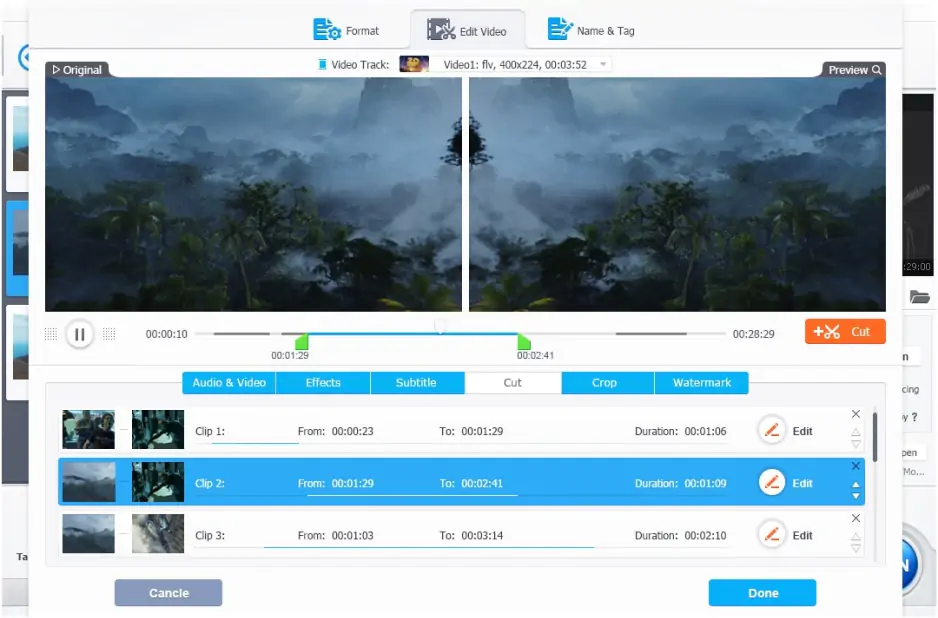
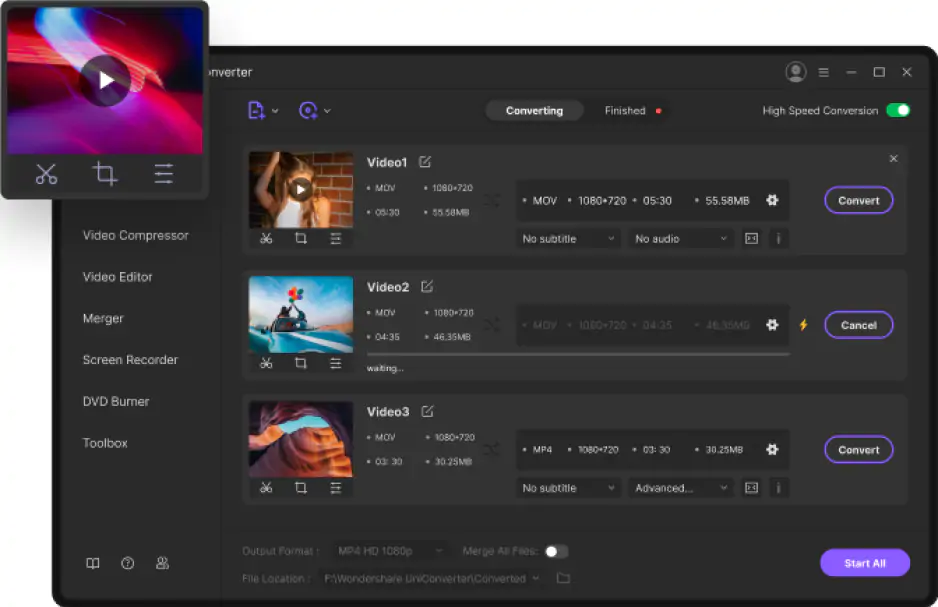
Why I picked it: it blends conversion and extra tools into one smooth workflow. I liked having editing and compression in the same place.

I approached Wondershare UniConverter expecting an all-in-one tool, and that’s exactly what I found. Converting MKV to MP4 was intuitive and surprisingly fast, even for some larger files I tested. The preset library is extensive, allowing me to target specific devices or platforms without worrying about codecs. Performance was rock-solid: no crashes, slowdowns, or unexpected errors.

What sets UniConverter apart is the extra functionality. I could trim, compress, and even do minor edits before exporting to MP4, all within the same interface. That kind of versatility is rare, especially in tools that also promise speed and reliability.

Ratings

Pros:
Cons:
  • Some users report bugs or output issues

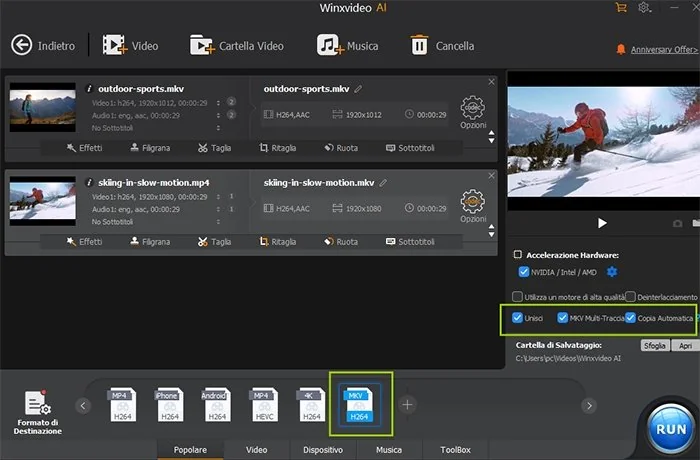
Why I picked it: the AI optimization surprised me with solid quality retention. It made MKV-to-MP4 conversion feel almost automatic.

Testing Winxvideo AI was interesting because of its AI-driven optimization. I converted multiple MKV files to MP4 and noticed consistent quality retention, even with high-resolution content. The AI tries to automatically choose optimal settings, which is a real time-saver when you don’t feel like fiddling with bitrate, codecs, or resolution manually.

Conversion speeds were competitive, particularly with hardware acceleration enabled, and the interface strikes a nice balance between simplicity and advanced options. The AI aspect felt genuinely helpful, especially when dealing with tricky MKVs that had multiple audio tracks or subtitles.

Ratings

4.0

Pros:
Cons:
  • Can be challenging for beginners

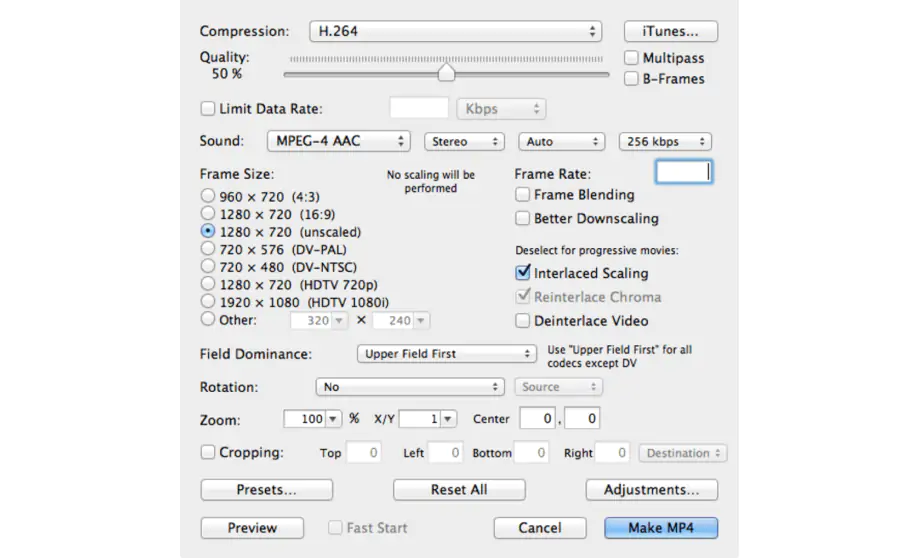
Why I picked it: it’s old-school but dependable for basic conversions. Sometimes I just want something lightweight and straightforward.

Testing MPEG Streamclip felt like opening a time capsule. The interface is undeniably old-school, but it still gets MKV-to-MP4 conversion done surprisingly well. I loaded several MKV files, from short clips to full-length 1080p episodes, and each converted without unnecessary drama. What I appreciated is that it gives decent control over compression and export settings, letting me fine-tune frame rates, bitrates, and audio channels if I wanted.

The workflow isn’t flashy, but it’s straightforward once you get used to it. Drag, set a few options, hit Convert, and you’re done. It’s clearly not the newest kid on the block, but for basic MKV-to-MP4 tasks, it remains functional. Even handling slightly corrupted MKVs didn’t faze it, which is a testament to its long-standing robustness.

Ratings

Pros:
  • Simple tool that combines playback, editing, and conversion

  • Good for basic MKV to MP4 tasks

Cons:
  • Old interface and outdated support

  • Lacks advanced modern features

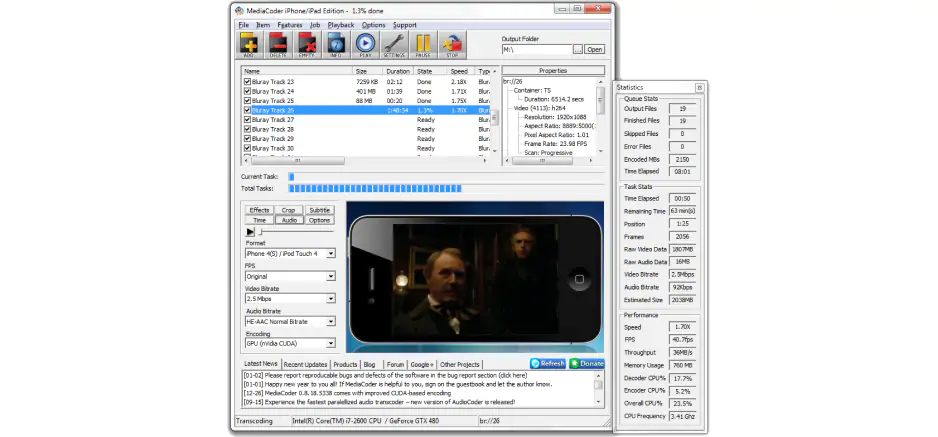
Why I picked it: it offers deep customization for serious encoding control. I liked the sense of power under the hood.

When I fired up MediaCoder, I knew I was dealing with a serious power tool. Converting MKV to MP4 here isn’t a one-click affair, it’s a platform for fine control. I tested it with high-bitrate MKV files, adjusting everything from codecs to frame rates, and the results were solid: crisp video, perfectly synced audio, and minimal size inflation. Once you figure out the interface, it becomes almost addictive to tweak and test various compression settings.

The interface can feel overwhelming at first glance, with menus and sliders everywhere, but that’s the price of flexibility. Once configured properly, it delivers rock-solid reliability and precision. I liked that I could batch convert several MKVs with individual custom settings for each file, which saved time on large projects.

Ratings

Pros:
  • Powerful format support and detailed settings for video conversion

  • Many users report good control over codec, bitrate, and output quality

Cons:
  • Interface is complex and overwhelming for beginners

  • Some users note that it feels “dated” and not ideal for simple one-click conversions

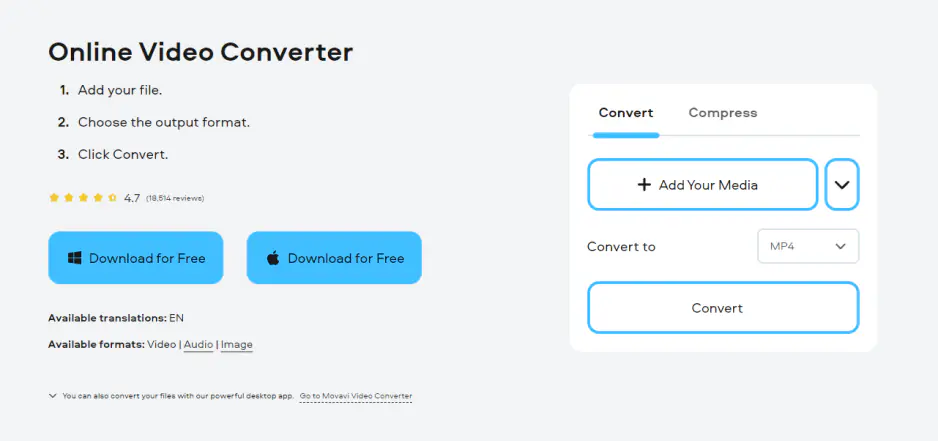
Why I picked it: it focuses purely on fast, browser-based conversion. I appreciated the minimal steps between MKV upload and MP4 export.

I tested Online Video Converter by Movavi expecting a streamlined experience, and that’s exactly what I got. Converting MKV to MP4 happens directly in the browser without overwhelming settings. The interface is minimal, making it easy to move from upload to export quickly. Output quality stayed consistent in my trials, especially with HD footage.

I liked that it offers basic control over output settings like resolution and quality, which can help fine-tune files for mobile devices or web upload. While it’s not made for heavy-duty 4K batch conversions, for quick, browser-based MKV-to-MP4 jobs, it’s reliable, simple, and nearly zero-friction.

Pros:
  • Very easy to use and completely free

  • No quality loss

  • Supports most popular formats

  • Converts video, audio, and image files

Cons:
  • Performance depends on the internet connection

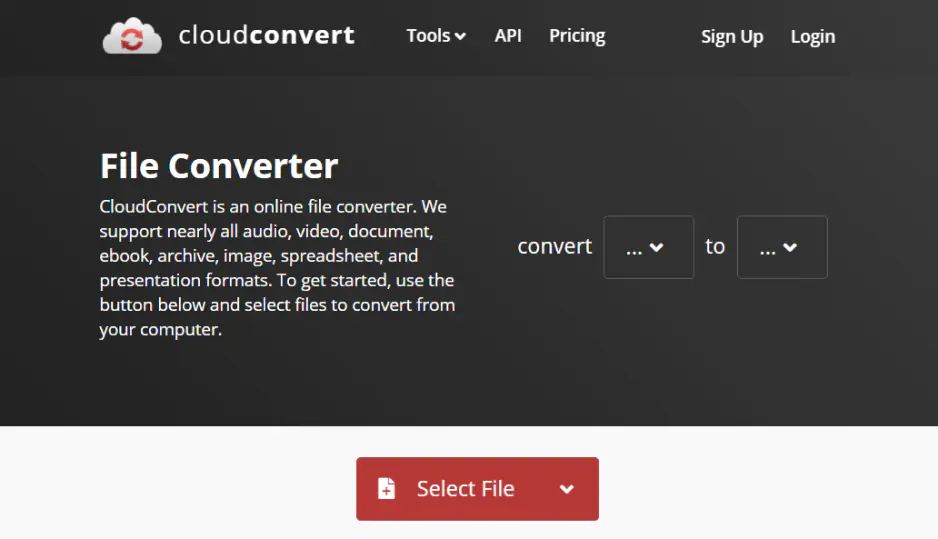
Why I picked it: I didn’t need to install anything, and it handled MKV-to-MP4 right in the browser. It’s perfect when I’m working across devices.

CloudConvert is a browser-based lifesaver. I uploaded a mix of MKV files (some heavy, some tiny clips) and watched them convert to MP4 without installing a single thing. It’s convenient for cross-device work, whether I’m on my laptop at a café or using a school computer. You can tweak resolution, codec, and even file size, which gives a surprising amount of control for an online tool.

The speed depends on your internet connection, but for moderate-sized MKV files, it was fast and reliable. I also liked that it integrates with cloud storage services like Google Drive and Dropbox, which makes managing converted files seamless.

Ratings

Pros:
  • Supports a wide range of formats, including batch conversion and custom settings

  • Allows cloud storage integration (e.g., Google Drive, Dropbox)

  • Online and accessible without installation

Cons:
  • Free version has file size limits and some advanced settings require paid plans

  • Upload and conversion speed depend heavily on internet connection

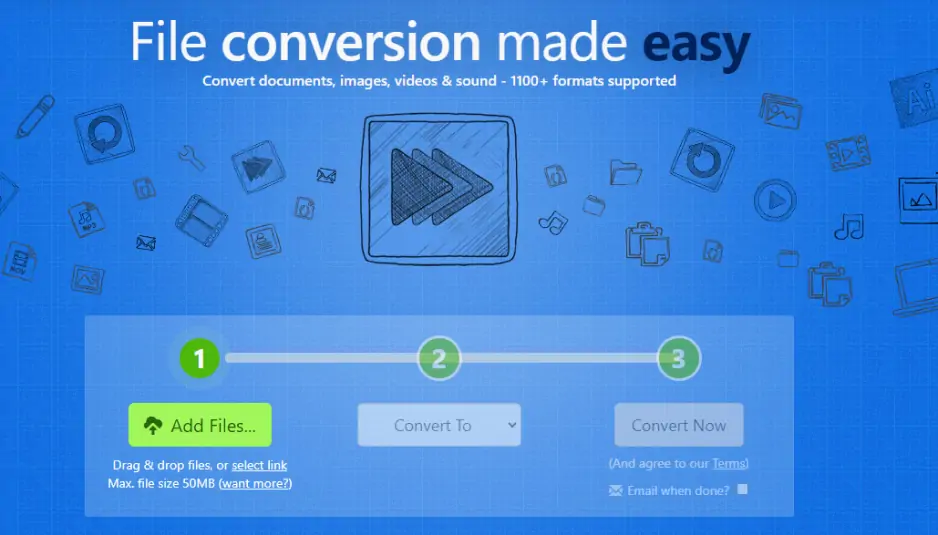
15. Zamzar

Why I picked it: the upload-and-convert simplicity is refreshing. For small files, it’s almost effortless.

I approached Zamzar thinking it would be just another online MKV to MP4 converter software, but it pleasantly surprised me. Drag, drop, pick MP4, and wait for the download, so the workflow is incredibly simple. I converted a handful of MKV episodes and appreciated the email notification option, which meant I didn’t have to babysit the conversion process.

It’s not the fastest for really large or high-resolution files, but for smaller projects or one-off conversions, it’s smooth and hassle-free. The interface is intuitive, and the sheer number of supported formats is impressive. I also liked that there’s no need to worry about installing software, making it a great option for occasional users or those working across multiple devices.

Ratings

Pros:
  • Easy to use with a simple workflow

  • Supports many file types, beyond just video

  • Optional email notification after conversion

Cons:
  • Free file size limits

  • Conversion speed can be slow for large files

Why I picked it: it lets me tweak and trim before exporting to MP4. I liked combining conversion with light editing in one tab.

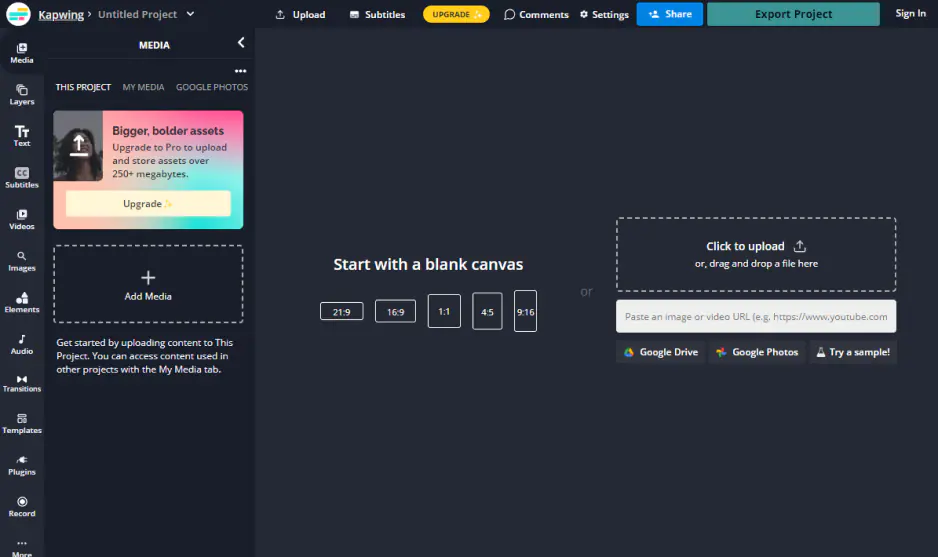
I tried Kapwing when I wanted a little more than just a simple conversion. It’s a browser-based tool, but it includes basic editing features, which came in handy when I needed to trim or crop MKV clips before turning them into MP4. The drag-and-drop interface is intuitive, and I could see previews instantly, which is rare for an online converter.

The AI-assisted optimization helped maintain video quality, and the speed was solid for medium-sized files. I liked that it blends simplicity with extra features, which makes it feel like more than a basic online tool. If you’re looking for an all-in-one solution that lets you tweak videos while converting, Kapwing does the job without forcing you to download software.

Ratings

Pros:
Cons:
  • Free plan may add watermarks or have export limitations

  • Reports of glitches or slow performance on complex tasks

Why I picked it: it offers adjustable settings without overwhelming me. I can convert MKV to MP4 for free and really quickly but still tweak resolution if needed.

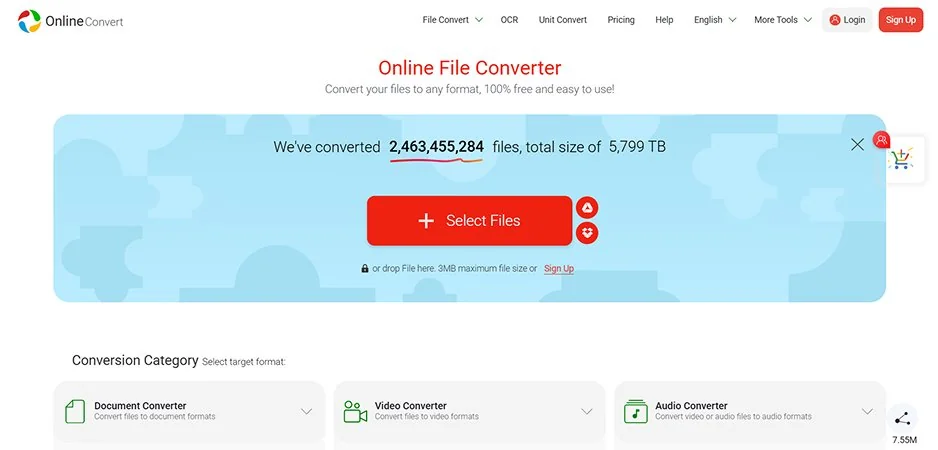
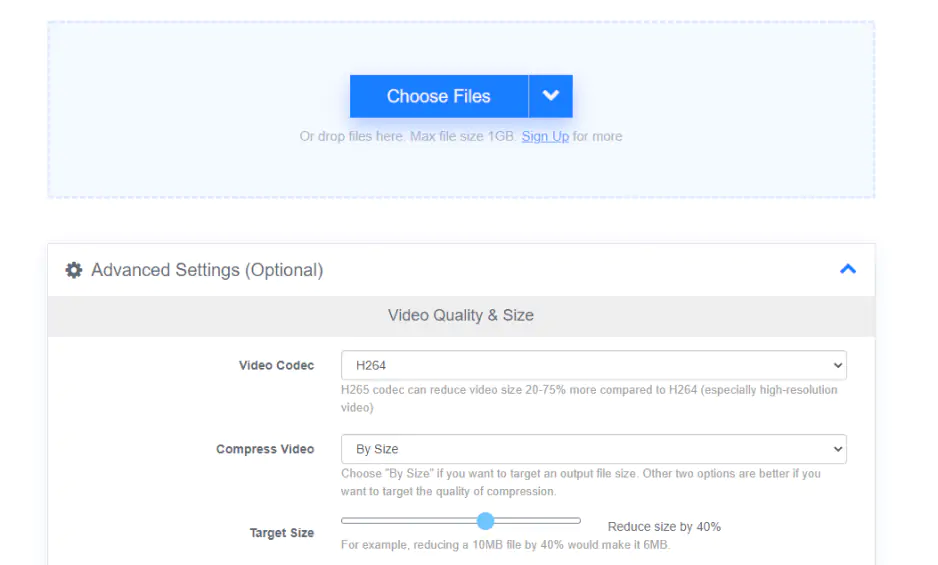
OnlineConvert.com impressed me with its balance of simplicity and customization. I uploaded multiple MKV files, adjusted resolution, and chose MP4 as output, and the results were clean and consistent. It doesn’t have flashy extras, but I appreciated the ability to tweak settings without feeling overwhelmed.

The conversion speed is solid for small to medium files, though very large 4K MKVs took a bit longer. I liked that it supports a variety of input and output formats, which makes it versatile beyond MKV. For casual users who want an easy, online MKV-to-MP4 solution with minimal fuss, this tool is surprisingly capable.

Ratings

4.4

4.0

Pros:
  • Simple and intuitive web interface, no installation needed

  • Supports multiple video formats including popular conversions like MKV-to-MP4

  • Offers some customizable settings (resolution, bitrate)

Cons:
  • The free version has file size limits for uploads

Why I picked it: the drag-and-drop interface makes MKV-to-MP4 painless. It’s clean and surprisingly flexible for a web tool.

I tested FreeConvert.com mainly for its drag-and-drop simplicity, and it delivered. Uploading MKVs was straightforward, and converting to MP4 required almost no learning curve. The interface is clean, responsive, and makes it easy to tweak output settings like codec, resolution, and file size if needed.

I appreciated that it allowed batch uploads for smaller files, though large 4K MKVs could be slower depending on the connection. Overall, it’s reliable and intuitive, perfect for quick online conversions without installing anything.

Ratings

Pros:
  • Web-based and easy to use with drag-and-drop interface

  • Multi-format support including video conversions and batch options

  • Does not require software installation

Cons:
  • Free version contains ads and UI distractions

  • File size or daily conversion limits for free users

Why I picked it: the interface feels modern and intuitive. I liked how quickly I could move from upload to MP4 download.

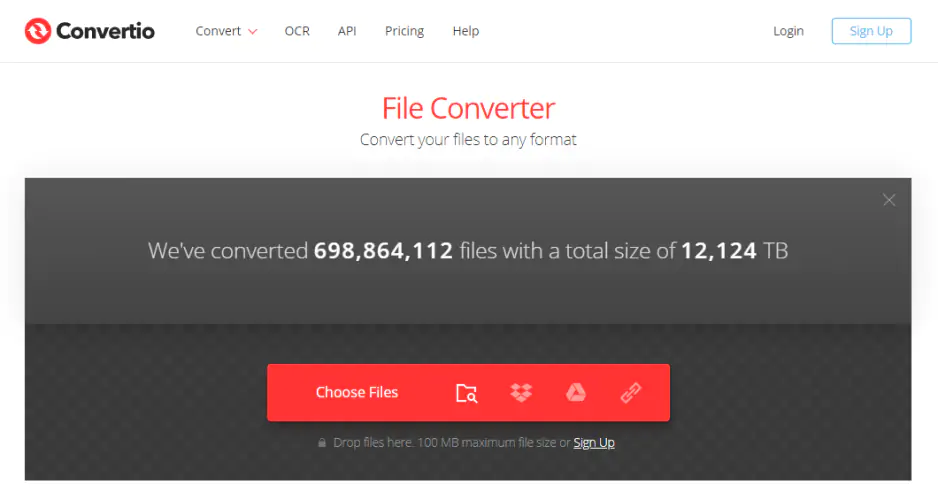
Convertio was one of my favorite online converters for convenience. Upload, select MP4, and you’re done, but there’s more under the hood. I liked that it allows cloud integration, so I could pull MKVs straight from Google Drive and push the converted MP4s back without extra steps.

Speed and reliability were impressive for medium files, though very large 4K MKVs naturally took longer. I also appreciated the modern, intuitive interface, which feels polished compared to other online converters. For those who want a simple but efficient MKV-to-MP4 workflow without installing software, Convertio checks all the right boxes.

Ratings

4.4

Pros:
  • Supports an extensive range of formats and file types

  • Cloud storage integration (Google Drive, Dropbox), convenient for many workflows

  • Generally reliable quality output for online conversions

Cons:
  • Free plan limits file size and conversions per day

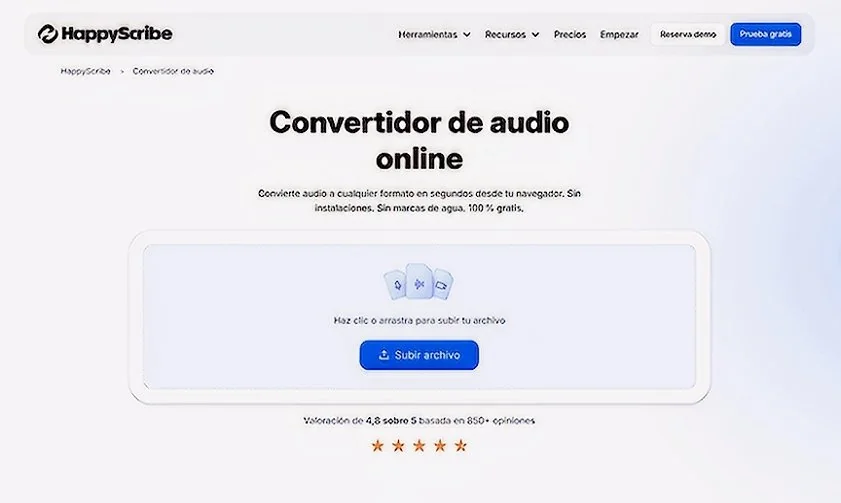
Why I picked it: even though it’s known for transcription, its conversion tool worked smoothly. I liked having video processing in a clean, professional online environment.

I was curious about HappyScribe’s MKV-to-MP4 tool, since the platform is better known for transcription services. Surprisingly, its MKV-to-MP4 conversion tool works smoothly. Uploading files was simple, and I could download MP4s quickly without worrying about extra software or codec issues.

The interface is professional and clean, which makes it feel more like a polished web service than a basic converter. Conversion speed is solid for standard HD MKVs, though large 4K files took a bit longer. For users who value reliability and an online workflow that’s easy to navigate, HappyScribe offers a surprisingly effective MKV-to-MP4 solution.

Ratings

Pros:
Cons:
  • Primarily focused on transcription/subtitles, so video conversion is not its core strength

How to choose the best MKV-to-MP4 converter software

Let’s be real: not every MKV-to-MP4 converter is cut out for every job. After testing all the programs in this article, I’ve learned that the best tool really depends on what you want and how much patience you have.

If you just want speed and ease without thinking too much, Movavi Video Converter is my go-to. It’s fast, handles huge files, and the interface doesn’t make me feel like I’m decoding a rocket launch.

For the budget-conscious or open-source fans, HandBrake and VLC Media Player are solid picks. HandBrake gives you serious control over codecs and bitrate, while VLC quietly converts files without ever asking for a credit card. Perfect if you like tinkering or already have the app installed.

If you’re a power user or professional, FFmpeg and MediaCoder are where you want to be. FFmpeg’s command-line setup can feel intimidating at first, but once you get it, the precision is insane. MediaCoder offers deep customization for encoding heavy projects without losing quality.

For those who want to convert quickly in the cloud, browser-based options like CloudConvert, Convertio, and Kapwing saved me more than once. I didn’t have to install a thing: drag, drop, tweak a few settings, and download. Just keep an eye on file size limits if you’re using the free tier.

And finally, if you want a mix of convenience and extras, Wondershare UniConverter and VideoProc Converter are worth checking out. They not only convert MKV to MP4 efficiently but also let you trim, compress, and polish the video before export. Basically, they’re like having a mini video studio in one app.

In short: pick your weapon based on speed, control, or convenience, and you’ll barely notice the MKV-to-MP4 grind.

Movavi Video Converter
The ideal way to get your media in the format you need!
Movavi Video Converter

Frequently asked questions

What is the best MKV video converter?

If you ask me, the “best” converter really depends on what you need. For most people, Movavi Video Converter wins hands-down: it’s fast, stable, and doesn’t make you wrestle with technical settings. Large 4K MKV files converted to MP4 in minutes without any noticeable quality loss, and the interface felt polished yet approachable. I could batch multiple files, tweak output settings, and still feel like I wasn’t doing a degree in video engineering.

That said, power users and pros might want HandBrake or FFmpeg. HandBrake provides a friendly interface but lets you fine-tune every codec, bitrate, and resolution option. FFmpeg is pure command-line magic – intimidating at first, but once you get the syntax right, you can practically build a custom video factory in your terminal. Personally, I keep both Movavi for quick, hassle-free conversions and FFmpeg for precision work.

How can I convert MKV to MP4 for free?

Free MKV-to-MP4 conversion is easier than most people think. VLC quietly does the job, and since many of us already have it installed, it’s the easiest option. Drag the file, select “Convert/Save,” pick MP4 as the output, and you’re done. HandBrake is another favorite of mine: completely free, open-source, and surprisingly powerful. It allows fine control over video codec, audio settings, and batch processing without charging a cent.

If you don’t want to install anything, browser-based tools like CloudConvert, Convertio, and FreeConvert.com are solid. Drag, drop, select MP4, and download your converted file. My rule is simple: for small, quick conversions, online tools are a lifesaver. For larger files, I stick to VLC or HandBrake because they handle heavy-duty MKVs more gracefully.

Why is MKV not supported?

MKV is technically awesome but not universally loved. It’s a container, meaning it can hold multiple audio tracks, subtitles, chapters, and different codecs all in one file. Some devices, apps, and TVs don’t speak every codec or subtitle format, so they end up ignoring the file entirely. I’ve plugged MKV files into older smart TVs or phones, and sometimes the device just stares at me blankly.

That’s why MP4 is the safe bet, almost every device and platform supports it. In my testing, converting MKV to MP4 removed all those compatibility headaches while keeping the quality high. Essentially, MKV is like an overstuffed backpack full of gadgets, while MP4 is a neat little suitcase that fits in any overhead compartment.

What can play an MKV file?

MKV is flexible, but not all players can handle it. VLC is my universal translator, it played every MKV file I tested, no complaints, no crashes. On Windows, PotPlayer, KMPlayer, and MPC-HC also performed well, while IINA and Elmedia Player handled MKVs on Mac perfectly. Even some mobile apps on iOS and Android can play MKVs, though features like subtitles or multiple audio tracks can be inconsistent.

If your player can’t handle MKV, converting to MP4 is usually the simplest solution. In my experience, MP4 files work anywhere, from phones to tablets to web browsers, so keeping a conversion tool handy is almost essential.

Does MKV work on TVs?

It depends on the TV. Modern smart TVs from Samsung, LG, and Sony can sometimes play MKV directly, but even then, support is often limited to certain codecs or resolutions. During my tests, some older TVs refused to recognize MKV files entirely, while others choked on subtitles or extra audio tracks. It’s one of those “works sometimes” situations.

If you want a no-drama solution, converting to MP4 is almost always safer. MP4 is universally accepted on TVs, set-top boxes, and streaming devices. Personally, I convert anything I plan to watch on a TV, it takes a minute, and I save myself a lot of trial-and-error frustration.

Can you put MKV on an iPhone?

Not natively. iPhones don’t like MKV, the iOS video player prefers MP4, MOV, or M4V. I tried dropping raw MKV files into my iPhone library, and unsurprisingly, nothing happened. The simplest fix is to convert the MKV to MP4 using a tool like Movavi Video Converter or HandBrake. Once converted, the file plays like any other video without glitches.

You can even sync the MP4 to your iPhone via iTunes or Apple TV without additional apps. In my experience, keeping MKVs on the iPhone without converting is just asking for trouble, compatibility issues are almost guaranteed. Converting first is a small step that saves hours of frustration.

Is MKV better than MP4?

It depends on what you care about. MKV is a powerhouse container, it can store multiple audio tracks, subtitles, chapters, and menus in a single file. I love it for archiving movies, TV shows, or high-quality 4K clips because it preserves almost everything. The quality retention is often better, and you can pack in extras that MP4 can’t handle.

MP4, on the other hand, is the king of compatibility. Phones, tablets, smart TVs, browsers – you name it, MP4 works there. In my testing, I keep MKV for storage and MP4 for playback. It’s a trade-off: MKV is better for versatility and quality, MP4 is better for convenience and accessibility. Personally, I treat them like teammates: one archives, the other plays nicely everywhere.

Have questions?
Have questions?
If you can’t find the answer to your question, please feel free to contact our Support Team.
Join us for discounts, editing tips, and content ideas

1.5M+ users already subscribed to our newsletter

By signing up, I agree to receive marketing emails from Movavi and agree to Movavi's Privacy Policy.