Step 1. Check your version
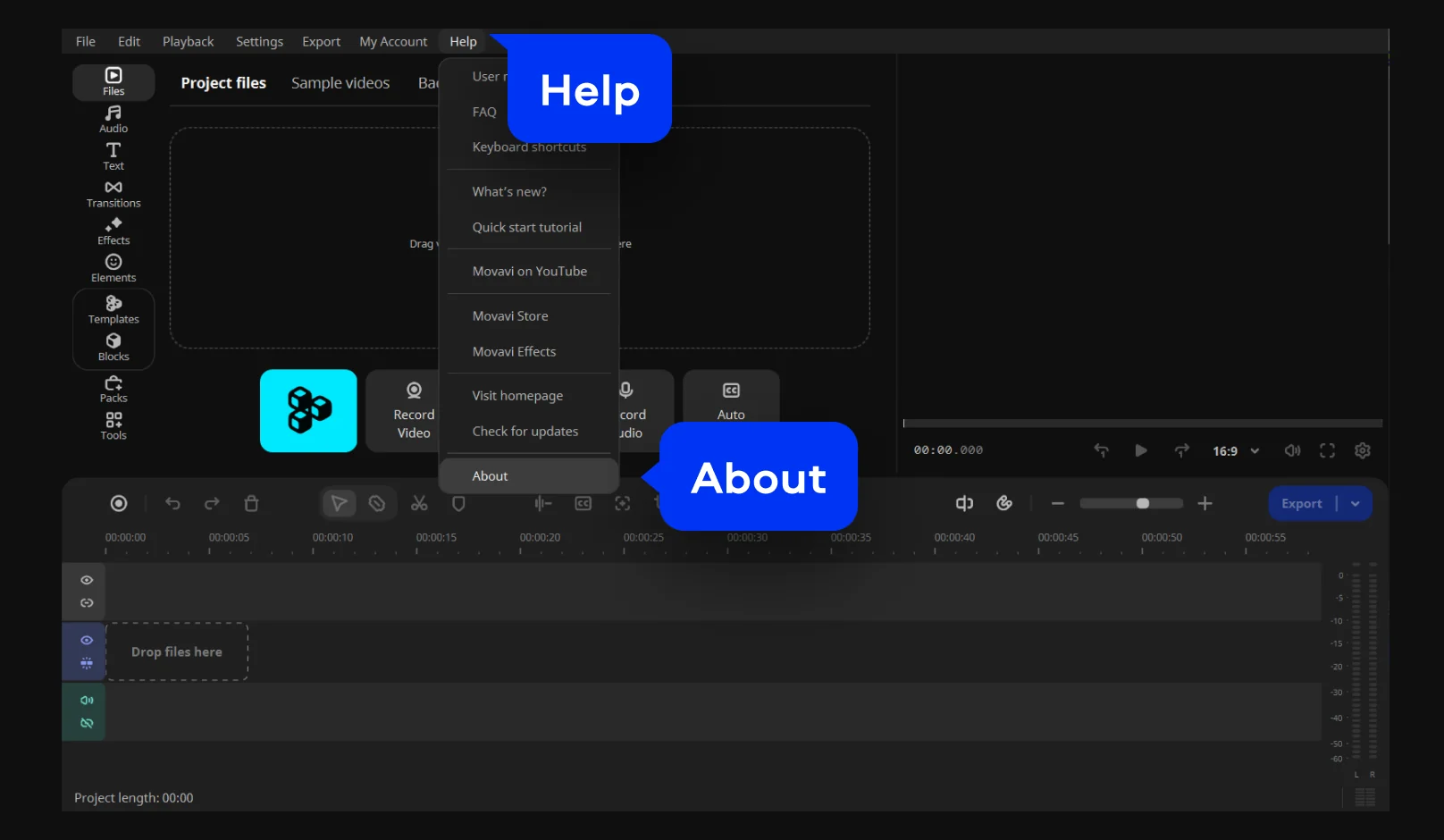
Open the Help menu, cllick About.

Movavi Video Editor 2027 is version 27 of our desktop editor, released on September 29, 2026. If you film daily-routine vlogs, unboxings, or travel clips, run social media ads for a small business, or cut family birthday videos, this update is for you. Movavi Video Editor is an intuitive video editor with customizable video templates, one-click AI tools, and hundreds of drag-and-drop effects. It runs on Windows and macOS, and beginners get a head start from Movavi Ideas, our free tutorial hub with a new editing idea every week.
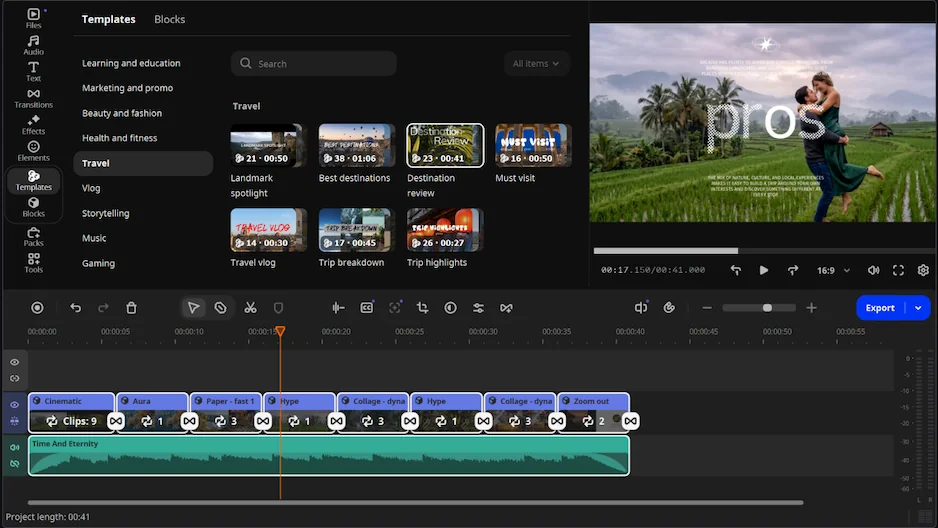
The headliner of this release is easiest to explain with a weekend trip you want to turn into a travel video. Movavi Video Templates is a multi-style library of customizable, pro-looking, modular templates for any kind of video. You drop your own clips into short segments called Blocks, and the editing, music, transitions, and text come pre-set, so your first cut already looks put together.
Three tools from earlier 2026 updates are part of the editor too: auto-tracked cropping, quick video denoise, and word-by-word subtitle highlighting. You can try all of them in the same session.
Movavi Video Editor 27 runs on Windows 10 or 11 (64-bit) and on macOS 12.0 or higher, including Mac computers with Apple M1 and newer chips. Our system requirements page lists the rest:
Windows
Mac
Operating system
Windows 10/11, 64-bit, with up-to-date patches and service packs
macOS 12.0 or higher
Processor
Intel, AMD, or compatible dual-core, 1.5 GHz
64-bit Intel, or Apple M1 or higher
Version numbers differ by platform right now. The Windows listing shows 27.3, and the Mac listing shows 27.2.1. Some features below need 27.3.0, so check which version you have and update before you follow along. Installation needs administrator permissions, so use an account that has them.
Open the Help menu, cllick About.
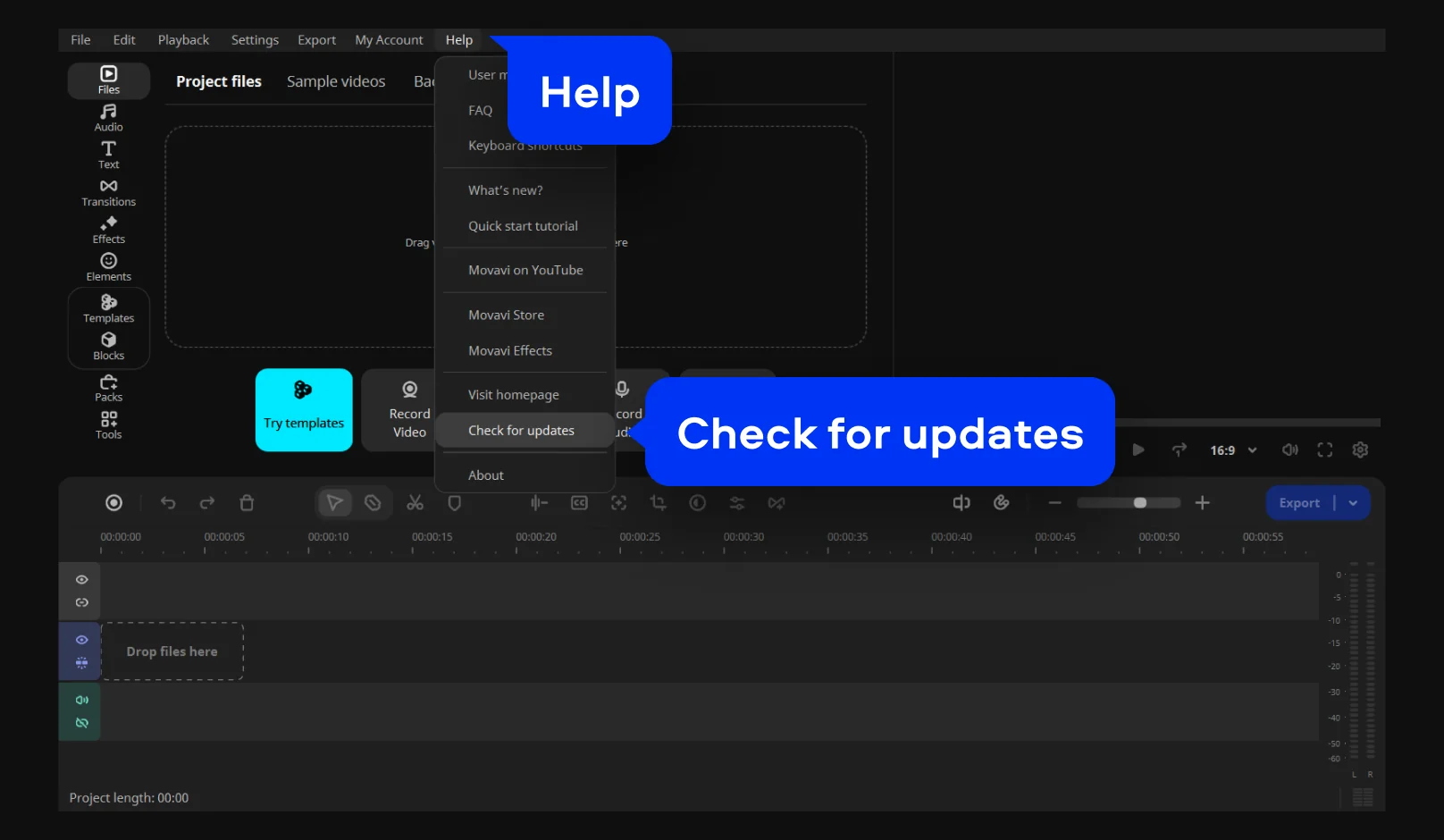
If it is not the latest version, click Help → Check for updates. Once a new version is found, update Movavi Video Editor to the latest version.
Movavi Video Editor 2027 opened with Templates and Blocks, and three small updates have followed since. The three AI tools from 2026 sit in the same table, so you can see which ones you may already have if you updated in the spring.
Feature
What it does
Version and date
Where to find it
Templates and Blocks
Ready-made projects built from Blocks you fill with your own clips, photos, and text
27, September 29, 2026
Templates tab
Adjustable Block length
Drag a Block’s edges like a regular clip, so longer footage isn’t cut short
27.3.0, November 9, 2026
Block on the timeline
A Movavi template is a ready-made project, not an effect you lay over footage. It is made of Blocks: short, pre-edited video parts such as an intro, a countdown, a quick cut, or an animated collage. Each Block has placeholders where your own videos, photos, and text go.
The template as a whole arrives with pre-set editing, music, transitions, and text. You can keep any of it, change it, or remove it. Templates don’t fill themselves, so you replace each placeholder with your own media, and that is the whole job.
Three scenes show the range.
Blocks give you two ways to build. Use a template as it comes, or reshape it: shuffle the Blocks, add more, and adjust them to match your style. You can also drop Blocks between your own clips, or build an entire video Block by Block. A short sequence and a longer one can start from the same template, because you decide how many Blocks it holds.
Several templates are included in the full version of Movavi Video Editor at no extra charge. To follow along, start with the free template. The steps work the same for any template.
Click Add Files, select the clips and photos you want to use.
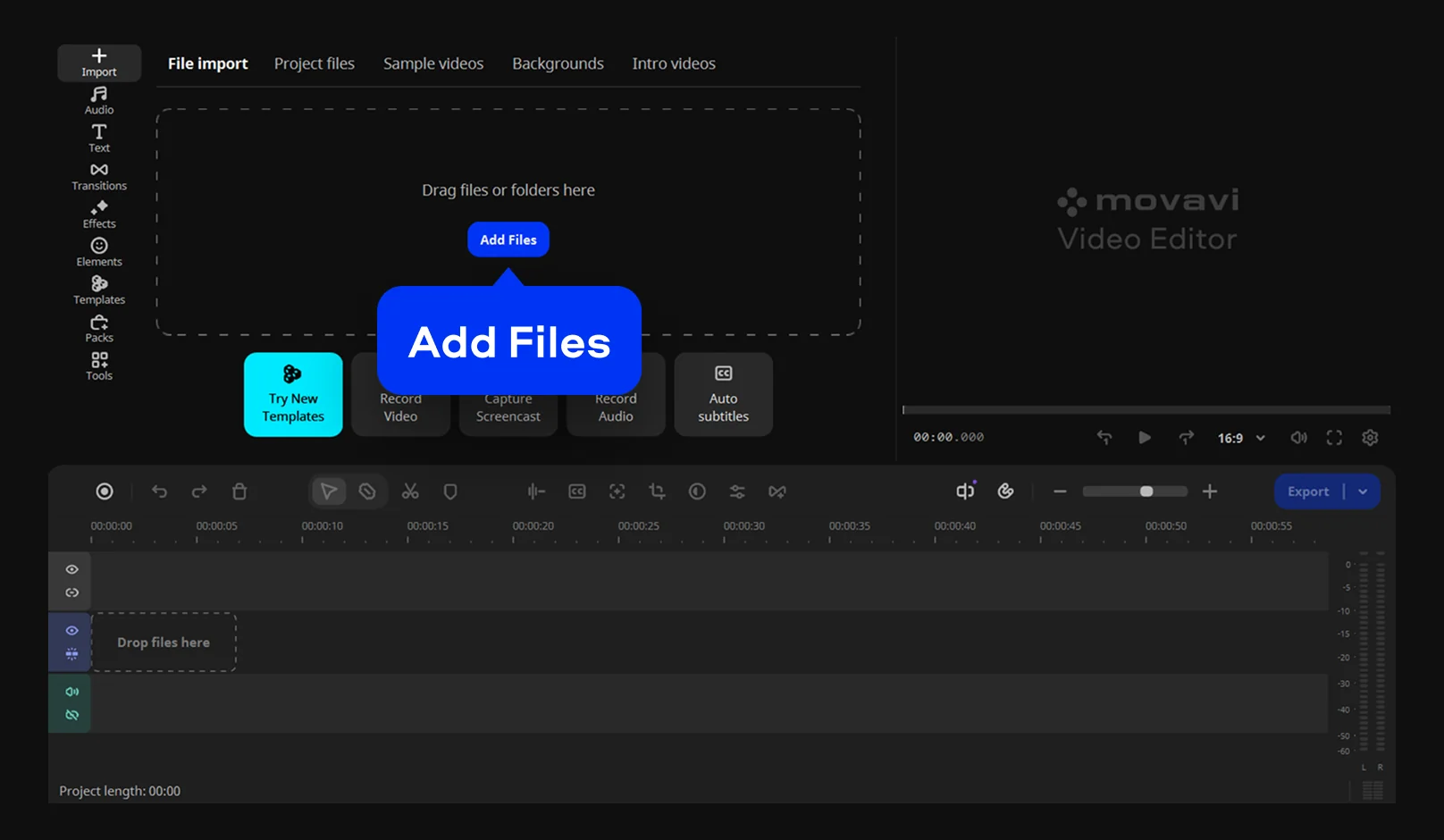
Open the Templates tab, choose a template that fits your video. Drop the template onto the timeline.
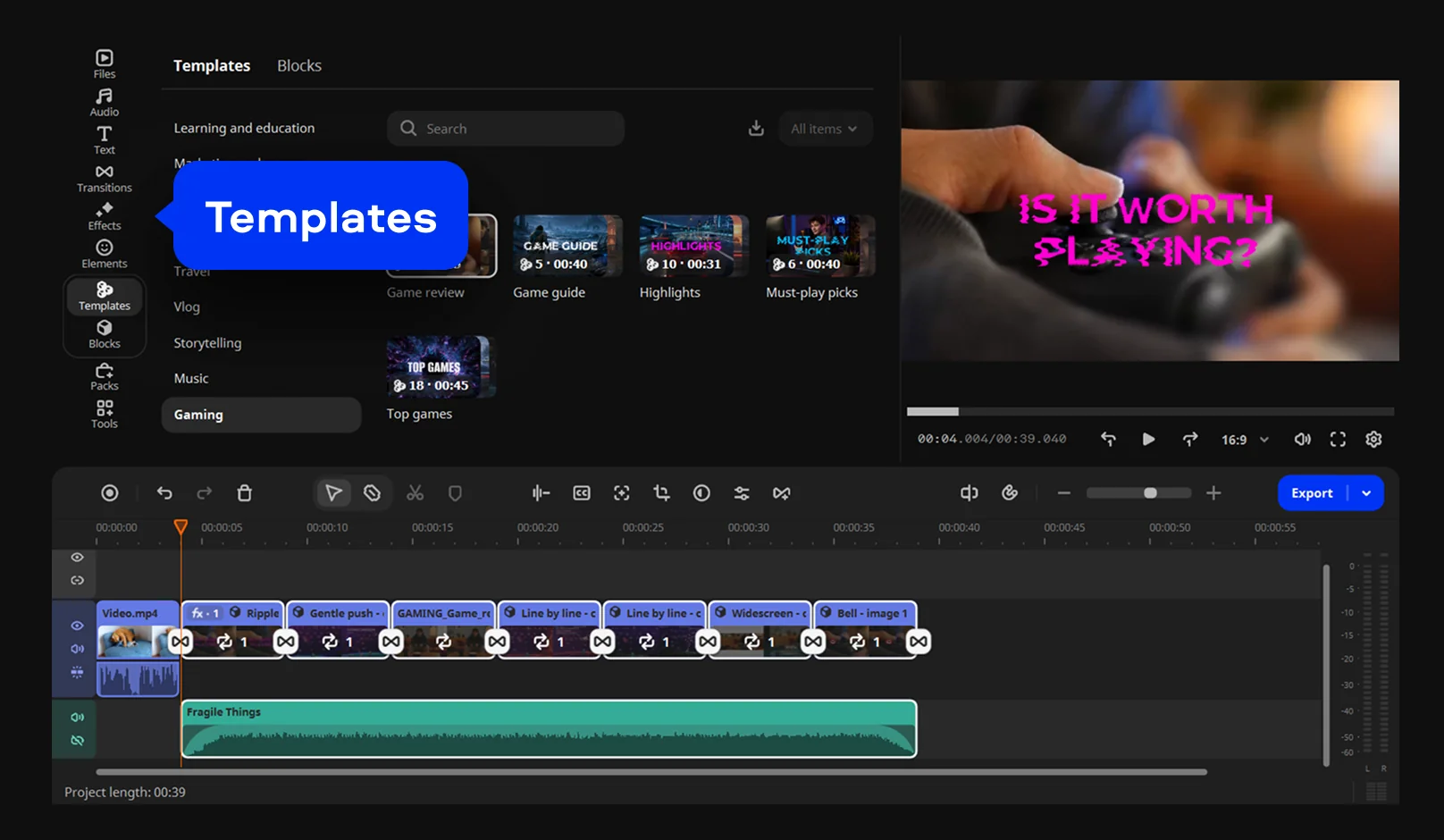
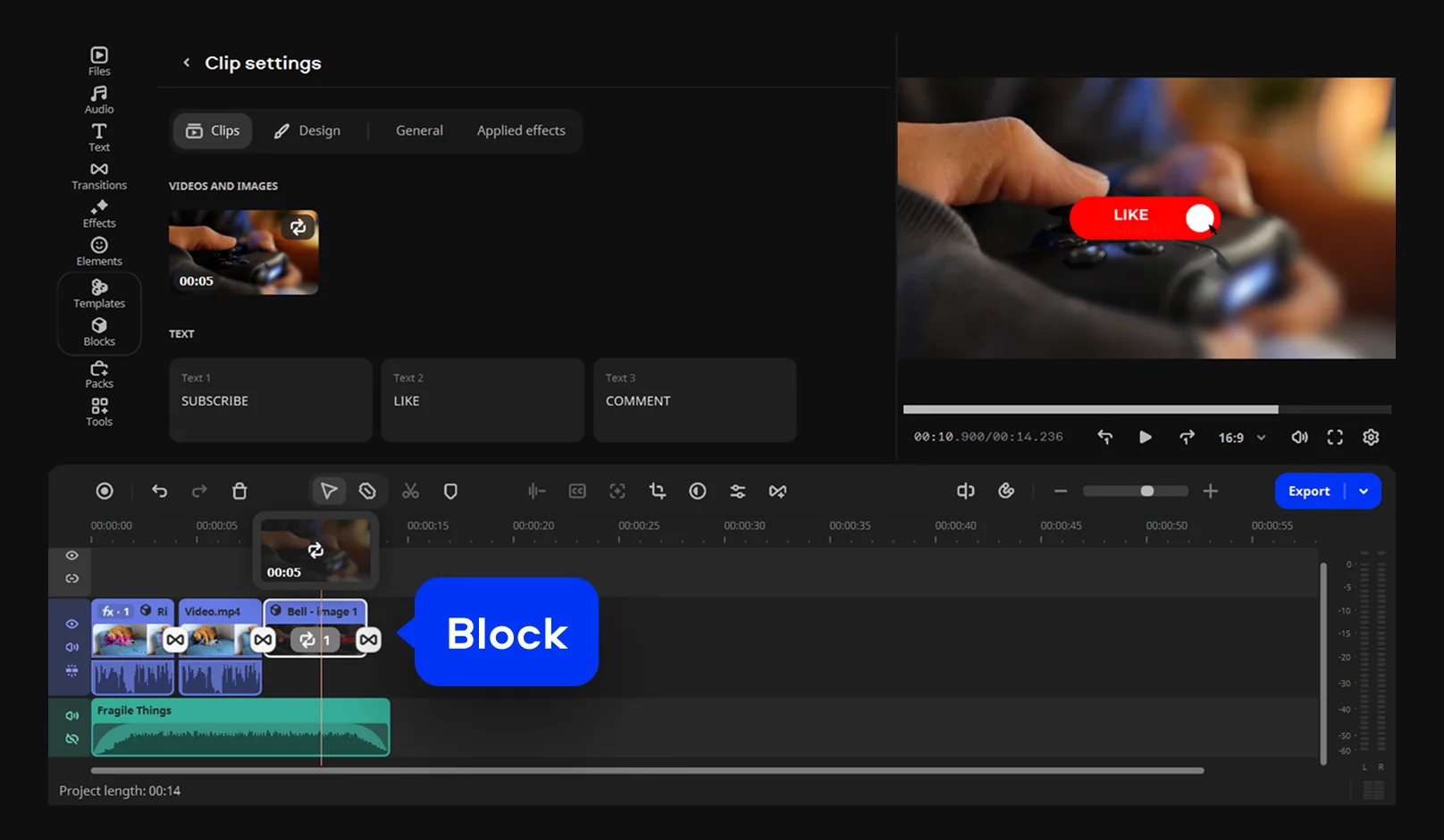
Double-click a Block on the timeline. Replace the placeholder with your own clip or photo. Move a Block to a new position on the timeline. Retype the text in the Block.
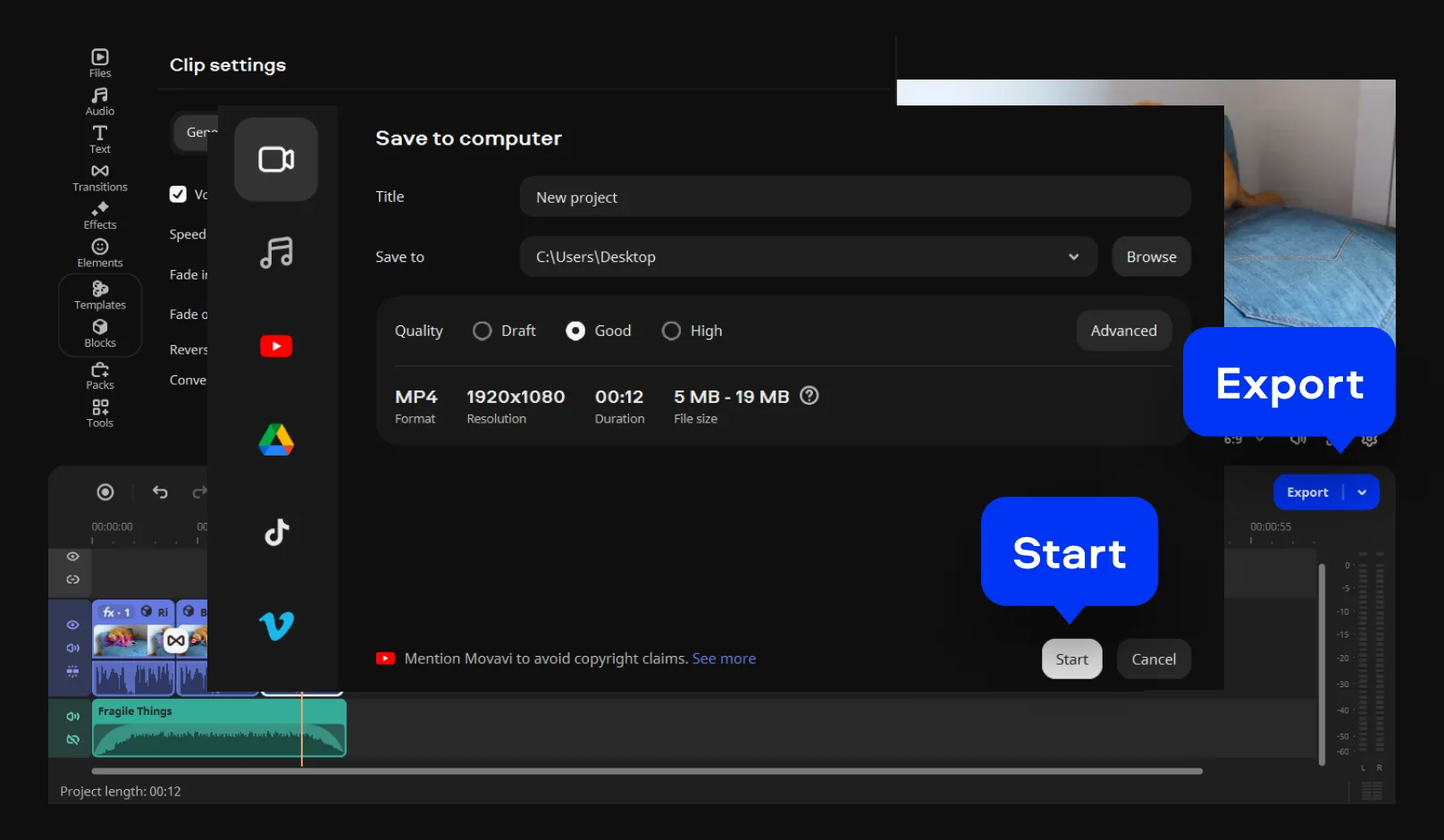
Click Export, choose the export format, click Start.
To drop a Block you don’t need, delete it from the timeline. Since version 27.3.0, a Block’s length is no longer fixed. Before that update every Block had a set duration, so a longer clip got cut short. Now you drag the Block’s edges like a regular clip, and your best moments stay in.
A template replaces assembly work: structure, pacing, default text, music, and transitions. It doesn’t replace the editing tools, which work on the filled timeline. The Blade tool makes precise cuts if a clip runs long, and ready-made color presets set the tone. AI tools such as denoise and auto subtitles run on the same timeline, and the next section covers them.
Text is yours to restyle too. Retype the default words, change the font, and place new titles anywhere on the timeline. Music and transitions follow the same rule: keep the template’s, swap them, or add your own.
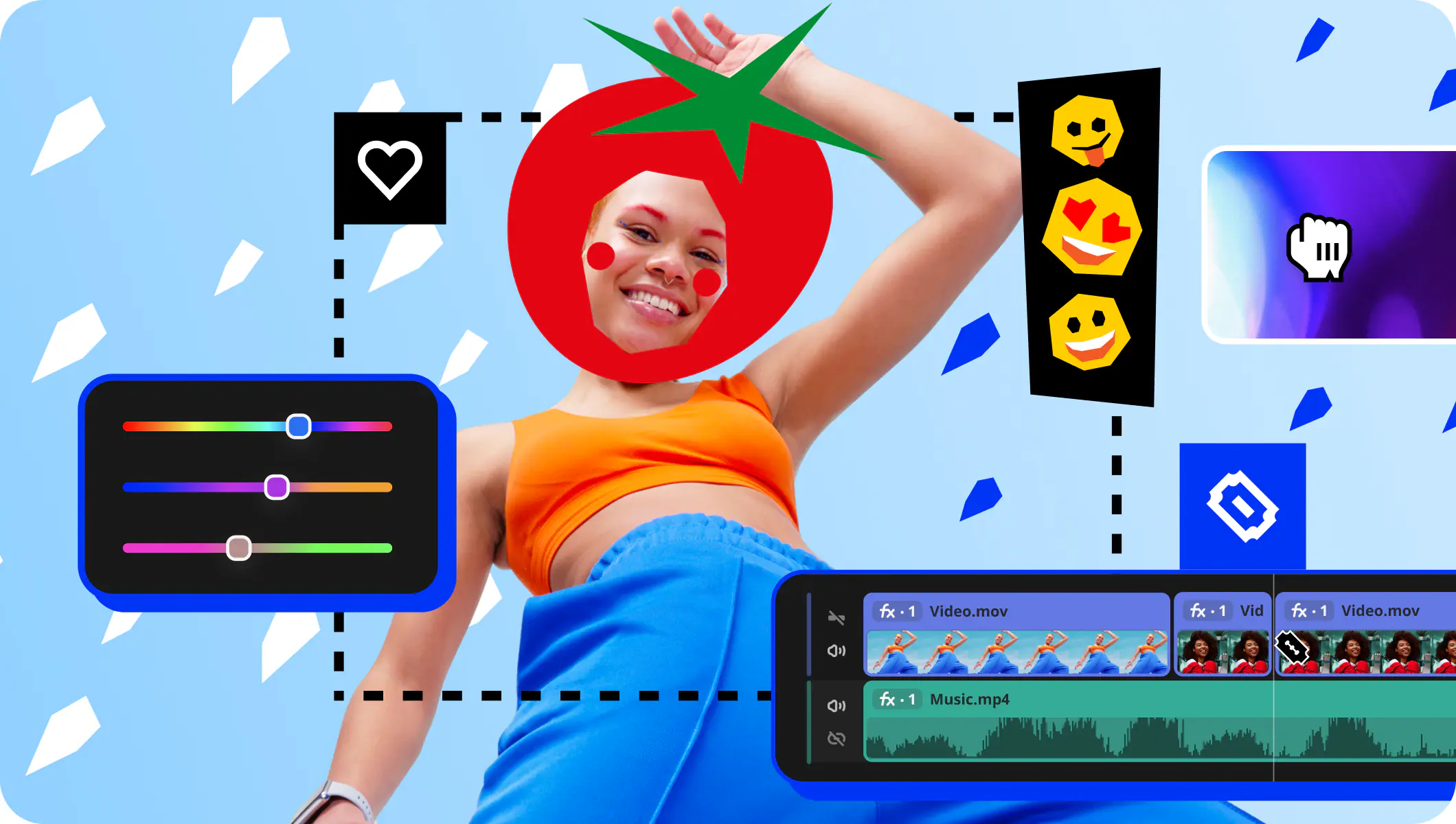
Effects fill in the fine detail on top of a template. Movavi Video Editor includes hundreds of drag-and-drop effects: transitions with adjustable durations, titles with flexible text and formatting settings, and fully adjustable filters. Hover over your uploaded files or along the timeline for an instant preview, then drag the effect onto the timeline.
Free templates and paid items work like this: the full version includes several templates, and the Movavi Templates subscription adds the whole collection of templates and Blocks. If you want a quick idea of what to build first, Movavi Ideas has step-by-step tutorials that take under a minute to follow.
Movavi Video Editor builds AI tools around the tedious parts of editing, and each one works in a single click. Every AI tool is included in the full version, and there is no AI credit system, so you never count credits or pay extra to run a tool. That includes the three below. They arrived in spring 2026, which means they are not new in 2027, but they pair well with the new templates. One clip can go through all three: crop it to vertical, clear the grain, and add word-by-word subtitles.
Auto-tracked cropping reframes horizontal footage as vertical video. It follows the main subject, whether that’s a person, a product, or a pet, and adjusts the frame on the go so the subject stays centered. It arrived in version 26.10.0. Version 26.16.0 made it faster and let it change both the video and the project aspect ratio in one pass.
The use cases are close to home. A business owner turns a product demo into an Instagram Reel, and a vlogger cuts a long-form video into a YouTube Short or a vlog teaser.
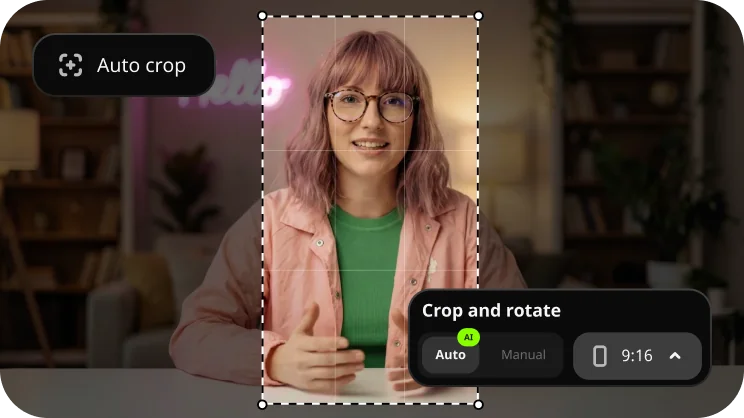
Play the result once from start to end and confirm the frame stays on the person or product you meant.
Quick video denoise uses AI to smooth out visual noise without blurring faces or small details. It arrived in version 26.12.0 and suits low-light clips, phone footage shot on the go, and old videos. It also helps green-screen scenes, where clean edges matter.
Picture a birthday video filmed in a dim room. Grain shows up in the shadows, and denoise clears it while the faces stay sharp. The same one-drag fix works for a vlogger’s evening walk.
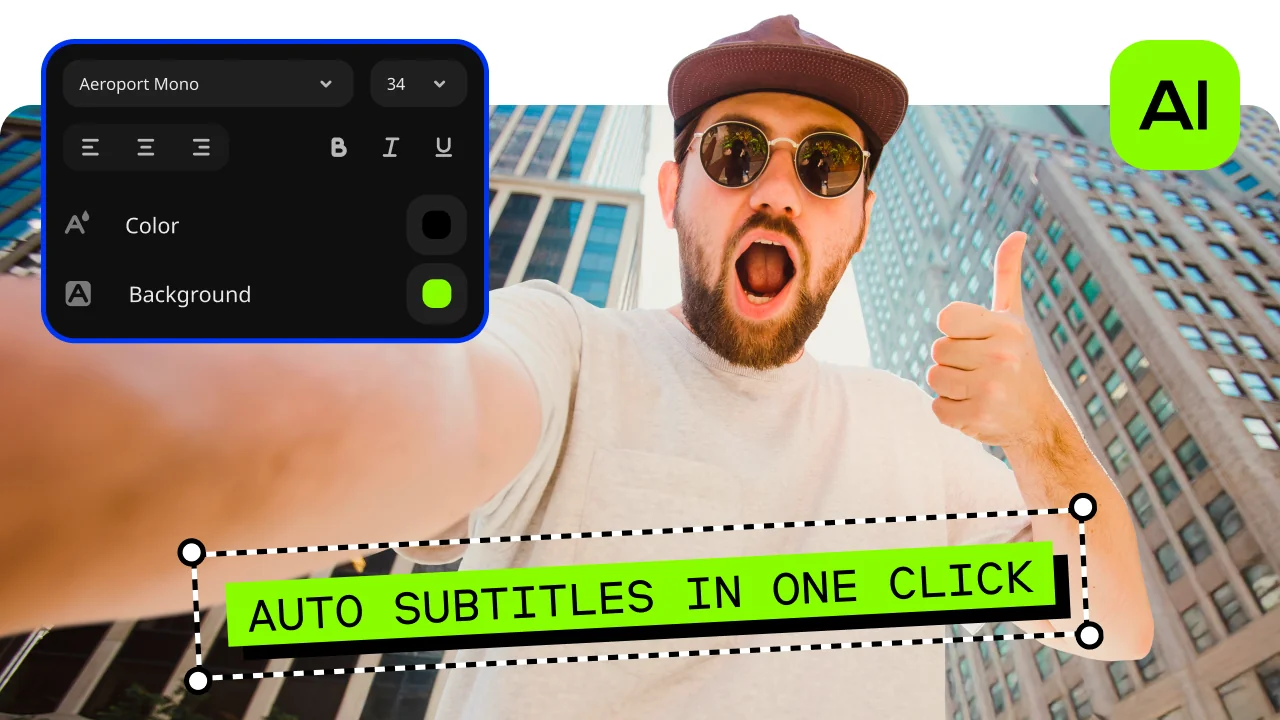
AI Subtitles with Active Word Highlighting turns speech into text across 100+ languages. The word-by-word effect, a karaoke-style marker that follows each spoken word, arrived in version 26.15.0. Version 26.17.0 added a new set of ready-made subtitle styles that use it. Pick one from over 60 designs and font styles.
For a lifestyle vlog, it gives your talking-to-camera clips the look you may have seen in creator videos. For a business video, it keeps the message readable at a glance.
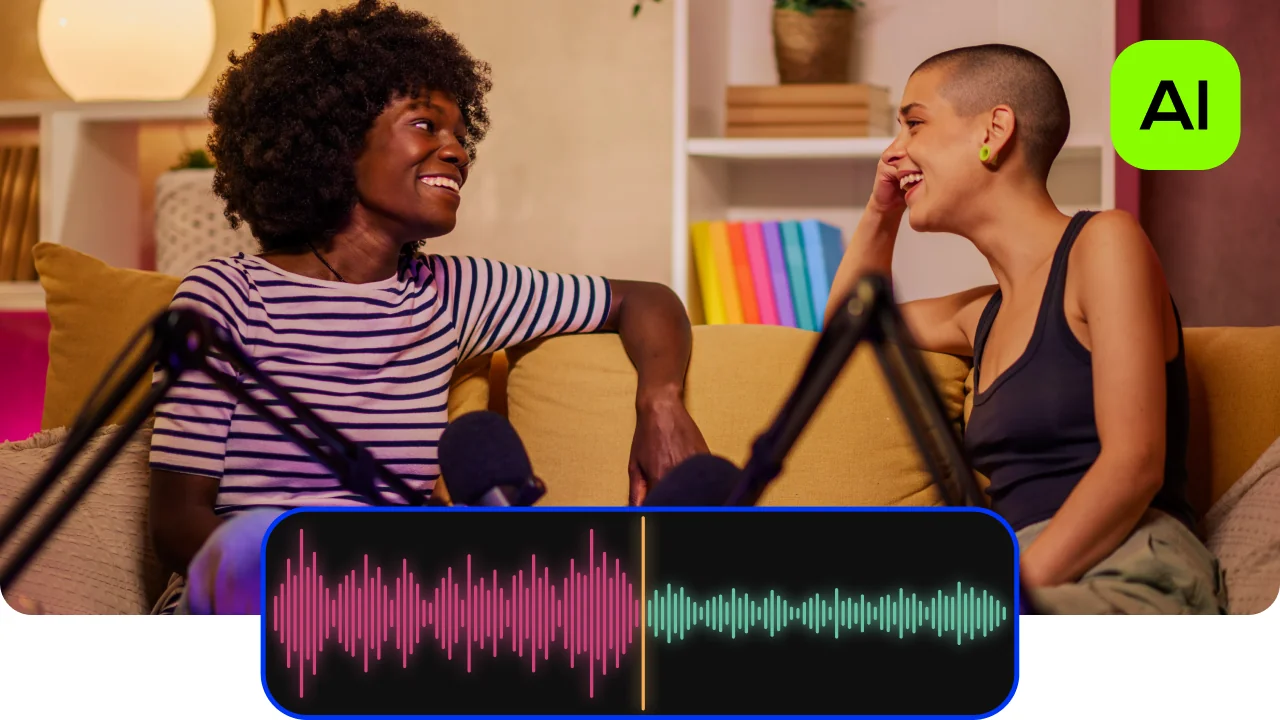
Four more one-click tools sit beside these three. Auto-Silence Removal cuts unwanted pauses from the audio, and you can adjust pause length and volume thresholds. AI Audio Noise Removal clears traffic, wind, and steady hums while keeping the voice sharp. AI Motion Tracking locks images, video, or graphics to a moving subject. AI Background Removal swaps the backdrop behind a person without a green screen.
Our editor gets 25+ updates a year, and the 27 line has already had three.
Version 27.3.0, November 9, 2026
Try the Block change on a project you already have: drag the edge of a Block that used to cut your clip short.
Version 27.2.1, November 2, 2026
Version 27.1.0, October 12, 2026
This one has no headline feature. It brought under-the-hood improvements for faster video creation.
Movavi Video Editor has tailored options for different budgets. You start with free access and add tools as your projects grow, so you only pay for what you use. Prices differ by region and change over time, so check the checkout page on the official Movavi site for the current figure.
Movavi Video Editor Free. You download it from the official website. It gives you the essential editing tools plus auto subtitles, auto crop, and silence removal. You can test every tool in the app, but using a paid feature restricts export. Exports carry a watermark and are capped at 60 seconds. Codec support is limited, and there is no 4K export.
Movavi Video Editor Lite. A standalone version with the core editing tools, auto subtitles, auto crop, silence removal, and all the built-in effects. Exports carry a small watermark. Some features are limited, including AI noise removal, AI background removal, chroma key, stabilization, animation, and audio effects.
Movavi Video Editor, full version. All features, including the one-click AI tools, with no watermark and no export limits. It is available as a monthly or yearly subscription.
Two optional subscriptions add more creative material. The full version already includes hundreds of built-in drag-and-drop effects, plus copyright-free music and sounds, and several templates. Movavi Effects adds 10,000+ effects across themes like blogs, business, family, and holidays. It also adds 1,500+ music tracks. Movavi Templates opens the whole collection of templates and Blocks. You can preview effects on your own footage for free, and a template can be previewed the same way before you buy.
Update now if you make vlogs, unboxings, or travel videos. Templates and Blocks give you a first cut with music and transitions in place, and auto crop and subtitles prepare the same video for Shorts and Reels. Small-business owners who post to Instagram or Facebook get the same pair, plus business promo templates. Family video makers get the most from templates for birthdays and holidays, and from denoise for dim-room footage. If you only need basic cuts, nothing here forces your hand, and the free version lets you look around first.
Your next step is quick: open the Templates tab, pick the free template, and fill it with last weekend’s clips. Updates land 25+ times a year, so check Help, About now and then. Build your first video Block by Block, and see how awesome it looks.
*The free version of Movavi Video Editor may have the following restrictions depending on the build: watermark on exported clips, 60-second video or 1/2 audio length limit, and/or some advanced features unavailable when exporting videos.
Yes. Movavi Video Editor 2027 is the name for version 27, and 27.1.0, 27.2.1, and 27.3.0 are updates within it. The Windows build of the editor is at 27.3 now.
There is a free version, Movavi Video Editor Free, for testing the tools. A watermark, a 60-second limit, and no 4K export apply. The full version, sold as a monthly or yearly subscription, removes those limits.
Only for the full library. Several templates come with the full version of Movavi Video Editor at no extra charge. The whole collection of templates and Blocks needs the Movavi Templates subscription.
No. Auto-tracked cropping came in version 26.10.0 on March 2, 2026, and quick video denoise in 26.12.0 on March 30, 2026. Both sit in the 2027 editor next to the new templates.
Yes. Movavi Video Editor Free lets you test auto crop and auto subtitles. Exports still carry the free version’s watermark and length limit, so use the full version for a final vertical video for YouTube Shorts or Reels.
Yes. It needs macOS 12.0 or higher and runs natively on Apple M1 and newer chips. A 64-bit Intel Mac works too. The Mac listing asks for a display of 1280 × 800, a little more than the Windows listing, and it currently shows version 27.2.1.
The What’s New page on the Movavi site lists four changes under 27.2.1. A plus button appeared on element cards, the Files tab was updated, Templates sample clips got placeholder labels, and the Featured tab improved.



1.5M+ users already subscribed to our newsletter