*The free version of Movavi Video Editor may have the following restrictions depending on the build: watermark on exported clips, 60-second video or 1/2 audio length limit, and/or some advanced features unavailable when exporting videos.
Movavi vs. Canva Comparison: Which Software Wins in 2026?
Movavi vs. Canva comes down to one question: are you editing a video, or designing something that happens to include one?
Movavi Video Editor is an intuitive video editor with customizable video templates, one-click AI tools, and hundreds of drag-and-drop effects. Canva is a graphic design platform that added video on top of its poster-and-social-post tools, which makes it fast for a quick clip inside a bigger design with less control over the timeline.
Whether you’re cutting a travel vlog, a family video, or a product demo, this comparison shows which tool fits your project.
By clicking the download button, you're downloading a trial version of the program.*
Movavi or Canva: Quick comparison at a glance
Movavi Video Editor
Canva
What it is
Video-editing software for beginners and everyday creators
A graphic design builder with video as a secondary format
Platforms
Desktop app for Windows 10/11 and macOS 12+
Browser, plus desktop and mobile apps; requires an account and internet connection
Templates
Movavi Video Templates: modular, reorderable Blocks; several free in the full version
Design-first video templates for posts, stories, and promos; no preview on your own footage before applying
AI editing tools
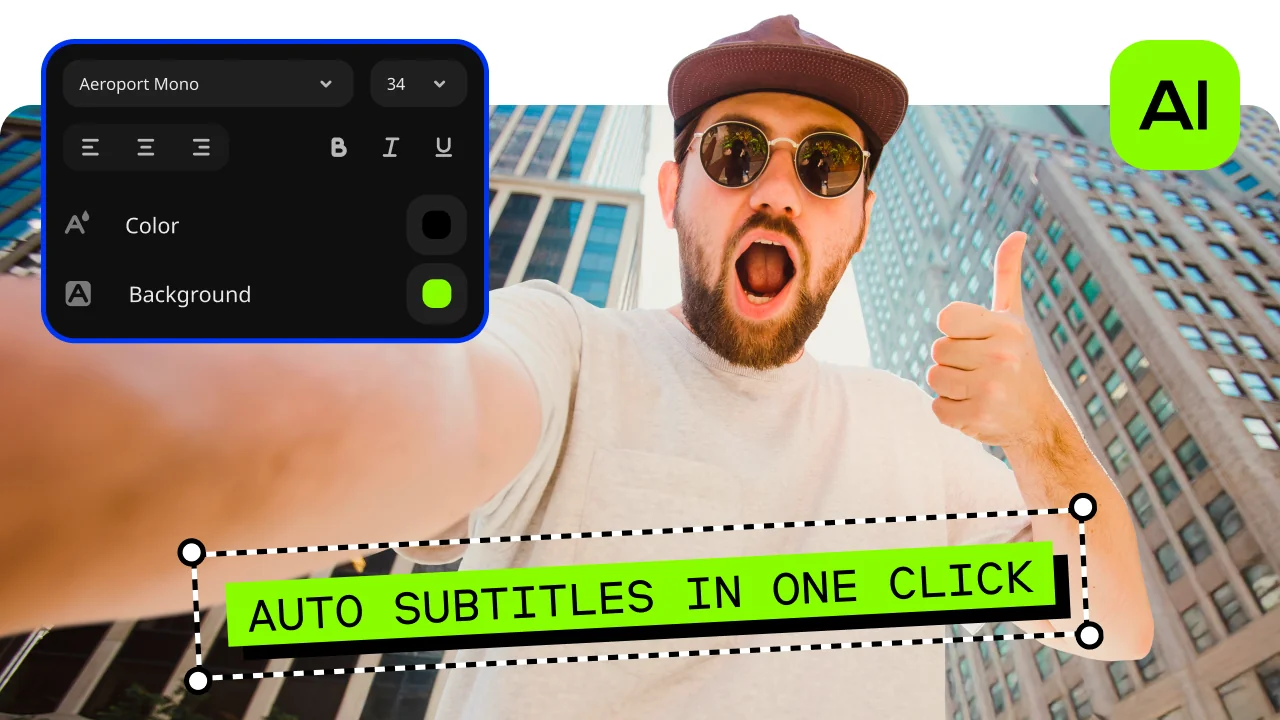
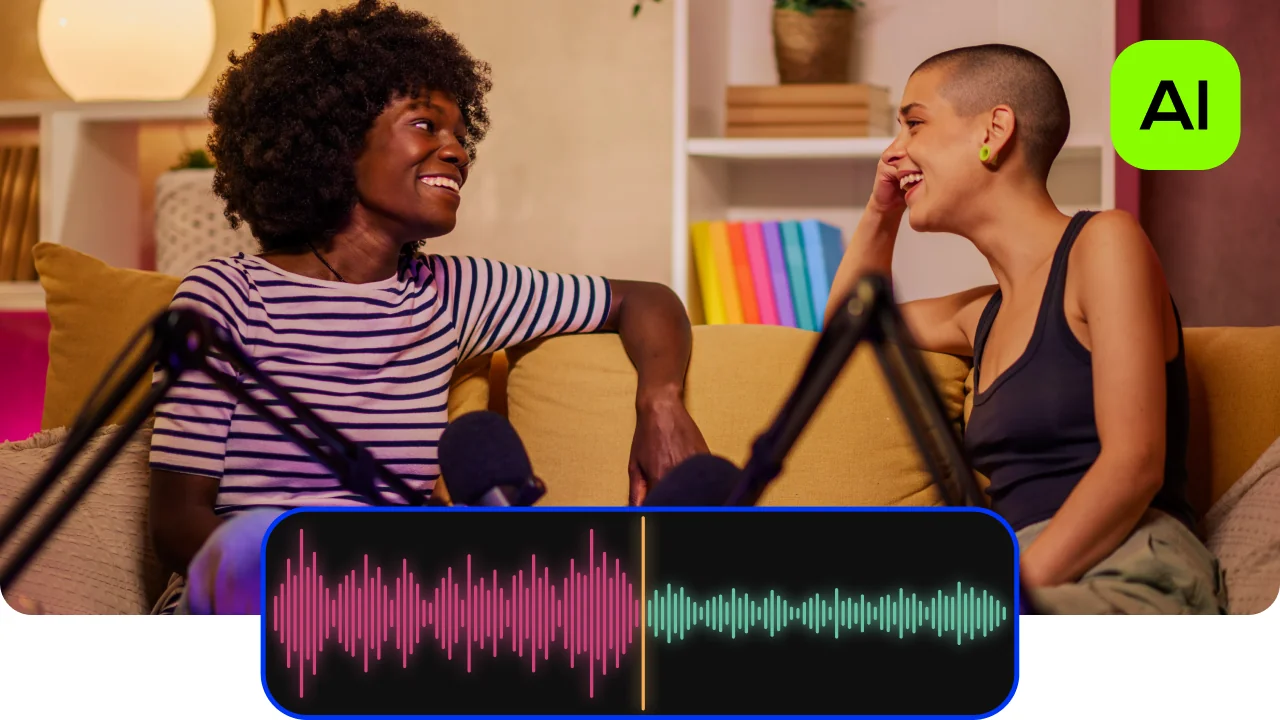
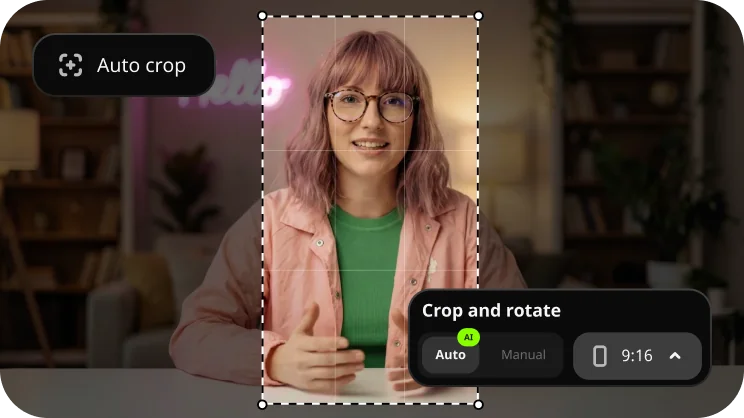
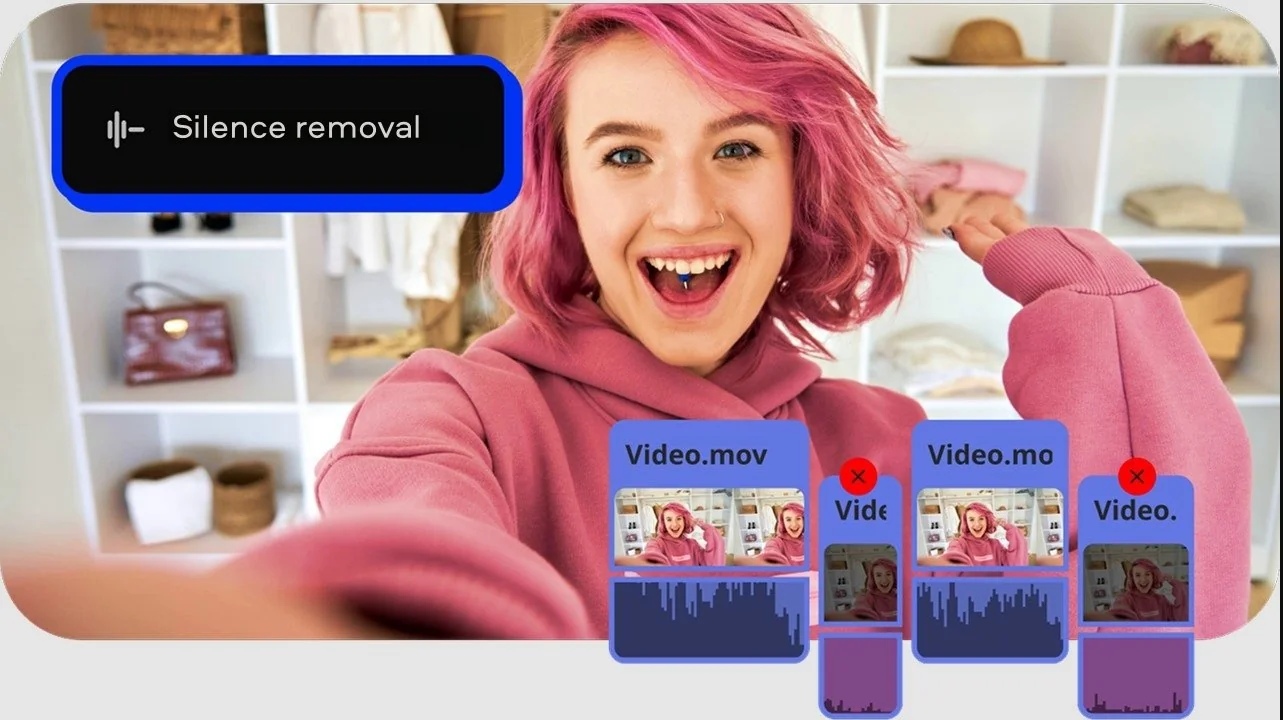
One-click AI: auto subtitles (99%+ accuracy, 100+ languages), AI noise removal, auto-tracked cropping, auto-silence removal, AI motion tracking; no AI credit system
AI leans toward design and image generation; video AI (Auto-trim, Highlights, Beat Sync) mostly Pro-only; generative features have usage limits
Background removal (video)
Yes, no green screen required
Yes, no green screen required (Pro plan only)
Video noise (grain) removal
Yes, one-click AI denoise
Stabilization
Collaboration
Single-user desktop editing
Real-time multi-person editing
Free plan
60-second export cap, lower output quality, watermark
Free with limits on premium content and AI features
Starting price
$19.95/month
$18/month
Templates: Movavi’s modular Blocks vs. Canva’s design-first library
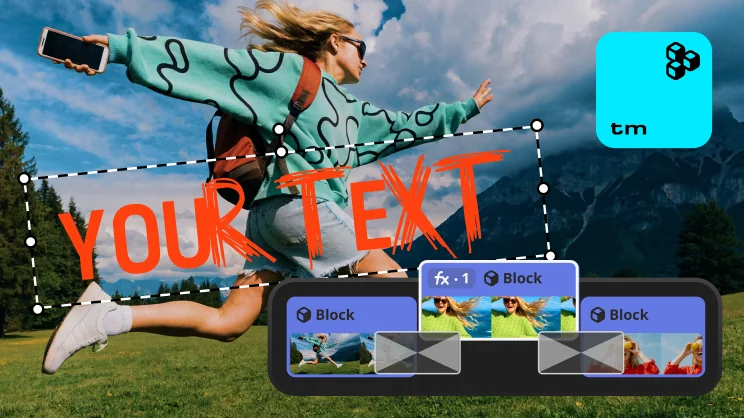
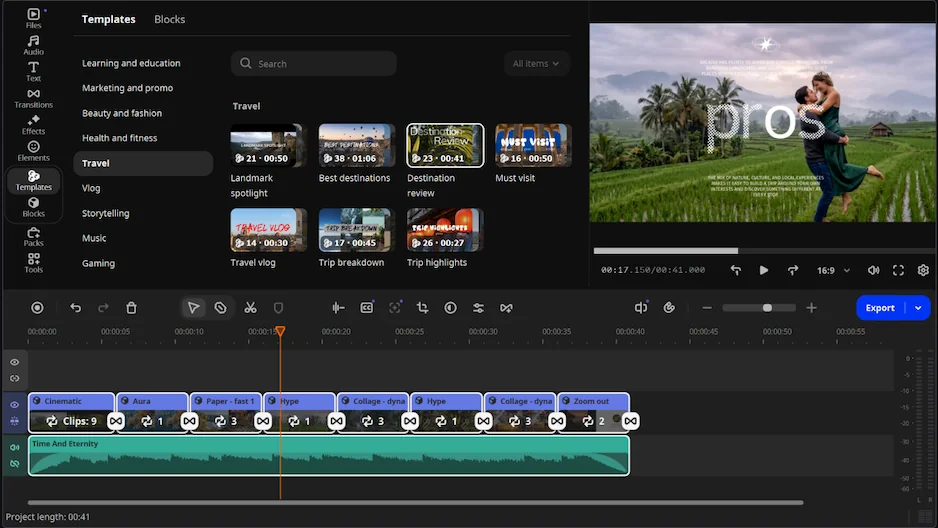
Movavi Video Templates is a multi-style library of customizable, pro-looking, modular templates for any kind of video. Each one is built from Blocks – short, pre-edited segments like an intro, a countdown, or an animated collage. You can reorder them, swap pieces out, or skip the template entirely and build from Blocks alone. Several templates are included for free in the full version; the complete library needs a separate Movavi Templates subscription. Take the vlog-intro template, drop your own clips in, and the intro is already built.
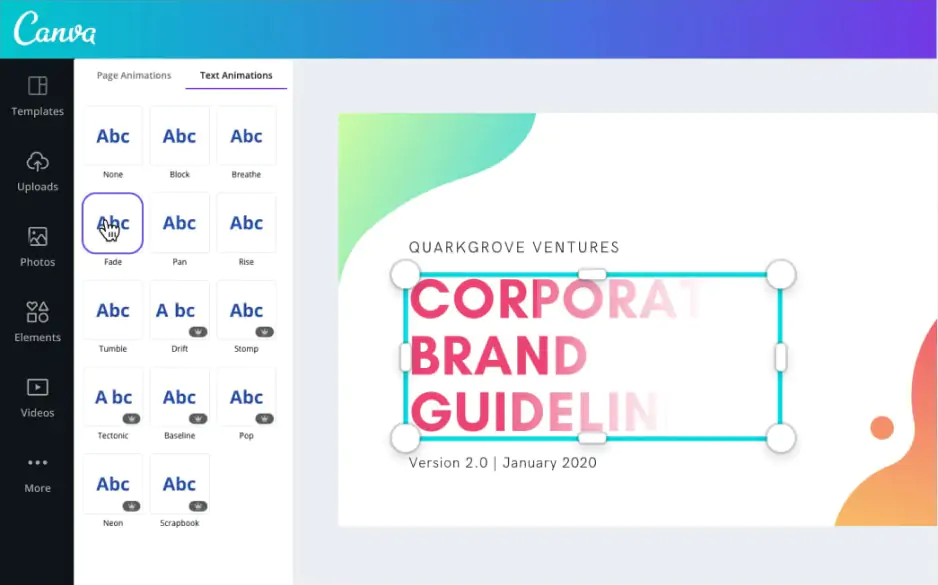
Canva’s library wins on raw numbers and covers posts, stories, and promos well. But it’s built around a design canvas, not a timeline, so you need to understand how a template is assembled before you swap in your own content or you’ll break the layout. Premium elements sit behind a Pro subscription, and there’s no way to preview a template on your own footage first – just a generic hover preview. Movavi, by contrast, lets you try templates and Effects-subscription content on your actual video before you buy anything.
Want a template that bends around your footage? Movavi Video Editor does that. Already working inside a design layout and just need a clip to drop in? That’s Canva’s lane.
AI tools: One-click video AI vs. credit-gated design AI
Every AI tool in Movavi Video Editor comes with the full-version subscription and no separate credit system to watch.
Canva points its AI somewhere else: Magic Studio, prompt-based image and video creation, template fitting. The video-specific AI includes Auto-trim, Highlights, Beat Sync, Enhance Voice, and in-video background removal. Most of it sits behind the Pro plan, and generative features run on usage limits that depend on the plan.
If video-specific AI tools that come with one subscription and no credits matter to you, that’s Movavi Video Editor. If your AI needs lean toward generating design assets and images with the occasional video mixed in, Canva covers that better.
Video-editing depth: Timeline, trimming, and long files
Movavi Video Editor
Canva
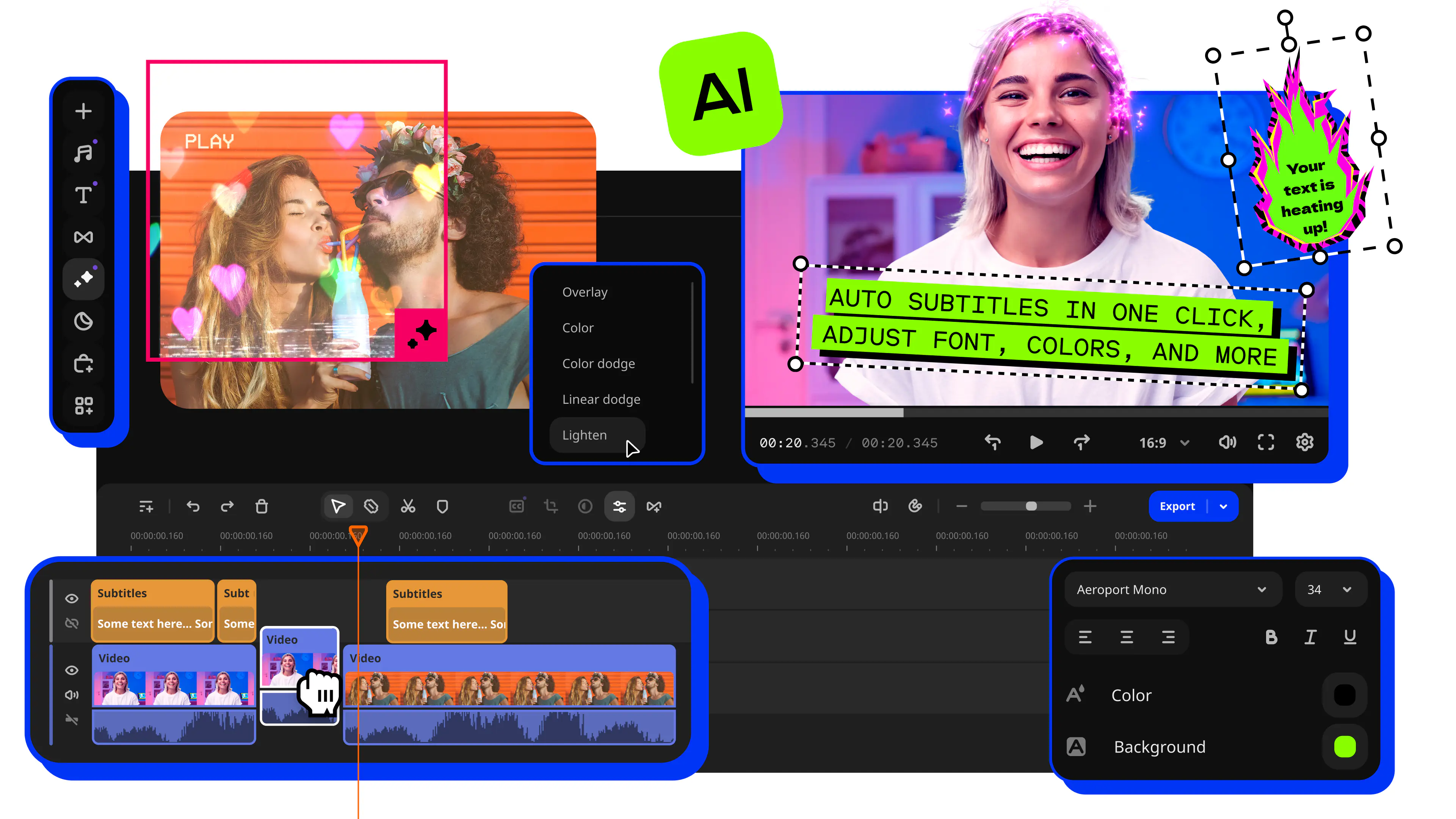
Movavi Video Editor runs on a drag-and-drop timeline with instant hover previews and frame-accurate scrubbing. The Blade tool makes instant multi-cuts. A pre-timeline trim feature pulls segments out before they’re even added to the project. Footage can run up to 100x speed for time-lapses. And because it’s a desktop app, a two-hour family video or a large 4K project doesn’t care about your upload speed, whether you’re on a high-end PC or an older laptop.
Canva’s video editor lives on top of its design canvas, and it shows under load – performance can slow once a project grows past a simple post or story. Frame-level trimming and layered editing are more limited than in a tool built around video from day one.
Anything longer than a quick clip, or any project that needs frame-accurate cuts and reliable performance on big files, points to Movavi Video Editor. Short inserts living inside a bigger design point to Canva.
Effects, music, and content library
Hundreds of drag-and-drop effects – transitions, titles, filters, overlays – ship with Movavi Video Editor from the start, alongside a library of copyright-free music and sounds. The Movavi Effects subscription adds 10,000+ effects and 1,500+ music tracks across themes like blogs, business, and holidays, and you can preview the whole collection on your own footage before paying for it.
Canva’s strength sits elsewhere: templates, fonts, stock images, and graphic elements in huge numbers. The video side of that library is thinner: around nine basic transitions and a modest set of video effects and titles, since video shares space with design rather than sitting at the center of the product.
Effects, transitions, and music built specifically for videos – that’s Movavi’s case. A large design asset library where video is one more element – that’s Canva’s.
Learning curve: Who each tool actually fits
Movavi Video Editor is built to be simple and fast. Most tools work in a single click, and the free Movavi Ideas hub adds a new step-by-step editing trick every week.
Canva suits that same business owner when the job is a design-first post or story with a short clip inside it – the canvas produces a decent-looking graphic fast. The friction shows up once the task becomes actual video editing: a longer promo, a multi-clip recap, precise trimming. At that point you’re working inside a layout built for graphics, and breaking it is easy if you don’t know how it’s assembled.
Video as the deliverable means Movavi Video Editor. Video as a supporting element inside a graphic means Canva.
Platforms, pricing, and plans
Movavi Video Editor is a desktop app for Windows 10 and 11 and Mac 12.0 or later, with native acceleration on Apple M1 and newer chips. Movavi Video Editor’s pricing is tailored to different budgets: the free version lets you test every tool, with exports capped at 60 seconds, lower output quality, and a watermark. The full version drops the watermark and export caps entirely; Movavi Effects and Movavi Templates are available on top as add-on subscriptions. Full-version pricing starts at $19.95/month.
Canva runs in the browser, plus desktop and mobile apps, and needs an account and an internet connection. The free plan covers basic use with limits on premium content and AI features. Pro and Teams plans – billed monthly or per user annually – unlock premium content, in-video background removal, Beat Sync, and higher AI limits. Pricing for Pro starts at $18/month.
For one desktop license with no ongoing internet dependency, choose Movavi Video Editor. For a team that already lives in a browser and needs several people editing the same project at once, select Canva.
What users say about Movavi and Canva
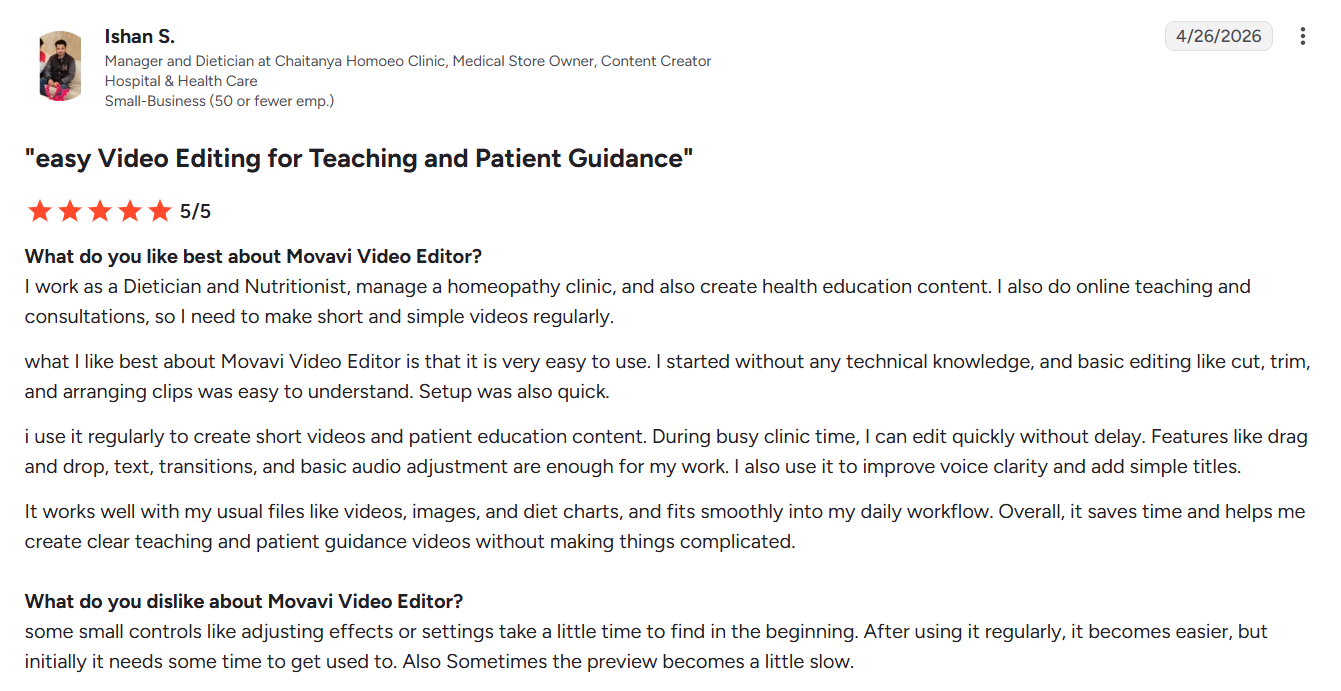
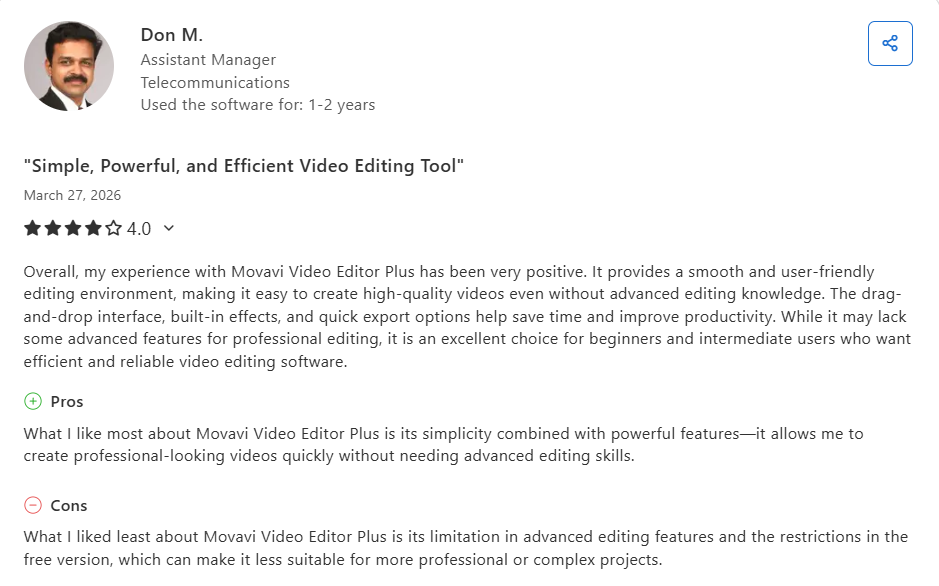
Movavi Video Editor has more than 70 million users worldwide and is available in 190+ countries. That scale shows up in the sentiment, too. On review sites like G2 and Capterra, users circle back to the same few points: an interface simple enough to start editing without tutorials, solid value for the price, and effects, titles, and licensed music already built into the base version. The complaints cluster around the free version’s 60-second export cap and watermark, and the fact that some effects and music need a separate subscription.
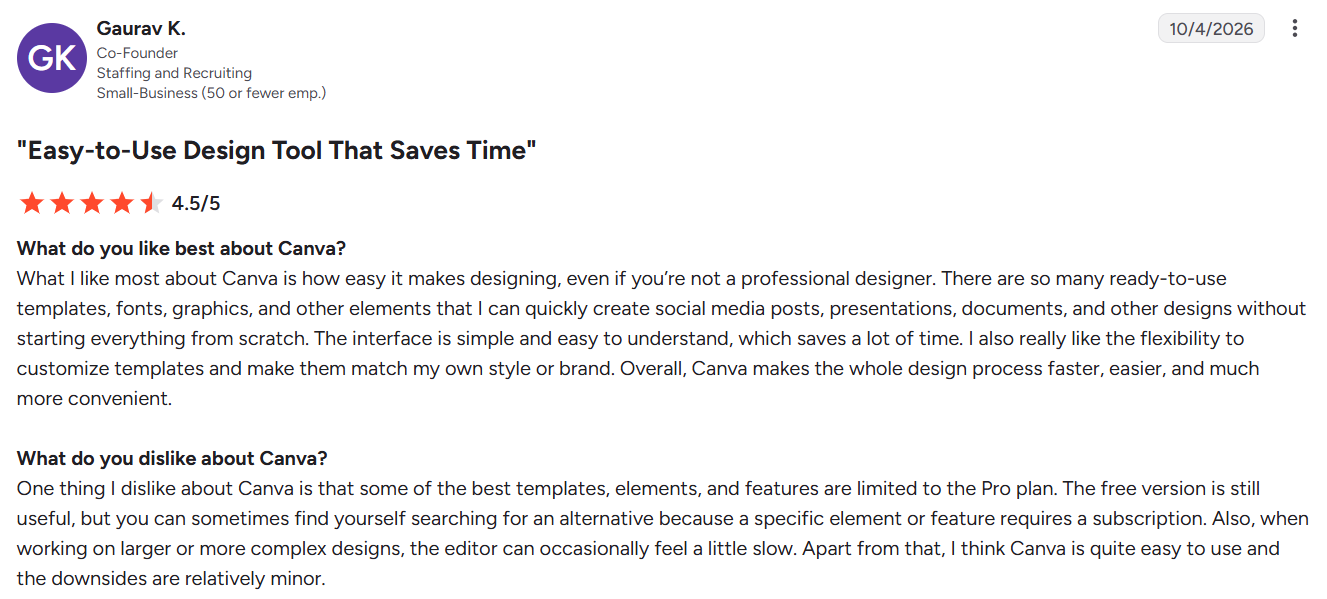
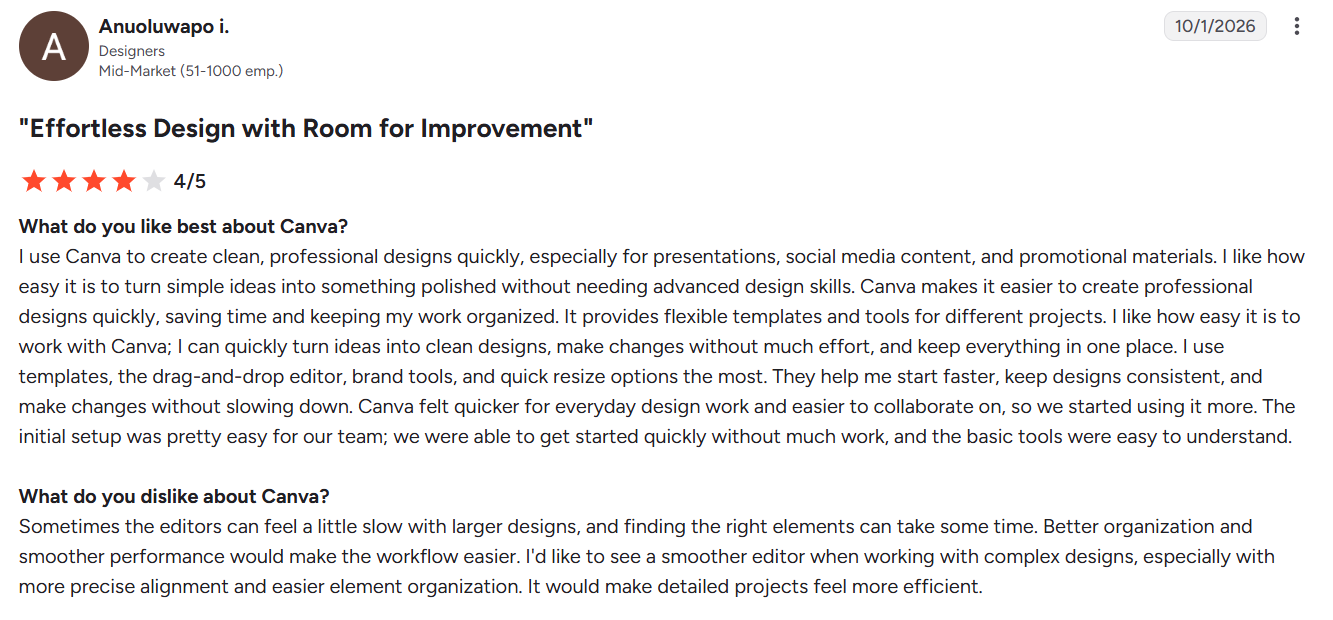
Canva users call it genuinely fast for turning a template into a good-looking video, with templates, fonts, and elements all in one place – useful for social media managers and teams. The most common critique is editing depth: users want more control over the timeline, audio, and color, slower performance on long videos or heavy files, and the strongest AI features locked behind the Pro plan.
How to choose between Movavi and Canva
If the finished piece is a video – a vlog, a product demo, a family clip, a tutorial – Movavi Video Editor is built for exactly that, with the editing tools, templates, and one-click AI to get you there without a steep learning curve. If the finished piece is a design – a post, a story, a flyer – with video as one element inside it, Canva’s canvas-first approach gets you there faster. Plenty of creators end up running both: Canva for the social graphics, Movavi Video Editor for anything that needs detailed editing. Still deciding? Movavi’s free version is a low-stakes place to start – drop in a clip, try one of the free templates, and see what one click actually gets you.
Frequently asked questions
Movavi or Canva: which is better for editing videos?
For an actual video, Movavi Video Editor wins – a dedicated editor with a timeline, one-click AI tools, and templates built for video. Canva works better when video is a small part of a bigger graphic.
How do I choose between Movavi and Canva for a project?
Start with what the finished piece is. A vlog, a product demo, or a family video calls for Movavi’s video-editing software. A single image-led post or a flyer with a short clip dropped in calls for Canva.
Is Canva made for video editing, or mainly for graphics?
Canva’s video tools sit on top of its design canvas, with a modest effects library – around nine basic transitions – and limited timeline control, so it suits short inserts rather than full edits.
Does Movavi have video-editing templates like Canva?
Yes. Movavi’s templates are built from modular Blocks you can reorder, swap, or remove, with several included free in the full version. Canva’s templates are built for the design canvas and work best for social graphics.
Are Movavi and Canva free to use?
Both offer free plans. Movavi Video Editor caps exports at 60 seconds with a watermark and lower output quality; Canva limits premium content and some AI features.
What devices does each app run on?
Movavi Video Editor is a desktop app for Windows 10/11 and macOS 12 or later. Canva runs in the browser, plus desktop and mobile apps, and needs an internet connection and an account on any device.
Which has better AI tools?
Movavi’s AI tools are built for video – auto subtitles, noise removal, auto-tracked cropping – included with the full-version subscription and no separate credit system. Canva’s AI leans toward design and image generation; its video-specific AI, like in-video background removal, is mostly on the Pro plan, and generative features have usage limits.
1.5M+ users already subscribed to our newsletter