Movavi Video Editor
Create awesome videos easily

Short answer: reach for CapCut if you edit on your phone and post mostly to TikTok, Reels, and Shorts.
Reach for Movavi Video Editor if you work on a Windows or Mac desktop and want a calm, drag-and-drop workspace for vlogs, tutorials, family videos, and business clips.

Both are built for beginners and everyday creators, so this comparison isn't a showdown between professional software and basic tools. However, Movavi Video Editor stands out by taking the stress out of desktop editing. It keeps the process simple with a clean interface and an intuitive drag-and-drop workflow, helping you build your project in just a few easy steps. A huge part of this speed comes down to Movavi Video Templates – a multi-style library of customizable, pro-looking, modular templates for any kind of video that lets you bypass the blank timeline entirely.
When it comes to the technical side, the two editors also take different paths. Movavi delivers full feature parity between Windows and Mac – meaning you get the exact same experience on both – and runs smoothly on low-powered PCs while offering M-chip acceleration for Mac users. CapCut, on the other hand, requires an account and an active internet connection to access certain features, and you'll quickly notice that its desktop and mobile versions don't fully match up.
CapCut grew up on the phone. It's a ByteDance product, born right next to TikTok, and it's genuinely good at the job it was built for: cut a clip on your phone during a coffee break, drop on a trending template and auto-captions, and post before the trend cools off. You can also pick a project back up in the desktop app or a browser, and the free tier gives you plenty to work with, including a full editor and 1080p export without spending a cent.
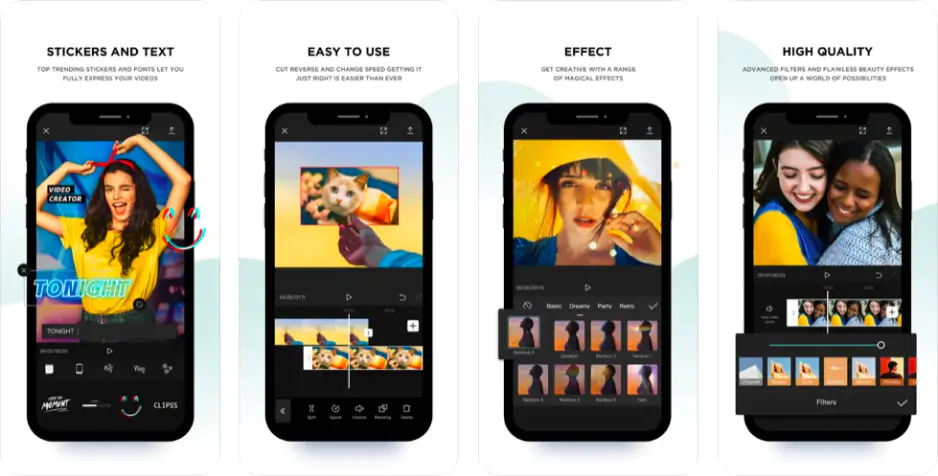
Movavi Video Editor comes at the same problem from the desktop side. It's an intuitive editor for any kind of video, whether that's vlogs and business promos or family clips and educational videos, and it's built for beginners and everyday creators who'd rather spend their time creating than learning software. The layout stays readable even when a project runs long. The intuitive cut tool handles frame-accurate editing, crop, speed, and rotation all sit in one place, and you can speed footage up to 100x for a time-lapse. Picture a teacher opening it to turn a screen recording into a lesson, or a café owner using it between shifts to cut a 20-second promo from phone footage.
Movavi has its own template system too: Movavi Video Templates, a multi-style library of customizable, pro-looking, modular templates for any kind of video. A CapCut template applies as one fixed look over your footage; a Movavi template comes apart into individual Blocks – short pre-edited segments like intros, countdowns, quick cuts, or animated collages – you can swap, reorder, add, or remove, or combine into a video from scratch. That café owner could grab a business-promo template, keep the countdown Block, swap in today's menu footage, and drop the quick-cut Block entirely if the 20-second promo doesn't need it.
So the first fork in the road is an easy one. If you edit in short bursts on your phone for social feeds, CapCut fits how your day already runs. If you sit down at a desktop to build something with a beginning, middle, and end, that's Movavi's home turf.
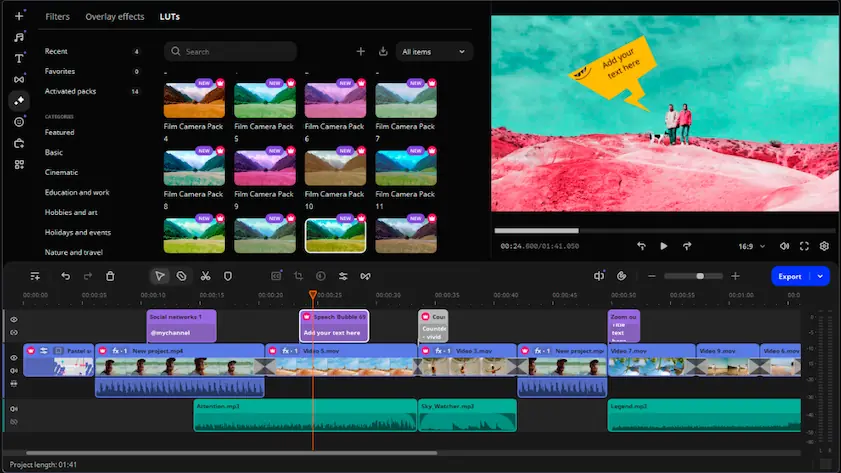
Ask which is the best video editor for beginners and the honest answer is "the one that matches where you edit." Still, Movavi's whole design bet is that you already basically know what you want to do, and the software's job is to strip out the annoying parts. The drag-and-drop workflow, hover previews, and clean interface make every tool usable on sight. Move your cursor over a clip and you get an instant preview before you commit to anything; drag a title, transition, or filter onto the timeline and it applies the second you drop it. Most first-timers are cutting and arranging clips with confidence inside roughly 10 to 15 minutes.
CapCut is easy to learn too, especially if you already think in vertical video. Its trendy templates get you to a finished Reel fast. Movavi's own templates shortcut that same blank-timeline problem on desktop – pick one built for vlogs, business promos, family videos, holidays, or reviews, and you're rearranging Blocks instead of staring at an empty timeline. The trade-off turns up on bigger projects: a mobile-first timeline that feels great for a 30-second clip starts to feel cramped once you're assembling a 12-minute tutorial. That's the point where a desktop timeline earns its keep.
This is where Movavi makes its strongest case, and it pays to be specific here rather than waving vaguely at "AI-powered tools." Among Movavi Video Editor features, the one-click AI set is the standout, tested and purpose-built to hand you back time:
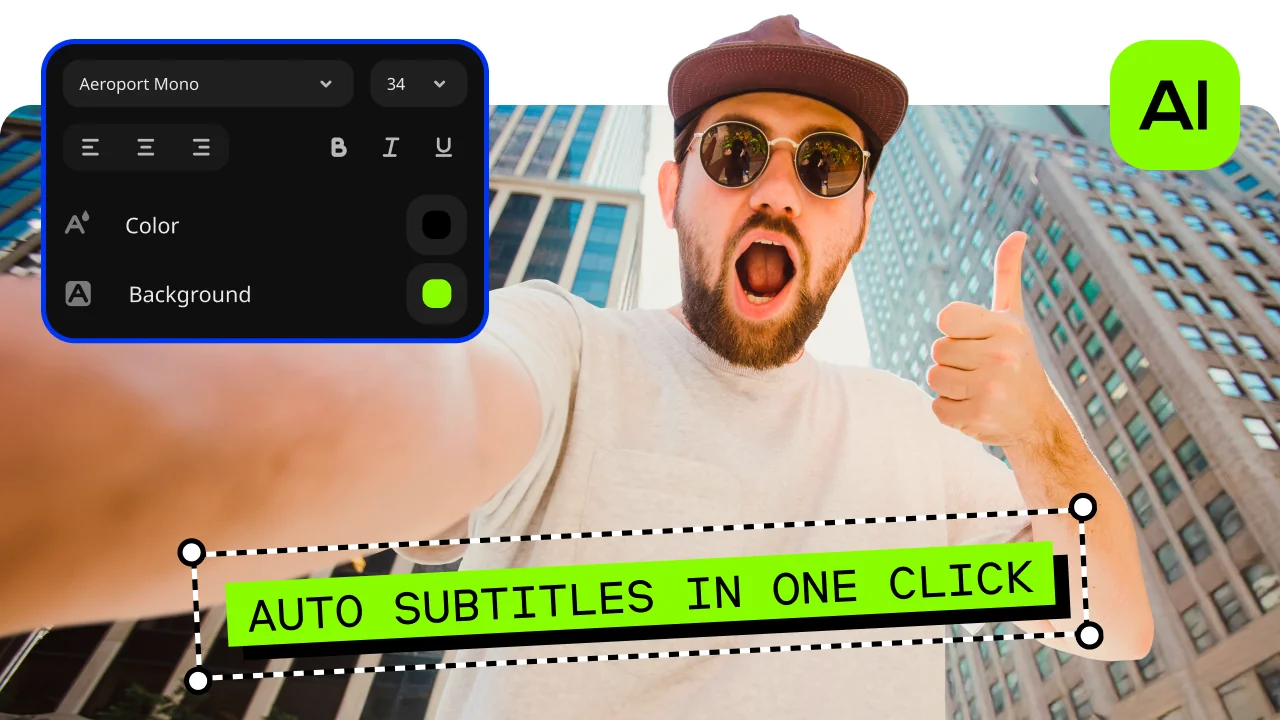
Auto subtitles
Turn speech into captions at over 99% accuracy across more than 100 recognized languages, and you get 60+ caption designs plus real-time word highlighting that syncs to the audio.
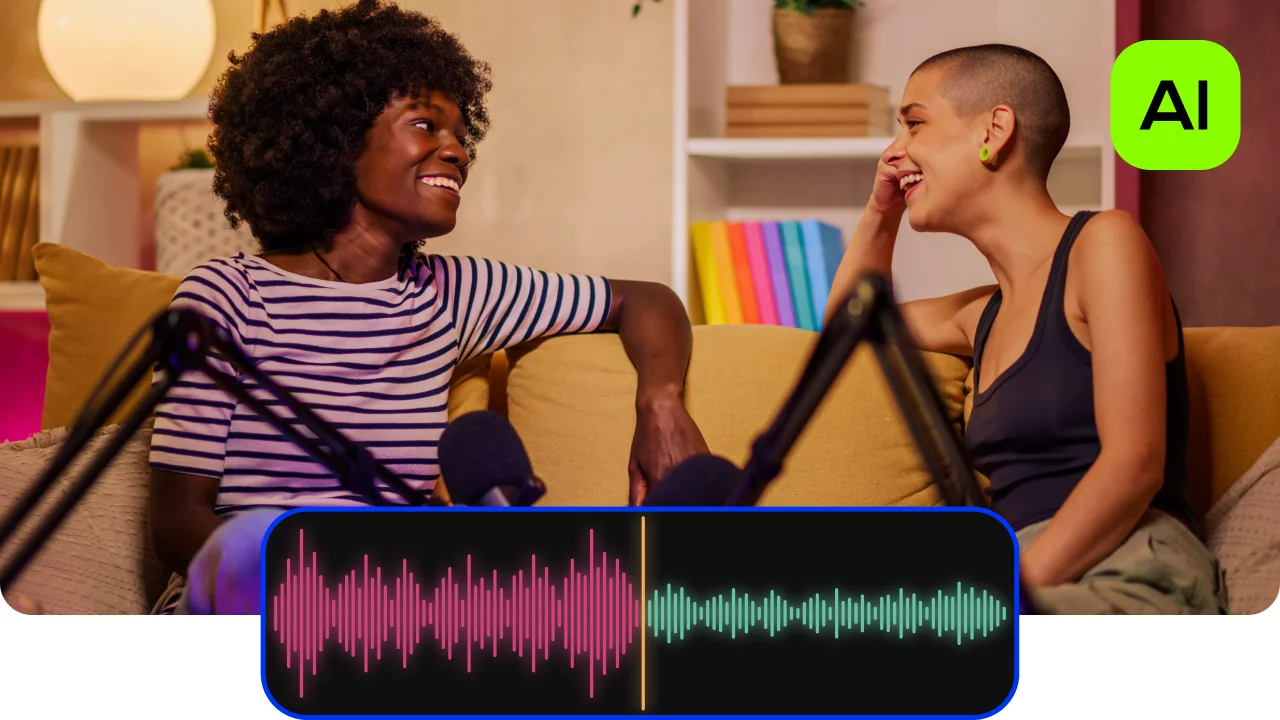
AI audio noise removal
Wipes out traffic, wind, and steady hums in a single click, cutting roughly 95% of ambient noise while keeping the voice sharp.
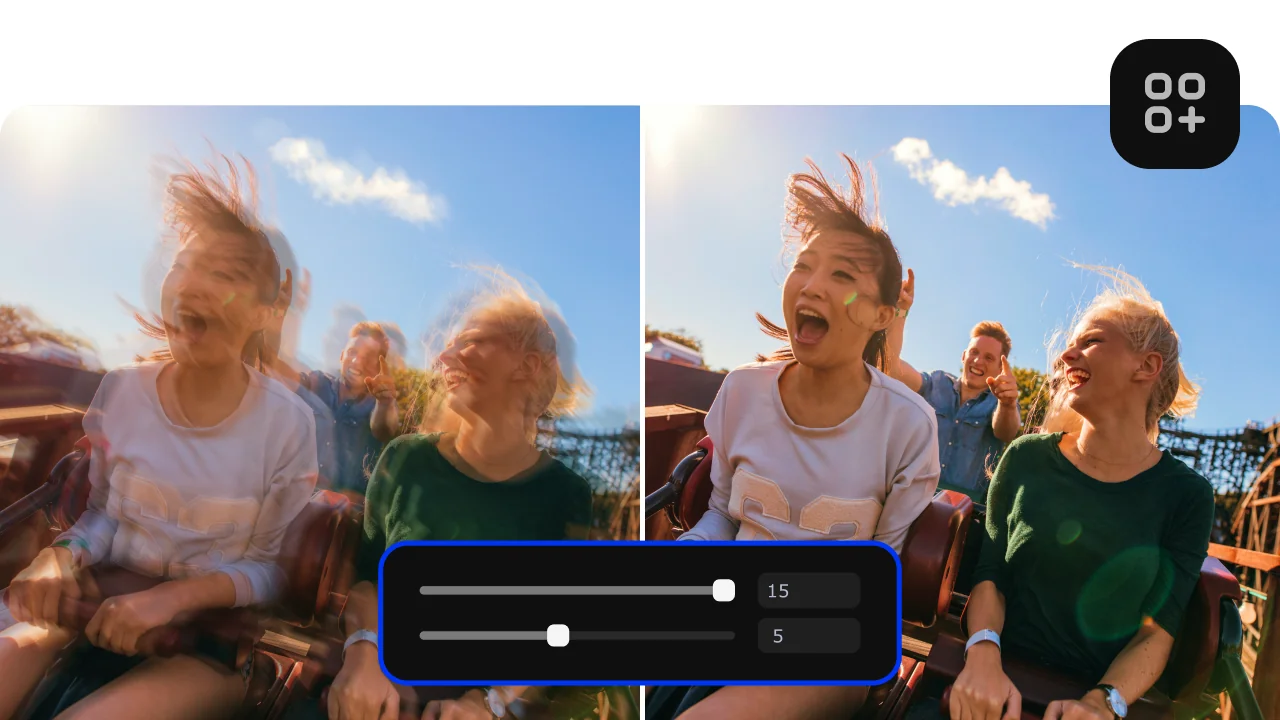
AI video denoise
Clears grain and low-light artifacts while keeping faces and edges crisp, which comes in handy for older phone footage.
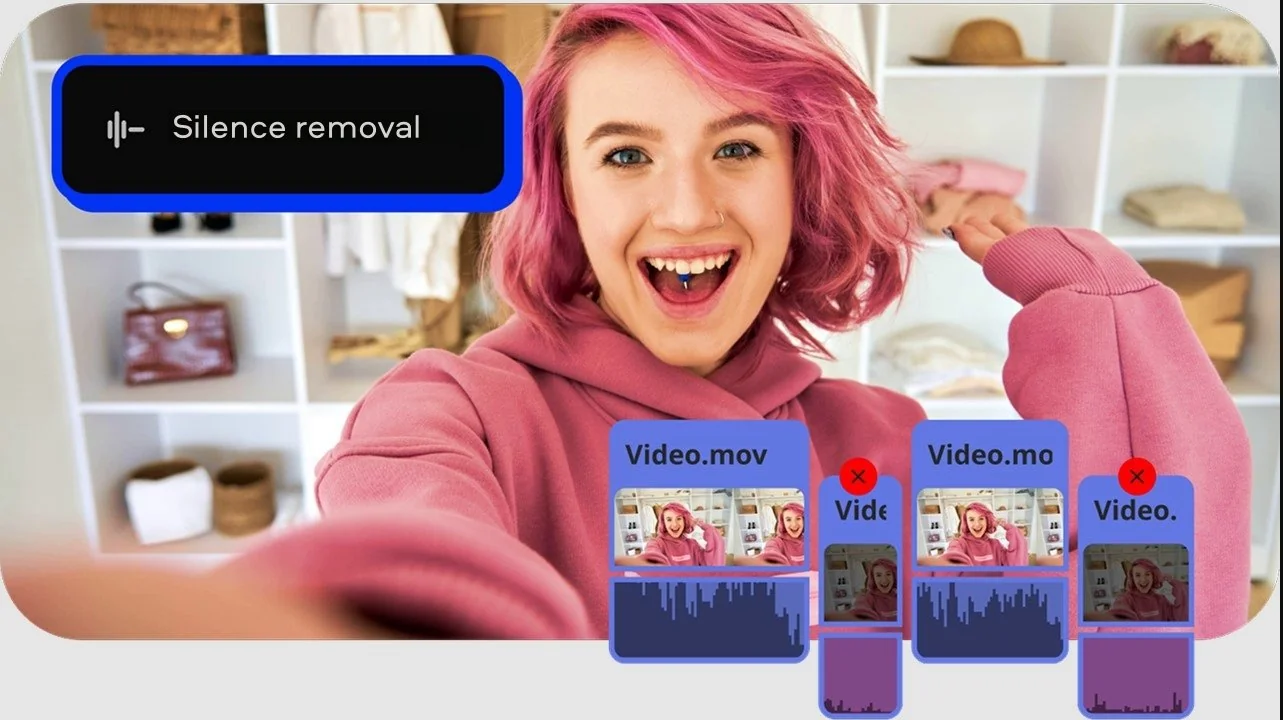
Auto-silence removal
Spots and cuts dead pauses on its own. Movavi's internal testing clocks it at nearly 5x faster than trimming silences by hand on the timeline.
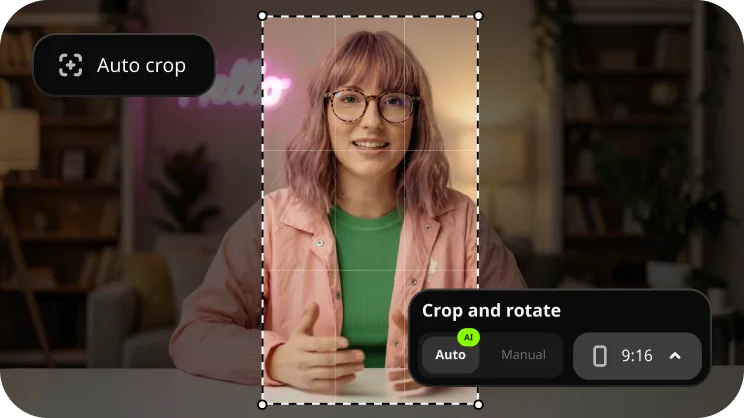
Auto-tracked cropping
Keeps the speaker or product centered as it reframes horizontal footage into vertical. In Movavi's internal comparisons with other video editors, that auto-tracked cropping produced smoother, more precise tracking in 7 out of 10 cases.
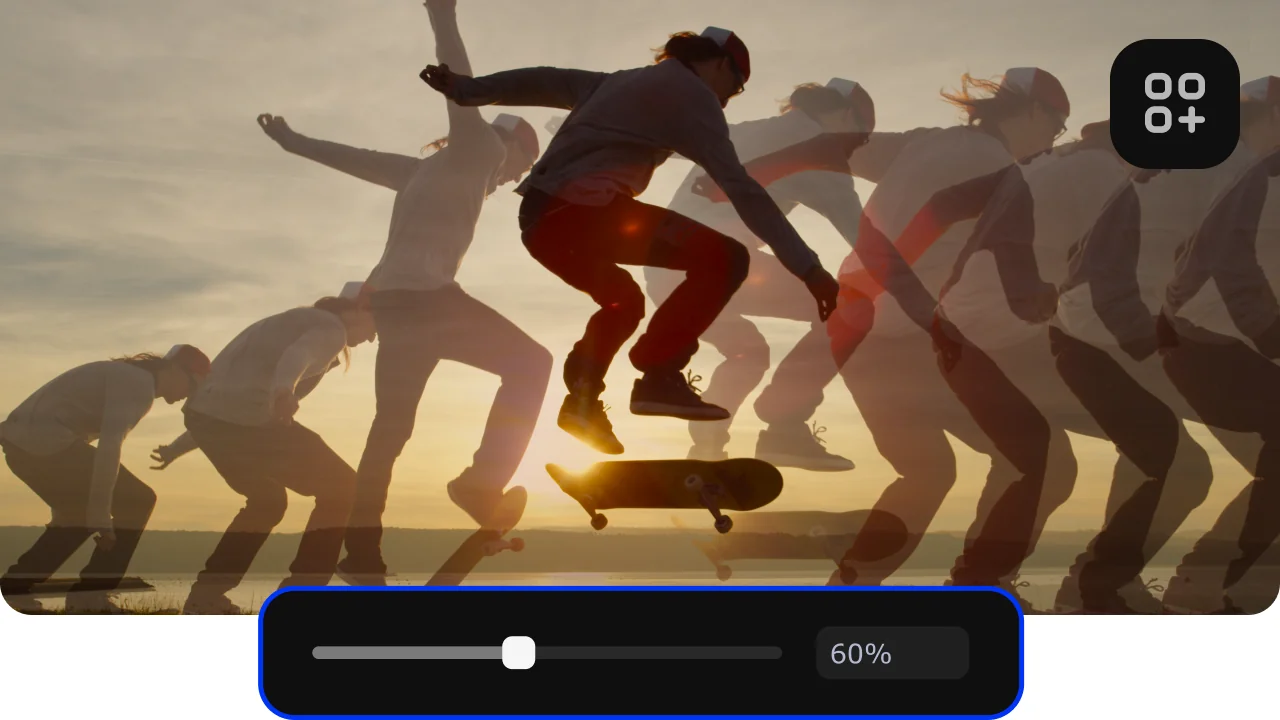
AI motion tracking
Pins graphics, images, or video to a moving subject in one click and holds that placement through the whole scene.
On paper, CapCut has a comparable AI kit: background remover, motion tracking, noise reduction, and image and video generators. The catch showed up in early 2026, when CapCut reshuffled its plans and pushed the full AI toolkit up into the new Pro tier. Tools that used to feel free now sit behind the pricier subscription, and that's a big part of why creators started shopping around this year.
Pricing is the sharpest contrast in the whole comparison, and it's the second big fork after platform.
CapCut runs on a subscription. After the early-2026 restructure, the free plan still covers casual posting with 1080p export, Standard runs about $9.99/month (mobile-focused, watermark-free), and Pro sits at $19.99/month or $179.99/year. Pro is the tier that adds 4K export, the full AI toolkit, and cloud storage. There's a Team plan too, around $24.99/month per user. Two things worth knowing: prices shift by region and platform, and paying through the iOS or Android app runs higher than the web checkout thanks to app-store fees. That jump from the old ~$8 Pro plan to $20 is the change that's been fueling "CapCut alternative" searches all year.
Movavi's model works differently. You start with a free version from the official site, test everything, then buy only the pieces you actually need: the version itself, feature upgrades, rather than renting the whole thing month after month. Movavi Video Editor offers versatile licensing options across a wide range of budgets, so a hobbyist and a small-business owner don't pay the same way for tools they use very differently. If you'd rather own your editing setup than rent it, that structural difference matters more than any single line item.
(One honest note about Movavi's free version: it's really meant for testing. Exports are capped at 60 seconds, output quality is limited, and a watermark stays until you upgrade. CapCut's free tier is more generous if your goal is actually publishing short clips, and it's only fair to say so.)
Out of the box, Movavi Video Editor ships with hundreds of built-in, drag-and-drop effects: transitions, titles, filters, stickers, and overlays, most with settings you can adjust to taste, plus a set of copyright-free music tracks and sounds. There are 180+ filters on their own, from Glitch to VHS to Blur, so a cozy family recap and a punchy skate montage can come out of the same session looking nothing alike.
CapCut leans on trend-driven templates and instant filters, and that's a real strength for social: you land the current "lifestyle vlog" look in seconds. Where it thins out is manual control. Matching colors across two cameras or fixing bad lighting by hand is trickier than simply reaching for a filter. Movavi pairs ready-made color presets with manual fine-tuning for tone, contrast, and saturation, and that's the difference between "trendy" and "the way I want it."
The same goes for templates: a CapCut template is the finished look – swap footage and go. A Movavi template breaks into Blocks you can recombine, so a cozy family recap and a product launch can start from the same library and end up looking nothing alike.
Here's one Movavi feature CapCut has no direct answer to. Movavi Ideas is a collection of simple, eye-catching editing tricks, published weekly and free for every Movavi Video Editor user. Each one comes with a step-by-step tutorial you can follow in under a minute, covering vlogs, short vertical clips, business clips, holidays, family videos, and memes. For a beginner staring at a blank timeline, that's a running start; for someone who edits every week, it's a fresh technique to try without digging through a hundred YouTube tutorials. CapCut surfaces trends through its template library, but that "here's exactly how to build it, step by step" tutorial layer belongs to Movavi. That's a different shelf from Movavi's own template library – Ideas teaches you the trick from scratch, while Movavi Video Templates hands you a built Block sequence to start from and edit into shape.
Movavi has been on the market for over 20 years, serves 70M+ users across 190+ countries, and ships 15+ updates a year. Recent releases added AI motion tracking, AI subtitles in 100+ languages, and auto silence removal, while 2026 brought AI crop and AI video denoise. The editor is available in 14 interface languages.
CapCut's scale is huge as well, with hundreds of millions of users, but its ownership carries a question mark that a desktop editor simply doesn't. CapCut is a ByteDance app. It was briefly pulled from US app stores in January 2025 under PAFACA, and although it returned and now falls under the TikTok USDS joint venture arranged in early 2026, the underlying law is still on the books, and the app collects a fair amount of data, biometric data from some AI features included. None of that means CapCut is going to vanish tomorrow. What it does mean is that if your footage is sensitive, whether that's client work, kids, or anything you'd rather not send off your device, a desktop tool that keeps files local is one less thing to worry about.
For YouTube in particular, the balance tips toward Movavi for most creators. Long-form and mid-form videos, think tutorials, reviews, lessons, and vlogs with a real arc, are more comfortable to build on a desktop timeline than in a mobile-first one, and 4K export comes with Movavi's full version rather than a separate subscription tier. Auto subtitles in 100+ languages help your videos reach a wider audience, and denoise plus silence removal quietly fix the two things that make homemade YouTube audio sound homemade. CapCut still shines on the Shorts side of a YouTube channel, so plenty of creators keep it around for vertical clips. For the main-feed videos, though, Movavi is the steadier desktop home.
Every video editor comparison eventually comes down to fit, and here the call is refreshingly clear:
Pick CapCut if you edit on your phone, your videos are short-form social clips, and CapCut's free tier or subscription fits how you already work.
Pick Movavi Video Editor if you edit on a Windows or Mac desktop, you're making vlogs, tutorials, family videos, or business clips, you'd rather buy your toolkit than subscribe to it, and you want AI subtitles, denoise, and auto-crop handling the boring parts in one click.
If you're leaning Movavi, the easy next step is to download the free version from the official site and run your next project through it, then open Movavi Ideas and try one of this week's tricks on your own footage. That's the quickest way to feel out whether the desktop workflow clicks for you.

Both are beginner-friendly, but they fit different setups. Movavi Video Editor tends to feel easier to settle into if you're learning how editing actually works, thanks to a clean desktop layout and a timeline that stays readable on longer projects, with most first-timers editing confidently inside 10 to 15 minutes. CapCut is easier if you think phone-first and mostly make short social clips.
There's a free version you download from the official site to test every tool, though it caps exports at 60 seconds, limits output quality, and adds a watermark. Upgrading to the full version clears those limits. Unlike CapCut's monthly subscription, Movavi uses a modular license.
CapCut is available in the US and most countries in 2026 and falls under the TikTok USDS joint venture. It's owned by ByteDance, was briefly removed from US app stores in early 2025, and collects user data, some of it biometric. It works fine; whether that data picture suits your projects is a personal call.
CapCut, for pure short-form social video edited on your phone, since that's exactly what it was built for. Movavi can make vertical clips as well (auto-crop reframes horizontal footage to vertical while keeping the subject centered), but its strengths lean toward desktop work and longer projects.
Movavi covers the tools everyday creators reach for most: auto subtitles (100+ languages, 99%+ accuracy), video and audio denoise, silence removal, motion tracking, and auto-crop with subject tracking, all one click and all in the full version. CapCut has a comparable set, but after its early-2026 pricing change the full AI toolkit sits behind the $19.99/month Pro tier.
Yes – Movavi Video Templates is a multi-style library covering vlogs, business promos, family videos, holidays, and reviews, among other occasions. A CapCut template applies as one finished look; a Movavi template is built from separate Blocks you can reorder, swap, add, or remove, or combine into a video from scratch. Several templates come with the full version at no extra cost; the complete library needs a separate Movavi Templates subscription.
Movavi Video Editor exports 4K in its full version. In CapCut, 4K export is gated behind the Pro subscription.



1.5M+ users already subscribed to our newsletter