
Movavi Screen Recorder
The perfect way to record anything from your screen
Disclaimer: Please be aware that Movavi Screen Recorder does not allow capture of copy-protected video and audio streams.

How to Fix OBS “Encoding Overloaded” Issue
Choose the right settings in OBS
Optimize your PC for better performance
Try alternative programs
Looking for a simpler program? Try Movavi Screen Recorder!
When I first ran into the “OBS encoding overloaded” message, I realized how often this problem frustrates streamers. The encoding overloaded OBS warning usually appears right when I’m trying to stream or record something important, so I’ve learned how to deal with it quickly. Below, I’ll walk you through my own OBS encoding overloaded fix experience and show you how to fix encoding overloaded OBS Studio without wasting hours tweaking random settings.
Encoding video pushes the CPU very hard, and when the encoder overloaded warning appears, it’s usually a sign that my system can’t juggle the game and stream with the current settings. In practice, this leads to stutter, lag, frozen frames, or even a full error message. Here’s how I managed to clean up my performance and get rid of the dreaded OBS high encoding warning.
I follow three main steps:

When selecting products to include in our reviews, we research both demand and popularity.
The team tests all the products mentioned in this article.
When testing, we compare the key characteristics of the products, which include selecting capture area, schedule recording, showing keystrokes and mouse, and other significant features.
We study user reviews from popular review platforms and make use of this information when writing our product reviews.
We collect feedback from our users and analyze their opinions of Movavi software as well as products from other companies.




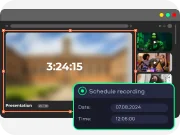
When none of my fix attempts helped, I tried switching tools, and Movavi Screen Recorder ended up being far easier for smooth recording. It captures the screen with zero stutter, lets me draw during sessions, and trims clips effortlessly. If OBS feels overwhelming, grab the free trial and test it yourself.
Choose the right settings in OBS
OBS offers a huge range of customization options, and many times, the overload happens simply because I forgot to review my video settings. Before anything else, I always consider turning down video settings to relieve pressure on the CPU.
Reduce your output resolution
Resolution is one of those silent performance killers we all pretend isn’t the problem, until OBS politely informs us our CPU is melting. When I’m streaming at 1080p, OBS has to process every single pixel in real time, and if the processor isn’t built for that kind of punishment, the “Encoding overloaded” warning appears like a small digital cry for help. At that point, I stop trying to prove anything to my hardware and I start dialing things back.
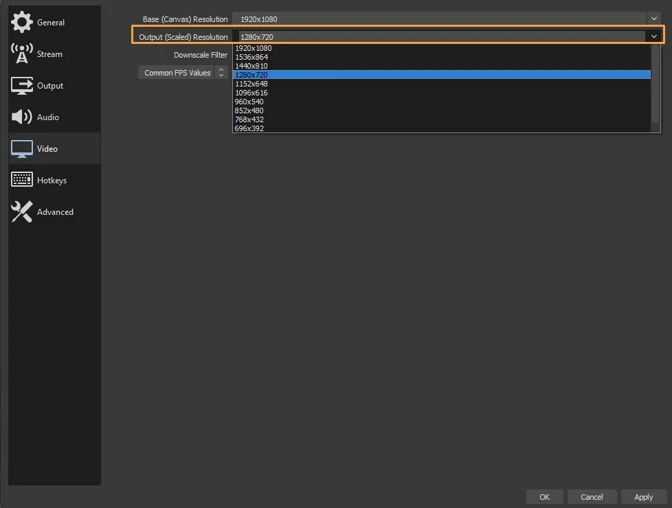
Scaling the Output (scaled) Resolution downward is always my first move. I leave the Base (Canvas) Resolution untouched so my layout doesn’t implode, but shrinking the outgoing feed from 1920 × 1080 to something more manageable, say, 1280 × 720, instantly lightens the CPU’s workload. I hop into Settings, open the Video tab, tweak the Output (scaled) Resolution, hit OK, shut OBS down, and restart the machine. More often than not, that little warning disappears as if nothing ever happened.
Downscale filters play a weirdly big role too. Bilinear handles the job quickly and with no finesse, while Lanczos gives the image a bit more love at the cost of extra processing. I sometimes switch back and forth until the encoder stops complaining; it’s surprisingly effective.
Lower frame rate
Frame rate wreaks havoc in ways resolution doesn’t. It’s a constant barrage of frames pouring through the GPU, and if I insist on capturing at 60 FPS while my game is already chewing through resources, something’s bound to break. The GPU becomes referee, player, and commentator all at once, and that’s when lag and stutters creep into the stream.
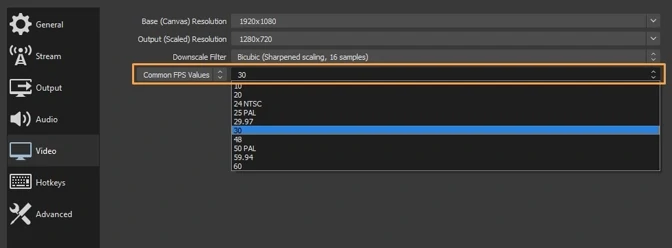
I learned, and not the easiest way, that most viewers can’t tell the difference between 60 FPS and 30 FPS in a live stream, but my hardware absolutely can. Dropping the FPS down in Settings > Video > Common FPS Values gives OBS room to breathe, and dropping it again to 24 FPS turns the whole operation silky smooth. After hitting OK and restarting OBS, I can usually feel the GPU exhale.
Limiting the game’s own frame rate helps too. Flipping on Vsync or an in-game limiter keeps the game from hogging every available cycle, which leaves OBS enough power to actually do its job.
Change the encoder preset
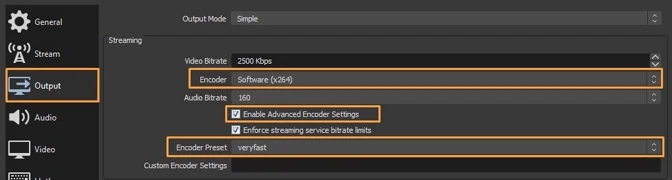
OBS defaults to x264, which is basically the heavyweight champion of CPU-based encoding. It’s powerful, elegant, and extremely good at what it does… right up until it crushes your processor. The encoder preset determines how much time x264 spends sculpting each frame. “Veryfast” is OBS’s attempt at being reasonable, but sometimes even “veryfast” is too demanding.
Whenever the encoder starts gasping, I open Settings > Output, confirm that Software (x264) is still selected, and switch the Encoder Preset to something faster like “superfast” or “ultrafast.” Faster presets have one job: stop the CPU from catching fire. They sacrifice a little detail, but the payoff is a system that doesn’t choke every minute.
The jump between presets is dramatic, changing a single word can free up huge chunks of CPU time, so I always make adjustments carefully. It’s better to keep a little extra processing headroom than to push the CPU to its breaking point.
Try hardware encoding
At some point, CPU encoding becomes a lost cause, and that’s when I hand the job over to hardware encoders. NVENC, Quicksync, and AMF are built specifically to take the video encoding burden off the CPU and let dedicated silicon handle it instead. OBS makes it easy to check: I switch the Output Mode to Advanced, go to Settings > Output > Streaming > Encoder, and see which options my system supports.
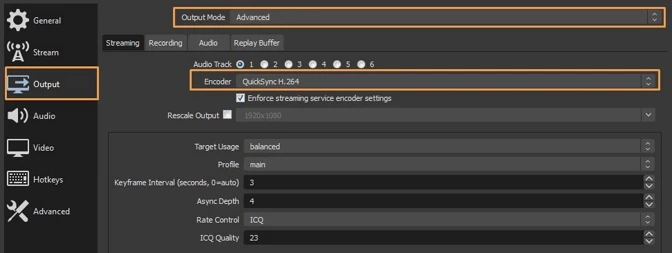
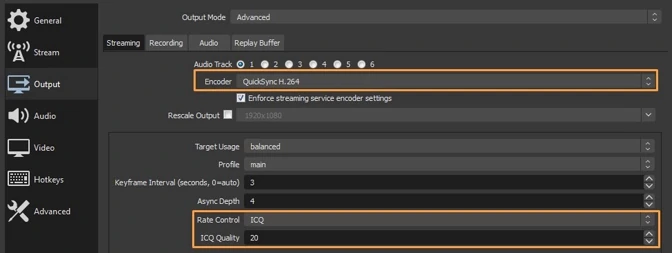
NVENC is the one I reach for most often. It performs astonishingly close to x264’s “veryfast” preset while barely touching CPU usage, and because it runs on a dedicated circuit inside Nvidia GPUs, it isn’t affected by whatever chaos the game itself is causing. AMF is more temperamental; if the GPU is already overloaded rendering the game, AMF gets starved and the resulting footage looks like it came from an early-2000s camcorder. Quicksync sits nicely in the middle, clean output when configured with ICQ between 20 and 23.
If Quicksync refuses to appear in OBS, nine times out of ten the iGPU is disabled in the BIOS. Enabling it, restarting, and letting Windows reinstall drivers usually makes “Intel(R) HD Graphics” and “QuickSync H.264” appear like long-lost acquaintances finally showing up to the party.
Optimize your PC for better performance
When none of OBS’s in-app tweaks fix my encoding overloaded problem, I usually assume the issue has less to do with OBS itself and more with the machine I’m running it on. Streaming and gaming at once is a brutal stress test, if the system isn’t tuned for it, OBS becomes the first thing to buckle. So I start working through the parts of the setup that often go overlooked.
Check the recording sources
I always begin with the sources that decode video in real time, because they quietly devour CPU cycles when misconfigured. A webcam set to an unnecessarily high resolution or a capture card pushing full HD when I only need a small window can overload the system for no good reason. Even browser sources packed with animations or scripts behave like miniature CPU heaters. Dialing a webcam down to 480p or trimming browser sources has solved more encoding warnings for me than I’d like to admit.
Close additional programs in the background
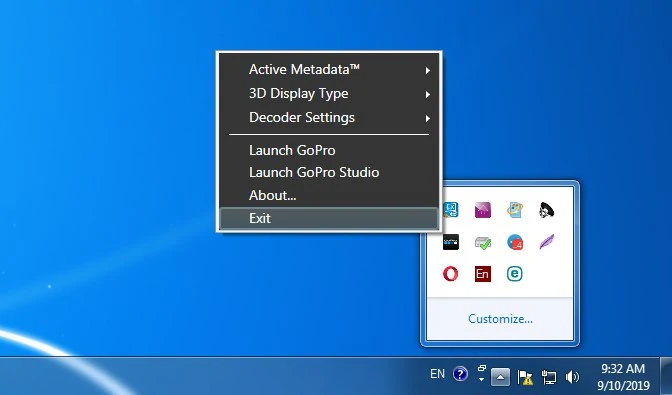
Next, I hunt down everything else running alongside OBS. Apps like Discord, Windows Game Bar, or Nvidia Overlay are notorious for tangling with OBS in the background. If I don’t need them, I shut them down completely, not just minimized. Pressing Windows key + R, typing taskmgr, and combing through Task Manager usually reveals a swarm of processes chewing up resources. The system tray is another hiding place; if an app is idling there, I right-click it and hit Exit. The fewer distractions my CPU has, the better OBS behaves.
If something shouldn’t even be on my machine anymore, I uninstall it. Windows key + R, appwiz.cpl, right-click, uninstall – housekeeping for streamers.
Free disk space
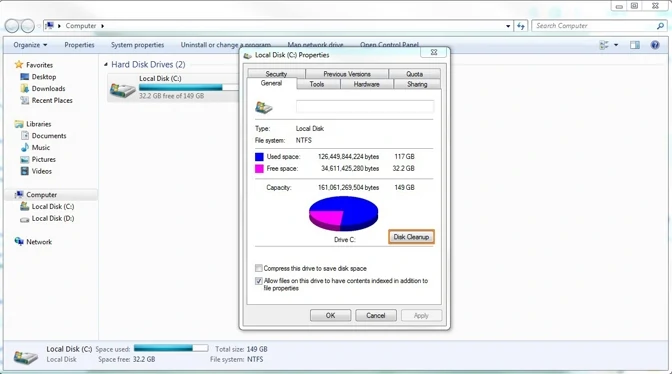
OBS relies not only on RAM but also on stable, available storage for temp files and recording buffers. When my drive gets cramped, OBS becomes sluggish and encoding warnings appear more frequently. I run a quick cleanup by opening Windows key + E, right-clicking the drive, choosing Properties, and clicking Disk Cleanup. After a restart, OBS usually feels less suffocated.
Change process priorities
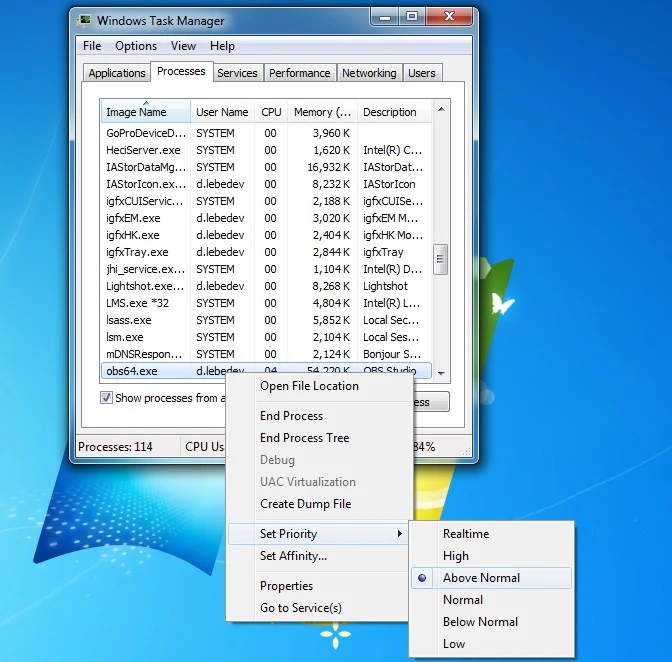
Sometimes the problem isn’t how powerful the system is, but how Windows allocates that power. OBS may be running as a low-priority task without me realizing it, meaning the CPU feeds everything else first and leaves OBS scrambling for leftovers. In Task Manager, I find OBS, choose Go to Process, and bump its priority to Above normal, never High or Realtime, because the game still needs headroom. If the game itself isn’t that demanding, I occasionally push its priority down to Below normal, giving OBS more breathing room.
After that, I return to the game and immediately check whether the stream stabilizes.
Turn game mode off
Game Mode is great when I’m playing off-stream, but when I’m both gaming and streaming, it can work against me. Windows aggressively funnels resources to the game, leaving OBS starved for CPU time. I turn it off by pressing Windows key + I, typing “game mode,” opening Control Game Mode, and switching it to Off. The difference can be dramatic, suddenly OBS has access to the CPU bandwidth it was previously denied.
Upgrade your hardware
Eventually, I have to acknowledge the possibility that no amount of optimization can compensate for aging hardware. Heavy multitasking (capturing gameplay, encoding video, running overlays) really wants a strong processor with multiple cores. CPUs in the range of a modern Intel i5/i7/i9 or a mid-tier AMD chip handle this much more gracefully than older generations.
OBS also leans on the GPU for certain workloads, and a dated graphics card can bottleneck the entire streaming pipeline. When all other fixes fail, upgrading the GPU is often the cleanest way to eliminate persistent encoding overloaded issues.
Try alternative programs
At a certain point, after wrestling with OBS long enough, I’ve had to admit that the problem isn’t my settings – it’s the software. When that happens, I start looking at alternatives. Tools like Bandicam, ShadowPlay, or even old-school Fraps can handle Twitch-style streaming with fewer headaches, depending on the system.
And when I’m focused purely on clean, stable screen recording, I often reach for Movavi Screen Recorder. It’s one of those apps that doesn’t make me fight for basic functionality:
The whole experience is so straightforward that I usually forget I’m “configuring” anything at all.
Conclusion
After digging through encoding errors for years, I’ve learned that an OBS high encoding warning almost always comes down to three paths:
Disclaimer: Please be aware that Movavi Screen Recorder does not allow capture of copy-protected video and audio streams.

Frequently asked questions
When OBS drops the Encoding overloaded warning, it’s your CPU waving a white flag. The encoder can’t keep up with the workload you’re throwing at it, so the only real fix is to reduce that load or redistribute it. Here’s the shortlist of solutions that actually move the needle:
In almost every case, this warning is your CPU waving a white flag. When OBS tries to encode video faster than your processor can handle, frames start piling up, performance tanks, and OBS fires the Encoding overloaded alert. It’s less of a mystery and more of a classic CPU bottleneck: too much work, not enough horsepower.
Encoding overload is OBS’s way of telling you that high-resolution or high-FPS recording has pushed your system past its comfort zone. The encoder can’t keep up with the real-time workload, so OBS shows the warning before your stream or recording turns into a slideshow. It’s a performance ceiling, not a software failure. In the guide above, I break down the most reliable ways to get things running smoothly again.
To dive deeper, check out this guide:



1.5M+ users already subscribed to our newsletter