[SOLVED] Print Screen not Working on Windows 11/10

  • Capture everything, not just your browser tabs
  • Highlight keystrokes and mouse actions
  • Draw on videos in real time

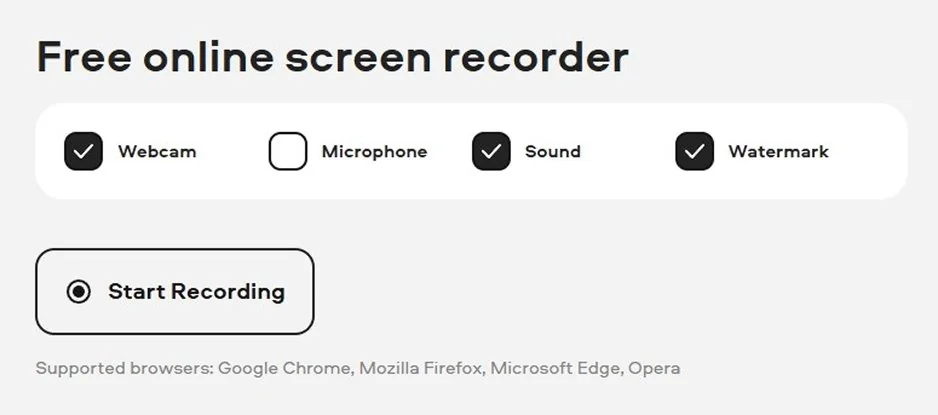
Free online screen recorder

  • Webcam
  • Microphone
  • Sound
  • Watermark

Supported browsers: Google Chrome, Mozilla Firefox, Microsoft Edge, Opera

Edited by
Ben Jacklin
5710

Key takeaways

  • The most common cause of the Print Screen key failing is a background app (like OneDrive, Dropbox) hijacking the shortcut or an Fn-key conflict on laptops.
  • On Windows 10/11, the most reliable hotkey alternative is Win + Shift + S, which triggers the Snipping Tool instantly.
  • If your key is completely broken, you can remap the function or use a reliable third-party tool for screenshots.
  • Always test your keyboard and update your keyboard drivers before trying advanced fixes.
  • For tasks beyond static screenshots, use a dedicated screen recorder to capture video, scrolling pages, or anything dynamic.

As a content creator, I rely on my keyboard, and specifically, the PrtScn key. It’s the quickest, most universal way to grab a quick screenshot on any computer. So, when I hit that button, and nothing happens; no flash, no capture, no image in the clipboard, it throws off my entire workflow. I’ve occasionally had to spend productive time troubleshooting this exact issue, and it often turns out that the solution is never as complicated as it feels in the moment.

While most people who find themselves in this situation tend to assume the key itself is broken, that’s rarely the case. In my experience, the problem usually comes from a background app hijacking the shortcut, a Windows setting that was flipped without you knowing, or a simple keyboard driver issue. After running into this a few times, I’ve had to test all the known solutions, from basic key combinations to deep system registry tweaks, and I’ve compiled the fastest, most effective methods here.

In this guide, I'm going to walk you through the hierarchy of fixes I use personally. We’ll start with the quick checks (like the Fn key) and move to the more complex options, detailing why your print screen is not working on Windows 11 or Windows 10. By the end, you'll have the best alternatives to ensure you never miss a screen grab again, even if the dedicated key stays permanently stubborn.

disclaimer_person
Our goal is to provide you with only verified information. To ensure this, Movavi Content Team does the following:
  • When selecting products to include in our reviews, we research both demand and popularity.

  • The team tests all the products mentioned in this article.

  • When testing, we compare the key characteristics of the products, which include selecting capture area, schedule recording, showing keystrokes and mouse, and other significant features.

  • We study user reviews from popular review platforms and make use of this information when writing our product reviews.

  • We collect feedback from our users and analyze their opinions of Movavi software as well as products from other companies.

Why is my print screen not working? Quick fixes

Before jumping into fixes, it usually helps to understand what typically breaks the Print Screen function; otherwise, you may spend hours troubleshooting like me before I got it right. Interestingly, the issue usually falls into one of these categories. I've broken down the most reliable solutions I've used into a simple action table as seen below.

Method

Description

Check the Fn key (Laptop users)

On many laptops (like HP, Dell, Lenovo), the PrtScn key is secondary. You may need to press Fn + PrtScn. Some BIOS settings can even switch the default state, meaning you have to press Fn every time.

Check for conflicting background apps

The most common culprit is an app that has taken control of the PrtScn hotkey. I’ve seen this happen with cloud storage apps like OneDrive and Dropbox (which try to save the screenshot to the cloud immediately), or third-party apps like software recording tools. Try closing any recently installed or background apps and test the key again.

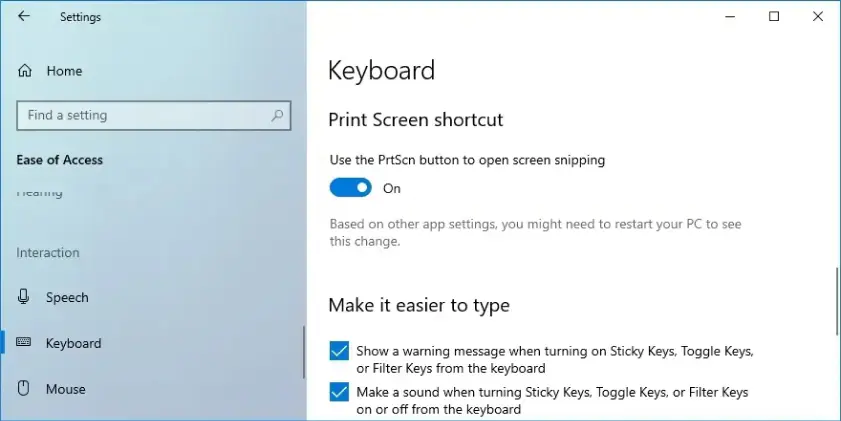
Reset the PrtScn key to Snipping Tool

In Windows 11: go to Settings, Accessibility, Keyboard and enable Use the Print Screen button to open screen snipping. This reassigns PrtScn to the Snipping Tool.

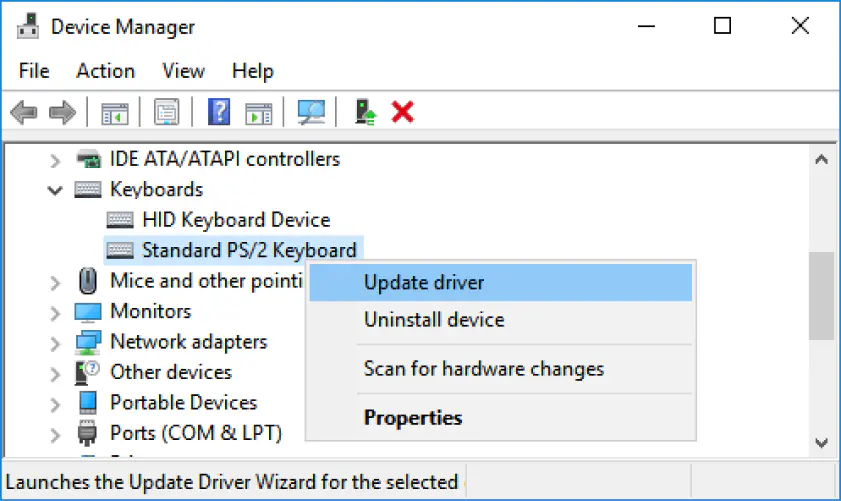
Update keyboard drivers

Outdated or corrupted drivers can break the PrtScn function. To resolve this, you need to open Device Manager, update your keyboard driver, and restart your PC.

Use an alternative hotkey

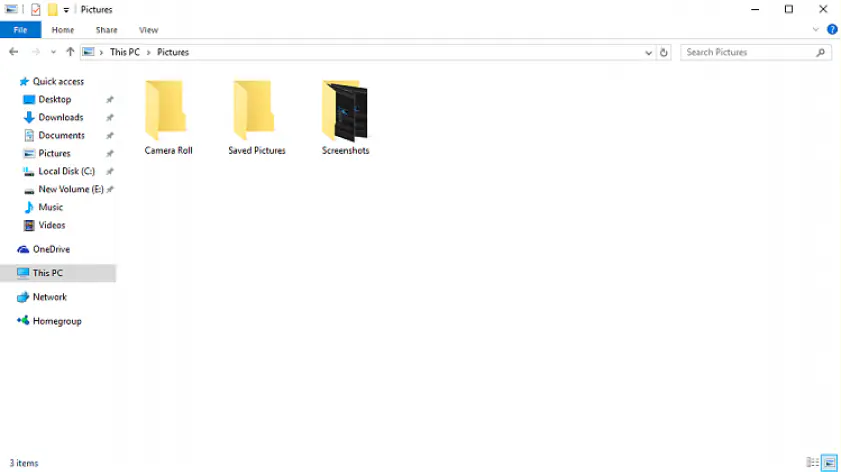
If a dedicated hotkey is not functional, you can try a combination of Alt + PrtScn ( for the active window) or Win + PrtScn ( for full screen, which is saved to the Screenshots folder). These often bypass any potential conflicts.

Try the Windows Snipping Tool (Win + Shift + S)

This is the official and, frankly, the best alternative. It completely bypasses the function of the old PrtScn key. You press Win + Shift + S to bring up a capture overlay, giving you various selection modes (rectangle, freeform, window, full-screen).

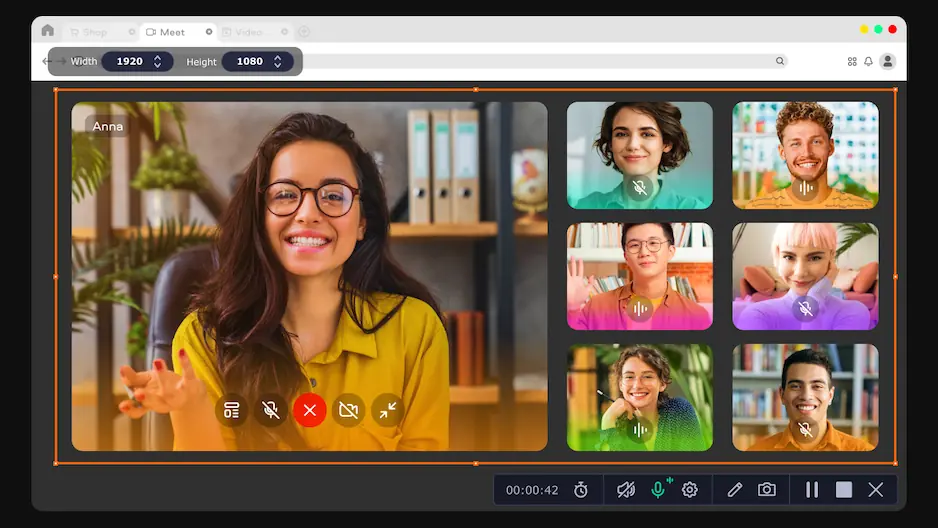
Why I picked it: It runs entirely in the browser, making it one of the simplest yet effective ways to capture your screen when the Print Screen key or Snipping Tool can’t handle the job.

I find tools like this very handy, especially when something goes wrong with the ‘special’ Print Screen hotkey. Rather than have me stranded, scrambling for quick fixes, Movavi Screen Capture simply provides a quick, browser-based alternative solution for capturing anything static or dynamic on my screen. Moreover, when I need to grab a scrolling page, record a step-by-step process, or capture motion for a tutorial, the native Windows tools immediately hit their limits.

Movavi Screen Capture, on the other hand, fills that gap without requiring me to install software or change any system settings. I also like the fact that it runs directly in the browser, which is the main reason I keep it bookmarked. With the extension just a click away, I can start a recording in seconds and save the video immediately to my device.

For someone who constantly switches between computers, I would always choose the convenience of Movavi Screen Capture over the uncertainty of Print Screen hotkeys. In practice, it feels like a lightweight but more capable alternative to native print screen, especially when I need something smoother for walkthroughs, live tabs, or detailed processes.
Pros:
  • Simple interface and quick start

  • Captures full screen, tabs, and scrolling areas directly from the browser

  • No installation, login, or desktop software required

  • Saves recordings instantly to your device without extra steps

Cons:
  • Requires a stable internet connection to run smoothly

  • Some features need a browser extension

  • Not as feature-rich as dedicated desktop recorders

Final verdict: If my goal is a quick static screenshot, I will always fix the PrtScn key or use Win + Shift + S. But for anything professional, dynamic, audio-based, and of higher quality, especially for content I plan to upload or use in a project, the flexibility and capture capabilities of Movavi Screen Capture are far superior to any basic screenshot tool.

Quick summary of top 6 fixes for Print Screen not working

Here’s a quick summary of the most effective fixes from the guide above:

Fix 1: Check the Fn key

Many laptops require a combination of Fn + PrtScn keys instead of a single key press.

Fix 2: Close conflicting background apps

Apps like OneDrive and Dropbox with screenshot utilities often hijack the PrtScn hotkey.

Fix 3: Reassign PrtScn to Snipping Tool

In Windows 11, turning on Use the Print Screen button to open screen snipping restores functionality instantly.

Fix 4: Update keyboard drivers

Outdated or corrupted keyboard drivers prevent Windows from registering the key.

Fix 5: Use hotkey alternatives

Win + Shift + S for Snipping Tool, Win + PrtScn for auto-save, or Alt + PrtScn for active-window captures.

Fix 6: Use an alternative application – Movavi Screen Recorder

Why I picked it: It is an all-in-one software with advanced capture options that the basic Windows tools simply cannot match, giving me the flexibility to capture any type of dynamic content.

Sometimes, even when the PrtScn key is working, it's just not enough. It only gives you a static screenshot with no quick editing, and certainly no scrolling capture. If you need to capture dynamic content, like instant screen grab, recording a how-to video, grabbing a quick GIF, or scheduling a capture of a live webinar, you need a different tool. That's why I keep Movavi Screen Recorder on my desktop.

Movavi Screen Recorder is a dedicated desktop software that goes far beyond a simple screenshot tool. I use it when the complexity of the capture demands more than the native Windows features. When my print screen is not working on Windows 10 or 11, and I need a professional-grade alternative, Movavi is my solution because it can record my screen, system audio, and microphone simultaneously. I recently noticed the addition of scheduled recording in the latest software update, which is a huge time-saver for catching live streams or webinars I can't attend.

Pros:
  • Video capture with a high-quality system and audio option

  • Includes an editing suite for trimming screen capture and recordings

  • Features easy-to-add basic After Effects

  • Supports scheduled recordings

  • You can set customized hotkeys for quick accessibility

Cons:
  • It is a paid software, unlike the free built-in Windows tool

  • Free trial often includes a watermark on recordings

Conclusion

When the print screen not working issue hits, I recommend tackling it in stages. First, check the simple stuff: is it an Fn key issue on your laptop? Did a cloud storage app hijack the hotkey? These fixes work nine times out of ten. If you’re still stuck, I strongly encourage you to skip the complicated driver or registry fixes and immediately switch to the Win + Shift + S Snipping Tool shortcut. It’s faster, more precise, and frankly, a much better overall tool than the original PrtScn button.

If you’re wondering how to take a screenshot on Windows without Print Screen or what to use for complex capture needs, like recording a how-to guide or a scrolling chat log, the online Screen Recorder is the way to go. It offers a solution when the native PrtScn key and the Snipping Tool reach their limits. Don't waste time on endless troubleshooting– use one of the tested fixes or switch to a better app and get back to work.

Ultimately, your screen capture strategy should be flexible. By adopting this approach, you minimize frustration and ensure you always have the right tool for the job, whether it's a simple picture or a complex tutorial. The key is to be pragmatic; if a small troubleshooting step fixes the problem, great! If not, don't waste precious time. Pivot to the Snipping Tool or an external solution and focus on your productivity.

Movavi Screen Recorder
The perfect way to record anything from your screen

Disclaimer: Please be aware that Movavi Screen Recorder does not allow capture of copy-protected video and audio streams.

Movavi Screen Recorder

Frequently asked questions

How do I get my print screen key to work?

First, check for the Fn key combination (on laptops) and close any background apps like OneDrive or Dropbox that may have hijacked the hotkey. Then, check your Windows settings to ensure the PrtScn button is mapped correctly to open the Snipping Tool.

Why is my screenshot not working?

The screenshot is not working because either your keyboard driver is outdated, a new software has created a hotkey conflict, or your system is trying to save the image to a location that doesn't exist. I fix this by using Win + Shift + S to bypass the issue entirely or by updating drivers.

What are three ways to take a screenshot on a PC?

I rely on three main methods: 1. The original PrtScn key (if it works). 2. The Snipping Tool shortcut (Win + Shift + S). 3. The Win + PrtScn combination, which saves the image directly to the Screenshots folder.

Why is command shift 4 not working?

The command shift 4 not working issue is specific to Mac computers, not PCs running Windows. If you are on a Mac, check for software conflicts or verify that your keyboard settings haven't been remapped.

Have questions?
Have questions?
If you can’t find the answer to your question, please feel free to contact our Support Team.
Join us for discounts, editing tips, and content ideas

1.5M+ users already subscribed to our newsletter

By signing up, I agree to receive marketing emails from Movavi and agree to Movavi's Privacy Policy.