


How to Use QuickTime to Record a Screen with Audio

  1. Locate and install the special Soundflower plug-in.

  2. Specify the audio input and output settings.

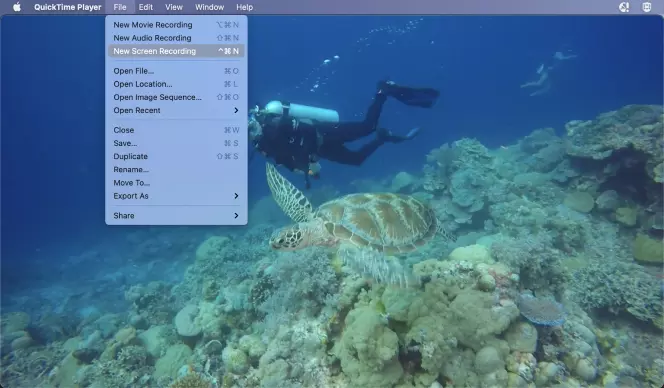
  3. Open QuickTime and select New Screen Recording from the File menu.

Prefer a solution that works without additional plug-ins? Try Movavi Screen Recorder as a real alternative!

By clicking the download button, you're downloading a trial version of the program.*

Edited by
Ben Jacklin
4003

Many built-in recorders skip proper audio capture, leaving you with thin or fuzzy sound – hardly ideal. Below is a quick walk-through on recording your Mac screen and a few practical workarounds for getting crisp audio when using QuickTime.

Feature

Is it available in QuickTime?

Screen recording

Yes, but you will need to add audio or download a plugin to record system audio.

System audio recording

Not natively. QuickTime needs Soundflower to reroute internal audio into the recorder.

disclaimer_person
Our goal is to provide you with only verified information. To ensure this, Movavi Content Team does the following:
  • When selecting products to include in our reviews, we research both demand and popularity.

  • The team tests all the products mentioned in this article.

  • When testing, we compare the key characteristics of the products, which include selecting capture area, schedule recording, showing keystrokes and mouse, and other significant features.

  • We study user reviews from popular review platforms and make use of this information when writing our product reviews.

  • We collect feedback from our users and analyze their opinions of Movavi software as well as products from other companies.

How to record a screen and audio

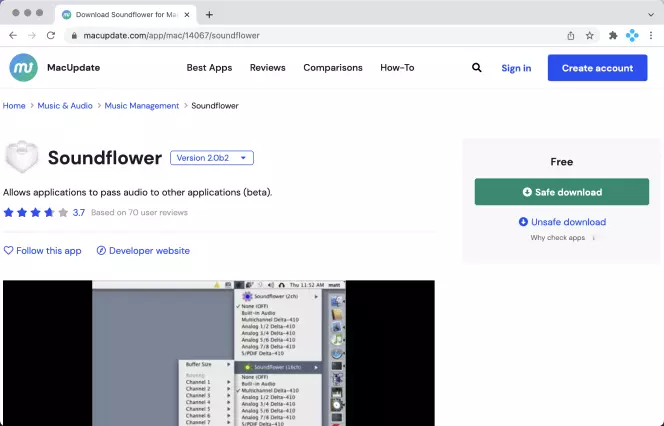
Soundflower is a free virtual audio device for macOS. It creates an internal audio channel that QuickTime can read, letting you capture your screen with sound. To install it, follow these steps:

Step 1. Open the Soundflower download page in your browser

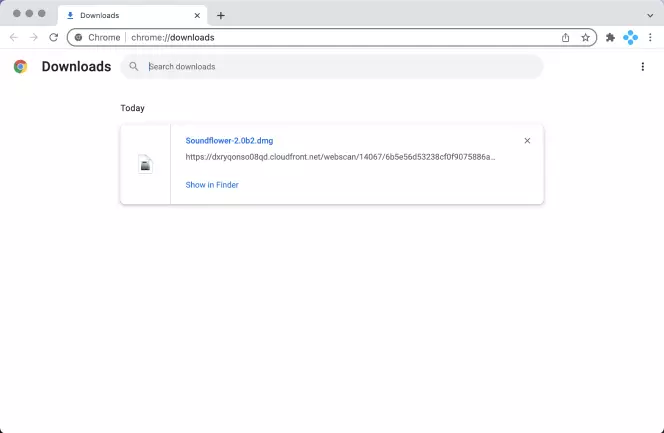
Step 2. Open the Soundflower DMG

from the lower-left corner of your browser window, or locate it in your Downloads folder using ⌥ (Option) + ⌘ (Command) + L.

Step 3. Once you run the DMG, the installer appears

Follow the prompts to complete the setup.

Step 4. When the installation is done, restart your Mac

After that, you’re ready to make your first QuickTime screen recording with audio.

QuickTime screen recording with audio

With Soundflower installed, you're finally set up to record screen and audio in one clean pass. Before recording a Zoom call, a web clip, or anything inside QuickTime, you’ll need to configure your audio settings. Here’s how to link Soundflower with QuickTime:

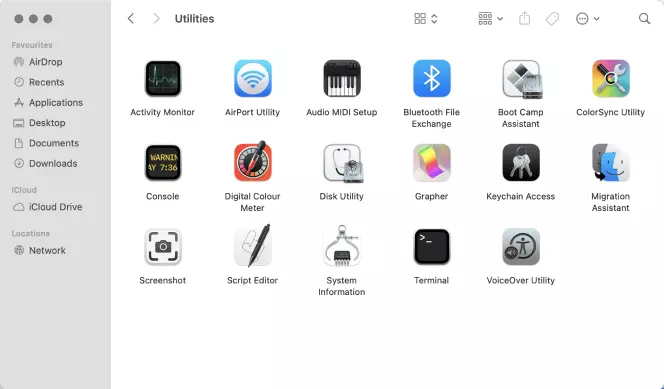
1. Open a Finder window and head over to the Applications folder – it’s usually right where you expect it.

2. Scroll until you spot Utilities, then open it.

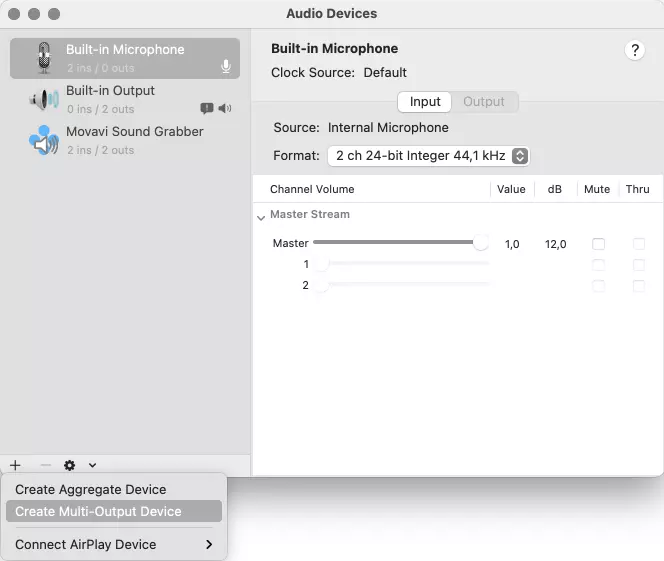
3. Look for Audio MIDI Setup and start it up with a double-click.

4. In the bottom-left corner of the window, hit the little + sign.

5. From the options that drop down, choose Create Multi-Output Device.

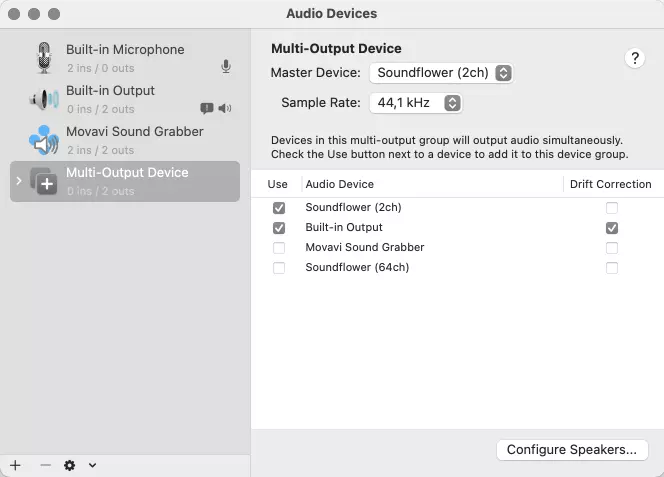
6. You’ll see a list of audio devices show up. Find Soundflower (2ch) and tick the box beside it. The checkmark should appear instantly. While you’re in there, make sure Built-in Output is also checked – both need to run together so your Mac knows where to send the sound.

7. On the right side, there’s a column called Drift Correction. Only Built-in Output needs a checkmark here, so leave everything else as is.

8. At the very bottom left, click the small Settings gear and choose Use this device for Sound Output.

Now that the audio routing is in place, QuickTime can actually pick up what your system is playing. To start a proper QuickTime screen recording with sound, follow these steps:

1. Open QuickTime Player from your Applications folder.

2. Go to the File menu and choose Open File, then load the video you want to display while recording.

3. Move to the moment you plan to capture, then open the File menu again and pick New Screen Recording.

4. You’ll see a dashed rectangle pop up along with a small menu bar. Here you can pick whether to record the full screen, only a section of it, or just a single window. This area also gives you quick access to screenshot tools if you ever need them.

5. Click Options and choose Other location, then tell QuickTime where to save the finished recording.

6. Once you’ve selected the part of the screen you want to capture, click Record to begin.

7. While the recording is running, glance at the top-right side of your menu bar – a Stop icon appears there. Click it whenever you’re ready to wrap up.

8. When you stop the recording, QuickTime automatically opens the new video so you can check it right away.

Recording your iPhone/iPad screen with audio with QuickTime

QuickTime isn’t just for your Mac’s desktop – it can capture what’s happening on your iPhone or iPad too, sound included. The setup is straightforward, and once you’ve done it one time, the whole process becomes muscle memory. Follow these steps:

  1. Connect your iPhone or iPad to your Mac.
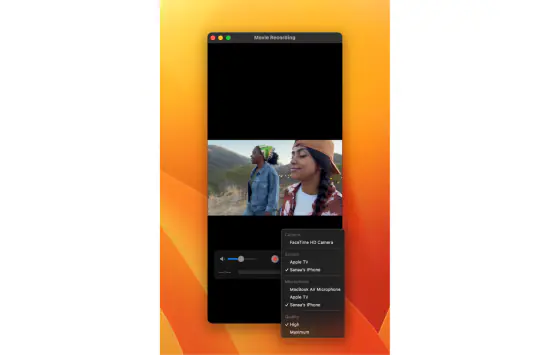
  2. Open QuickTime, go to File, and choose New Movie Recording.
  3. Next to the red Rec button, open the small drop-down menu and select your device for both the camera source and microphone input.
  4. Hit the Rec button and record whatever you’re doing on your device.
  5. Tap Stop when you’re finished.

One thing to note: this method doesn’t capture your Mac’s system audio – only sound coming from the mobile device.

QuickTime recorder’s pros and cons

Pros:
  • Free and built into every Mac, no extra downloads required.

  • Works with iPhone and iPad if you want to capture mobile screens.

  • Beginner-friendly – most people can figure out the basics instantly.

Cons:
  • Capturing screen audio from the computer itself takes a bit of setup.

  • When you rely on Soundflower, you won’t hear the computer’s audio while recording.

  • You have to wait until the recording finishes before confirming whether the audio actually turned out right.

Where are QuickTime recordings saved?

By default, QuickTime drops your finished screen recordings into your Documents folder. If you prefer a different destination, click Options before you start recording, choose Other Location, and pick any folder you like. Forgot to set one? No problem – open Finder and search for Screen recording. The newest file should be your latest video, which you can rename or move wherever you want for easier access later.

QuickTime alternatives

Program

Best for

Download

Capturing any kind of video on Mac or PC, with system or mic audio

Free screen recording and streaming for budget-conscious users

Browser-based screen recording for people who dislike installing apps

1. Movavi Screen Recorder

Best for: capturing all sorts of videos on Mac or PC
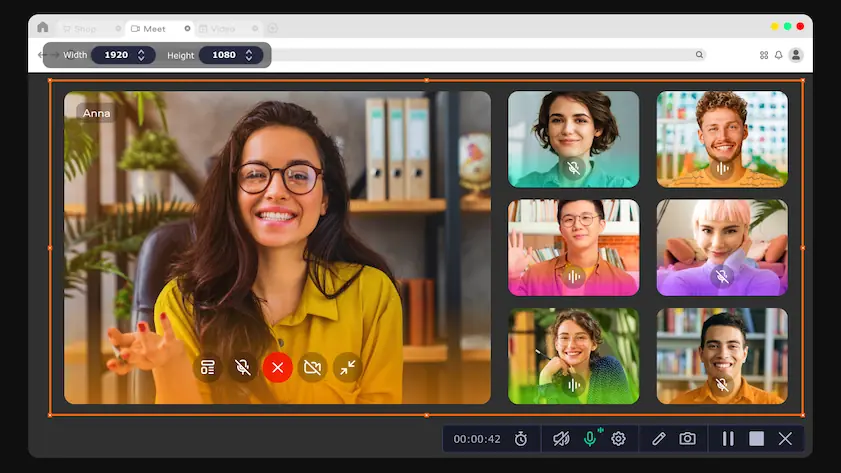
Key features:

  • Record your voice while presenting and share a polished recap afterward.
  • Save anything on your screen in HD or 4K to keep your workflow running smoothly.
  • Capture full-screen images or small sections, then make quick edits and send them off through email or your favorite messaging apps.
  • Annotate videos, show keystrokes, and highlight mouse movements to make tricky steps easier to follow.
  • Upload directly to YouTube or Google Drive without hopping between extra windows.

Movavi Screen Recorder is one of those rare download-and-go tools that quietly does just about everything you need. Missed a webinar? Hit record. Want a replay of that chaotic online meeting? Done. Building a step-by-step tutorial or just snagging a quick desktop clip? It handles all of it without complaint. And whether you’re on macOS or Windows, the experience stays blissfully uncomplicated – no labyrinthine menus, no hulking software footprint, just a clean, streamlined way to capture whatever’s happening on your screen before the moment slips away.
Pros:
  • Capture system sound, mic input, and speaker audio with clean, clear quality.

  • Schedule recordings in advance and watch them whenever you have time.

  • Export in virtually any popular video format.

Cons:
  • Some creative features are available only in the full version.

2. OBS Studio

Best for: live streaming when you’re working with a tight budget

Key features:

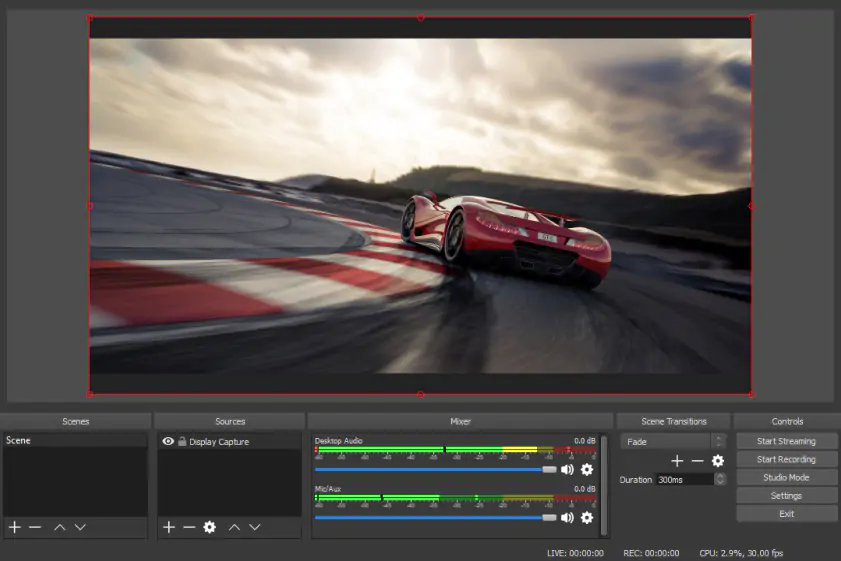
  • Real-time capture and mixing for both video and audio.
  • An approachable audio mixer that lets you add filters like noise gates, gain adjustments, and suppression tools.
  • A modular interface you can rearrange to match your workflow.

OBS Studio didn’t stumble into fame – it earned it. The app is open-source, wildly adaptable, and suspiciously powerful for something that costs exactly zero dollars. Want to record your screen? Easy. Stream straight to Twitch or YouTube? Also easy. Build a layered setup with gameplay, slides, and whatever else you can throw at it? That’s where OBS really flexes. And thanks to built-in webcam support, adding your face to the corner of the screen is a one-click affair, whether you’re explaining a workflow or narrating your gaming triumphs in real time.

Pros:
  • High-quality video output without compression issues.

  • Completely free and watermark-free.

  • Deep customization options for users who like to fine-tune their setup.

Cons:
  • Microphone recording isn’t as intuitive as it could be.

  • Older or underpowered desktops may experience lag.

  • Beginners often face a learning curve before they feel at home in the interface.

3. Screencapture.com

Best for: online screen recording with zero installation required

  • Price

    free plan, paid plan for $9.95/month

Key features:

  • Scheduling tools that let you queue up recordings ahead of time, so you’re not stuck babysitting your screen while a timer counts down.
  • A picture-in-picture feature that lets you float a little webcam bubble on top of your capture, giving the whole thing a more personal, less-mysterious narrator vibe.
  • The option to record system audio and your microphone together – a lifesaver for walkthroughs, reactions, or any moment when your voice needs to share the stage with your computer.

Screencapture.com keeps things refreshingly simple: fire up a recording right in your browser when you’re in a hurry, or grab the standalone app if you want to fiddle with more advanced settings. It’s perfect for anyone who’d prefer not to adopt yet another heavyweight desktop program. Just keep in mind that the free plan stamps your video with a watermark, so if you’re aiming for something clean and presentation-ready, an upgrade might be worth the few extra bucks.

Pros:
  • Prioritizes privacy, especially for sensitive recordings.

  • Fast processing speeds, even when exporting HD content.

  • Lets you pick between system audio, microphone audio, or both.

Cons:
  • Free version adds a watermark to final videos.

  • No built-in editing tools for online recordings.

  • More advanced capture features require upgrading or using the desktop app.

In summary: Start recording videos with audio today

QuickTime isn’t hard to work with, but it does ask for a little setup before it behaves the way you want. Once you wrangle Soundflower into place – essentially learning how to use Soundflower with QuickTime – the whole ordeal suddenly feels… surprisingly normal. Open QuickTime, tap Record, and enjoy an effortless Quicktime record screen with audio moment that feels like nothing ever required a workaround. And if tinkering with virtual audio devices isn’t your idea of a good time, don’t worry – plenty of screen-capture tools spare you the setup. Browser-based recorders, dedicated desktop apps, take your pick. If you want something quick, friendly, and blessedly intuitive, try Movavi Screen Recorder. It’s the kind of tool that makes you forget you ever spent an afternoon coaxing QuickTime into recording your audio. Editing, trimming, sharing – it all happens faster than you expect.

Movavi Screen Recorder
The perfect way to record anything from your screen

Disclaimer: Please be aware that Movavi Screen Recorder does not allow capture of copy-protected video and audio streams.

Movavi Screen Recorder

Frequently asked questions

Does Mac QuickTime screen recording record audio?

Not on its own. QuickTime plays shy with system audio until you add Soundflower into the mix. Once it’s installed and properly routed, you’ll get clean sound from whatever you’re watching or playing. And if you’re planning a tutorial or narration-heavy demo, you can always drop in your voiceover later.

How do I record my screen and audio at the same time on a Mac?

  1. Install Soundflower and finish the setup.
  2. Open your video in QuickTime.
  3. Choose the option to record a specific window.
  4. Hit Record.
  5. When you’re finished, click the Stop icon in the menu bar.

How do I record internal audio on a Mac without SoundFlower?

If tinkering with virtual audio routing sounds like a weekend you didn’t sign up for, you’re not alone. Apps like Movavi Screen Recorder, OBS Studio, and Screencapture.com can snag internal audio without making you jump through technical hoops. Movavi, especially, leans into the “let’s keep this painless” approach – quick to learn, easy on the wallet, and perfect for those moments when you just need to hit record and get on with your life.

What is Soundflower?

Think of Soundflower as a tiny, invisible cable living inside your Mac. It redirects your computer’s audio straight into whatever recording app you’re using. During a screen capture, it hands that sound directly to QuickTime (or any recorder), giving you a clean, consistent audio track in the final export.

Why does my Mac screen recording have no sound?

A few likely culprits:

  • QuickTime might not be using the right microphone. Next time, open Options and select Built-in Microphone.
  • The app may not have mic permissions. Head to System SettingsSecurity & PrivacyMicrophone and toggle QuickTime on.
  • If you’re trying to grab internal audio, you’ll need Soundflower installed first.

How do I turn on my microphone for QuickTime?

To give QuickTime access to your mic:

  1. Open System Preferences.
  2. Go to Security & Privacy > Microphone.
  3. Find QuickTime in the list and enable permission.

For more details, check Apple’s official guidance below:

Go to the Apple Support page

Have questions?
Have questions?
If you can’t find the answer to your question, please feel free to contact our Support Team.
Join us for discounts, editing tips, and content ideas

1.5M+ users already subscribed to our newsletter

By signing up, I agree to receive marketing emails from Movavi and agree to Movavi's Privacy Policy.

