
Best Free DVD Rippers

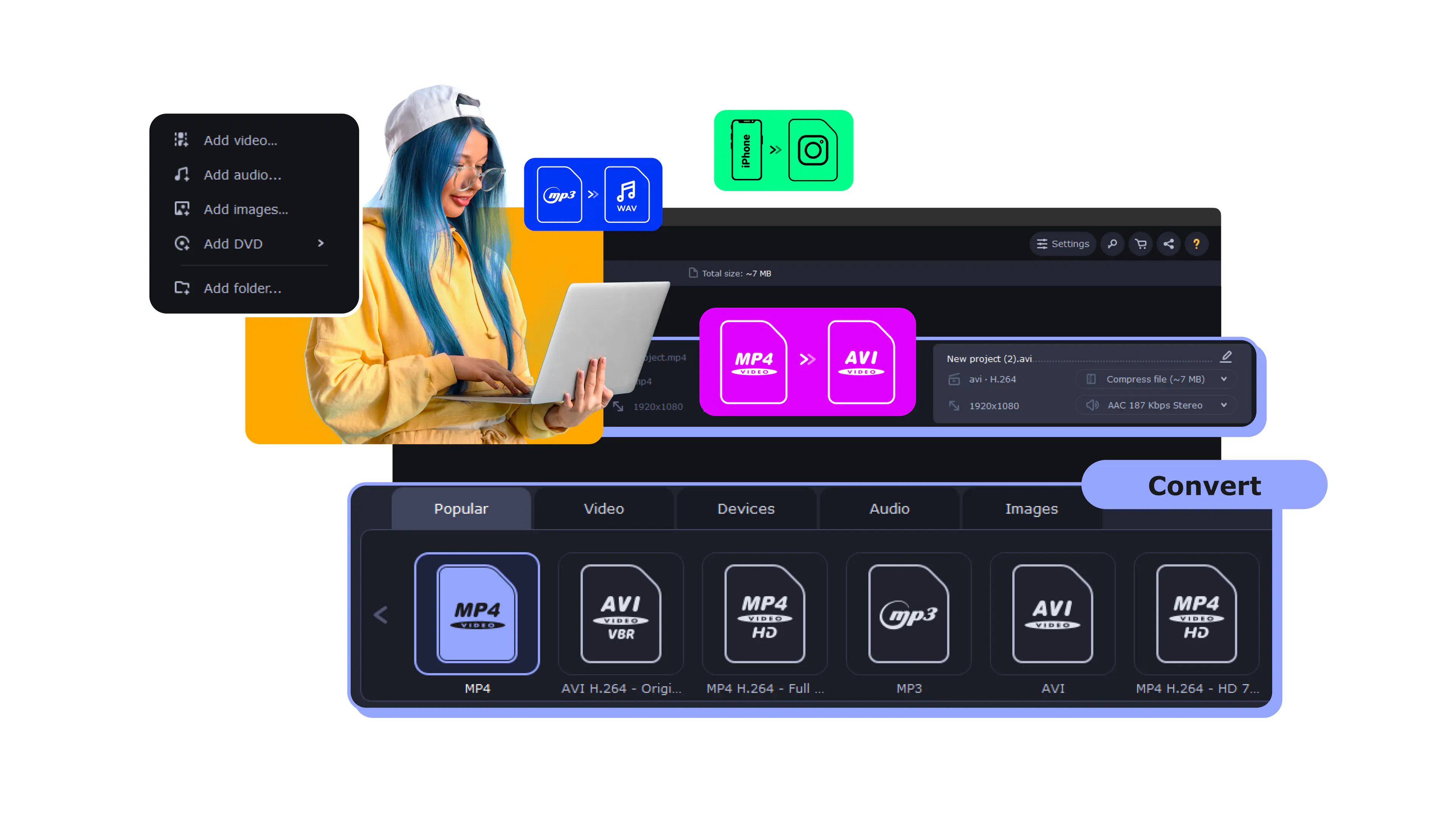
Movavi Video Converter
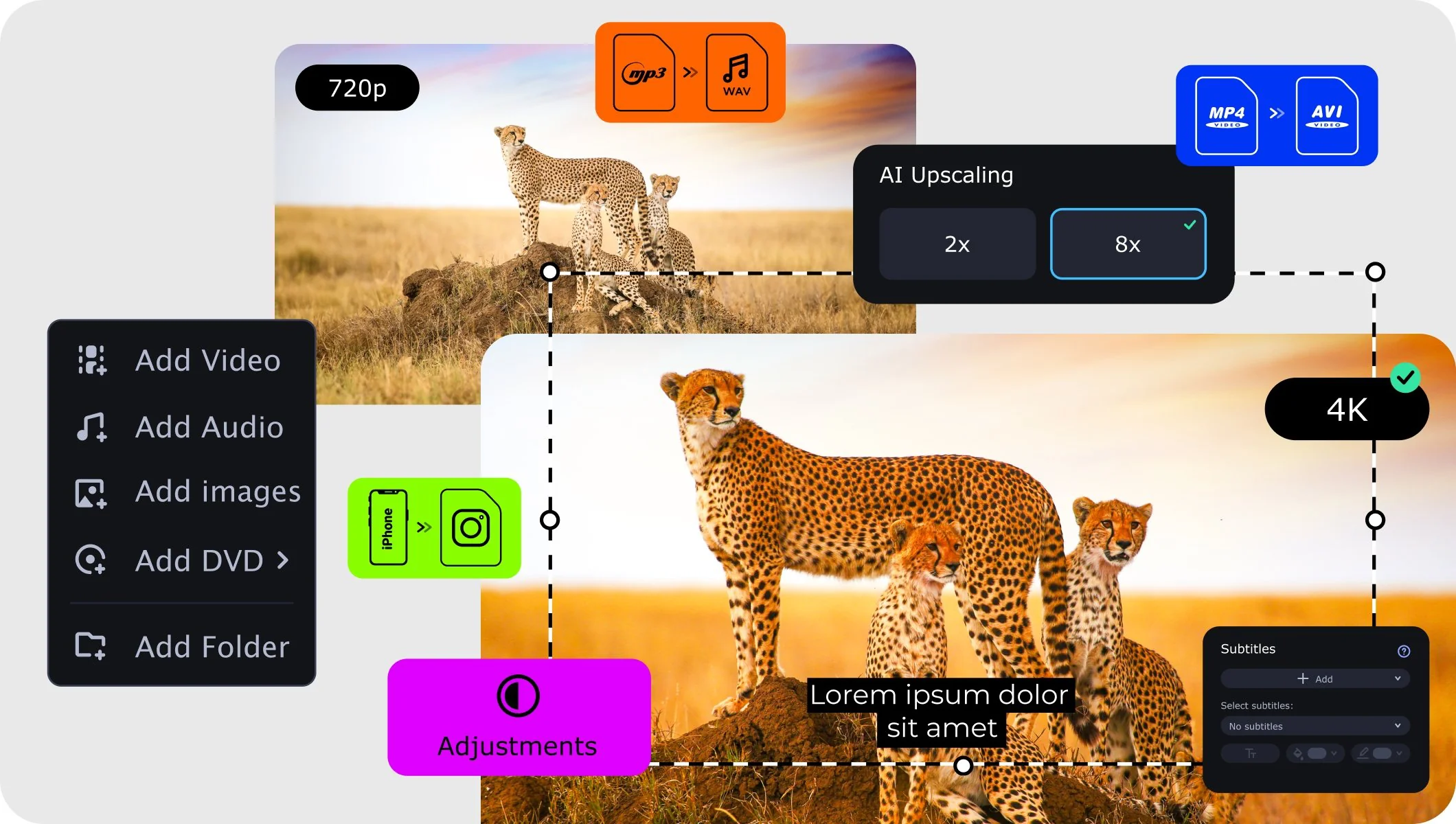
  • Lightning-fast conversion
  • Batch processing of files – any number, any size
  • No quality loss, even with 4K videos
  • Easy editing and compression
Edited by
Ben Jacklin
6186

Key takeaways

  • I used the same small stack of DVDs for every test, including one scratched disc that usually freezes halfway through. Movavi Video Converter, DVDFab DVD Ripper, HandBrake, MacX DVD Ripper Pro, and WonderFox DVD Ripper Pro coped with that lineup better than the rest.
  • There is no universal best DVD ripper. Some programs feel almost automatic, others hand you every setting and quietly expect you to know what to do with it.
  • If paying zero matters most, HandBrake stands out as the best free DVD ripper in this group, though it behaves better with unprotected discs and rewards a bit of patience.
  • The right tool depends on what kind of disc you are dealing with. A shiny new store bought movie and a dusty home video from 2004 can behave very differently.

Over a few late evenings, I pulled a stack of DVDs off the shelf and ran them through different rippers. Part curiosity, part laziness. I did not want to keep swapping discs just to rewatch one scene. I tried everything from a simple free DVD ripper to heavier programs with advanced controls. Some conversions finished before I had washed my mug, while others sent me digging through menus and readjusting bitrate because the file looked slightly off.

I watched speed, picture clarity, format options, and how each piece of DVD ripping software handled protected or scratched discs. One early 2000s movie with tiny scuffs became my benchmark. Not every program managed it well. The ones that did, without turning the process into homework, made this list.

My top picks

Best overall: Movavi Video Converter
Clear interface, very fast processing, and no extra steps. It just handles DVDs without turning it into a project.

Best free option: HandBrake
Free, flexible, and precise. You control every setting, but it expects you to know what you’re doing.

Best for protected DVDs: DVDFab DVD Ripper
Works with commercial discs that often fail elsewhere, especially newer releases.

Best for Mac users: MacX DVD Ripper Pro
Built for macOS and noticeably stable with difficult or older discs.

Best for occasional use: Freemake Video Converter
Simple layout and ready presets make it suitable for quick, basic conversions.

Comparison table of the best DVD rippers

Program

OS

Main advantages

Download

Windows, macOS

Fast processing, clean interface, 180+ formats, hardware acceleration

Windows, macOS

Strong copy-protection support, frequent updates, AI tools

Windows, macOS, Linux

Free and open source, deep encoding control, batch processing

Top 10 DVD rippers

Why I picked it: excellent balance of speed, quality, and ease of use.

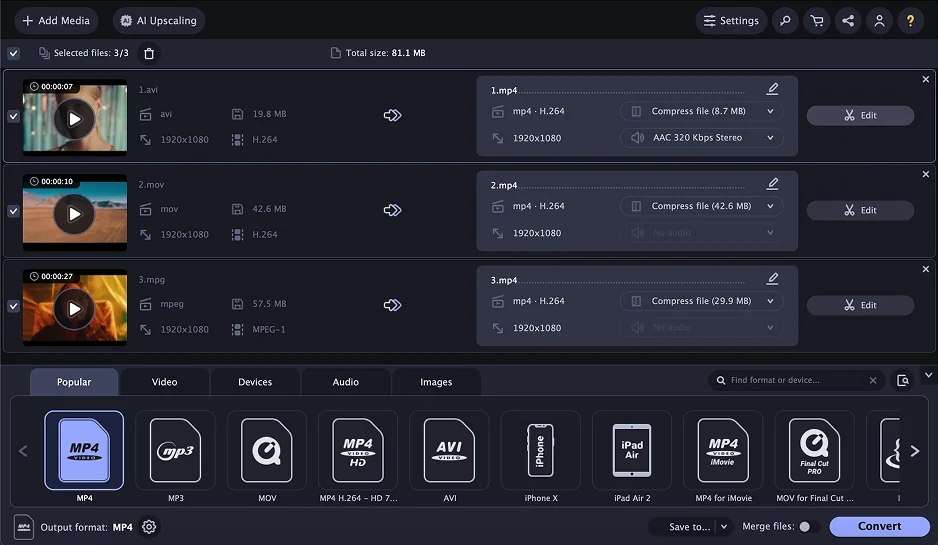
Movavi Video Converter keeps DVD digitization simple. Add DVD files, choose the format, and start converting. With more than 180 output profiles, it supports most common formats and devices, while advanced settings remain available for finer adjustments.

Speed stands out immediately. SuperSpeed mode skips re-encoding for compatible files, cutting processing time significantly. A full-length movie converted much faster than expected, with picture quality matching the source. GPU acceleration on supported systems further reduces wait times, making large files and batch jobs easier to handle. Once converted, the video is saved locally, so you can watch it offline without needing the original disc.

The interface stays clean and practical. Drag-and-drop works smoothly, and trimming, changing audio tracks, or compressing file size can be done without leaving the main window. Batch conversion processes multiple files in one session without noticeable slowdowns.
Ratings

Why I picked it: strong with protected DVDs and packed with smart extras.

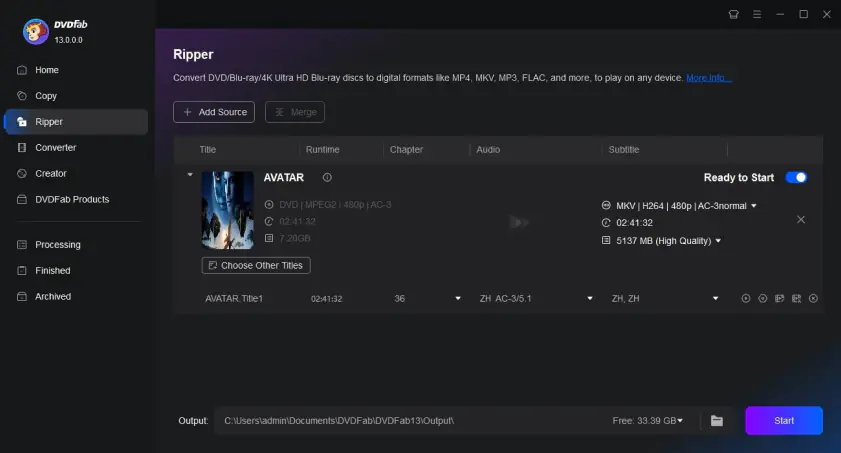
DVDFab DVD Ripper handles commercial DVDs with strong compatibility, including newer releases and complex disc structures that often cause errors. Frequent updates address current copy protections, reducing the risk of failed backups. When I tested it with a recent disc, analysis finished quickly and switching between output profiles felt smooth.

Output flexibility is a clear advantage. Compressed formats reduce file size for portable storage, while lossless MKV preserves original video, audio tracks, and subtitles. Hardware acceleration keeps conversions stable and reasonably fast, even with larger files.

AI tools extend beyond basic ripping. The video enhancer sharpens details and adjusts color balance, with optional upscaling. Subtitle Generator AI, introduced in the latest update, creates multilingual SRT files directly from disc audio using speech recognition. Clear title selection and practical editing controls keep the workflow efficient without unnecessary clutter.

Ratings

Pros:
  • Handles a wide range of encrypted DVDs and output profiles

  • Supports hardware acceleration for faster ripping on compatible systems

  • Includes advanced AI upscaling and enhancement options

Cons:

Why I picked it: free, flexible, and reliable for careful manual control.

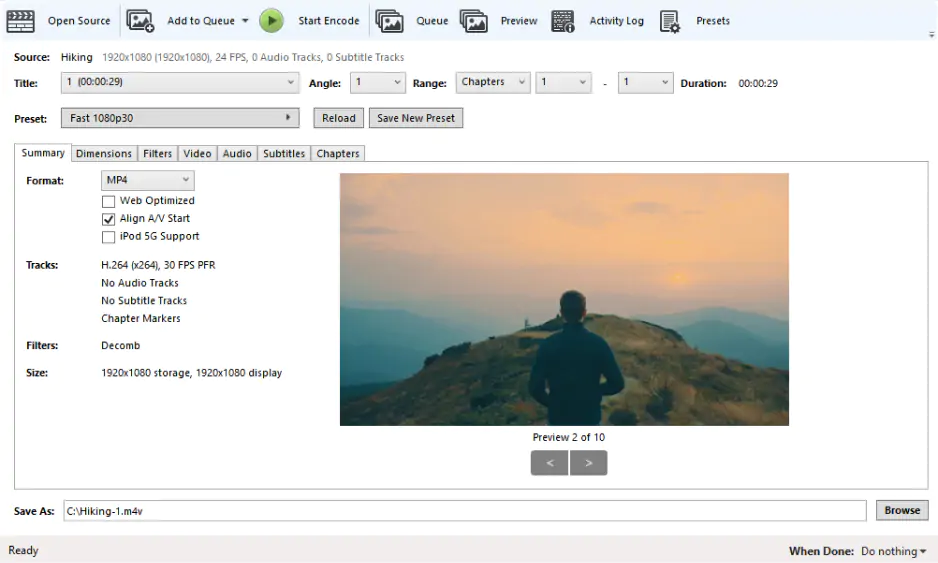
HandBrake is a free, open source video transcoder focused on control. It converts DVD content into MP4, MKV, and WebM, with precise selection of titles, chapters, audio tracks, and subtitles before encoding. It works best with unprotected discs and VIDEO_TS folders, so encrypted DVDs require additional steps.

Customization is where it opens up. Presets cover general use, web uploads, and popular devices, but the depth lies in the manual controls. Bitrate, resolution, frame rate, codecs, and compression can all be adjusted. When I tested a conversion, small bitrate changes noticeably affected file size and clarity. Presets offer a reliable base, while manual tweaks allow careful balancing of quality and storage space.

Hardware acceleration on supported systems reduces encoding time during longer jobs. Batch queuing runs multiple titles sequentially, which helps when processing several discs. The interface is not flashy, but it feels purposeful and built for careful adjustment rather than one-click results.

Ratings

Pros:
Cons:

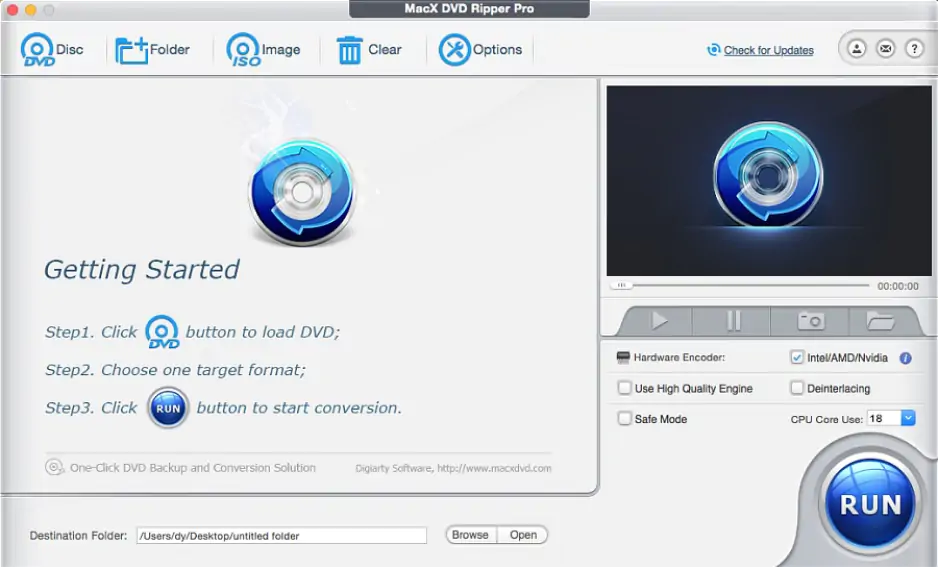
Why I picked it: a solid Mac choice for tricky and damaged discs.

MacX DVD Ripper Pro runs exclusively on macOS and focuses on reading difficult discs. It handles complex DVD structures, including 99-title layouts, older releases, newer movies, and even scratched media that often fail in standard players. This strong compatibility makes it practical for preserving physical collections that other software cannot process.

The interface follows familiar macOS design patterns, keeping the workflow straightforward from disc loading to format selection. In testing with long feature films, conversions remained stable. Multi-core CPU support and hardware acceleration maintain consistent speeds on modern Macs without manual tuning.

Before exporting, specific titles, audio tracks, and subtitles can be selected. Basic tools for trimming and cropping are included, and video can be upscaled to 1080p or 4K. Recent updates add optimized profiles for the iPhone 17 Series, improved handling of newer copy protections, and more accurate automatic audio-video synchronization.

Ratings

4.0

Pros:
  • Handles old, new, 99-title, damaged, or otherwise difficult DVDs successfully

  • Wide support for many output formats and device profiles

  • Fast ripping performance with hardware acceleration and multi-core CPU use

Cons:

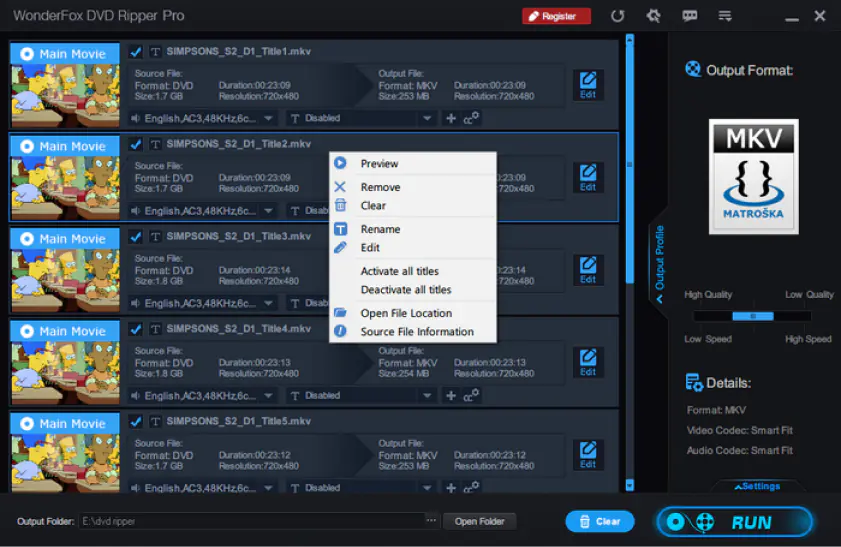
Why I picked it: fast scans and accurate main movie detection.

WonderFox DVD Ripper Pro runs on Windows and keeps the ripping process fast and structured, especially with commercial DVDs. It supports many encrypted discs and automatically detects the main movie in complex multi-title layouts, including 99-title structures. When I tested it with a disc that often confuses other programs, the scan completed quickly and selected the correct title without extra sorting.

The workflow is straightforward. Load the disc, choose a format or device profile, and begin conversion without navigating through layers of settings. Presets for common devices reduce the need for manual adjustments unless specific tweaks are required.

Subtitle and audio controls provide solid flexibility. Subtitles can be embedded as hardcoded, soft, or forced tracks, multiple audio streams can be preserved, and soundtracks extracted separately. Resolution and bitrate are adjustable, while built-in tools manage trimming, cropping, and merging. Batch processing handles several videos in one session, useful for full-season DVDs or larger collections.

Ratings

Pros:
  • Fast ripping with hardware acceleration and optimized encoding

  • Wide support for common DVD formats and many output options

  • Includes basic editing tools like trimming, cropping, and subtitle handling

Cons:
  • Only available on Windows, no Mac support

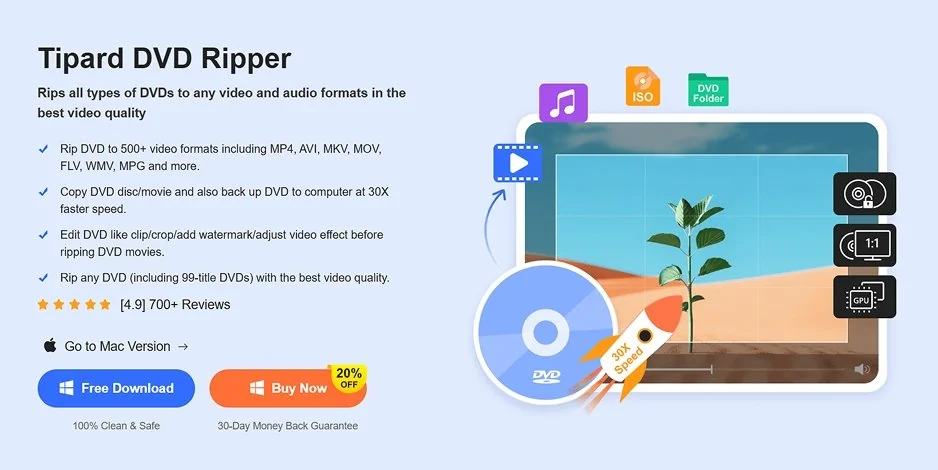
Why I picked it: huge format support with built-in editing tools.

Tipard DVD Ripper packs in more than 500 video and audio formats, so moving between devices or editing software rarely calls for extra tweaking. A disc can be converted right away or saved as an ISO image for backup, which is handy when archiving a collection.

Load a DVD and the preview window lays out the structure clearly. Titles, chapters, audio tracks, and subtitles are easy to spot and select. I tried it with a multi-episode disc, and the scan finished quickly, with episodes arranged in a way that made sense. Hardware resources work in the background to keep longer conversions steady.

Editing tools are built into the main interface. Clips can be trimmed or merged, brightness and contrast adjusted, and watermarks added if needed. Output settings allow detailed control, and audio tracks can be extracted as MP3 or AAC. AI upscaling is included as well, sharpening DVD video toward 1080p or 4K for better results on larger screens.

Ratings

4.5

Pros:
Cons:
  • Relatively high price compared to some alternatives

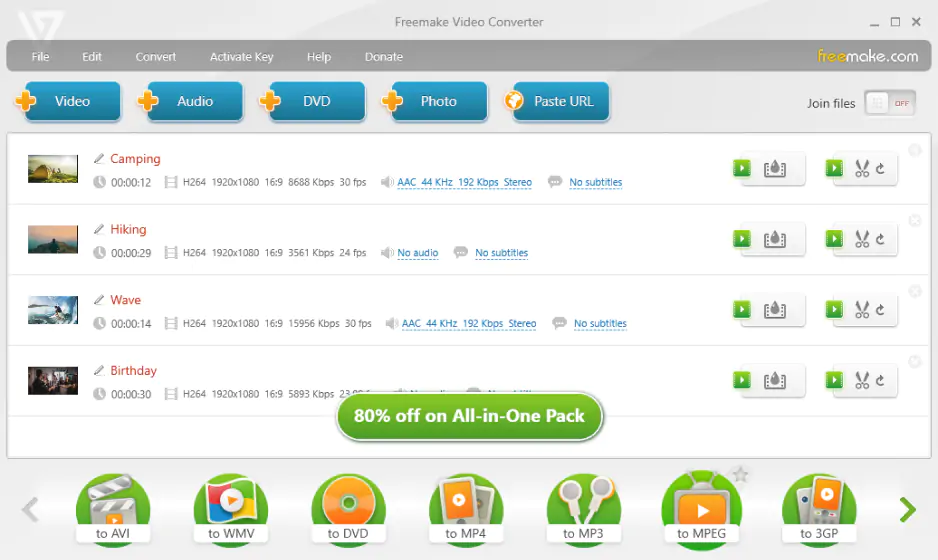
Why I picked it: simple workflow for occasional home use.

Freemake Video Converter keeps the experience simple, with a bright interface built around large, easy to spot buttons. The main actions stay visible, so importing a DVD and choosing a format feels quick and direct. It handles standard sources such as physical discs, VIDEO_TS folders, and ISO images without extra steps.

Presets are geared toward everyday devices rather than deep technical tweaking. Profiles for smartphones, tablets, consoles, and smart TVs are ready to go. After loading a disc, titles can be selected, audio tracks adjusted, and subtitles turned on before conversion begins. I tried it with an older DVD from my shelf, and trimming a few scenes while resizing the frame took only a minute.

Audio extraction is part of the toolkit, with soundtracks saved in formats like MP3. The latest update added support for AV1, VP9, and Opus for better compatibility with newer devices.

Ratings

Cons:
  • Free version adds watermarks and limits features unless paid

  • Conversion speed can be slower compared to modern tools

Why I picked it: combines DVD ripping with practical media tools.

Cisdem VideoPaw, formerly known as Cisdem Video Converter, combines DVD extraction with a broader set of media tools. It supports standard DVD sources and fits easily into projects where files need conversion, compression, or adjustment for different devices.

Output controls feel direct and practical. Resolution, codec, and bitrate can be adjusted before conversion starts, offering more control than a simple preset. In my test with a large movie file, reducing the size did not noticeably ruin image clarity. Compression settings help when storage space is limited, and subtitles can be enabled, disabled, or imported from external files without extra steps.

Editing tools are built into the same window. Trimming, cropping, merging clips, and basic visual tweaks can be handled without switching software. Audio tracks may be exported separately in formats such as MP3 or AAC. Hardware acceleration keeps longer conversions running at a steady pace without obvious slowdowns.

Pros:
  • Handles DVD and Blu-ray ripping, including protected discs

  • Supports many output formats and device presets

  • Includes editing, compression, and AI enhancement tools

Cons:
  • Trial version limits processing length on many features

  • Some advanced modules have separate limitations and are not fully free

Why I picked it: a straightforward free option for basic tasks.

Blu-ray Master Free DVD Ripper keeps things straightforward on Windows, with a layout that feels easy to follow. Load a disc or folder and the titles appear in a tidy list, chapters neatly arranged underneath. Picking a single episode or skipping bonus content takes only a moment, so there is no need to process the whole disc unless you want to.

The steps are simple: choose a format, adjust audio and subtitles, then fine tune settings if necessary. It also extracts audio tracks in MP3, AAC, or WAV, which comes in handy for saving a soundtrack on its own. When I tried it with an older TV series DVD, the structure was detected quickly and the episodes were clearly labeled.

A small video enhancement panel handles brightness tweaks and light noise reduction. Trimming, cropping black bars, rotating, or adding subtle effects can all be previewed in real time before starting the conversion.

Pros:
  • Fast DVD ripping speed with retained output quality

  • User-friendly and intuitive interface

  • Works well with both DVD discs and folders/ISO files

Cons:

Why I picked it: all-in-one media suite with strong DVD support.

Wondershare UniConverter handles DVD ripping as part of a much larger media toolkit, not a separate utility tucked away in a corner. On both Windows and macOS, disc conversion sits alongside compression tools, screen recording, and downloading features, all gathered in one interface that feels busy but organized.

When loading a DVD, titles, audio tracks, and subtitles can be selected before anything is processed. Compression settings allow noticeable file size reduction without turning the picture soft or washed out. I tested it with a full-length movie and managed to shrink the file enough for a tablet while keeping the image clean. GPU acceleration, when available, keeps longer conversions from dragging.

The program also moves beyond simple ripping. Clips can be trimmed or cropped, watermarks added, audio extracted, and finished files burned back to disc. Output supports up to 4K resolution. Version 17 adds AI Smart Format Recommendation, automatic chapter detection, and one-click AI enhancement for improving clarity and scaling.

Ratings

How to choose the best DVD-ripping software

I learned pretty quickly that the “best” DVD ripper depends on what kind of discs you’re dealing with and how patient you feel that day.

If you just want a movie on your laptop without overthinking it, Movavi Video Converter keeps things straightforward. Load the disc, choose MP4 or another format, and let it run. I used it to archive a few family DVDs when I had no patience for tweaking bitrate settings.

If you are the type who opens the settings panel on purpose, HandBrake may suit you better. It offers full control, but you need to understand the options. I managed to cut a few hundred megabytes by slightly lowering the bitrate, though it took some trial and error.

For commercial DVDs, especially newer ones, DVDFab DVD Ripper tends to save time. Some discs that refused to load elsewhere opened without much drama here. That alone can make the decision for you.

On a Mac, MacX DVD Ripper Pro feels more stable than most cross platform tools. It handled an old scratched movie from my shelf that other apps simply skipped.

And if you only convert a DVD once every few months, Freemake Video Converter is probably enough. The interface is simple, the presets are obvious, and you do not need a manual to figure it out.

In the end, it is less about which program has the longest feature list and more about how you like to work. Some people want control. Others just want the movie saved before dinner.

Movavi Video Converter
The ideal way to get your media in the format you need!
Movavi Video Converter

Frequently asked questions

Are DVD rippers illegal?

The software itself is not illegal. A DVD ripper simply converts what is on a disc into a digital file. The legal issue depends on what you copy and how you use it. In many places, making a personal backup for use on your computer falls into a gray area, especially if copy protection is involved. Problems usually begin when the file is shared or uploaded, which is typically a copyright violation. Because laws vary by country, it is wise to check local rules before digitizing your collection.

What is the fastest way to rip a DVD?

Speed depends more on settings than on the program name. In Movavi Video Converter, enabling hardware acceleration and SuperSpeed mode can noticeably reduce processing time. On my PC, turning on GPU acceleration shortened a full movie conversion enough that I stopped watching the progress bar.

Using preset profiles instead of manually adjusting bitrate and resolution also saves time. Standard formats like MP4 usually convert faster, especially if you avoid extreme compression. Enable acceleration, choose a sensible preset, and let the software handle the rest.

Can I rip a DVD I own?

Many people use tools like Movavi Video Converter, HandBrake, or DVDFab DVD Ripper to copy DVDs they legally purchased, mainly for backup or convenience. In some countries, making a private copy for personal use on your computer is tolerated, though the legal wording is not always clear. Copy protection adds complexity, as bypassing safeguards may be restricted even if you own the disc. Before converting your DVDs, check how copyright laws apply where you live.

How can I rip a DVD to my computer for free?

To avoid paying, you can try Movavi Video Converter’s free trial to test its DVD tools before upgrading. Install it, insert the disc, select the main title, choose a format like MP4, and start the conversion. The file will save directly to your computer. HandBrake is another free DVD ripper suitable for basic tasks with unprotected discs.

Free tools usually work better with non encrypted DVDs. If protection is involved, paid software may perform more reliably. Ripping does not download a movie from the internet. The program reads the data from the DVD in your drive, so the disc must stay inserted during conversion.

Have questions?
Have questions?
If you can’t find the answer to your question, please feel free to contact our Support Team.
Join us for discounts, editing tips, and content ideas

1.5M+ users already subscribed to our newsletter

By signing up, I agree to receive marketing emails from Movavi and agree to Movavi's Privacy Policy.