Best Video-Editing Software in 2026

Try Movavi Video Editor!

  • Trim, cut, crop, and rotate videos
  • Add titles, stickers, and transitions
  • Apply visual effects

By clicking the download button, you're downloading a trial version of the program.*

Edited by
Ben Jacklin
11073

Key takeaways

  • The guide compares several options often listed among the best free video-editing software: Movavi Video Editor, DaVinci Resolve, OpenShot, CapCut, and Kdenlive. Once a few clips and effects land on the timeline, their differences show up quickly.
  • Movavi Video Editor earns the spot of best free video editor for everyday projects. The timeline stays readable and the main tools remain easy to reach while editing.
  • Some editors keep things simple and suit first attempts at video editing. Others lean toward detailed work with color, sound, and effects.

While testing the best video-editing software available for free, I loaded the same messy set of clips into each editor: phone footage, a screen recording, and a bit of shaky outdoor video. Some handled the mix easily, others slowed down once the timeline started to fill up. That quick experiment revealed quite a lot about how these programs behave in real projects. A few stood out right away after this hands-on testing and earned a place among the best free video editors listed below.

My top picks

Best overall video-editing software: Movavi Video Editor
A clean timeline and a few smart AI tools help with subtitles, noise cleanup, and other routine edits.

Best video-editing software for beginners: OpenShot
Clips land on the timeline, transitions drop in easily, and the editing steps feel straightforward.

Best video-editing software for YouTube: CapCut
Quick cuts, automatic captions, and ready templates that match common YouTube video styles.

Best professional video-editing software: DaVinci Resolve
Full control over editing, color grading, visual effects, and audio in one professional workspace.

Best browser-based video editor: Clipchamp
Works directly in the browser with templates, quick trimming, and built-in screen recording.

Comparison table: Best professional video-editing software

Program

OS

Main advantages

Download

Windows, macOS

Beginner-friendly interface, AI tools (noise removal, subtitles, motion tracking), fast editing workflow

Windows, macOS, Linux

Professional color grading, advanced VFX and audio tools, powerful free version

Windows, macOS, Linux

Open-source editor, wide format support, multi-track timeline and 4K editing

Top 10 video editors

  • Why I picked it:

    clean interface, useful AI tools, and fast editing workflow for beginners.

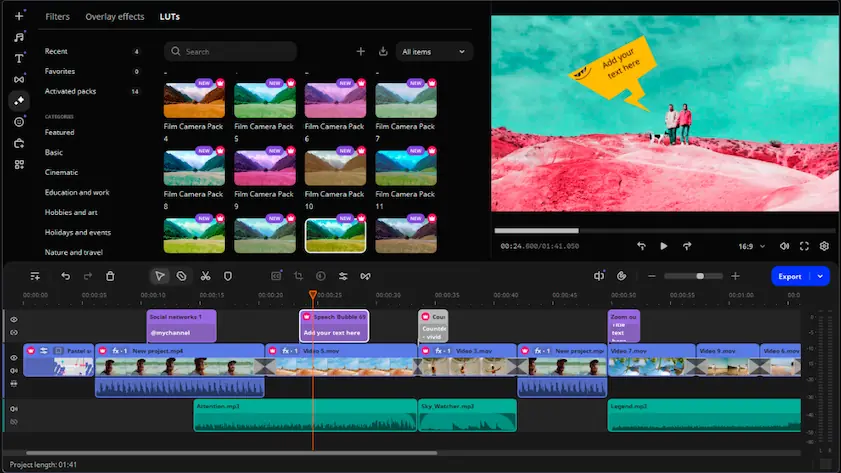
Movavi Video Editor keeps things simple but still leaves room to play. I liked how the timeline stayed clear even with several clips, transitions, and titles stacked together. AI tools can clean background noise, track movement in a shot, and generate automatic subtitles. It also handles a wide range of video formats, so clips from different devices opened on my PC without any fuss. A rich set of filters, overlays, and music tools help shape the final look. And the free trial makes it easy to see how it feels in practice.

The latest updates added auto tracked cropping that follows the main subject in the frame. They also introduced expanded motion controls for more precise object movement and animation.
Ratings

Pros:
Cons:
  • Free trial adds watermark to exports

  • Why I picked it:

    professional color grading and advanced tools available in a powerful free version.

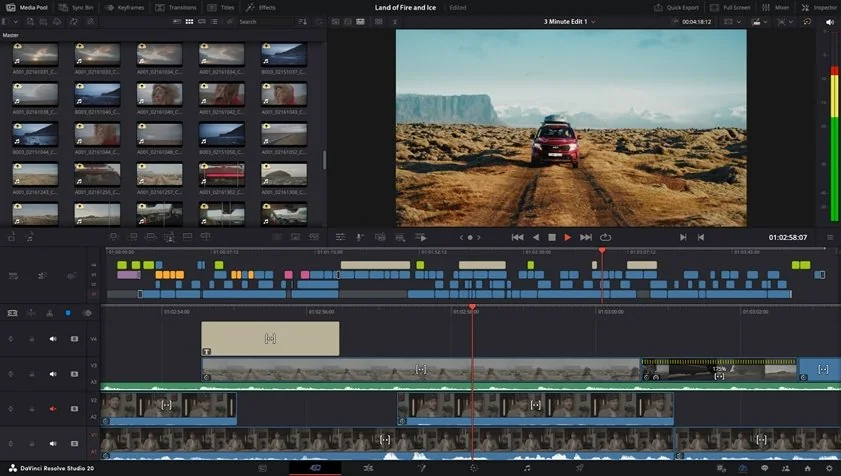
DaVinci Resolve offers a capable free version that already feels close to professional software. I especially liked the color-grading tools, which give you a lot of control over the look of each scene. The editor includes precise trimming tools, visual effects, and strong audio editing features in the Fairlight panel. It supports many professional video formats and high resolution footage. If you want to move beyond basic editing, this program gives you plenty to explore.

The latest version, DaVinci Resolve 20, introduces more than 100 new features, including AI IntelliScript for building timelines from a text script, AI Animated Subtitles that animate spoken words, and AI Multicam SmartSwitch that selects camera angles based on the speaker.

Ratings

Pros:
Cons:
  • Why I picked it:

    wide format support and responsive open-source editor with flexible timeline tools.

Shotcut is a free open-source video editor available for Windows, Mac, and Linux. When I tested it on my computer, the broad format support was the first thing I noticed. Different clips loaded onto the timeline right away and I could begin shaping the sequence. The editor includes multi track editing, color filters, text tools, and transitions. It also handles high resolution footage, including 4K. Audio filters and mixing tools help refine the final video before export.

The version 26.2.26 improves waveform performance in the timeline and keyframes panel, so editing feels more responsive. It also adds subtitle search and new text styling options such as underline and strikethrough.

Ratings

Pros:
Cons:
  • Why I picked it:

    simple drag-and-drop workflow with keyframe animation and creative effects.

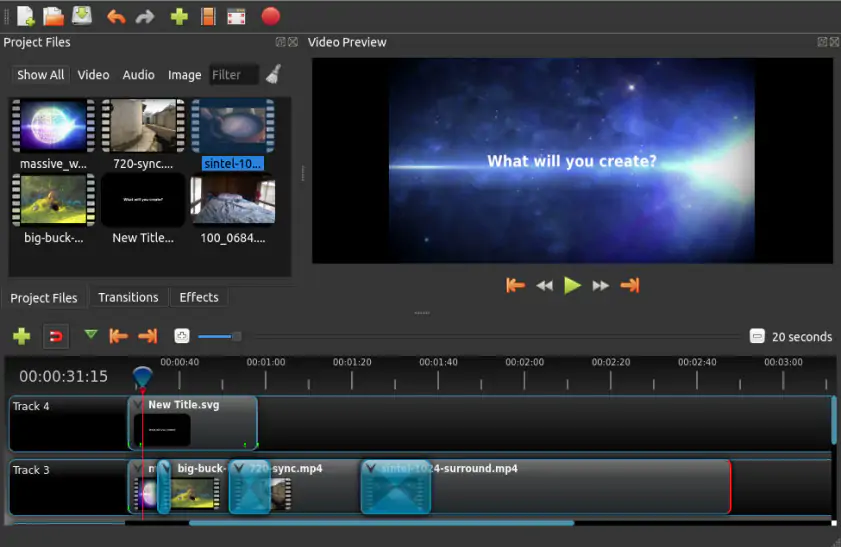
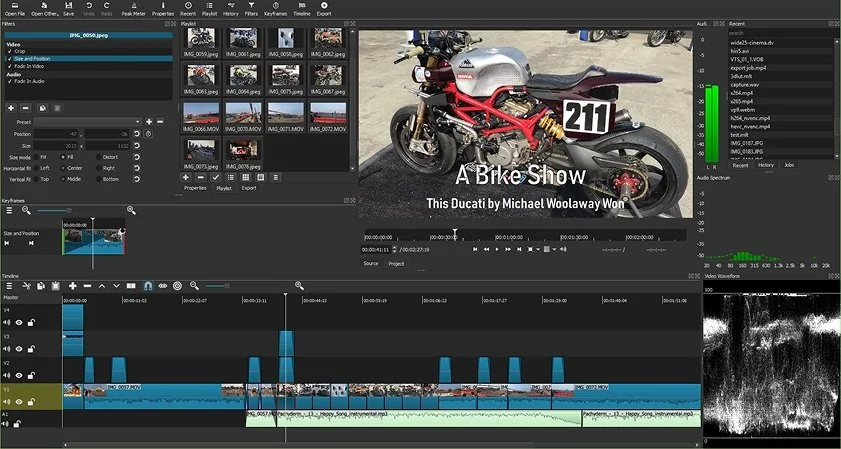
OpenShot is a free open-source video editor available for Windows, Mac, and Linux. I gave it a try and the drag and drop editing felt easy to grasp from the start. Video clips, images, and music land on the timeline and begin forming a sequence. The editor supports multiple tracks, transitions, animated titles, and visual effects. It works with many common formats and high resolution footage. Keyframe animation lets you adjust movement and visual changes across clips.

OpenShot 3.4 also brings a clear speed improvement during editing. The update adds new effects such as Sharpen, Color Map for LUT color grading, and Spherical Projection for converting 360° or fisheye video.

Ratings

Pros:
Cons:
  • Why I picked it:

    rich editing toolkit including masking, screen recording, and detailed control over effects.

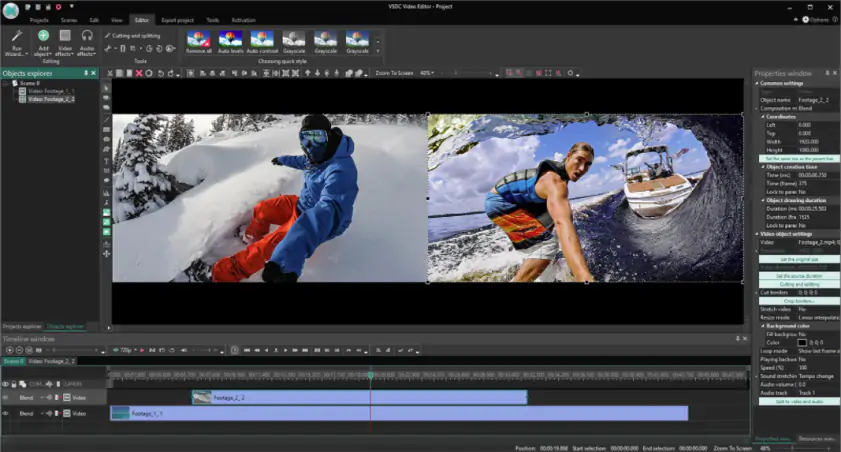
VSDC Free Video Editor offers a surprisingly deep toolset for a program that costs nothing. When I explored it on my laptop, the timeline handled layered clips, titles, and effects with solid control. The editor supports many video formats and works with high resolution footage. You get color correction filters, transitions, and masking tools for shaping scenes. Basic audio editing and screen recording are included as well. This gives you precise control when building more detailed edits.

The latest update improves color grading tools and introduces an upgraded text conversion feature. It also adds more than 100 background templates and a new Quick Access toolbar for faster editing.

Ratings

4.2

Pros:
  • Free editor with no watermark

  • Large library of effects and filters

  • Supports many video formats

Cons:
  • Interface can feel confusing for beginners

  • Some advanced tools require Pro version

  • Why I picked it:

    professional trimming tools and fast timeline built for precise editing.

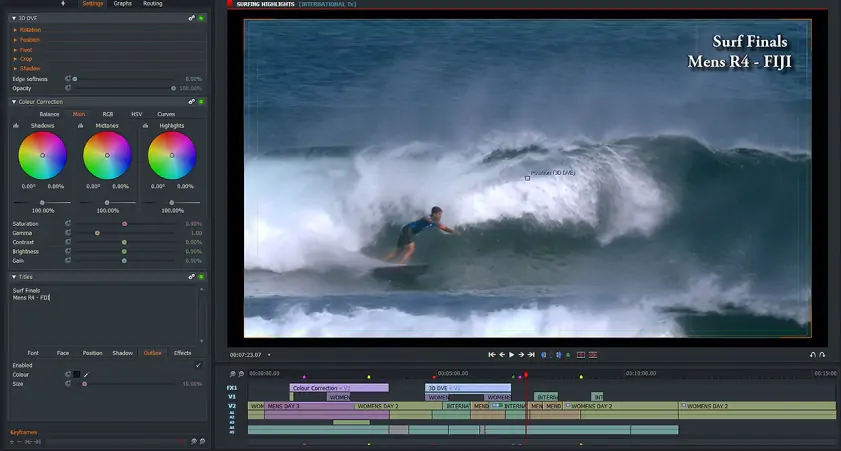
Lightworks offers a free version built around a fast, professional style timeline. I noticed right away how responsive the trimming tools felt when adjusting clip edges. The editor supports many video formats and works with high resolution footage. You can arrange several video and audio tracks, add effects, and adjust color directly on the timeline. The free version also includes export presets for quick sharing to platforms like YouTube.

One of the latest updates introduces new workspace layouts with a Unified Viewer. It also improves performance with a GPU accelerated playback engine.

Ratings

Pros:
Cons:
  • Why I picked it:

    easy browser editing with templates, screen recording, and useful AI tools.

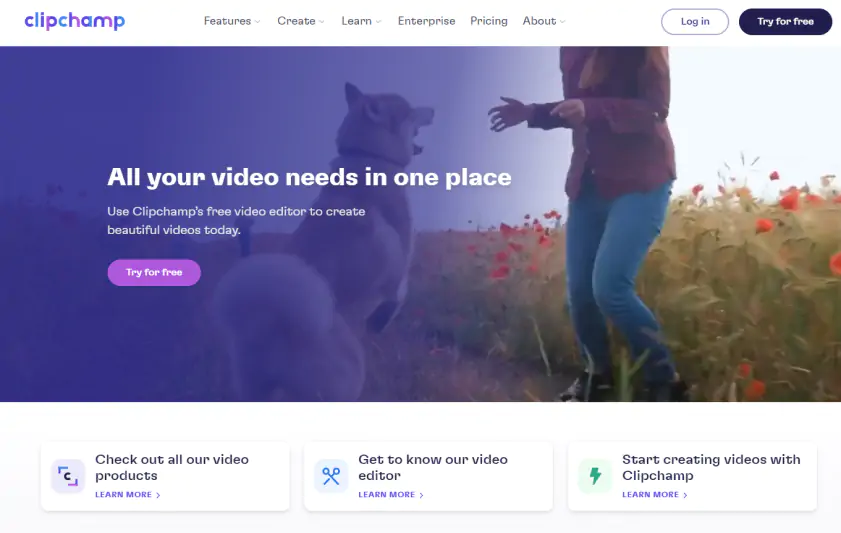
Clipchamp is a browser based video editor from Microsoft that runs directly online or inside Windows 11. I liked how quickly I could start a project using ready made templates for social media videos. The timeline supports trimming, text overlays, transitions, and filters. AI tools generate subtitles, voiceovers, and remove silent gaps. You can also record screen or webcam footage inside the editor and export videos in 1080p HD.

Recent updates add AI noise suppression to clean background audio and improve voice clarity. The editor also introduces MP3 audio only export and new tools like the video resizer and clip grouping for faster editing.

Ratings

Pros:
  • Easy to use interface for beginners

  • Ready-made templates

  • 1080p HD export available in the free version

Cons:
  • Why I picked it:

    strong AI features and templates designed for fast social media video creation.

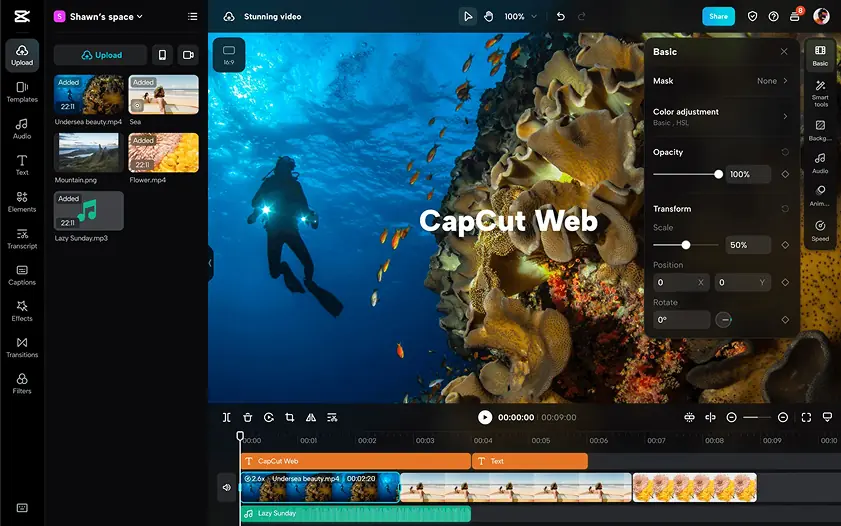
CapCut began as a mobile editor, yet now runs on desktop and in the browser too. The timeline feels quick to pick up. I trimmed a few clips, dropped in text, added transitions, and played with some effects. The app also brings AI tools for subtitles, voiceovers, and background noise cleanup. I tested the auto caption tool on a short clip and the subtitles appeared almost instantly. Those captions pair nicely with templates and trending effects aimed at social media videos.

The latest update raises export quality and now allows video export up to 4K resolution. It also adds new visual effects and filters, along with smoother timeline editing tools.

Ratings

Cons:
  • Performance issues on some devices

  • Why I picked it:

    polished Apple editor with trailer templates and smooth 4K editing.

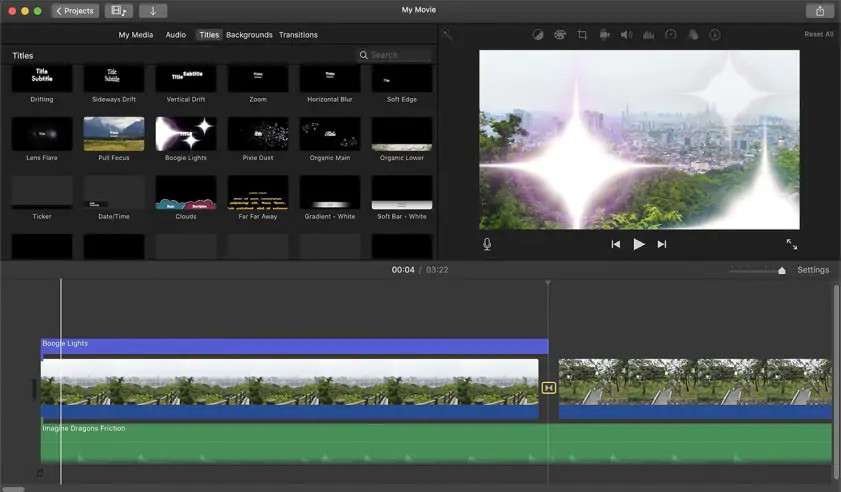
iMovie comes preinstalled on many Mac and iOS devices, so it is ready the moment you want to start editing. Built in themes, filters, titles, and soundtracks help shape the story. Storyboard templates guide the flow of a video and keep scenes organized. While exploring the tools, I especially liked the trailer templates that automatically build a cinematic structure with titles, timing, and music cues. The editor also supports high resolution projects and exports, including sharp 4K footage.

Ratings

Pros:
Cons:
  • Why I picked it:

    flexible open-source editor with proxy editing and powerful effect controls.

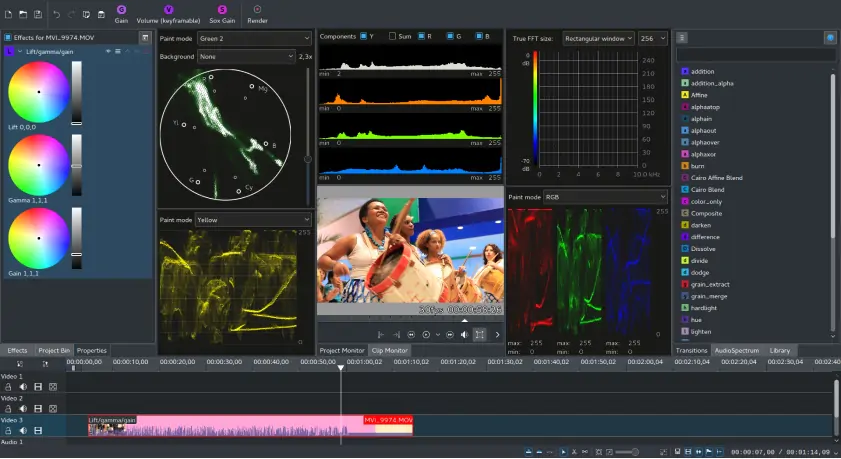
Kdenlive is a free open-source video editor that runs on Windows, Mac, and Linux. The interface feels flexible, with panels you can rearrange to fit your workflow. While exploring the tools, I especially liked the proxy editing feature that creates lighter preview files for smoother editing with large videos. The editor also supports many formats through FFmpeg. Multi-track editing, a built-in title editor, and a wide range of video and audio effects give you plenty of control when shaping a project.

Ratings

Pros:
  • Unlimited video and audio tracks

  • Works on Windows, macOS, and Linux

Cons:
  • Interface can be complex for beginners

How to choose the best free video editor

After running the same clips through several editors, the differences became obvious once the timeline started filling up.

Movavi Video Editor handles everyday projects comfortably. Even with several clips, titles, and effects on the timeline, the layout stays easy to follow and tools like subtitles or audio cleanup are easy to access.

OpenShot suits beginners. The timeline is simple, clips move around easily, and the basic steps of cutting and arranging video become clear after a few edits.

CapCut fits quick YouTube or social media videos. Captions appear automatically, templates are ready to use, and short clips can be assembled quickly.

DaVinci Resolve suits users who want deeper control. Color tools, visual effects, and audio panels allow detailed adjustments.

Kdenlive appeals to people who prefer open-source software. The interface can be rearranged, several tracks fit comfortably on the timeline, and the effects library is extensive.

Movavi Video Editor
Create awesome videos easily

*The free version of Movavi Video Editor may have the following restrictions depending on the build: watermark on exported clips, 60-second video or 1/2 audio length limit, and/or some advanced features unavailable when exporting videos.

Movavi Video Editor

Frequently asked questions

Which software is best for editing videos?

The answer usually depends on how complex the project becomes once clips start piling up on the timeline. For many everyday edits, Movavi Video Editor works comfortably. The layout stays easy to read, and tasks like trimming, adding titles, or adjusting sound happen without much searching through menus.

What do most YouTubers use to edit their videos?

Large YouTube channels often rely on editors like DaVinci Resolve, especially when color correction and sound adjustments need careful attention. Smaller channels sometimes choose simpler tools like CapCut. Movavi Video Editor appears here fairly often because the timeline is clear and assembling a video does not take long.

What is the best video editor for beginners?

New editors usually want software that reveals its logic quickly. Movavi Video Editor fits that approach well. After a few minutes on the timeline, cutting clips, adding text, or placing transitions starts to feel straightforward. The program is also simple to download, which helps beginners start editing without much setup.

What are the best free video-editing software options?

After testing several editors myself, a few programs stood out during regular editing tasks. Among the most capable options are:

  • Movavi Video Editor for its clear interface and practical tools for everyday editing
  • DaVinci Resolve for advanced color grading and professional-level features
  • OpenShot for beginners who want a simple drag-and-drop timeline
  • CapCut for quick YouTube or social media video creation
  • Kdenlive for open-source editing with flexible layouts and multi-track timelines
Have questions?
Have questions?
If you can’t find the answer to your question, please feel free to contact our Support Team.
Join us for discounts, editing tips, and content ideas

1.5M+ users already subscribed to our newsletter

By signing up, I agree to receive marketing emails from Movavi and agree to Movavi's Privacy Policy.