
Movavi Video Converter
The ideal way to get your media in the format you need!
How to Solve Videos Not Playing on Your Computer
If your computer won't play videos as expected, try converting the files to a different format.
Download and launch Movavi Video Converter.
Add your videos.
Select the output format.
Launch the conversion.
We’ve all been there. Something as simple as playing a video somehow goes wrong. I’ve run into this countless times on both Windows and macOS, and the good news is that almost every playback issue has a simple fix once you know what’s causing it.
Sometimes the video might be jittery or lose some of its quality. It can lose picture and retain audio (or vice versa). There are loads of potential issues and in a world of moving technology, there’s the possibility for hiccups.
Below, I break down the most common reasons videos fail and the practical steps I use to get them working again. It can mean repairing damaged clips or installing modern players and converting unsupported formats.

When selecting products to include in our reviews, we research both demand and popularity.
All the products covered in this article have been tested by our team.
When testing, we compare key characteristics, including supported input and output formats, quality loss when converting, and other significant features.
We study user reviews from popular review platforms and make use of this information when writing our product reviews.
We collect feedback from our users and analyze their opinions of Movavi software as well as products from other companies.
Errors you may encounter
There are quite a few different potential errors. When a video won’t open or even stops halfway, you’ll usually see symptoms like:
These issues occur with everything from old AVI files that people want to archive to high-bitrate 4K clips shot on iPhones or professional cameras. There are so many different types of files now generated on many different devices. We also see things like container files that may corrupt or cause other issues.
What to do if your computer won't play videos
If your videos suddenly stop playing, it can be frustrating. This is especially true when the files opened perfectly fine yesterday. I’ve run into this on both Windows and macOS: movies that won’t load after a system update or clips from an SD card that freeze halfway. There are even older formats that modern players simply don’t recognize. Sometimes the video is too new for your player to decode, other times it’s the opposite. There are some steps that make it much more straightforward to access the video again.
Way #1. Convert the videos to supported formats
The problem of your videos not playing on Mac or Windows could be a result of incompatibility issues. Your laptop may not have all the necessary infrastructure to play all video formats. It has the power to do it, but not necessarily the understanding of the way a format works.
One of the biggest reasons a clip won’t play is that your system doesn’t support the format or codec used in the file.
For example:
To fix this, converting the video into MP4 (H.264) is usually the fastest solution. It’s the most universally supported format across Windows, macOS, browsers, and mobile devices.
How to convert using Movavi Video Converter
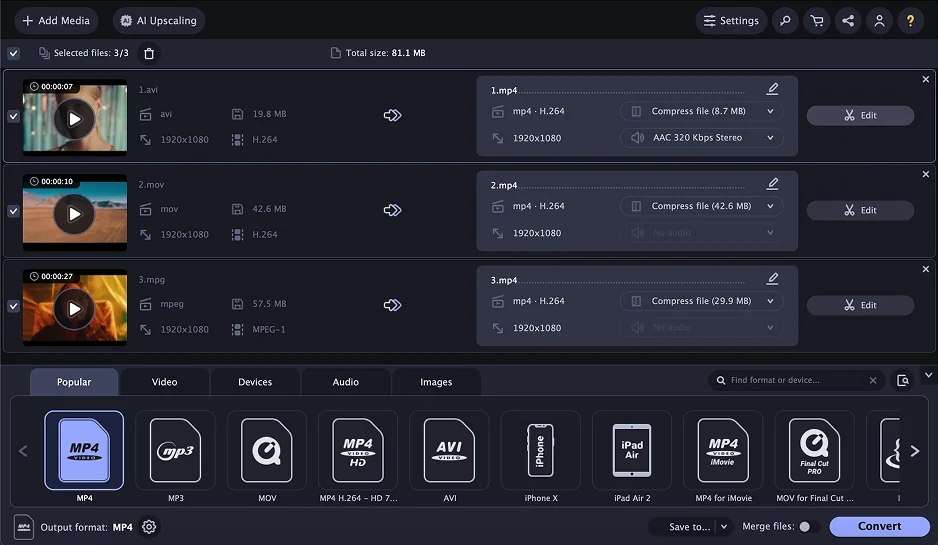
I often use this when a video plays only audio or won’t open at all. Conversion rewrites the file structure so even stubborn players can handle it. It might strip away some of the issues from container files.
Way #2. Repair corrupted video files
If a video freezes at a specific frame, plays with glitches, or doesn’t even open, the file itself may be corrupted. This can happen after:
There are so many different ways that this can happen. The more physical media (things like SD cards) that are written to, the more likely it becomes.
A reliable repair tool is 4DDiG File Repair, which supports MP4, MOV, M4V, MKV, AVI and others.
How to repair the video
There are numerous other tools out there including some online tools for file repair. These can come in very handy for fixing your files. Clever Online Video Repair is an example that can be done within the browser.
Way #3. Install new plugins
A video may refuse to play because the right codec isn’t installed. This is extremely common with older Windows systems and when mixing between Mac, Windows, and Linux file types.
A file like MP4 is only a container. Inside it, the video might be encoded with:
If your system doesn’t support the one used, the video won’t play.
The most stable codec pack today is K-Lite Codec Pack (2025 version). They’re compatible with Windows 7/8.x/10/11. Old versions also with XP/Vista.
It includes support for modern and legacy formats, and updates frequently.
To update Windows plugins:
Way #4. Ensure stable internet connection
If your computer won’t play videos on YouTube or other streaming sites, the problem may not be the video file at all. It’s often your connection or the platform’s regional restrictions.
A common issue I run into is clicking a video and seeing a message like “This video is not available in your country”. That usually means the uploader has placed geo-locks on the content. In those cases, a VPN can help by routing your connection through a different region. You don’t have to commit to an expensive subscription either as many VPNs offer trial periods or limited free tiers that work fine if you only need occasional access.
Remember that if you are downloading a file, dropped connections can result in issues or corrupted files.
If the video does load but endlessly buffers, drops to very low resolution, or pauses every few seconds, then your internet connection is the real culprit. Weak Wi-Fi signals can cause streaming platforms to lower quality or stop playback entirely. I’ve fixed this many times just by moving closer to the router or briefly restarting the internet. If you’re using a laptop, connecting an Ethernet cable often stabilizes things immediately and reduces the chance of data getting lost.
When videos on multiple sites suddenly stop working, try switching browsers or clearing your cache. Old cookies or cached data interfere with playback. If you’re on a workplace or hotel network, certain streaming platforms may simply be blocked.
Way #5. Install supported media player
Not all media players are built to handle the huge variety of video formats we use today. Some rely on outdated codecs, while others struggle with newer formats like HEVC (H.265), AV1, or high-bitrate 4K files. Older versions of Windows Media Player are especially limited and they can’t decode many common containers like MKV, MOV, or even some MP4 variants.
In situations like this, the easiest fix is to install a more capable player. VLC Media Player remains my go-to option for a lot of media purposes because it includes its own codec library and can handle nearly any format I throw at it.
Just make sure to download these programs from their official websites. There are plenty of fake “download mirrors” filled with malware disguised as media players. Sticking to reputable sources keeps your system safe.
If you’re trying to play a video from an iPhone or iPad on Windows, you may also need Apple’s HEVC Video Extensions or related plugins from the Microsoft Store. These add support for common iOS formats that older PCs can’t decode by default.
Way #6. Replace the optical drive
This can sometimes be an extreme example of fixing the problem. If your video files are on a DVD or VCD and won’t play, the problem might come from the disc itself rather than your computer. Before assuming your drive has failed, I always start by checking the disc surface under good light. Dirt or scratches can stop a disc from spinning or reading properly. Cleaning the disc gently with a microfiber cloth is sometimes all it takes.
Next, test the disc in another computer. If it also refuses to play there, the disc is likely damaged beyond repair. But if it works fine elsewhere, then your optical drive is the issue.
Optical drives wear out over time, and especially slim laptop drives. Motors weaken, lasers lose precision. Sometimes even the tray becomes misaligned. When that happens, the only real fix is replacement. Before buying a new drive, check your laptop manual or manufacturer’s site to confirm compatibility. Many modern laptops no longer include internal drive support, so an external USB DVD drive may be the easier solution.
Way #7. Update drivers
Sometimes videos won’t play or they play without sound, stutter heavily, or drop frames because your system drivers are outdated. Drivers are small programs that help your hardware communicate with your operating system. When they fall behind, video decoding can break, especially for modern formats like HEVC or AV1.
On Windows, updating drivers through Windows Update is still the simplest approach:
For macOS, updates are handled through the App Store:
Avoid pressing Upgrade, unless you want a full OS version change. Upgrades may introduce new driver requirements.
It can be a big relief when a simple driver update fixes your issues.
Frequently asked questions
Videos usually fail to play because of unsupported formats, missing codecs, corrupted files, or issues with your internet connection. Sometimes the video is too old or too new for your media player to decode properly. In other cases, the file was damaged during download or transfer.
Your computer may not play videos if the media player doesn’t support the file’s codec, your drivers are outdated. It is also possible that the clip is corrupted. I also see this happen after system updates or when the hardware acceleration settings change. Installing a modern player like VLC or converting the file to MP4 often fixes the issue immediately.
If an MP4 won’t open, I usually start by checking it in VLC. If it still fails, the file is likely corrupted. In that case, repairing it with a tool like 4DDiG or converting it to a fresh MP4 version with a converter often restores playback. Also make sure your system’s graphics and audio drivers are up to date.



1.5M+ users already subscribed to our newsletter