9 Best Voiceover Software for PC and Mac in 2026

Movavi Video Editor
  • Trim, cut, crop, and rotate videos
  • Add titles, stickers, and transitions
  • Apply visual effects

By clicking the download button, you're downloading a trial version of the program.*

Edited by
Ben Jacklin
4,898

Movavi Video Editor lets you record your own narration straight onto the Timeline. If you vlog, teach or make product demos, you can record your narration right on the Timeline and clean it up in one click. Clipchamp adds free AI text-to-speech inside Windows, VEED and Canva turn a script into a spoken track in a few clicks, and DaVinci Resolve gives you a full audio studio for mixing it all. The picks below are the best voiceover software for PC and Mac in 2026 – video editing software with real, built-in ways to record or generate a voiceover, not standalone recording booths, so narration, cuts, music, and subtitles stay in one program.

Key takeaways

  • Movavi Video Editor: easiest to record your own voiceover, with one-click AI noise removal.
  • Clipchamp: free AI text-to-speech voiceover, built into Windows, no credits.
  • VEED and Canva: generate an AI voice from a script; VEED adds voice cloning.
  • DaVinci Resolve: frame-accurate audio mixing via its Fairlight module.
  • Descript: edit a voiceover by editing the transcript.

How we picked

We compared these picks on what matters for adding a voiceover to a video: how narration gets into the project (record your own mic, or generate one from text), whether the tool cleans up or balances audio automatically, platform support for PC and Mac, what the free version actually exports, and how steep the learning curve is if you're not an audio engineer.

Quick comparison

Software

Best for

Platforms

Free version

Starting price

Recording and cleaning up your own narration

Windows 10/11, macOS 12+

Yes, export limits apply

$19.95/month

AI voiceover in a TikTok-style workflow

Desktop, web, mobile

Yes, watermarked on Pro content

$9.99/month

AI-assisted voiceover cleanup and reframing

Windows, Mac

Yes, always watermarked

$19.99/month

Best for: Beginners who want to record their own voiceover and clean it up without learning audio software.

Why we picked it: Movavi Video Editor is an intuitive video editor with customizable video templates, one-click AI tools, and hundreds of drag-and-drop effects. It's a desktop app for Windows and macOS. You record narration straight from a connected microphone onto the Timeline, next to the clip it belongs to, so it stays next to the clip it belongs to – and AI Audio Noise Removal clears traffic, wind and hums in one click, so your voice stays clear.

Key features:

  • Microphone recording straight onto the Timeline, synced to the footage as you record.
  • AI Audio Noise Removal clears traffic, wind, and hums in one click across high, mid, and low frequencies while keeping your voice clear.
  • Volume curves let you lower the music under your voice and bring it back up, with as many control points as you need.
  • Movavi Video Templates is a multi-style library of customizable, pro-looking, modular templates for any kind of video. Several templates come with the full version at no extra charge, and the Movavi Templates subscription unlocks the whole library. Each template is built from Blocks, short pre-edited parts where you drop in your own videos, photos and text. You can reorder, add or remove Blocks.
Pros:
  • Intuitive interface: most tools work in a single click, and Movavi Ideas adds free step-by-step tutorials with new ideas every week.

  • Good value for the price, and it won't overload a low-end PC.

  • Hundreds of drag-and-drop effects and titles, plus copyright-free music and sounds.

Cons:
  • Lacks advanced, detailed controls for a professional audio workflow.

  • No flexible UI customization.

  • No web version or cloud integration – Windows and macOS desktop only.

Price and platforms: Windows 10/11 (64-bit) and macOS 12.0+, with native Apple M1/ARM support. Free version available, export limits apply. The full version unlocks AI tools and effects with no watermark, starts at $19.95/month.

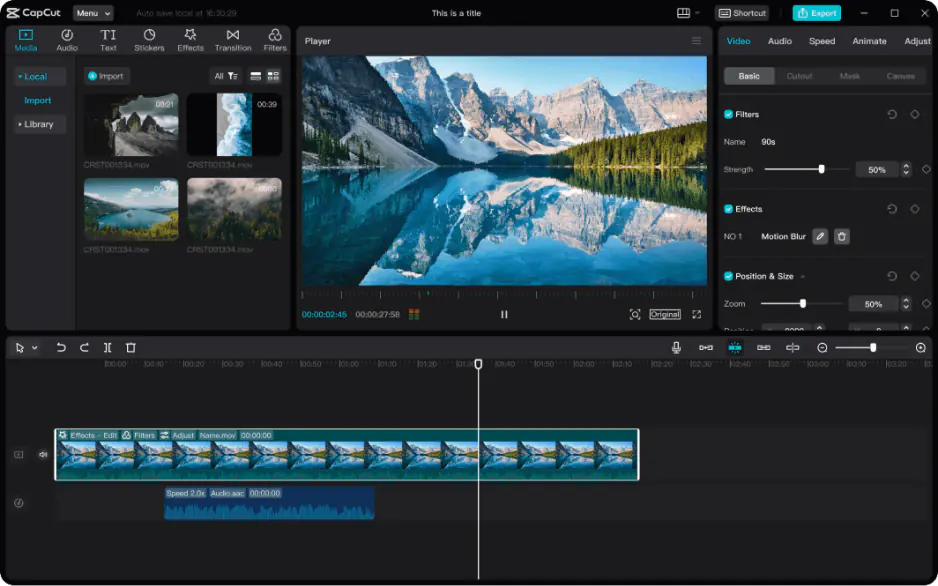
Best for: Short vertical-content creators who want AI voiceover built into a TikTok-style workflow.

Why we picked it: CapCut is a mobile-first editor for short, trending videos built around the TikTok ecosystem, with AI voiceover available through its wider AI toolkit.

Key features:

  • AI voiceover generation through CapCut's credit-based AI toolkit.
  • Auto subtitles with translation and a choice of styles.
  • Subject-tracked auto-cropping for switching a horizontal clip to vertical.
  • A large library of trending templates and effects for TikTok, Reels, and Shorts.
Pros:
  • Very fast, simple editing for short vertical content with a minimal barrier to entry.

  • Strong AI tools: auto subtitles, subject-tracked cropping, automatic pause removal.

Cons:
  • Growing paywalls – previously free effects and templates increasingly get marked Pro.

  • Some users flag privacy concerns about how face and voice data are used.

Price and platforms: Desktop, web, and mobile apps. Free plan available (1080p, watermark on Pro content or AI clips). Standard and Pro plans add 4K and the full AI toolkit, starts at $9.99/month.

Best for: Creators who want AI-assisted voiceover cleanup without a professional editor's learning curve.

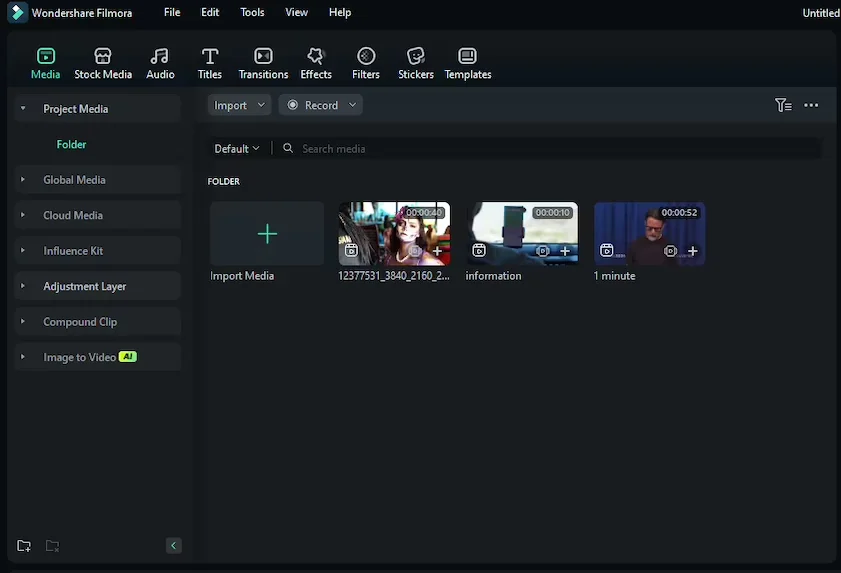
Why we picked it: Filmora is an AI-powered video editor for serious content production that processes and enhances audio with AI, without complex manual settings.

Key features:

  • AI audio enhancement and noise removal, without manual settings.
  • Automatic pause and silence removal through AI Smart Cutout.
  • AI auto-reframe (Smart Short Clips) for resizing footage to vertical formats.
  • Ready-made templates and effects, with premium assets behind a separate subscription.
Pros:
  • Strong AI tools that save time on cleanup and reframing.

  • Simpler to pick up than professional editing software.

Cons:
  • Growing paywalls – previously free effects and templates increasingly require a subscription.

  • Some advanced features are unfinished(animations, shortcuts, or elements that don't fully work).

Price and platforms: Windows and Mac; doesn't require powerful hardware, though AI features run on credits. Free plan is always watermarked. Basic removes the watermark without AI, and Advanced adds AI, starts at $19.99/month.

Best for: Anyone who wants full manual control over voiceover levels and mixing.

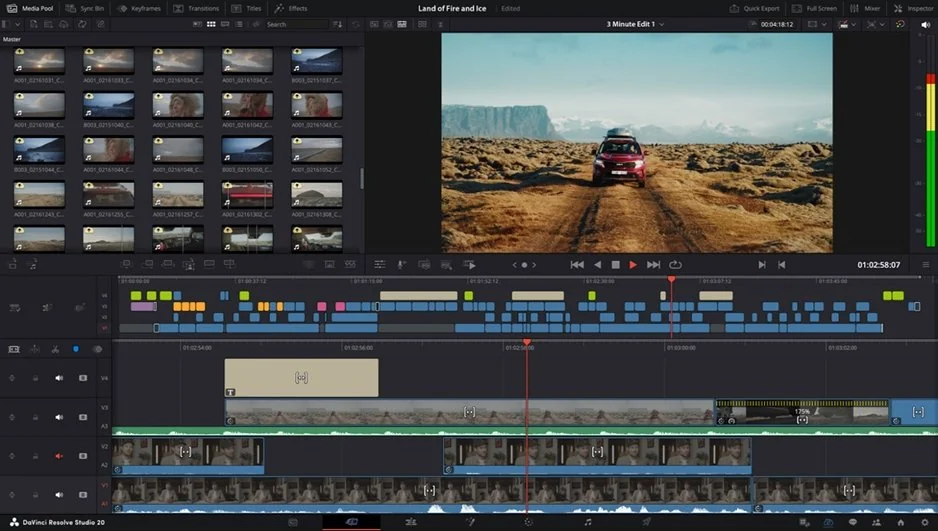
Why we picked it: DaVinci Resolve is a powerful professional tool for editing, color, audio, and VFX, with Fairlight – a full audio studio for mixing a voiceover against music and effects.

Key features:

  • Fairlight, a dedicated audio module with professional mixing tools.
  • Frame-accurate timecode for lining narration up to the exact frame.
  • Manual color and VFX tools (Fusion) alongside the audio workflow.
  • A one-time purchase for the Studio version – no subscription.
Pros:
  • Considered professional-grade for free, with nearly all editing, color, audio, and VFX tools unlocked.

  • Fast and reliable once learned, handling 4K 10-bit HDR on capable hardware.

Cons:
  • Built for full manual control, so it takes longer to learn than a one-click tool.

  • No automatic AI pause removal in the free version.

Price and platforms: Windows, Mac, and Linux; resource-intensive, powerful hardware recommended. Free version with no watermark or time limit. DaVinci Resolve Studio is a one-time purchase for the full toolkit at $295.

5. VEED

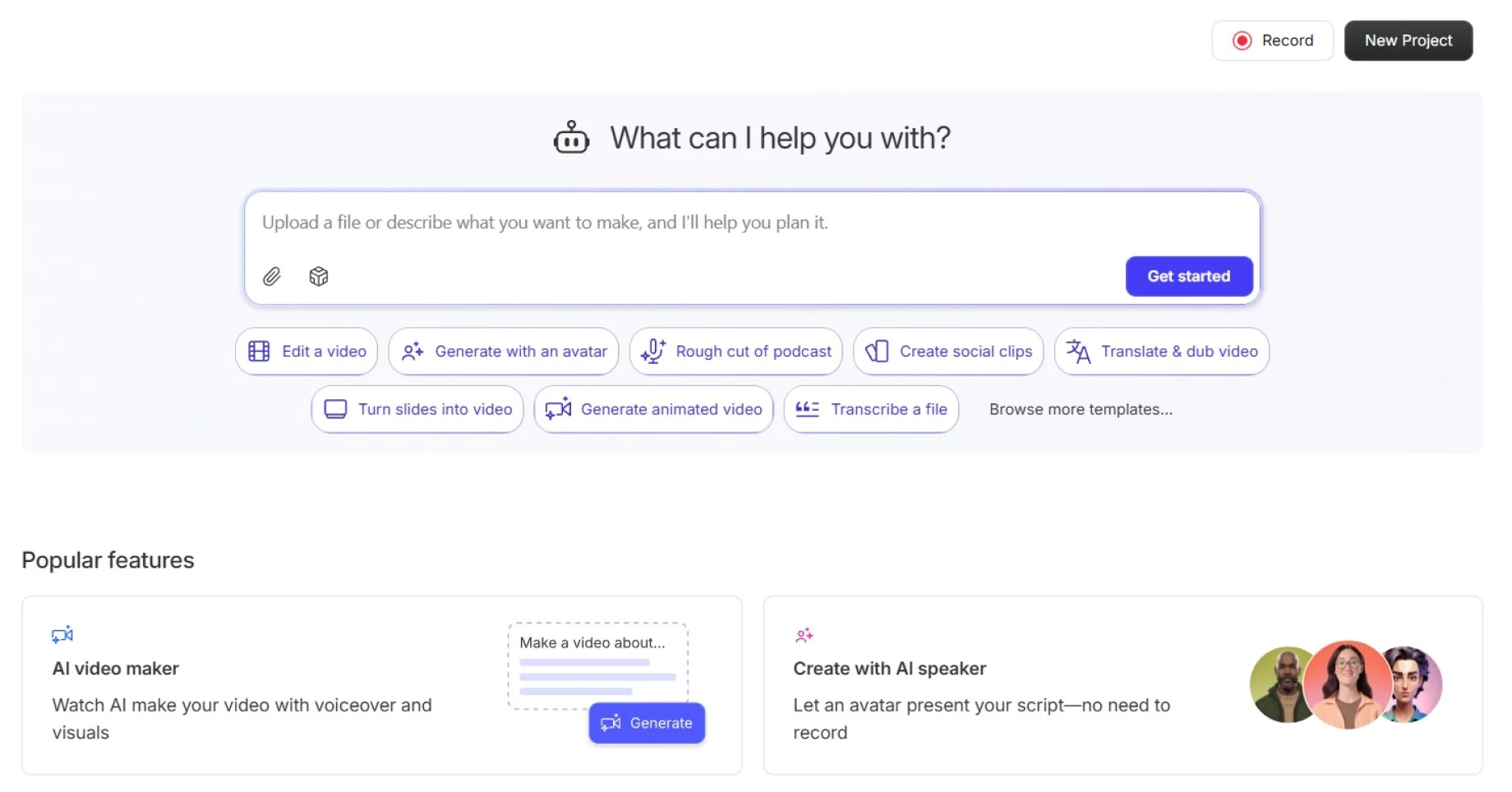
Best for: Teams that want AI voiceover and voice cloning without installing software.

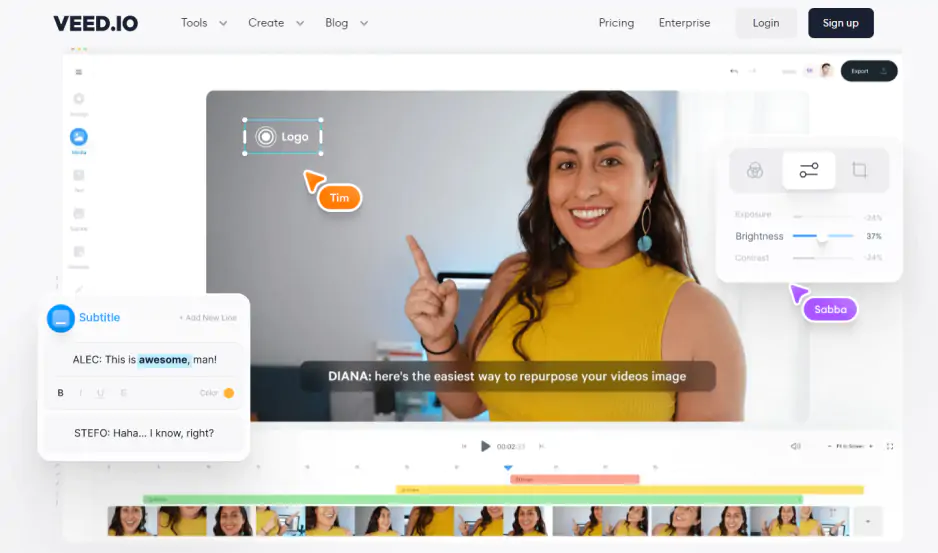
Why we picked it: VEED is a browser-based AI editor for team collaboration and business content, and one of the few picks here with AI voiceover and voice cloning built in.

Key features:

  • AI voiceover and voice cloning, generated from a script.
  • Clean Audio, a one-click background-noise cleanup built for talking-head videos.
  • Remove Silences, which automatically cuts pauses and filler words.
  • Auto subtitles with translation and style choices.
Pros:
  • A simple browser interface – nothing to install.

  • Clean Audio and Remove Silences save real time on talking-head videos.

Cons:
  • Lag, buffering, and export failures on long or heavy projects.

  • AI credits run out quickly, and the features you need are often on pricier plans.

Price and platforms: Browser-based, plus a mobile app; needs a stable internet connection. Free plan caps exports and AI minutes. Paid plans add AI credits, billed per user, starts at $10/month.

Best for: Windows users who want free AI text-to-speech voiceover at no extra cost.

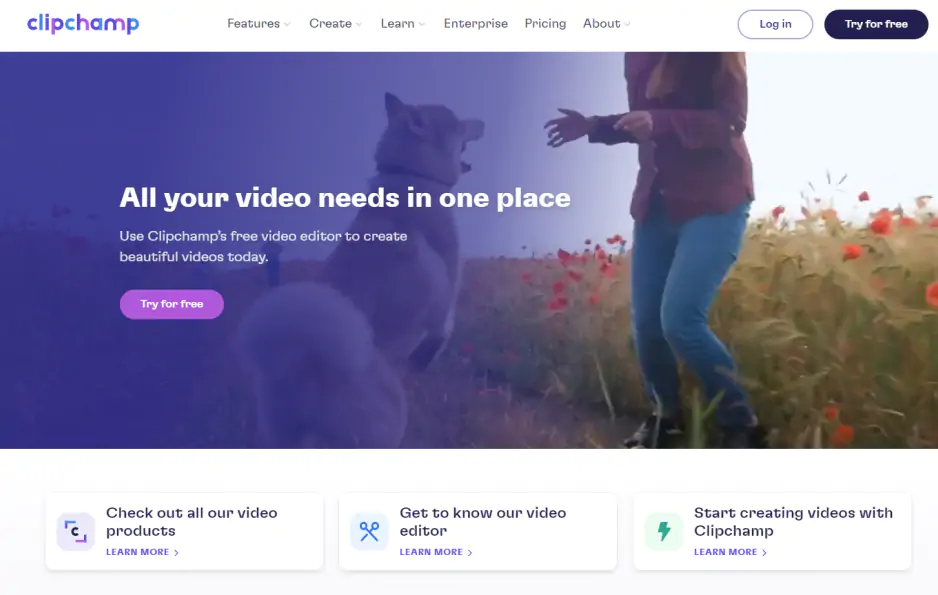
Why we picked it: Clipchamp is Microsoft's browser-based editor, built into Windows 11 and Microsoft 365, and it's the only pick here where every AI feature – including AI voiceover generated from text – is free, with no credit system.

Key features:

  • AI voiceover generated from typed text.
  • AI noise reduction for cleaning up recorded audio.
  • A simple multitrack timeline with screen and webcam recording.
  • A built-in stock library of royalty-free music, backgrounds, and clips.
Pros:
  • Free and watermark-free, already built into Windows.

  • Free auto subtitles, voiceover, and noise reduction, with no credit system.

Cons:
  • Slows down on large files, and exports can freeze near the end.

  • 4K and premium stock content require a Premium subscription.

Price and platforms: Browser (Edge/Chrome), plus a native Windows 11 app and an iOS app; works on Mac through the browser. Free plan with no watermark. Premium unlocks 4K and premium stock, included with some Microsoft 365 plans, starts at $11.99/month.

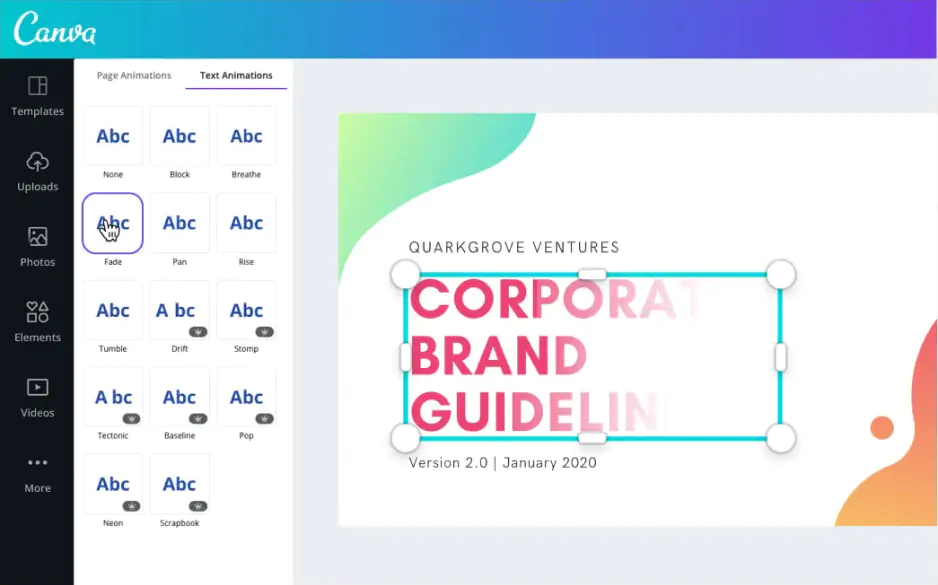
Best for: Social-first creators who want an AI voiceover inside a template-driven design tool.

Why we picked it: Canva is a graphic design builder with video as an additional format, and its AI voiceover generated from text sits alongside Enhance Voice, a built-in cleanup tool.

Key features:

  • AI voiceover generated from text, built into the video editor.
  • Enhance Voice, a one-click background-noise cleanup for recorded audio.
  • Magic Studio tools for auto-trim and highlight detection.
  • A large library of design templates with video inserts.
Pros:
  • Very easy to build a good-looking video from a template.

  • Convenient for teams already using Canva for other design work.

Cons:
  • Weaker as a dedicated video editor – limited control over the timeline, audio, and color.

  • The best elements and AI features are reserved for Pro.

Price and platforms: Browser, plus desktop and mobile apps. Free plan with limited AI and premium content. Pro and Teams plans add higher AI limits, starting at $15/month.

Best for: Podcasters and talking-head creators who'd rather edit a voiceover by editing text.

Why we picked it: Descript is a text-based, transcript-driven editor for podcasts and talking-head videos. Instead of scrubbing a waveform, you cut or rewrite the voiceover by editing the transcript itself, with filler-word removal built in.

Key features:

  • Transcript-based editing: delete a word in the text, and the audio cuts with it.
  • Filler-word removal, to clean up "um"s and "uh"s automatically.
  • AI voice features built for speech, including voice cloning.
  • A free collection of podcasting guides through the Descript Community.
Pros:
  • Built specifically around voice and speech, not visual effects.

  • Voice cloning and transcript-based editing make narration cleanup fast for talking-head formats.

Cons:
  • Minimal visual effects, transitions, and color correction – not the product's focus.

  • Serves a narrower audience than a full video editor: podcasters and talking-head creators specifically.

Price and platforms: Free plan is limited by transcription hours, with a watermark. Paid plans remove the watermark and add transcription hours and AI credits, starting at $16/month.

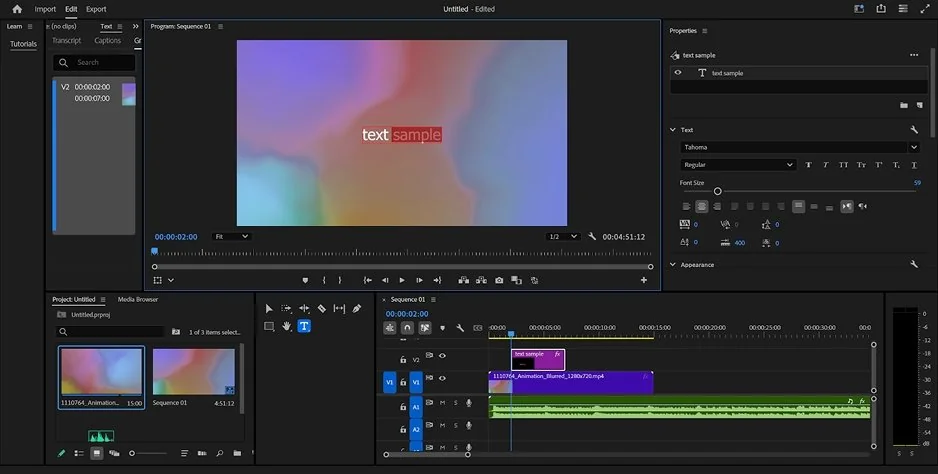
Best for: Studios and professional editors who want a full audio workflow alongside color, VFX, and multicam editing.

Why we picked it: Adobe® Premiere® Pro is the industry standard for professional video editing, with a full toolkit for multicam editing, color correction, and VFX plugins.

Key features:

  • A full professional toolkit: multicam editing, advanced color correction, VFX plugin integration.
  • AI tools (Adobe® Sensei®/Firefly®) built into the program's broader editing workflow.
  • Adobe® Stock® integration for additional stock audio and video, on a paid basis.
Pros:
  • The recognized standard for people who edit video for a living.

  • A full professional toolkit for complex, multicam, multi-track projects.

Cons:
  • Built for professional editors and colorists rather than everyday users, with a steeper learning curve.

  • No weekly ideas hub for new creators, only Adobe®'s own reference materials.

Price and platforms: 7-day free trial, then billed monthly, annually, or via Creative Cloud® Pro. Starts at $22.99/month.

How to add voice over to video

Here's the basic workflow in Movavi Video Editor – it works the same whether you're narrating a travel vlog, a classroom lesson, or a product demo for work.

  1. Add your footage to the Timeline. Bring your clips into Movavi Video Editor by clicking Add Files and arrange them in order.
  2. Record your narration. With a microphone connected, click Record audio to add an audiotrack and record your voiceover directly onto the Timeline, next to the clip it narrates.
  3. Clean up the audio. Run AI Noise removal to clear background hums, wind, or traffic in one click.
  4. Balance voice and music. Add a volume curve to lower the music under your voice.
  5. Use a Template if you want a head start. Movavi's built-in Templates, built from swappable Blocks, can hold your narration and footage in a ready-made structure instead of a blank Timeline.
  6. Export. Save your finished video as MP4, MOV, MKV, or AVI once the voiceover and footage are synced.

A lifestyle vlogger can narrate a travel montage and let noise removal handle the wind on a phone mic; a teacher can record over a lecture recap and let volume curves keep their voice above the background track; someone building a product demo at work can record straight over a screen recording.

How to choose

  • Want to record your own voice and keep editing in one program? – Movavi Video Editor
  • Already live inside the CapCut/TikTok ecosystem? – CapCut
  • Need professional, frame-accurate audio mixing? – DaVinci Resolve
  • Want free AI text-to-speech with no extra account or credits? – Clipchamp
  • Running a team that needs voice cloning for business video? – VEED
  • Already building everything in Canva? – Canva
  • Editing a podcast or talking-head video by transcript? – Descript
  • Want AI reframing bundled with voiceover cleanup? – Filmora
Movavi Video Editor
Create awesome videos easily

*The free version of Movavi Video Editor may have the following restrictions depending on the build: watermark on exported clips, 60-second video or 1/2 audio length limit, and/or some advanced features unavailable when exporting videos.

Frequently asked questions

What's the easiest way to add a voiceover to a video for beginners?

Record directly onto the Timeline in a program like Movavi Video Editor, then run an automatic noise-removal tool before touching manual audio settings – most beginners don't need an equalizer for a first video.

Can I generate an AI voice instead of recording my own?

Yes – Clipchamp, VEED, and Canva all turn typed text into a spoken voiceover, and VEED adds voice cloning if you want the AI version to sound like you.

Which of these work on both Windows and Mac?

Movavi Video Editor, Filmora, and DaVinci Resolve are native Windows and Mac desktop apps. CapCut, VEED, Clipchamp, and Canva work through a browser or an app that also covers Mac.

Do I need a separate app to clean up background noise?

Not with most of these – Movavi, Filmora, VEED, Clipchamp, and Canva all include one-click AI noise removal or an equivalent tool, so routine hum or traffic noise doesn't need a dedicated audio editor.

What file formats can I export my finished voiceover video in?

Most of these editors, including Movavi Video Editor, export to common formats like MP4, MOV, MKV, and AVI. These formats work for the most popular platforms. Check each platform’s upload requirements.

Have questions?
If you can’t find the answer to your question, please feel free to contact our Support Team.
Join us for discounts, editing tips, and content ideas

1.5M+ users already subscribed to our newsletter

By signing up, I agree to receive marketing emails from Movavi and agree to Movavi's Privacy Policy.